Tag: safety

  • Amazon for Teens will Teach Your Kids to Shop with Them

    Amazon for Teens will Teach Your Kids to Shop with Them

    Amazon has launched a new service that will allow you to set up a dedicated login for your teenager so that they can shop on the Amazon app. The goal is, first of all, to give parents a way to allow their kids more freedom to shop for things they’d like online while providing some realistic boundaries. It’s most likely, also, a great way to get your kid used to just buying whatever they need on the Amazon app.

    Amazon for Teens will allow your children to shop on the Amazon app and make purchases for themselves. You have the option to allow them to shop for whatever they’d like with a budget that you set or ask permission for every item they select to buy. If you choose the budget option you will have access to their purchase history and be able to cancel a purchase or request a return. So far there is no way to have teens use their own money within your family account. Currently, all shopping is done with a shared credit/bank card.

    The service is available to set up for your kids’ ages 13-17. They’ll be able to select whatever items they’d like to purchase and attach a note for you. You will be notified when they’ve made a purchase and you have 30 minutes to cancel the order if you don’t approve. Of course, if you’ve set it up to ask permission you’ll be able to approve or deny the order before it’s completed. Also, the default privacy settings will hide parent’s purchase history and credit card information.

    What Parents Should Know

    Amazon.com/teen is a way for Amazon to introduce your teen to their shopping app. For some, this may seem like a great way to teach your kids about finances and shopping. For others, there’s an obvious stench of commercialism and consumerism. If you’re so inclined, Amazon Prime for Teens seems to have a pretty good handle on what parents need to feel confident that their teens can shop on their own. In fact, they claim they used focus groups of parents in order to help them create the service.

    I say that if you’re going to use this service, be sure to keep the default settings to not allow your credit card and purchase info to be shared. I also think it will be even better when you’re able to set an Amazon Prime exclusive allowance for them to use with this service. Boundaries are the key to allowing your teenager to have independence while keeping them safe from their inability to make quality and safe decisions. Amazon for Teens could provide the exact boundaries you’re looking for to keep from having to order those new boots for the coming fall weather while making sure she orders the ones that are on sale.

  • Internet Safety Training in Your Home

    Internet Safety Training in Your Home

    I approached the mother of a family we have been friends with for a while and asked if she would be willing to host one of our first Digital Boundaries Workshops. She immediately began to tear up and say absolutely yes. I was thrilled but concerned and confused by her tears. She confessed that, while we had discussed setting up internet safety solutions in her home nearly a year earlier, we had never made the scheduling work and she felt horrible. Especially because her son, who was in third grade, had just been caught searching for information on some very adult topics online. A younger child on the school bus had told him what he should search for and curiosity immediately took over. “We need to do something as soon as possible.” she said, “I wish we hadn’t waited, I hope it’s not too late.” We did a workshop for her just a couple weeks later.

    This response is all too common. Our work for families gets far more attention from parents who’ve been through some kind of related struggle than those who want to set up preventative measures to keep their family from such a story becoming their reality. Our children are being called digital natives by psychologists. This is a label that identifies them as a generation that’s so used to technology, it’s like it’s their native tongue. If you’ve spent any time with a young child or teen you’ve probably been impressed with their ability to maneuver digital devices. It’s hard for parents to keep up. It’s even harder if you’re an older parent or a grandparent who feels left behind by the online world. My “Setting Digital Boundaries” living room workshop is an easy way to get some training that will set you on the path towards understanding the digital world your kids are growing up in. Starting next month (August 2017) these workshops will be available both live and through skype.

    What Happens at a Workshop?

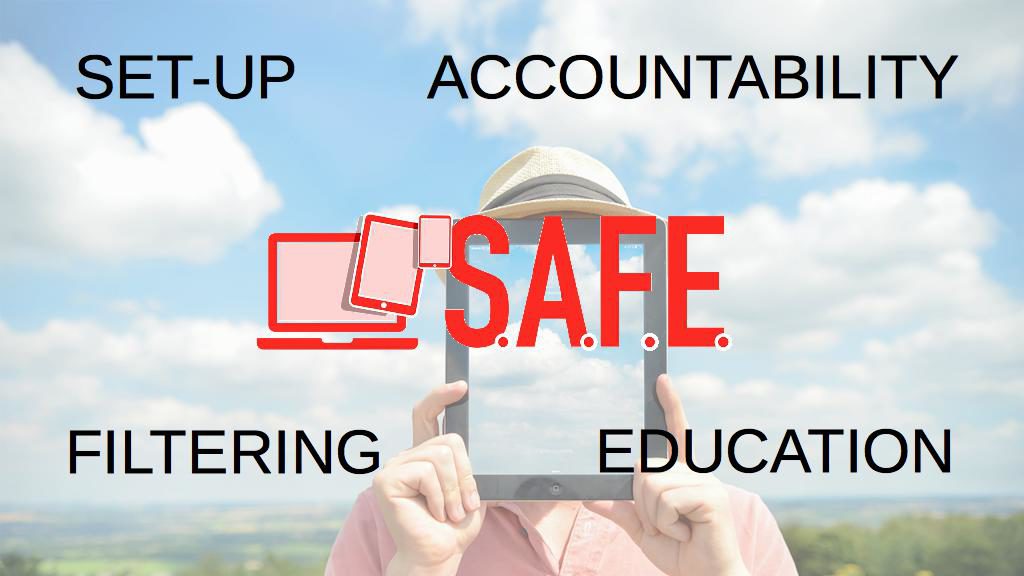
    I jokingly tell people that our Setting Digital Boundaries Workshop is like a Mary Kay party. You invite your friends over and serve up some snacks. After everyone has had some time to arrive and say hello we begin the presentation. Instead of selling you make up I’ll be teaching you and your friends how to protect your children online. After updating you on some of the latest dangers and threats available to your kids online I teach you our internet safety plan that I call S.A.F.E. (Setup Accountability Filtering and Education)


    Each section of this presentation will be spent unpacking the four keys of our S.A.F.E. plan all the while highlighting some of the best resources you can use to protect your family. Each section ends with a time for questions. The sessions last anywhere from 40 to 60 minutes and afterward, I always stay available to answer more questions and give feedback on some of yours and your friends’ tech safety needs.

    These workshops are so valuable because of how quickly the internet safety atmosphere changes. Our book is helpful for getting you started and teaching you some of the terms that you need to understand to protect your kids online. A book, however, can’t give you step by step help with your internet safety goals. A blog post or YouTube video can’t listen to your specific internet safety needs and diagnose the best plan for protecting your family. That’s what makes Setting Digital Boundaries Workshops so critical.

    Email Us to book a workshop and go to BecauseFamily.org to learn more about what we teach and how you can partner with us financially to help us keep these workshops free.

  • Update Your iPhone Today or Get Hacked Tomorrow

    Update Your iPhone Today or Get Hacked Tomorrow

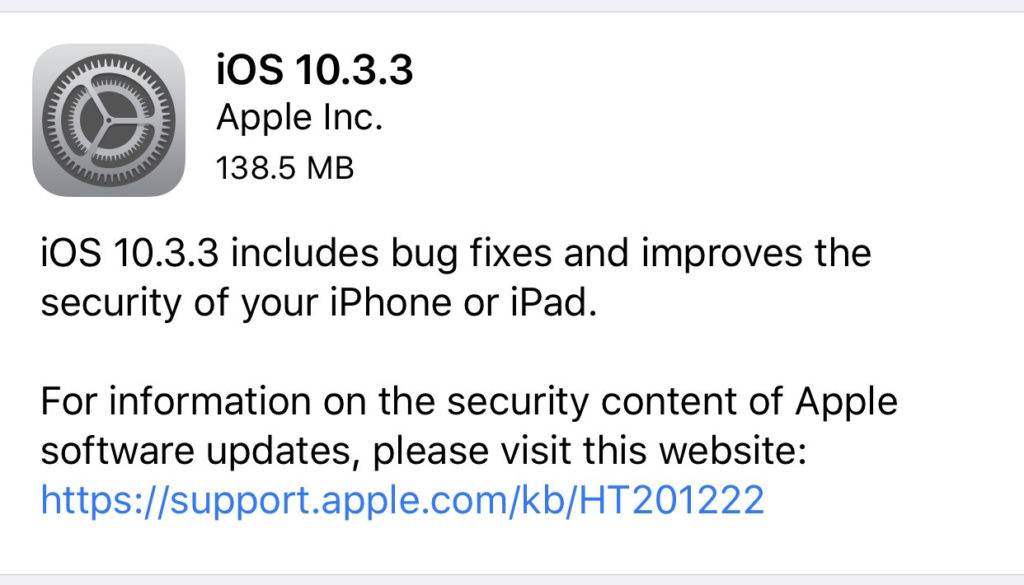
    Most of the posts on this blog are about how to keep your kids safe from pornography, cyberbullying, predators, and other threats like that. However, protecting your and your children’s devices from hackers is equally as important. That’s why you need to know about yesterday’s iPhone update. The latest version of iOS 10 will sure up a gap in security that would allow hackers to use the wifi chip in your device to gain access to your iPhone or iPad. This means that you don’t have to do anything to allow them access, just be close enough to their wifi network with your phone’s wifi connection turned on. That’s a crazy easy hack.

    Here’s what you should do. Install the latest update TODAY. You should have been asked yesterday (Wednesday July 20th) if you’d like to update, if you ignored it then it’s time to go into your settings, tap on general, and then software update. On the update page click install now and plug your phone in to power. This will get you all secure. If you have an Android phone you received an update a couple of weeks ago that should have fixed the issue. If you’ve been ignoring that update then stop doing that and install now. I’ve written in the recent past about the importance of updating your operating system and this news is just more evidence of how urgent some of these updates can be.

  • You Should Ditch Your Windows Phone, Microsoft Is!

    You Should Ditch Your Windows Phone, Microsoft Is!

    Yesterday marks Window’s Phone’s “end of support” classification with Microsoft which means they will not be updating the phones anymore, not even for security.  While Windows 10 Mobile is still available there aren’t many phones that are compatible with this OS. What does this mean? It means that if you have a Windows phone, it’s time to switch to Android or iPhone. Security is one of the most important reasons to allow your operating system to update, if those updates aren’t available then all of the personal data you put on your phone is at risk. This is a real problem and not only for Windows phone users.

    There is a new operating system coming for Apple and Android towards the end of the year and you shouldn’t use a phone that will not be included in these major updates. Yes, the new features and designs of these operating systems are cool but they aren’t the only reasons you should tap ok when the update notification pops up. These updates protect your personal data from theft, hacking, phishing, and spamming. Updates to your OS are often responses to new security threats that developers have become aware of so while the notification every few months to instal version 1.2.4.3.2 can be obnoxious it’s too important to ignore.

    Here’s a list of some of the devices that WILL BE recieving the new Android OS called Android O:

    • Pixel
    • Pixel XL
    • Nexus 5X
    • Nexus 6P
    • Pixel C
    • Nexus Player
    • Galaxy S8 and S8+
    • HTC U11 (Maybe older devices but it’s still unclear.)
    • Z-Droid
    • Z Play
    • Moto Z
    • Z Play Droid
    • Z Force Droid ( Verizon exclusive in the USA)
    • Z2 (2017)
    • G4
    • G5 Plus
    • Moto G5
    • G4 Plus
    • G4 Play (Not Confirmed)
    • OnePlus3
    • OnePlus3T
    • OnePlus5 (Rumored)

    Rollout dates for Android O differ for every device and there are some devices who’s companies have yet to confirm an Android O rollout at all.

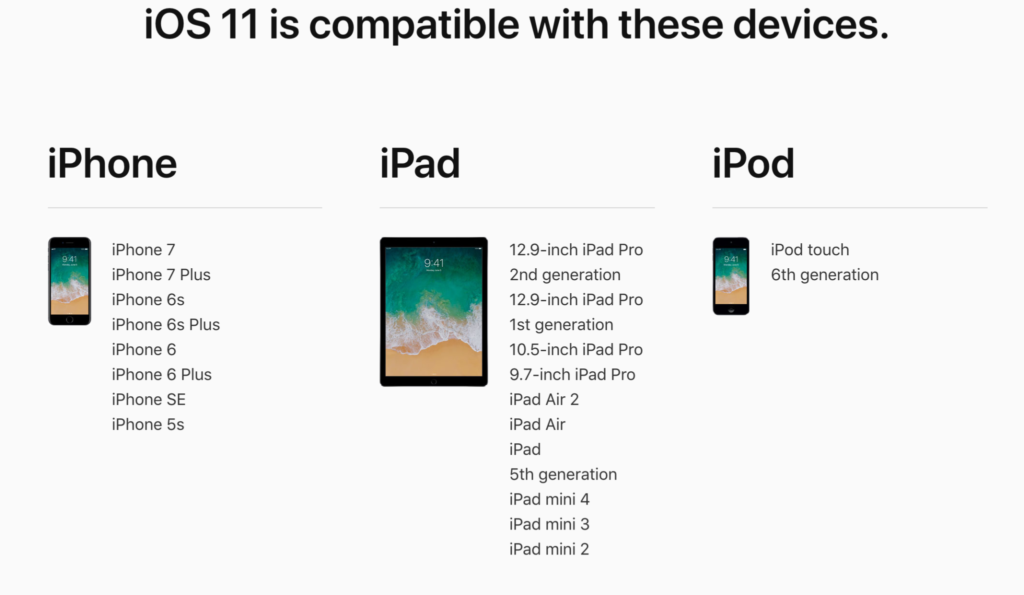
    As for your Apple Device, here’s the list of the phones and tablets that will receive the new iOS 11 update when it’s fully available:

    iPhone

    • iPhone 5s
    • iPhone SE
    • iPhone 6
    • iPhone 6 Plus
    • iPhone 6s
    • iPhone 6s Plus
    • iPhone 7
    • iPhone 7 Plus

    iPad

    • iPad mini 2
    • iPad mini 3
    • iPad mini 4
    • iPad (5th generation)
    • iPad Air
    • iPad Air 2
    • 9.7-inch iPad Pro
    • 12.5-inch iPad Pro
    • 12.9-inch iPad Pro (1st generation)
    • 12.9-inch iPad Pro (2nd generation)

    iPod touch

    • iPod touch (6th generation)

    If your device isn’t going to be updated this fall or early next year it may be time to consider upgrading. While some of the older phones will still get OS updates from time to time it won’t be long before they go the way os Windows Mobile and become more of a risk to use. Yes, I know it can be annoying to get used to a new phone and a new user interface and system but the safety and security is too important to ignore. Just take the leap or, if all else fails, faxing can be a pretty safe way to communicate. I kid because I care.

  • New Filters, Reactions, and Screenshot Controls in FB Messenger

    New Filters, Reactions, and Screenshot Controls in FB Messenger

    Facebook is updating their camera in Messenger so you can have some new AR filters while video chatting. The first is Filters which will add color schemes and other effects to your video feed. Reactions will allow you to use the like/love/emoji reactions you can use on FB posts to enhance your live video chat experience. Finally the screenshot button will let you take a still image of your chat with a simple tap of the screen instead of having to fumble around with the hardware buttons on your phone.

    Obviously Facebook is doing its best to separate itself from the rest of the video chatting market. These new features make Facebook live video chatting more interesting than Skype or FaceTime and definitely go a long way to compete against Snapchat’s offerings. What will this all mean for our families? Well, the main thing to remember is that your kids should only be chatting with people they know.

    What Parents Should Know

    It’s important that your kids understand the dangers of video chatting with anyone they don’t know. Messenger uses your friends list to populate your contacts so, in theory, your kids should only be chatting with friends. These augmented reality filters and reactions will add to the reasons to want to upgrade a text messaging session to video chat so if you’re against video chatting by principle then you’ll want to keep them off of FB Messenger. I recommend keeping an eye on who your kids have been messaging no matter what platform they use or if it’s by text, images, or videos. You can do this a number of ways but none is better than having their passwords and checking in on their account regularly. As always I recommend you have a conversation with your children about what they are and aren’t allowed to do on messenger and why. Let them know you’re keeping an eye on things and don’t sneak around. You want your kids on your team.

    Want to get exclusive content and support our work to keep you more informed about your kid’s digital culture? You can partner with us at Patreon.com/BecauseFamily.

  • Turn Off Snapchat’s SnapMap NOW!

    Turn Off Snapchat’s SnapMap NOW!

    Snapchat’s newest addition to it’s offerings is SnapMap. This feature shares your location on a map so that other’s can see snaps from similar places or events in real time. This all sounds well and good but what’s really happening is causing tech experts everywhere to warn against using SnapMap. SnapMap shares your location every time you open the app, not just when you post something. This isn’t concerning for just tech safety writers like myself but everyone who spends any time learning about the latest Tech trends is warning that users should disable this feature on their SnapChat account.

    I heard a story last week of a mother who’s daughter and her group of friends had been targeted by a sex trafficking ring using snapchat. The predator befriended a large group of related friends all at the same time and just watched their posts for a while. They all thought they were befriending someone who went to school with them since they had a bunch of friends in common. This person got very close to my friend’s daughter and started talking about a meet-up. Mom saw the posts during a check-in of her daughter’s phone and decided this “friend” was a bit shady. She contacted the police and found out that this predator was part of a larger ring of sex traffickers who use Snapchat to locate and abduct their victims. These guys had to work for months to learn more about where these teens spent their time. The SnapMap would give them that information in seconds.

    SnapMap’s initial setup is only a four step process, if you decide to turn on SnapMap you won’t be warned that your location will always be available. You’ll only be told how your friends can see where you are when you post. If you aren’t sure who all of your friends are and if you don’t know that SnapMap is pinging your location every time you open the app whether you post or not, you’re eliminating every privacy setting you’ve ever set on your phone. Your teenagers don’t know this!

    What Parents Should Know

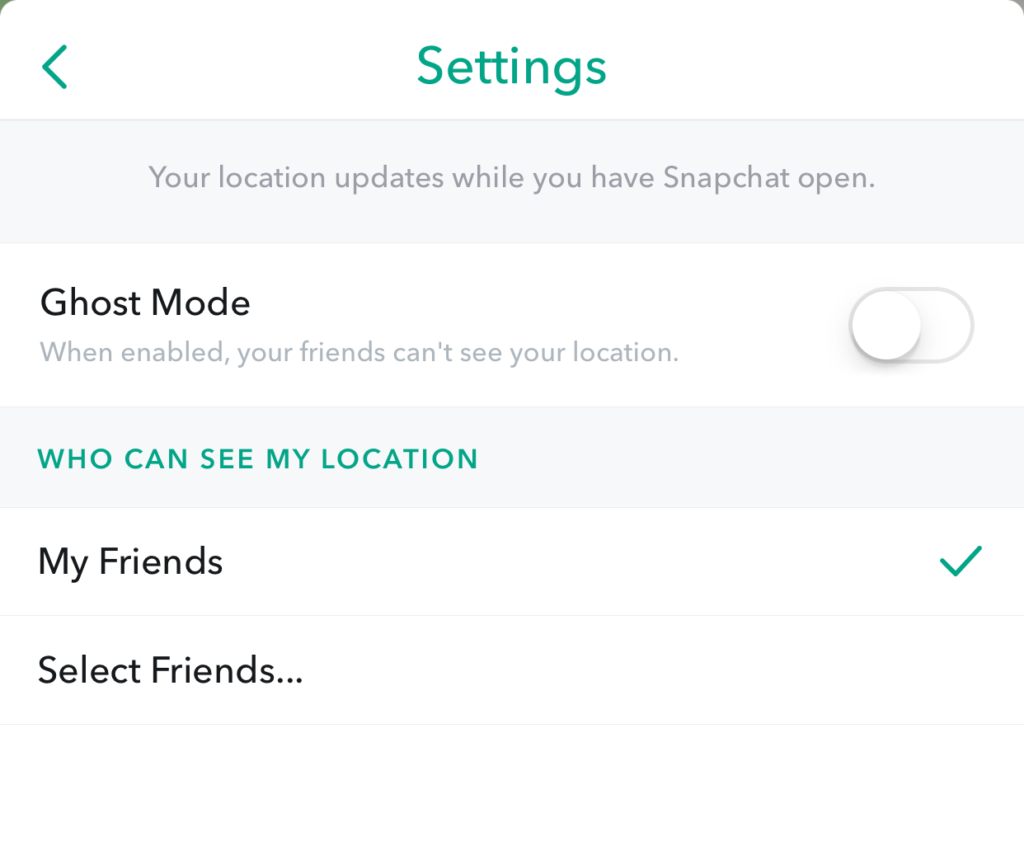
    Teenager’s brains are developing in such a way that they’ll always fire before they aim. They’ll see the SnapMap option and opt-in just because they want to have everything set up like their friends do. You MUST talk to your kids about what SnapMap is and why it’s dangerous. You’ll want to advise (or demand) them to put their SnapMap on “GhostMode” which will hide their location on their friend’s map. If you’re allowing them to use Snapchat (which is on my uninstall list) you can’t expect them to see the SnapMap for the red flag that it is. You have to protect them by setting that boundary on their behalf.


    Don’t miss a single post. Get a list of our top posts every Friday in your email.

    Subscribe to our mailing list

    * indicates required


  • New Operating Systems Coming for iPhone and Android

    New Operating Systems Coming for iPhone and Android

    The last few weeks have been loaded with updates from the two major tech brands in the industry. Google’s I/O event was May 17-19th and they had some major announcements including virtual reality, augmented reality, and a brand new operating system for Android, Android O. Apple’s Worldwide Developer’s Conference (WWDC) was this week, June 5-9th, and they’ve made similar announcements including a new version of their smartphone operating system that they’ve branded iOS 11. These two new systems will run the majority of the newer phones and tablets being released so it’s important to understand what each is offering. Here’s a rundown:

    Android O

    Android’s newest system should be made public this Fall. The most significant features are design changes in the Settings Menu and User Interface (UI.) Many of the smaller changes are things users won’t notice such as changes in how the OS will handle security and background operations, as well as channels or categories for notifications. Also, picture-in-picture support, notification badges that will appear on app icons, and better bluetooth support will definitely be features that makes Android O a step up for it’s users.

    iOS 11

    A new dock, multitasking with drag and drop, a files app, and better Apple Pencil support make iOS 11 a major upgrade for iPad. iPhone users will notice more apps in messenger, an app store that looks and works completely differently, and a new and improved Siri, including a new voice. The control center, the lock-screen, notifications screen, maps, Apple Music, and AirPlay are all getting improvements as well. iOS 11 is also slated to release this fall.


    What Parents Should Know

    There haven’t been any announcements on Parental Control improvements for either of these operating systems. When the test version of iOS 11 is released I’ll be giving it a full look-over and writing a review for you. One thing that parents will enjoy from iOS 11 is the ability to turn on an automatic Do Not Disturb while driving. The phone will sense your movement and speed and automatically silence any notifications until you’ve stopped. This will be a good way to keep your older kids safe while they are on the road. As for Android, they recently put out a new Parental Control option for their OS and it’s proving to be a pretty good setup. It’s only available on newer devices, however, and we still don’t know what changes have been made for when Android O is released.

    I always recommend keeping on top of updates when they are made available. Both of these new Operating Systems should be available this fall and you should be sure, if your devices are compatible, that you’re upgrading soon after release.  This isn’t just important to get any of the new features but also because security and privacy updates come with these new systems. The apps you use, including the ones you use for internet safety and monitoring will update to keep up with the latest software and if your devices are behind you’ll start to see holes in your security. Keep your eye on the update section of your settings menu and when it shows that a new version is available you should install immediately. You can also keep checking in to this site as I will keep you informed on the latest releases as well as how they can affect your family.

  • Teaching Your Kids Healthy Tech Habits

    Teaching Your Kids Healthy Tech Habits

    One of the most popular questions I get when I do tech safety workshops for parents is “how do I set restrictions for my older teen?” I think the most important thing to remember is that you’re not just setting restrictions, you’re teaching healthy habits. The brain of an adolescent is developing in such a way that your guidance is critical as they navigate these murky digital waters.

    I like the term healthy when it comes to internet use because right and wrong is subjective. Your sixteen year old may believe that it’s ok to watch YouTube videos for five hours on a Saturday afternoon but you can use facts to help him understand that it may not be healthy. Our conversation with our teenagers shouldn’t be about what digital habits are right and wrong but what is healthy. Here are three critical factors to keep in mind while teaching healthy tech habits.

    Relationship

    Boundaries without relationship become rules and rules were made to be broken. Because of your healthy relationship you can help your teenager understand that the rules exist to protect them. You can create a safe place for them to come to when they need guidance on their tech habits, about how they’ve been treated online, or about regrets regarding something they’ve seen or done online.

    As parents we shouldn’t close the door to conversation with instant judgement or constant nagging about the time they spend online. I recommend using digital means to keep track (with their knowledge) of what they do online and only bringing it up when it becomes a consistant problem. Relationship is the most important part of any internet safety strategy.

    Transparency

    Openness and transparency is key, not just on your teen’s part but on your part as well. It is critical that you are transparent with them about your tech habits. They need to understand that you’re trying to get it right as well and that the habits they develop now will affect them as they grow older. The best way for them to learn this is by watching you and hearing about how you’re having to deal with these same issues now. Whether you’re trying to keep them from dangerous content or help them avoid tech addiction, they should understand that you’re trying to protect yourself from those things too. The quickest way to cause your teen or young adult child to stop taking you seriously is for you to not practice what you preach.

    Time Management

    Obviously time management will be critical as your child graduates high school and enters college. Between jobs, studying, and extra activities they’ve probably already had to develop some form of time management skill. The lure and appeal of constantly available video, music, and gaming entertainment can make time management more difficult now than it’s ever been.

    You have to help your teen understand what good time management looks like. Point them towards content on the tech that they enjoy, like YouTube videos, podcasts, or productivity apps and other tools that will help them learn more about healthier time management habits. Encourage them to use these tools alongside some of the entertainment they consume.

    All three of these steps are related to each other and will greatly impact one another. If you don’t have a good relationship with your child that encourages communication, if you aren’t being a good example, and if you aren’t teaching and showing time management skills your kids are going to have a hard time navigating healthy tech habits. Online life is a real part of our world and it’s too important to ignore so utilize these steps and let me know what others you have used that have been successful.

  • Tumblr App Installs “Adult Content On Switch”

    Tumblr App Installs “Adult Content On Switch”

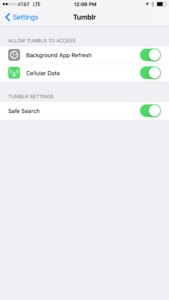
    Tumblr has lost some traction over recent years. It’s not so much a social media platform as a blog host and not really even that. It’s more used for GIF (animated images) posting than anything nowadays. Apple has always had a pretty strict standard on adult content in the apps in their app store. They require developers to have adult content disabled by default. This usually means that image searches on your browser should be without any blatant pornography unless your search is specifically for that. Tumblr has updated their iOS app with a workaround for this rule. There is now a switch that will allow users to turn adult content back on in Tumblr. It’s actually a “safesearch switch” and it’s set to on by default, thus following the rules set up by Apple. All it takes, however, is for someone to go to the settings page of the app and turn the safesearch option off. This will unleash the cacophony of adult content that is available on Tumblr (many say that pornographic images and gifs have become it’s main purpose) on the user.

    What Parents Should Know

    The Tumblr app is basically a browser in which anyone with an account can see any of the user generated blog content posted on the site. As mentioned above, the app has become inundated with adult content and is not safe for anyone you’d like to keep from those sort of images or videos. The safe search switch isn’t located in the restrictions settings on your iPhone. It is just in the settings for the app. This means safesearch changes can be made without a password. This app is an easy way for your child who has been looking at inappropriate images or videos to access more of that. Now that the safesearch can be turned off, you’ll want to add this app to the uninstall list.

    Our children can be greatly harmed by pornography. Studies are showing it’s addictive nature and the ability it has to alter a person’s sexuality and preferences, creating what they call an “arousal template.” This causes kids to be attracted only what they’ve seen online and can create serious problems for them in the future. They also say that kids who view pornography are six times more likely to force others into sexual behavior. Many in our culture view online adult content as only entertainment but it’s being proven that it’s detrimental to the mental health of our kids. If there is anything you can do to protect your children from adult online content, you must take steps to do so. Uninstalling Tumblr just became one of those steps.

  • Parental Control Options for Your Kids’ Chromebook

    Parental Control Options for Your Kids’ Chromebook

    The Chromebook is unique because it isn’t really a full fledge computer. They are designed to just run a browser so you can access the internet. This makes them affordable and easy to use. Because of this the Chromebook is often the chosen computer for schools. So your child may have been assigned a Chromebook when they were enrolled in school. While they must have content controls set while they are on school property there aren’t any regulations requiring schools to keep them protected while off campus. Here are some options for how you can protect your kids while they use their Chromebooks.

    Supervised User

    UPDATE: Google has discontinued Supervised User in favor of FamilyLink.

    This is an account based system that’s built into the Chrome browser. It allows you to set filters, monitor sites visited, prevent installation of apps, turn on safesearch, and change settings. You do have to use blacklists or whitelists to block websites, there is not an automatic filter built in. I recommend using THIS LIST of blacklist sites provided by a University in France. It’s a pretty extensive set of blacklists and will take some effort to set up but if you don’t want to just set the Chromebook to only access a few domains then copy pasting sites from these lists is your best option. You can access the supervised accounts by going to chrome.google.com/manage.

    Click THIS LINK to see Google’s set up instructions for a supervised user account.

    MobiCip

    One of the only full service filter and monitoring apps for Chromebook, Mobicip offers a plugin that you can download from the Chrome app store. Mobicip will give you customizable filters, time limit controls, and usage reports and its pretty easy to set up. You just download the extension from the Chrome app store and then login. It takes you through the setup steps and lets you set your desired filter levels. Once it’s all set up you can make changes from anywhere using their web based controls dashboard. Their SUPPORT page has good How-To resources to walk you through the process.

    If you want more controls than the Supervised User option gives you then Mobicip is a pretty good choice. It’s $39.99 per year for all of the features mentioned above for up to five devices. If you are going to need to protect more than twenty devices (I’ve met families with upwards of 30) then you’ll have to get a quote for their “Enterprise” option. Mobicip is a good option and will give you quite a bit of control.

    Accountable2You

    The final option is an accountability software. This, combined, with the Supervised User Account may be all you need.  Accountability software doesn’t block content. This software will keep an eye on what’s being viewed and then red flag and report anything that it deems inappropriate. This allows you to more easily see when something questionable has been viewed. Otherwise you’ll spend time sifting through link after unrecognizable link to find something that may be naughty. You can even set up Accountable2You to send you a text message when an inappropriate site was accessed. The software works across all of your devices including Chromebook and is $6.99 per month for six devices and $9.99 per month for twenty devices. They have easy setup instructions on their SUPPORT page and have excellent customer service.

    Whether your kids got Chromebooks from you to help with schoolwork or they were school issued, it’s critical that you have some sort of parental control solution set up. I recommend using one or more of these to set up a plan to help your kids be safer online. The statistics say that only one out of every three kids who saw something inappropriate online was looking for it. The fact that you have well behaved children doesn’t apply here. The internet isn’t well behaved and we have to make the effort to keep them safe.

    This article contains affiliate links…