If you’ve ever given your smartphone to your kids to play a game you know that you always run the risk of them opening another app or getting access to something through an Internet browser that might be objectionable.
Parents using iOS are able to use Guided Access to limit their kids to one app for a certain amount of time but what can parents with Android phones do?
Screen Pinning is the solution. It’s been available since Lollipop (5.0) and is advertised as a security feature but it’s a good parental control too.
Screen Pinning only allows one app to run and someone with your phone cannot switch to another app without you PIN or fingerprint.
There aren’t any time limits built into Screen Pinning so we’ll cover that in another article about “Digital Wellbeing”. For now, here’s how to enable this helpful feature.
Many smartphone manufacturers implement Android a little differently. If you’re having trouble with these instructions, check with your carrier or phone manufacturer.
These instructions are for Android 9.0 and up. If you have an older version of Android the instructions are a little bit different. You can find instructions for older versions at Google’s Help Center.
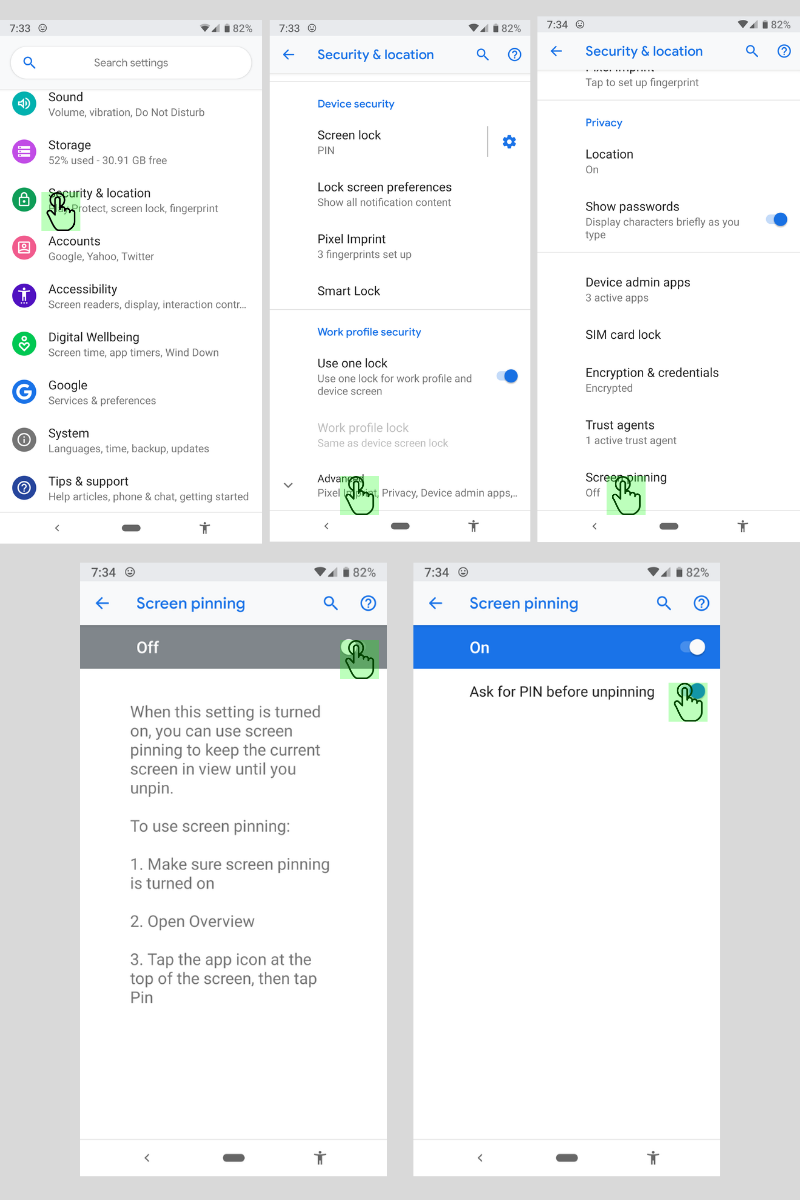
How to Enable Screen Pinning
- Open your device’s settings.
- Tap Security & Location > Advanced > Screen Pinning.
- Turn on screen pinning (remember to require your PIN to disable).
How to Pin an App to the Screen
- Open the app you want to pin.
- Swipe up to the middle of your screen.
- Tap the app icon.
- Tap the pin.
The app is now pinned and cannot be switched without your PIN or fingerprint.
How to Unpin an App From the Screen
- Touch and hold the back and home icons.
- After your device locks, enter your PIN or use your fingerprint to unlock.
The app has now been unpinned and you can use other apps.
That’s all there is to it. The next time you’re waiting in line at the DMV and your kid asks to play a game, you can give him your device without worrying that he’ll watch red band trailers on YouTube.