Tag: settings

  • We Bought Four Amazon Echo Dots!

    We Bought Four Amazon Echo Dots!

    Well, it is Prime Day and as usual, there are some deeply discounted items available on Amazon. My family usually looks but doesn’t buy on Prime Day, hoping to be able to predict the discounts we may see on Cyber Monday or Black Friday in a few weeks. We especially avoid any smart speaker or digital assistant hardware since we have always had (well informed) privacy issues and concerns. This year it has been different. We caved and bought Amazon Echo Dots for the whole family. Here’s why.

    They’ll Be Perfect for Our New Home

    Our forever family home is being built and we are planning a move-in just a few months from now. We are going to have more space for the six of us than we have ever had, especially in the kids’ rooms, the master suite, and the kitchen/dining great room. We’ll be a bit more spread out than we’ve ever been and the Echo has some great options for communicating throughout your home without having to scream up the stairs or down the hallway. The intercom feature was a deal sealer for both my wife and myself. The kids are pretty excited too.

    Digital Homeschool Help

    More of us are homeschooling than ever now and with four kids, all doing school work nearly every day, we need help sometimes. YouTube can be great to present some complicated concepts in helpful ways (7th-grade math, anyone) but my kids looking at screens and using a Google Search for spelling or calculator solutions isn’t the safest proposition. Alexa (the Virtual Assistant on Amazon Echo) will answer your spelling, language arts, science, and math questions with no risky search results or screen use at all. It is more important for my kids to know how to get information than it is that they know the info when they pass a grade. Alexa and other Virtual Assistants are the new waves of information access and they aren’t going away. They’re only getting smarter and faster.

    Less Screen Time

    My kids, like all kids, love to sit around and look at a phone or tablet. We are constantly having to get on to them about their obsessive behavior. We try to set better examples, we don’t always succeed, but giving them alternatives is very helpful. The Echo Dot is a smart speaker without a screen. At night, when the kids want to listen to a podcast or music for bedtime they can ask Alexa to play it for them instead of having their screens in their faces right up to when they fall asleep. Studies have shown this isn’t good for their sleep and can actually very detrimental to their development. With parental controls on the subscription services we use and on Alexa itself, we can ensure that our kids aren’t looking at their screens and are only listening to music and podcasts we’ve approved of.

    Safety and Security Upgrades

    All of this is great but digital safety and data security are always an issue. Especially with artificial intelligence that is designed to learn about you in order to be more useful to you. There is an obvious trade-off. You’re giving it information in exchange for convenience. I believe most of us consider that an acceptable exchange, considering Alexa and Google Home have been some of the fastest tech product to be integrated into people’s homes. The truth is that we have been making this exchange for a long time without really thinking about it. Every post on Facebook, Twitter, or Instagram, every search on Google, and every purchase or browsing session on Amazon has been used to build a database of advertising information about you. This can be scary to many but in all honesty, that ship has sailed and you raised the sails for it to do so.

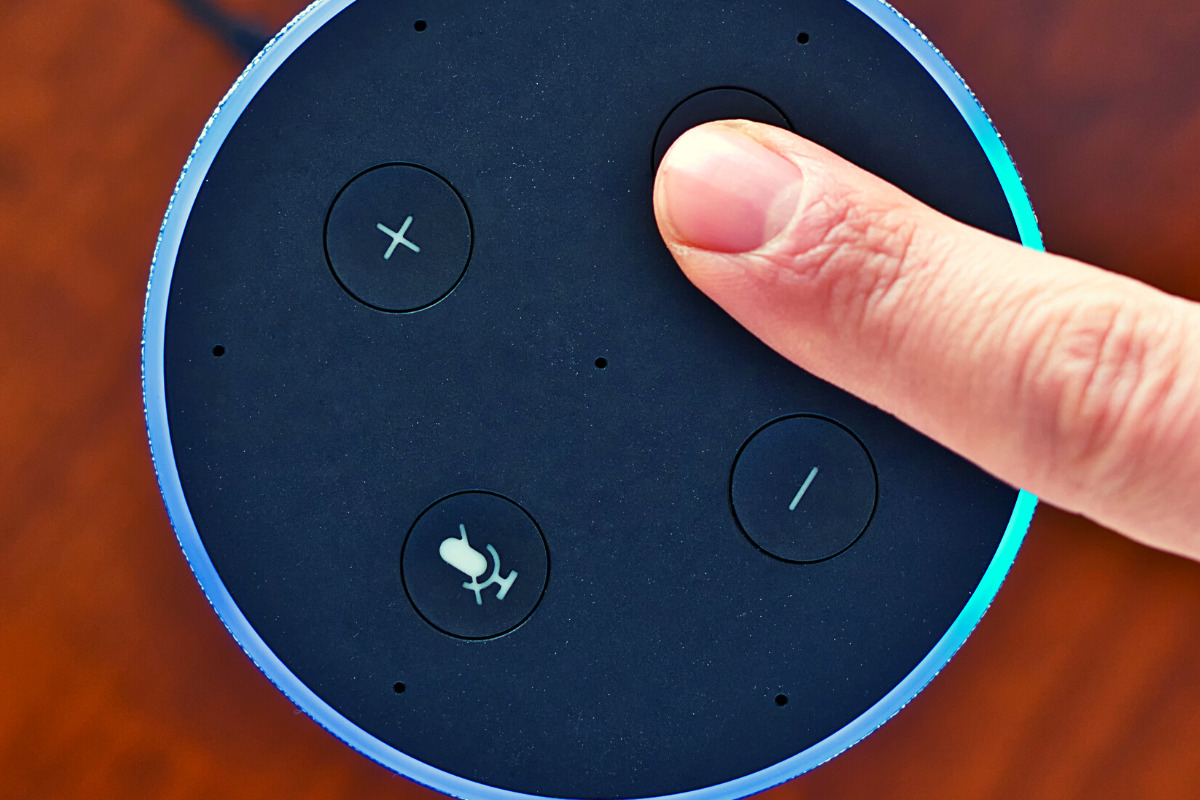
    When you use these sites, you allow them access to your information. Alexa is no different and my family has considered the risks and decided it’s worth it. First of all, we already get targeted ads because we do so much of our shopping on Amazon and searching on Google. Secondly, the latest models of Amazon Echo Dot have added features like a hardware button to turn off the microphone that makes us feel like we can avoid being listened to when we don’t want to be listened to.

    Risk/Reward

    When you narrow it down it is a consideration of opportunity cost. You have an opportunity for convenience but it will cost some of your info. At a $19.99 price point, the Echo Dot is a great deal right now on Prime Day so we bought four of them. They’ll be here in a couple of days and I’ll set one up and let you know how it all goes. Stay tuned for my (late but in-depth) review of the Amazon Echo Dot as a tool for controlling kids’ screen time.

    If you shop the Amazon Prime Day today, consider using http://smile.amazon.com and signing up to support our non-profit, Four Point Families. You’ll have to search for Four Point Families and select it as the organization you’d like to partner with. Then Amazon will send .5% of your purchase our way to help us continue to protect families. Thanks.


     

  • Tik Tok Parental Controls | What You Need to Know

    Tik Tok Parental Controls | What You Need to Know

    TikTok is the biggest app right now in every app store with over 2billion downloads. They have added some parental controls. This video and podcast episode outline some things you should know while setting these controls up. Below is a link to a great step by step for using these parental controls.

    Bark App Management: TikTok

    The parental controls on TikTok allow you to lock privacy settings, keeping strangers from making friend requests, sending messages, and even seeing videos. You must use your child’s account to give yourself permission to set up parental controls. This means you must have a TikTok account yourself if you’re going to use the parental control settings. Previously your child’s account could be set to private, but they could change the settings per video and post publically regardless of your settings.

    Do TikTok Parental Controls Allow you to be Hands Off?

    No parental control is a substitute for parental involvement in their child’s online experience. Be sure they know they can come to you to discuss things that make them feel uncomfortable or go against your rules. Should your kids use TikTok? If they are under 13 no. If they are under 16, maybe yes but with parental controls. If they are over 16, then you should be discussing their digital health with them and trusting them to make quality decisions as they grow into adults.

    Thanks for checking out this article. You can visit BecauseFamily.org/partnership to support our work to protect children and teenagers by bridging the technology gap between them and their parents. You can donate, support our affiliates, or just share our ministry with your friends. Thank You.

  • A Warning For Parents Buying Android Tablets for their Kids this Christmas

    A Warning For Parents Buying Android Tablets for their Kids this Christmas


    Android Tablets are a great option for parents who want to get their kids some form of screen device without breaking the bank. The addition of Android FamilyLink has made Android and even better choice for our kids’ introductory tech device. They are affordable, fairly easy to use, and most all apps our kids want to play or use are available through the Google Play store. There is, however an issue that faces parents when they are ready to set up these devices for their kids: compatibility.

    Compatibility is the ability of a device to run the software you are trying to install on the device. Android FamilyLink requires operating system 7.0 or higher in order to work on your child’s device. That means that if your device runs an older version of Android, the app that connects your parental control settings to their device won’t even be available to install from the app store.

    I ran into this problem today while helping a family set up controls on the brand new tech devices they had purchased for their two girls. I initially thought it odd that on one device I could login an account as a child and on the other I could only make a basic adult Google account. Then, halfway through setup I realized that one tablet would run FamilyLink while the other would not. Both of these devices had been purchased from the same place on the same day and were brand new, not refurbished or used, but the operating system was different in each tablet. One was running Android 4.4 while the other, the one that let me set up FamilyLink, was running Android Version 7.1.

    I understand that newer software will not work on older devices but these are two devices being sold at the same time as brand new. There is nothing, without further investigation, that would cause a parent to expect they couldn’t do all the same things on both tablets. The truth, though, is that not all Android Tablets are equal. We won’t get into opinions on Apple vs Android but I will make this comparison: when Apple updates their operation system ( iOS) they ping all of the devices at once and encourage installation of the newest version of the software. Android, however, is a crap shoot. You have to go see if your device will be compatible with the newer software every time a new one comes out. The main reason for this is that different companies make phones that run Android while Apple makes the device, the operating system, the app store. Basically the whole shebang.

    People have different tastes and whether it’s the way the software functions, the look and feel of the phone, or just not wanting to spend as much money, Android will always be a significant part of the smart device market. My advice isn’t to just always use Apple products. I will encourage parents, instead, to always look at the specifications of any device you want to buy and see what operating system it is compatible with. If you are buying an Android product and want to instal FamilyLink, the device must run 7.0 or higher for the FamilyLink Children and Teens app to show up as downloadable in the Google Play Store. Otherwise, you’ll be looking for some third party app or combination of third party apps to add parental control functionality to your devices.

    Need help? Shoot me a message HERE.

  • Looking Forward to CES 2019

    Looking Forward to CES 2019

    As CES 2019 approaches (my flight leaves in 17 days) I find myself more and more interested in the different topics that will be discussed at the Kids@Play Family Tech Summit. The summit features leaders in the industries of tech, toys, education, psychology, software, and entertainment. Sessions last all day long and the topics discussed are exactly the kind of information we parents need to know as we raise our kids in this digital age. The problem is, those in attendance are all industry people who are making apps, toys, and technology for our kids and families. There is very little to no representation of those who work to educate parents themselves on the connected age we live in. That’s where I come in.

    To my knowledge, BecauseFamily’s FamilyTechBlog, is the only publication in attendance at CES that offers our news and stories exclusively from the viewpoint of helping parents protect their children. While I sit and take notes and record footage of the summit my mind is processing how this information can help parents make quality decisions to keep their kids safe on their tech devices. I am glad that this event exists and happy that leaders in this industry are having serious discussions about how to be responsible while developing their products for children. I am also glad that our donors and readers have made it possible for me to be there, as the only exclusive family tech safety website in attendance, and report back to you.

    Here is some of what I’m looking forward to seeing, learning, and reporting on at CES 2019:

    • Jobs of the Future
    • Coding Without Screens
    • Gaming and Creativity
    • Tech Addiction
    • Data and Privacy for Connected Kid’s Products
    • Augmented and Virtual Reality to Help Kids Get More Active

    There is a ton more that I’m excited to see and learn but these are going to be the highlights for sure. Parents are always asking about things like gaming and tech addiction and the jobs that are available to our children now will be completely different in ten years. Having some insight on these questions will be pivotal to making decisions as parents. Many of us have issues with keeping our kids active as they’d rather play with tech than each other at times. Can the tech increase their activity without impacting them in other negative ways? Finally, coding will soon be a skill that is not optional if you want to have your pick of the jobs of the future. How can we introduce coding logic and principles to our children without exacerbating the screen addiction problems we already see in out kids? I am looking forward to finding answers or at least more insight on these topics and questions at CES 2019.

    You Can Help!

    Very briefly, allow me to ask for your help for this trip to Las Vegas for CES 2019. The costs associated with this event are covered solely by donations from our non-profit partners and donors. If you would like to sponsor a meal, an Uber or Lyft ride, or something like that, please visit BecauseFamily.org/partnership to see how you can donate to BecauseFamily and send your family tech safety representative to CES on your behalf. Thank you.


  • Great News if Your Teen Has an Android or a Chromebook!

    Great News if Your Teen Has an Android or a Chromebook!

    Android Family Link was released last year to some success. The features are good enough and being able to change kid’s settings from your own phone is super helpful. There were some downsides, however. One of which was that it was geared mostly towards younger kids. That has changed today as google announces features for Teenagers in the FamilyLink app. 

    Android FamilyLink allows you to

    • Approve your child’s downloads and purchases from Google Play and limit the visibility of content in the Google Play Store based on maturity ratings
    • Manage settings such as SafeSearch for Google Search
    • Review your child’s app permissions on Android, such as microphone, camera, location, and contacts access
    • Change the content filtering setting and turn search on or off in the YouTube Kids app
    • Reset your child’s Google Account password
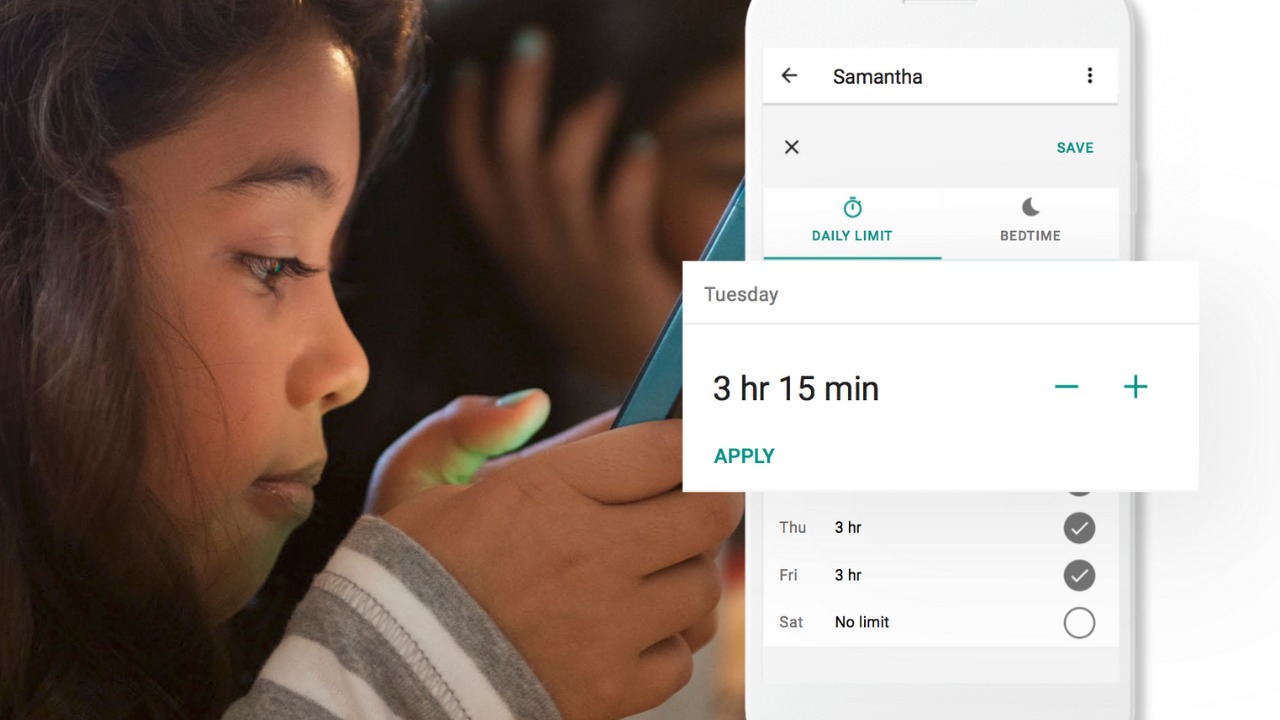
    • Set screen time limits on your child’s Android devices
    • See the location of your child’s signed-in and active Android devices
    • Manage the activity settings for your child’s Google Account
    • Allow a second family member to exercise most of the same controls you have over your child’s account.

    The features for teens adds the ability for your teen to disable the FamilyLink supervision setting. You will be notified if they disable it but the option is still there. 

    Chromebooks

    Schools all over the country are giving their students Chromebooks. The parental control options for Chromebook have been severely lacking for several months since Google disabled the Supervised User feature. The reason they ended support for Supervised User is to make room for FamilyLink and it’s finally here. 

    FamilyLink will soon give you all the same controls on Chromebook as you have on mobile devices. Right now you can only change account settings and content filters. Soon there will be screen time and app store management as well. 

    What Parents Should Know

    FamilyLink is a good parental control solution and it’s only getting better. They’ve added some good features and options for your older kids is also a good step. Issues I’ve had with FamilyLink in the past are the weak filter (currently only as good as Google’s Safesearch) and issues with backwards compatibility. They still recommend your kid’s device run Android version 7 or higher while some devices running Android 5 or 6 may work with FamilyLink. 

    I like what FamilyLink has to offer by way of screen time management and app store controls. A major problem parents have with Android is the ability to download apps outside of the app store. They control what their kids see on the Google Play Store but children can download things from outside the app store sometimes. Many parents don’t know how this is done and how to stop it so it poses a major problem. 

    The ability for teenagers to disable FamilyLink is kind of moot since it notifies parents. That makes me wonder why it’s put there in the first place. Perhaps to give teens the illusion of control or freedom since that’s something the adolescent desires more than anything. If you use FamilyLink for your teenager be sure to let them know you’ll find out if they disable it. The filter is kind of weak and there is no way to monitor messaging or get alerts if negative content has been viewed. I recommend a good accountability software for this. Get something that will work for phones and Chromebook. It’s critical that you know what your kids and teenagers have seen online and what they are doing. This allows you to have conversations with them about their decisions and the dangers and risks involved. 

  • T-Mobile Customers Can Now Get a Rebranded Circle, They’re Calling it FamilyMode

    T-Mobile Customers Can Now Get a Rebranded Circle, They’re Calling it FamilyMode

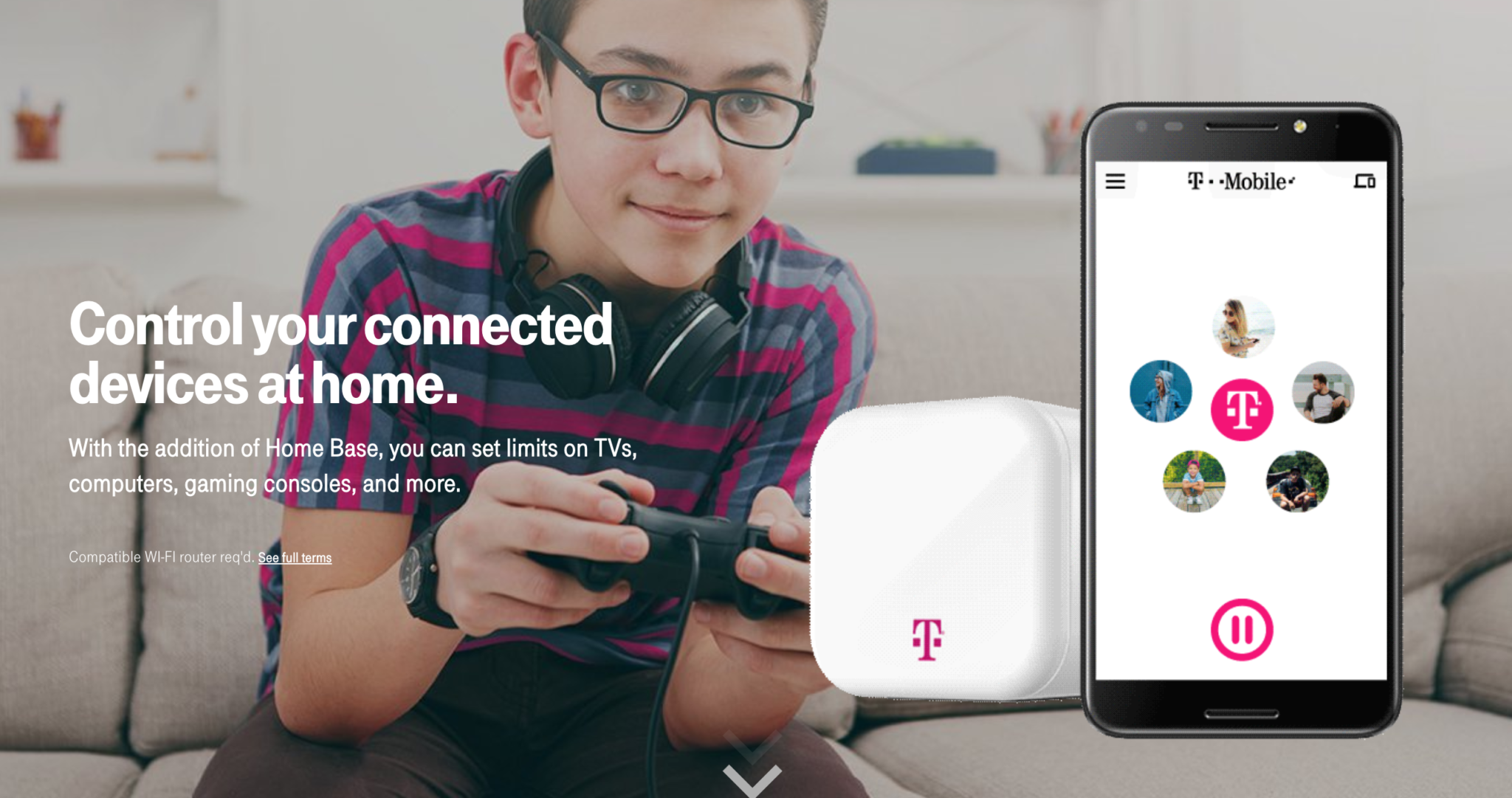
    Circle is one of my favorite parental control solutions to recommend to families. It’s easy to set up and the settings really work well. T-Mobile has caught on to this great service and is adding it to the offerings to their wireless customers. Verizon also added pressure controls recently and now T-Mobile is joining the club. The app is completely rebranded with T-Mobile is pink and black color scheme and the image of the Circle device itself even has a T-Mobile logo on it.

    Circle allows you to build profiles for each family member and set parental controls and filters for their profile. This protects your home Wi-Fi and with CircleGo you’re able to protect them over data no matter where they are as well. Time limits, usage reports, and tons of other information are also available on the Circle app. T-Mobile has patched into these resources and is offering them to their customers.

    What Parents Should Know.

    If you’re a T-Mobile customer the $20 price point for the device plus $10 a month to take the safety with you is well worth it. We highly recommend circle and even use it ourselves. My advice is to take advantage of this deal and this great opportunity to protect your family on their devices.

  • YouTube Boasts 8 Million+ Flagged Videos Removed, is That Enough?

    YouTube Boasts 8 Million+ Flagged Videos Removed, is That Enough?

    A new report from YouTube has disclosed the removal of over 8 million videos that didn’t lineup with their content guidelines. Most of the videos were removed by their algorithms system. Videos that contained sexual content, extreme violence, hate speech, or terrorism all made the list of removed content. Some had been flagged by the system, some by viewers, and a few by YouTube employees who watch for non-compliant material on the video site.

    Many of the videos that were flagged by YouTube’s software were removed before they even received a single view. These algorithms can scan the videos through the processing system and deny them before they’re made public. Does this mean that YouTube is a lot safer for Felix?

    Check Out: Youtube Kids

    What Parents Should Know

    This is a major step in the right direction for YouTube. Unfortunately it’s never going to be full proof. The only real way to monitor inappropriate content is for human eyes to be on that content. Also, as parents it’s tough to allow another person, much less a company, to decide what is appropriate for our families and what is not.My advice, as always, is that parents have their eyes on the stuff their kids are watching whenever possible. If not possible then be sure to use tools like Guided Access or android family link or kid mode to be sure kids can’t explore YouTube unmonitored or unfiltered. YouTube does have a safe mode as well as a separate app for kids (YouTube Kids) and I recommend these tools as well.

  • How to Turn Off Hidden Location Access in iOS

    How to Turn Off Hidden Location Access in iOS

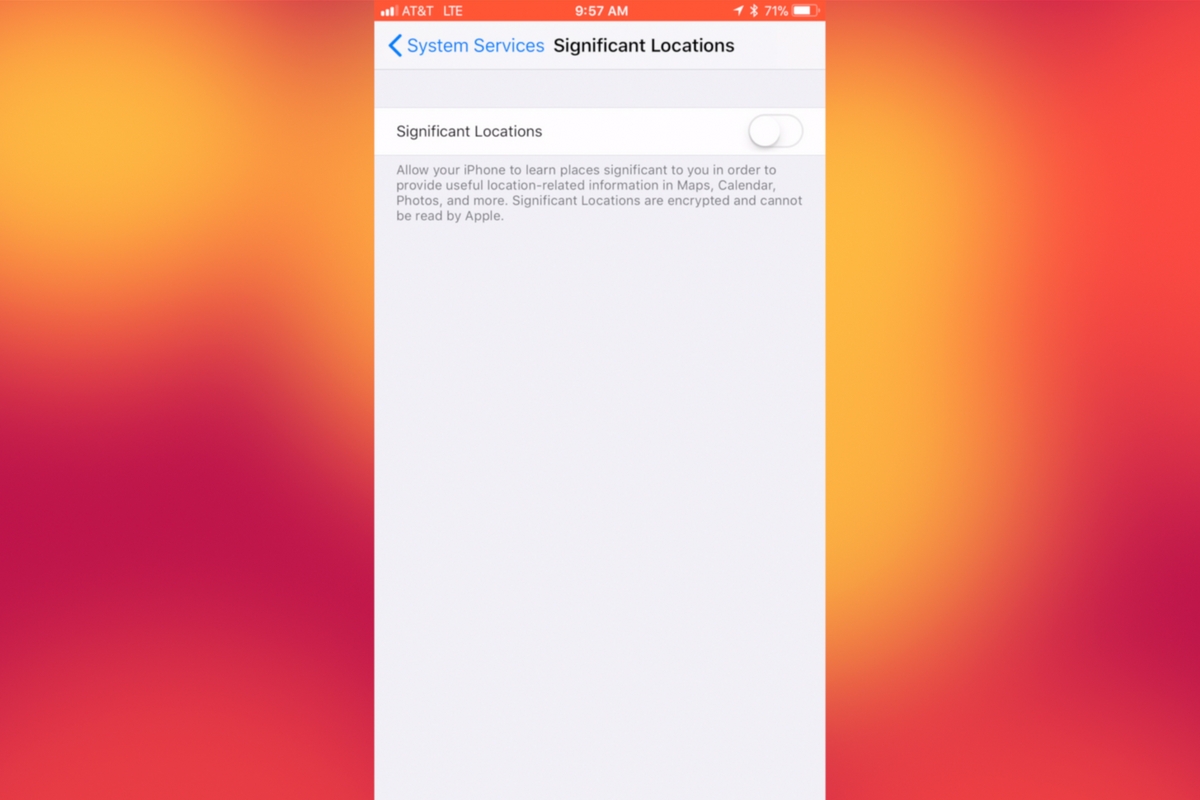
    I recently noticed that some of my photos and videos were still being tagged with a location. One of the most common pieces of advice I give to parents is to turn location access off to their cameras. I was a bit annoyed because I never saw location information in my Photos app before, but now I was. Well, I did a bit of digging and found the culprit. It’s about five taps deep into your privacy settings and, therefore, easy to miss. Below is a short video tutorial to help you be sure location info on your phone stays as private as possible.

    Why Turn This Off

    Your location information is easy to track and very easy to gather from the data in the videos and pictures that you upload to social media. There have been instances of kids being harassed by predators who learned where they were through images their parents had shared online. Common sense tells us never to post pictures or videos that show an address number, school name, or sign of a place you frequently go with your family. The problem is that some of the apps on our phones tag our locations by default. I recommend you look at every app’s location request and ask yourself, “Does this app HAVE TO know where I am to function properly?” If it does not, then turn off access to your location.

    Hopefully, this short video helps you make the changes you need to feel like your privacy is even more secure. I know I feel better.

  • PODCAST: Three Apps Your Kids Should Uninstall

    PODCAST: Three Apps Your Kids Should Uninstall

    Family Tech Update: These apps can be seriously dangerous for your kids. Adult content, privacy issues, stranger danger, all kinds of issues here, and some of them are only rated 12+!

    Social Media Links

    Facebook: http://facebook.com/becausefamily
    Instagram: http://instagram.com/becausefamily

    Twitter: http://twitter.com/becausefamily

    Newsletter Sign up

    Ministry Updates:: http://eepurl.com/R7Btr
    Weekly Blog Posts:: http://eepurl.com/cvnhXD

    Websites

    Ministry Site:: http://becausefamily.org
    Tech Blog:: https://safe.becausefamily.org
    Michael’s Speaking Info:: http://becausefamily.org/bookings

    Donate and Affiliate Links

    http://BecauseFamily.org/partnership

    All music/audio effects are public domain.

  • Instagram Letting Users Change Privacy Settings on More Sensitive Messages

    Instagram Letting Users Change Privacy Settings on More Sensitive Messages

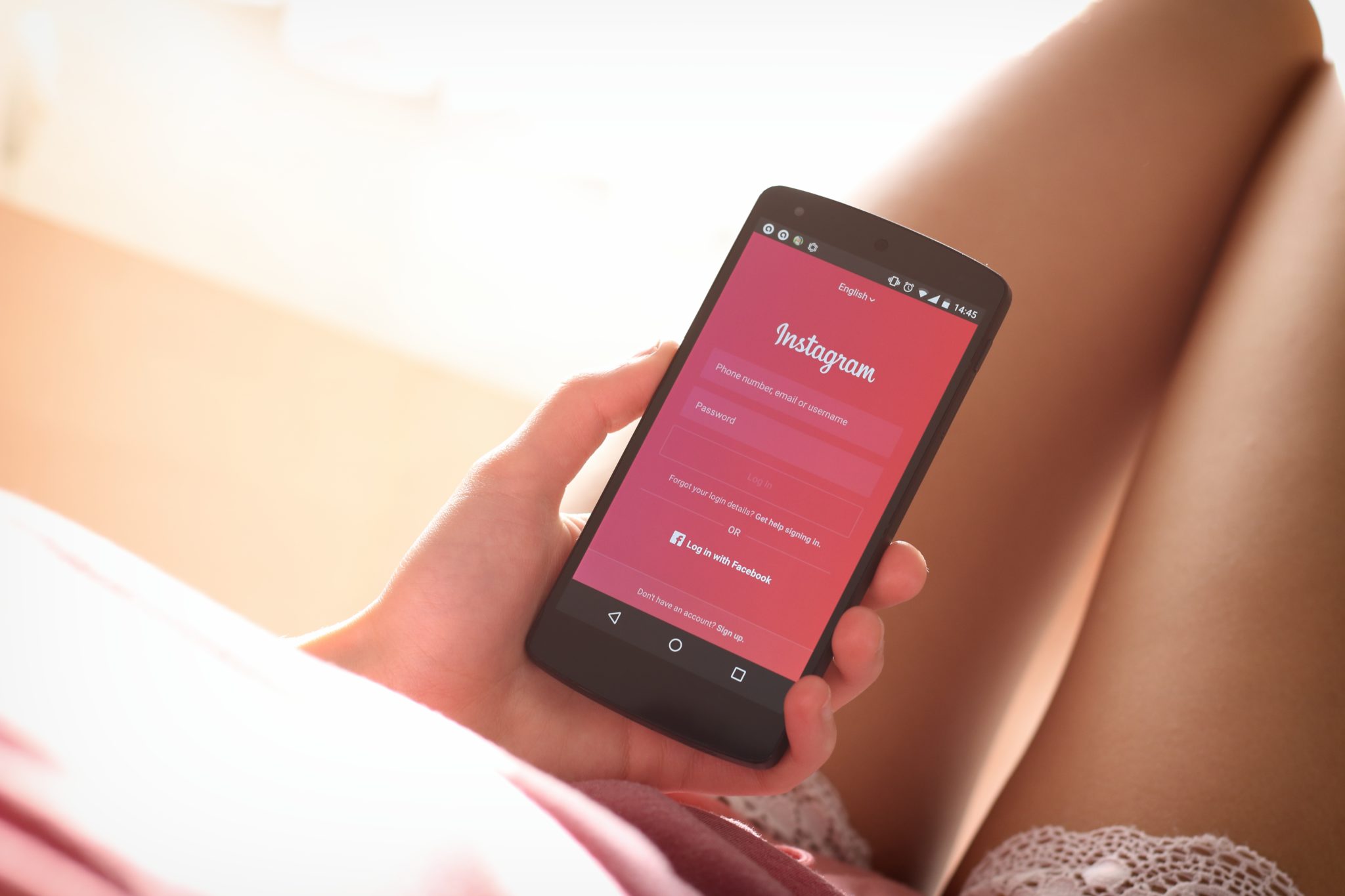
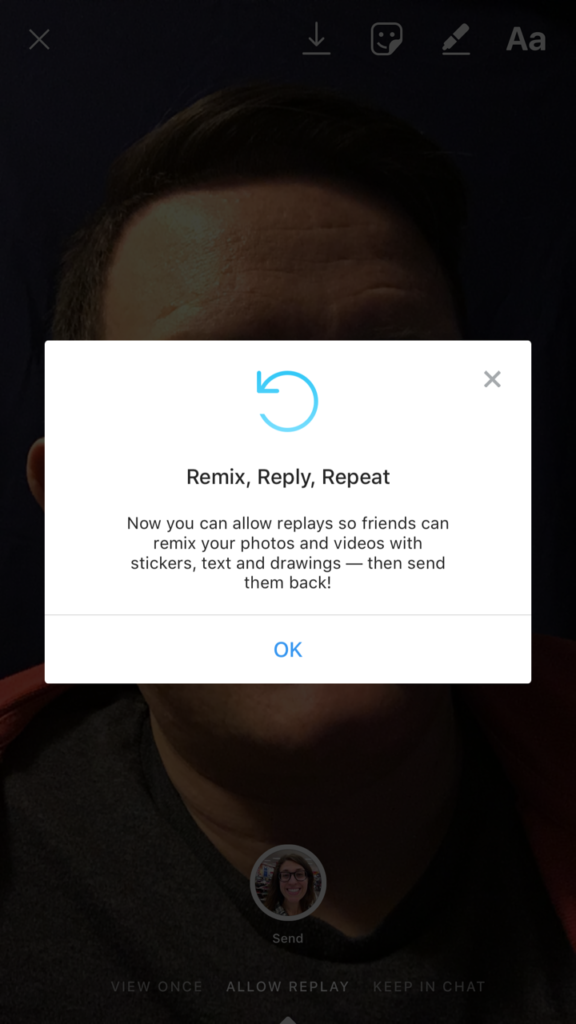
    Instagram has made an update that will let users set privacy settings on their private messages. With the options to “See once, Replay Once, or Show in Chat,” these settings provide a sense of safety when sending that “sensitive” message to someone. Until now, users could replay any message they got on Instagram, but the new Direct Camera settings will allow the sender to make the rules.

    Many are seeing this change as an obvious attempt to combat Snapchat in the disappearing-message department. There is still no way to change settings on your Snapchat private messages. Instagram and Snapchat have been competing back and forth for more than a year now and it seems Instagram is looking to take on the secret message market.

    What Parents Should Know

    As sexting becomes more common, the last thing parents need is another one of our kids’ favorite social media services featuring disappearing messages. The problem with sexting is that kids think there aren’t consequences for the messages they send. Something like a “See Once” feature is exactly what would cause your 14-year-old to give in to that pressure to send an inappropriate picture. Since they can’t see it more than once, nothing can go wrong, right?

    I’m not the only one saying that these features are meant for naughty images. It’s pretty much a given that when you don’t think these messages can be screen captured or saved, you’ll send whatever pops into your mind at the time. I’m adding Instagram to my uninstall list because of the addition of the see once and replay once feature. You’ll do whatever you think is best for your own kids but I’m going to call Instagram an 18+ social media app.