
Tag: google

  • Kids, Social Media, and COVID-19

    Kids, Social Media, and COVID-19

    Instagram bans Coronavirus filters.

    There is a lot going on these days. We have to have some clarity for our kids when it comes to Social Media and COVID-19. As with any modern trend, Coronavirus has gone viral. Not just in the obvious sense. Filters on Instagram, which can be created and posted by nearly anyone, have been featuring images of the Coronavirus strain or filters that turn your face green and put the word Coronavirus above your forehead. Instagram has stated that they are afraid these filters are insensitive and possibly promote false facts about the virus. Because of this, the social media service is blocking all filter search results that use COVID-19 or Coronavirus.

    Facebook, Google, and Instagram bringing CDC and WHO information to top of feed and search results.

    “To help people get relevant and up-to-date resources, we will start showing more information from WHO and local health ministries at the top of Instagram’s Feed in some countries.”

    Social media feeds have been used by companies to highlight certain relevant news stories like election days and disaster response information over the past few years. COVID-19 information is now being offered through these in-feed posts on your social media thread. The major difference is that these posts are being highlighted and placed at the top of your feed. The idea is that the best way to fight misinformation on social media is by providing instant access to correct information.
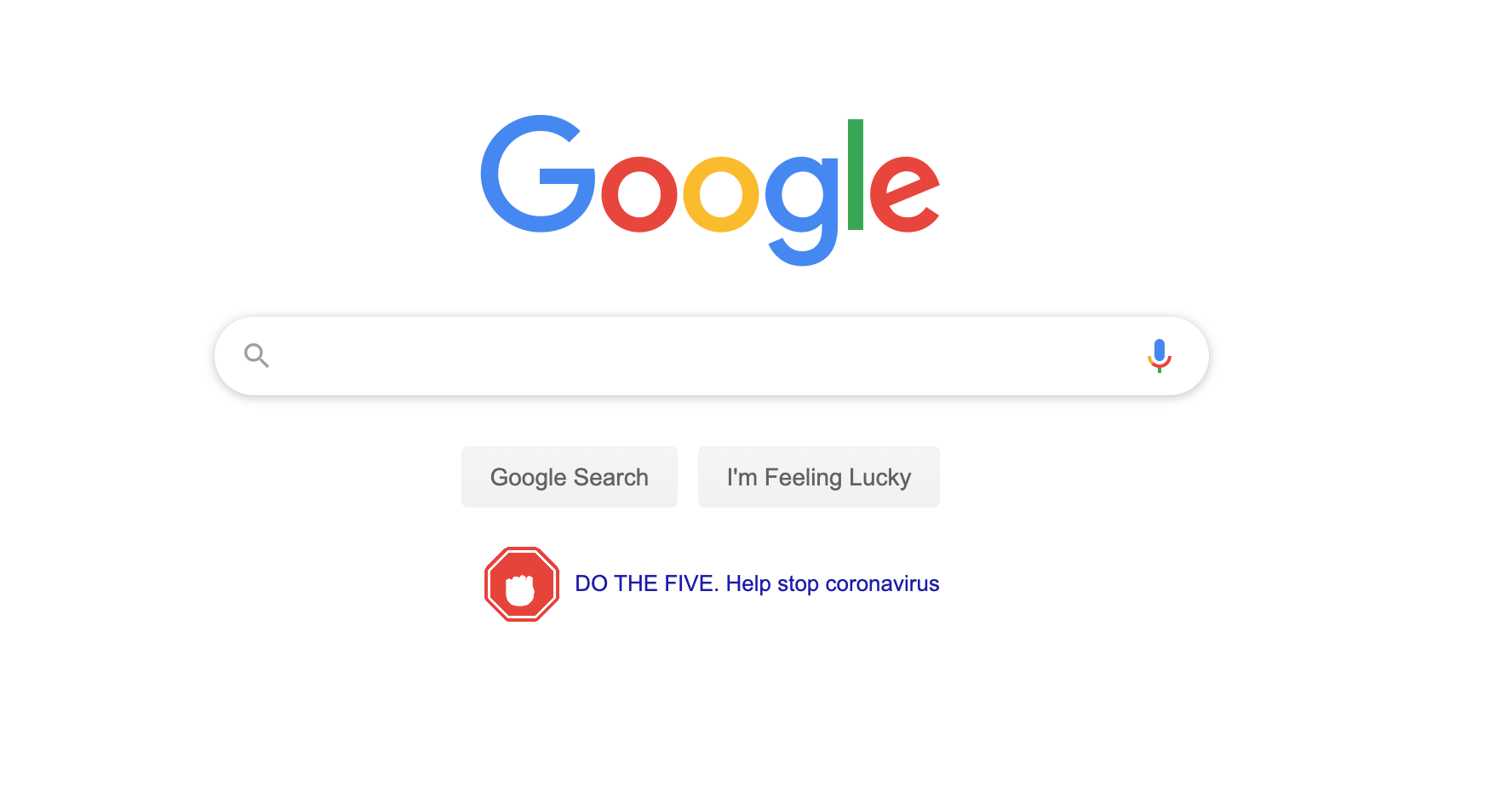
    Google’s home page features an animated “DO THE FIVE” link that leads you to the five steps to prevent the spread of COVID-19 along with search results relevant to learning more about the virus.  These tips are intended to stop the spread of false ideas about the virus that put people in danger. It is critical that we work together to explain the truth about COVID-19 and only get our information for trusted sources. I write this blog for parents and guardians to help them protect kids but many people simply need to know how to protect themselves from false information. Be wise during this unique time in our history.

    Kids, Social Media, and COVID-19 Facts

    Articles and Memes

    There is a lot of nonsense going around concerning COVID-19 and much of it is in the form of memes. Images touting super cures or false prevention measures. Some are claiming government conspiracy and ways that they are lying to us. It can be difficult to weed out who is sharing facts and who is just making stuff up. The key is in the source. We have to check the sources of our information. Some guy in Texas isn’t going to have the super cure for COVID-19, some older lady in Wyoming doesn’t have an inside scoop on what the government is doing to distract us during this election cycle. If there is no source mentioned at all, ignore the content.

    Memes play on our sense of humor or lack of trust. It is easy to believe someone telling us the government made a virus to distract us from something else when we kind of believe that sort of thing already. When our expectations are developed by the movies and tv shows we’ve seen, articles and memes can point us down the wrong path simply by appealing to those expectations.

    Memes: A Parent’s Guide


    Articles can be just as dangerous in times like this. We must know the difference between a news report and an opinion piece. When it comes to things like viral outbreaks opinion writing is next to irrelevant. If the opinion is from someone with relevant credentials who has been commissioned to write something to help the general public during this time, that’s one thing. Some guy on Medium, however, writing about how we should ignore certain CDC advice shouldn’t be taken seriously. He’s writing his opinion and it being on the internet doesn’t make it useful, especially in such a volatile time.

    Once we learn to pay attention to the sources of our information we should be teaching our children to do the same. They need to know that there are people out there writing for entertainment or even with malicious motives in mind. Those people shouldn’t be used to form our opinions on anything, much less something as dangerous as a viral pandemic. Use wisdom, teach your children to do the same, and say a little prayer for those who have to be out and about protecting the rest of us.

     

  • YouTube May Have to Stop Making Money Off Our Kids

    YouTube May Have to Stop Making Money Off Our Kids

    The US Federal Trade Commission is finishing an investigation into YouTube’s Children’s Data and Ad policies and at least one member of Congress is now asking for YouTube to make some major changes. Massachusettes Senator, Ed Markey has officially requested that the FTC enforce some major policy shifts on Google for how YouTube handles advertisements to children and the collection of kids’ data.

    The request states that:

    Personal information about a child can be leveraged to hook consumers for years to come, so it is incumbent upon the FTC to enforce federal law and act as a check for the ever increasing appetite for childrens’ data. – FTC YouTube COPPA 2019

    This three-page document outlines a plan for rules that the FTC should enforce upon YouTube in order to keep them compliant with  COPPA and to better regulate their child advertising practices. The rules include requiring Google to stop collecting data from users under 13, requiring YouTube to develop a way to identify users under 13 and implement COPPA compliant policies, disallow influencers from marketing products geared towards children under 13, and forcing Google to create a fund for developing content meant for children that is ad-free and COPPA compliant. 

    COPPA imposes certain requirements on operators of websites or online services directed to children under 13 years of age, and on operators of other websites or online services that have actual knowledge that they are collecting personal information online from a child under 13 years of age.

    What Parents Should Know

    Parents have to be intentional about teaching their children about online privacy. Regulations from the FTC will, likely, be coming in the near future. Even if these changes aren’t as strict as the ones listed in the letter from Senator Markey, they will still cause major ripples in the YouTube creator and viewer community. The way that YouTube seems to try and handle these kinds of problems is by “demonetizing” videos that contain the type of content they are taking heat about. The heat they are getting from the FTC right now, though, is concerning some of the most profitable channels on any video sharing platform ever.

    Advertising is the way these companies make their money and collecting data is their sole model for targeting their advertising. If they aren’t allowed to target children anymore then there won’t be much content on YouTube for children at all. Our approach has always to only allow our kids to watch YouTube videos that we have selected and they must watch them on the television in the living room. That protects them from any surprises and we curate the types of videos they are allowed to watch. We also have YouTube Premium which removes ads. This is helpful since the algorithm that selects which ads show up on what videos often doesn’t take the age of the target audience into account. (i.e. an ad for the latest Childs Play film on a video about kids making slime.)

    As I always say, we should hold these companies accountable as much as possible but it falls to parents to be the responsible ones when it comes to our children’s digital health and online safety. What is your approach to YouTube, do your kids watch as much as they want? Do you limit their viewership on YouTube? Do you think this news will affect how much time you allow them to use the app? Let me know your thoughts in the comments below.


  • What Are Browser Cookies? How Do They Work?

    What Are Browser Cookies? How Do They Work?

    Facebook and Google have both had their major development announcement events over the past couple of weeks. They have both focused highly on privacy, and what they’re going to do to protect users data. This comes as no surprise because many governments have called them to action in this department saying that they have to protect their users’ data more securely. Since privacy is such a major topic as these events, the term cookies is being thrown around all over the place. You’ll see article after article talking about what Google is going to do with your cookies and what Facebook is doing with your cookies and how advertising companies are tracking you using your cookies. You even get a little pop-up banner when you go to a new website that says, “Hey there, we use cookies.”

    What’s the big deal about cookies?

    There was a day where when you would log onto a website, you were basically visiting it for the first time every time. Cookies help make sure that when you go to a website that website remembers you and may even remember what you did the last time you were there. Here is how that works: I open my browser and sign on to a site, as if to say: “Hi, my name is Michael and I’m going to www.teachmeaboutcookies.com.” That website hands me a “cookie” and says keep this for when you return. We’ll look for this cookie, and when we will remember you so you won’t be starting from the very beginning when you log on to our website.” That is called a first party cookie. First party cookies are how websites remember that you logged in so you don’t have to log in every time you go there or how Amazon remembers what’s in your shopping cart so you can go back to Amazon.com two or three times this week and add things to your cart and order it all at once later without having to log in again every time you go. That’s how a first party cookie works.

    Here’s how third-party cookies work. I go onto teachmeaboutcookies.com and they give me that cookie that I need to have so that I will be recognized again when I return to the website. That cookie is stored in my browser. However, there are ads on this page. There’s an ad from YouTube telling me to go watch these videos, there’s an ad from safe.becausefamily.org saying, “Hey, you should learn about tech safety interested in cookies.” These ads have little bits of code in the website you’re visiting and are now sending cookies to your browser and saving them there. Every time you go to any website on the internet with advertising it is adding more third-party cookies which are all being stored in your browser. All of that ad tracking data is saved in your browser through their cookies so when you go to other websites they will know what ads you’ve seen and responded to and will put ads for more things similar to that on other websites that you visit. That’s how third-party cookies work.

    The reason “browser cookies” has been in the news these days is not because of the first party cookie being put onto your website to make it easier and more convenient for you to use that website. We like not having to log in every time we visit a website, we are happy to go back to a shopping cart in which everything has been saved or revisit a form we started days ago and continue filling it out from right where we left off. We can do this because of first-party cookies. The latest issues are coming from third-party cookies. The government and many privacy agencies and internet safety experts, including myself, would like for companies to be held a little more accountable for what they do with those third-party cookies.

    What Parents Should Know

    Cookies and other web traffic information is often taken and then sold to help other ad agencies that you never connected with in the past create profiles on you. Then you can be advertised to more effectively and therefore buy more stuff. The issue gets even bigger because our kids are using these websites and apps and this data is being collected on them. Even they are having profiles created that track how they use the internet and the apps that they use for advertising purposes. Companies are beginning to wake up to the fact that people don’t want their data sold and traded all over the place like it’s the stock market. They’re starting to do things like Google announced with Chrome being more strict on how websites use cookies that they store on your browser. Safari has done the same thing recently. There are other browsers such as Brave or Duck Duck Go that are very strict on how advertising code is used when you surf the internet. There are even certain laws requiring companies to be transparent about how they use cookies on their website. That’s why you get those annoying little pop-ups that you just click ok on just to get them out of the way. I recommend you click more information next time go and see what they do with the information that they get from you and you browse their website. You might be surprised.

    Unfortunately, opting out of that cookie storage is not really that simple to do. However, you can go in and clear your cookies on any browser that you use. I advise you to ask yourself this question. Do the websites that I’m using need my web browsing information in order to serve me properly? Some websites actually do. Amazon can’t really sell me stuff I’m interested in if it’s not allowed to collect the type of data it needs to know what I’m interested in. Facebook can’t allow me to just log on a check my notifications real quick without entering a password without first-party cookies allowing it to. Ask yourself, “Does this website need my information to work? If so, great, I’ll allow it. Otherwise, if you’re just browsing or you’re just looking at something or if you’re on somebody’s blog or something then there is no reason for them to collect your information. You must protect your cookies.

    Listen to this article in the podcast below:

  • Great News if Your Teen Has an Android or a Chromebook!

    Great News if Your Teen Has an Android or a Chromebook!

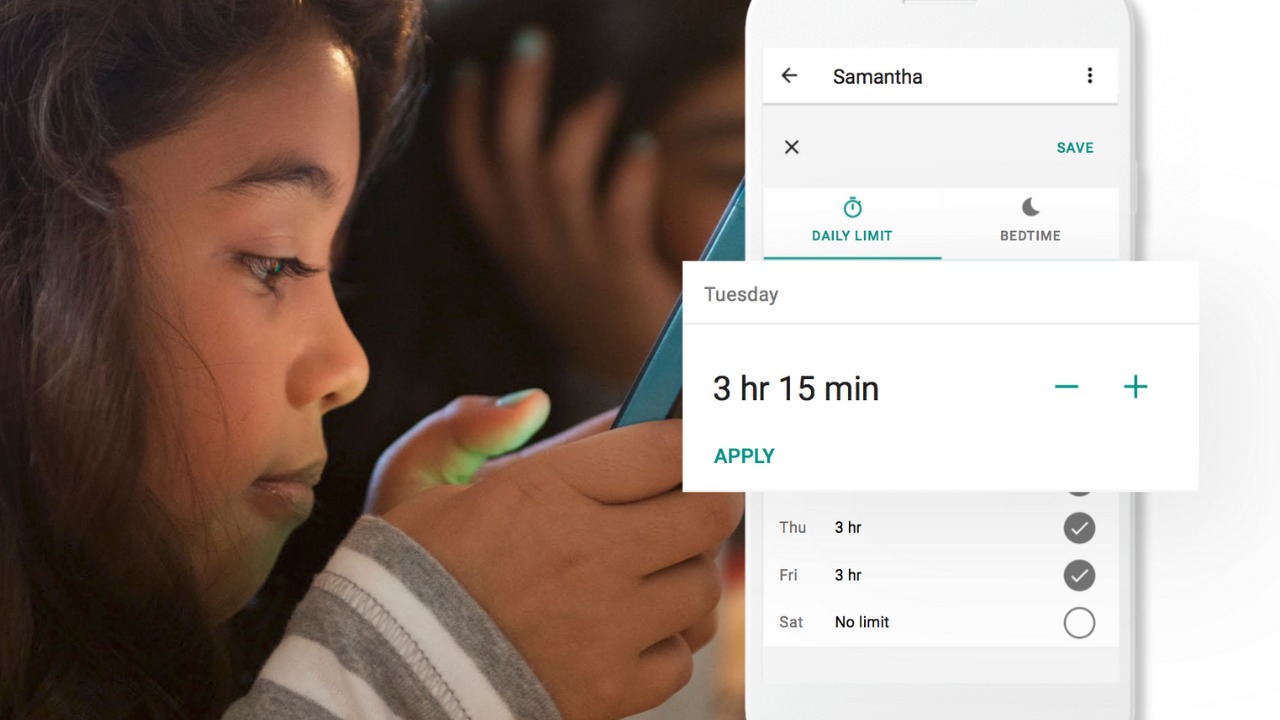
    Android Family Link was released last year to some success. The features are good enough and being able to change kid’s settings from your own phone is super helpful. There were some downsides, however. One of which was that it was geared mostly towards younger kids. That has changed today as google announces features for Teenagers in the FamilyLink app. 

    Android FamilyLink allows you to

    • Approve your child’s downloads and purchases from Google Play and limit the visibility of content in the Google Play Store based on maturity ratings
    • Manage settings such as SafeSearch for Google Search
    • Review your child’s app permissions on Android, such as microphone, camera, location, and contacts access
    • Change the content filtering setting and turn search on or off in the YouTube Kids app
    • Reset your child’s Google Account password
    • Set screen time limits on your child’s Android devices
    • See the location of your child’s signed-in and active Android devices
    • Manage the activity settings for your child’s Google Account
    • Allow a second family member to exercise most of the same controls you have over your child’s account.

    The features for teens adds the ability for your teen to disable the FamilyLink supervision setting. You will be notified if they disable it but the option is still there. 

    Chromebooks

    Schools all over the country are giving their students Chromebooks. The parental control options for Chromebook have been severely lacking for several months since Google disabled the Supervised User feature. The reason they ended support for Supervised User is to make room for FamilyLink and it’s finally here. 

    FamilyLink will soon give you all the same controls on Chromebook as you have on mobile devices. Right now you can only change account settings and content filters. Soon there will be screen time and app store management as well. 

    What Parents Should Know

    FamilyLink is a good parental control solution and it’s only getting better. They’ve added some good features and options for your older kids is also a good step. Issues I’ve had with FamilyLink in the past are the weak filter (currently only as good as Google’s Safesearch) and issues with backwards compatibility. They still recommend your kid’s device run Android version 7 or higher while some devices running Android 5 or 6 may work with FamilyLink. 

    I like what FamilyLink has to offer by way of screen time management and app store controls. A major problem parents have with Android is the ability to download apps outside of the app store. They control what their kids see on the Google Play Store but children can download things from outside the app store sometimes. Many parents don’t know how this is done and how to stop it so it poses a major problem. 

    The ability for teenagers to disable FamilyLink is kind of moot since it notifies parents. That makes me wonder why it’s put there in the first place. Perhaps to give teens the illusion of control or freedom since that’s something the adolescent desires more than anything. If you use FamilyLink for your teenager be sure to let them know you’ll find out if they disable it. The filter is kind of weak and there is no way to monitor messaging or get alerts if negative content has been viewed. I recommend a good accountability software for this. Get something that will work for phones and Chromebook. It’s critical that you know what your kids and teenagers have seen online and what they are doing. This allows you to have conversations with them about their decisions and the dangers and risks involved. 

  • Google’s “Be Internet Awesome” Wants to Help Kids, Teachers, and Parents with Digital Citizenship

    Google’s “Be Internet Awesome” Wants to Help Kids, Teachers, and Parents with Digital Citizenship

    More than three-quarters of school-aged kids in the United States use the internet every week. Much of that online time, for seventy-nine percent of kids, is spent on a smartphone. Much of that time is also spent at school. Kids curriculum is increasingly web-based and school is even issuing computers to kids younger and younger. The internet has long been a place for kids and teenagers to find entertainment and now with the necessity for online activity for school work screen time and global communication among our young ones is on the rise. This has been a cause for concern among parents, teachers, and school administrators alike. Google wants to help parents, teachers, and kids understand what a healthy attitude towards internet activity looks like. While at CES I was able to hear representatives from Google explain Be Internet Awesome and how it was developed. I thought it would be a great resource for parents and teachers alike.

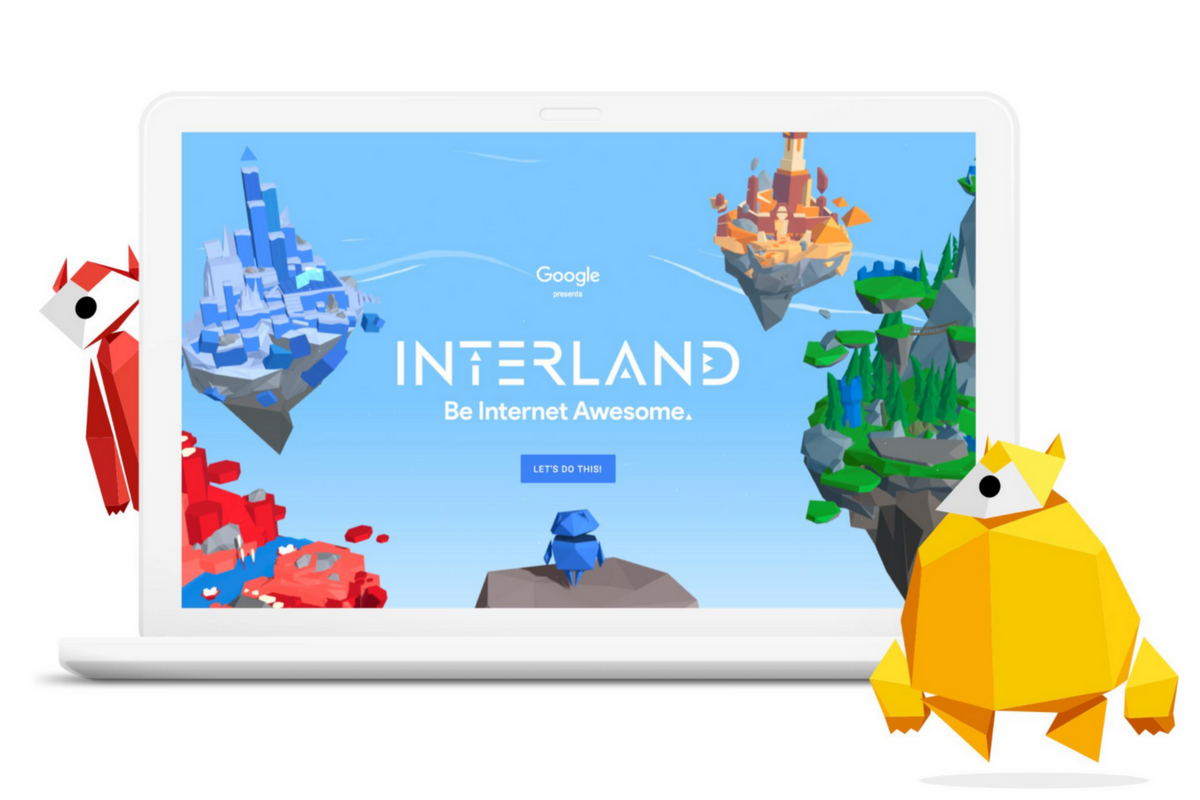
    INTERLAND

    “Kids can play their way to being Internet Awesome with Interland, an online adventure that puts the key lessons of digital safety into hands-on practice with four challenging games.” – beinternetawesome.withgoogle.com

    Interland is a gamified way of teaching kids internet safety and digital citizenship. You make your way through different levels that focus on different categories of your online life. You “report” cyberbullies and share kind words with online “friends.” The game is split into zones, Reality River is where you learn to recognize what’s real and what’s fake online, “Mindful Mountain” is where you learn how to think before you share online, “Tower of Treasure” will teach you how to secure your online activity with strong passwords and secure behavior, and finally “Kind Kingdom” is where you’re able to report those cyberbullies and speak kindly to friends you find online. 

    The games are fun and the characters are silly. The questions seem to be common sense but I know adults who, based on their social media behavior, probably wouldn’t score 10 out of 10. These games have good graphics and audio and they’re a simple and fun way to introduce your kids or students to proper online behavior.

    Curriculum

    The 5 part Be Internet Awesome curriculum is made for parents or educators to help kids go even deeper in their understanding of how to be secure, kind, and mindful when on the internet. By having kids analyze mock social media feeds and behavior they get a chance to think about what they learn about a person based on what they post online. Receiving fake phishing and spam messages allow kids to see what those messages look like and identify and report them easily. Recognizing bullies and how to report them is taught through group activities and clear, understandable definitions. Finally, the free 48 page PDF Curriculum, emphasizes the importance of finding an adult and talking about what they’ve experienced online.

    Pledge

    Finally, the pledge allows kids, teachers, and parents to summarize and agree to their stance on digital citizenship. This allows parents and teachers to get the whole family or class on the same page and hold each other accountable. A pledge is a good way to reemphasize what has been learned and highlight the importance of their commitment to be the best version of themselves online that they can be.

    What Parents Should Know

    I recommend you use this game and curriculum in your home if you haven’t already. Help your kids understand the dangers and concerns with the amount of time they spend online and encourage them to use their time as wisely as possible. Google has created a helpful and free tool for you as a parent or teacher to use and download as often as you need to. I say take advantage of it. If your family, like ours, has some specific rules about how you use the internet, interject them into this curriculum, using Google’s offering as a foundation for your internet safety plan and contract. Our kids will be spending more and more time on the internet as they grow. It’s important that their parents first, model proper citizenship for them, and second, take advantage of whatever resources we can to teach them how to treat themselves, their information, and others with respect on the internet.

  • Google Has Taken Away Chromebook’s Native Parental Control Solution

    Google Has Taken Away Chromebook’s Native Parental Control Solution

    What is “Supervised User?”

    I wrote all about your parental control choices for your kids’ Chromebooks a few months ago:

    “Supervised User is an account based system that’s built into the Chrome browser. It allows you to set filters, monitor sites visited, prevent installation of apps, turn on safesearch, and change settings. You do have to use blacklists or whitelists to block websites, there is not an automatic filter built in…”

    This wasn’t a foolproof solution but it was something that could give parents a head start on protecting their kids while they use the computers their schools have given them. Supervised User, however, has been discontinued so that they can focus their attention on another “parental control option to be released later this year.” Having received several calls from parents and principles this past year asking me to help them teach parents about the controls available, I know the need for Chromebooks to be safe while kids are online. Unfortunately, the simplest, most obvious solution is no longer available. At least for a while.

    From “Google Chrome Help”

    But There Are Solutions!

    Mobicip

    For a full-featured filter option, consider Mobicip. One of the only full-service filter and monitoring apps for Chromebook, Mobicip offers a plugin that you can download from the Chrome app store. Mobicip will give you customizable filters, time limit controls, and usage reports and its pretty easy to set up. You just download the extension from the Chrome app store and then log in. It takes you through the setup steps and lets you set your desired filter levels. Once it’s all set up you can make changes from anywhere using their web-based controls dashboard. Their SUPPORT page has good How-To resources to walk you through the process.

    If you want more controls than the Supervised User option gives you then Mobicip is a pretty good choice. It’s $39.99 per year for all of the features mentioned above for up to five devices. If you are going to need to protect more than twenty devices (I’ve met families with upwards of 30) then you’ll have to get a quote for their “Enterprise” option. Mobicip is a good option and will give you quite a bit of control.

    Accountable2You

     This accountability software doesn’t block content. This software will keep an eye on what’s being viewed and then red flag and report anything that it deems inappropriate. This allows you to more easily see when something questionable has been viewed. Otherwise, you’ll spend time sifting through link after unrecognizable link to find something that may be naughty. You can even set up Accountable2You to send you a text message when an inappropriate site was accessed. The software works across all of your devices including Chromebook and is $6.99 per month for six devices and $9.99 per month for twenty devices. They have easy setup instructions on their SUPPORT page and have excellent customer service. (NOTE: Accountable2You just released their lates iOS app that will cover every browser used on an iPhone or iPad. One of the first accountability solutions of it’s kind.)

    Use SOMETHING!

    I advise against waiting for Google to release a different option. Please set something up and do it soon. Kids are using their computers for much more than school work and there is more content showing up every day that would prey on your children’s innocence and even their safety. A Chromebook is basically a machine built only to run the internet. It has little to no other use. Pretending that it’s safe just because the school issued it is foolish. Use one of the affiliate links above and set up a solution. I wouldn’t recommend something I don’t or wouldn’t use myself.

  • Android FamilyLink is A Great Parental Control Solution, Albeit with One Major Flaw.

    Android FamilyLink is A Great Parental Control Solution, Albeit with One Major Flaw.

    I had the privilege to hear Saurabh Sharma – Sr. Product Manager with Google, speak on the abilities and development of Android’s parental control solution, FamilyLink. He covered many of the trends they were seeing in kids and families and how those stats encouraged their team to implement some full device control features on the monitoring system. As you can see in the video above, there are some pretty neat features in FamilyLink, including the ability to lock an entire device, not just the data connection. Also, time management and scheduling is a major part of the FamilyLink features. One of the coolest features spoken about at CES was the ability to use Google Home to control FamilyLink. Voice command was all the rage at CES2018 and Google’s parental control apps were no exception.

    The app on kids’ devices allows them to see exactly what their parents are seeing. App usage stats, app blocking, bedtime and offtime, and setting the Google’s content filter, “SafeSearch.” While the SafeSearch filter isn’t the most extensive and customizable content management tool, it is a good start, especially for your younger children.

    One Major Flaw

    When FamilyLink was announced ten months ago my first question was, “Can our kids use this on the older phones we’ve handed down to them?”  The answer is listed in the fine print on the Google FamilyLink homepage: “*Children can run Family Link on Android devices running Nougat (7.0) and higher, along with certain Marshmallow (6.1) devices listed in our FAQ.” This was immediately a problem for me since I know many families who use their older Android phones as the solution for their kids. It’s always been pretty easy to just hand down your phone to your kids when you get a new one. While there are many internet safety options available for Android, nothing works as well as an app developed by the same people who made your operating system.

    After hearing Saurabh Sharma talk about FamilyLink, I followed him out of the room as he headed towards his next meeting and I asked him about the possibility of making FamilyLink backward compatible with older phones. He replied: Making FamilyLink backward compatible is a “difficult problem but one we are committed to trying to solve.” So there you have it. While it’s understandably not an easy thing to fix, we are assured that it is on the team’s radar and something they’re working towards.

    Apple’s iOS has had native parental controls for a long time now. They’re pretty effective but haven’t been updated over the last several operating system upgrades. Hopefully, some time management and monitoring options can be added soon. Thankfully there are apps like Accountable2You and UnGlue to help with some of those needs. 


  • Tumblr App Installs “Adult Content On Switch”

    Tumblr App Installs “Adult Content On Switch”

    Tumblr has lost some traction over recent years. It’s not so much a social media platform as a blog host and not really even that. It’s more used for GIF (animated images) posting than anything nowadays. Apple has always had a pretty strict standard on adult content in the apps in their app store. They require developers to have adult content disabled by default. This usually means that image searches on your browser should be without any blatant pornography unless your search is specifically for that. Tumblr has updated their iOS app with a workaround for this rule. There is now a switch that will allow users to turn adult content back on in Tumblr. It’s actually a “safesearch switch” and it’s set to on by default, thus following the rules set up by Apple. All it takes, however, is for someone to go to the settings page of the app and turn the safesearch option off. This will unleash the cacophony of adult content that is available on Tumblr (many say that pornographic images and gifs have become it’s main purpose) on the user.

    What Parents Should Know

    The Tumblr app is basically a browser in which anyone with an account can see any of the user generated blog content posted on the site. As mentioned above, the app has become inundated with adult content and is not safe for anyone you’d like to keep from those sort of images or videos. The safe search switch isn’t located in the restrictions settings on your iPhone. It is just in the settings for the app. This means safesearch changes can be made without a password. This app is an easy way for your child who has been looking at inappropriate images or videos to access more of that. Now that the safesearch can be turned off, you’ll want to add this app to the uninstall list.

    Our children can be greatly harmed by pornography. Studies are showing it’s addictive nature and the ability it has to alter a person’s sexuality and preferences, creating what they call an “arousal template.” This causes kids to be attracted only what they’ve seen online and can create serious problems for them in the future. They also say that kids who view pornography are six times more likely to force others into sexual behavior. Many in our culture view online adult content as only entertainment but it’s being proven that it’s detrimental to the mental health of our kids. If there is anything you can do to protect your children from adult online content, you must take steps to do so. Uninstalling Tumblr just became one of those steps.

  • Fake News and Your Family

    Fake News and Your Family

    I’ve been hesitant to write about the fake news issue. While there have been plenty of stories come out about how the tech world is battling the fake news problem I have yet to be able separate the issue from people’s political feelings and so I’ve left it alone. Today, tech news sites are talking about the latest shot fired in the fake news war and it centers around the most popular site on the internet, Google.

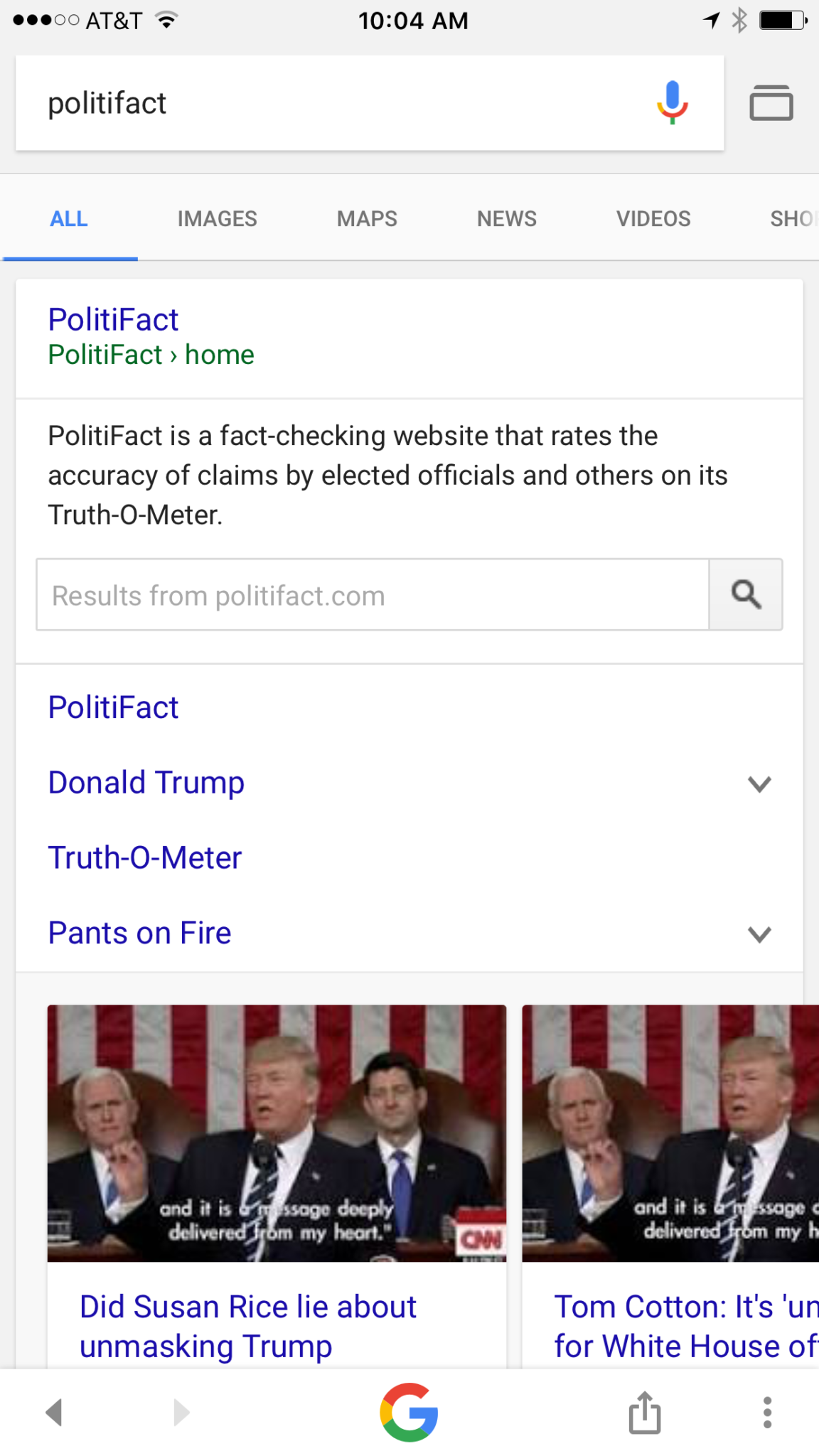
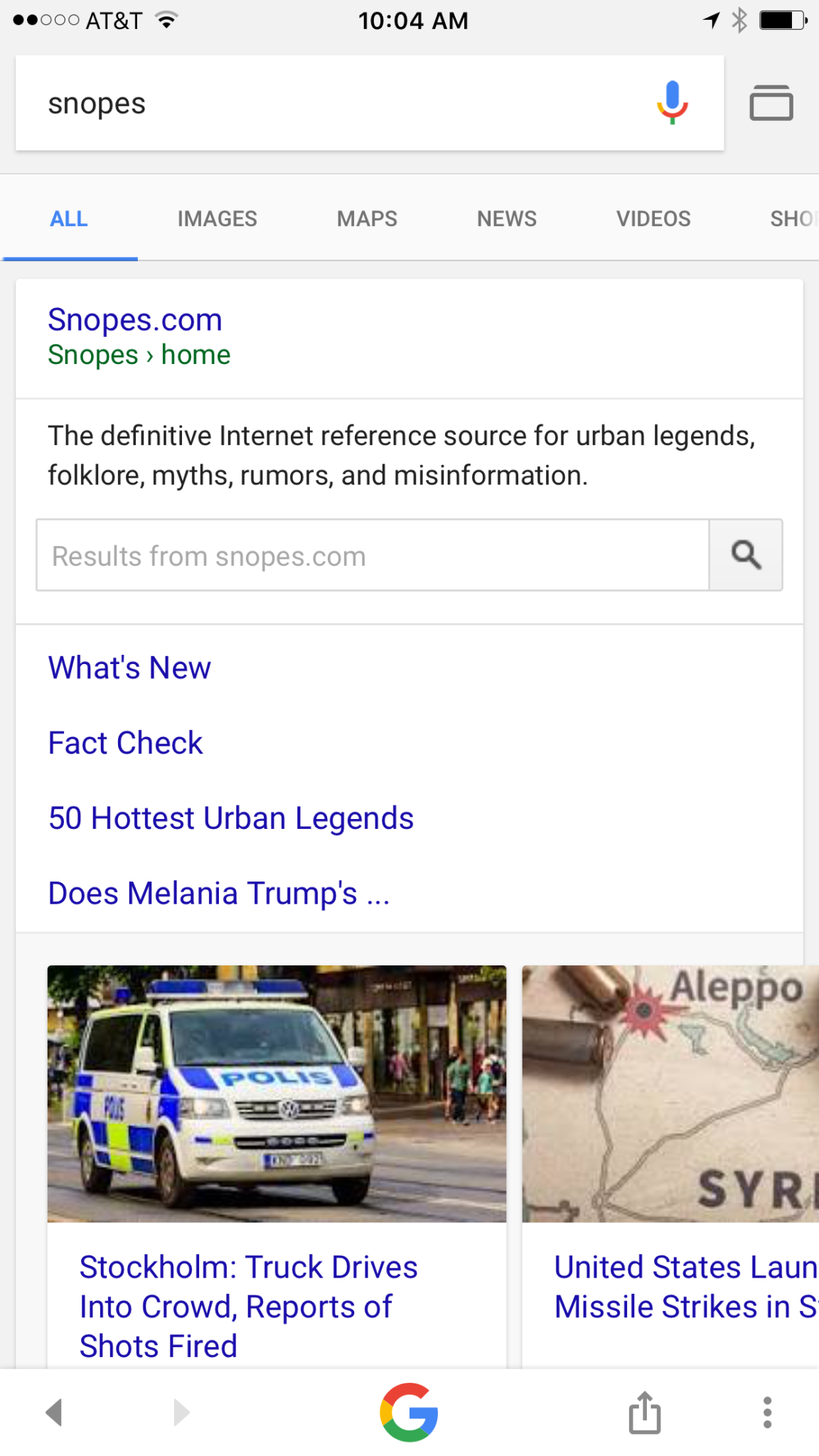
    Google is going to be featuring fact check links on many news stories in your search results. The need for more fact checking has become more and more obvious as the internet becomes full of user generated content. The issue with UGC is that you can say whatever you want and, until recently there weren’t a lot of ways to prove your story right or wrong. Links underneath some Google search results will now feature fact check information from sites like Politifact and Snopes. These should help those seeking true news and information to have a better understanding of the sources for the articles they’re using for their research.


    What Parents Should Know

    Fake news isn’t a kids and teens problem. Many adults share stories without finding out where the information came from. It isn’t difficult to recognize a satirical news site from a real news site. Fake news sites work to disguise themselves as real news. Satire is an obvious attempt at humor while fake news is usually just created to get clicks and sell advertising. You see, the more clicks a site gets the more money they make from advertisers on their sites. Writers on these sites will write a story based on the number of clicks it will get and not the accuracy of their information. Often these stories will be twists on something that is true while sometimes it’s just a completely made up article with a “clickbait” headline. We can’t continue to share these articles for so many reasons; the biggest reason is that it further confuses our society and divides us.

    Your children deserve a world where news is actual news. No matter your beliefs or political leanings you don’t want your kids to have to function in a society where there is no difference between factual news and an inflated false story written by some kid in a basement in Ohio (no offense to Ohio.) You should learn to fact check. Spend some time on Politifact.com or Snopes.com and dig around for the issues that are most important to you. Teach your kids what it means to site sources and look for the purest form of information or news. Yes, you can read about the latest tech news from me and I’ll related it to parenting and protecting your children online; that’s great, but if want to know more about Google’s fact checking search results you can go read their blog to get the information straight from the source.