
Excerpt from our book, What’s in Your Pocket?
Finding your operating system is the first step to protecting your children online. Follow the process outlined for your device below to learn how to lookup the controls tutorials that meet your needs.
How to Find Your OS Version
For Your Computer/Laptop
Windows PC
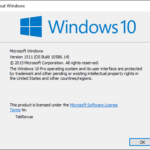 – Click the START icon on the lower left portion of the main screen (Desktop).
– Click in the search section on the bottom of that START menu.
– Type “winver” (short for WINdows VERsion) then press enter.
– This will open an ABOUT WINDOWS page and display the version of the OS you are running (example: Windows 8.1).
Mac Computer
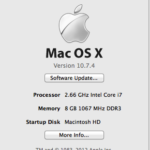 – Click the Apple icon in the upper left corner of your desktop.
– Select ABOUT THIS MAC.
– The page that opens will display the version of the OS you’re running. (example: Mac OSX Yosemite 10.10.5).
Find a tutorial for setting parental controls by typing your OS version into a search engine.
– Search example: Setting parental controls on Mac OSX Yosemite 10.10.5
For Your Smartphone/Tablet
Here is a step by step for each of the top three brands of phone:
Apple (iPhone or iPad)
– Tap your settings app icon.
[This is a grey icon with art in the middle that looks like a gear.]

– When the settings app opens tap “General”
– Tap “Software Update.” This will begin a search to see if your phone needs to update. (If it does need to update you can follow the instructions on the phone to make that happen or you can chose to ignore it.) You’ll see the Operating System right there (example: iOS 9.2.1).
Android Phone or Tablet
– Open your “Menu”
-Tap “Settings”
(The icon looks different for different phones.)



– Scroll down and tap “About Phone”
– Scroll to “Software Information” and tap it.
– That will show your android device software type (example: 4.1 Jellybean).
DISCLAIMER: There are so many different types of android phones and software that your device may look a bit different. However, if you familiarize yourself with the steps and terms in the instructions above you should be able to find your operating system with no problems.
Windows Phone or Tablet
– In your “App List” tap “Settings”
(The icon looks like a big square with a small gear in the middle.)
– Tap “about” and then type “More Info”
– About halfway down you’ll see the “Product Name” and the “OS Version.” This is the information you are looking for.
The Software section indicates the general product name we use to describe the release (for example, “Windows Phone 8.1” or “Windows Phone 8”). The OS version section indicates the specific build number of the release (for example, “8.0.0000.0” or “8.0.10517.150”). (Windowsphone.com)
Hopefully this information will help you find the info you need to search for parental control settings on your kids’ device.