Tag: tutorial

  • TUTORIAL: How to Keep Your Kids in a Single App on Your Android Device

    TUTORIAL: How to Keep Your Kids in a Single App on Your Android Device

    If you’ve ever given your smartphone to your kids to play a game you know that you always run the risk of them opening another app or getting access to something through an Internet browser that might be objectionable.

    Parents using iOS are able to use Guided Access to limit their kids to one app for a certain amount of time but what can parents with Android phones do?

    Screen Pinning is the solution. It’s been available since Lollipop (5.0) and is advertised as a security feature but it’s a good parental control too.

    Screen Pinning only allows one app to run and someone with your phone cannot switch to another app without you PIN or fingerprint.

    There aren’t any time limits built into Screen Pinning so we’ll cover that in another article about “Digital Wellbeing”. For now, here’s how to enable this helpful feature.

    Many smartphone manufacturers implement Android a little differently. If you’re having trouble with these instructions, check with your carrier or phone manufacturer.

    These instructions are for Android 9.0 and up. If you have an older version of Android the instructions are a little bit different. You can find instructions for older versions at Google’s Help Center.

    How to Enable Screen Pinning

    1. Open your device’s settings.
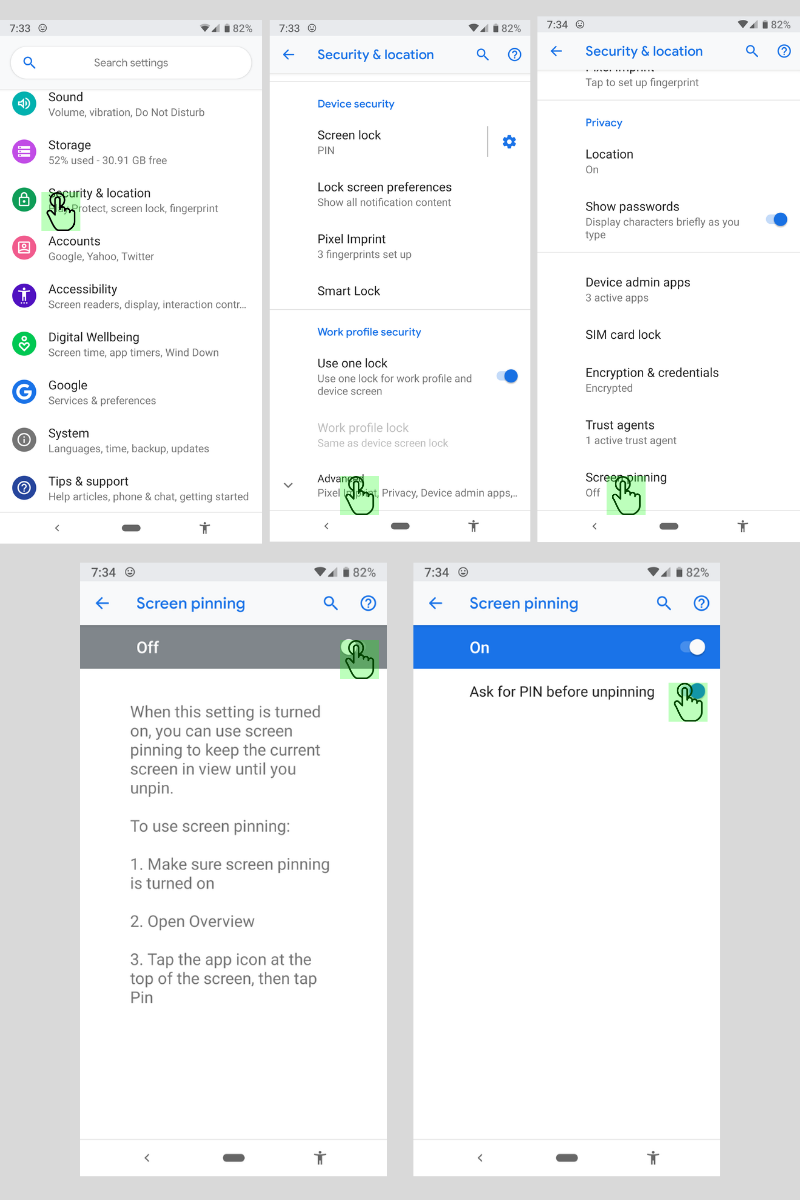
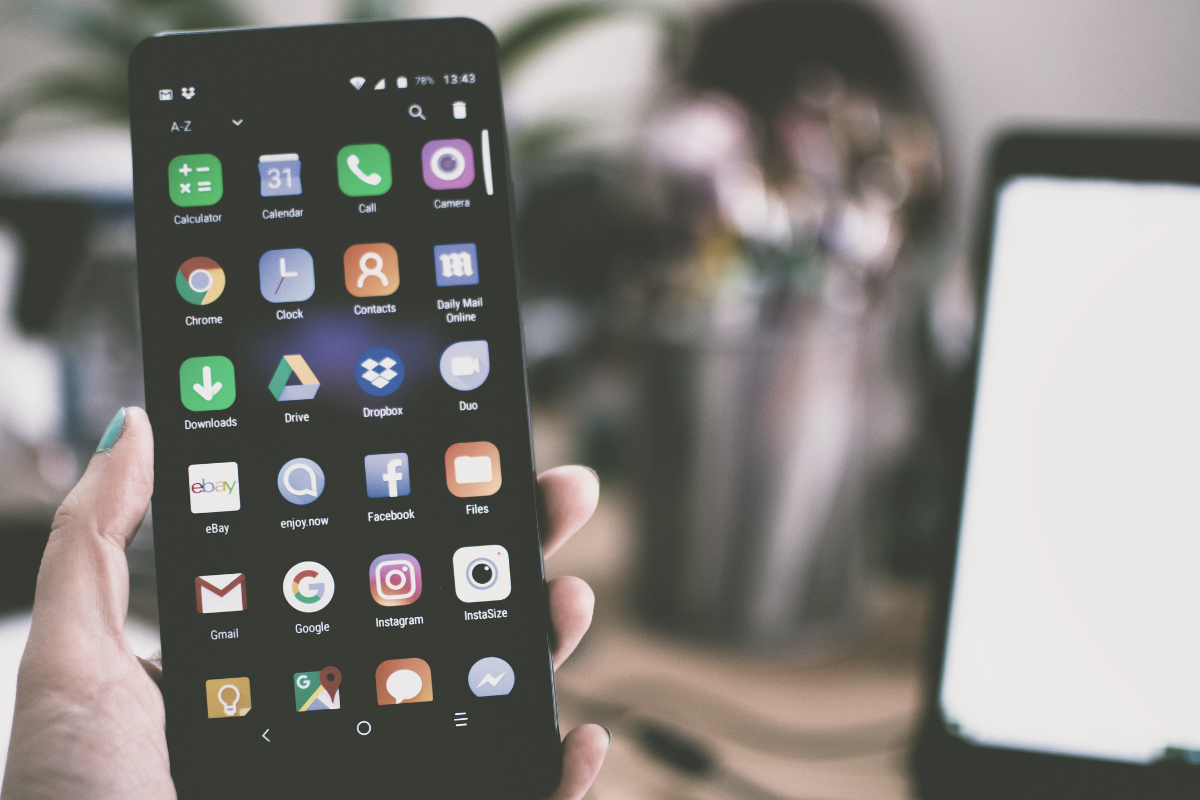
    2. Tap Security & Location > Advanced > Screen Pinning.
    3. Turn on screen pinning (remember to require your PIN to disable).

    How to Pin an App to the Screen

    1. Open the app you want to pin.
    2. Swipe up to the middle of your screen.
    3. Tap the app icon.
    4. Tap the pin.

    The app is now pinned and cannot be switched without your PIN or fingerprint.

    How to Unpin an App From the Screen

    1. Touch and hold the back and home icons.
    2. After your device locks, enter your PIN or use your fingerprint to unlock.

    The app has now been unpinned and you can use other apps.

    That’s all there is to it. The next time you’re waiting in line at the DMV and your kid asks to play a game, you can give him your device without worrying that he’ll watch red band trailers on YouTube.

  • A Warning For Parents Buying Android Tablets for their Kids this Christmas

    A Warning For Parents Buying Android Tablets for their Kids this Christmas


    Android Tablets are a great option for parents who want to get their kids some form of screen device without breaking the bank. The addition of Android FamilyLink has made Android and even better choice for our kids’ introductory tech device. They are affordable, fairly easy to use, and most all apps our kids want to play or use are available through the Google Play store. There is, however an issue that faces parents when they are ready to set up these devices for their kids: compatibility.

    Compatibility is the ability of a device to run the software you are trying to install on the device. Android FamilyLink requires operating system 7.0 or higher in order to work on your child’s device. That means that if your device runs an older version of Android, the app that connects your parental control settings to their device won’t even be available to install from the app store.

    I ran into this problem today while helping a family set up controls on the brand new tech devices they had purchased for their two girls. I initially thought it odd that on one device I could login an account as a child and on the other I could only make a basic adult Google account. Then, halfway through setup I realized that one tablet would run FamilyLink while the other would not. Both of these devices had been purchased from the same place on the same day and were brand new, not refurbished or used, but the operating system was different in each tablet. One was running Android 4.4 while the other, the one that let me set up FamilyLink, was running Android Version 7.1.

    I understand that newer software will not work on older devices but these are two devices being sold at the same time as brand new. There is nothing, without further investigation, that would cause a parent to expect they couldn’t do all the same things on both tablets. The truth, though, is that not all Android Tablets are equal. We won’t get into opinions on Apple vs Android but I will make this comparison: when Apple updates their operation system ( iOS) they ping all of the devices at once and encourage installation of the newest version of the software. Android, however, is a crap shoot. You have to go see if your device will be compatible with the newer software every time a new one comes out. The main reason for this is that different companies make phones that run Android while Apple makes the device, the operating system, the app store. Basically the whole shebang.

    People have different tastes and whether it’s the way the software functions, the look and feel of the phone, or just not wanting to spend as much money, Android will always be a significant part of the smart device market. My advice isn’t to just always use Apple products. I will encourage parents, instead, to always look at the specifications of any device you want to buy and see what operating system it is compatible with. If you are buying an Android product and want to instal FamilyLink, the device must run 7.0 or higher for the FamilyLink Children and Teens app to show up as downloadable in the Google Play Store. Otherwise, you’ll be looking for some third party app or combination of third party apps to add parental control functionality to your devices.

    Need help? Shoot me a message HERE.

  • TUTORIAL: How To Use Accountability Software

    TUTORIAL: How To Use Accountability Software

    One of the easiest ways to protect your kids online is to monitor their internet activity. Accountability software is the most effective way to do that. Accountability software does not block anything, it will report when something inappropriate has been viewed so you can talk to your child or significant other about what they spend their time doing online. 

    Our favorite Accountability Software is Accountable2You. I love it for a lot of reasons, probably the biggest reason is their support base. I have had a great experience when I have had to contact their support team to help me figure out setting up new devices. Some of the best features of Accountable2You are their GPS tracking (included,) their iOS VPN settings, and their time management tracking. 

    The video above will walk you through how to sign up and use Accountable2You. We are an affiliate of this software and you’ll get 30 days free if you use our promo code: BECAUSEFAMILY. 

  • How to Turn Off Hidden Location Access in iOS

    How to Turn Off Hidden Location Access in iOS

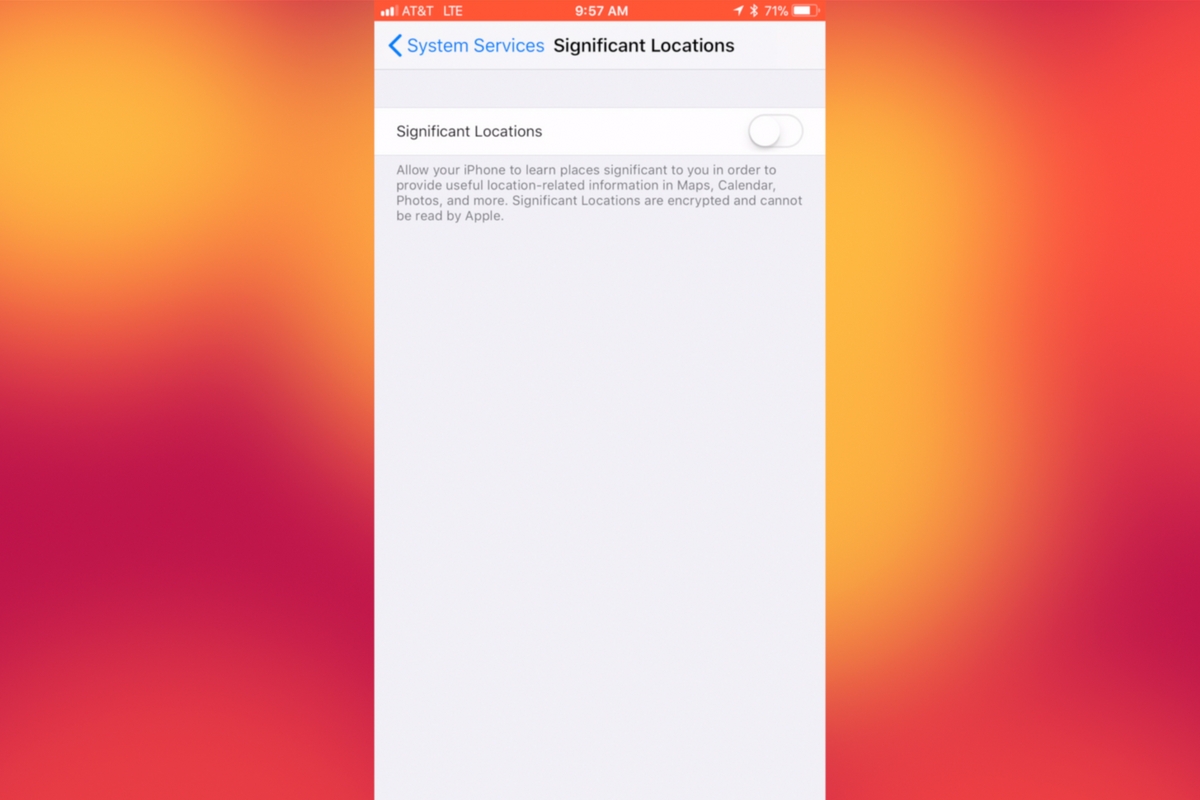
    I recently noticed that some of my photos and videos were still being tagged with a location. One of the most common pieces of advice I give to parents is to turn location access off to their cameras. I was a bit annoyed because I never saw location information in my Photos app before, but now I was. Well, I did a bit of digging and found the culprit. It’s about five taps deep into your privacy settings and, therefore, easy to miss. Below is a short video tutorial to help you be sure location info on your phone stays as private as possible.

    Why Turn This Off

    Your location information is easy to track and very easy to gather from the data in the videos and pictures that you upload to social media. There have been instances of kids being harassed by predators who learned where they were through images their parents had shared online. Common sense tells us never to post pictures or videos that show an address number, school name, or sign of a place you frequently go with your family. The problem is that some of the apps on our phones tag our locations by default. I recommend you look at every app’s location request and ask yourself, “Does this app HAVE TO know where I am to function properly?” If it does not, then turn off access to your location.

    Hopefully, this short video helps you make the changes you need to feel like your privacy is even more secure. I know I feel better.

  • TUTORIAL: How to Download All of Your Photos, Videos, and Messages from Facebook at Once

    TUTORIAL: How to Download All of Your Photos, Videos, and Messages from Facebook at Once

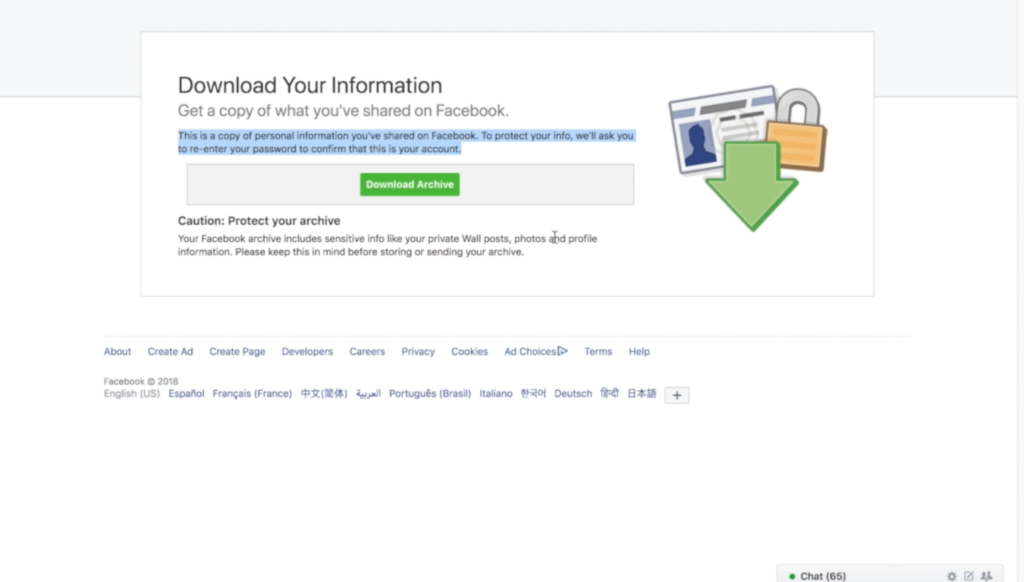
    There could be a number of reasons you’d want to download all of your Facebook data. Maybe you’re making a fresh start but don’t want to lose photos and videos, maybe something’s going on and you need message data downloaded, or maybe you just want to back up all your data for when the giant electromagnetic pulse goes off someday and the internet comes crashing down. Whatever reason you’re interested, here are the simple steps you can take to download all of your Facebook info at once. The tutorial video is at the bottom of this post.


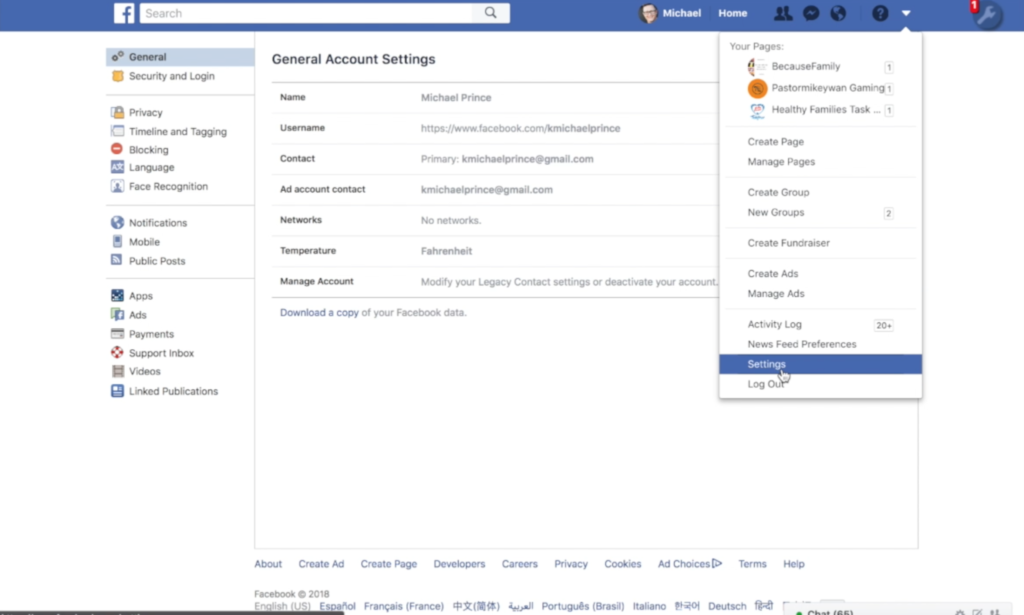
    1. Go to your settings page.


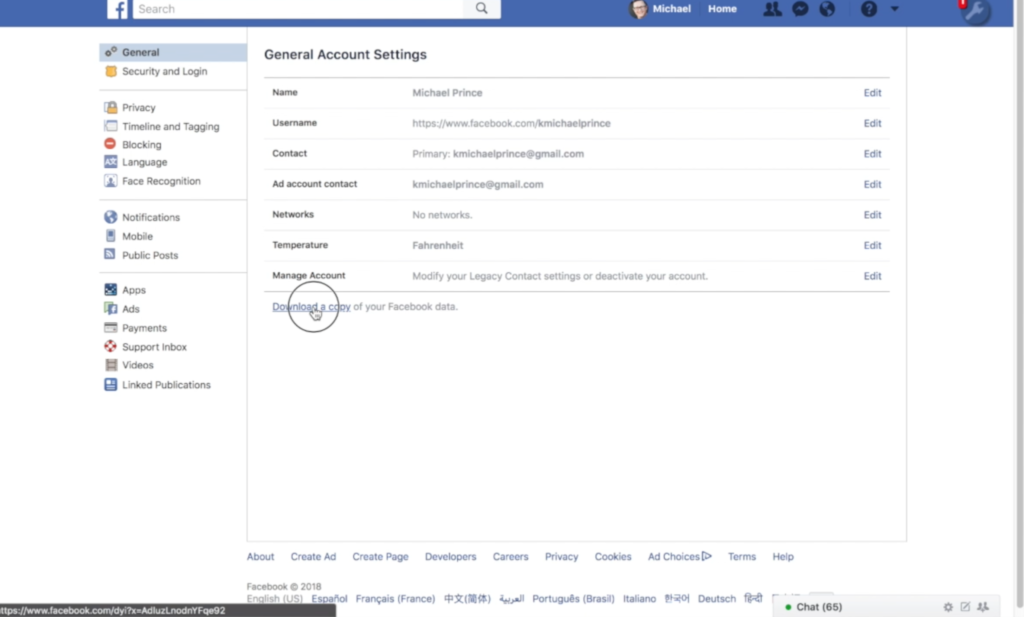
    2. Click on Download a copy Facebook Data


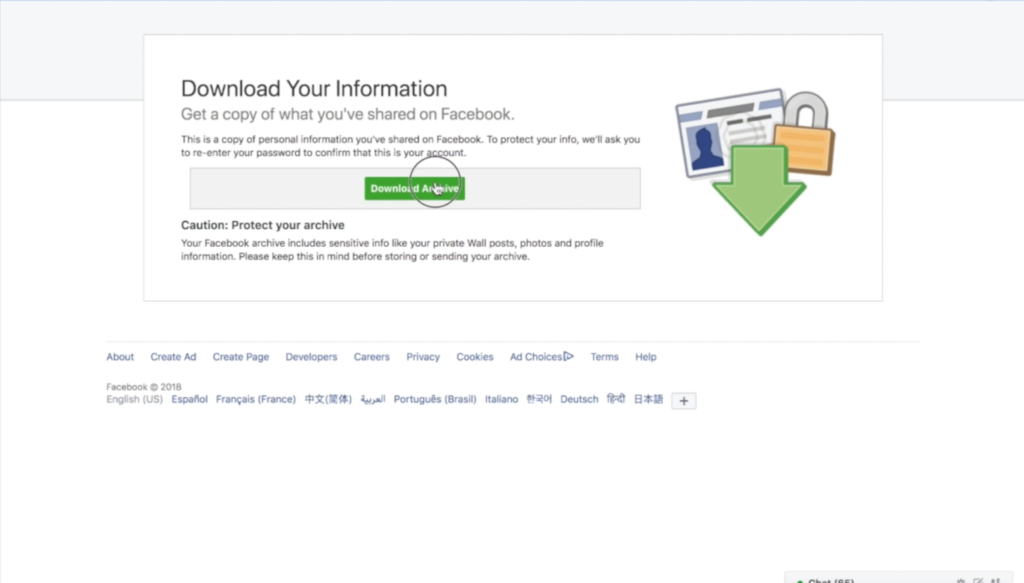
    3. Click download archive.


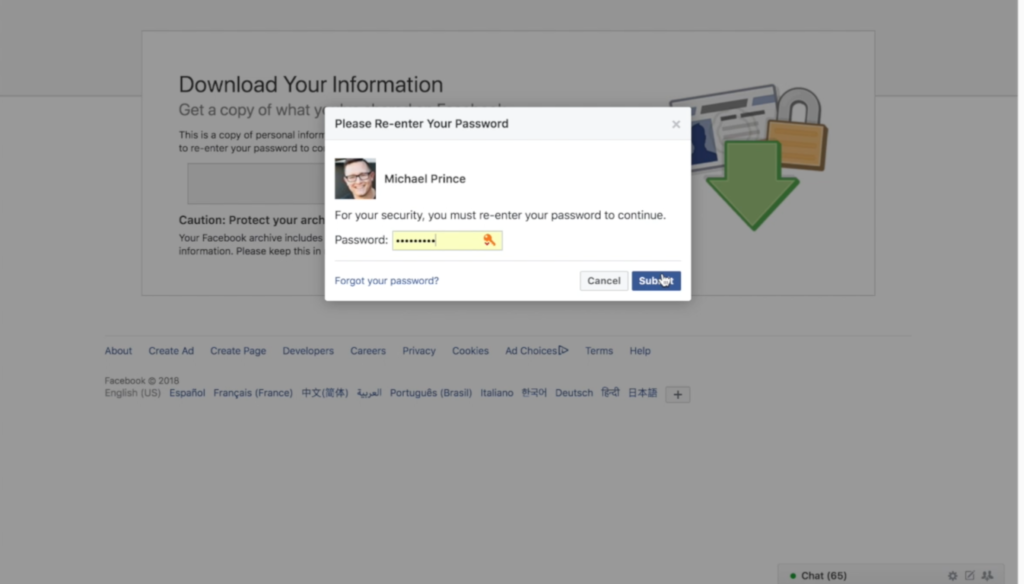
    4. Enter your password and click Submit


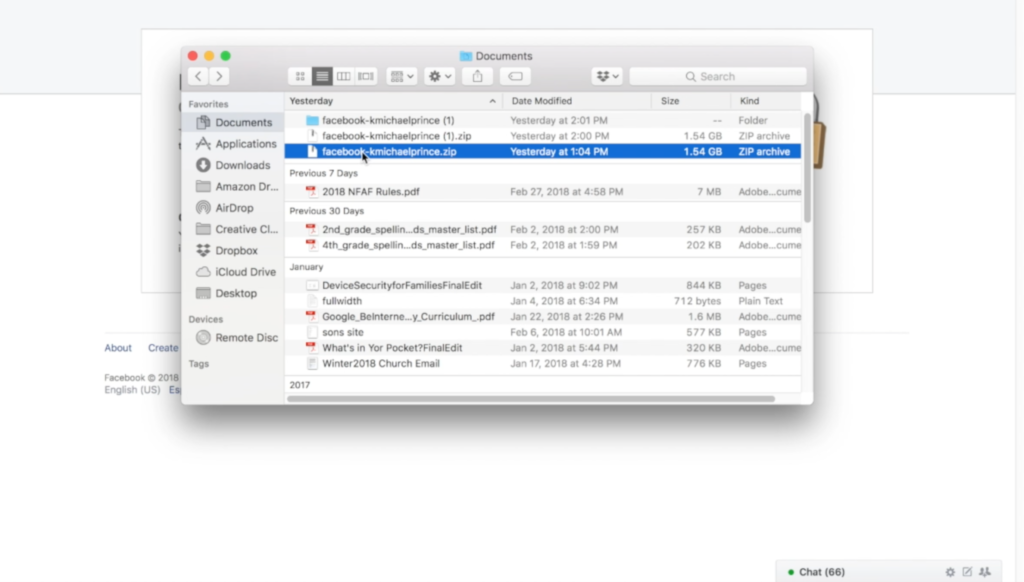
    5. Your data downloads as a zip file.


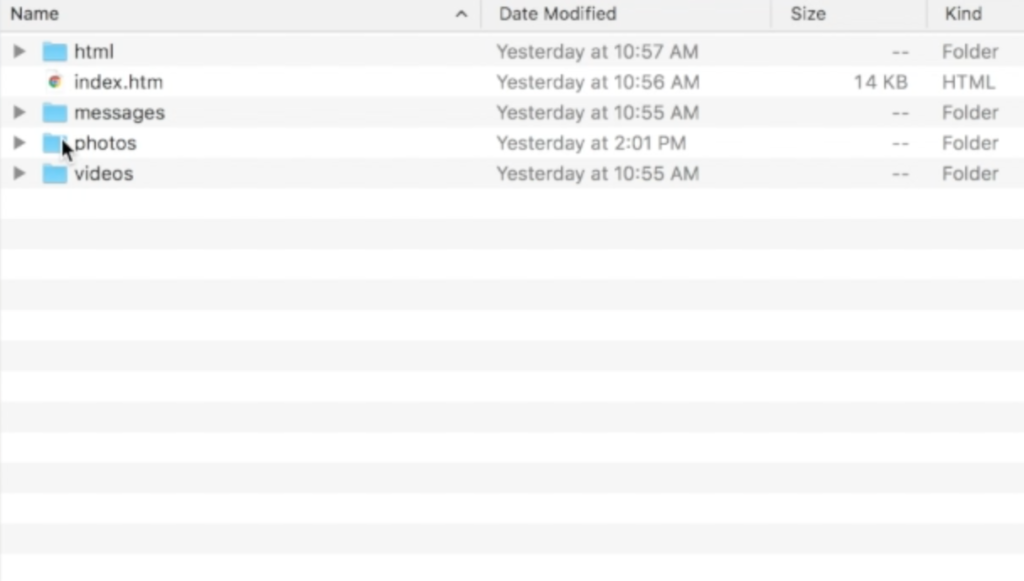
    6. Once unzipped, you’ll see your files separated into folders.


    7. Keep somewhere safe and share with caution as some of the data is personal.


    There are the instructions. Here’s a video tutorial:


  • 5 Ways to Stay Internet Safe on Thanksgiving

    5 Ways to Stay Internet Safe on Thanksgiving


    Thanksgiving is a time of fun, family, food, and football. Everyone coming together can be super fun for the entire family. There can also be some struggles here and there, especially when it comes to what turns up on the screens in the house. Your younger kids could end up seeing too much social media on their teenage cousin’s smartphone. Uncle so and so can show Youtube videos to some family with adult language and content not noticing the children in the room. Heres a few tips to try and keep your Thanksgiving Holiday internet safe and family friendly.

    Protect Your Kids

    Encourage a host home internet filter.

    Ask the family member or friend who’s hosting your Thanksgiving festivities if they have some sort of content filter on their wifi. Many routers have a basic filter and some folks may even have another filter system in place. If there isn’t an option, recommend one like Circle. If they don’t have kids or aren’t interested in filtering their wifi long term you can recommend a free trial with something like Mobicip or NetNanny. This usually allows you to use the filter for seven days to a month at no cost. Offer to help them set it up and then you can breathe a little easier when your kids are using their wifi.

    Keep devices with screens in a common area.

    Intentional poor behavior will happen in private. If you keep the screens around everyone else you’re much less likely to have an incident. Make a rule that screens should be kept in the most common area of your Thanksgiving meeting place. The living room full of people or the dining room around a busy table is a great place to let kids spend whatever time on screens you’ve allowed while adult eyes can glance down to see what’s being viewed. This will also keep sneaky cousins from pulling up something age appropriate for their younger family members.

    Talk to your kids.

    Your kids need a safe place. They need to know that if they see something inappropriate online they can come to you and receive no judgment or criticism.  It’s critical that they are allowed to explain what they saw and how it made them feel. Discuss your screen boundaries ahead of time, your kids should know what you expect even if you aren’t able to get the whole extended family onboard with your plan. Tell them if you want them staying off screens completely. Let them know not to look at older kid’s phones or tablets while they play. Think ahead of the likelihood of your kid seeing something they shouldn’t and try to head that off at the pass. Accidents happen but if you and your kids are on guard, you should be able to have fun without too much worry.

    Protect Your Privacy

    Turn off camera location settings.

    Your camera defaults to save your location every time you take a photo. This tags those photos with where you were when you snapped that pic. Then, when you share the image on Instagram, Facebook, or Snapchat your location is uploaded with the image. This means that with the right software your location can be extracted from that photo and used for unseemly reasons. 

    • Go into your settings app and access your “location” settings.
    • Go to the camera app settings under “location” and tell your phone never to use “location” while using your camera.

    Changing these settings will keep your location data off of your pictures.

    Advise family members not to tag their location on their Thanksgiving posts.

    Finally, you’ll want to be careful not to tag your location on your photos. Yes, pictures of the pie, stuffing, turkey, and gravy boat have become as much a part of the holiday tradition as the cornucopia, but when you share it you’ll want to leave the address of the host off of your status update. Sharing your address with public social media posts is never a good idea. This can lead to all kinds of dangers. Imagine the images of all the neat and expensive stuff in the host home. Now imagine you’re a local who likes to break and enter to take things every now and then. What better way to identify a target than creep Instagram holiday posts for the people with the coolest stuff. Then, find the posts with their address tagged on the photo and off you go. Share away, but share with wisdom.

    The holidays should be a time of rejoicing and happiness. We should stuff ourselves with food and enjoy being together. Following these steps can help you stay safe and help keep your holiday party guests safe as well. 


  • The Best Way to Keep Your Kids Safe On Youtube

    The Best Way to Keep Your Kids Safe On Youtube

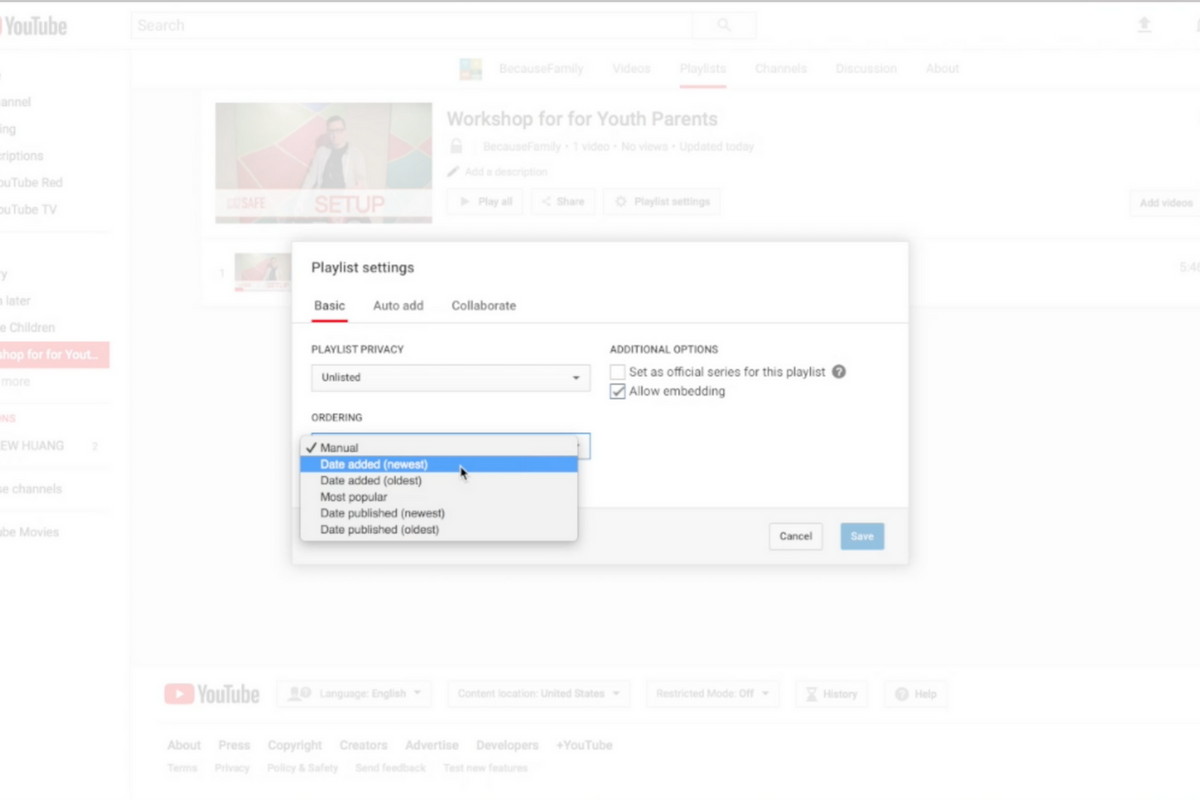
    Parents are always asking me for advice on keeping their kids safe on YouTube. Especially parents of older kids who may feel like YouTube Kids is a bit too young for their liking. I recommend building approved playlists. Find videos on YouTube that you are ok with them watching and put them in a playlist. This will allow them the freedom to watch videos without you pulling up each one while still keeping them safe from happening upon something inappropriate. You can also add playlists to your library that have been created by another channel. Then, you just have to discuss with your kids that they should only watch videos from the playlists you’ve put in the library. This keeps things safe. Watch the video below to learn how to build these playlists and hear more about why it’s a good idea.


    This is also a great idea for teachers and ministers who may want to show videos but don’t want something showing up unintentionally. If you’re playing videos from your playlist, you won’t accidentally show some video you haven’t pre-screened. YouTube can be an awesome tool but there is a lot of content on there that may not be classroom friendly. Use this tutorial to help you set up playlists and keep that stuff off your screen.

    UPDATE: Here’s a video tutorial to help you set up a playlist on the mobile app.

  • VIDEO: Three iOS 11 Features Parents Need to Know

    VIDEO: Three iOS 11 Features Parents Need to Know

    More than half of all iPhone users are now using iOS 11 and there are some major changes. The biggest change is the control center. This has become a lot more useful with the iOS 11 update and there are some features that parents should know so that they can use them to further protect their kids.

    Screen Recording

    Screen recording hasn’t been built into iPhone until this update. It’s a way to capture what’s happening on your screen and then save it as a video in your photos. This feature is cool and very useful for projects like making this video but there is a bit of a concern with kids sending messages and them being recorded without their knowledge. Keep your eye on this one.

    Quick Guided Access Button

    Guided access is an awesome way to keep you younger kids safe. The quick access button allows you to get to you GA settings quickly and use the feature to keep your kids safe. Do Not Disturb While Driving

    Do Not Disturb While Driving

    This is one that’s been needed for a while. The Do Not Disturb While Driving feature lets you just tap a simple button in your control center and not be distracted by texts until you turn it off. Pretty good idea, even if it has been a long time coming.

    There are more details and some screen capture of these features in use in the video below:


  • PODCAST: Parental Controls Showdown – Android v iPhone

    PODCAST: Parental Controls Showdown – Android v iPhone

    FAMILYTECHWEEKLY: The parental control showdown! Which OS has better built in parental controls? iOS or Android?

    Buy a book for an underprivileged family: https://www.facebook.com/donate/22627…

    Social Media Links

    Facebook: http://facebook.com/4pointfamilies
    Instagram: http://instagram.com/becausefamily
    Twitter: http://twitter.com/becausefamily

    Newsletter Signup

    Ministry Updates:: http://eepurl.com/R7Btr
    Weekly Blog Posts:: http://eepurl.com/cvnhXD

    Websites

    Ministry Site:: http://becausefamily.org
    Tech Blog:: https://safe.becausefamily.org
    Michael’s Speaking Info:: http://kmichaelprince.org

    Donate and Affiliate Links

    http://patreon.com/becausefamily
    http://BecauseFamily.org/partnership

    Music by Kevin MacLeod at http://Incompetech.com


  • Facebook Stories is Going Public

    Facebook Stories is Going Public

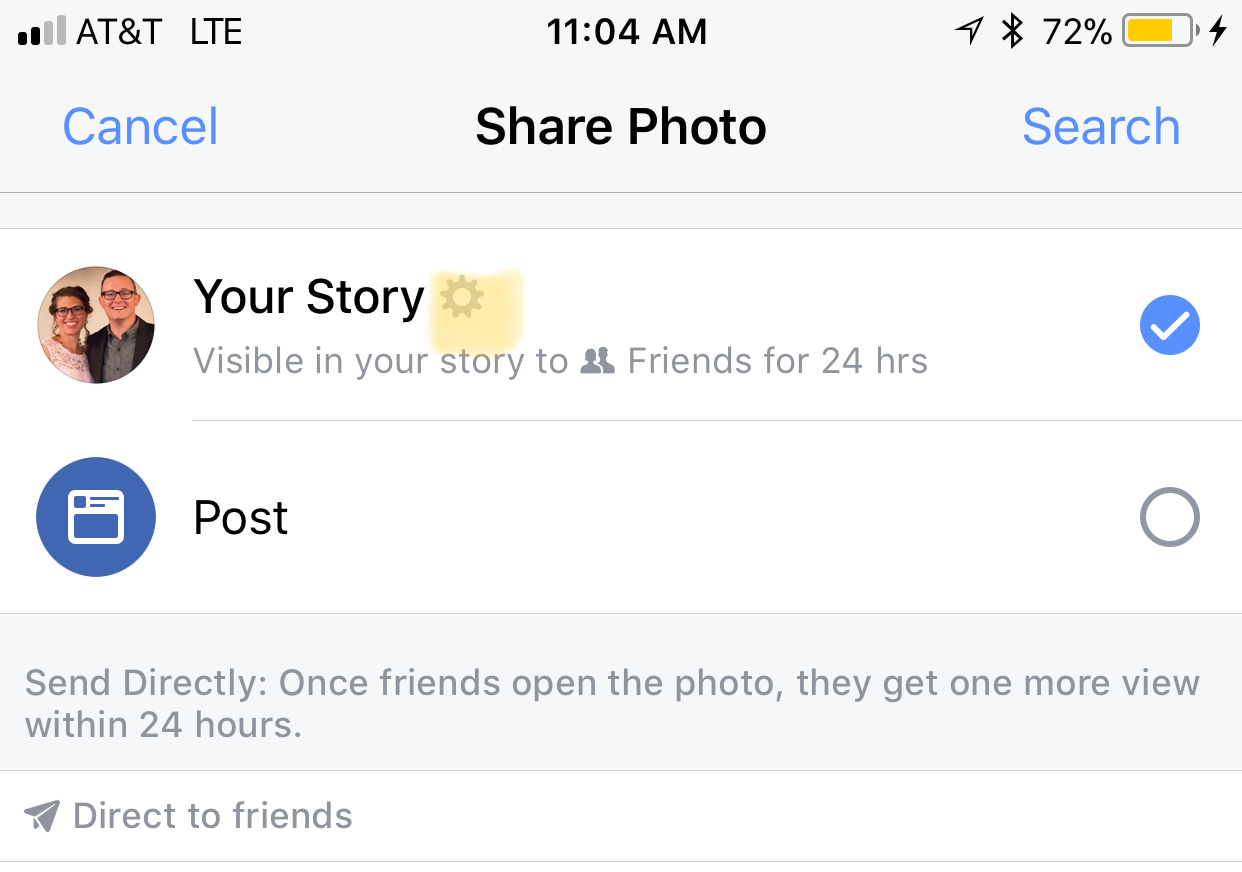
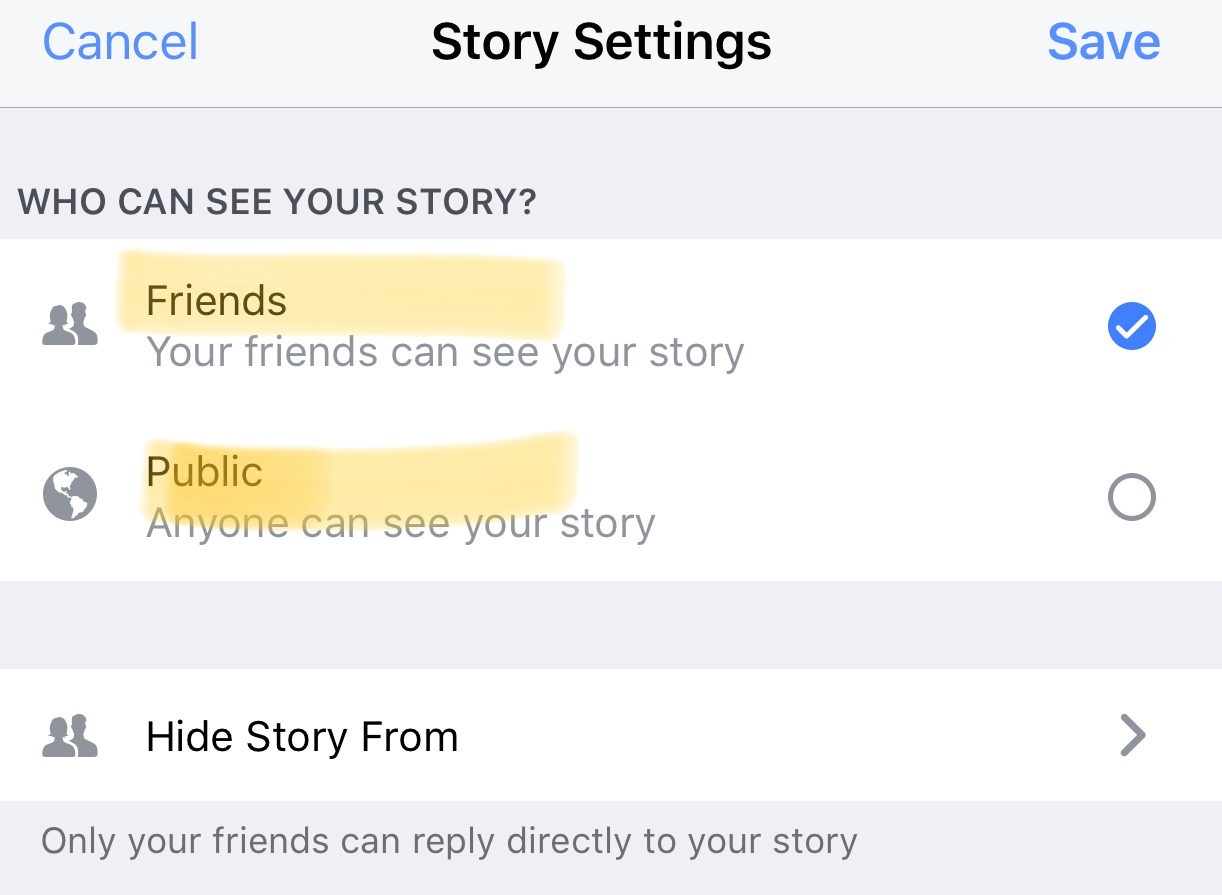
    Instagram, WhatsApp, and Snapchat have proven that 24-hour disappearing story feeds are the latest social media trend. Facebook is trying to increase user-ship of their stories feature by allowing people to post publicly. After a recent Facebook update, you can now change the privacy settings on your story posts to make them visible to anyone on Facebook. 

    Facebook Stories is really the only version of the daily posts feature that has been lagging behind in user-ship. Celebrities and brands will now be able to use Facebook stories to promote publicly just as easily as they can on Instagram and Snapchat. This may be an attempt for Facebook to increase the number of people using their stories feature but it’s likely, also, a way to entice more advertisers into using the feature.

    What Parents Should Know

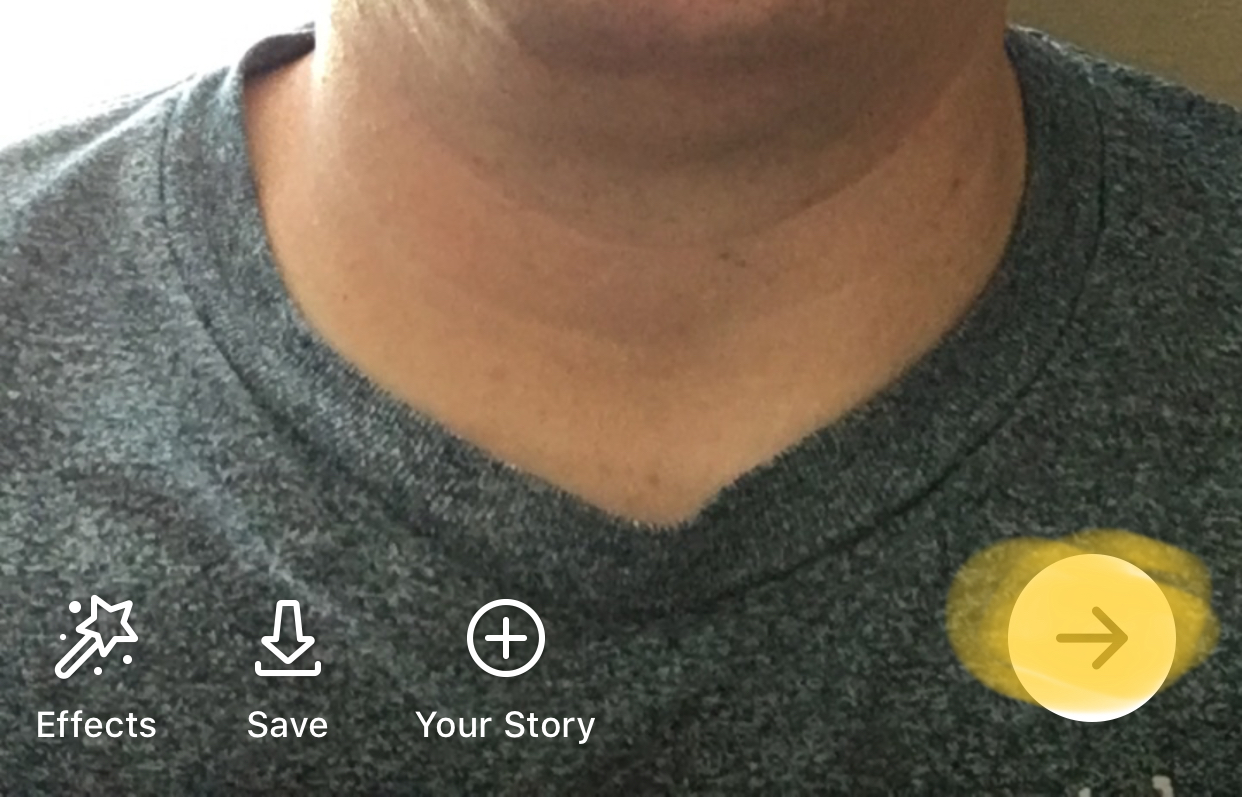
    Any option to share something publicly should be known to parents. If your kids use Facebook and enjoy posting their daily activities on their Story feed you should know how to check and see if they’re posting publicly. Below is a slideshow of how to check the privacy settings on Facebook Stories.

    Be sure to check out what your kids have been sharing publicly and talk to them about the permanence of anything shared online. It’s also a good idea to talk to them about what to do if they receive contact from people they don’t know on any social media platform. As parents, we are the ones responsible for our kids’ safety and privacy online. Learn the ways these social media services have provided for you to keep them safe and private.