Tag: tips

  • What’s With Kids Watching Other Kids Play with Toys?

    What’s With Kids Watching Other Kids Play with Toys?

    It was originally called “unboxing” and it’s not new. Tech nerds have been watching online videos of other people open and try out products for more than fifteen years. YouTube coming in 2005 aided in a surge in popularity in the unboxing genre, which is now one of the most popular categories on the video streaming site. What has taken parents by surprise recently is how much their own children like to watch other kids play with toys on YouTube.

    Companies are lining up to have kids play with their products on their YouTube channels and many of these channels are receiving marketing deals to add to their hundreds of thousands of dollars per month of ad revenue from YouTube itself. One such channel, “FunToys Collector Disney Toys Review” has more than ten million subscribers and is estimated to have made over $550,000 so far in 2018. Often (but not always,) these YouTube stars are often given toys to open for free. They usually have to post a notice that they received products for the video, but viewers don’t care. They just want to see what the latest toy can do outside the box.

    These videos can serve a purpose, however. They allow us to see what products are like before we buy them. Many people admit to watching review videos online before deciding to make a purchase. We read Amazon reviews to help us decide which vacuum we want to get. These toy videos can help parents weed out toys their kids may think they are interested in until they see them unboxed and used. Unboxing is one thing, but what about watching other kids play with the toys, is that weird?
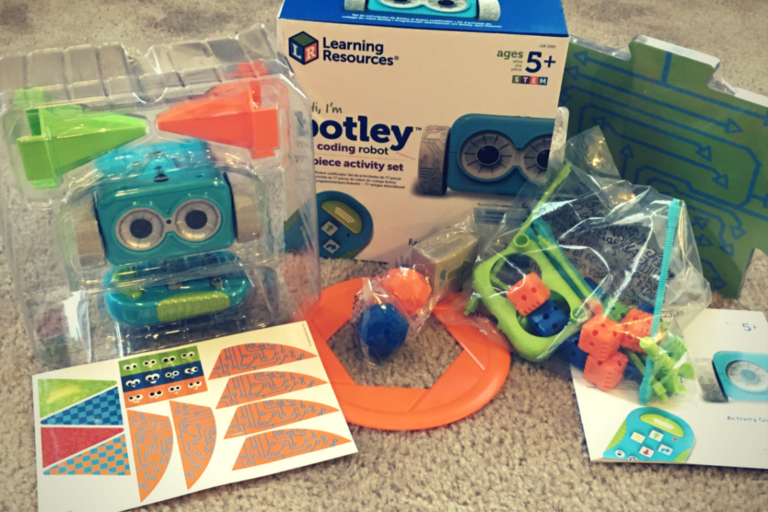
    Check Out: Botley the Screen Free Coding Ed Robot Product Review

    Our desire to see people use things we don’t have isn’t reserved only for children. We watch reality shows about the drama in the lives of the richest members of our society. There are entire channels dedicated to people buying extravagant homes and their popularity is driven by the desire to see others who have what we cannot or have not attained. We sit and watch shopping infomercials, never buying anything, but watching how the items can be used. Lets Play videos and eSports also speak to this need, allowing video game fans watch games perform at higher levels and maybe even play games that fans aren’t able to get their hands on right away. It’s a form of entertainment and it meets what some psychologists say are critical instincts that are within all of us.

    Memetic Desire

    At the risk of sounding like a neuroscience and psychology nerd, I’d like to explain some of the instinctual foundations of our love for unboxing and product demo videos. Memetic desire is the type of longing that comes from seeing someone else enjoy something. When you order the salad and your date orders the cheeseburger and you just have to have a bite is an example of memetic desire. The burger didn’t sound good when you were ordering but seeing your date enjoy it made it irresistible. The popularity of these videos is likely due in great part to our memetic desire. Watching someone open up the next iPhone will create in us the desire to obtain that device for ourselves. It’s normal, and it isn’t even too bad of a thing as long as it doesn’t turn to jealousy.

    Memetic desire can breed discontentment. For this reason we should be careful with what attitude our kids enjoy these unboxing videos. Are they loving watching someone else play and use their imagination? That’s all well and good. If they are watching and then demanding that you allow them to go purchase that toy, there is the problem. There haven’t been any studies to ascertain any danger to allowing your kids to watch unboxing and product review videos. If there is any risk, it’s likely based on the personality and behavior of your child.

    The best advice that experts give is for you to monitor and limit screen time. Whether they are watching someone play a video game, playing a game themselves, watching toy demos, or even watching a PBS show about math, too much screen time rewires the brain in an unhealthy way and should be avoided. If your kids are watching these video too much, the reason is simple. You are allowing them to do so. You can be the parent, use your knowledge of what these videos are all about and the amount of screen time that is healthy (usually an hour or less per day) to set boundaries for your kids. Use tools like unGlue or Accountable2You to keep track of the time spent on their devices. Take responsibility for your children’s online activity and you’ll create a safer and healthier environment for them to grow in. 

  • Three Tech Rules in My House

    Three Tech Rules in My House

    I get asked a lot about how I handle my kids’ technology in my house. It is easy to answer this question because I am pretty active in my kids’ tech lives and also because my kids are pretty young. Below are three of our most important rules for keeping our own four kids safe online.

    Rule #1 | It isn’t YOUR device.

    My kids don’t have their own tech devices. We have a shared iPad 2 and iPad Mini and a couple of old iPhone 4s that our kids use. They often try to claim one of the devices or another as their own but we quickly remind them that they don’t own any of them. We tested it with our ten year old for a few weeks and it caused too many problems. Him thinking he could do whatever he wanted because it was just his device led to a lot of frustration when we tried to enforce our boundaries. The solution was simple. All of these devices are shared, you can’t tell your sister not to use it and you can’t take it to bed with you at night. Done.

    Rule #2 | No tech in bed with you.

    This one is a bit tricky since my kids use their devices to listen to noises or music as they go to sleep. The rule, however, is no browsing once it’s lights out. We often just set it for them and forget it so the device stays across the room. There are studies to show that viewing the glowing screen at night can hinder your ability to rest. Lack of rest can cause serious health concerns in our children. Once I explained all of this to my kids, they have done pretty well to respect the “No tech in bed” rule. They want to be healthy just as badly as we want them to be.

    Why I Told My 10 Year Old EVERYTHING About Pornography

    Rule #3 | You gotta ask first.

    My children aren’t allowed to just grab a device and do as they wish. They don’t have passcodes (because built-in restrictions and a wifi content filter are set up) but if they are caught hiding in another room doing something on a device they lose the privilege for at least a week. We make them ask and when they are playing or watching something we nearly always require that it is in a common area. That part of the rule is flexible when they are doing schoolwork on an app and don’t want to be disturbed or but most of the time they have to be somewhere where everyone’s eyes can see their screen. They always, have to ask though. Mom and Dad must know you are using that device. If we find out they were hiding (and we have our ways) there is a major cost.

    We have more rules but these are the simplest and most easily implemented of our plan. They require no software installation or tech knowledge. It’s really just parenting, plain and simple. Your kids need you to set some boundaries. Maybe you can start with these three rules. Do you have some different rules or different ways to implement these same rules? Tell me about them in the comments below.

  • Screen Free Week Tips and Tricks

    Screen Free Week Tips and Tricks

    Scheduled post.

    It’s the middle of the week. How have you done so far with no screen time? I can guarantee my family and I have been struggling as much as anyone. I thought it would be good to give you some tips for celebrating this screen fast week. Here are some of our ideas:

    1. Go to a theme park
    2. Go Put Put
    3. Read Some Books
    4. Cook Together
    5. Play Basketball or Another Sport
    6. Play a Board Game
    7. Go Roller Skating
    8. Play a Trivia Game
    9. Play Charades
    10. Take a Hike

    Those are ten of our ideas, here are some resources from ScreenFree.org: http://www.screenfree.org/additional-resources/

    Good job sticking to your screen free challenge so far. Shoot us an email and let us know how you’re doing. BecauseFamily@gmail.com.

  • Tools to Monitor Your Own Screen Time in 2018

    Tools to Monitor Your Own Screen Time in 2018

    Happy New Year!

    The first of the year has come and we are all trying to make ourselves a little better. Maybe you’re concerned about you and your family’s increased screen time. This is normal, we’re all thinking about what we can change in the new year and spending less time looking at a screen is on the top of many lists. These tools can go a long way to help you identify the amount of time you spend on your device, narrow down what you’re doing that sucks up so much of your time, and even set boundaries to alert you or block access when you’ve reached your desired limits.

    Accountable2You

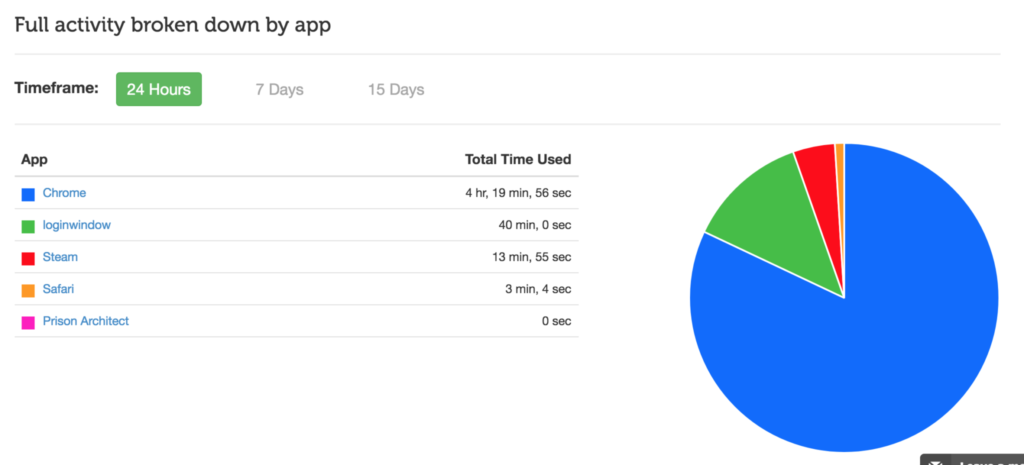
    No matter what device you use, Accountable2You can help you keep track of what you’ve been doing online. The online dashboard will give you an App Usage report, complete with a circle graph of how you spend your time online. Whether you use this to keep track of your kids’ devices or your own screen time, it’s an easy to read way to be aware of how you’re spending your days.

    Accountable2You is an accountability software at heart. It will notify you if there anything inappropriate has been accessed by those you’re keeping an eye on. It’s easy to set up, affordable (6.99 for 10 devices and 9.99 for 20,) and it works for every device. Even the Chromebook your kid got from school. It’s what I use and the best part is that if you sign up with our link, our non-profit will get a bit of help every month because of your payment.

    Android Family Link

    Android’s first stab at native parental controls focuses mainly on time management. That is, in fact, almost all it focuses on. Google FamilyLink is designed to allow parents to set time restrictions, time limits, and bedtimes as well as monitor the amount of time spent using the device. This will be accomplished by a complete disabling of the device once time limits or restricted times are reached. A tool like this could easily be used to limit or monitor yourself as well. If you, like me, spend most of your time in front of your computer for work, you may want to be able to set limits on how much time you spend on your phone or tablet for recreation purposes. FamilyLink should be a pretty good way, if you have an Android device, to cause your entire device to shut down when your limit is reached, or even just take a look every few days to see how much time you’ve spent on those devices.

    iPhone Battery Meter

    For iOS users, Apple has built in a way to keep an eye on what you’re spending your time on while using your device. Your battery meter can be used to monitor your own screen time. It will even sort your time by app used and separate it into “on screen” and “background” time. To use this, simply go to your settings app and open the Battery section. When the usage area loads, tap on the clock icon on the upper right of that section. You can set your timeframe to be 24 hours or 7 days. This gives a pretty good snapshot of how you spend your time on your iOS device. Try it, you may be surprised.

    Moment App (iOS only)

    The Moment App uses your battery meter to build a nicely laid out report for you to keep track of the time you spend on your phone. Moment is only available for iOS (Android app is in development.) It automatically tracks your usage and allows you to see simple reports that separate your usage by the apps you spend time on. Moment lets you coach yourself on your screen time habits so that you can make changes if you want. You can set up time limits and Moment will notify you if you’ve gone over the time you’ve allowed.

    This app works pretty well. I used it for about a month and definitely made some changes to the amount of time I spend on my phone. Since it’s free you can even consider using Moment to install on other devices in your family and setting up limits for them. It will be up to them to put the phone or tablet down when they are notified but there’s something to be said for teaching your older kids to take the responsibility into their own hands. Moment is a free app but there are premium features (including extra family controls) that you can pay for.

    UnGlue

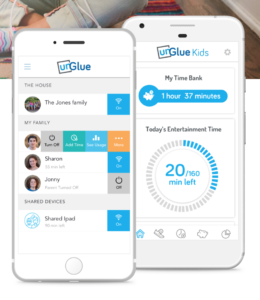
    UnGlue was created to give the power of screen times to the kids themselves. The website touts a plan to “give kids the power to learn healthier habits – within your boundaries.” UnGlue uses a scheduler to set up your kids’ screen time allowance. You can give them control of how they spend their time by giving the rewards for things like chores and exercise. Unglue works from just an app, no separate device to hook up. The basic UnGlue package gives you access to screen usage reports only. You can use this free feature to keep an eye on the time you spend online. Further features will cost up to $9 per month. UnGlue is fairly new and has been updated quite a bit recently. It will work on iOS or Android and even on your home devices. (With the full-featured service.) Go check out UnGlue and tell them FamilyTechBlog.com sent you.


    Circle

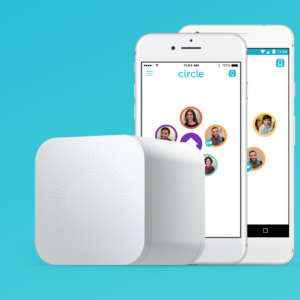
    I’ve spent a lot of time talking and writing about Circle. I recommend this parental control tool to everyone I speak to and I even use it myself. Circle lets you filter by age and category and limit screen time for your kids but it’s been cool for us to have a profile for ourselves. This profile lets us see, in one glance, how much time we’ve spent on every single one of our devices. When you’ve built your profile, you just add the devices you use to be monitored under your account, this results in a very useful and detailed report on how much time you’ve spent in front of your screens. It even monitors your smart tv, BlueRay, and gaming system usage. Circle is a $99 investment for in-home wifi protection, (with the option to pay $10 monthly for on the go monitoring) but in my experience, it’s an all-in-one parental control system. You can buy circle at Amazon or at Best Buy and Bed Bath and Beyond.

    Whatever you do, start.

    New Year’s Resolutions are notoriously easy to forget about but my advice is that you just get started. When you begin my tracking how much time you spend on your screens, you’ll find yourself truly motivated to make a change. It worked for me. Using Moment and my battery life meter led to my decision to not start using my phone until I’ve had breakfast with my family. We’ve even started doing some Social Media Free Saturday’s a couple of times per month. Whatever your goals are, you’ll never accomplish it if you never begin so grab hold of one of these tools and get started!


  • 5 Ways to Stay Internet Safe on Thanksgiving

    5 Ways to Stay Internet Safe on Thanksgiving


    Thanksgiving is a time of fun, family, food, and football. Everyone coming together can be super fun for the entire family. There can also be some struggles here and there, especially when it comes to what turns up on the screens in the house. Your younger kids could end up seeing too much social media on their teenage cousin’s smartphone. Uncle so and so can show Youtube videos to some family with adult language and content not noticing the children in the room. Heres a few tips to try and keep your Thanksgiving Holiday internet safe and family friendly.

    Protect Your Kids

    Encourage a host home internet filter.

    Ask the family member or friend who’s hosting your Thanksgiving festivities if they have some sort of content filter on their wifi. Many routers have a basic filter and some folks may even have another filter system in place. If there isn’t an option, recommend one like Circle. If they don’t have kids or aren’t interested in filtering their wifi long term you can recommend a free trial with something like Mobicip or NetNanny. This usually allows you to use the filter for seven days to a month at no cost. Offer to help them set it up and then you can breathe a little easier when your kids are using their wifi.

    Keep devices with screens in a common area.

    Intentional poor behavior will happen in private. If you keep the screens around everyone else you’re much less likely to have an incident. Make a rule that screens should be kept in the most common area of your Thanksgiving meeting place. The living room full of people or the dining room around a busy table is a great place to let kids spend whatever time on screens you’ve allowed while adult eyes can glance down to see what’s being viewed. This will also keep sneaky cousins from pulling up something age appropriate for their younger family members.

    Talk to your kids.

    Your kids need a safe place. They need to know that if they see something inappropriate online they can come to you and receive no judgment or criticism.  It’s critical that they are allowed to explain what they saw and how it made them feel. Discuss your screen boundaries ahead of time, your kids should know what you expect even if you aren’t able to get the whole extended family onboard with your plan. Tell them if you want them staying off screens completely. Let them know not to look at older kid’s phones or tablets while they play. Think ahead of the likelihood of your kid seeing something they shouldn’t and try to head that off at the pass. Accidents happen but if you and your kids are on guard, you should be able to have fun without too much worry.

    Protect Your Privacy

    Turn off camera location settings.

    Your camera defaults to save your location every time you take a photo. This tags those photos with where you were when you snapped that pic. Then, when you share the image on Instagram, Facebook, or Snapchat your location is uploaded with the image. This means that with the right software your location can be extracted from that photo and used for unseemly reasons. 

    • Go into your settings app and access your “location” settings.
    • Go to the camera app settings under “location” and tell your phone never to use “location” while using your camera.

    Changing these settings will keep your location data off of your pictures.

    Advise family members not to tag their location on their Thanksgiving posts.

    Finally, you’ll want to be careful not to tag your location on your photos. Yes, pictures of the pie, stuffing, turkey, and gravy boat have become as much a part of the holiday tradition as the cornucopia, but when you share it you’ll want to leave the address of the host off of your status update. Sharing your address with public social media posts is never a good idea. This can lead to all kinds of dangers. Imagine the images of all the neat and expensive stuff in the host home. Now imagine you’re a local who likes to break and enter to take things every now and then. What better way to identify a target than creep Instagram holiday posts for the people with the coolest stuff. Then, find the posts with their address tagged on the photo and off you go. Share away, but share with wisdom.

    The holidays should be a time of rejoicing and happiness. We should stuff ourselves with food and enjoy being together. Following these steps can help you stay safe and help keep your holiday party guests safe as well. 


  • iPhone X Face ID Won’t Keep Your Kids Out of Your Phone

    iPhone X Face ID Won’t Keep Your Kids Out of Your Phone

    One of the best ways to keep your phone safe is to make sure it’s locked so your kids can’t get into it without you knowing. This allows us, as parents, to have apps or games we wouldn’t let them use without worrying that they’re going to get into them. Maybe you keep your kids off your phone because your filters aren’t as strict, maybe you don’t want them reading all of your messages, maybe you just don’t want them resetting your Mario Run scores. Whatever your reasons for locking down your phone, the new iPhone X’s facial ID feature isn’t your best option. Here’s why.


    The statistical probability is different for twins and siblings that look like you and among children under the age of 13, because their distinct facial features may not have fully developed. If you’re concerned about this, we recommend using a passcode to authenticate. – support.apple.com

    What Parents Should Know

    Apparently, young undeveloped faces can trick the facial recognition software on the iPhone X and let a child get access to your phone. If your phone isn’t locked down then your kids will have access to those in-app purchases, unfiltered searches, and accessing unapproved entertainment or social media you’ve blocked on their devices. Apple recommends you use a passcode if you have small children. This recommendation seems to hint that they’ve just accepted that this will be a limitation of their Face ID feature. My tip is to take Apple’s advice. Use a passcode if you have an iPhone X. If you want an iPhone X mostly because of Face ID then you may reconsider.


  • The Best Way to Keep Your Kids Safe On Youtube

    The Best Way to Keep Your Kids Safe On Youtube

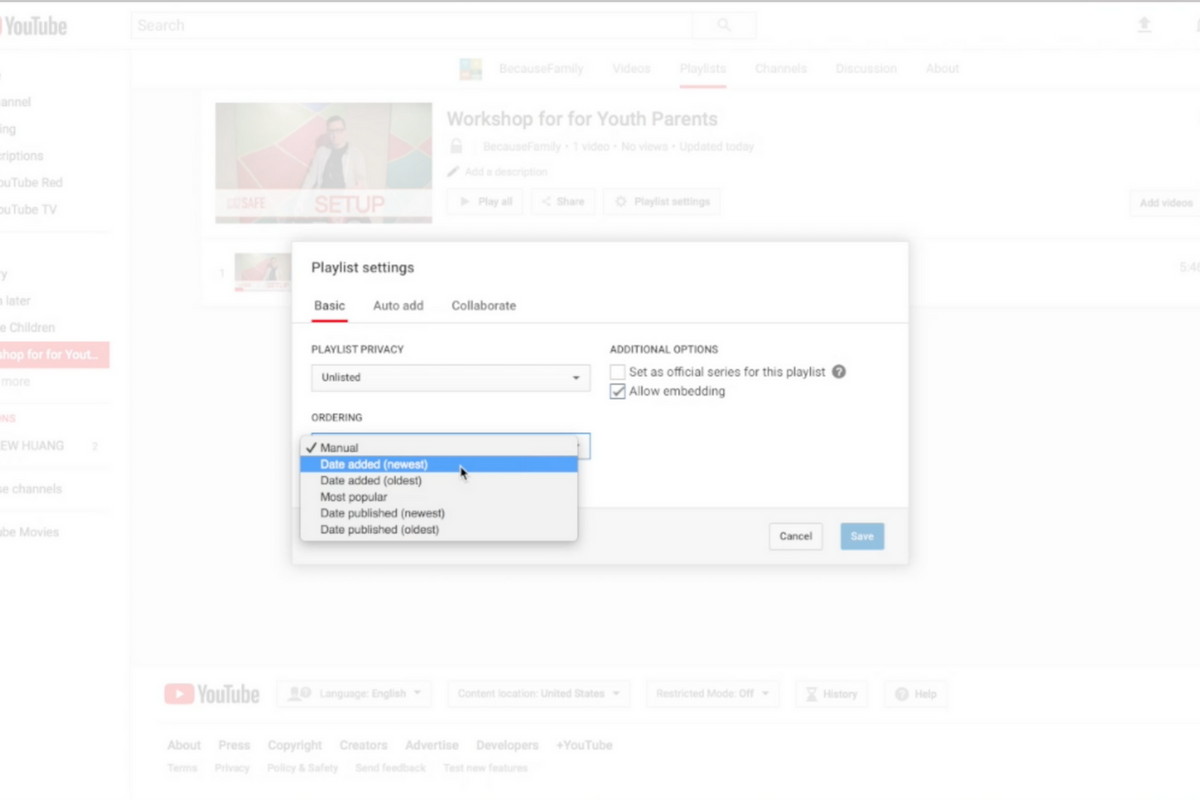
    Parents are always asking me for advice on keeping their kids safe on YouTube. Especially parents of older kids who may feel like YouTube Kids is a bit too young for their liking. I recommend building approved playlists. Find videos on YouTube that you are ok with them watching and put them in a playlist. This will allow them the freedom to watch videos without you pulling up each one while still keeping them safe from happening upon something inappropriate. You can also add playlists to your library that have been created by another channel. Then, you just have to discuss with your kids that they should only watch videos from the playlists you’ve put in the library. This keeps things safe. Watch the video below to learn how to build these playlists and hear more about why it’s a good idea.


    This is also a great idea for teachers and ministers who may want to show videos but don’t want something showing up unintentionally. If you’re playing videos from your playlist, you won’t accidentally show some video you haven’t pre-screened. YouTube can be an awesome tool but there is a lot of content on there that may not be classroom friendly. Use this tutorial to help you set up playlists and keep that stuff off your screen.

    UPDATE: Here’s a video tutorial to help you set up a playlist on the mobile app.

  • Superzoom on Instagram and Share Links in Snapchat

    Superzoom on Instagram and Share Links in Snapchat

    Every update announced by the developers of the apps your kids use isn’t earth shattering but you should still know what’s going on. This week has been a pretty slow internet safety update week but some teen favorite social media platforms have released some updates in the last couple of days.  These updates are mostly cosmetic seasonal features but they’ll be interesting to your kids so they’re worth learning about.


    Instagram Superzoom

    Remember the dramatic chipmunk? He’s the cute little guy on the youtube video that gave an epic, three-level zoom, dramatic (and comical) look. There was a song and everything. Instagram has added a feature to their camera that can give you that same hilarious zoom in effect. The product manager for Instagram said they’ve seen users making funny “zoom in” videos in their story and wanted to give them a tool to make this easier. The feature zooms into whatever you’ve told the camera to focus on, it will work on the front or rear facing camera, and even features the dramatic orchestration you’d expect to hear from such an epic shot. This feature comes today along with some Halloween filters and masks.

    Snapchat Link Sharing

    Snapchat will now let you share links from other apps in iOS. Pulling up the “share sheet” or sharing menu will now show you the option to share in Snapchat. This is a pretty big change for Snapchat who previously didn’t do much to affect usage outside of the app itself. Links will still open within Snapchat’s web browser but more and more content can now make its way into the app through the accessibility of link sharing. Also, Snapchat is changing the way you view Snaps from within the app by letting you press and hold a friend’s name anywhere in the app to open their Story. Finally, there is a new feature that will allow you to go into “Ghost mode” temporarily, setting your location to stay hidden for 3 hours, 24 hours, or “until I turn it off.”

    What Parents Should Know

    Every update brings more features that our kids love on their social media apps. We should know what these features are and what they mean for how our kids use the app. Camera effects and modes add interest and fun but may cause the young kid you’ve been keeping off of social media to ask you even more if they can join. Truthfully, Snapchat is late in the game when it comes to link sharing. It’s been possible in so pretty much every other social media app out there for a long time. Being able to bring links into Snapchat from any other app increases the potential for it to be used to share different sites between users. This could include sites you’d consider inappropriate. My advice is to turn on built-in filters on your iOS devices as they should make it harder if not impossible to access adult content on any browser on the phone.


  • YouTube Rebrand and New Style Is Going Live Today

    YouTube Rebrand and New Style Is Going Live Today

    YouTube has launched an update for their app and their in-browser site. The update features a whole new theme (dark-mode,) a new logo, speed controls, and more compatibility with different video dimensions. The logo and dark mode are welcomed changes among YouTube users and the ability to work better with verticle smartphone videos seems to be a no brainer these days. Much of the update has been available as a beta test for some users but the availability went public today. New gesture controls allow you to fast forward or rewind videos and they’re hinting at the ability to swipe between previous and next videos. Finally, they are continuing to update the app to feature recommended videos on the lower third of the screen during playback. While you may only watch YouTube videos within your Facebook timeline when your friends share them. Your kids are using YouTube every single day and it’s one of the top search engines in the world. This update is a big deal.

    What Parents Should Know

    Many of our kids spend hours per day watching videos on YouTube. Some of them even produce their own content. You can guarantee that they have noticed (or were anticipating) this update. Why not use the knowledge you learned in this article to start up a conversation with them about their activity on the site and app. Ask them about their channel. How many subscribers do they have? What kind of content do they produce? What kind of things do people say in comments? You should know these things and this update is a welcome way to bring up the topic.

    Here is some advice for you to wrap up this article. I recommend subscribing to your kids’ YouTube channel if they have one. If you don’t know if they have one or not you should ask. Even better is the option or logging in to their account on your own device so that you get notifications whenever they get comments and messages. Maybe you could share a channel or account with them. Then you can see their viewing history and know what kinds of videos they are watching based on what’s being recommended by YouTube. Either way, you should be involved with what video content your kids are taking in and producing. Using this latest update to spark the conversation is a great idea.

  • How Your Teen Uses Social Media Differently Than You

    How Your Teen Uses Social Media Differently Than You

    I’ll never forget when this mother came to me and asked me why her kid is using all of these different social media sites. “I can barely keep up with Facebook. How does she do it?” The answer is simple. Your kids use social media in a much different way than you do. All of their friends are there and they all use it in the same way. While you can’t be (and shouldn’t be) expected to change how you use your social accounts in order to mimic your teen; insight into how they see the social media world can go a long way to help you keep them safe.

    They Use Each Platform Differently

    Believe it or not, there is a different way to use each social media platform. Snapchat has a purpose, as does Instagram, and even Facebook. Your teenager understands these differences and most likely uses each one accordingly. Snapchat exists to stay constantly connected with your friends. They keep up their streaks (consistent daily messages) and share the details of their lives on the private posts they send their friends. They then post the more broad and appealing snaps publicly for all to see on their story. Their Instagram is all about public posting and putting their best foot forward. (Whatever that may mean.) Facebook, if they’re there at all is for sharing the stuff they want the authority to see. It’s considered the most public of their social media connections and they use it as such. While you may take a photo on Instagram and connect it to your Facebook, Twitter, and LinkedIn, your teens don’t do that much. Each platform has its purpose and is used in a way that it’s meant to be used.

    They Use It  to Meet New People

    Social media has long been a great way for some of us to keep in contact or make contact with old friends. When we meet people in person we quickly go follow them on their social media profiles. The opposite is often true for your teenager. Young people use social media to find and begin relationships with new people. There are apps dedicated to this activity, some of which will even let you randomly connect and video chat or send private messages to these strangers. There are no such things as strangers for your teens when it comes to their online activities. People on social media are potential new friends to them. It could be a sense of anonymity or security that comes from being online instead of face to face that causes this attitude but either way your teenagers are meeting new people on social media all the time.

    They Self Edit

    I think I used the phrase “best foot forward” earlier and that’s the truth. While some of us may air our dirty laundry or share prayer requests or complaints about what’s happening in life on social media most teenagers don’t behave that way. They prefer to put forward the best version of themselves, even if it is over filtered and made up. The masks and filters available on the cameras in their favorite social media apps give them the ability to doctor up their photos in such a way that makes them seem cuter, or thinner, or smoother complected. They write their descriptions to portray the same image. They’ll do their best to come up with the most clever caption for their photo or they’ll use the emoji that is the most popular and interesting to get the reaction that they want. The most common practice is deleting or archiving posts that don’t get enough likes. Not only do they edit themselves before they post, they’ll edit their entire account by only allowing posts with the most likes and comments to continue to exist. Young people use social media to portray the version of themselves they want everyone to think is truly them. This is probably one of the main reasons they live on social media.

    They Live There

    You probably remember when you started using Facebook or Instagram. You can probably go back in your photo archives and find the first few pictures you took with a Snapchat style filter or mask. For most of us, social media is something that we’ve added to our lives and we use it to document and share much of what we do in our lives. For your teen, though, the realities can often become blurred. Many teenagers live on or through their social media accounts. Since the version of themselves they’re showcasing on social media is the filtered and edited version, teens often prefer to experience that life to the one they live offline. When I speak to teens, I always remind them that their online lives and offline lives are one in the same but they rarely put that together on their own. Any thing that happens to them MUST be shared. Many times they’ll even make decisions about real life based on what it will look like when they share it online. They aren’t like us. We’re talking about digital natives, the world they live in is a gray area between what’s done on the internet and what is done every day in real life.

    What Parents Should Know

    There are many ways that teens use social media differently than their parents. These are just a few examples but they should be eye opening ones. The only way to help our kids understand the blurred vision they can often have is to gently advise them as to what is healthier. Have conversations with them about what they could do instead of worrying so much about how they represent themselves online. Help your kids build confidence by using your own words and actions to show them how much value they have. The generation of teenagers that are growing up today have a confusing road ahead of them and moms and dads (or aunts uncles grandmas and grampas) are the only ones who can help them unravel the confusing path they have to travel.