Tag: teaching

  • Toys Teach Computer Science and Coding

    Toys Teach Computer Science and Coding

    I have said it before, there will likely not be a lot of low wage jobs available for our youngest children when they reach employment age. We’re seeing burgers ordered and prepared by machines and having our groceries check out, stocked, and even bagged by computers and robots. What will be necessary is the workers who know how to operate those machines and program those computers. That is why coding education is becoming so important. It is important for our kids to have toys that teach computer science and coding. 

    There is never any shortage of coding toys available at CES. While many have seemed to be copycats of things we’ve already seen, there are some cool options out there. Here is a look at some of what I found to be most interesting. 

    Artie3000

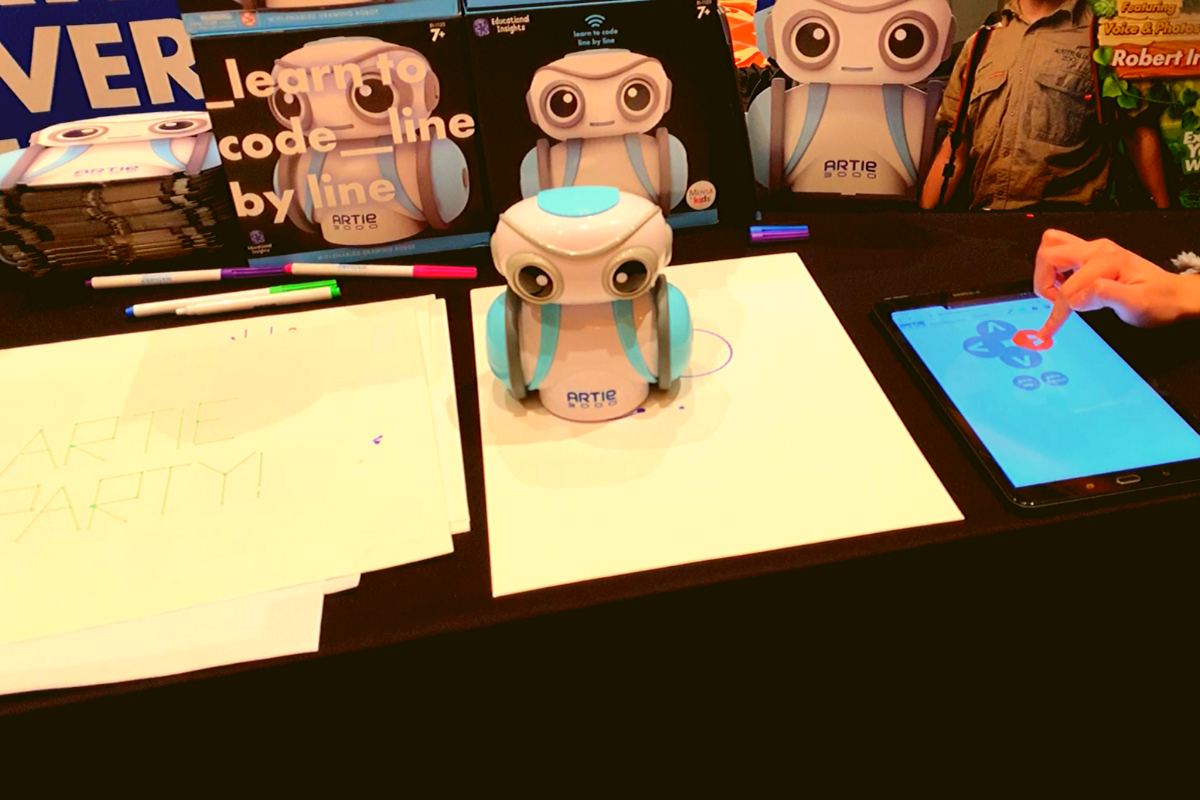
    Artie3000 is an artist. He’s a cute little robot that draws pictures based on the code you enter on his app. He comes with preprogrammed designs, shapes, and games and there is a library of videos to let you learn all about what Artie can do. 

    Artie introduces coding logic and basics, encourages creativity, and provides STEM and STEAM education. He is secure with no connection to the internet, his app is designed to work one way, from the tablet to Artie himself. This keeps your kids offline and out of danger. Artie also doesn’t collect any data from the user. That’s a huge plus.

    Watching Artie draw was cool. He is intended for kids above 7 as some of the coding assignments assume you’ve learned a bit of the logic already. I think the blending of robotics, programming, and art is a big win for parents since some of our kids may not see the benefit of coding robots. Our more creative type of kids may see a benefit to robotics and engineering after all. 

    Botley 2.0
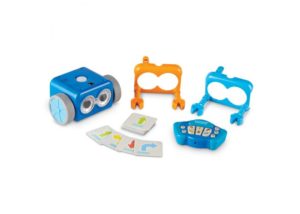
    My kids love Botley. They’ve put hours and hours into programming him to go through their obstacle courses and tracks. It has proven to be a fun way for them to learn the language and logic of programming. I don’t know how many times I have said, “If he isn’t doing what you want, it is because you didn’t input the right commands.” That, my friends, is the essence of programming and coding in a single phrase. 

    Botley 2.0 brings the same adorable robo-friend with some new behaviors and lots of cool new features. He lights up in the dark thanks to his new light sensor and he can use those lights to do a programmable light show. He also features a Simon Says type game and code by color features. 

    Doodlematic 
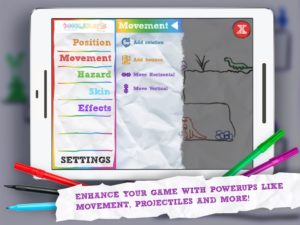
    Doodlematic is an app that takes any photo that contains the color combinations required and turns it into a playable game. Kids can draw a picture with markers, paint a scene, or even bake a cake using red blue and green icing. When they take a photo of their art and import it into the app it applies features to each color, turning into a game that they can play. Blue becomes collectible targets, green is your character and red turns into platforms and scenery in the game. Doodlematic isn’t a coding app but it is a really neat way to get your kids who are interested in gaming and making games into drawing out their ideas on paper first. 

    Doodlematic isn’t a coding app but it is a really neat way to get your kids who enjoy playing and learning about video games to design their own. It even rewards them for using paper first. I am really excited to play with Doodlematic with my kids. I know they’ll have a blast challenging each other to the games they’ve designed.

    Important Skills for the Future

    Having toys that teach computer science and coding is very important for our kids. There are a lot of toys that teach computer science and coding but I liked these the best. One of these options doesn’t even use a screen while the other two combine tangible products with the screen to teach computer skills. These toys are getting better and better at teaching our kids. I highly recommend you check out these items. Maybe one of them is something your kids with truly enjoy.

  • How to Turn Off Hidden Location Access in iOS

    How to Turn Off Hidden Location Access in iOS

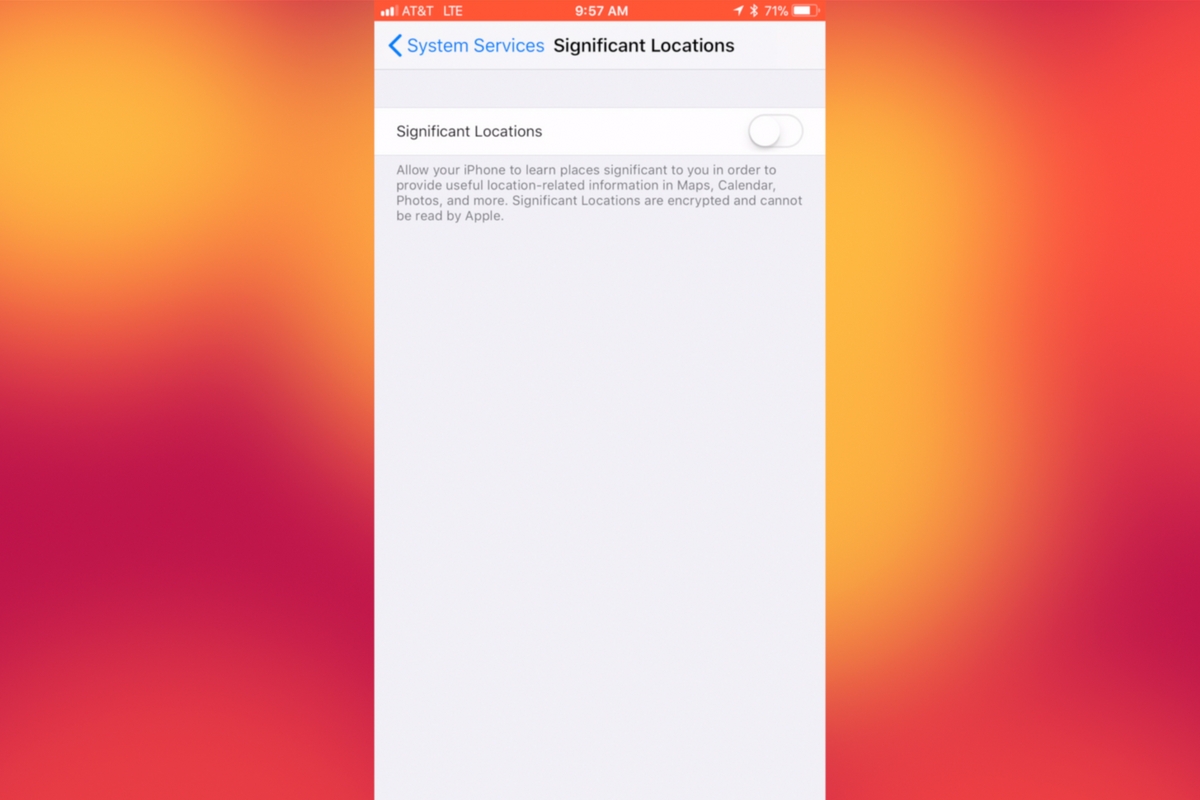
    I recently noticed that some of my photos and videos were still being tagged with a location. One of the most common pieces of advice I give to parents is to turn location access off to their cameras. I was a bit annoyed because I never saw location information in my Photos app before, but now I was. Well, I did a bit of digging and found the culprit. It’s about five taps deep into your privacy settings and, therefore, easy to miss. Below is a short video tutorial to help you be sure location info on your phone stays as private as possible.

    Why Turn This Off

    Your location information is easy to track and very easy to gather from the data in the videos and pictures that you upload to social media. There have been instances of kids being harassed by predators who learned where they were through images their parents had shared online. Common sense tells us never to post pictures or videos that show an address number, school name, or sign of a place you frequently go with your family. The problem is that some of the apps on our phones tag our locations by default. I recommend you look at every app’s location request and ask yourself, “Does this app HAVE TO know where I am to function properly?” If it does not, then turn off access to your location.

    Hopefully, this short video helps you make the changes you need to feel like your privacy is even more secure. I know I feel better.

  • Botley the Screen Free Coding Ed Robot

    Botley the Screen Free Coding Ed Robot

    Coding education was one of the hottest topics at CES2018. The conversation was led by toy makers, psychologists, media producers, and educators alike. They all agree that if your children aren’t learning the basics of programming logic, they’re not laying the foundation that they need to function in the future they will be living in. The other major highlight of CES was the problem with too much screen time. Kids are spending too many hours every day looking at their screens and it isn’t good for their development. These two conversations pose a serious problem. How can our kids learn to program computers if they don’t use any screens? Well, there were some pretty creative answers to that question at CES and BOTLEY was probably my favorite one.

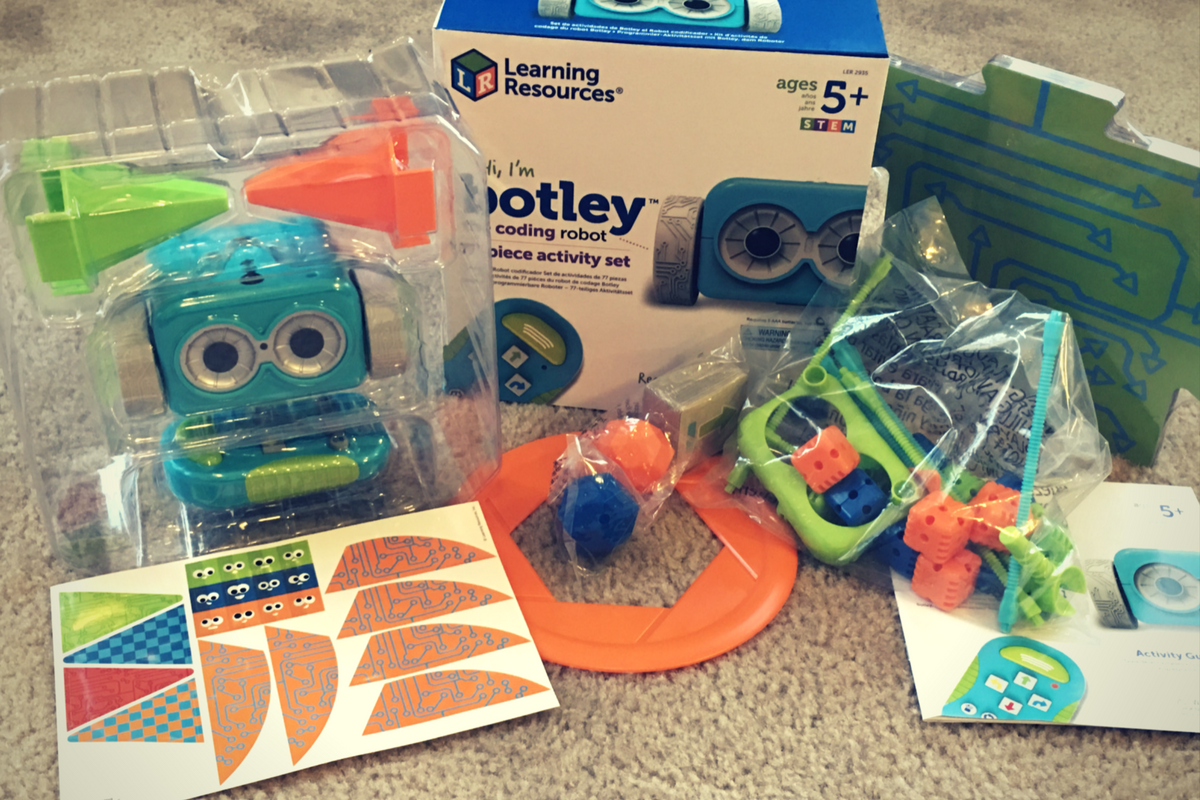
    Botley is a screen-free coding education robot. He can do up to 80 commands issued to him from a single remote control device. He has object recognition and awareness and can trace lines with the sensor on his “belly.” His basic 77 piece set comes with an instruction manual full of tips, tricks, and even a curriculum style guide to help parents set their kids up to learn from the beginnings of coding to more advanced sequences. Best of all, there is no app or software to program him. No screen needed at all.

    His kit contains toys for Botley to play with so that you can create games for him. Have Botley drive over a maze you create with the included puzzle tiles, have him bust through the wall you make from the blocks, or have him push a ball into the goal. All the games advance children through different techniques they can use to program Botley to complete different tasks. These techniques are the basis for the same programming tools used by professionals to create games, websites, and software.

    You can see more about my family’s experience with Botley in the video below. You can get Botley at learningresources.com and tell them FamilyTechBlog.com sent you.


  • The S.A.F.E. Approach to Raising Digital Natives

    The S.A.F.E. Approach to Raising Digital Natives

    The globalization of our world has led to so many benefits for our children. Endless information at their fingertips, education can be more exciting and entertaining, and distant family and friends are only a few screen taps away. With every benefit, however, comes a new challenge. Adult content, cyberbullying, sexting, and access to strangers and predators are changing statistics in our world and not for the better. Physiologists are calling our kids digital natives. They will never know a world that isn’t ruled by the screen, the like button, the selfie, and the Google search. It can seem like such a scary world but there are ways to keep our kids safe. We, as parents, just have to take the initiative to learn and apply a strategy. We at BecauseFamily.org call that strategy S.A.F.E.

    S.A.F.E. stands for Setup, Accountability, Filtering, and Education. It should be an easy way to remember the steps you must take to give your kids access to the technology that can enhance their lives while still setting boundaries that will keep them from the dangers of being always connected to the entire world. Let’s unpack the S.A.F.E. strategy.

    Setup

    The developers of your computer, tablet, and smartphone know that you need some sort of way to keep your kids safe while they use their device. Because of this, almost every device on the market now has some sort of Parental Controls built into the operating system. This means that parents should be able to implement some sort of safety strategy on their devices without spending any money or downloading any extra software.

    There are some exceptions, for instance, Android phones didn’t get built in parental controls until the 7.1 version of the operating system and Windows didn’t get it right until Windows 8. My advice is to find out what operating system your device is running and do a google search for parental controls on that OS. Once you’ve found what’s available, set them up immediately. This will give you, while basic, some protections on the tech that your children use.

    Accountability

    The easiest way to explain the benefit of accountability software is by describing a high-security building. The alarm is set, the doors and windows are closed, locked and break proof. There is even a super high tech laser grid that will set off the alarm if you cross its path. There are still, however, cameras installed. The cameras show you what went on when the rest of the security breaks down. Accountability software is the security camera of your internet safety plan. Accountability software doesn’t block content, it reports inappropriate websites to a pre-determined accountability “partner” through a text or email. This allows you to see what has gone on if something unsavory has been accessed on a computer or other device under your care. When you’ve seen what was found you will be able to have conversations with those you’re holding accountable and take the necessary actions to keep that kind of “breach in security” from happening again.

    Filtering

    Web filters DO block content. The idea is to let the good things in the internet pass through while filtering out the bad. There are three levels of filtering available on most devices. The first is the built in filters, these are usually pretty basic with an on off switch and not much customizability.

    Secondly is the option to purchase and download third party software that will block content. These options usually give you a bit more control and let you set filter levels by age, ratings, or content type and keywords.

    Third, you have your whitelist and blacklist settings. Most built in filters have this option but it takes your filter to the next level. Putting a website link in your black list will make it inaccessible on the device that the filter is set up on. This is useful if a site doesn’t necessarily have adult or dangerous content on it but you don’t want your kid or teen visiting the site. For instance, they watch too much YouTube and got bad grades. You can just blacklist the YouTube website on their devices and watch the studying commence.

    Whitelisting is the opposite. This allows you to either give a free pass to sites that have been blocked previously by your filter or some filters let you set up a browser to only view websites on the whitelist. I use this for my older kids to use my laptop. They only use three or four websites so that’s all that’s on the whitelist. The rest of the internet is completely closed to them. Filters are the initial protection phase of internet safety. It’s your first line of defense and should be the second step you take…the first is education.

    Education

    This phase really has two parts to it: research and conversation. Parents should give time every day to researching some of the latest information pertaining to internet safety. One good way to do this is the tech blog that I write found at safe.BecauseFamily.org. This site has daily tech news, up to date tutorials, and even a podcast recapping the week’s family relevant technology stories. I also recommend doing a regular Google search for a “dangerous app list.” You’ll often find some of the accountability and filtering resources have put together lists to help parents identify misleading or dangerous apps.

    Conversation is the key to this entire plan. If you aren’t transparent with your kids or teens about your plan for internet safety it will not work. I never recommend sneaking around to monitor your kids’ internet activity. In my experience, you’re much better off having them on your team. Discuss healthy tech habits with your kids and let them help you work through your plan and consequences for breaking the boundaries you’ve set up.

    Finally, remember that this plan is fluid. It’s going to work if you put effort into it but things do change. It’s critical that you stay informed on what’s going on in the technology world. When I do workshops to help families with these tech topics the questions are the most relevant and interesting part of the meetings. I recommend looking up our website and shooting us an email if you have any questions. Definitely, keep an eye on our blog at safe.BecauseFamily.org and learn all you can about the digital world your kids are growing up in. It can be hard work and seem overwhelming but there is no task that will bring more positive change.

    Bio

    K. Michael Prince is a husband, father of 4, blogger, speaker, author, and podcaster. He wrote “What’s in Your Pocket? A parents guide to protecting your children online.” and is the lead editor for a family tech blog (safe.BecauseFamily.org.) He is the director of BecauseFamily, a non-profit that works to empower and equip parents to be the first influence in their kids lives and train parents on raising digital natives.

    To learn more about how to host a workshop (in person or skype) at your home, church, or organization, contact us using the info below.

    Email: BecauseFamily@gmail.com

    Or go online to BecauseFamily.org