Tag: set up

  • Google Has Taken Away Chromebook’s Native Parental Control Solution

    Google Has Taken Away Chromebook’s Native Parental Control Solution

    What is “Supervised User?”

    I wrote all about your parental control choices for your kids’ Chromebooks a few months ago:

    “Supervised User is an account based system that’s built into the Chrome browser. It allows you to set filters, monitor sites visited, prevent installation of apps, turn on safesearch, and change settings. You do have to use blacklists or whitelists to block websites, there is not an automatic filter built in…”

    This wasn’t a foolproof solution but it was something that could give parents a head start on protecting their kids while they use the computers their schools have given them. Supervised User, however, has been discontinued so that they can focus their attention on another “parental control option to be released later this year.” Having received several calls from parents and principles this past year asking me to help them teach parents about the controls available, I know the need for Chromebooks to be safe while kids are online. Unfortunately, the simplest, most obvious solution is no longer available. At least for a while.

    From “Google Chrome Help”

    But There Are Solutions!

    Mobicip

    For a full-featured filter option, consider Mobicip. One of the only full-service filter and monitoring apps for Chromebook, Mobicip offers a plugin that you can download from the Chrome app store. Mobicip will give you customizable filters, time limit controls, and usage reports and its pretty easy to set up. You just download the extension from the Chrome app store and then log in. It takes you through the setup steps and lets you set your desired filter levels. Once it’s all set up you can make changes from anywhere using their web-based controls dashboard. Their SUPPORT page has good How-To resources to walk you through the process.

    If you want more controls than the Supervised User option gives you then Mobicip is a pretty good choice. It’s $39.99 per year for all of the features mentioned above for up to five devices. If you are going to need to protect more than twenty devices (I’ve met families with upwards of 30) then you’ll have to get a quote for their “Enterprise” option. Mobicip is a good option and will give you quite a bit of control.

    Accountable2You

     This accountability software doesn’t block content. This software will keep an eye on what’s being viewed and then red flag and report anything that it deems inappropriate. This allows you to more easily see when something questionable has been viewed. Otherwise, you’ll spend time sifting through link after unrecognizable link to find something that may be naughty. You can even set up Accountable2You to send you a text message when an inappropriate site was accessed. The software works across all of your devices including Chromebook and is $6.99 per month for six devices and $9.99 per month for twenty devices. They have easy setup instructions on their SUPPORT page and have excellent customer service. (NOTE: Accountable2You just released their lates iOS app that will cover every browser used on an iPhone or iPad. One of the first accountability solutions of it’s kind.)

    Use SOMETHING!

    I advise against waiting for Google to release a different option. Please set something up and do it soon. Kids are using their computers for much more than school work and there is more content showing up every day that would prey on your children’s innocence and even their safety. A Chromebook is basically a machine built only to run the internet. It has little to no other use. Pretending that it’s safe just because the school issued it is foolish. Use one of the affiliate links above and set up a solution. I wouldn’t recommend something I don’t or wouldn’t use myself.

  • 5 Ways to Stay Internet Safe on Thanksgiving

    5 Ways to Stay Internet Safe on Thanksgiving


    Thanksgiving is a time of fun, family, food, and football. Everyone coming together can be super fun for the entire family. There can also be some struggles here and there, especially when it comes to what turns up on the screens in the house. Your younger kids could end up seeing too much social media on their teenage cousin’s smartphone. Uncle so and so can show Youtube videos to some family with adult language and content not noticing the children in the room. Heres a few tips to try and keep your Thanksgiving Holiday internet safe and family friendly.

    Protect Your Kids

    Encourage a host home internet filter.

    Ask the family member or friend who’s hosting your Thanksgiving festivities if they have some sort of content filter on their wifi. Many routers have a basic filter and some folks may even have another filter system in place. If there isn’t an option, recommend one like Circle. If they don’t have kids or aren’t interested in filtering their wifi long term you can recommend a free trial with something like Mobicip or NetNanny. This usually allows you to use the filter for seven days to a month at no cost. Offer to help them set it up and then you can breathe a little easier when your kids are using their wifi.

    Keep devices with screens in a common area.

    Intentional poor behavior will happen in private. If you keep the screens around everyone else you’re much less likely to have an incident. Make a rule that screens should be kept in the most common area of your Thanksgiving meeting place. The living room full of people or the dining room around a busy table is a great place to let kids spend whatever time on screens you’ve allowed while adult eyes can glance down to see what’s being viewed. This will also keep sneaky cousins from pulling up something age appropriate for their younger family members.

    Talk to your kids.

    Your kids need a safe place. They need to know that if they see something inappropriate online they can come to you and receive no judgment or criticism.  It’s critical that they are allowed to explain what they saw and how it made them feel. Discuss your screen boundaries ahead of time, your kids should know what you expect even if you aren’t able to get the whole extended family onboard with your plan. Tell them if you want them staying off screens completely. Let them know not to look at older kid’s phones or tablets while they play. Think ahead of the likelihood of your kid seeing something they shouldn’t and try to head that off at the pass. Accidents happen but if you and your kids are on guard, you should be able to have fun without too much worry.

    Protect Your Privacy

    Turn off camera location settings.

    Your camera defaults to save your location every time you take a photo. This tags those photos with where you were when you snapped that pic. Then, when you share the image on Instagram, Facebook, or Snapchat your location is uploaded with the image. This means that with the right software your location can be extracted from that photo and used for unseemly reasons. 

    • Go into your settings app and access your “location” settings.
    • Go to the camera app settings under “location” and tell your phone never to use “location” while using your camera.

    Changing these settings will keep your location data off of your pictures.

    Advise family members not to tag their location on their Thanksgiving posts.

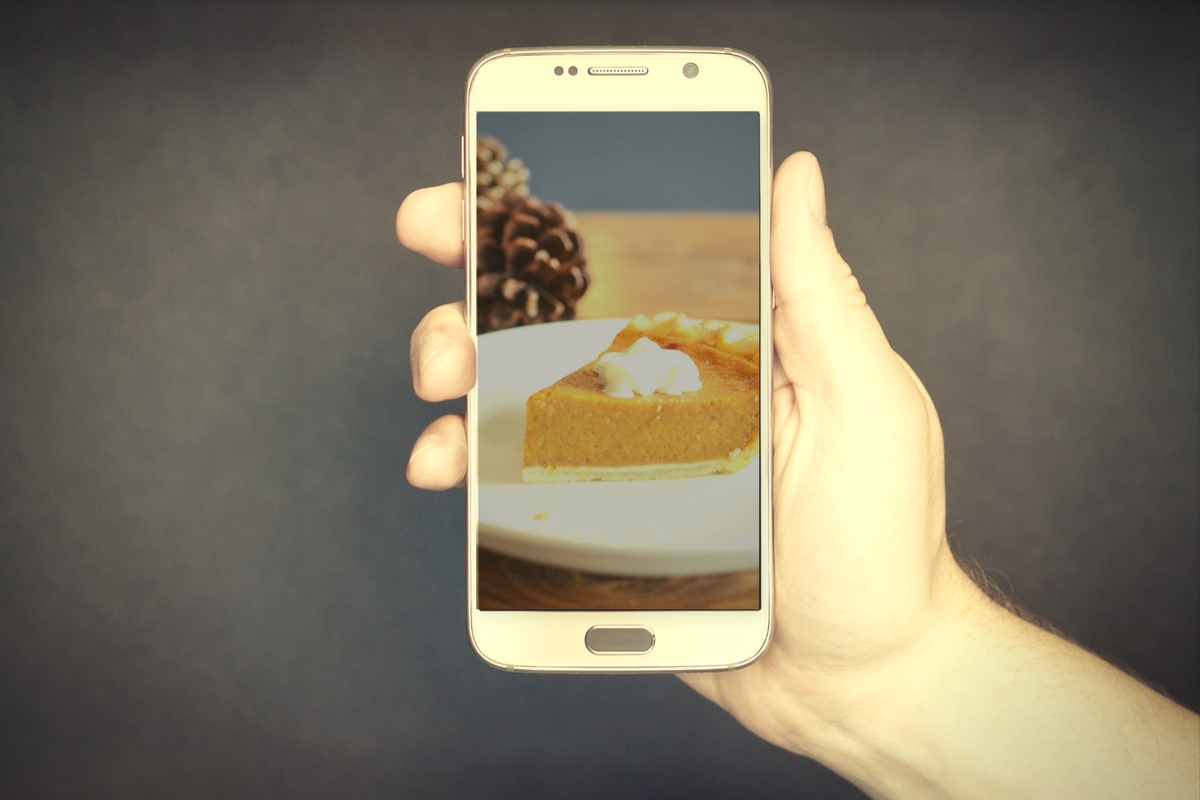
    Finally, you’ll want to be careful not to tag your location on your photos. Yes, pictures of the pie, stuffing, turkey, and gravy boat have become as much a part of the holiday tradition as the cornucopia, but when you share it you’ll want to leave the address of the host off of your status update. Sharing your address with public social media posts is never a good idea. This can lead to all kinds of dangers. Imagine the images of all the neat and expensive stuff in the host home. Now imagine you’re a local who likes to break and enter to take things every now and then. What better way to identify a target than creep Instagram holiday posts for the people with the coolest stuff. Then, find the posts with their address tagged on the photo and off you go. Share away, but share with wisdom.

    The holidays should be a time of rejoicing and happiness. We should stuff ourselves with food and enjoy being together. Following these steps can help you stay safe and help keep your holiday party guests safe as well. 


  • Amazon Prime Video Jumps on the Parental Control Bandwagon

    Amazon Prime Video Jumps on the Parental Control Bandwagon

    Our children get access to media through streaming content more than any other method. Many of the streaming content providers have allowed parents to protect their children using parental controls. Amazon prime video has just added that feature as well.

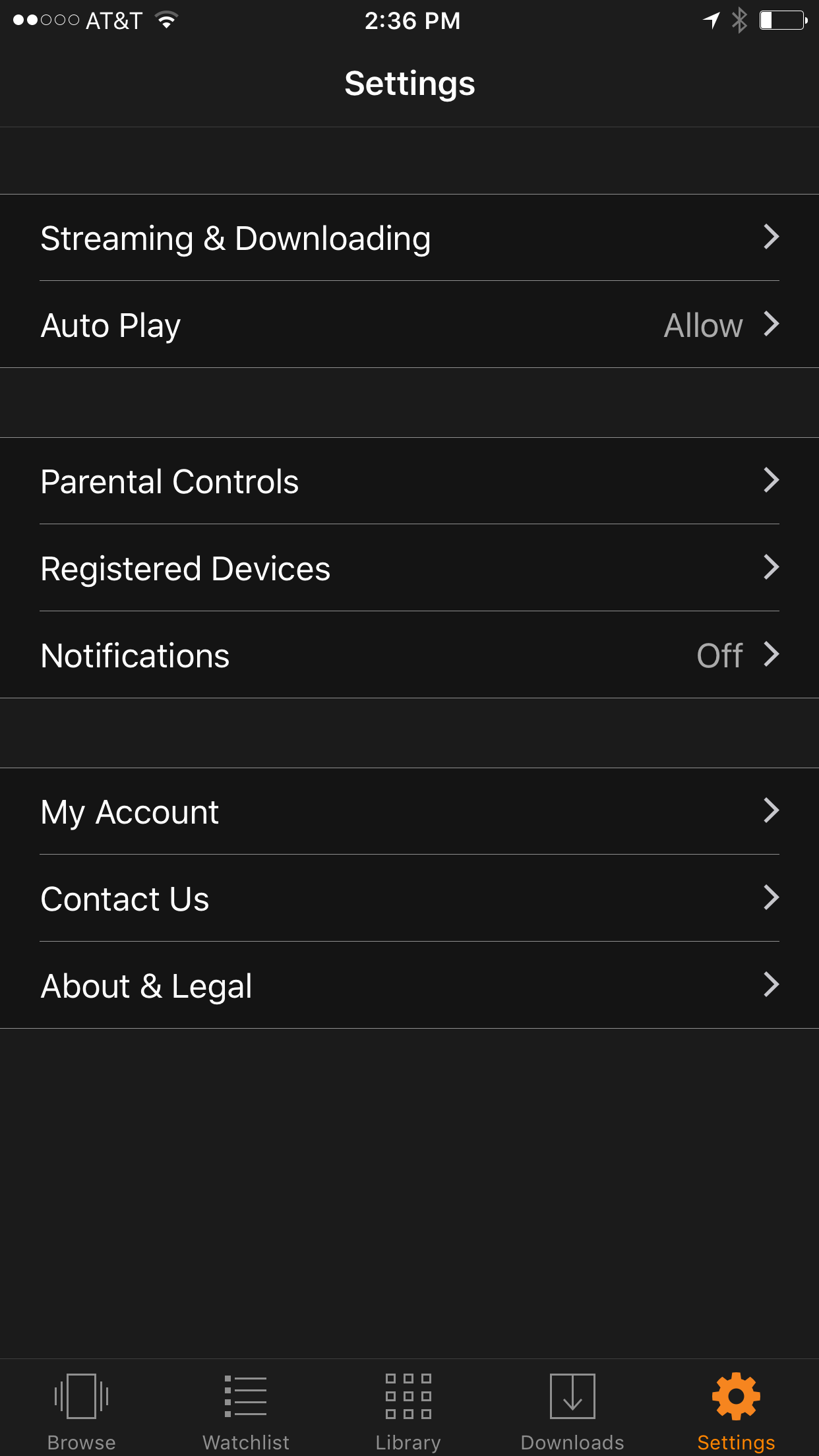
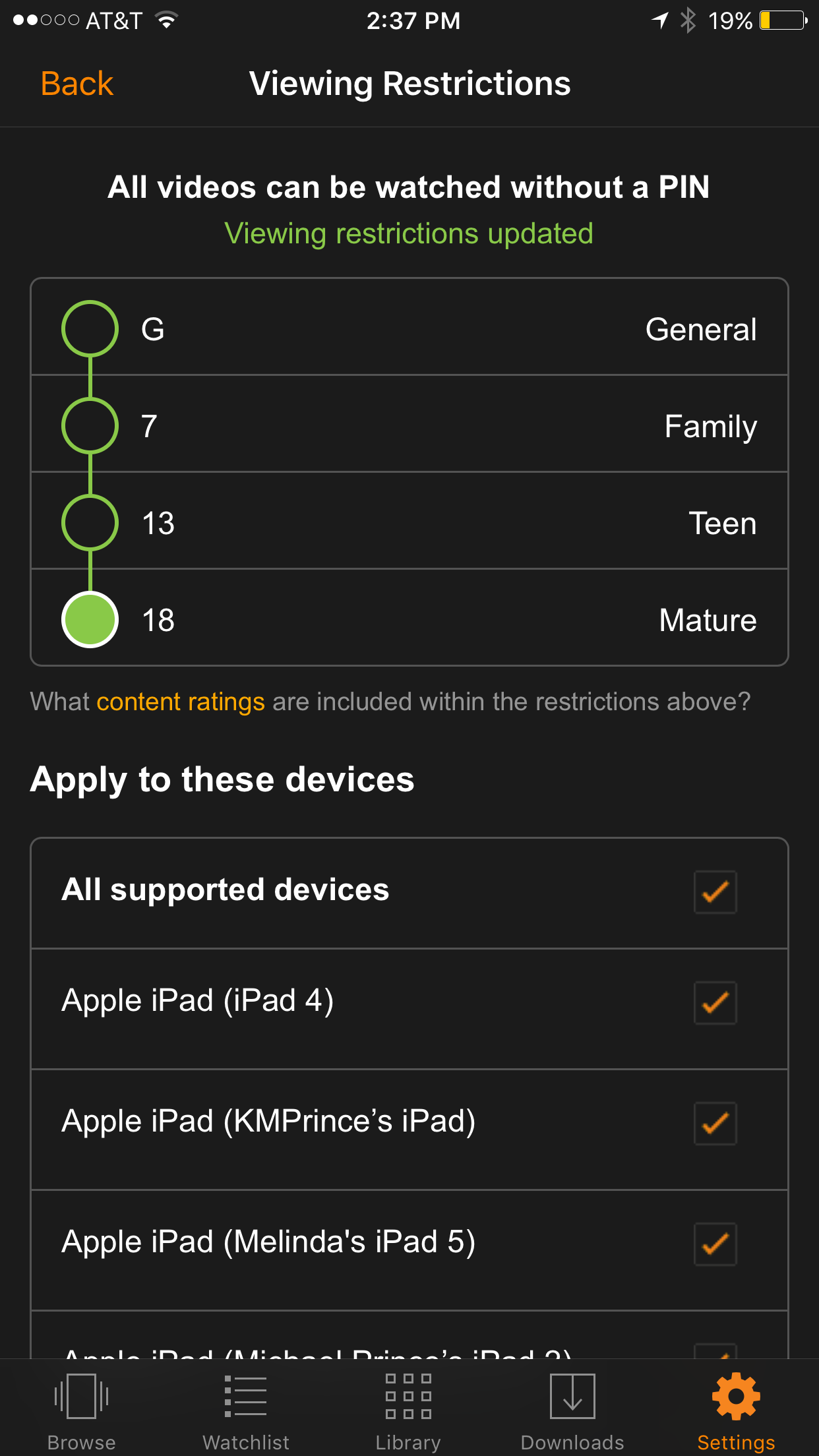
    We recently cancelled our Netflix subscription and switched over to Amazon prime because many of the shows our children enjoy have moved over there as well. Now you can ensure that your kids are only seeing shows intended for their age group. It’s really simple to set up; the photos below will show you how. (Photos show the iOS app, Android may differ slightly.)

    Go into your settings and tap Parental Controls.

    Set your desired age restriction and what devices should be included in the restrictions. 

    On iPhone you can also set up your Touch ID to bypass the settings when a video above the age restrictions is selected.

    What Parents Should Know

    Parental controls are a great feature but it’s also important to know what your children are watching. Parental Control settings batch all children’s programming together. It may not take into account the fact that some kid’s shows are geared towards older kids while others suitable for your preschooler. Kid shows, while not containing gore or sexual content, may still have violence and even some language at times. You should know what shows your kids like and why, I advise you even sit down and watch the show with them every now and then.


    Get Our Latest Posts in Your Inbox

    * indicates required