Tag: screen time

  • unGlue is a Great Way to Teach Your Older Kids Screen Time Management

    unGlue is a Great Way to Teach Your Older Kids Screen Time Management

    *unGlue is FamilyTechBlog.com’s latest affiliate

    UPDATE: You can use the promo code “SAFE10Off” to save 10% when you subscribe to unGlue!

    The most common concern among parents when it comes to tech use is that their kids spend too much time on their screens. There are plenty of options out there to help you monitor and limit the amount of time spent using tech, but unGlue is one of the first ones that allows you to put the control in your kids’ hands. The advice of the FamilyTechBlog has always been to help your kids know that you are on their team when it comes to internet safety and digital health. What better way to partner up than to give them choices as to how they spend their internet time? UnGlue lets you do just that.
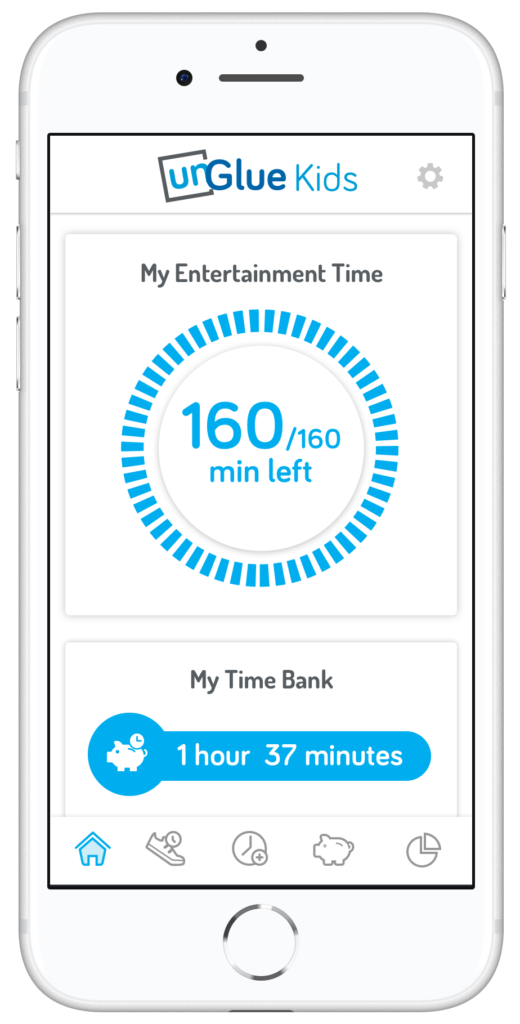
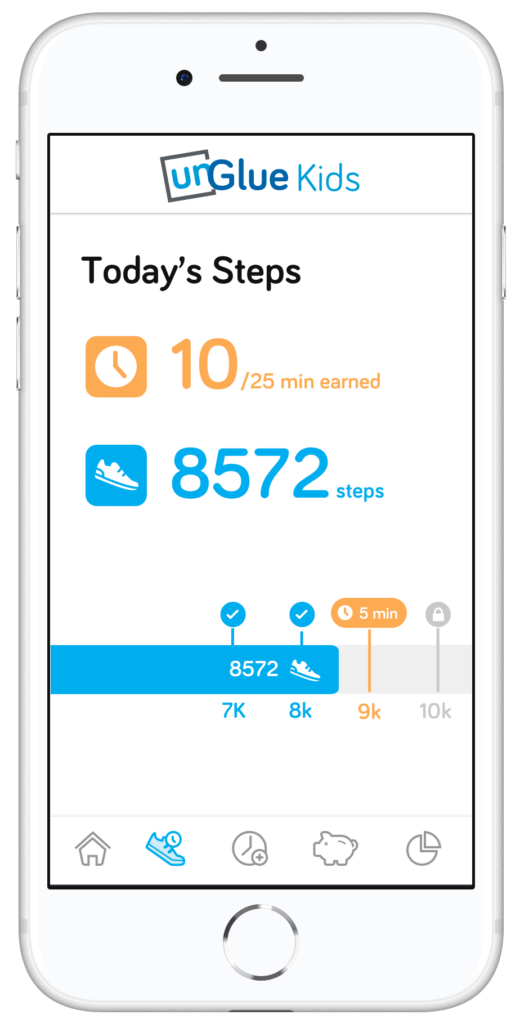
     

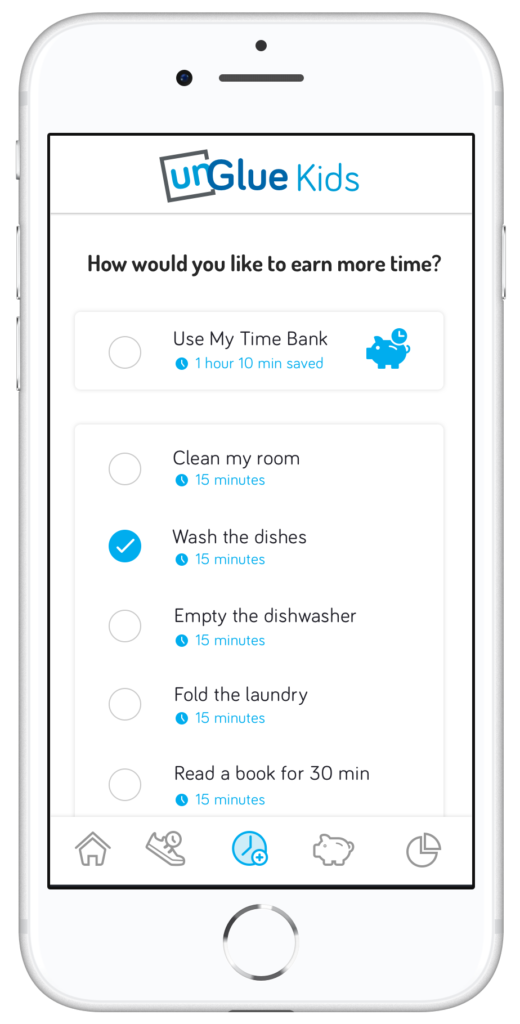
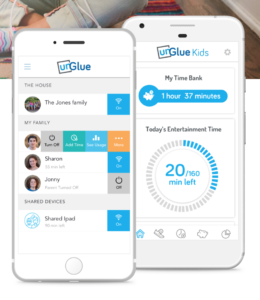
    unGlue’s features include an adult content filter, monitoring online time, trading steps or chores for more time, entertainment time rollover, and screen time scheduling. The best part is that most of this activity can be done in the kid’s version of the app. The parents set the limits but then the kids get to decide how they use their time and even how they can earn even more time. Rollover allows them to save up some of today’s time to use tomorrow if they’d like.

    How it Works

    At home, unGlue works through your wifi. You install software on your main home computer (only works while turned on) and it mirrors your router traffic to see the web activities on the devices you have set up. While on the go, unGlue uses a VPN to keep track of what is being done online. These methods mean your time is managed everywhere you go. You can even set up guest access in your home. If you don’t have a home computer to set up unGlue on, they have a device called the unGlue Puck that will only cost you $30.

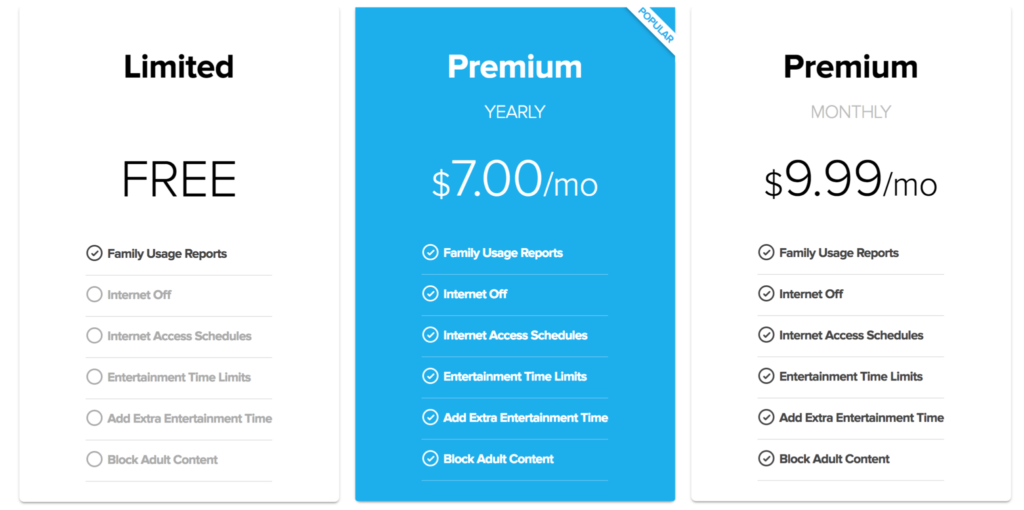
    Speaking of cost, you can download the unGlue app for free and start monitoring online time right away. If you want to set up and use the other features you can subscribe for $9.99 per month or $84 per year. Both subscription options include full-featured access to unGlue.
    What Parents Should Know

    Managing screen time can be a challenge for people of all ages. The best way to ensure your kids have a good attitude about the time they spend online is to start teaching them young and to lead by example. Track your own screen time and set some limits for yourself. This will help your kids see that you are as committed to a healthy digital attitude as you are asking them to be. Using unGlue is simple and is an especially good option for those of us with older kids. Other options just monitor our kids and give us the option to turn the internet on and off at will and on a schedule. That’s a good way to manage screen time for your younger kids but studies show that our older kids need guidance and boundaries but not overbearing rules and regulations.

    Our hope is that the resources we partner with for parents can each bring a unique approach to your digital boundaries strategy. In my opinion, unGlue is the choice for parents of older kids who are ready to start managing their own time online. The option to earn more time through activity and chores adds another element that teaches your kids lessons they’ll have to continue to learn as they grow older. Download unGlue now and start monitoring. I think you’ll find it useful enough that you decide to subscribe in no time.

  • Tools to Monitor Your Own Screen Time in 2018

    Tools to Monitor Your Own Screen Time in 2018

    Happy New Year!

    The first of the year has come and we are all trying to make ourselves a little better. Maybe you’re concerned about you and your family’s increased screen time. This is normal, we’re all thinking about what we can change in the new year and spending less time looking at a screen is on the top of many lists. These tools can go a long way to help you identify the amount of time you spend on your device, narrow down what you’re doing that sucks up so much of your time, and even set boundaries to alert you or block access when you’ve reached your desired limits.

    Accountable2You

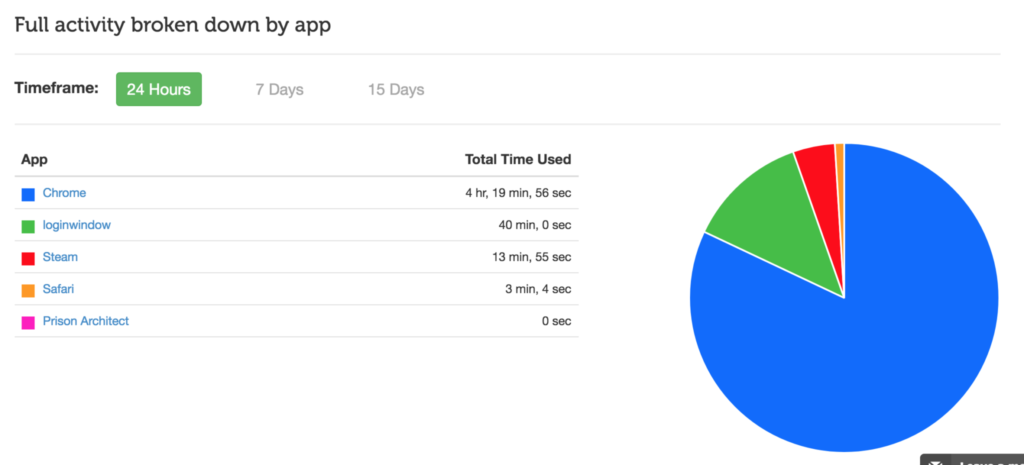
    No matter what device you use, Accountable2You can help you keep track of what you’ve been doing online. The online dashboard will give you an App Usage report, complete with a circle graph of how you spend your time online. Whether you use this to keep track of your kids’ devices or your own screen time, it’s an easy to read way to be aware of how you’re spending your days.

    Accountable2You is an accountability software at heart. It will notify you if there anything inappropriate has been accessed by those you’re keeping an eye on. It’s easy to set up, affordable (6.99 for 10 devices and 9.99 for 20,) and it works for every device. Even the Chromebook your kid got from school. It’s what I use and the best part is that if you sign up with our link, our non-profit will get a bit of help every month because of your payment.

    Android Family Link

    Android’s first stab at native parental controls focuses mainly on time management. That is, in fact, almost all it focuses on. Google FamilyLink is designed to allow parents to set time restrictions, time limits, and bedtimes as well as monitor the amount of time spent using the device. This will be accomplished by a complete disabling of the device once time limits or restricted times are reached. A tool like this could easily be used to limit or monitor yourself as well. If you, like me, spend most of your time in front of your computer for work, you may want to be able to set limits on how much time you spend on your phone or tablet for recreation purposes. FamilyLink should be a pretty good way, if you have an Android device, to cause your entire device to shut down when your limit is reached, or even just take a look every few days to see how much time you’ve spent on those devices.

    iPhone Battery Meter

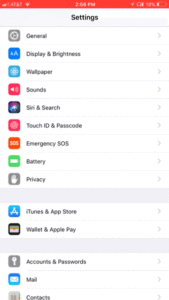
    For iOS users, Apple has built in a way to keep an eye on what you’re spending your time on while using your device. Your battery meter can be used to monitor your own screen time. It will even sort your time by app used and separate it into “on screen” and “background” time. To use this, simply go to your settings app and open the Battery section. When the usage area loads, tap on the clock icon on the upper right of that section. You can set your timeframe to be 24 hours or 7 days. This gives a pretty good snapshot of how you spend your time on your iOS device. Try it, you may be surprised.

    Moment App (iOS only)

    The Moment App uses your battery meter to build a nicely laid out report for you to keep track of the time you spend on your phone. Moment is only available for iOS (Android app is in development.) It automatically tracks your usage and allows you to see simple reports that separate your usage by the apps you spend time on. Moment lets you coach yourself on your screen time habits so that you can make changes if you want. You can set up time limits and Moment will notify you if you’ve gone over the time you’ve allowed.

    This app works pretty well. I used it for about a month and definitely made some changes to the amount of time I spend on my phone. Since it’s free you can even consider using Moment to install on other devices in your family and setting up limits for them. It will be up to them to put the phone or tablet down when they are notified but there’s something to be said for teaching your older kids to take the responsibility into their own hands. Moment is a free app but there are premium features (including extra family controls) that you can pay for.

    UnGlue

    UnGlue was created to give the power of screen times to the kids themselves. The website touts a plan to “give kids the power to learn healthier habits – within your boundaries.” UnGlue uses a scheduler to set up your kids’ screen time allowance. You can give them control of how they spend their time by giving the rewards for things like chores and exercise. Unglue works from just an app, no separate device to hook up. The basic UnGlue package gives you access to screen usage reports only. You can use this free feature to keep an eye on the time you spend online. Further features will cost up to $9 per month. UnGlue is fairly new and has been updated quite a bit recently. It will work on iOS or Android and even on your home devices. (With the full-featured service.) Go check out UnGlue and tell them FamilyTechBlog.com sent you.


    Circle

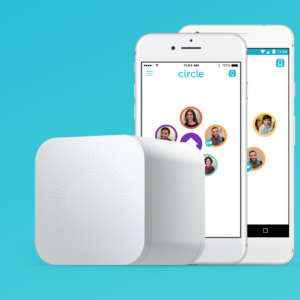
    I’ve spent a lot of time talking and writing about Circle. I recommend this parental control tool to everyone I speak to and I even use it myself. Circle lets you filter by age and category and limit screen time for your kids but it’s been cool for us to have a profile for ourselves. This profile lets us see, in one glance, how much time we’ve spent on every single one of our devices. When you’ve built your profile, you just add the devices you use to be monitored under your account, this results in a very useful and detailed report on how much time you’ve spent in front of your screens. It even monitors your smart tv, BlueRay, and gaming system usage. Circle is a $99 investment for in-home wifi protection, (with the option to pay $10 monthly for on the go monitoring) but in my experience, it’s an all-in-one parental control system. You can buy circle at Amazon or at Best Buy and Bed Bath and Beyond.

    Whatever you do, start.

    New Year’s Resolutions are notoriously easy to forget about but my advice is that you just get started. When you begin my tracking how much time you spend on your screens, you’ll find yourself truly motivated to make a change. It worked for me. Using Moment and my battery life meter led to my decision to not start using my phone until I’ve had breakfast with my family. We’ve even started doing some Social Media Free Saturday’s a couple of times per month. Whatever your goals are, you’ll never accomplish it if you never begin so grab hold of one of these tools and get started!


  • Parental Control Hardware “Circle” Announces Integration with “FamilyTech” Apps

    Parental Control Hardware “Circle” Announces Integration with “FamilyTech” Apps

    Circle is one of our favorite resources to recommend to families. With its simple to use app and customizable, profile based filters Circle is one of the most accessible parental control options out there. At a price tag of only $99 it’s affordable too. Today, Circle announced Circle Connections, the roll out of integrations of some new resources to make it one of the most extensive filter and time management apps available. These integrations will soon add the ability to stop notifications from social media apps while your child is driving and allow you and your kids to use Amazon Alexa to set and monitor your time limits. Launching first, however, is a partnership with FamilyTech.

    The new platform, Circle Connections, allows Circle users to connect other partner apps, devices, and services to offer rewards, automate features, and much more. These other pieces of Circle help leverage some of the biggest drivers of family life: screens, physical activity, teen driving, and social media.

    FamilyTech launched late last summer and is a chore/time management system developed by CEO Chris Bergman. The system features four apps. Mothership, the hub for setting chores and giving rewards. ChoreMonster, an app for kids that rewards them for meeting their chore goals. Honeydo, a way for couples to communicate what needs to be done and get more accomplished. And Landra, the home productivity solution for older kids and teenagers. This partnership is going to set Circle up to be one of the most extensive time management and parental control options available to parents.

    For Example

    With Circle’s time limits, the integration with FamilyTech can do a lot for parents. Imagine your child has an excellent week of chores. The choremonster app asks what reward they would like and they choose to extend their bedtime. ChoreMonster will communicate with Circle and their bedtime will be extended to whatever reward time you’ve set up. Pretty much automated rewards. That sounds awesome.

    As mentioned, some of the functionality will be released in future updates but the integration with FamilyTech is rolling out now. If you have circle, be sure to update often and take a look at what FamilyTech’s apps can do for you. If you don’t have Circle yet, maybe this will be a pretty good reason to give it a go.