This is a special crosspost from my other podcast, Raising Connected Kids.
Click the banner below to check it out.
WELCOME to Raising Connecting Kids the podcast that answers your questions about the connected world your kids are growing up in.
I get multiple questions a week. Sometimes through email or FB messages and sometimes face to face at an event or meeting. In this podcast, I’ll be answering the most common questions I’ve had and even, your questions. Email me at BecauseFamily@gmail.org to get your question read and answered on the Podcast.
Question 5: What are some good things about our technology?
Since we’re distancing ourselves, perhaps we should focus on some of the good things our kids can use technology for. Here are some ideas and safety tips for using Tech to your advantage, not your detriment.
Thank you again for listening to Raising Connected Kids, the podcast that answers your questions about the connected world your kids are growing up in.
Share the show with your friends and leave a review on your favorite podcast app to help spread the word.
Remember to visit BecauseFamily.org/partnership to partner with us as we protect children and teenagers by bridging the technology gap between them and their parents.
Using technology to teach the love of reading isn’t new. Amazon and Barnes and Noble did it with their Kindle and Nook. Now we’re seeing products come out to help children love reading as well. The show floor at CES2020 had several products designed to teach the love of reading. Here are a couple of those products I thought were super unique and cool.
Bookinu
Audiobooks are a great way to consume content while you’re busy doing other things. Reading out loud to your children has been touted as critical for their development. Some products give your kids the ability to hear books being read to them but Bookinu allows the narrator to be you.
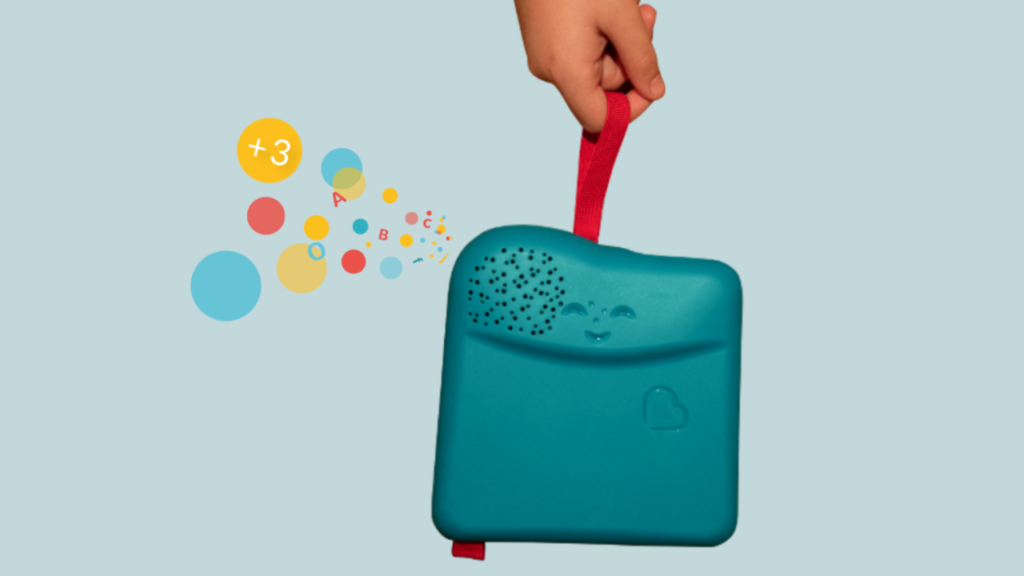
Bookinu is for children from three to seven years old. It encourages them to love reading through an easy to use app for parents. Moms and dads open the app and read any book they would like into the app. You put a sticker on the book and scan it with the Booking. The Bookinu will then playback your reading of the story through the Bookinu devices so that the child is hearing the book read to them in your voice. It is very easy to use and can be taken anywhere. It can store books internally so that you don’t need a wifi connection to play the content for your child. There is also a headphone jack and a speaker built-in.
Dipongo
“Dipongo is the first creative app for personalized stories mixing both real and virtual worlds.” – Dipongo Website
Using voice recognition the app chooses the right story for kids based on their likes and dislikes. You then use tangible objects to influence the story through photos and augmented reality. Kids create, draw, build, and mold to get the story to continue. The story changes somewhat based on what you choose to insert into the narrative. If you build a bridge to get over the valley they’ll cross it. If you take a photo of a plane, they’ll fly across.
Stories on Dipongo are co-authored with childhood and creativity professionals. The award-winning app was designed to educate kids on problem-solving, socialization, and contributing to a story. Watching the example on the show floor at CES caused me to smile a silly grin that wouldn’t go away. The cute characters and unique challenges are sure to keep your kids entertained for a long time, all the while teaching them some very useful skills.
Counterintuitive?
It may seem silly to use technology to try and encourage your kids to love a not so tech-centric activity like reading. Why not harness something they already use to encourage such a helpful skill. If reading out loud to our kids is such a great thing then an app that lets us read to them whenever we would like can only be super helpful. If we don’t allow it to replace the times we sit with them in person it can be a great tool. Using behaviors from Alexa and GoogleAssistant to read to our kids is neat but the voice of their parent isn’t being heard. Bookinu gives loved ones the ability to re-insert themselves into the read-aloud activity that is so beneficial.
Giving older kids a way to interact with stories through augmented reality and building with tangible items is a wonderful idea also. This allows them to get lost in storytelling in a way that they may have never before. Storytelling and creativity is critical and will always be skills that kids can harness to be successful in the future. Dipongo gives them a head start on those problem solving and storytelling skills.
The goal is to find tech that entices our kids to learn and gives them tools that they’ll need to succeed. There is a lot of tech out there that distracts our children and can even become harmful. I was excited to find these two options that give parents the ability to harness their kids’ love of tech to encourage a love of learning. The love of learning will serve their children well for the rest of their lives.
The Chromebook is unique because it isn’t really a full fledge computer. They are designed to just run a browser so you can access the internet. This makes them affordable and easy to use. Because of this the Chromebook is often the chosen computer for schools. So your child may have been assigned a Chromebook when they were enrolled in school. While they must have content controls set while they are on school property there aren’t any regulations requiring schools to keep them protected while off campus. Here are some options for how you can protect your kids while they use their Chromebooks.
This is an account based system that’s built into the Chrome browser. It allows you to set filters, monitor sites visited, prevent installation of apps, turn on safesearch, and change settings. You do have to use blacklists or whitelists to block websites, there is not an automatic filter built in. I recommend using THIS LIST of blacklist sites provided by a University in France. It’s a pretty extensive set of blacklists and will take some effort to set up but if you don’t want to just set the Chromebook to only access a few domains then copy pasting sites from these lists is your best option. You can access the supervised accounts by going to chrome.google.com/manage.
Click THIS LINK to see Google’s set up instructions for a supervised user account.
MobiCip
One of the only full service filter and monitoring apps for Chromebook, Mobicip offers a plugin that you can download from the Chrome app store. Mobicip will give you customizable filters, time limit controls, and usage reports and its pretty easy to set up. You just download the extension from the Chrome app store and then login. It takes you through the setup steps and lets you set your desired filter levels. Once it’s all set up you can make changes from anywhere using their web based controls dashboard. Their SUPPORT page has good How-To resources to walk you through the process.
If you want more controls than the Supervised User option gives you then Mobicip is a pretty good choice.It’s $39.99 per year for all of the features mentioned above for up to five devices. If you are going to need to protect more than twenty devices (I’ve met families with upwards of 30) then you’ll have to get a quote for their “Enterprise” option. Mobicip is a good option and will give you quite a bit of control.
Accountable2You
The final option is an accountability software. This, combined, with the Supervised User Account may be all you need. Accountability software doesn’t block content. This software will keep an eye on what’s being viewed and then red flag and report anything that it deems inappropriate. This allows you to more easily see when something questionable has been viewed. Otherwise you’ll spend time sifting through link after unrecognizable link to find something that may be naughty. You can even set up Accountable2You to send you a text message when an inappropriate site was accessed. The software works across all of your devices including Chromebook and is $6.99 per month for six devices and $9.99 per month for twenty devices. They have easy setup instructions on their SUPPORT page and have excellent customer service.
Whether your kids got Chromebooks from you to help with schoolwork or they were school issued, it’s critical that you have some sort of parental control solution set up. I recommend using one or more of these to set up a plan to help your kids be safer online. The statistics say that only one out of every three kids who saw something inappropriate online was looking for it. The fact that you have well behaved children doesn’t apply here. The internet isn’t well behaved and we have to make the effort to keep them safe.
It’s next to impossible, once your kids reach a certain age, to keep them off of the internet completely. Schoolwork requires online research and so do many other activities that kids enjoy these days. What you need is a solution that will help you fully protect your kids while they search. That’s where Kiddle.co comes in.
These days we need to be parents and educators in the online world as well as the real world. The internet is a great educational and recreational resource that can help children learn and satisfy their curiosity about life.
The websites included in Kiddle search are recommended by educators, librarians and parents from across the globe as well as websites our own editors have used in schools or for homework within the K-12 age range. – Kiddle.co/internetsafetytips
Kiddle is a safe search engine powered by Google. The beauty of Kiddle is that, for most searches, it features curated, kid relevant results. While google ad results do often show up first, they’ll be family friendly and related to the topic searched.
Obviously, inappropriate searches are blocked with an angry looking robot telling you to try again. It will also filter out inappropriate results to searches that should be safe but sometimes aren’t. For example a search for some pop star they’ve heard of will produce results but the images shouldn’t be adult oriented and news articles about their indecent activities at the club won’t show up.
What Parents Should Know
Kiddle is branded and designed for children but it’s a good solution for your kid or teen who needs to do some research while you aren’t looking. I recommend using sites like Kiddle to help kids with homework so that you can be sure they’re only seeing results that are safe.
Also, Kiddle has some pretty good advice and tips for parents and educators on their site as well. Just head over and take a look. I’m confident you’ll be pulling it up the next time your child has a science project or history paper due.