Tag: protect

  • Helpful Family Resources Concerning Race in America

    Helpful Family Resources Concerning Race in America

    This blog has been silent for a while. To be honest, I have been very busy learning and listening. I am not an authority on any of the most important topics of today. I am trying to see the world beyond my small town in Southwest Missouri and discover a world of people who are trying to find change. I haven’t felt that there is a need for education on protecting our kids online during this time of upheaval and division. I have quieted my voice, to try and amplify some others. There are a few voices that I have found very helpful during this time and I wanted to share them with the readers of the Family Tech Blog. I am including a video and links for three of these voices. Please check out the videos below and don’t stop there. Continue listening by clicking the links to their articles, channels, and podcasts.


    Phil Vischer | The Holy Post – Race in America


    • Phil and his cohorts Skye and Christian cover so many timely topics on The Holy Post Podcast. I highly recommend you subscribe.


    The Bible Project – Justice


    • Their entire podcast is loaded with great insight on what scripture says about our world and our role as God’s Image in the world.


    Uncomfortable Conversations with a Black Man


    • This series has several videos that you will find helpful in starting conversations with your children about race, racism, and justice.


    These resources have been helpful to me and my family. We’ve been able to learn and have conversations that need to be had during this time. While, as one video series is aptly titled, these conversations can be uncomfortable, they are necessary. As a tech blog that is founded in faith in God and His way of living, justice is a priority. We shouldn’t protect our children from difficult topics, only dangerous ones. Open up to your kids about your experiences with race and racism and allow them to learn, grow, and listen with you.


  • ALERT! Kids Can Get to Pornhub from Snapchat in 5 Clicks

    ALERT! Kids Can Get to Pornhub from Snapchat in 5 Clicks

    We don’t like Snapchat. It has a history of allowing content that isn’t appropriate for kids even though the app is rated 12+ in the app store. The app is built around disappearing messages that are a nightmare for trying to prevent predatorial communication and sexting. Now, Protect Young Eyes has written an article highlighting the fact that, in just a few taps on your screen, you can get from Snapchat’s home page to Pornhub, the most popular pornography site on the internet. They even included a video that shows how easy it is to navigate to the adult site without ever leaving Snapchat’s app.

    Monitor Song Lyrics with Bark!

    What Does This Mean for Parents?

    Most filters for iPhone don’t monitor browsers in apps like Snapchat and Facebook. This is why the ability to connect to adult websites within these apps is so dangerous. It only takes a few taps on your screen to go from the Snapchat story to the “Premium” page on which you can click links to all of their other accounts. These links don’t open other apps that would be blocked by Screen Time or other parental control software. Instead, it opens in a browser within Snapchat, allowing access without being blocked by your filter or sometimes even reported by your Accountability software. The only real way to keep your kids off of those sites is to limit which apps they are allowed to use by blocking the app altogether.

  • The Three Worst Tech Parents

    The Three Worst Tech Parents

    I had the opportunity to speak at a conference last week that was full of educators and school administration. They were extremely excited about the things I had to share, they loved learning about ways to protect their students online, and they were generally interested in the statistics and facts about online dangers. They all, however, had one major complaint. “Parents just don’t seem to care.“

    That’s right! Teachers, administration, afterschool program leaders, and even librarians want to help kids learn the best way to use their tech devices. Everyone is concerned about overuse and too much screen time. Nobody wants kids to end up on the wrong websites or being communicated to by the wrong people. They all want kids to be protected while they’re on school property but they know that that is only a very small amount of time compared to the time they spend online at home.

    This all falls on parents. There is no one who has as much influence over their children as the parents who raise them. Teachers, coaches, pastors, and mentors all do what they can and have a real heart to protect your kids but if mom and dad aren’t taking part then it is an uphill battle.

    Here are three kinds of technology parents and where they mess up.

    1. The ”Do as I say, not as I do.” parent.

    I’ll never forget my neighbor’s grandfather when I was a child. He smoked like a chimney, several packs of cigarettes every day. When we would be outside playing with our friends, it never failed, he would come out light up a cigarette and immediately tell us all, “Never start smoking, it’s really bad for you.”

    I get addiction. I understand that there are things people can’t just give up. But this “do as I say not as I do” attitude can be very harmful to our kids. When it comes to technology most of us lift our phones about every 10 seconds on average. We spend 4 to 6 hours per day creeping Facebook, watching YouTube, and posting to Instagram.

    Even as a 10-year-old kid I realized how weird it was that this man was standing there, chain-smoking cigarettes, and telling us not to do the same thing. Our kids get confused when we tell them they can’t have any more screen time while we are looking at our phone just like we have all day long. Put it down, look up, and set a good example for your children.

    1. The “I’m super busy.” parent.

    I remember being told to play outside because my mom needed a few minutes to her self. We would go play at friends’ houses and every now and then a friend would say that his mom wouldn’t let us play there today because she needed the house to her self. Parents have always needed time without kids running around asking for things and getting on their nerves. The difference is that when I was a child I was going to the homes of people my parents knew. Now we set our kids down in front of devices on which they can communicate with the entire world.

    Using Netflix or YouTube as a babysitter is just simply a bad idea. It can be useful if you know how to set it up properly but most of the time parents know less about these sites and apps than their kids do. I get that you’re busy. I understand you have things you have to get done. It’s just very easy to allow your kid to be on the screen for 4 to 6 hours before you realize how long it has been. Use some sort of app that sets a time limit for your kids’ Screen time. That way it doesn’t fall to you to remember when they their time is up. It automatically kicks them off and you can tell them to get outside and have some fun in the sun.

    1. The “I have great kids.” parent

    Of course you have great kids. I know they don’t want to do anything wrong online. They will not bully people, they won’t send inappropriate photos, and they are definitely not visiting adult websites. The problem with this logic is that they don’t have to seek out these things, they come to them. Two out of every three kids who see adult content for the first time saw it by accident and the average age a young man sees pornography for the first time is age 8! These are, most likely, children whose parents would consider “Good Kids.”

    I sat and watched a young lady of seven years old create videos of herself and post them publicly on an app called Likee. I went to look at this app in the App Store and saw that it is rated 17+ because of the ability to post your videos publicly online. I guarantee mom didn’t know that app was posting videos that strangers can see online. Moms and dads trust their kids because they believe they’re going to do the right thing. The issue isn’t usually what your kid does online. Most of the time the problem is the strangers on the other side of that screen.

    Your kids need you to care!

    The worst thing we do, as parents, is decide that we can’t learn any more about the tech our kids are using. We cannot be fooled into thinking that the digital world is moving too fast for us to keep up. It does move fast, I understand, but there are resources that we can and should use to help us better wrap our minds around our children’s time on tech. Use FamilyTechBlog.com, our YouTube Channel, and Podcast to help you stay informed. Knowledge is definitely power. You need that power to keep your kids safe and help them develop healthy habits.

    Secondly, we often get too focused on ourselves and what we need. While our homes shouldn’t be fully centered around our children, we have to set some boundaries and standards to protect our kids from the nonsense that the online world can provide. We should pay attention to what they do on social media and not let them use those apps until they are old enough to use them responsibly. We need to be knowledgable about the video games they play, the sites they visit, and who they communicate with online. We should learn all we can, every chance we get, to continue to keep our kids safe.

    It is easy to get discouraged. We hear of the worst case scenario on the news almost daily. kids going missing, kids hurting themselves because of something they’ve seen online, and studies showing how damaging excessive screen time can be for our childrens’ brains. I advise that you don’t get discouraged but get inspired. Let this information drive you to learn more to protect your kids. Learn all you can and share what you learn with all of the parents you know. That’s the best way to protect our kids and help them build healthy habits.


    Listen to the podcast here:


  • What Happens in Vegas WILL NOT Stay in Vegas

    What Happens in Vegas WILL NOT Stay in Vegas

    I leave in just a few days for International CES in Las Vegas Nevada. It is my second year to attend this conference but many of you have just started following us since my last trip so here’s some background.

    What is CES?

    CES is the world’s gathering place for all who thrive on the business of consumer technologies. A high-level business event that touches all industries. A platform for innovators of all sizes to build their brands, every major technology company on the planet participates in CES in some way — by exhibiting, speaking, sponsoring, attending or holding co-located events and business meetings.

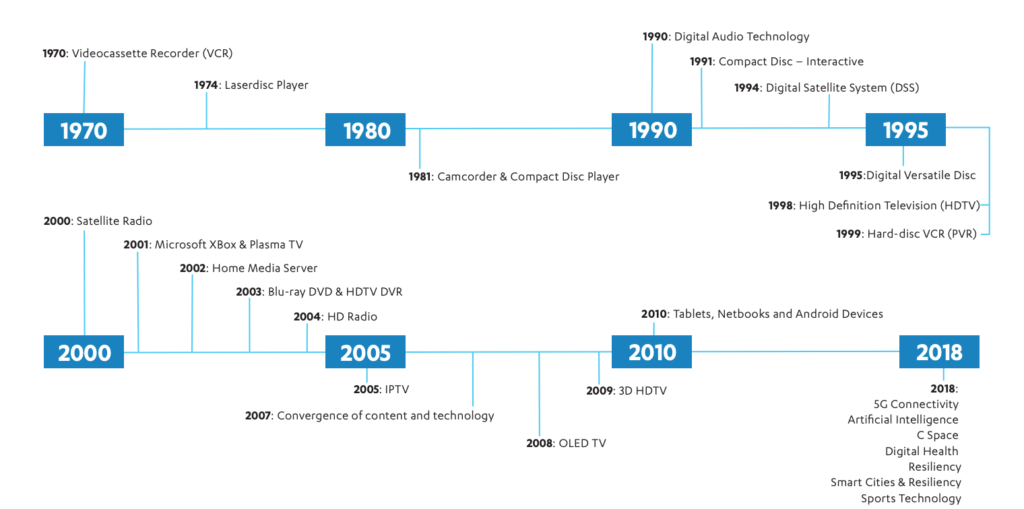
    CES began in 1970 where it highlighted new, world-changing technology like the videocassette recorder and the Laserdisc Player (1974.) Products that we use every day were on display and demoed at CES over the years, including Compact Discs, Satellite and High Definition TV, Xbox, BluRay players, streaming entertainment, Tablets, and Netbooks. The show now features Virtual Reality, Smart Cities, Self Driving Vehicles, and Artificial Intelligence among a lot more!

    Why do I go?

    The whole purpose of BecauseFamily and the Family Tech Blog is to protect children and teenagers by bridging the technology gap between kids and their parents. In order to do this, I work to be on the cutting edge of technological advancement. Our world isn’t just digital anymore, it’s connected, marketers are struggling to find new ways to market to younger, more knowledgeable generations, and psychologists are urging app makers and toy manufacturers to cut out screen time whenever possible. These are all facts I learned at CES and use to inform my workshops, blog posts, videos, podcast episodes, and meetings with parents after. There is much more to learn this year and since I am able to attend through media credentials from the blog, I’ll be there. I’ll be learning for you. The parents.

    CES 2018 Stats – ces.tech

    So Here I Go, Please Join Me

    I’m going to enjoy myself at CES. Vegas is a fun city. I enjoy being around the tech industry, I love learning about marketing, kid and teen tech, social media. and video gaming. I am excited to be an authority on these topics for parents so that I can have an answer to nearly every question I am asked when I work with families.

    While it will be fun, It is work, and it is important. I am extremely grateful to all who have supported BecauseFamily and who read and share my blog posts. Please stay tuned in to the blog, our social media, and our YouTube channel for coverage from the only tech blog covering CES exclusively for the purpose of educating parents and protecting kids. You can also follow me personally on my YouTube channel for daily travel vlogs from my trip. When I go to Las Vegas, what happens there, comes home, to you!

  • More Violence on Youtube Kids; Here’s Youtube’s Answer

    More Violence on Youtube Kids; Here’s Youtube’s Answer

    Another week, another story about Youtube kids not removing junk before some kids have seen it. The most recent claim is that videos featuring Paw Patrol characters showed them dying and mourning each other at their graveside. This is obviously a startling discovery for any parent to come across on Youtube but especially when it shows up on an app that has been marketed as being safe for kids.  The good news is that updates on YouTube’s review policies may help keep some of that content off the app.

    The policy is using Youtube’s existing “restricted-content” feature to protect our kid’s eyes from videos of their favorite characters doing bad things. Restricted content is automatically not allowed on Youtube kids. This means that if a video has been approved to be on Youtube but not for viewers under 18, then it won’t automatically show up on YouTube kids just because it was uploaded to the main site.

    Some videos don’t violate our policies, but may not be appropriate for all audiences. In these cases our review team may place an age restriction when we’re notified of the content. Age-restricted videos are not visible to users who are logged out, are under 18 years of age, or have Restricted Mode enabled. – Youtube Help

    I am always cautious of trusting apps that use a “restriction” mode because their restrictions are always based on user reports. If enough people see something and flag it as inappropriate then the content is removed. The problem is that people have to see the video, image, or post in the first place. Youtube thought of that too, though, and have a pretty simple solution for YouTube kids. Videos won’t show up on Youtube Kids until a few days after they’ve been uploaded to Youtube’s main site. This, hopefully, will help weed out many of the videos that look like they’re intended for children but truly aren’t.

    What Parents Should Know

    It’s important to understand how the video streaming services we use filter their content. Youtube Kids recently added profiles and age-based video recommendations to help parents use the app more effectively. Limiting the ability for restricted videos to make money and keeping them off of a logged out, underage, or restricted user’s feed is another major step in the right direction. The best feature, in my opinion, is giving newly uploaded videos a couple of days to be reported before they are put on Youtube Kids.

    My advice remains the same when it comes to viewing videos online. Parents should always know what your kids are watching. Keep an eye on what they are doing on their tablet or another screen. Have them use their device nearby where you are or in a common area so that you can hear what they’re watching and even go in and put your own eyes on it every now and then. It isn’t always the most convenient thing to keep checking in on what your kids are watching but it isn’t smart to trust algorithms and the reporting of strangers for our kids’ safety and mental health. Put in the effort. You’ll be glad you did.

  • Digital Tools for Halloween Safety

    Digital Tools for Halloween Safety

    Halloween is a bit of a crazy holiday. We take our kids out to do all of the things we almost never let them do at any other time. “Let’s go walk around in the cold, talk to strangers, take candy from them, and then eat most of it in one night.” It may sound a bit crazy to let our kids do all that, but we do it. I’m recommending, though, that you don’t throw all of your safety concerns out the window. Use these three “tech guy” tips to help your family be safe during this Halloween.

    Get GPS Tracking

    First of all, it’s important to know where you are and where your kids have run off to. In the hustle and craziness of Halloween trick or treating it’s easy for our kids to get lost in the fun of it all and get out of sight. Also, your older kids want to head out with friends and enjoy a Halloween party or maybe just go trick or treating but you could be concerned about where they’ll end up going. Technology has you covered. Start tracking their location with the GPS chip that’s already included on their mobile device.

    Accountable2You has a great GPS tracking option that you can set up easily within their mobile browser app. It will send location reports and allow you to check in at any time from the dashboard on their site. This feature is available for Android AND iOS.

    On your iOS devices, you can use the built-in messaging app to share location as well. You just have to use their phone to set up permissions for that device to share their location with you. When you go to your messaging app you’ll be able to click on the (i) on the upper right-hand corner and it will take you to their information. There will be a map with their current location on it right up top. 

    Have a Good Flashing Light

    Walking around in the dark can be scary at Halloween. Not just because of ghosts and ghouls but cars driving and not paying attention. My advice is to shed some light on the situation. Don’t bother heading to buy some kind of flashing light when a simple app can give you the same effect from the LED in your smartphone. Here is one we found forAndroid and one for iOS.

    LED Flashlight Selene & Flash (Android)

    Full disclosure, I’m not able to test this app since I don’t have an Android device. It is, however the highest rated strobe app in the Google Play store. This app features adjustable strobe speed. It has simple controls and, according to reviews, just works. GET IT HERE

    “Light” LED Flashlight and Strobe (iOS)

    I did try this app out and it works well enough to use on Halloween. If you depended on your phone to multitask while you’re using your strobe light, this isn’t the app for you. When you close the app, the light stops. I didn’t find an app that didn’t shut off when closed, though, so this one made my list. I mostly decided to recommend it because the controls are simple, intuitive, and very responsive. You can set the brightness of the light and adjust the speed of the strobe with simple buttons on the right and left of the on-off switch. There are also settings to make the light flash to music and translate type to morse code. This is, overall, a pretty neat app. CHECK IT OUT

    Light your nighttime neighborhood trick or treating with some kind of strobe light. This will keep you and your kids visible and safe.

    Go “Old School” with a Walkie-Talkie

    No, don’t buy some cheap thing that won’t let you communicate unless you’re still in earshot anyway. Get an app. Really, I have one recommendation for this one, it’s Heytell. This app works cross-platform which means you can use your Android phone to send a quick voice message to someone with an iPhone, no problem. A walkie-talkie app is perfect for Halloween because it uses your data connection, so you’re never out of range. It lets you ask for that quick location update or schedule that meeting time with your kids by sending them a notification when you’ve sent a message. The message is then saved until they open the app to listen to it. Just like a voicemail, just without the annoyance of a phone call.

    Install HeyTell or the walkie-talkie app of your choice onto your and your kids’ phones and be amazed at how connected you can be while they’re out having fun, getting candy, and talking to strangers. Just make sure they’re visible in the darkness with some sort of flashing lights, and of course, have that GPS connected so you can get an update on their location with a simple glance at your phone.

    Have a safe and fun Halloween! 

  • The S.A.F.E. Approach to Raising Digital Natives

    The S.A.F.E. Approach to Raising Digital Natives

    The globalization of our world has led to so many benefits for our children. Endless information at their fingertips, education can be more exciting and entertaining, and distant family and friends are only a few screen taps away. With every benefit, however, comes a new challenge. Adult content, cyberbullying, sexting, and access to strangers and predators are changing statistics in our world and not for the better. Physiologists are calling our kids digital natives. They will never know a world that isn’t ruled by the screen, the like button, the selfie, and the Google search. It can seem like such a scary world but there are ways to keep our kids safe. We, as parents, just have to take the initiative to learn and apply a strategy. We at BecauseFamily.org call that strategy S.A.F.E.

    S.A.F.E. stands for Setup, Accountability, Filtering, and Education. It should be an easy way to remember the steps you must take to give your kids access to the technology that can enhance their lives while still setting boundaries that will keep them from the dangers of being always connected to the entire world. Let’s unpack the S.A.F.E. strategy.

    Setup

    The developers of your computer, tablet, and smartphone know that you need some sort of way to keep your kids safe while they use their device. Because of this, almost every device on the market now has some sort of Parental Controls built into the operating system. This means that parents should be able to implement some sort of safety strategy on their devices without spending any money or downloading any extra software.

    There are some exceptions, for instance, Android phones didn’t get built in parental controls until the 7.1 version of the operating system and Windows didn’t get it right until Windows 8. My advice is to find out what operating system your device is running and do a google search for parental controls on that OS. Once you’ve found what’s available, set them up immediately. This will give you, while basic, some protections on the tech that your children use.

    Accountability

    The easiest way to explain the benefit of accountability software is by describing a high-security building. The alarm is set, the doors and windows are closed, locked and break proof. There is even a super high tech laser grid that will set off the alarm if you cross its path. There are still, however, cameras installed. The cameras show you what went on when the rest of the security breaks down. Accountability software is the security camera of your internet safety plan. Accountability software doesn’t block content, it reports inappropriate websites to a pre-determined accountability “partner” through a text or email. This allows you to see what has gone on if something unsavory has been accessed on a computer or other device under your care. When you’ve seen what was found you will be able to have conversations with those you’re holding accountable and take the necessary actions to keep that kind of “breach in security” from happening again.

    Filtering

    Web filters DO block content. The idea is to let the good things in the internet pass through while filtering out the bad. There are three levels of filtering available on most devices. The first is the built in filters, these are usually pretty basic with an on off switch and not much customizability.

    Secondly is the option to purchase and download third party software that will block content. These options usually give you a bit more control and let you set filter levels by age, ratings, or content type and keywords.

    Third, you have your whitelist and blacklist settings. Most built in filters have this option but it takes your filter to the next level. Putting a website link in your black list will make it inaccessible on the device that the filter is set up on. This is useful if a site doesn’t necessarily have adult or dangerous content on it but you don’t want your kid or teen visiting the site. For instance, they watch too much YouTube and got bad grades. You can just blacklist the YouTube website on their devices and watch the studying commence.

    Whitelisting is the opposite. This allows you to either give a free pass to sites that have been blocked previously by your filter or some filters let you set up a browser to only view websites on the whitelist. I use this for my older kids to use my laptop. They only use three or four websites so that’s all that’s on the whitelist. The rest of the internet is completely closed to them. Filters are the initial protection phase of internet safety. It’s your first line of defense and should be the second step you take…the first is education.

    Education

    This phase really has two parts to it: research and conversation. Parents should give time every day to researching some of the latest information pertaining to internet safety. One good way to do this is the tech blog that I write found at safe.BecauseFamily.org. This site has daily tech news, up to date tutorials, and even a podcast recapping the week’s family relevant technology stories. I also recommend doing a regular Google search for a “dangerous app list.” You’ll often find some of the accountability and filtering resources have put together lists to help parents identify misleading or dangerous apps.

    Conversation is the key to this entire plan. If you aren’t transparent with your kids or teens about your plan for internet safety it will not work. I never recommend sneaking around to monitor your kids’ internet activity. In my experience, you’re much better off having them on your team. Discuss healthy tech habits with your kids and let them help you work through your plan and consequences for breaking the boundaries you’ve set up.

    Finally, remember that this plan is fluid. It’s going to work if you put effort into it but things do change. It’s critical that you stay informed on what’s going on in the technology world. When I do workshops to help families with these tech topics the questions are the most relevant and interesting part of the meetings. I recommend looking up our website and shooting us an email if you have any questions. Definitely, keep an eye on our blog at safe.BecauseFamily.org and learn all you can about the digital world your kids are growing up in. It can be hard work and seem overwhelming but there is no task that will bring more positive change.

    Bio

    K. Michael Prince is a husband, father of 4, blogger, speaker, author, and podcaster. He wrote “What’s in Your Pocket? A parents guide to protecting your children online.” and is the lead editor for a family tech blog (safe.BecauseFamily.org.) He is the director of BecauseFamily, a non-profit that works to empower and equip parents to be the first influence in their kids lives and train parents on raising digital natives.

    To learn more about how to host a workshop (in person or skype) at your home, church, or organization, contact us using the info below.

    Email: BecauseFamily@gmail.com

    Or go online to BecauseFamily.org

  • New Filters, Reactions, and Screenshot Controls in FB Messenger

    New Filters, Reactions, and Screenshot Controls in FB Messenger

    Facebook is updating their camera in Messenger so you can have some new AR filters while video chatting. The first is Filters which will add color schemes and other effects to your video feed. Reactions will allow you to use the like/love/emoji reactions you can use on FB posts to enhance your live video chat experience. Finally the screenshot button will let you take a still image of your chat with a simple tap of the screen instead of having to fumble around with the hardware buttons on your phone.

    Obviously Facebook is doing its best to separate itself from the rest of the video chatting market. These new features make Facebook live video chatting more interesting than Skype or FaceTime and definitely go a long way to compete against Snapchat’s offerings. What will this all mean for our families? Well, the main thing to remember is that your kids should only be chatting with people they know.

    What Parents Should Know

    It’s important that your kids understand the dangers of video chatting with anyone they don’t know. Messenger uses your friends list to populate your contacts so, in theory, your kids should only be chatting with friends. These augmented reality filters and reactions will add to the reasons to want to upgrade a text messaging session to video chat so if you’re against video chatting by principle then you’ll want to keep them off of FB Messenger. I recommend keeping an eye on who your kids have been messaging no matter what platform they use or if it’s by text, images, or videos. You can do this a number of ways but none is better than having their passwords and checking in on their account regularly. As always I recommend you have a conversation with your children about what they are and aren’t allowed to do on messenger and why. Let them know you’re keeping an eye on things and don’t sneak around. You want your kids on your team.

    Want to get exclusive content and support our work to keep you more informed about your kid’s digital culture? You can partner with us at Patreon.com/BecauseFamily.

  • Tumblr App Installs “Adult Content On Switch”

    Tumblr App Installs “Adult Content On Switch”

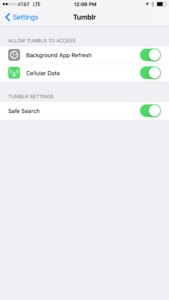
    Tumblr has lost some traction over recent years. It’s not so much a social media platform as a blog host and not really even that. It’s more used for GIF (animated images) posting than anything nowadays. Apple has always had a pretty strict standard on adult content in the apps in their app store. They require developers to have adult content disabled by default. This usually means that image searches on your browser should be without any blatant pornography unless your search is specifically for that. Tumblr has updated their iOS app with a workaround for this rule. There is now a switch that will allow users to turn adult content back on in Tumblr. It’s actually a “safesearch switch” and it’s set to on by default, thus following the rules set up by Apple. All it takes, however, is for someone to go to the settings page of the app and turn the safesearch option off. This will unleash the cacophony of adult content that is available on Tumblr (many say that pornographic images and gifs have become it’s main purpose) on the user.

    What Parents Should Know

    The Tumblr app is basically a browser in which anyone with an account can see any of the user generated blog content posted on the site. As mentioned above, the app has become inundated with adult content and is not safe for anyone you’d like to keep from those sort of images or videos. The safe search switch isn’t located in the restrictions settings on your iPhone. It is just in the settings for the app. This means safesearch changes can be made without a password. This app is an easy way for your child who has been looking at inappropriate images or videos to access more of that. Now that the safesearch can be turned off, you’ll want to add this app to the uninstall list.

    Our children can be greatly harmed by pornography. Studies are showing it’s addictive nature and the ability it has to alter a person’s sexuality and preferences, creating what they call an “arousal template.” This causes kids to be attracted only what they’ve seen online and can create serious problems for them in the future. They also say that kids who view pornography are six times more likely to force others into sexual behavior. Many in our culture view online adult content as only entertainment but it’s being proven that it’s detrimental to the mental health of our kids. If there is anything you can do to protect your children from adult online content, you must take steps to do so. Uninstalling Tumblr just became one of those steps.

  • Parental Control Options for Your Kids’ Chromebook

    Parental Control Options for Your Kids’ Chromebook

    The Chromebook is unique because it isn’t really a full fledge computer. They are designed to just run a browser so you can access the internet. This makes them affordable and easy to use. Because of this the Chromebook is often the chosen computer for schools. So your child may have been assigned a Chromebook when they were enrolled in school. While they must have content controls set while they are on school property there aren’t any regulations requiring schools to keep them protected while off campus. Here are some options for how you can protect your kids while they use their Chromebooks.

    Supervised User

    UPDATE: Google has discontinued Supervised User in favor of FamilyLink.

    This is an account based system that’s built into the Chrome browser. It allows you to set filters, monitor sites visited, prevent installation of apps, turn on safesearch, and change settings. You do have to use blacklists or whitelists to block websites, there is not an automatic filter built in. I recommend using THIS LIST of blacklist sites provided by a University in France. It’s a pretty extensive set of blacklists and will take some effort to set up but if you don’t want to just set the Chromebook to only access a few domains then copy pasting sites from these lists is your best option. You can access the supervised accounts by going to chrome.google.com/manage.

    Click THIS LINK to see Google’s set up instructions for a supervised user account.

    MobiCip

    One of the only full service filter and monitoring apps for Chromebook, Mobicip offers a plugin that you can download from the Chrome app store. Mobicip will give you customizable filters, time limit controls, and usage reports and its pretty easy to set up. You just download the extension from the Chrome app store and then login. It takes you through the setup steps and lets you set your desired filter levels. Once it’s all set up you can make changes from anywhere using their web based controls dashboard. Their SUPPORT page has good How-To resources to walk you through the process.

    If you want more controls than the Supervised User option gives you then Mobicip is a pretty good choice. It’s $39.99 per year for all of the features mentioned above for up to five devices. If you are going to need to protect more than twenty devices (I’ve met families with upwards of 30) then you’ll have to get a quote for their “Enterprise” option. Mobicip is a good option and will give you quite a bit of control.

    Accountable2You

    The final option is an accountability software. This, combined, with the Supervised User Account may be all you need.  Accountability software doesn’t block content. This software will keep an eye on what’s being viewed and then red flag and report anything that it deems inappropriate. This allows you to more easily see when something questionable has been viewed. Otherwise you’ll spend time sifting through link after unrecognizable link to find something that may be naughty. You can even set up Accountable2You to send you a text message when an inappropriate site was accessed. The software works across all of your devices including Chromebook and is $6.99 per month for six devices and $9.99 per month for twenty devices. They have easy setup instructions on their SUPPORT page and have excellent customer service.

    Whether your kids got Chromebooks from you to help with schoolwork or they were school issued, it’s critical that you have some sort of parental control solution set up. I recommend using one or more of these to set up a plan to help your kids be safer online. The statistics say that only one out of every three kids who saw something inappropriate online was looking for it. The fact that you have well behaved children doesn’t apply here. The internet isn’t well behaved and we have to make the effort to keep them safe.

    This article contains affiliate links…