WELCOME to Raising Connecting Kids the podcast that answers your questions about the connected world your kids are growing up in.
Thank you to everyone for partnering with BecauseFamily and making these resources possible. Visit BecauseFamily.org/partnership to help us continue to protect your family by making free content like this podcast.
QUESTION OF THE WEEK
I get multiple questions a week. Sometimes through email or FB messages and sometimes face to face at an event or meeting. In this podcast, I’ll be answering the most common questions I’ve had and even, your questions. Email me at BecauseFamily@gmail.com to get your question read and answered on the Podcast.
Question: How do Social Media Sites censor content?
User-Generated Content
Generally accepted standards.
Nudity/Sexual Content
Extreme Violence
Hate Speech
Harmful content disguised as kid content.
Keep in Mind:
Location of the company.
Lawsuits and bad PR
More than one reviewer.
Usually flagged by users.
Protecting viewers from dangerous false facts, visual content, and messages is not censorship. It is the company’s right to protect their image and intellectual property.
These companies can make decisions based on their own guidelines. They are not government entities. The CAN censor content if they want as long as they have put reasons in their terms and agreements.
CONCLUSION
Thank you again for listening to Raising Connected Kids, the podcast that answers your questions about the connected world your kids are growing up in. Subscribe on iTunes, Stitcher, YouTube, Spotify, Google Podcasts, and anywhere else you listen to podcasts. Like/Follow us on Facebook, Twitter and InstagramShare the show with your friends and leave a review on your favorite podcast app to help spread the word. Remember to visit BecauseFamily.org/partnership to partner with us as we protect children and teenagers by bridging the technology gap between them and their parents.
TikTok is the biggest app right now in every app store with over 2billion downloads. They have added some parental controls. This video and podcast episode outline some things you should know while setting these controls up. Below is a link to a great step by step for using these parental controls.
The parental controls on TikTok allow you to lock privacy settings, keeping strangers from making friend requests, sending messages, and even seeing videos. You must use your child’s account to give yourself permission to set up parental controls. This means you must have a TikTok account yourself if you’re going to use the parental control settings. Previously your child’s account could be set to private, but they could change the settings per video and post publically regardless of your settings.
Do TikTok Parental Controls Allow you to be Hands Off?
No parental control is a substitute for parental involvement in their child’s online experience. Be sure they know they can come to you to discuss things that make them feel uncomfortable or go against your rules. Should your kids use TikTok? If they are under 13 no. If they are under 16, maybe yes but with parental controls. If they are over 16, then you should be discussing their digital health with them and trusting them to make quality decisions as they grow into adults.
Thanks for checking out this article. You can visit BecauseFamily.org/partnership to support our work to protect children and teenagers by bridging the technology gap between them and their parents. You can donate, support our affiliates, or just share our ministry with your friends. Thank You.
We’ve all seen ads for Quibi and it has officially launched. So what the heck is a Quibi? I first heard about Quibi at CES in 2019. I wasn’t sure what it was all about except that a lot of celebrities from different genres were endorsing (and likely investing) in the app. Turns out Quibi is a video streaming app designed for use on your mobile device. It was founded by Jefferey Katzenberg, of Disney productions fame, and features short, high-quality television shows news reports, sports features, and movies.
Right now, the content on Quibi seems to be 100% original. In fact. A lot of the shows on Quibi are produced by and starring the celebrity backers that you see in the commercials. Shows star the likes of Chance the Rapper, Lebron James, Liam Hemsworth, and Chrissy Teigen.
What the Heck Is a Quibi?
Quibi features short-form content or normal length content split into short-form episodes. You can usually watch an episode in five to ten minutes and with episodes releasing daily it doesn’t take too long to get to the end of a series. I found myself interested in a show called Murder House Flip, a blend of true crime and home improvement. The first story, renovating a house where a gruesome murder took place thirty years ago, took three episodes to complete. Total running time was similar to that of a half-hour show on TV if you account for ad breaks.
image: Quibi
Watching Murder House Flip is where it clicked for me. Quibi isn’t all that different than television except for being formatted for your mobile device. It is a new concept for high definition, highly produced shows, and movies to flip to verticle mode when you tilt your phone but that’s about where the innovation stops in my opinion. Television has always been featured in short bits, split up by advertising. The difference here is that the content is a bit shorter overall, including the advertising content. I think Quibi is more of a tv channel than a world-changing app.
What Parents Should Know
There is currently no content on Quibi for children. The shows on Quibi, like most streaming services, are rated 14+ up to Mature. You will hear adult language and see some adult themes as well. Most content wouldn’t even be very entertaining for most younger viewers. I would rate the app 16+. As I mentioned above, the idea that Quibi is innovative is only partly accurate. Younger digital natives will see this concept as new. One show being split into several parts separated by ads is pretty new to young ones who are used to clicking play and binging, ad-free, and interruption-free with whole seasons of shows being released all at once. Those of us who lived through Saturday morning cartoons and TGIF every week aren’t so impressed.
I will remind you that the content on Quibi is considered rated teen or higher. Many of the shows feature adult language, extreme violence, and some sexual content. While you may enjoy Quibi, since the shows are new and feature some celebrities that we all love, I wouldn’t recommend it for your kids.
**This post is an updated version of an article from 2017.
The Holidays are a time of fun, family, faith, and food. Everyone coming together can be super fun for the entire family. There can also be some struggles here and there, especially when it comes to what shows up on the screens in the house. Your younger kids could end up seeing too much social media on their teenage cousin’s smartphone. Uncle so and so can show Youtube videos to some family with adult language and content not noticing the children in the room. Heres a few tips to try and keep your Holiday internet safe and family friendly.
Protect Your Kids
Encourage a host home internet filter.
Ask the family member or friend who’s hosting your festivities if they have some sort of content filter on their wifi. Many routers have a basic filter and some folks may even have another filter system in place. If there isn’t an option, recommend one like Circle. If they don’t have kids or aren’t interested in filtering their wifi long term you can recommend a free trial with something like Mobicip or NetNanny. This usually allows you to use the filter for seven days to a month at no cost. Offer to help them set it up and then you can breathe a little easier when your kids are using their wifi.
Keep devices with screens in a common area.
Intentional poor behavior will happen in private. If you keep the screens around everyone else you’re much less likely to have an incident. Make a rule that screens should be kept in the most common area of your Thanksgiving meeting place. The living room full of people or the dining room around a busy table is a great place to let kids spend whatever time on screens you’ve allowed while adult eyes can glance down to see what’s being viewed. This will also keep sneaky cousins from pulling up something age appropriate for their younger family members.
Talk to your kids.
Your kids need a safe place. They need to know that if they see something inappropriate online they can come to you and receive no judgment or criticism. It’s critical that they are allowed to explain what they saw and how it made them feel. Discuss your screen boundaries ahead of time, your kids should know what you expect even if you aren’t able to get the whole extended family onboard with your plan. Tell them if you want them staying off screens completely. Let them know not to look at older kid’s phones or tablets while they play. Think ahead of the likelihood of your kid seeing something they shouldn’t and try to head that off at the pass. Accidents happen but if you and your kids are on guard, you should be able to have fun without too much worry.
Protect Your Privacy
Turn off camera location settings.
Your camera defaults to save your location every time you take a photo. This tags those photos with where you were when you snapped that pic. Then, when you share the image on Instagram, Facebook, or Snapchat your location is uploaded with the image. This means that with the right software your location can be extracted from that photo and used for unseemly reasons.
Go into your settings app and access your “location” settings.
Go to the camera app settings under “location” and tell your phone never to use “location” while using your camera.
Changing these settings will keep your location data off of your pictures.
Advise family members not to tag their location on their Holiday posts.
Finally, you’ll want to be careful not to tag your location on your photos. Yes, pictures of the pie, stuffing, turkey, and gravy boat have become as much a part of the holiday tradition as the cornucopia, but when you share it you’ll want to leave the address of the host off of your status update. Sharing your address with public social media posts is never a good idea. This can lead to all kinds of dangers. Imagine the images of all the neat and expensive stuff in the host home. Now imagine you’re a local who likes to break and enter to take things every now and then. What better way to identify a target than creep Instagram holiday posts for the people with the coolest stuff. Then, find the posts with their address tagged on the photo and off you go. Share away, but share with wisdom.
The holidays should be a time of rejoicing and happiness. We should stuff ourselves with food and enjoy being together. Following these steps can help you stay safe and help keep your holiday party guests safe as well.
Android has updated their Family Link parental controls feature. The above video will take you though what they’ve done and give you some questions to ask yourself about using the service.
Make sure your device is compatible.
The site is very clear that Family Link is only compatible with newer android devices. Go into the settings on your kid’s device and tap the ABOUT button in the menu to see if your software version is 7.0 or newer. If it isn’t your child may not be able to install Family Link which will mean you can’t use the software to set limits and restrictions.
Double check their privacy policies.
COPPA regulates the collection of children’s data without parent permission. You have to create an account for your child to use Family Link and to do that you must give permission for Google to collect some of their data. The video explores a bit more of what information they can collect and what they do with that data.
Be aware that your kids get full control at 13.
If you are one that wants to be able to see what your older child is doing on their device you’ll have to use the child’s phone to adjust parental control settings with Family Link as control is shifted to the child at age 13.
Do your homework!
As I mention in the video above and the podcast episode below, you need to familiarize yourself with the benefits and limitations of Google’s Family Link software. Visit families.google.com to see their information about it and check out our other articles and videos about Family Link as well. You can never be too informed.
Listen to any of the current top ten songs and you’ll find all sorts of content that may not be considered appropriate for children. Profanity, sexual content, violence, and suicidal ideation abound in today’s popular music. How can we, as parents, keep an eye on what our children are listening to without having to go through and read lyrics for every song on every playlist? Bark is offering a pretty good solution with their latest update. The AI-based message monitoring system now monitors lyrics on Spotify.
Connecting your accounts to Bark is pretty simple with the Android app but demands a bit more tech expertise to connect to iOS (due to Apple’s strict anti-monitoring policies.) You have to download Bark’s software to your computer and then set your child’s iPad or iPhone to back up to that same computer in order for Bark to monitor the device. Spotify, however, connects on the account level which means set up is a simple as logging in to Spotify and giving Bark permission to access data in the app. That does mean that shared accounts will be monitored as one so your listening habits will be monitored as well and then reported to you as if your kids listened. We raised our Spotify subscription to the 14.99 price in order to set up separate accounts for our kids. This means they can be monitored separately giving us more accurate reports.
Reports from Bark are notifications about specific songs with the lyrics listed along with recommendations for discussing the songs with your children. We saw immediately that some of the songs our son was listening to had some lyrics that were a bit more violent than we would approve of. We were able to discuss this with him and he removed them from one of his playlists immediately. The songs were in no way “explicit” since we have turned off access to explicit content on his Spotify app but the Bark system allows you to set the sensitivity so that it will report songs that even hint at innuendo, violence, or other adult content. Our approach is to always err on the side of caution so we have sensitivity turned all the way up.
Bark’s message monitoring has also resulted in quality conversations with our children, even within just a few days of activating the software. We were notified that our daughter had been “bullied.” It turned out she was just telling her brother to stop texting her over and over again. The AI noticed that she was asking him to stop and he was continuing to message her and it flagged it. That is EXACTLY the kind of thing we want to be notified of. Her brother was just being annoying but if that was some older boy asking for pictures or a friend telling her something inappropriate or mean, we want to be notified. For us, a false alarm is evidence that the software is working and we are happy to weed through false reports so that we’ll be sure to get the one that could save us and our children from a lot of trouble.
Song lyrics, videos, messages, and social media posts are helping shape our kids’ worldviews. We should be on guard against the kinds of content that don’t meet our family’s standards. Bark allows you to do that without your kids’ privacy being interfered with. You don’t see all their messages, just the ones that Bark flags as potential dangers. This means they can have their phone or tablet, message their friends, watch their shows, and listen to their music without you always asking what they’re doing. You won’t have to ask because you’ll be alerted if they do something you don’t approve of. Just remember that we never recommend spying on our kids without their knowledge. Talk with them about Bark and any other software you use to report content. Let them know why you are using the software and talk with them about any reports you receive. This is how we help them build a healthy attitude towards tech.
You can get Bark by clicking THIS LINK, using the promo code: BF56WBD, or clicking the banner near the top of this article. We are an affiliate of Bark and will receive a small donation when you pay Bark for your subscription. Thank you for protecting your kids and for supporting this blog and our ministry.
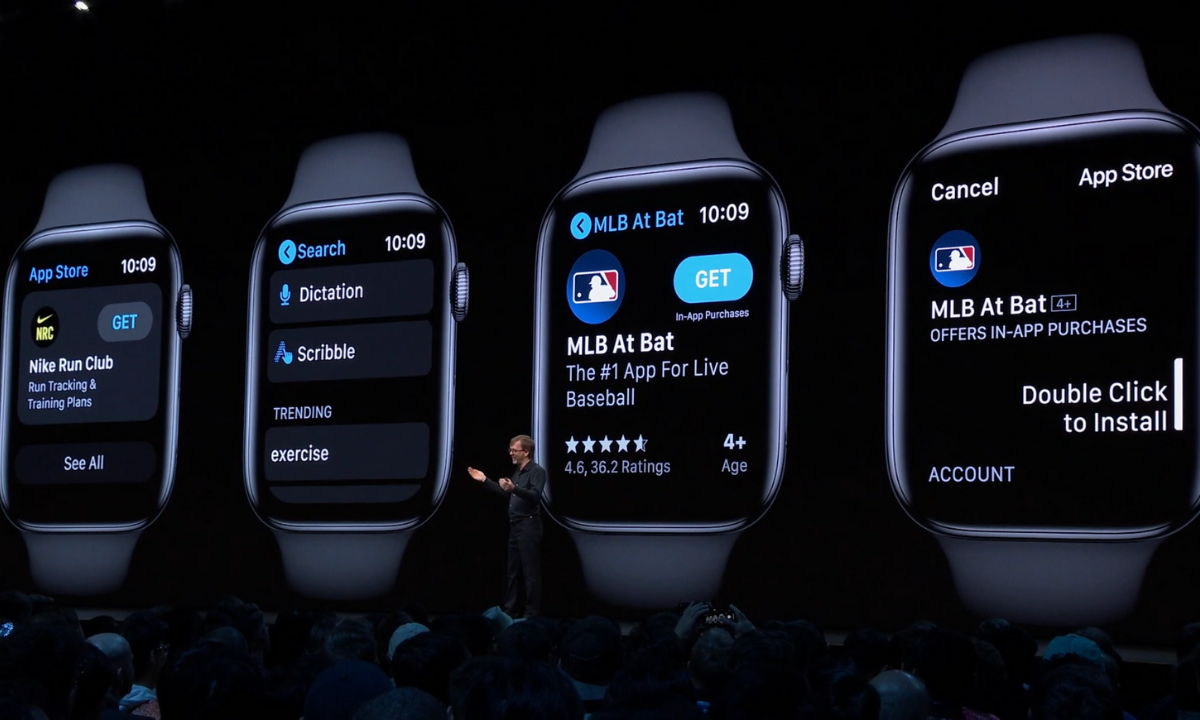
WWDC was held last week at Apple’s Headquarters in Cupertino, California. Every year, the tech giant hosts a conference for developers and media from all over the world. The company’s Project Managers and Chief Officers all take their turns on stage to discuss what they’ve been working on over the past year in order to increase the hype around Apple’s products and software. Much of what is announced at WWDC targets developers and “tech-heads” who can’t wait to find out how to make apps for Apple products or what the next big thing is going to be. Some of Apple’s new feature’s however could bring some peace of mind to parents. Here is a break down:
Apple TV+
Apple’s streaming video device has been great for viewing other services but Apple’s streaming service itself has been lackluster. One thing that has been missing for a while is the ability to make separate accounts or profiles for viewers, including children. Apple announced at WWDC that this is changing. They are making it possible to create profiles for every member of your family. Your viewing history and suggestions will be sorted according to your accounts and best of all, your recommendations won’t be overloaded with shows that your children love to watch.
Apple Music/iTunes
iTunes is officially no more as Apple will be separating iTunes offerings into multiple apps. Books, Podcasts, and Music will all be separate now on the MacOS. When you plug in your iPhone to sync with your Mac, nothing will happen. Your phone will sync in the background. It has become pretty apparent that most folks don’t need software to manage their music collection. Streaming music has taken over and iTunes wasn’t very good at that job. Apple Music is taking over the music service and Podcasts is mainly accessed through the mobile app, not on desktop.
iTunes has been around since 2001 and while there are those who have become used to the software, most have been aggravated by frequent updates and overuse of computer resources. Apple is likely accurate in thinking the software won’t be missed by very many people.
Apple Arcade
Apple is also working their way into the video game streaming world with Apple Arcade, due to release this fall. Apple Arcade will consist of a series of exclusive games made just for their system and will be playable through your phone, tablet, Mac Computer, or Apple T+. They have a controller that you can use with AppleTV but are adding support for Playstation 4 and Xbox One controllers as well. The 100 or so available games are a bit weak looking but they are sure to find some developers who are willing to put out some quality content for Apple before too long. They’re going to have to in order to compete with Google’s Sadia and the new service coming soon from Sony and Microsoft.
iOS 13
Probably the most relevant of updates from WWDC has to do the Apple’s latest smartphone operating system, iOS13. The software boasts a new dark mode, faster app launches and downloads, faster Face ID unlock, and a new (to Apple at least) “swipe” style typing system.
Dark Mode is cool and faster downloads and unlocking features are great but the iOS update doesn’t really have anything going on that is relevant to parents besides their focus on data security. More on that below.
Photos and Video
Photos in iOS13 is getting an overhaul as well. With the ability to pinch to zoom in your galleries and a new sorting method that groups photos together based on the date they were taken. Photos will also include a new smart gallery that will remove images like screen shots from your view, only showing the photos you’ve taken with your camera.
Privacy is a Key Theme
Every update at this year’s WWDC had privacy as a key theme. Directors and Developers mentioned over and over again what Apple does and doesn’t do with your data. Apple Maps uses encrypted data to help you find your way, the photos app does its date and location tracking locally, and they even mentioned a new “Sign in with Apple” that allows you to sign in with your Face ID and create accounts with individual dummy email addresses.
Data security and privacy has been in the news a lot lately and Apple has been very vocal about their desire to keep their user’s information secure. Whether it is a direct attack against other tech companies who have made most of their money by collecting and selling data or just an honest desire to maintain their user’s trust, the result should be a bit more confidence that your information is safe if you are using their products. I always advise, however, that you continue to make efforts to protect your own privacy. Be careful what you share online. Turn off location access to apps that don’t require that information to work properly and most importantly, teach this approach to privacy to your children.
You can listen to this article as a podcast on Family Tech Update.
You can subscribe on Stitcher, Spotify, or Apple Podcasts using the links below the player.
Facebook and Google have both had their major development announcement events over the past couple of weeks. They have both focused highly on privacy, and what they’re going to do to protect users data. This comes as no surprise because many governments have called them to action in this department saying that they have to protect their users’ data more securely. Since privacy is such a major topic as these events, the term cookies is being thrown around all over the place. You’ll see article after article talking about what Google is going to do with your cookies and what Facebook is doing with your cookies and how advertising companies are tracking you using your cookies. You even get a little pop-up banner when you go to a new website that says, “Hey there, we use cookies.”
What’s the big deal about cookies?
There was a day where when you would log onto a website, you were basically visiting it for the first time every time. Cookies help make sure that when you go to a website that website remembers you and may even remember what you did the last time you were there. Here is how that works: I open my browser and sign on to a site, as if to say: “Hi, my name is Michael and I’m going to www.teachmeaboutcookies.com.” That website hands me a “cookie” and says keep this for when you return. We’ll look for this cookie, and when we will remember you so you won’t be starting from the very beginning when you log on to our website.” That is called a first party cookie. First party cookies are how websites remember that you logged in so you don’t have to log in every time you go there or how Amazon remembers what’s in your shopping cart so you can go back to Amazon.com two or three times this week and add things to your cart and order it all at once later without having to log in again every time you go. That’s how a first party cookie works.
Here’s how third-party cookies work. I go onto teachmeaboutcookies.com and they give me that cookie that I need to have so that I will be recognized again when I return to the website. That cookie is stored in my browser. However, there are ads on this page. There’s an ad from YouTube telling me to go watch these videos, there’s an ad from safe.becausefamily.org saying, “Hey, you should learn about tech safety interested in cookies.” These ads have little bits of code in the website you’re visiting and are now sending cookies to your browser and saving them there. Every time you go to any website on the internet with advertising it is adding more third-party cookies which are all being stored in your browser. All of that ad tracking data is saved in your browser through their cookies so when you go to other websites they will know what ads you’ve seen and responded to and will put ads for more things similar to that on other websites that you visit. That’s how third-party cookies work.
The reason “browser cookies” has been in the news these days is not because of the first party cookie being put onto your website to make it easier and more convenient for you to use that website. We like not having to log in every time we visit a website, we are happy to go back to a shopping cart in which everything has been saved or revisit a form we started days ago and continue filling it out from right where we left off. We can do this because of first-party cookies. The latest issues are coming from third-party cookies. The government and many privacy agencies and internet safety experts, including myself, would like for companies to be held a little more accountable for what they do with those third-party cookies.
What Parents Should Know
Cookies and other web traffic information is often taken and then sold to help other ad agencies that you never connected with in the past create profiles on you. Then you can be advertised to more effectively and therefore buy more stuff. The issue gets even bigger because our kids are using these websites and apps and this data is being collected on them. Even they are having profiles created that track how they use the internet and the apps that they use for advertising purposes. Companies are beginning to wake up to the fact that people don’t want their data sold and traded all over the place like it’s the stock market. They’re starting to do things like Google announced with Chrome being more strict on how websites use cookies that they store on your browser. Safari has done the same thing recently. There are other browsers such as Brave or Duck Duck Go that are very strict on how advertising code is used when you surf the internet. There are even certain laws requiring companies to be transparent about how they use cookies on their website. That’s why you get those annoying little pop-ups that you just click ok on just to get them out of the way. I recommend you click more information next time go and see what they do with the information that they get from you and you browse their website. You might be surprised.
Unfortunately, opting out of that cookie storage is not really that simple to do. However, you can go in and clear your cookies on any browser that you use. I advise you to ask yourself this question. Do the websites that I’m using need my web browsing information in order to serve me properly? Some websites actually do. Amazon can’t really sell me stuff I’m interested in if it’s not allowed to collect the type of data it needs to know what I’m interested in. Facebook can’t allow me to just log on a check my notifications real quick without entering a password without first-party cookies allowing it to. Ask yourself, “Does this website need my information to work? If so, great, I’ll allow it. Otherwise, if you’re just browsing or you’re just looking at something or if you’re on somebody’s blog or something then there is no reason for them to collect your information. You must protect your cookies.
Today marks the first day of Screen Free Week 2019. We have become so used to doing everything on our phones, TVs, tablets, and computers that it can be difficult to think of things to do when we unplug. It can especially be difficult for our kids who spend so much time on screens every day. Here are some ideas to help you start thinking of how you’ll spend your time this Screen Free Week. I’m sure that whichever activity you chose to do you’ll be blown away at how good it was for you to be screen free, even if only for a little while.
1. Read Books
No, I mean a physical book. With paper and glue and pages and everything. Many of us are spoiled to our audio books and ebooks. We carry around a library of hundreds of volumes and read whichever we want, whenever we want. This Screen Free Week, why not forget about the books in your digital library and take a look at some of the adventures you have on your actual bookshelf. You’ll be amazed at how cathartic it can be to just turn a real page instead of swiping to the next set of pixels that make up the story.
2. Share a Screen Free Meal
Having a meal with friends and family can be a great way to reconnect and charge up that need for social interaction. Food brings people together. Unfortunately, our phones can often get in the way of this beneficial time. Celebrate Screen Free Week by choosing to keep your phones away from the table during meals together. Look each other in the eye, have conversations, and share the time with your friends and family.
3. Play Board Games
You can pull out the old classics like Monopoly and Life or maybe sit down to a newer hit like Settlers of Cataan, Forbidden Island, or Dice Forge. Whatever board games you choose, you and your family and friends can enjoy screen free entertainment. Personally, I look forward to Dungeons and Dragons every week when I sit down with some guy friends, eat snacks, roll dice, and tell a story together. A story filled with imagination, humor, and adventure. Don’t underestimate the power of time around a table playing a game.
4. Play Outside
Trade in Screen Time for some Green Time! Get outside and get moving. Play a sport, run a race, skip, hop, jump, run, anything you can think of outside will be so good for you. Your body will thank you for the exercise and your brain will thank you for the release.
5. Go for a Hike
Screen Free Week is a wonderful time to get out and experience the beauty nature has to offer. You’re bound to have a hiking trail just a short drive from your home. Maybe it is just through a park in the city but it will be great to slow down, walk through nature, and stop and look at what the beauty all around you. Bend down and look at those leaves or that insect working away. Feed some ducks or squirrels. You’ll be amazed at how wonderful life is beyond the six inch space in front of your eyes that your phone often tends to occupy.
6. Act Out Your Own Play
We love to be entertained. Netflix, Youtube, Hulu, and Amazon Prime make their money off of our desire to escape reality by enjoying a movie or series. Take this week without screens to create your own entertainment. Play an improve game or charades to get your imagination moving. Get some friends together and act out some of your favorite scenes from the movies and shows that you love. How fun will it be to play the characters you love and laugh with your friends as you channel that inner child.
7. Play a Musical Instrument
How long has it been since you’ve picked up that guitar in the corner of your room? How long has that violin been sitting in its case, untouched? Without the distractions of y0ur screens this week you can take some time to play that instrument you’ve been neglecting. Maybe you aren’t a musician. Why not try something new? Borrow an instrument from a friend or just bang out a beat on your knees with some pencils. Make some music this Screen Free Week!
8. Write in a Journal
Social Media is often the place where we share our deepest feelings. Many of us look for validation by posting what we think about this thing or that. Since you’re avoiding screens more this week, start practicing a new train of thought. When you have an opinion you think would make a good Tweet or status update, write it down in a journal instead. Write down your deepest thoughts on all of the topics you usually post about publicly. You may find that journaling gives you the same cathartic feeling without the drama of other people’s comments and debate.
9. Do an Art Project
Our screens train us to consume consume consume. Why not take this break from consuming so much media as a chance to do some creating. I have a weekly goal to create more than I consume. I ask myself every day what I’ve created that I can be proud of. Often my creations are videos, blog posts, and podcasts but I can look back and say I created something instead of just consuming all day long. Give yourself a chance this week to be more creative. Make something awesome. Do some art. Maybe sidewalk chalk, or a craft project, perhaps you can knit or crochet. Do something creative that you can look back on at the end of the week and actually see the product of your time. It is so very rewarding.
10. Plant a Garden
Again, Screen Free Week is a great time to get outside. The spring weather is just waiting to be enjoyed. This early in the spring, it is also a great time to plant a garden. Go get some flowers and plants and set yourself up a nice patch of nature. Your kids will love helping and digging around in the dirt and your whole family will love seeing the plants come to life as the spring and summer progress.
Beyond Screen Free Week
There are lots of things you can do without your screen. If you are like me, Screen Free Week is a great reminder to adjust my priorities. Hopefully this Screen Free Week, you can remember the importance of time in which you intentionally unplug and spend time with those you love. Use tools like Screen Time to monitor that amount of time you spend using your devices. It is amazing what good just being aware of your screen time can do for you. Have a happy happy Screen Free Week.
For 101 more Screen Free Week ideas visit ScreenFree.org!