Please consider keeping resources like this free to you by donating $5 to our non-profit organization.
Visit BecauseFamily.org/partnership to give.

Please consider keeping resources like this free to you by donating $5 to our non-profit organization.
Visit BecauseFamily.org/partnership to give.
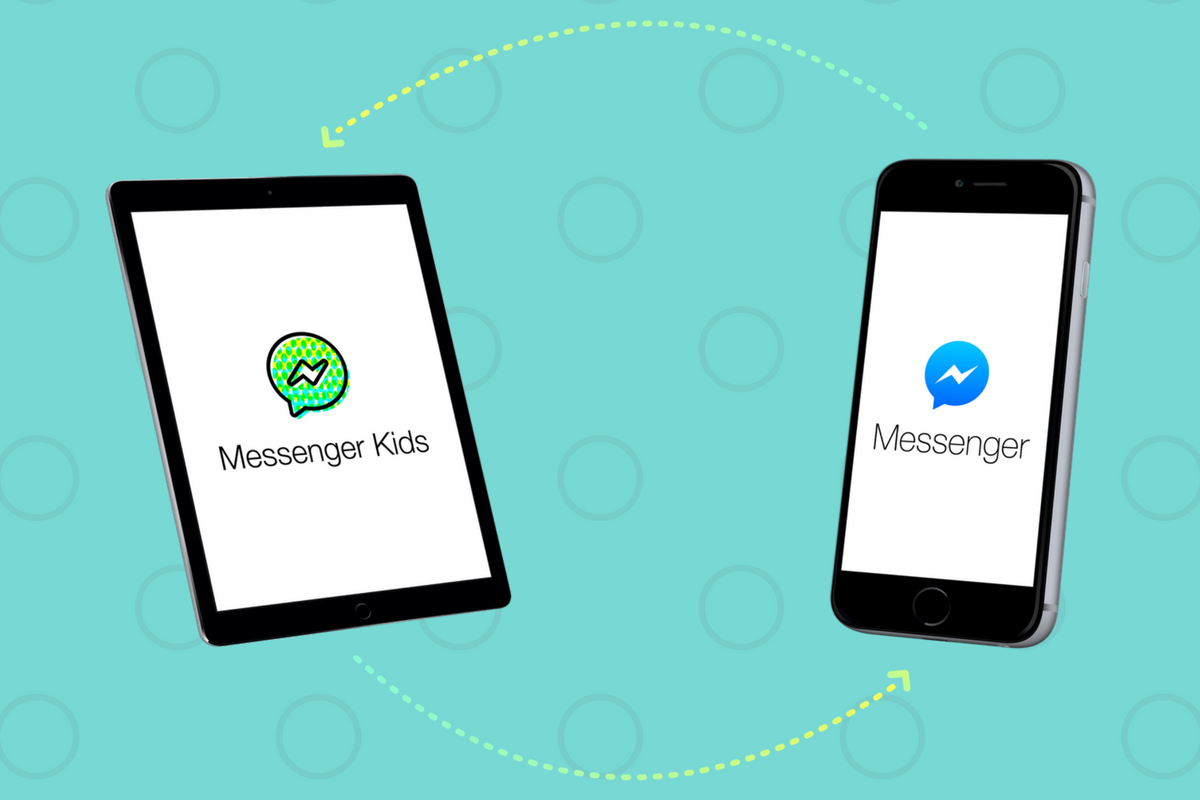
Today, Facebook released the Android version of their Messenger Kids app. This means it’s available on iOS, Android, and Kindle now. That should pretty much cover most families. Facebook Messenger Kids puts the control in the parent’s hands, making it easy by building it into the Facebook App and Messenger App that you likely already use. You can decide who they are allowed to chat with and approve or deny friend requests.
CHECK OUT: Facebook Messenger for Kids! for even more info about the app.
My family uses Messenger Kids, albeit with some strict time limits (1hr per day) which we enforce through Circle (all devices) and unGlue (our older child.) It is a great way to help them get a feel for chatting through a messenger without strangers, bullies, or the constant notifications or FOM0 (Fear of Missing Out) that can accompany tech addiction. Facebook built in a lot of the controls and made the app kid-friendly by not allowing gifs that don’t originate in the Kids Messenger app and not allowing messages to be sent to unapproved friends.

Since settings are controlled through your Facebook account, parents don’t have to have the same type of device as their child. You can set up your kids’ messenger app on his Android through your iPhone, for example. Keep in mind how addicting it can be to message your friends. Remember not to give them access to approve or disapprove of their friends on Messenger, this defeats the entire purpose. I know it can get tiresome to always have to sign off on everything they want to do online but Facebook makes it pretty easy with notifications on your own app.
Use something to manage their time, like unGlue. Talk to your kids about only messaging people they know in person and let them know what to do if someone asks them something they aren’t comfortable with. They should know that they can come to you when there is trouble. Messenger Kids is a good idea from Facebook and they did a lot of work to learn what parents would want out of a messaging app for their kids. Now the app is available on all devices so, if your kids have people they want to talk with, use this as a way to keep them in touch safely.
![Family Tech Update: “The Time Well Spent Movement” {podcast]](https://safe.becausefamily.org/wp-content/uploads/2018/02/familytechupdatetimewellspent.png)
Podcast: Play in new window
Subscribe: Apple Podcasts | Spotify | RSS
There’s a movement to take back our time and curb our tech addictions. What does it mean for families and how can we take charge of tech addictions? Plus: Snaps can be embedded on any site, and coding is king, but not on a screen!
Facebook: http://facebook.com/becausefamily
Instagram: http://instagram.com/becausefamily
Twitter: http://twitter.com/becausefamily
Newsletter Sign up
Ministry Updates:: http://eepurl.com/R7Btr
Weekly Blog Posts:: http://eepurl.com/cvnhXD
Websites
Ministry Site:: http://becausefamily.org
Tech Blog:: https://safe.becausefamily.org
Michael’s Speaking Info:: http://kmichaelprince.org
Donate and Affiliate Links
http://BecauseFamily.org/partnership

One of my initial internet safety tips for parents is to turn off location data for their camera. Many of them do this immediately upon hearing my advice. The problem, however, is that they then jump over to Facebook and Snapchat to use that camera and their location settings are as public as can be. Today’s news gives us even more information about how your location data is used by Snapchat and Snapmap.
Snap has opened up the ability to “embed” a snap into a website. This means that if your snap is public, a code can be copied and pasted so that your post shows up on the site that contains the embed code. It’s easy to do and really isn’t a new concept since public Facebook videos and photos can be embedded by default as well. I’ve embedded a snap from Disney on Ice in Des Plaines, Illinois:

Snapmap went into browsers today. This means that you don’t have to have the Snapchat app to see public posts overlayed onto a map of anywhere in the world. Concentrations of Snaps show up as colored dots that range from light blue (few Snaps) to bright red (high concentration of Snaps.) When you click on these colors you see the Snaps in a slideshow style format. They appear as most recent first and move to the past as you click or watch until the end of each post.
Most of the Snap-map posts highlight breaking news (i.e. the recent ice storm in my area or a basketball game or concert) but it will sometimes feature posts from the general user if their posts are relevant and set to public. Posts are curated by a team of news editors. The idea is that Snapchat wants news organizations and sites to use their map to highlight current events and breaking news in real time. This offers a real opportunity to see real news, as it happens. It could also be dangerous if your kids aren’t setting their Snapchat settings to private or friends only.
Location privacy is a major concern for parents. We post more of our private lives online than ever before and a map that highlights where we are and what we are up to can be considered a privacy disaster. Especially when it comes to our kids. Users of Snapchat are meant to be 13 years old or older. Some kids under than 13 spend a lot of time on the app, though, and their snaps are, therefore, available to be used as news coverage on this public map. I consider this a real problem for parents.
I would recommend that if your kids use Snapchat, you ensure that they have their profiles set to private or friends only. Disable the Snapmap (put it in Ghost Mode) so that what they are posting won’t show up. Not taking these precautions could lead to your home address being featured on Snapchat’s map and even someone else’s website. Take location privacy serious. Talk to your kids about staying private, encourage them to never post anything they wouldn’t be comfortable being seen by anyone in the world. The internet isn’t private and social media is growing increasingly more public. Your kids need to understand that.

Snapchat’s new “Bitmoji Deluxe” allows you to take a selfie and place it right next to your Avatar while you create or edit it. This lets you create your Bitmoji to look as much like you as possible. It starts with Snapchat asking if you’d like to take a selfie. Once you do, you will see an image of your actual self in the bottom corner the entire time you are editing your cartoon self. This isn’t a surprising new feature since Snapchat has teased that they may be using selfies to automatically create your Bitmoji in the near future. Facial recognition is becoming a mainstay in mobile technology so it’s only a matter of time before it works its way into social media.

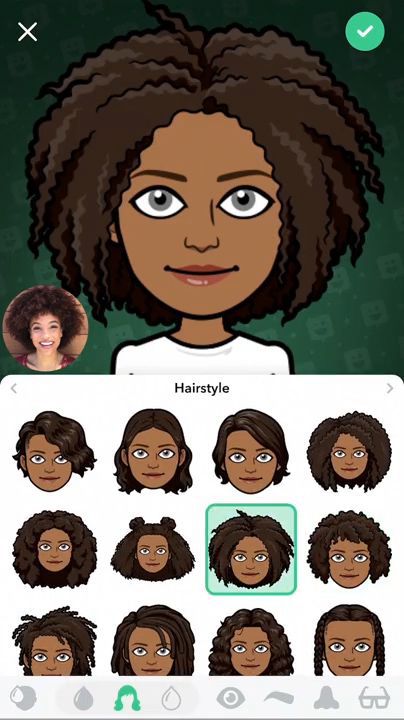
Snapchat is and will remain on my uninstall list. Bitmoji has never really been one of the reasons I don’t like Snapchat but I will admit I don’t “get it.” As parents, we have to keep an eye on our kids’ activity on Snapchat. One of the biggest concerns of educators, psychologists, and tech safety experts alike is the tendency for our young teens to filter their online identity. Even, sometimes, to the point of creating separate or even secret social media accounts for different followers or friends. Using a selfie to better create your Bitmoji avatar isn’t necessarily a sign of unhealthy behavior. I would, however, continue to pay attention to my teen’s conversations across all social media. Once facial recognition becomes a viable part of our social media cameras, that’s when I would consider not allowing my kids to use that service until they’ve reached an even higher level of maturity.
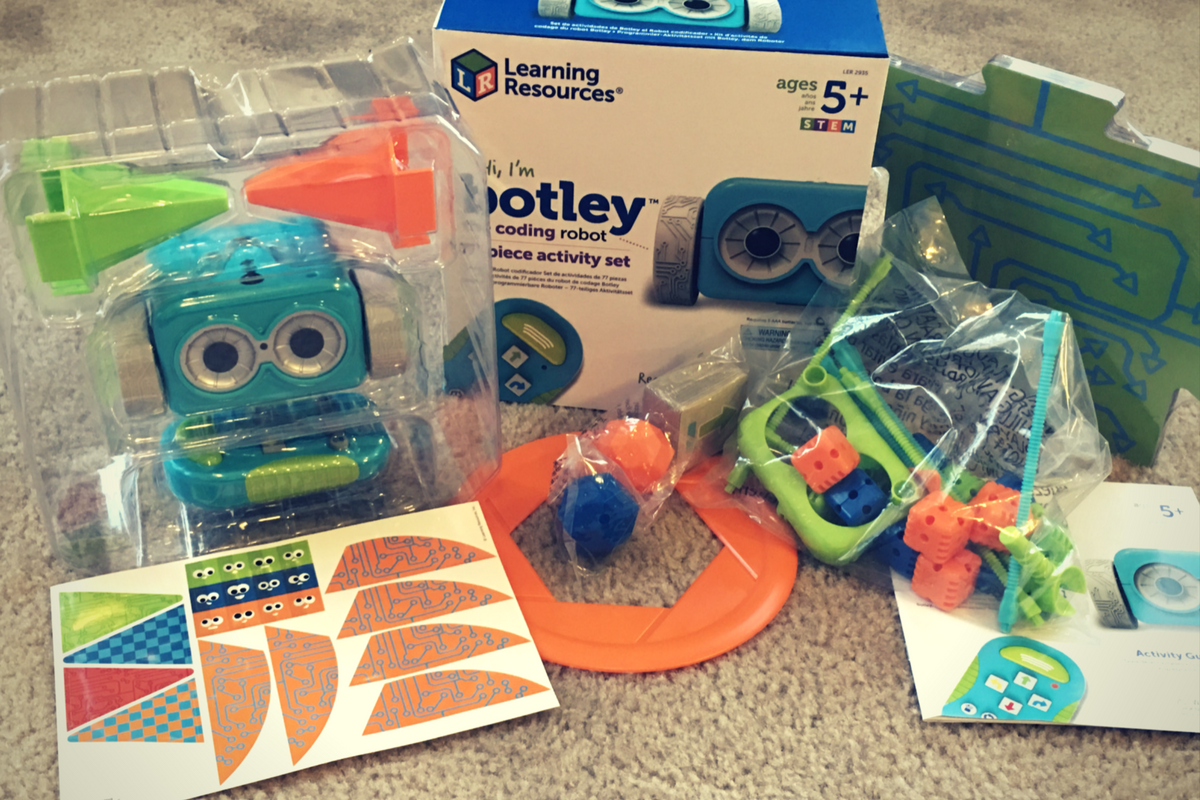
Coding education was one of the hottest topics at CES2018. The conversation was led by toy makers, psychologists, media producers, and educators alike. They all agree that if your children aren’t learning the basics of programming logic, they’re not laying the foundation that they need to function in the future they will be living in. The other major highlight of CES was the problem with too much screen time. Kids are spending too many hours every day looking at their screens and it isn’t good for their development. These two conversations pose a serious problem. How can our kids learn to program computers if they don’t use any screens? Well, there were some pretty creative answers to that question at CES and BOTLEY was probably my favorite one.
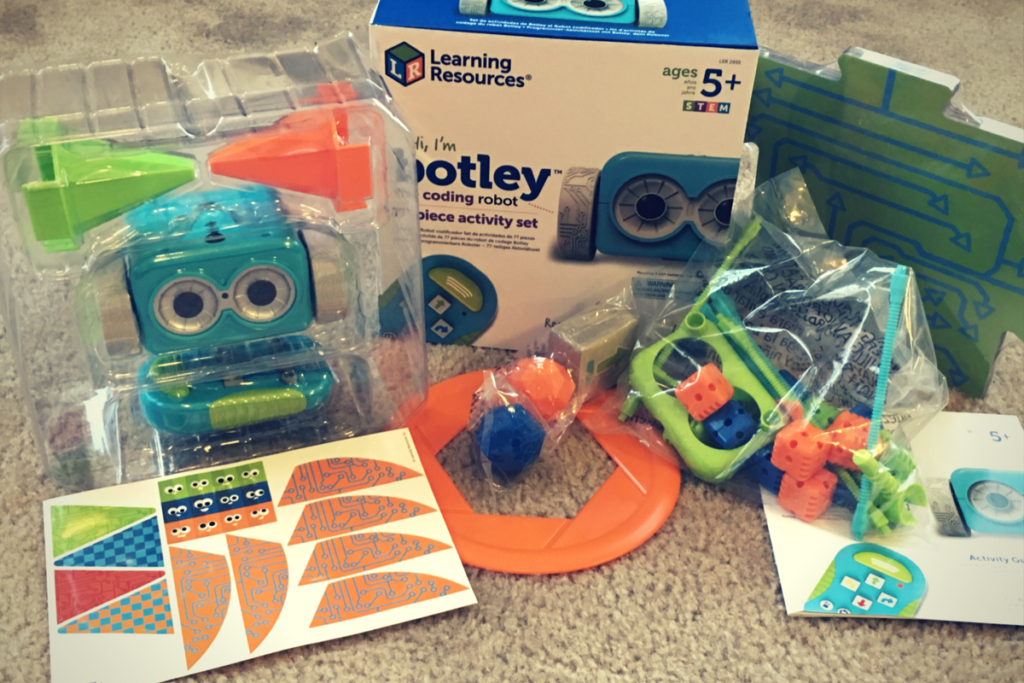
Botley is a screen-free coding education robot. He can do up to 80 commands issued to him from a single remote control device. He has object recognition and awareness and can trace lines with the sensor on his “belly.” His basic 77 piece set comes with an instruction manual full of tips, tricks, and even a curriculum style guide to help parents set their kids up to learn from the beginnings of coding to more advanced sequences. Best of all, there is no app or software to program him. No screen needed at all.
His kit contains toys for Botley to play with so that you can create games for him. Have Botley drive over a maze you create with the included puzzle tiles, have him bust through the wall you make from the blocks, or have him push a ball into the goal. All the games advance children through different techniques they can use to program Botley to complete different tasks. These techniques are the basis for the same programming tools used by professionals to create games, websites, and software.
You can see more about my family’s experience with Botley in the video below. You can get Botley at learningresources.com and tell them FamilyTechBlog.com sent you.

*unGlue is FamilyTechBlog.com’s latest affiliate
UPDATE: You can use the promo code “SAFE10Off” to save 10% when you subscribe to unGlue!
The most common concern among parents when it comes to tech use is that their kids spend too much time on their screens. There are plenty of options out there to help you monitor and limit the amount of time spent using tech, but unGlue is one of the first ones that allows you to put the control in your kids’ hands. The advice of the FamilyTechBlog has always been to help your kids know that you are on their team when it comes to internet safety and digital health. What better way to partner up than to give them choices as to how they spend their internet time? UnGlue lets you do just that.
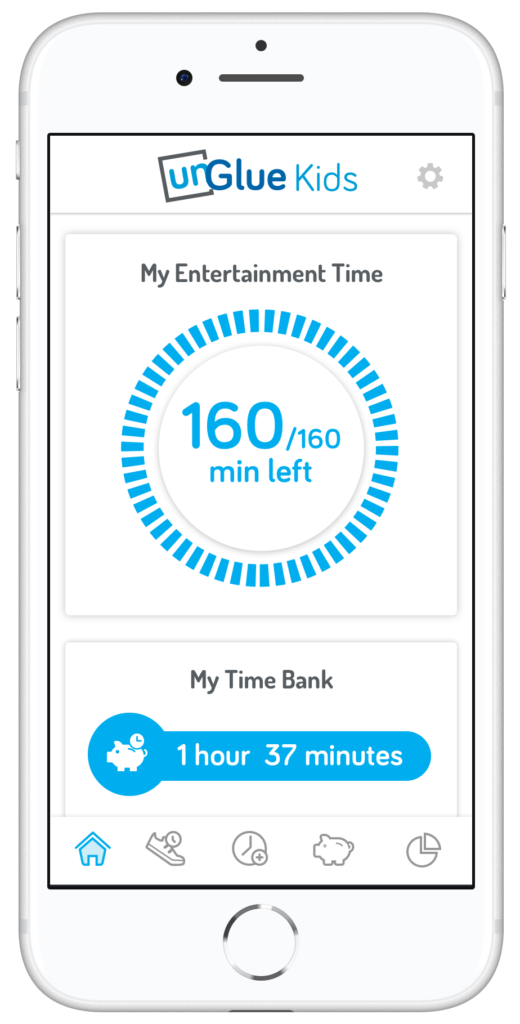
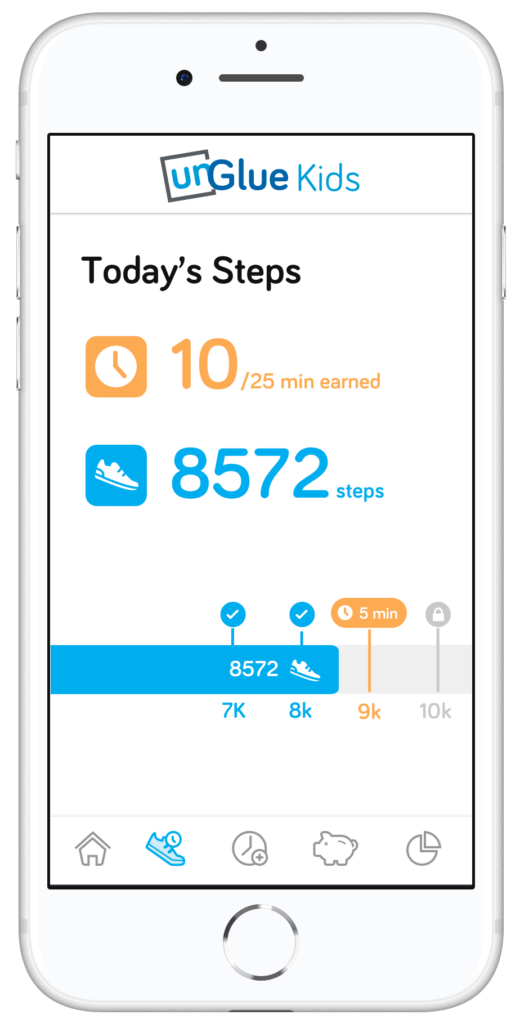
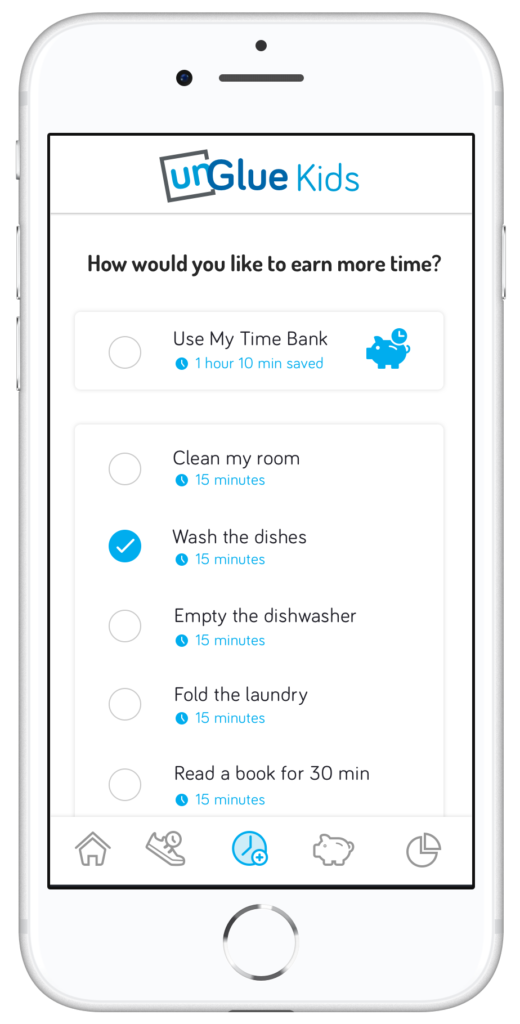

unGlue’s features include an adult content filter, monitoring online time, trading steps or chores for more time, entertainment time rollover, and screen time scheduling. The best part is that most of this activity can be done in the kid’s version of the app. The parents set the limits but then the kids get to decide how they use their time and even how they can earn even more time. Rollover allows them to save up some of today’s time to use tomorrow if they’d like.
At home, unGlue works through your wifi. You install software on your main home computer (only works while turned on) and it mirrors your router traffic to see the web activities on the devices you have set up. While on the go, unGlue uses a VPN to keep track of what is being done online. These methods mean your time is managed everywhere you go. You can even set up guest access in your home. If you don’t have a home computer to set up unGlue on, they have a device called the unGlue Puck that will only cost you $30.
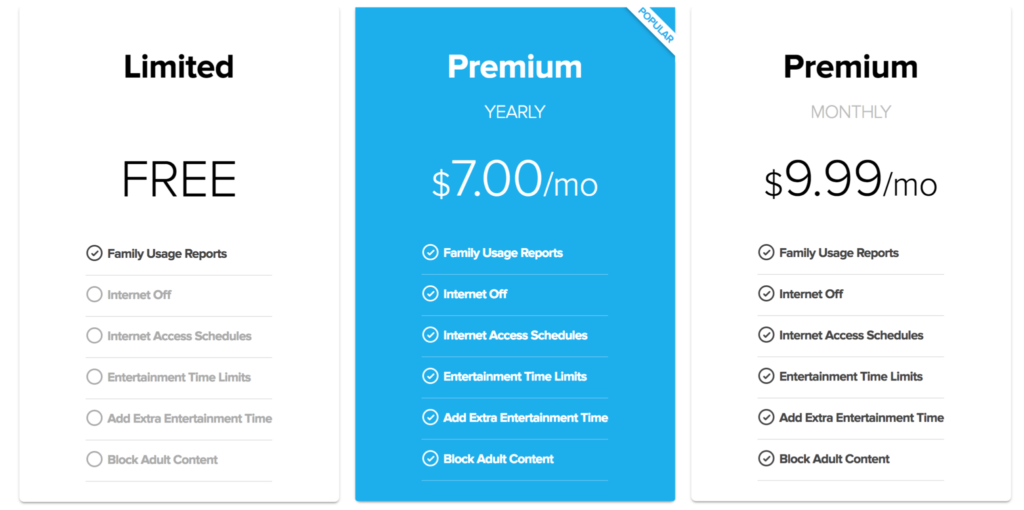
Speaking of cost, you can download the unGlue app for free and start monitoring online time right away. If you want to set up and use the other features you can subscribe for $9.99 per month or $84 per year. Both subscription options include full-featured access to unGlue.
Managing screen time can be a challenge for people of all ages. The best way to ensure your kids have a good attitude about the time they spend online is to start teaching them young and to lead by example. Track your own screen time and set some limits for yourself. This will help your kids see that you are as committed to a healthy digital attitude as you are asking them to be. Using unGlue is simple and is an especially good option for those of us with older kids. Other options just monitor our kids and give us the option to turn the internet on and off at will and on a schedule. That’s a good way to manage screen time for your younger kids but studies show that our older kids need guidance and boundaries but not overbearing rules and regulations.
Our hope is that the resources we partner with for parents can each bring a unique approach to your digital boundaries strategy. In my opinion, unGlue is the choice for parents of older kids who are ready to start managing their own time online. The option to earn more time through activity and chores adds another element that teaches your kids lessons they’ll have to continue to learn as they grow older. Download unGlue now and start monitoring. I think you’ll find it useful enough that you decide to subscribe in no time.

More than three-quarters of school-aged kids in the United States use the internet every week. Much of that online time, for seventy-nine percent of kids, is spent on a smartphone. Much of that time is also spent at school. Kids curriculum is increasingly web-based and school is even issuing computers to kids younger and younger. The internet has long been a place for kids and teenagers to find entertainment and now with the necessity for online activity for school work screen time and global communication among our young ones is on the rise. This has been a cause for concern among parents, teachers, and school administrators alike. Google wants to help parents, teachers, and kids understand what a healthy attitude towards internet activity looks like. While at CES I was able to hear representatives from Google explain Be Internet Awesome and how it was developed. I thought it would be a great resource for parents and teachers alike.
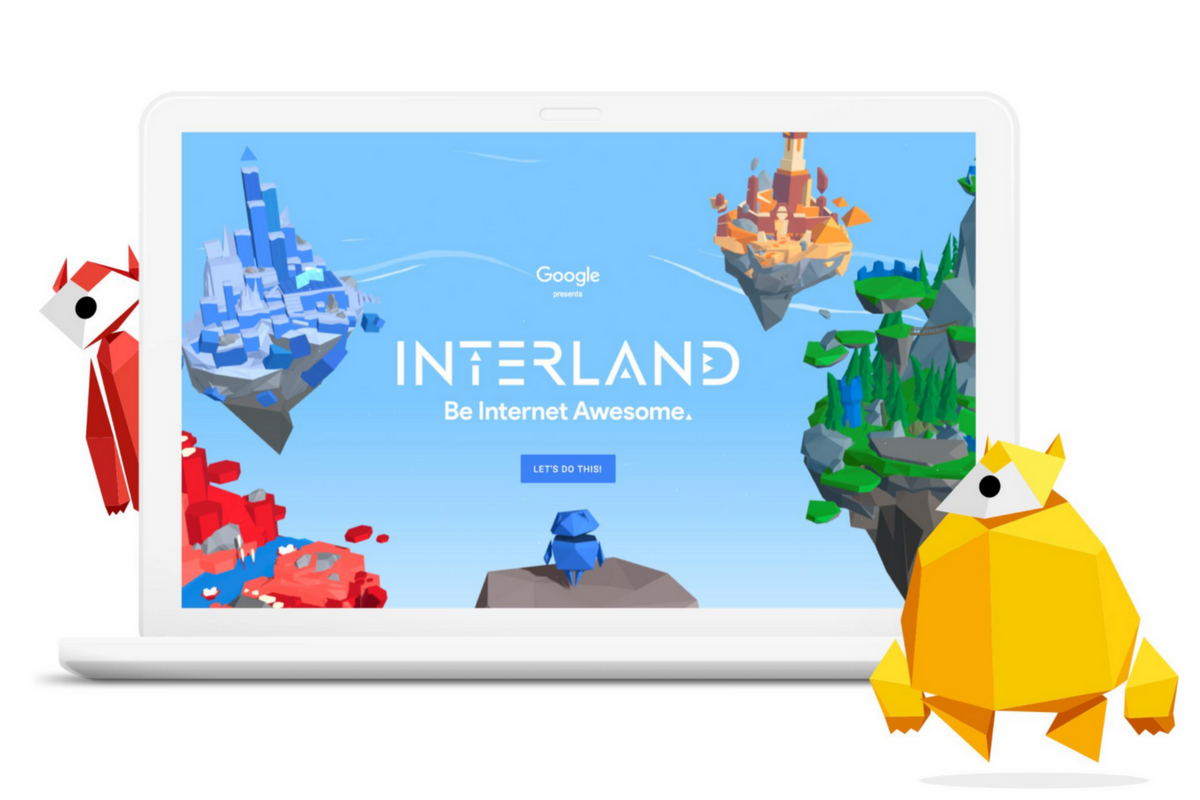
“Kids can play their way to being Internet Awesome with Interland, an online adventure that puts the key lessons of digital safety into hands-on practice with four challenging games.” – beinternetawesome.withgoogle.com
Interland is a gamified way of teaching kids internet safety and digital citizenship. You make your way through different levels that focus on different categories of your online life. You “report” cyberbullies and share kind words with online “friends.” The game is split into zones, Reality River is where you learn to recognize what’s real and what’s fake online, “Mindful Mountain” is where you learn how to think before you share online, “Tower of Treasure” will teach you how to secure your online activity with strong passwords and secure behavior, and finally “Kind Kingdom” is where you’re able to report those cyberbullies and speak kindly to friends you find online.
The games are fun and the characters are silly. The questions seem to be common sense but I know adults who, based on their social media behavior, probably wouldn’t score 10 out of 10. These games have good graphics and audio and they’re a simple and fun way to introduce your kids or students to proper online behavior.
The 5 part Be Internet Awesome curriculum is made for parents or educators to help kids go even deeper in their understanding of how to be secure, kind, and mindful when on the internet. By having kids analyze mock social media feeds and behavior they get a chance to think about what they learn about a person based on what they post online. Receiving fake phishing and spam messages allow kids to see what those messages look like and identify and report them easily. Recognizing bullies and how to report them is taught through group activities and clear, understandable definitions. Finally, the free 48 page PDF Curriculum, emphasizes the importance of finding an adult and talking about what they’ve experienced online.

Finally, the pledge allows kids, teachers, and parents to summarize and agree to their stance on digital citizenship. This allows parents and teachers to get the whole family or class on the same page and hold each other accountable. A pledge is a good way to reemphasize what has been learned and highlight the importance of their commitment to be the best version of themselves online that they can be.
What Parents Should Know
I recommend you use this game and curriculum in your home if you haven’t already. Help your kids understand the dangers and concerns with the amount of time they spend online and encourage them to use their time as wisely as possible. Google has created a helpful and free tool for you as a parent or teacher to use and download as often as you need to. I say take advantage of it. If your family, like ours, has some specific rules about how you use the internet, interject them into this curriculum, using Google’s offering as a foundation for your internet safety plan and contract. Our kids will be spending more and more time on the internet as they grow. It’s important that their parents first, model proper citizenship for them, and second, take advantage of whatever resources we can to teach them how to treat themselves, their information, and others with respect on the internet.

Podcast: Play in new window
Subscribe: Apple Podcasts | Spotify | RSS
CES2018 info: Android FamilyLink is awesome but has one MAJOR FLAW. In this podcast for parents and families, we talk about Chromebook parental controls, Facebook, Instagram, and Raising Digital Natives.
Social Media Links
Facebook: http://facebook.com/becausefamily
Instagram: http://instagram.com/becausefamily
Twitter: http://twitter.com/becausefamily
Newsletter Signup
Ministry Updates:: http://eepurl.com/R7Btr
Weekly Blog Posts:: http://eepurl.com/cvnhXD
Google Has Taken Away Chromebook’s Native Parental Control Solution
Android FamilyLink is A Great Parental Control Solution, Albeit with One Major Flaw.
CES2018: Experts Say Parents Should Play WITH Their Kids More
Websites
Ministry Site:: http://becausefamily.org
Tech Blog:: https://safe.becausefamily.org
Michael’s Speaking Info:: http://becausefamily.org/booking
Donate and Affiliate Links
http://BecauseFamily.org/partnership
Music by Kevin MacLeod at http://Incompetech.com