Tag: parental controls

  • Snapchat isn’t Just a Messenger Anymore

    Snapchat isn’t Just a Messenger Anymore

    It may have all started with “secret” messaging but it hasn’t stopped there. Soon public sharing became the norm on Snapchat, a feature that was copied by many other Social Media networks soon after it’s release. Then, Snapchat’s “Discover” page was released, this was a way for news and media corporations to reach the users of Snapchat with their messages and advertising. Lately, Snap Inc. has been working towards becoming a serious form of entertainment for it’s users, incorporating videos and even original show content into their network. Today, VICELAND has announced they’re producing several new shows exclusively for Snapchat. They’re starting with a “reality” dating show titled “Hungry Hearts with Action Bronson.”

    VICELAND Productions is following several other studios in making original shows for Snapchat. Networks including NBC, CBS, and A&E have already announced that they’re making versions of their existing shows for viewing on Snapchat. These studios are seeing the growing adoption of Snapchat as an opportunity to reach a broader audience with their shows and content. One of the fastest growing demographics on Snapchat is the 18-35 age-group, one of the main target audiences for the late night and primetime television networks. With this trend towards entertainment content on our social media apps, it’s important that parents are aware of what these apps are becoming, we have to make good decisions on whether or not we want our kids consuming the media they’re producing.

    What Parents Should Know

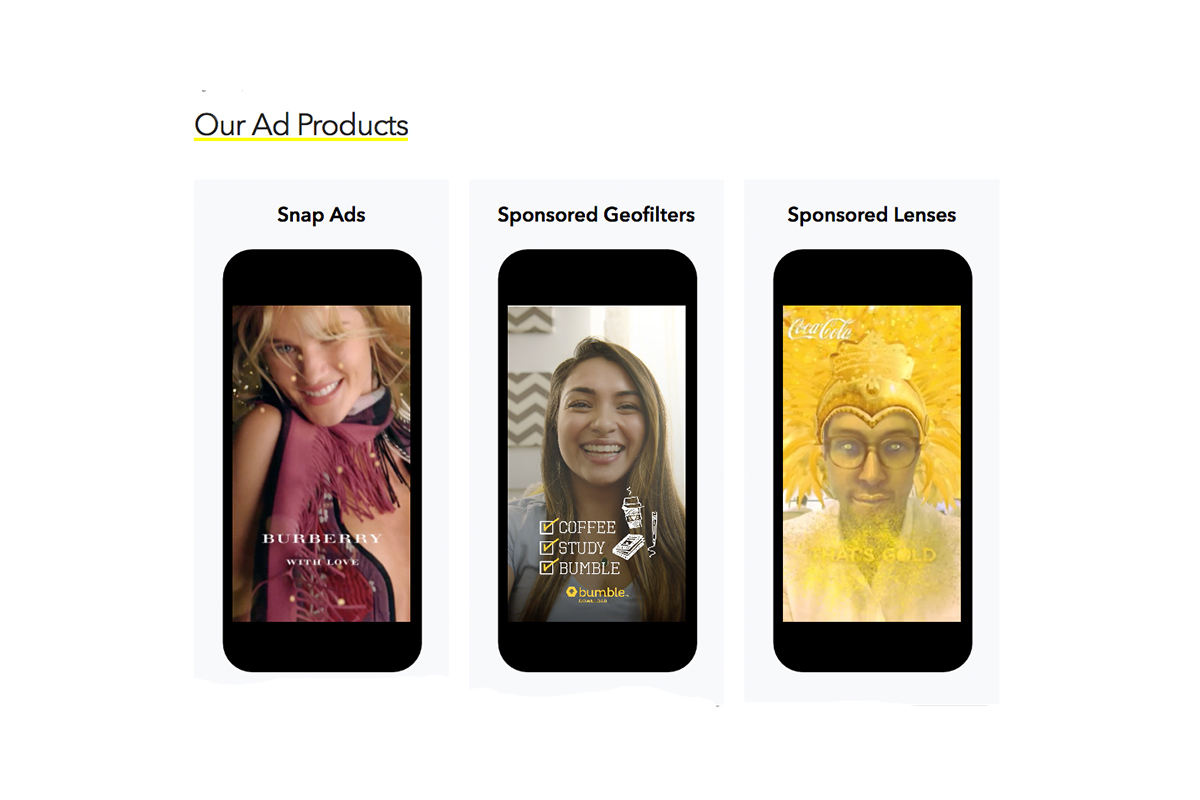
    Snapchat isn’t a trend and it’s not just a messenger anymore. What was once the “Secret Message App” or the “Sexting App,” as some called it, is now a major source of media for those who use the social media platform. This means we have to treat it differently than we do many social media apps. Keeping track of who they are friends with on these networks isn’t enough anymore. We have to keep a few things in mind if we are going to allow our kids to use Snapchat, Instagram, or any of these other apps that give advertisers and media content creators a direct outlet to our kids.

    Same Media as TV, Movies, YouTube, or Games.

    The creators of the content that will be made available through social media (Facebook has been signing agreements with media companies too) aren’t producing special more family appropriate shows. They will be making content that will reflect every other media outlet they produce for. Think YouTube Red, Netflix, or Amazon Prime. In fact, some of the rules that apply to broadcast television don’t apply to shows that are streamed online. This means that you’re more likely to see content like on Game of Thrones or Orange is the New Black than something with more restrictions like Blacklist or CSI. Don’t let the fact that these programs are being produced for free public streaming online fool you. They won’t be family friendly or edited for content.

    No Parental Control

    Snapchat currently has no parental control options. Their app is geared towards teenagers so they most likely won’t feel the need to add parental restrictions any time soon. The terms and agreements on most social media services allow for accounts to be created as long as you’re 13 years old or older. The question you have to ask is whether or not you’re ok with your 14-15 year old watching online reality dating shows or politically fueled sketch comedy. If you aren’t ok with these things then you have to make a choice about whether or not snapchat is welcomed on your kid’s phones or tablets.

    All or Nothing

    Social media apps are basically creating an “all or nothing” atmosphere for content created by these media outlets. Once you have an account on Snapchat, you have access to all that is contained in the app. Every person can be a friend or follower, every feed can be found and viewed, and every original show, no matter the target audience, will be available for viewing. With no parental control options the question isn’t what Snapchat content will be allowed, it’s “all or nothing.” They can see all of it, or none of it, those are your only choices. 

    Whatever you choose, you need to be educated about what these social media apps are producing. Keep checking in to Safe.BecauseFamily.org for up to date tech news that’s relevant for your family. Also, sign up for our Safe Online Newsletter. Just fill in the short form below.

     

    Sign Up for the Latest Family Tech News in Your Inbox

    * indicates required


  • Nintendo Switch Launches New Parental Controls App

    Nintendo Switch Launches New Parental Controls App

    Nintendo has always provided good gaming console solutions for families with younger kids. Many of their games are family friendly and they were some of the first to try to provide a more active method of gaming. Nintendo Switch is no exception. The popularity of Nintendo Switch is growing and its versatility is one of the features that is feeding that growth. While the number of games available on release was low, the system is still selling well, breaking records in its first weeks. With it’s newest parental control app release, I think Nintendo Switch remains a good game system for families. 

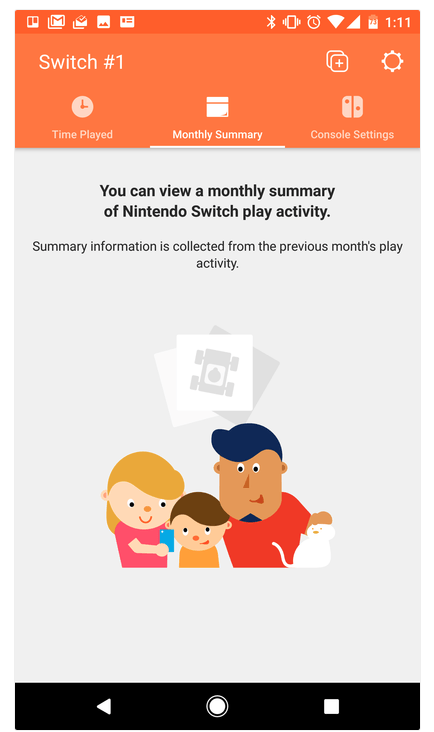
    The parental control app is free and available for iOS and Android. After installing the app you can sync it with the Nintendo account that is on your Switch and begin setting up age requirements, time limits, and sharing restrictions. This article has a good step by step on how to setup the parental controls on the app.  There are other features as well, such as a time played section and a monthly summary. If you have a Nintendo Switch then get this app as soon as you can. It’s another great way to protect your kids while they use technology.

    Don’t Stop the Conversation

    While this app is a great feature for parents it doesn’t eliminate the need for parents to remain actively involved in their child’s online and gaming experiences. Continue to have conversations with your kids about the games they play and how much time they spend on those games. Discuss healthy habits and time management. They need to learn how to make quality decisions in those areas and it’s up to you to teach them.

  • The Risks of a Fully Connected Home Part 3

    The Risks of a Fully Connected Home Part 3

    Security and advertising are the most obvious concerns when it comes to connecting your appliances and devices via smarthome technology. We must take precautions to protect our identity and our privacy. We should also be careful in our new wifi connected homes with the content that can come across these connections. In this final part of our Connected Home series we’ll talk about the content available on our smarthome devices and what we can do to filter that content.

    Unsupervised Content

    After a recent Setting Digital Boundaries workshop a  mother asked me what I knew about the parental controls on Amazon Echo. I hadn’t ever set one up and hadn’t really looked into them so I didn’t have many answers for her at the time. She told me why she had asked: her daughter likes to ask Echo to play songs that she likes but she’s young and her words don’t always come out sounding like they should. This causes the Echo to mis-hear what is said and the devices has, more than once, played a song that is not from any playlist they’ve set up and is not at all appropriate for a young toddler. With the increasing popularity of the Amazon Alexa and Google Home parental controls are becoming a major topic on tech forums and blogs. The reason it’s such a major part of the discussion is because there aren’t (yet) any real parental controls.

    On the Amazon products you can set a pin to make purchases. This will keep your child from making an order and you being shocked to find a two hundred dollar doll house at your door. That’s about it, though. There aren’t any music or video rating limits that you can set. There aren’t any separate voice commands that will let Alexa know the child is in the room. So far, there isn’t much. Google only has the filter settings you’ve given YouTube to protect from inappropriate content. These filters are strictly for video content though and won’t block explicit lyrics.

    It’s likely that more effective parental controls will become a reality on these popular products sooner rather than later but until then you should take precautions to keep your children from encountering more of the internet then you’re ready for them to connect to. 

    What Parents Should Know

    My advice is to hold off on extensive use of Alexa, Echo, or Google Home until real parental control options are made available. If you have already been using these devices or you’ve decided you can’t live without them I recommend setting up what restrictions are available. Protect yourself from surprise purchases with a pin on your Alexa or Echo and set your YouTube filter to protect your children from videos you wouldn’t want them to see. Other apps or web video and audio services that have parental controls may protect your family when connected through your smarthome device as well. Right now this is about all you can do but if you’re going to use these devices then something is better than nothing.

    Should Your Home Be Connected?

    The level of connectivity in your home is obviously a choice your family has to make. There are absolute benefits to having your house connected to a network and working together to make your life easier. The reality, though, is that these conveniences could come at a cost. Some may feel the cost isn’t that high and some may say it’s unfounded fear or foil hat conspiracy theory. My advice is to just stay informed. No matter your decision become a student of the way your connected home works. Reset passwords often, and don’t store your personal data somewhere that is easily accessible through your smart home device network. If you just use common sense and think ahead of the potential risks you may be able to be wired up like it’s the year 2025. Just do it with wisdom.

  • The Only Safe Way to Give Your Child an iPad and Walk Away

    The Only Safe Way to Give Your Child an iPad and Walk Away

    Small Kids Need Internet Safety Too

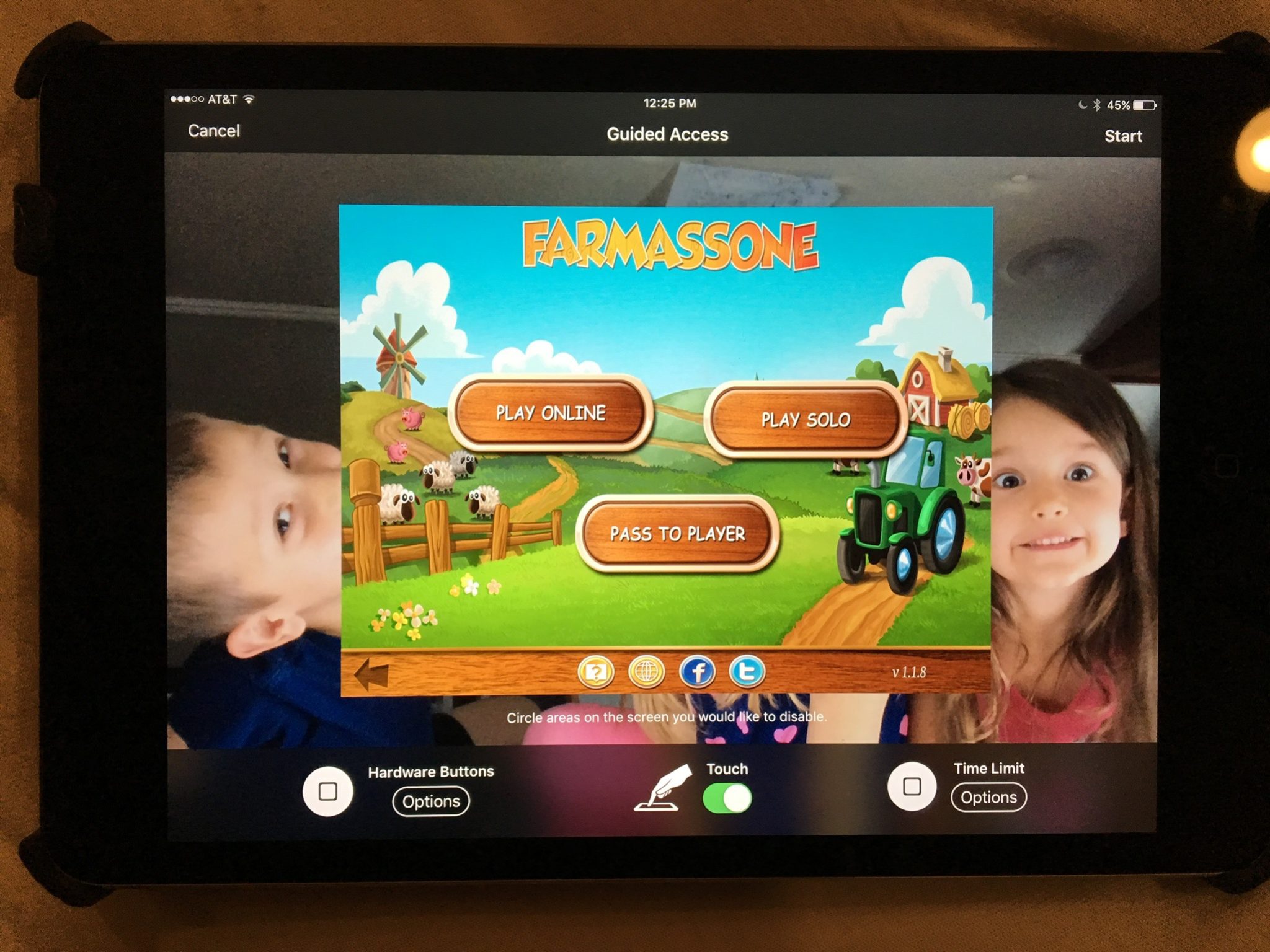
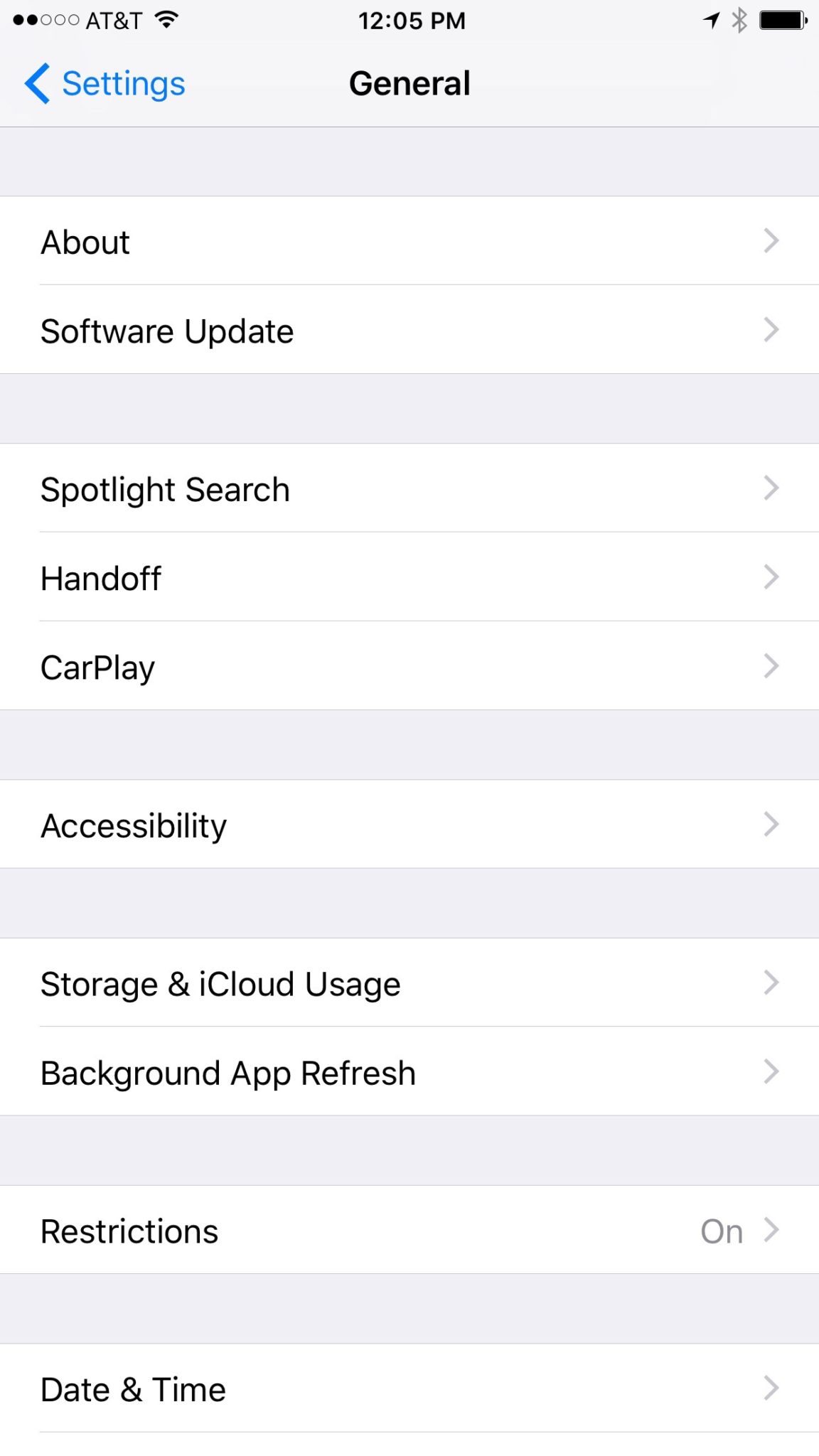
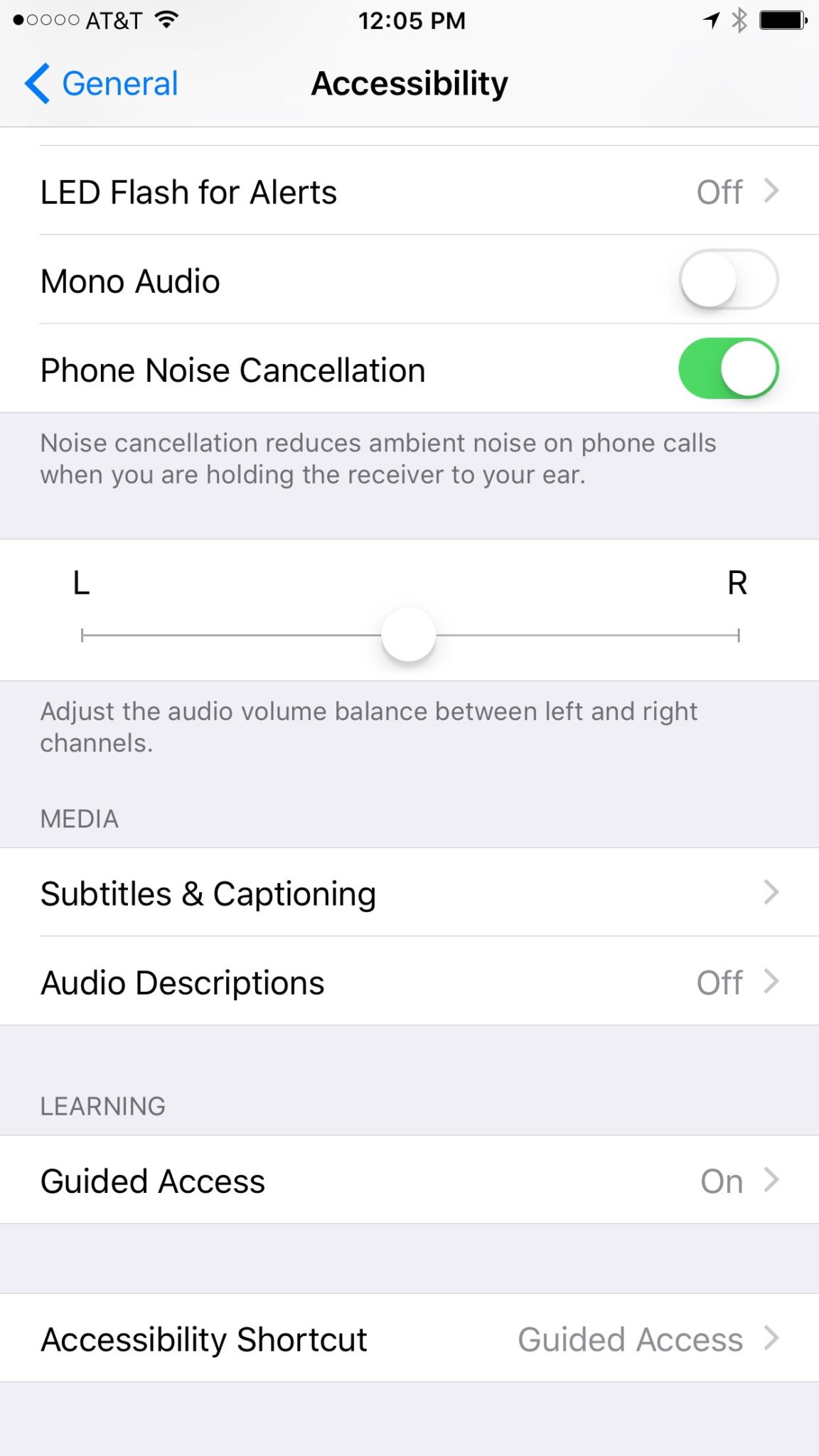
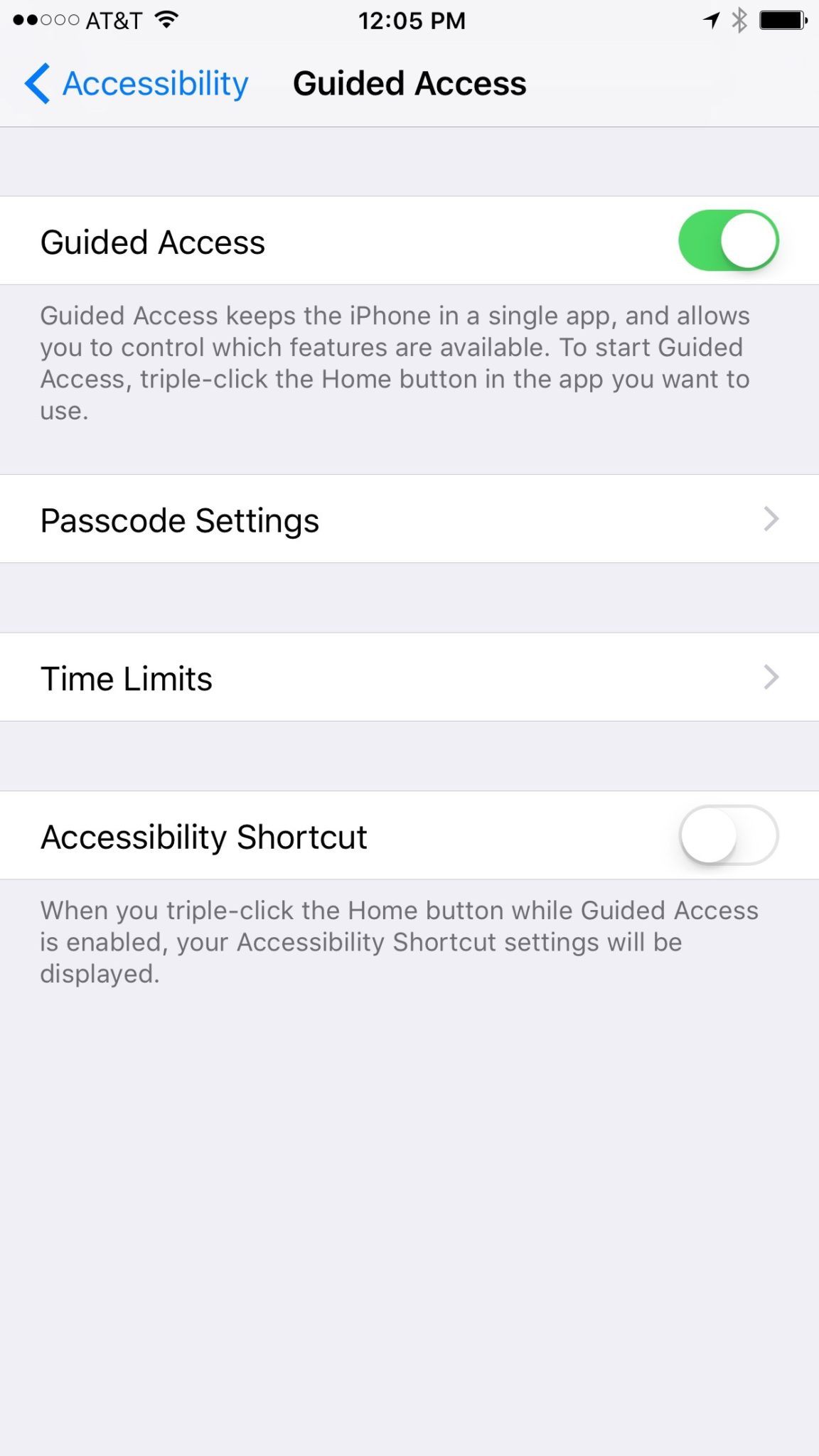
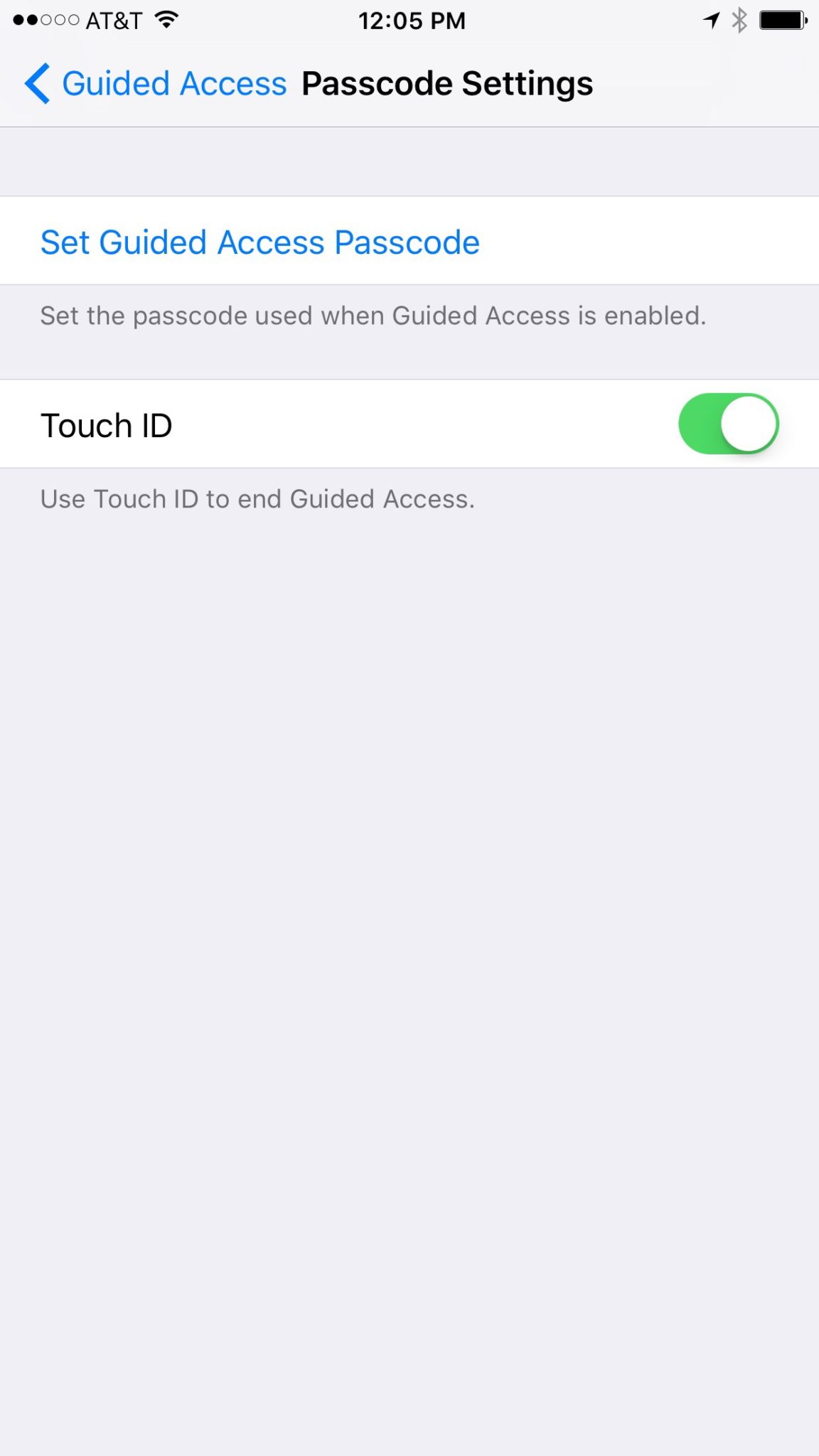
    Those of us with smaller children are often less concerned with them looking for something inappropriate online but we want to protect them from seeing something unintentionally. Apple’s iOS devices have a feature built in called Guided Access just for that purpose. This setting will lock your iPhone or iPad to one app disabling the home, volume, and lock buttons. This is a great feature if you’re wanting to allow your kids to use an app but don’t want them to look around on other parts of your phone.

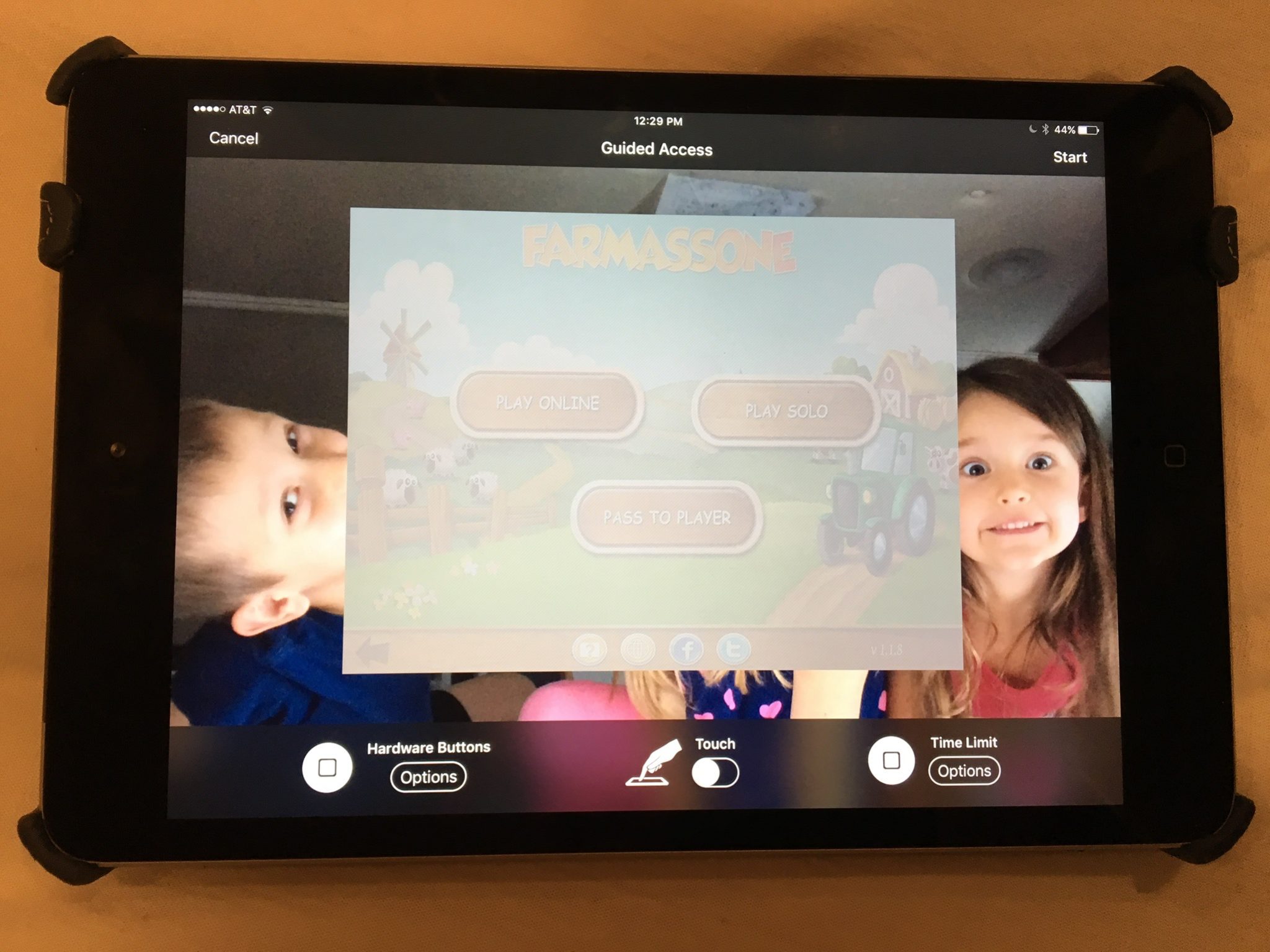
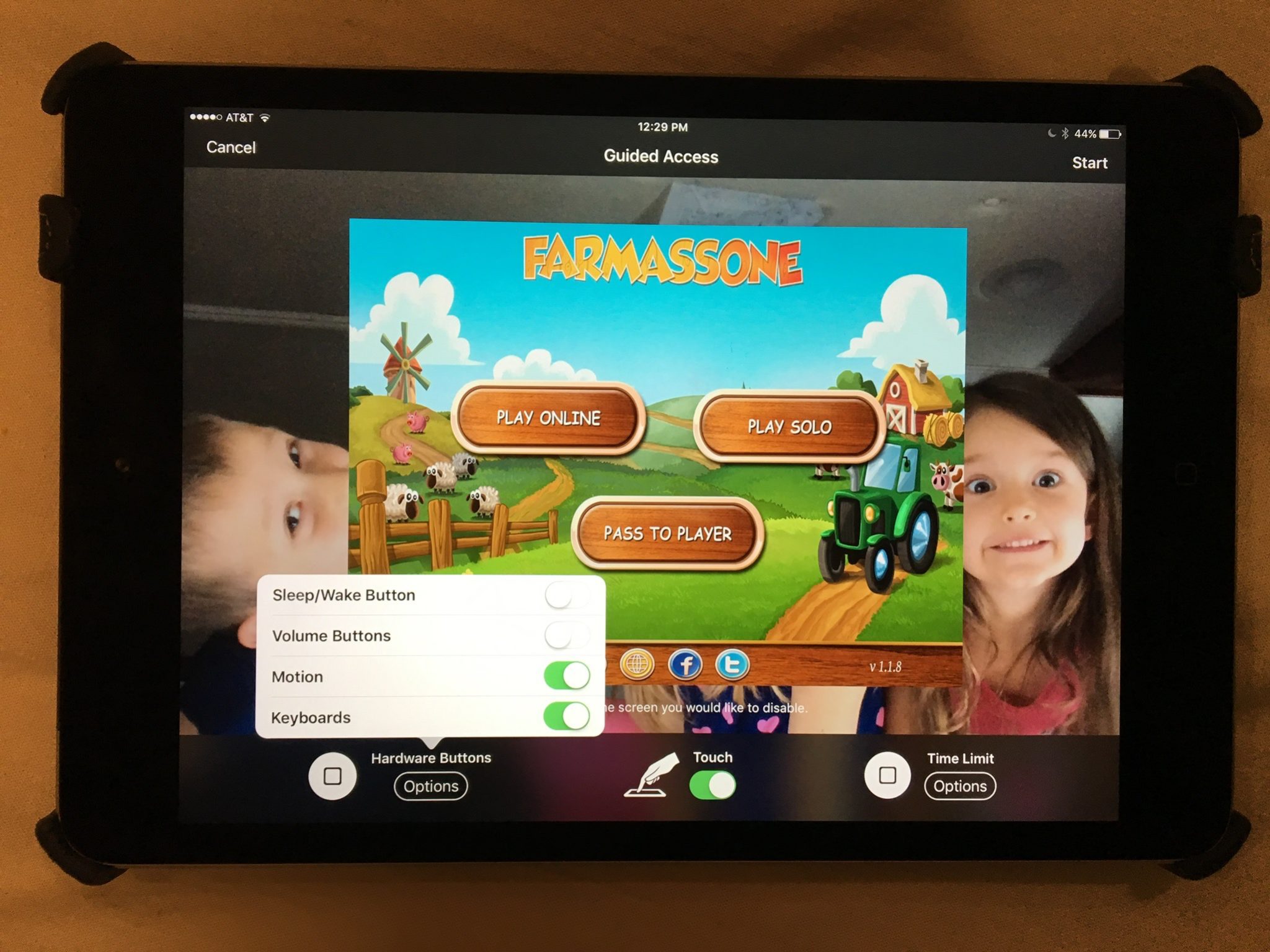
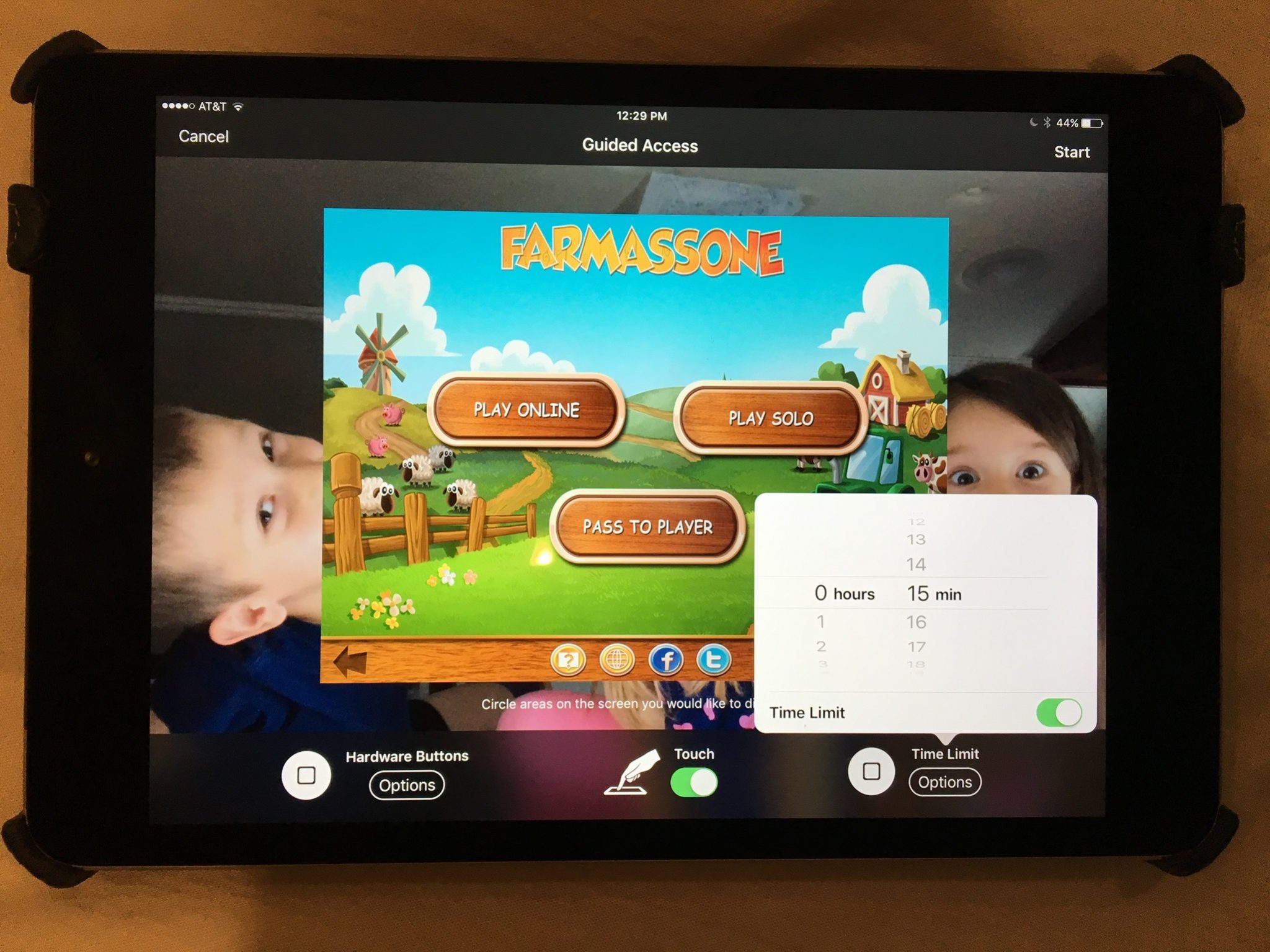
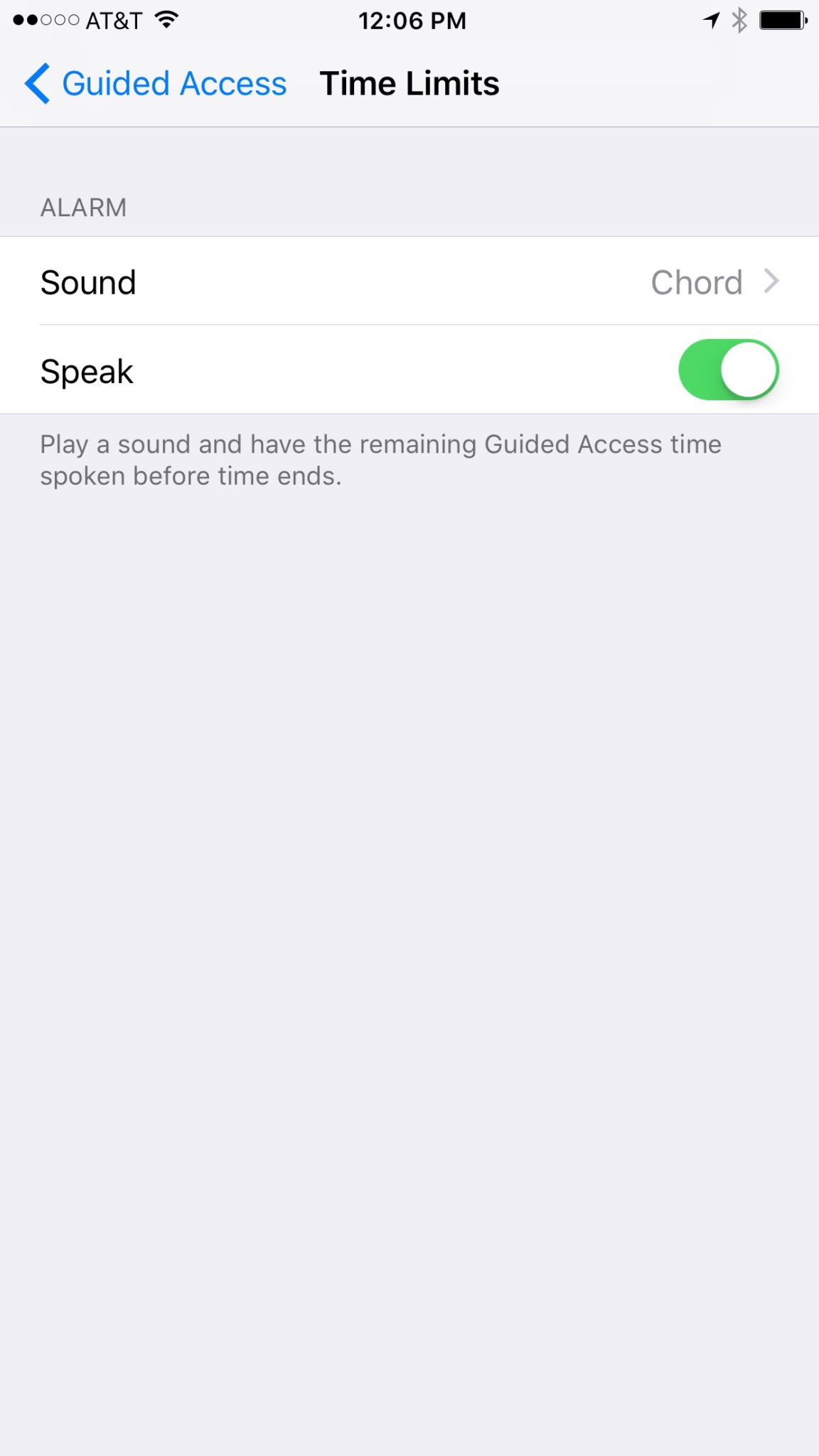
    You may have known about Guided Access for a while but if you haven’t looked at the settings recently you may be surprised at some of the new options that are available. You can turn off the sleep button, turn on the volume buttons, lock the motion (whether the screen rotates when you turn it,) turn on and off the keyboard, touch screen, and time limits. All of these settings are really helpful to customize the guided access for each app you allow your kids too use based on their age and ability to use the iPhone/iPad.

    (*Settings look different on iPhone but they work the same.)

    For example, my two year old likes to mess with the screen while he’s watching something. (He even touches our TV screen if he’s allowed to sit close enough.) This would cause the show to pause or skip or back out of the episode entirely. If you turn off the touchscreen it doesn’t matter what he does, it won’t change the show. Now, of course we are trying to teach him to leave the screen alone but this is helpful while he’s still a defiant little two year old “cutie”. For our older kids we will lock into their school apps so they can’t back out and play Lego Star Wars or something. We also use the time limit extensively, they don’t have their own devices so this helps us make them take turns.

    What Parents Should Know

    You should know how to set up Guided Access. (See the slideshow below) Use it for, especially, your younger kids. Keep them away from apps that will link to the internet. Also, you can draw on areas on the screen to keep them from tapping there, this will keep them from tapping ads or the parental control settings button. We are learning that our kids benefit less and less from using screens but if we are going to give them the privilege it’s important to do it safely. You may give them your iPad or iPhone with an app that is safe for them but if they can back out of it and open something else you’re not doing them any favors. Guided Access gives you some peace of mind, knowing that you can protect them while they are on that device and you don’t have to be looking over their shoulder the whole time. Use the slideshow below to help you set up Guided Access and if you’d prefer a video, check it out here.

  • Your Device May Not Have Parental Controls 

    Your Device May Not Have Parental Controls 

    Setup is Key

    In every Digital Boundaries Workshop I do I encourage parents to set up the built in parental controls on their devices. I’ve now been in several homes to do these setups for them and I’ve noticed a troubling trend. Many of the devices kids are using don’t have any parental controls built into them. That’s right, you should check out your phone and check the operating system because on many of them there is no way to setup filters or monitors of any kind.

    Android before Jellybean

    Android phones have no family safety settings before version 4.2. If your Android phone or tablet is running something older than 4.2 (Jellybean) then you have to install a third party software like Parental Control or NetNanny.

    Windows Before 8

    Many Windows users delay the upgrades of their PC for one reason or another. If your PC is running something older than Windows 8 you won’t have a built in parental control option and you’ll need to run separate software. My recommendation is K9 or NetNanny. K9 is free and a pretty good filter with some customization options but it’s not the absolute strongest filter and doesn’t have a lot of support. Also, the “backend” controls on it can be a little out of date and tough to understand. NetNanny is a “whole page scanning” filter that protects you from a proxy and has some easy to understand controls. You can use THIS LINK to sign up for NetNanny and help BecauseFamily out with a little kick back.

    iPhones and iPads Should be Good

    Apple introduced parental controls on the mobile device when they launched iOS3. Almost every iPhone or iPad will have parental controls built in but if they don’t NetNanny is a good option for those too.

    Update Your Software or Upgrade Your Device. 

    Your best option is to keep your technology updated. If you’re running a PC and it meets the requirements you should upgrade to the latest operating system. The parental controls alone are worth the time it takes to learn some of the nuance of the new user interface. If your devices are too old to upgrade and you don’t know how or want to install new software you need to sell that device on eBay (probably for parts) and upgrade to something new. 

    Parental Controls is Step One

    Using parental control software to protect your children is step one of internet safety. I highly recommend finding out what’s available for your operating system and setting that up. If you need to install something else then don’t be afraid to invest in a software that will protect your kids at the level you need. Obviously you’re going to have different needs if your kids are young and you want to keep them from finding something on accident than if you have a child who has been sneaking around online. Know what it is you need, know what your technology offers, and then act by setting something up or installing something new.


  • Protect Your Whole Family for A Buck a Month with Net Nanny

    Protect Your Whole Family for A Buck a Month with Net Nanny

    I recommend two major tools for protecting your children online. Accountability software and an internet filter. You know about our connection with Accountable2You but now I’m excited to have partnered with one of the best internet filter options out there, Net Nanny. The best part is that for the next couple weeks, they’re offering their best deal at an even bigger discount, %35 off.

    What is Net Nanny?

    Net Nanny is an internet filter and time management software. With customizable filters, remote management, and filter reports it’s one of the best options on the market.


    You create your admin account and can set up everything from there. With different users you’re able to customize your filters depending on who you’re protecting. Social media monitoring will report cyberbullying, sexting, privacy concerns, and any unexpected contacts by potential predators.

    Internet filters are critical for protecting your children and teens from unwanted content online. There are, however, ways to get around many filters. Some of the most common ways are image searches, i.p. address lookups, and proxies. These things are all problems for some filters because of the way that filter works. Many filters use the name, address, or metadata (informational tags built into web pages) to know if the content on the site is inappropriate. If the site is one that is trying to engage young users, they can often hide their content with unrelated metadata. They can also put their sites behind something called a proxy. The proxy will disguise the address and i.p. of the site so a filter doesn’t know what kind of content is on it.

    Net Nanny can’t be fooled so easily. Their system’s specialty is the ability to read the content on the page in real time to determine whether or not the site contains adult images or language. This allows them to block web pages no matter how you get to them. If you have younger kids it may not seem as big of a deal to have such a foolproof system. Unfortunately it’s getting harder and harder to protect them from content that may try to get through. If, however, you have caught your teen or child looking at something inappropriate you will definitely want to equip your computers and devices with the best filter software available. I think Net Nanny is one of the best.

    If you click the link you can sign up for their “Family Protection Pass.” A year of access to Net Nanny for just $60. That’s 12 bucks a month to cover up to five devices. $.99 per month per device. If you have more to cover you can get their next level to protect 10 devices for $89.99. There is also an option for coverages for 15 computers, smartphones and tablets for $119.99. Whichever option you choose, the link below will include us as affiliates and contribute a portion of your payment to BecauseFamily. This will help us continue to do free workshops and educate parents on how to protect their families online.


  • VIDEO TUTORIAL: Setting Restrictions in iOS

    VIDEO TUTORIAL: Setting Restrictions in iOS


    Step one of the BECAUSEFAMILY S.A.F.E. plan is Set Up. Setting up the parental controls on your kids devices is the beginning of this important process. If you need to set up an iphone or ipad this video will walk you through the initial setup of the restrictions. This is a video tutorial available for subscribers. Subscribe below… (more…)