Tag: parental controls

  • How Your Kids Can Hide Texts

    How Your Kids Can Hide Texts

    One of the major issues facing our teens these days is sexting. Statistics say that one of every ten teenagers admits to having sent naked pictures of themselves to someone. Sometimes our kids use social media to do this. They’ll send photos and inappropriate messages in the private messaging features of these social media platforms. Sometimes, though, your kids just use text messaging to do it. There are several tools out there to allow you to monitor what texts your kids are sending but there are a few ways they can hide their texts, even from the security you’ve set up. Here’s what they’re doing.

    Deleting text history.

    This seems pretty obvious but you’d be surprised how oblivious some parents can be. If there aren’t any text messages in your kids’ messaging app, or if it looks like they’ve only chatted with you, they’ve probably deleted their messages. This doesn’t always mean they’re up to something naughty but it does mean you should be having a conversation with them. Deleting their messages is a bad habit to allow them to get into for a number of reasons. First, it looks like they’re hiding something. They don’t want you to be suspicious of them any more than you want to creep around and spy on them. Secondly, they could be deleting conversations that can come back in the future. It’s not a bad thing to have written (or typed) evidence of these conversations, especially if they’re ever contacted by someone they don’t know. I advise you to encourage your kids not to delete texts. If you’re using a monitoring software that uses the iCloud backup (TeenSafe, mSPY) to monitor their texts then you could be missing what they’ve texted if they deleted them while outside of wifi and before a backup to the cloud. If you have a suspicion that text messages are being deleted then you should disallow the use of texting on their phone. If you can’t disable texting then don’t be afraid to take the phone away for a while. Most of all talk to your kids about the risks associated with keeping their conversations hidden. You should be here to help them and they need to understand that.

    Using Dummy Phone Numbers and Private Texting Apps

    Apps like TextBurner, Anonymous Texting, Buffalo Private Texting, and Smiley Private Texting can easily be used by kids and teens to hide the conversations they’ve been having. Not only do these apps require a pin number to access the text messages but many of them also allow you to set up a new phone number so that you can send and receive texts of calls anonymously. The apps descriptions mention job searches, Craigs List, and dating as some of the main uses for these private texting and dummy phone numbers. They do, however, advise against certain usese of the app and even warn of some of their policies for dealing with those who don’t follow guidelines:


    Screenshot from the Anonymous Texting App


    Check out this list of private texting apps for iOS.     —      Here’s a list of private texting apps for Android.

    Notice the warning about the age requirement? It says you must be 13 years old. If that’s so then why is the app rated for ages 4+? If you do a scan of all of the apps like this in iOS you’ll find that they’re all rated 4+. If you have your app store settings allowing your kid to download apps rated 9+ or lower or even 4+, they’d be able to download one of these apps, create a private and secret phone number that you don’t even know about and begin texting whoever they’d like. This is why I recommend using Family Link (for android phones OS 7 or higher) and iTunes Family Share to require your child to ask permission to download new apps. If you see any kind of app that says secret or private, or anonymous in the description I’d think twice about allowing them to download it. We have a major issue on our hands of kids sending images and texts that are very adult oriented. You, honestly, can’t keep an eye on every message they send on every app. This is why it’s important to limit which apps they’re allowed to use. It may cause that knockdown, drag out fight you’ve been trying to avoid but it’s better than filing a police report about some stranger who has been sending nasty pictures to your child.


     

  • YouTube Adding Private Messaging

    YouTube Adding Private Messaging

    I spoke to a mother just a few days ago who was lamenting the idea of her son having his own YouTube channel. He didn’t post much but she was concerned about people finding him or learning about him through his videos. She was also concerned about bullying in the comments of his videos which is a real concern since YouTube commenters are notoriously ruthless. YouTube’s most recent update is going to either help solve or intensify these problems.

    YouTube begins rolling out a new update today that will bring private messaging to the video streaming app. The feature is an attempt to keep people on the YouTube app to discuss and share videos they’re viewing on YouTube. Currently, these videos are shared on other social media sites and discussed there but YouTube wants to play a larger role in the social game. Private sharing and chat will allow users to discuss videos and respond with more comments and even reply with another video. The biggest concern with this feature is that you can’t block users who try to contact you. You can, however, deny their requests to chat.

    What Parents Should Know

    Any app that allows private messaging should be taken seriously by parents. Kids of all ages love YouTube and the dangers of allowing them unsupervised access to user uploaded internet videos have been well documented. Adding the ability to send and receive private messages, while it can allow them to discuss videos with people they know without the risk of comment trolls bullying them, provides an opportunity for strangers or who knows who to contact our kids through YouTube. Since predators use social media to learn about and groom their victims, YouTube’s private messages could be a way for those ill meaning individuals to do their work.

    I advise that you allow your kids to watch YouTube on YouTube Kids only. If the videos they like aren’t available there then only let them watch on a browser on a computer. The other option is to share the YouTube account with your children and install the app on your own device. This way you can see who they’re messaging, what they’re talking about, and even be alerted when they receive a new message. I don’t ever recommend spying on your kids. My advice is that you discuss your parental control and monitoring methods with them so they know you’re there to look out for them. You’re supposed to be the safe place.

  • Internet Safety Training in Your Home

    Internet Safety Training in Your Home

    I approached the mother of a family we have been friends with for a while and asked if she would be willing to host one of our first Digital Boundaries Workshops. She immediately began to tear up and say absolutely yes. I was thrilled but concerned and confused by her tears. She confessed that, while we had discussed setting up internet safety solutions in her home nearly a year earlier, we had never made the scheduling work and she felt horrible. Especially because her son, who was in third grade, had just been caught searching for information on some very adult topics online. A younger child on the school bus had told him what he should search for and curiosity immediately took over. “We need to do something as soon as possible.” she said, “I wish we hadn’t waited, I hope it’s not too late.” We did a workshop for her just a couple weeks later.

    This response is all too common. Our work for families gets far more attention from parents who’ve been through some kind of related struggle than those who want to set up preventative measures to keep their family from such a story becoming their reality. Our children are being called digital natives by psychologists. This is a label that identifies them as a generation that’s so used to technology, it’s like it’s their native tongue. If you’ve spent any time with a young child or teen you’ve probably been impressed with their ability to maneuver digital devices. It’s hard for parents to keep up. It’s even harder if you’re an older parent or a grandparent who feels left behind by the online world. My “Setting Digital Boundaries” living room workshop is an easy way to get some training that will set you on the path towards understanding the digital world your kids are growing up in. Starting next month (August 2017) these workshops will be available both live and through skype.

    What Happens at a Workshop?

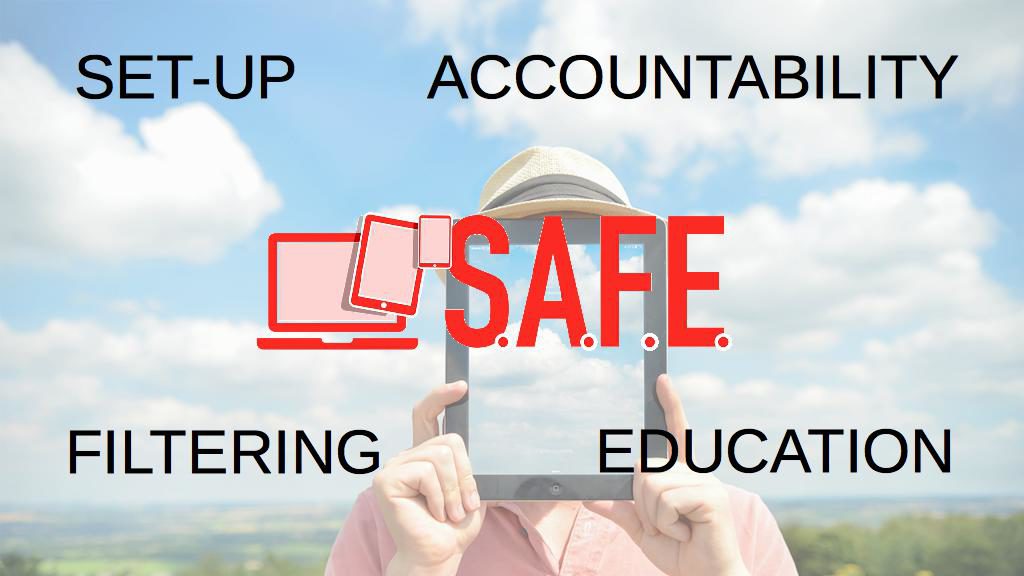
    I jokingly tell people that our Setting Digital Boundaries Workshop is like a Mary Kay party. You invite your friends over and serve up some snacks. After everyone has had some time to arrive and say hello we begin the presentation. Instead of selling you make up I’ll be teaching you and your friends how to protect your children online. After updating you on some of the latest dangers and threats available to your kids online I teach you our internet safety plan that I call S.A.F.E. (Setup Accountability Filtering and Education)


    Each section of this presentation will be spent unpacking the four keys of our S.A.F.E. plan all the while highlighting some of the best resources you can use to protect your family. Each section ends with a time for questions. The sessions last anywhere from 40 to 60 minutes and afterward, I always stay available to answer more questions and give feedback on some of yours and your friends’ tech safety needs.

    These workshops are so valuable because of how quickly the internet safety atmosphere changes. Our book is helpful for getting you started and teaching you some of the terms that you need to understand to protect your kids online. A book, however, can’t give you step by step help with your internet safety goals. A blog post or YouTube video can’t listen to your specific internet safety needs and diagnose the best plan for protecting your family. That’s what makes Setting Digital Boundaries Workshops so critical.

    Email Us to book a workshop and go to BecauseFamily.org to learn more about what we teach and how you can partner with us financially to help us keep these workshops free.

  • Turn Off Snapchat’s SnapMap NOW!

    Turn Off Snapchat’s SnapMap NOW!

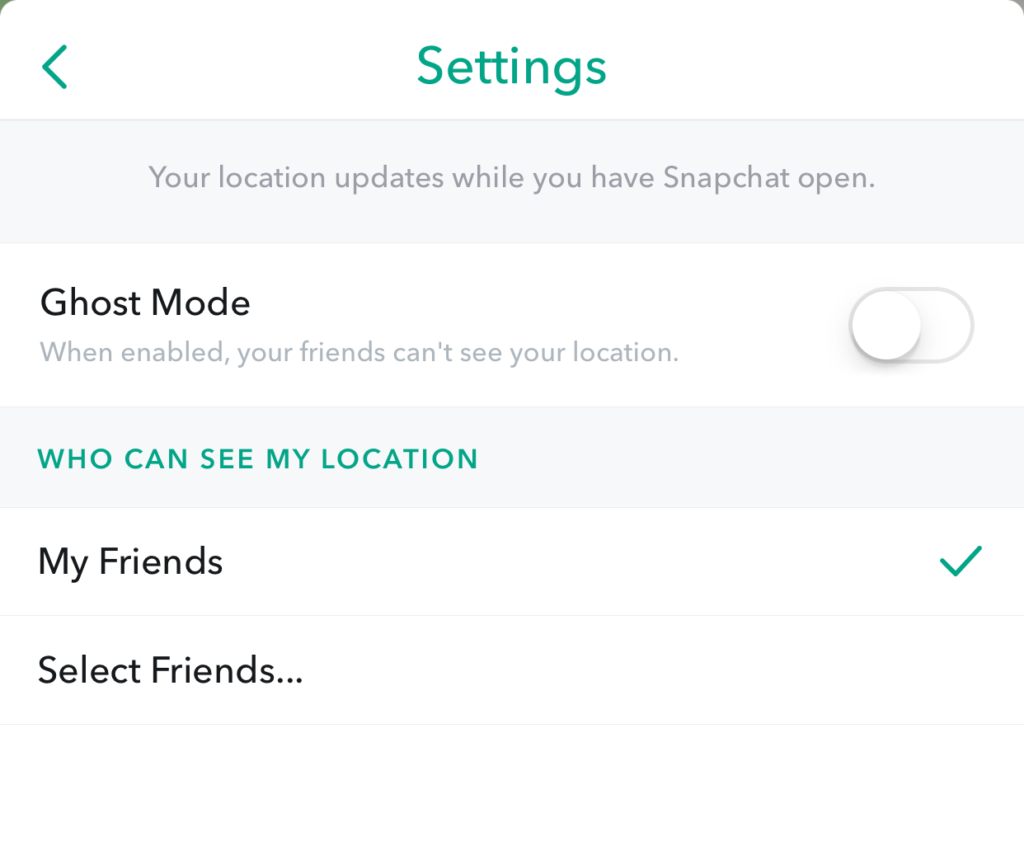
    Snapchat’s newest addition to it’s offerings is SnapMap. This feature shares your location on a map so that other’s can see snaps from similar places or events in real time. This all sounds well and good but what’s really happening is causing tech experts everywhere to warn against using SnapMap. SnapMap shares your location every time you open the app, not just when you post something. This isn’t concerning for just tech safety writers like myself but everyone who spends any time learning about the latest Tech trends is warning that users should disable this feature on their SnapChat account.

    I heard a story last week of a mother who’s daughter and her group of friends had been targeted by a sex trafficking ring using snapchat. The predator befriended a large group of related friends all at the same time and just watched their posts for a while. They all thought they were befriending someone who went to school with them since they had a bunch of friends in common. This person got very close to my friend’s daughter and started talking about a meet-up. Mom saw the posts during a check-in of her daughter’s phone and decided this “friend” was a bit shady. She contacted the police and found out that this predator was part of a larger ring of sex traffickers who use Snapchat to locate and abduct their victims. These guys had to work for months to learn more about where these teens spent their time. The SnapMap would give them that information in seconds.

    SnapMap’s initial setup is only a four step process, if you decide to turn on SnapMap you won’t be warned that your location will always be available. You’ll only be told how your friends can see where you are when you post. If you aren’t sure who all of your friends are and if you don’t know that SnapMap is pinging your location every time you open the app whether you post or not, you’re eliminating every privacy setting you’ve ever set on your phone. Your teenagers don’t know this!

    What Parents Should Know

    Teenager’s brains are developing in such a way that they’ll always fire before they aim. They’ll see the SnapMap option and opt-in just because they want to have everything set up like their friends do. You MUST talk to your kids about what SnapMap is and why it’s dangerous. You’ll want to advise (or demand) them to put their SnapMap on “GhostMode” which will hide their location on their friend’s map. If you’re allowing them to use Snapchat (which is on my uninstall list) you can’t expect them to see the SnapMap for the red flag that it is. You have to protect them by setting that boundary on their behalf.


    Don’t miss a single post. Get a list of our top posts every Friday in your email.

    Subscribe to our mailing list

    * indicates required


  • New Operating Systems Coming for iPhone and Android

    New Operating Systems Coming for iPhone and Android

    The last few weeks have been loaded with updates from the two major tech brands in the industry. Google’s I/O event was May 17-19th and they had some major announcements including virtual reality, augmented reality, and a brand new operating system for Android, Android O. Apple’s Worldwide Developer’s Conference (WWDC) was this week, June 5-9th, and they’ve made similar announcements including a new version of their smartphone operating system that they’ve branded iOS 11. These two new systems will run the majority of the newer phones and tablets being released so it’s important to understand what each is offering. Here’s a rundown:

    Android O

    Android’s newest system should be made public this Fall. The most significant features are design changes in the Settings Menu and User Interface (UI.) Many of the smaller changes are things users won’t notice such as changes in how the OS will handle security and background operations, as well as channels or categories for notifications. Also, picture-in-picture support, notification badges that will appear on app icons, and better bluetooth support will definitely be features that makes Android O a step up for it’s users.

    iOS 11

    A new dock, multitasking with drag and drop, a files app, and better Apple Pencil support make iOS 11 a major upgrade for iPad. iPhone users will notice more apps in messenger, an app store that looks and works completely differently, and a new and improved Siri, including a new voice. The control center, the lock-screen, notifications screen, maps, Apple Music, and AirPlay are all getting improvements as well. iOS 11 is also slated to release this fall.


    What Parents Should Know

    There haven’t been any announcements on Parental Control improvements for either of these operating systems. When the test version of iOS 11 is released I’ll be giving it a full look-over and writing a review for you. One thing that parents will enjoy from iOS 11 is the ability to turn on an automatic Do Not Disturb while driving. The phone will sense your movement and speed and automatically silence any notifications until you’ve stopped. This will be a good way to keep your older kids safe while they are on the road. As for Android, they recently put out a new Parental Control option for their OS and it’s proving to be a pretty good setup. It’s only available on newer devices, however, and we still don’t know what changes have been made for when Android O is released.

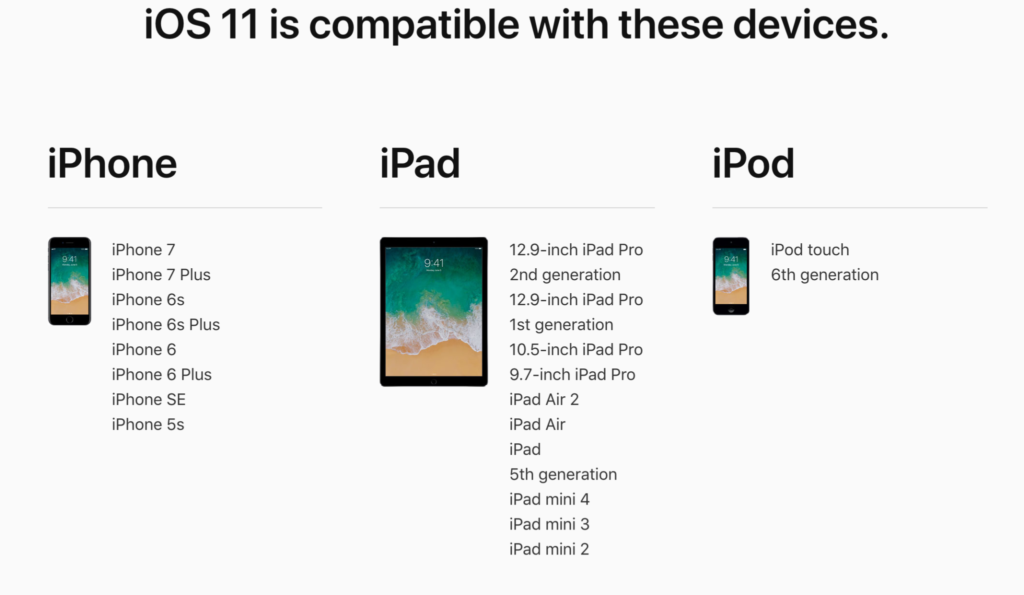
    I always recommend keeping on top of updates when they are made available. Both of these new Operating Systems should be available this fall and you should be sure, if your devices are compatible, that you’re upgrading soon after release.  This isn’t just important to get any of the new features but also because security and privacy updates come with these new systems. The apps you use, including the ones you use for internet safety and monitoring will update to keep up with the latest software and if your devices are behind you’ll start to see holes in your security. Keep your eye on the update section of your settings menu and when it shows that a new version is available you should install immediately. You can also keep checking in to this site as I will keep you informed on the latest releases as well as how they can affect your family.

  • Parental Control Options for Your Kids’ Chromebook

    Parental Control Options for Your Kids’ Chromebook

    The Chromebook is unique because it isn’t really a full fledge computer. They are designed to just run a browser so you can access the internet. This makes them affordable and easy to use. Because of this the Chromebook is often the chosen computer for schools. So your child may have been assigned a Chromebook when they were enrolled in school. While they must have content controls set while they are on school property there aren’t any regulations requiring schools to keep them protected while off campus. Here are some options for how you can protect your kids while they use their Chromebooks.

    Supervised User

    UPDATE: Google has discontinued Supervised User in favor of FamilyLink.

    This is an account based system that’s built into the Chrome browser. It allows you to set filters, monitor sites visited, prevent installation of apps, turn on safesearch, and change settings. You do have to use blacklists or whitelists to block websites, there is not an automatic filter built in. I recommend using THIS LIST of blacklist sites provided by a University in France. It’s a pretty extensive set of blacklists and will take some effort to set up but if you don’t want to just set the Chromebook to only access a few domains then copy pasting sites from these lists is your best option. You can access the supervised accounts by going to chrome.google.com/manage.

    Click THIS LINK to see Google’s set up instructions for a supervised user account.

    MobiCip

    One of the only full service filter and monitoring apps for Chromebook, Mobicip offers a plugin that you can download from the Chrome app store. Mobicip will give you customizable filters, time limit controls, and usage reports and its pretty easy to set up. You just download the extension from the Chrome app store and then login. It takes you through the setup steps and lets you set your desired filter levels. Once it’s all set up you can make changes from anywhere using their web based controls dashboard. Their SUPPORT page has good How-To resources to walk you through the process.

    If you want more controls than the Supervised User option gives you then Mobicip is a pretty good choice. It’s $39.99 per year for all of the features mentioned above for up to five devices. If you are going to need to protect more than twenty devices (I’ve met families with upwards of 30) then you’ll have to get a quote for their “Enterprise” option. Mobicip is a good option and will give you quite a bit of control.

    Accountable2You

    The final option is an accountability software. This, combined, with the Supervised User Account may be all you need.  Accountability software doesn’t block content. This software will keep an eye on what’s being viewed and then red flag and report anything that it deems inappropriate. This allows you to more easily see when something questionable has been viewed. Otherwise you’ll spend time sifting through link after unrecognizable link to find something that may be naughty. You can even set up Accountable2You to send you a text message when an inappropriate site was accessed. The software works across all of your devices including Chromebook and is $6.99 per month for six devices and $9.99 per month for twenty devices. They have easy setup instructions on their SUPPORT page and have excellent customer service.

    Whether your kids got Chromebooks from you to help with schoolwork or they were school issued, it’s critical that you have some sort of parental control solution set up. I recommend using one or more of these to set up a plan to help your kids be safer online. The statistics say that only one out of every three kids who saw something inappropriate online was looking for it. The fact that you have well behaved children doesn’t apply here. The internet isn’t well behaved and we have to make the effort to keep them safe.

    This article contains affiliate links…

  • Amazon is Changing the Parental Controls Game

    Amazon is Changing the Parental Controls Game

    Many parents purchase their children a tablet without taking built in parental controls into consideration. Amazon’s addition of the Parent Dashboard should cause most parents to lead towards a Kindle Fire tablet. Amazon FreeTime has been available for a little while and allows parents to set child profiles, manage content, set time limits and bedtimes, and feature’s curated content. The Parent Dashboard, launching today, takes FreeTime to the next level by giving parents a breakdown of their kids digital habits. The app will allow parents who have set up FreeTime to see the time your kids have spent on certain apps. You can see what they’ve been reading and watching and it even suggests discussion starters for the content your children have been consuming.

    FreeTime features tens of thousands of apps, books, websites, and videos. The built in web browser only allows pre-approved content and features age appropriate Amazon prime videos. All of this content is curated by an actual editorial team. They watch videos through to the end and read every page of every book to be sure it’s suitable for the age group it’s listed under. This is not filtering based on algorithms, it’s work done by live people to help you protect your kids. They’re keeping in mind that you don’t want your kids to run in to something online that they’re not ready to see. In factKurt Beidler, director and general manager of Amazon FreeTime, told Digital Trends: “We take a conservative approach.” 

    What Parents Should Know

    It seems like the internet safety market is always trying to play catch-up with the latest online and social media trends. The stuff we don’t want our kids to see always seems to creep its way onto every platform. The only true way to keep inappropriate content away from our kids is for human eyes to make the distinction between what is suitable and what is not. The human editorial team for Amazon FreeTime is one of the first of its kind, surveying content with a conservative, kid’s health comes first mindset that we can hopefully take comfort in.

    I don’t usually recommend getting devices for our young children but I understand that many parents or grandparents will insist. If that is you or someone you love, may I suggest the Kindle Fire Kid Edition. This thing comes pre-loaded with the kid friendly content and a 12 month subscription to FreeTime. Yes, FreeTime is a pay subscription based service. It’s $2.99 per child or $6.99 per family. That’s not a lot to pay for your own team of content curators working to help your children be safer online. No, I don’t have an affiliate link to promote. I just think this is a great option for families.

    I do recommend, as always, talking to your children about what is appropriate online and what is not. I recommend they know that you are the safe place to come to if they see something that they shouldn’t see. Obviously the goal is to keep this from happening and using Amazon FreeTime with the Parent Dashboard is a great step in that direction.

  • The Monkey App will be a Hotbed for Predators

    The Monkey App will be a Hotbed for Predators

    You can often tell a lot about an app or product by their logo. (See Instagram or YouTube) They often use the small icon to entice you into using their app based on the style or the creative way the image can explain what the app is used for. Sometimes, though, you can be lured into a false sense of security by the playfulness of an app’s logo or icon. Monkey is a perfect example of this. When I saw Monkey listed as number 51 on the app store’s top downloads I was expecting to see some kid’s social media platform that would allow you to chat privately or play games or something. That’s not at all what I found.

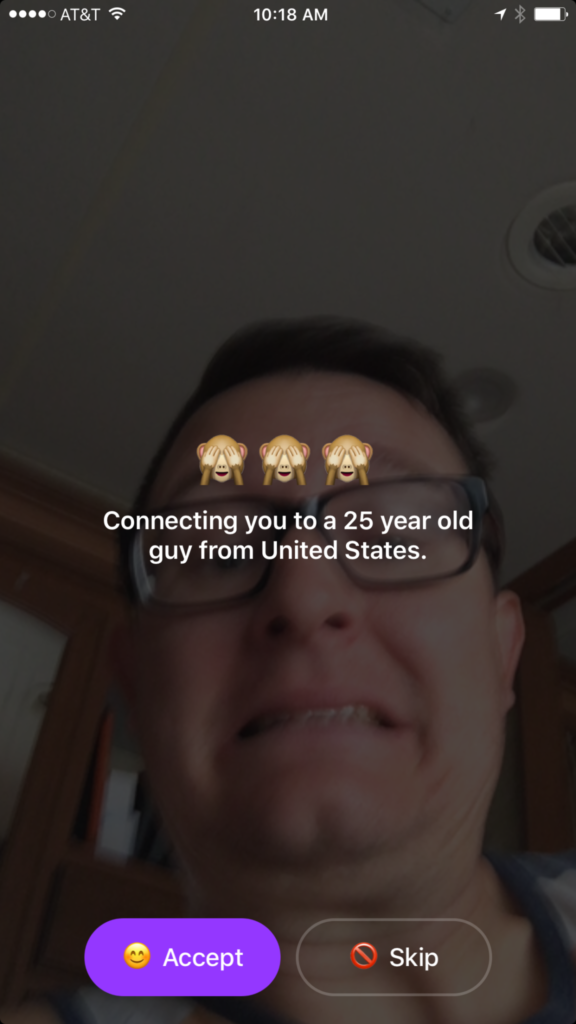
    In reality Monkey is a chat roulette type of video chatting app. Once you’ve downloaded the app it will ask you your age. You set your age to whatever you’d like it to be, provide your phone number and your snapchat username and you’re in. It immediately begins connecting you with someone to video chat with. While it’s connecting it shows your face dimly in the background and says who it’s connecting you to. You have the option to skip the connection or accept. If you accept you’ll be shown their video feed and they’ll see yours. In the short time I tested the app I was connected with all males ranging from ages 22-45.

    Once you have connected with someone a countdown clock begins. You can tap the clock to add time and keep talking but if they don’t tap their clock you’ll be disconnected. This is another “swipe right” concept that gives each user the option to continue the connection with a simple gesture on their smartphone. To be honest I never accepted a connection. I still just don’t get a good feeling about the gamble of finding random video chatting partners. I don’t know what I”ll see when I connect. You also don’t know what your kids might see.


    What Parents Should Know

    The dangers of a roulette style video chat app should be pretty obvious. The potential for unwanted material and contact with dangerous people is real. While there is a report button to flag any inappropriate content, that method takes the “after the damage is done” approach to keeping their app free from pornography and bullying. The app is rated for users aged twelve and over and the terms and agreements explain how the company takes no responsibility for the content that may be displayed on the app.

    YOU FURTHER UNDERSTAND AND ACKNOWLEDGE THAT, WHILE THE SERVICES ARE NOT PROVIDED FOR PORNOGRAPHIC PURPOSES OR FOR MAKING SEXUALLY EXPLICIT CONTENT AVAILABLE, YOU MAY BE EXPOSED TO CONTENT THAT YOU DEEM TO BE OFFENSIVE, INDECENT, OBJECTIONABLE, OR SEXUALLY EXPLICIT, AND YOU AGREE TO WAIVE, AND HEREBY DO WAIVE, ANY LEGAL OR EQUITABLE RIGHTS OR REMEDIES YOU HAVE OR MAY HAVE AGAINST MONKEYSQUAD WITH RESPECT THERETO. – Monkey Terms of Use (All caps theirs.)

    This app was developed by two sixteen year old kids from Australia. They said that they designed the app to allow teens to build more random online relationships. Ben Pasternak and Isaiah Turner told Mashable “…Snapchat is for your real life friends and Monkey is for your internet friends.” These teenagers saw a line between their real world relationships and the ones they could make with people all over the world through the internet. This is exactly what parents need to consider. While living in a more globalized world has many positives there are also very real risks to exposing our young teens and kids to the entire globe. 

    My advice is to put this app on your uninstall list. Never trust an app based on their branding or icon. Have a real conversation with your teen about the potential of seeing body parts or other unsightly things on this app. Remind them of the problem of connecting with random people online. There are always people who will lie about their age or their gender in order to connect with someone they’d like to prey on. Even if they know they’re only going to be connected for a few seconds. Sometimes a few seconds is enough to cause major problems for our young kids. Don’t let the cute monkey emoji logo fool you. Uninstall on sight!


    Does your family have an internet safety plan? Sign up for our email list to get a free checklist that will guide you to family internet security.  

    Get Our Latest Posts in Your Inbox

    * indicates required


  • PODCAST: Why is the Instagram Search Bar Recommending Porn

    PODCAST: Why is the Instagram Search Bar Recommending Porn

    The Wishbone App could be an bad idea for your tween daughter. Apple is making some changes in the app store. Amazon Prime Video now has parental controls. What can you learn from search bar auto-fill terms?


    Video Version

    – Social Media Links

    Facebook: http://facebook.com/4pointfamilies
    Instagram: http://instagram.com/becausefamily
    Twitter: http://twitter.com/becausefamily

    – Newsletter Signup

    Ministry Updates:: http://eepurl.com/R7Btr
    Weekly Blog Posts:: http://eepurl.com/cvnhXD

    – Websites

    Ministry Site:: http://becausefamily.org
    Tech Blog:: https://safe.becausefamily.org
    Michael’s Speaking Info:: http://kmichaelprince.org

    – Donate and Affiliate Links

    http://BecauseFamily.org/partnership

    Music by Kevin MacLeod at http://Incompetech.com

  • Amazon Prime Video Jumps on the Parental Control Bandwagon

    Amazon Prime Video Jumps on the Parental Control Bandwagon

    Our children get access to media through streaming content more than any other method. Many of the streaming content providers have allowed parents to protect their children using parental controls. Amazon prime video has just added that feature as well.

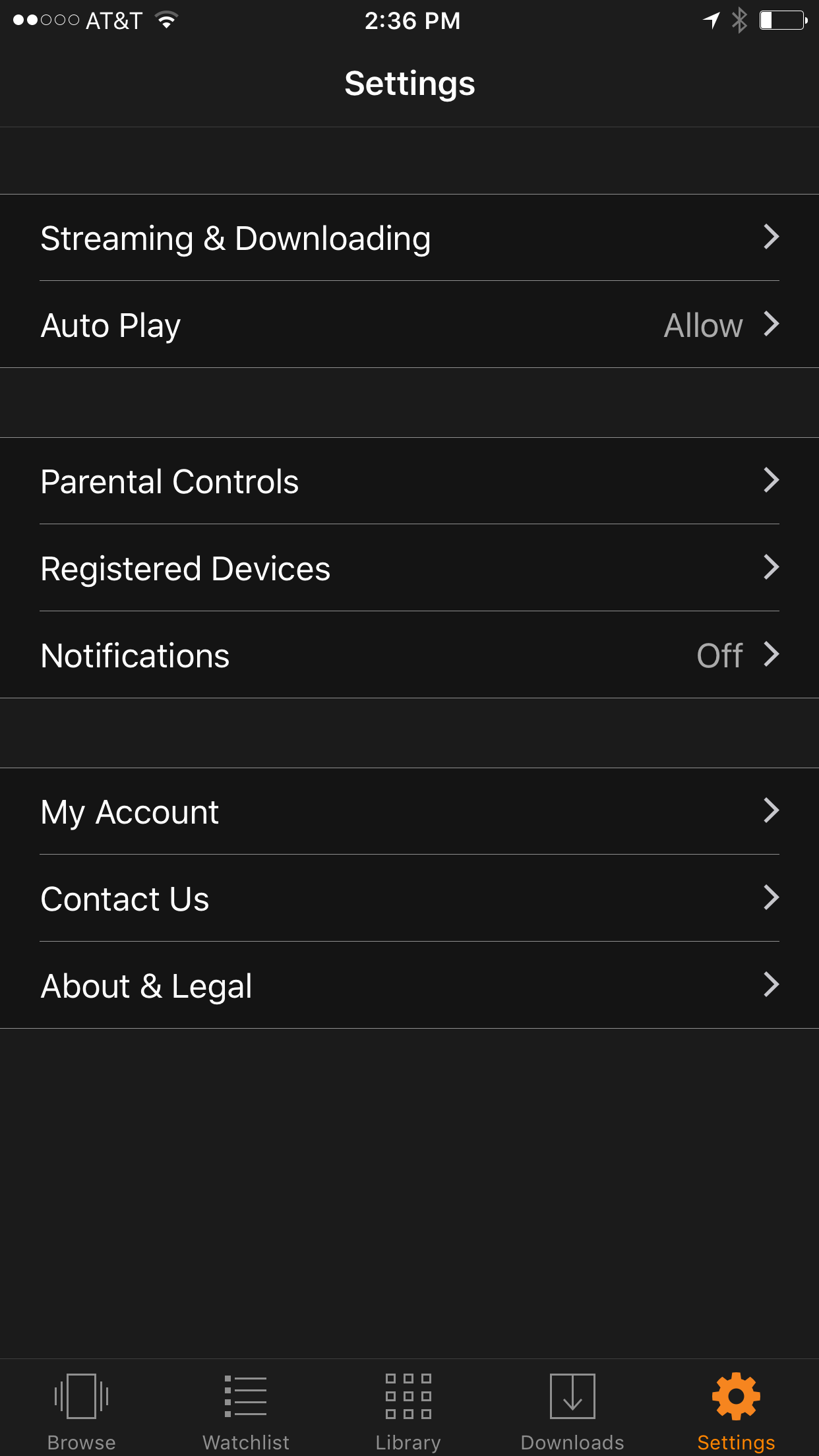
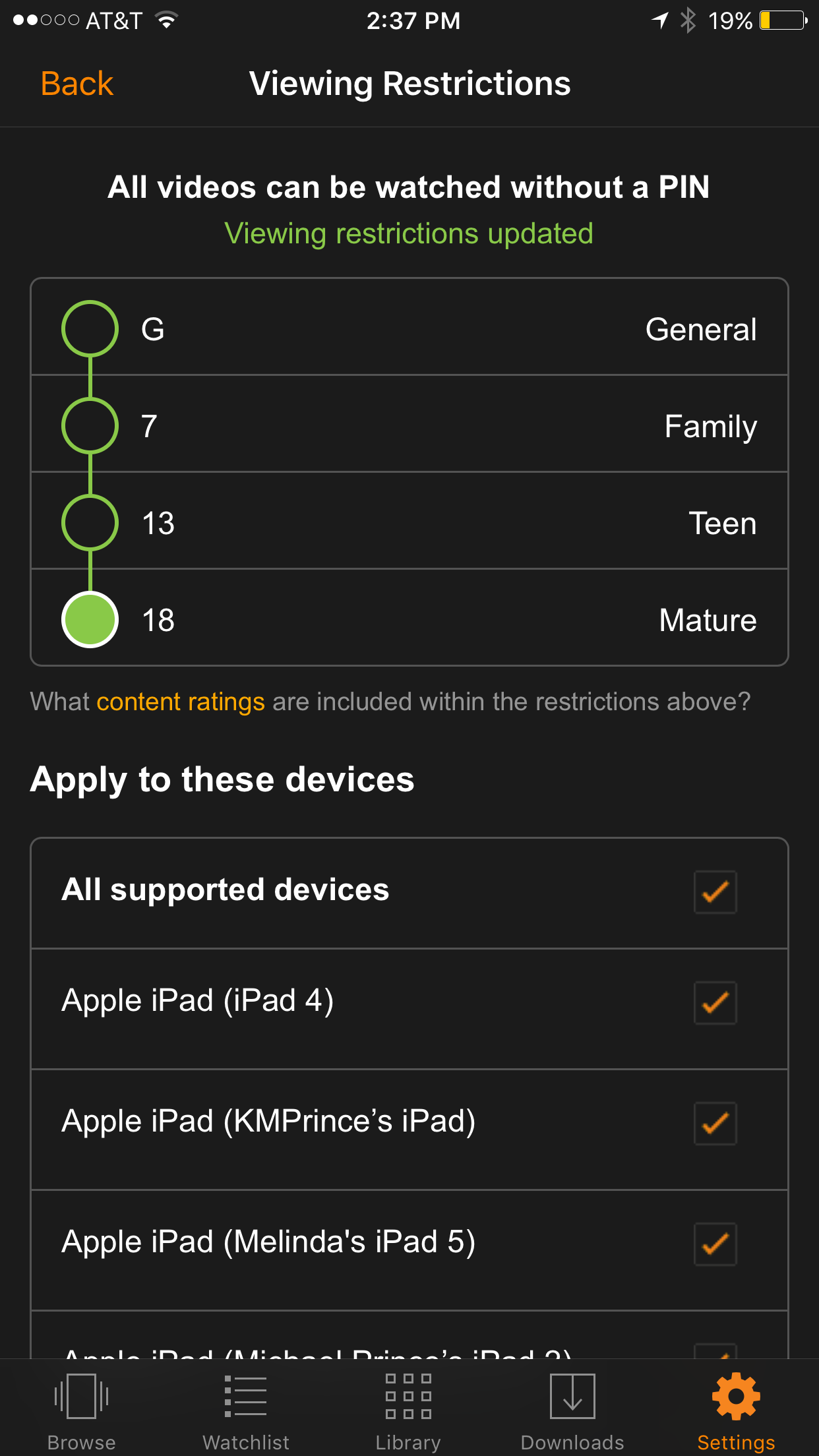
    We recently cancelled our Netflix subscription and switched over to Amazon prime because many of the shows our children enjoy have moved over there as well. Now you can ensure that your kids are only seeing shows intended for their age group. It’s really simple to set up; the photos below will show you how. (Photos show the iOS app, Android may differ slightly.)

    Go into your settings and tap Parental Controls.

    Set your desired age restriction and what devices should be included in the restrictions. 

    On iPhone you can also set up your Touch ID to bypass the settings when a video above the age restrictions is selected.

    What Parents Should Know

    Parental controls are a great feature but it’s also important to know what your children are watching. Parental Control settings batch all children’s programming together. It may not take into account the fact that some kid’s shows are geared towards older kids while others suitable for your preschooler. Kid shows, while not containing gore or sexual content, may still have violence and even some language at times. You should know what shows your kids like and why, I advise you even sit down and watch the show with them every now and then.


    Get Our Latest Posts in Your Inbox

    * indicates required