Tag: parental controls

  • Facebook Portal is a Microphone, Camera, Smart Speaker, and Screen for Your Home

    Facebook Portal is a Microphone, Camera, Smart Speaker, and Screen for Your Home

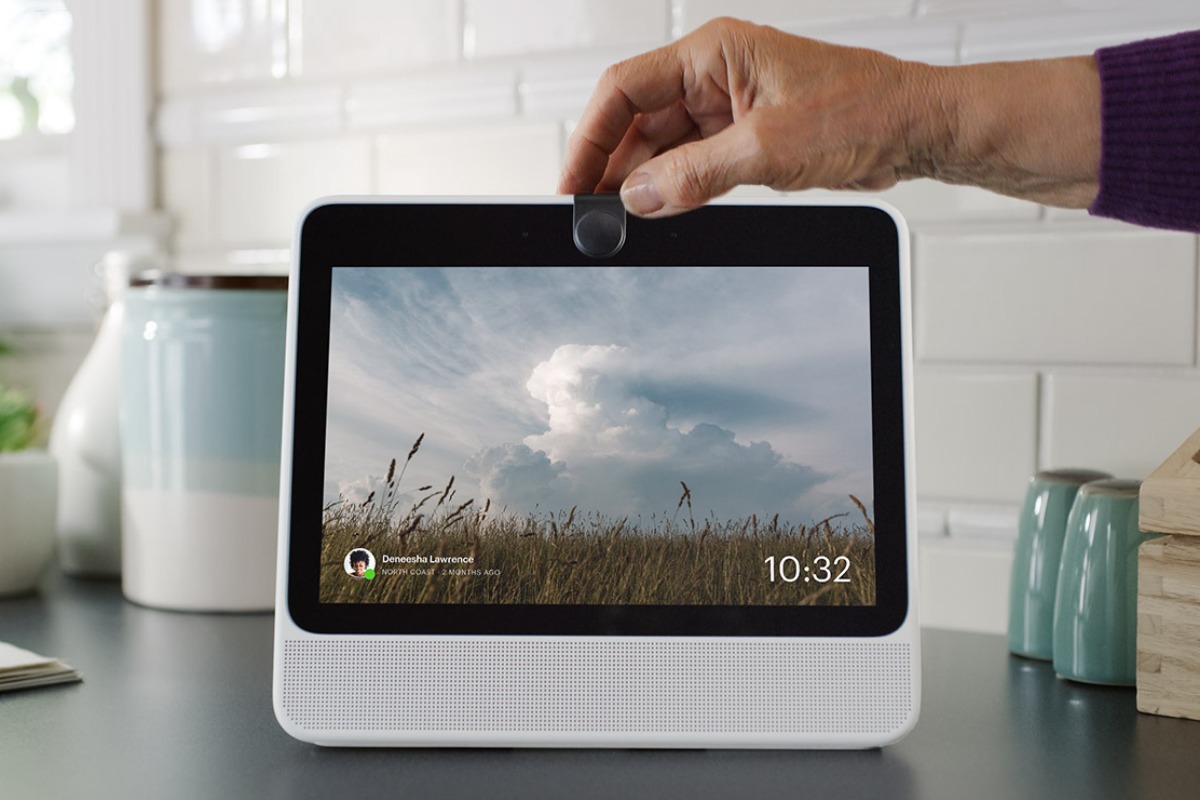
    Facebook can’t stay out of the news. Going to Washington to testify about their privacy breeches, chain messages about hacked accounts, and copycats creating fake profiles to trick people’s friends. Today, the social media giant is in the the news for a different reason, they’ve released a smart speaker. Now you can keep Facebook Messenger always running in your home. Sound good?

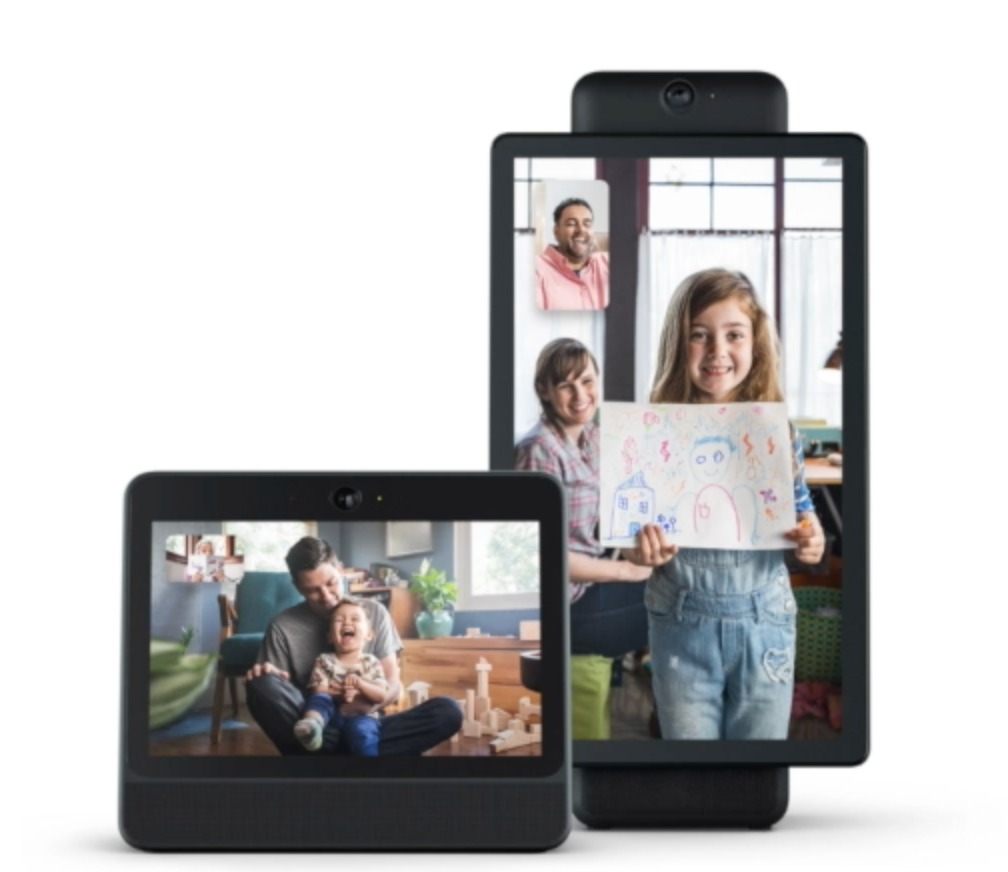
    Facebook Portal is a touchscreen smart speaker that seems to be created mostly to keep you connected with friends and family through messenger. The camera follows your face while you chat, allowing you to walk around the room or even talk with more than one person and then zoom in to focus on one or the other. The team claims that they use a 2d tracking technology, not face id in order to locate people in the room. This is to curb possible privacy concerns when it comes to facial recognition. Portal and Portal Plus also have an on/off switch for the mic, and a privacy clip that you can attach to cover the camera lens. It’s almost like the folks at Facebook think you don’t trust them with your privacy.
    portal.facebook.com

    The smart speaker also connects to Spotify and Pandora and will use Alexa to connect to some smart home appliances and devices. You can watch videos on Facebook and Facebook Watch and they claim that more video partners are coming soon. (YouTube, Amazon Prime, and Netflix anyone?) One feature everyone thinks is neat is the ability to read stories for children through chat and use augmented reality filters to increase the fun of story time. The example used features the story of the three little pigs and not only does it progress through story artwork as you read but it puts the mask of the characters on the reader while they read that character’s lines. A fun idea to make young ones sit down and chat with grandma, gramps, or auntie for a while longer. 

    portal.facebook.com

    What Parents Should Know

    My family doesn’t have a smart speaker in our home. Not even the one Amazon made for kids. I don’t like having an “always on” microphone hanging around. I’m pretty particular with how my data is used. I don’t mind Amazon using my shopping history to recommend things for me to purchase but I’d rather they not do so using my conversations with my wife. 

    Facebook is trying to ease users minds with their privacy focus on Portal. The audio chip that hears you call the wake word (Hey Portal) is separate from the one that sends audio to Facebook and even that is encrypted end to end. (The data is scrambled up for its whole journey across the internet from your device to Facebook and then to the recipient, if applicable.) They include the clip to cover the camera and even an on/off switch to disconnect the power to the microphone and camera. 

    These devices preach a message of connection and try to focus especially on connecting with older members of your family and to your kids. We know that connection over a screen isn’t always as beneficial as face to face connection but sometimes it IS our only option. In this case, a free standing device that exists mainly just for these kinds of connections (think, telephone in the 1980s) isn’t too outside the box. Even with all of their privacy additions, though, I still have a concern about putting a device with a camera and microphone in it in my living room that was designed by and always connected to Facebook. 
  • Great News if Your Teen Has an Android or a Chromebook!

    Great News if Your Teen Has an Android or a Chromebook!

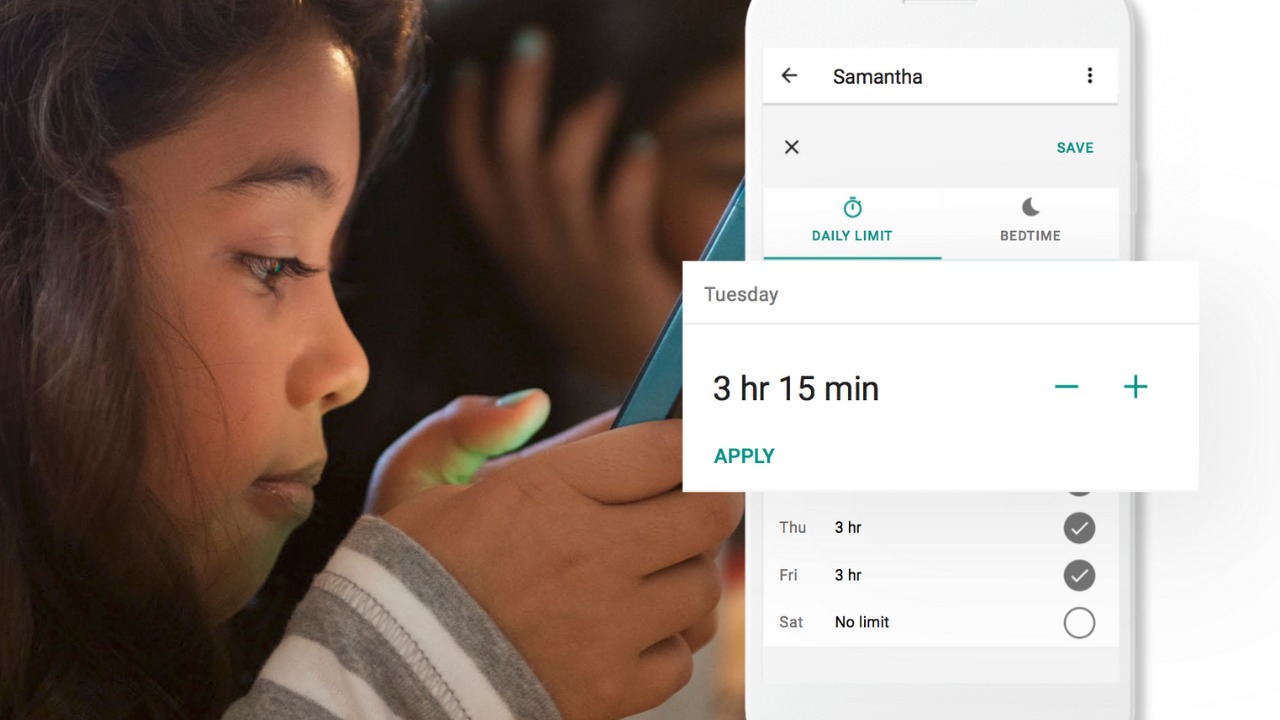
    Android Family Link was released last year to some success. The features are good enough and being able to change kid’s settings from your own phone is super helpful. There were some downsides, however. One of which was that it was geared mostly towards younger kids. That has changed today as google announces features for Teenagers in the FamilyLink app. 

    Android FamilyLink allows you to

    • Approve your child’s downloads and purchases from Google Play and limit the visibility of content in the Google Play Store based on maturity ratings
    • Manage settings such as SafeSearch for Google Search
    • Review your child’s app permissions on Android, such as microphone, camera, location, and contacts access
    • Change the content filtering setting and turn search on or off in the YouTube Kids app
    • Reset your child’s Google Account password
    • Set screen time limits on your child’s Android devices
    • See the location of your child’s signed-in and active Android devices
    • Manage the activity settings for your child’s Google Account
    • Allow a second family member to exercise most of the same controls you have over your child’s account.

    The features for teens adds the ability for your teen to disable the FamilyLink supervision setting. You will be notified if they disable it but the option is still there. 

    Chromebooks

    Schools all over the country are giving their students Chromebooks. The parental control options for Chromebook have been severely lacking for several months since Google disabled the Supervised User feature. The reason they ended support for Supervised User is to make room for FamilyLink and it’s finally here. 

    FamilyLink will soon give you all the same controls on Chromebook as you have on mobile devices. Right now you can only change account settings and content filters. Soon there will be screen time and app store management as well. 

    What Parents Should Know

    FamilyLink is a good parental control solution and it’s only getting better. They’ve added some good features and options for your older kids is also a good step. Issues I’ve had with FamilyLink in the past are the weak filter (currently only as good as Google’s Safesearch) and issues with backwards compatibility. They still recommend your kid’s device run Android version 7 or higher while some devices running Android 5 or 6 may work with FamilyLink. 

    I like what FamilyLink has to offer by way of screen time management and app store controls. A major problem parents have with Android is the ability to download apps outside of the app store. They control what their kids see on the Google Play Store but children can download things from outside the app store sometimes. Many parents don’t know how this is done and how to stop it so it poses a major problem. 

    The ability for teenagers to disable FamilyLink is kind of moot since it notifies parents. That makes me wonder why it’s put there in the first place. Perhaps to give teens the illusion of control or freedom since that’s something the adolescent desires more than anything. If you use FamilyLink for your teenager be sure to let them know you’ll find out if they disable it. The filter is kind of weak and there is no way to monitor messaging or get alerts if negative content has been viewed. I recommend a good accountability software for this. Get something that will work for phones and Chromebook. It’s critical that you know what your kids and teenagers have seen online and what they are doing. This allows you to have conversations with them about their decisions and the dangers and risks involved. 

  • T-Mobile Customers Can Now Get a Rebranded Circle, They’re Calling it FamilyMode

    T-Mobile Customers Can Now Get a Rebranded Circle, They’re Calling it FamilyMode

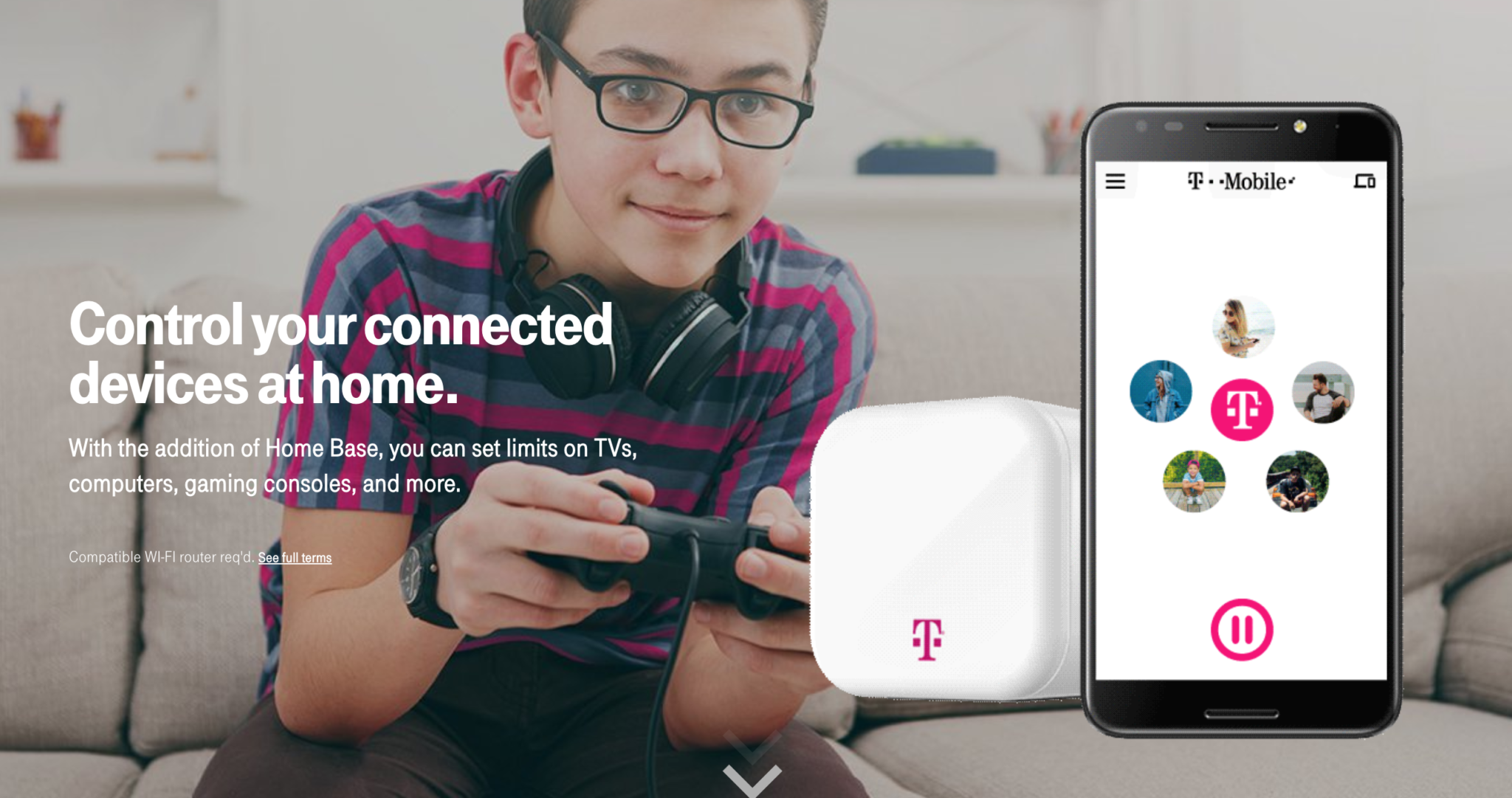
    Circle is one of my favorite parental control solutions to recommend to families. It’s easy to set up and the settings really work well. T-Mobile has caught on to this great service and is adding it to the offerings to their wireless customers. Verizon also added pressure controls recently and now T-Mobile is joining the club. The app is completely rebranded with T-Mobile is pink and black color scheme and the image of the Circle device itself even has a T-Mobile logo on it.

    Circle allows you to build profiles for each family member and set parental controls and filters for their profile. This protects your home Wi-Fi and with CircleGo you’re able to protect them over data no matter where they are as well. Time limits, usage reports, and tons of other information are also available on the Circle app. T-Mobile has patched into these resources and is offering them to their customers.

    What Parents Should Know.

    If you’re a T-Mobile customer the $20 price point for the device plus $10 a month to take the safety with you is well worth it. We highly recommend circle and even use it ourselves. My advice is to take advantage of this deal and this great opportunity to protect your family on their devices.

  • PODCAST: Three Apps Your Kids Should Uninstall

    PODCAST: Three Apps Your Kids Should Uninstall

    Family Tech Update: These apps can be seriously dangerous for your kids. Adult content, privacy issues, stranger danger, all kinds of issues here, and some of them are only rated 12+!

    Social Media Links

    Facebook: http://facebook.com/becausefamily
    Instagram: http://instagram.com/becausefamily

    Twitter: http://twitter.com/becausefamily

    Newsletter Sign up

    Ministry Updates:: http://eepurl.com/R7Btr
    Weekly Blog Posts:: http://eepurl.com/cvnhXD

    Websites

    Ministry Site:: http://becausefamily.org
    Tech Blog:: https://safe.becausefamily.org
    Michael’s Speaking Info:: http://becausefamily.org/bookings

    Donate and Affiliate Links

    http://BecauseFamily.org/partnership

    All music/audio effects are public domain.

  • Google Has Taken Away Chromebook’s Native Parental Control Solution

    Google Has Taken Away Chromebook’s Native Parental Control Solution

    What is “Supervised User?”

    I wrote all about your parental control choices for your kids’ Chromebooks a few months ago:

    “Supervised User is an account based system that’s built into the Chrome browser. It allows you to set filters, monitor sites visited, prevent installation of apps, turn on safesearch, and change settings. You do have to use blacklists or whitelists to block websites, there is not an automatic filter built in…”

    This wasn’t a foolproof solution but it was something that could give parents a head start on protecting their kids while they use the computers their schools have given them. Supervised User, however, has been discontinued so that they can focus their attention on another “parental control option to be released later this year.” Having received several calls from parents and principles this past year asking me to help them teach parents about the controls available, I know the need for Chromebooks to be safe while kids are online. Unfortunately, the simplest, most obvious solution is no longer available. At least for a while.

    From “Google Chrome Help”

    But There Are Solutions!

    Mobicip

    For a full-featured filter option, consider Mobicip. One of the only full-service filter and monitoring apps for Chromebook, Mobicip offers a plugin that you can download from the Chrome app store. Mobicip will give you customizable filters, time limit controls, and usage reports and its pretty easy to set up. You just download the extension from the Chrome app store and then log in. It takes you through the setup steps and lets you set your desired filter levels. Once it’s all set up you can make changes from anywhere using their web-based controls dashboard. Their SUPPORT page has good How-To resources to walk you through the process.

    If you want more controls than the Supervised User option gives you then Mobicip is a pretty good choice. It’s $39.99 per year for all of the features mentioned above for up to five devices. If you are going to need to protect more than twenty devices (I’ve met families with upwards of 30) then you’ll have to get a quote for their “Enterprise” option. Mobicip is a good option and will give you quite a bit of control.

    Accountable2You

     This accountability software doesn’t block content. This software will keep an eye on what’s being viewed and then red flag and report anything that it deems inappropriate. This allows you to more easily see when something questionable has been viewed. Otherwise, you’ll spend time sifting through link after unrecognizable link to find something that may be naughty. You can even set up Accountable2You to send you a text message when an inappropriate site was accessed. The software works across all of your devices including Chromebook and is $6.99 per month for six devices and $9.99 per month for twenty devices. They have easy setup instructions on their SUPPORT page and have excellent customer service. (NOTE: Accountable2You just released their lates iOS app that will cover every browser used on an iPhone or iPad. One of the first accountability solutions of it’s kind.)

    Use SOMETHING!

    I advise against waiting for Google to release a different option. Please set something up and do it soon. Kids are using their computers for much more than school work and there is more content showing up every day that would prey on your children’s innocence and even their safety. A Chromebook is basically a machine built only to run the internet. It has little to no other use. Pretending that it’s safe just because the school issued it is foolish. Use one of the affiliate links above and set up a solution. I wouldn’t recommend something I don’t or wouldn’t use myself.

  • Android FamilyLink is A Great Parental Control Solution, Albeit with One Major Flaw.

    Android FamilyLink is A Great Parental Control Solution, Albeit with One Major Flaw.

    I had the privilege to hear Saurabh Sharma – Sr. Product Manager with Google, speak on the abilities and development of Android’s parental control solution, FamilyLink. He covered many of the trends they were seeing in kids and families and how those stats encouraged their team to implement some full device control features on the monitoring system. As you can see in the video above, there are some pretty neat features in FamilyLink, including the ability to lock an entire device, not just the data connection. Also, time management and scheduling is a major part of the FamilyLink features. One of the coolest features spoken about at CES was the ability to use Google Home to control FamilyLink. Voice command was all the rage at CES2018 and Google’s parental control apps were no exception.

    The app on kids’ devices allows them to see exactly what their parents are seeing. App usage stats, app blocking, bedtime and offtime, and setting the Google’s content filter, “SafeSearch.” While the SafeSearch filter isn’t the most extensive and customizable content management tool, it is a good start, especially for your younger children.

    One Major Flaw

    When FamilyLink was announced ten months ago my first question was, “Can our kids use this on the older phones we’ve handed down to them?”  The answer is listed in the fine print on the Google FamilyLink homepage: “*Children can run Family Link on Android devices running Nougat (7.0) and higher, along with certain Marshmallow (6.1) devices listed in our FAQ.” This was immediately a problem for me since I know many families who use their older Android phones as the solution for their kids. It’s always been pretty easy to just hand down your phone to your kids when you get a new one. While there are many internet safety options available for Android, nothing works as well as an app developed by the same people who made your operating system.

    After hearing Saurabh Sharma talk about FamilyLink, I followed him out of the room as he headed towards his next meeting and I asked him about the possibility of making FamilyLink backward compatible with older phones. He replied: Making FamilyLink backward compatible is a “difficult problem but one we are committed to trying to solve.” So there you have it. While it’s understandably not an easy thing to fix, we are assured that it is on the team’s radar and something they’re working towards.

    Apple’s iOS has had native parental controls for a long time now. They’re pretty effective but haven’t been updated over the last several operating system upgrades. Hopefully, some time management and monitoring options can be added soon. Thankfully there are apps like Accountable2You and UnGlue to help with some of those needs. 


  • Released Today: Facebook Messenger For Kids!

    Released Today: Facebook Messenger For Kids!

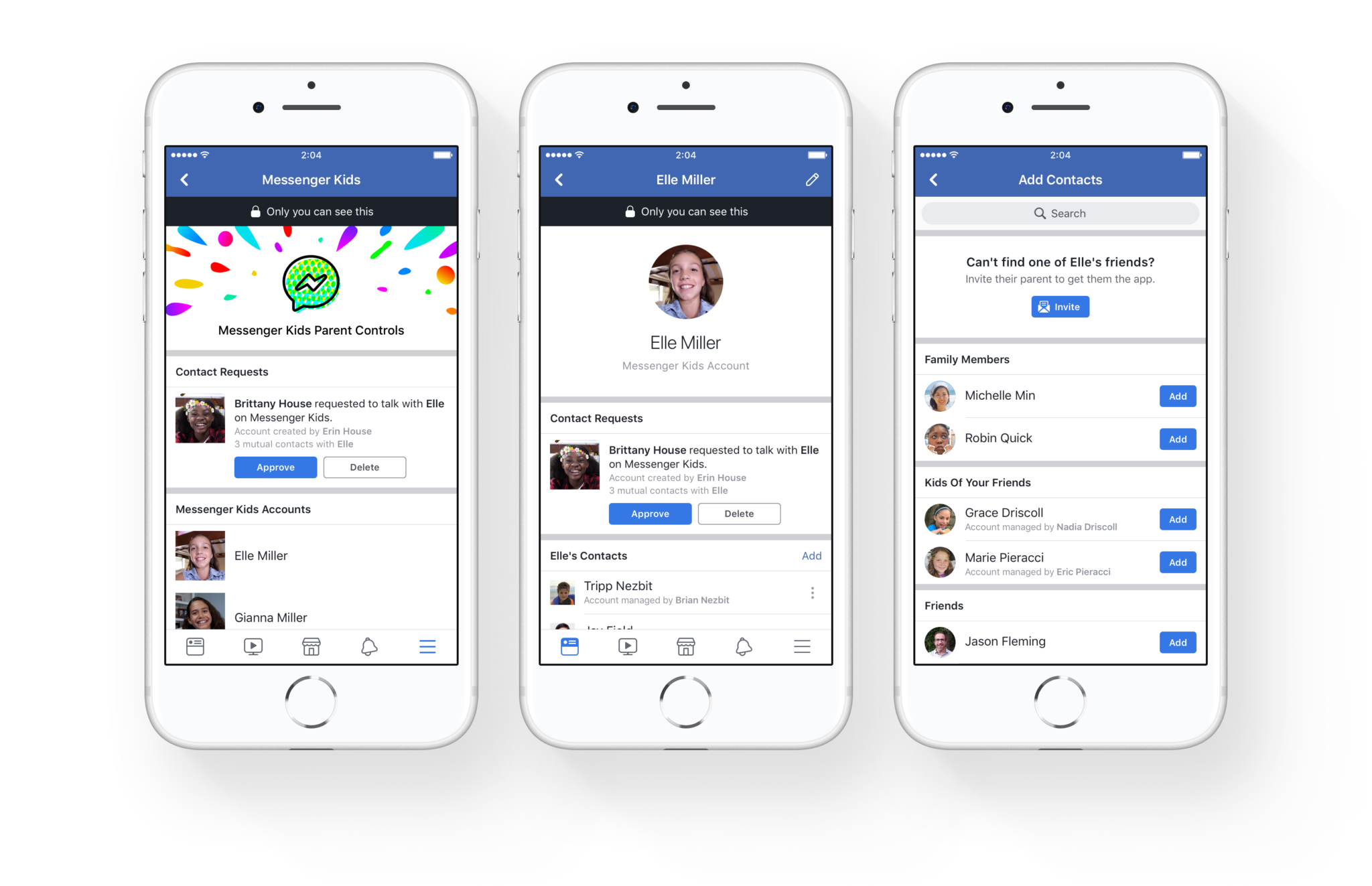
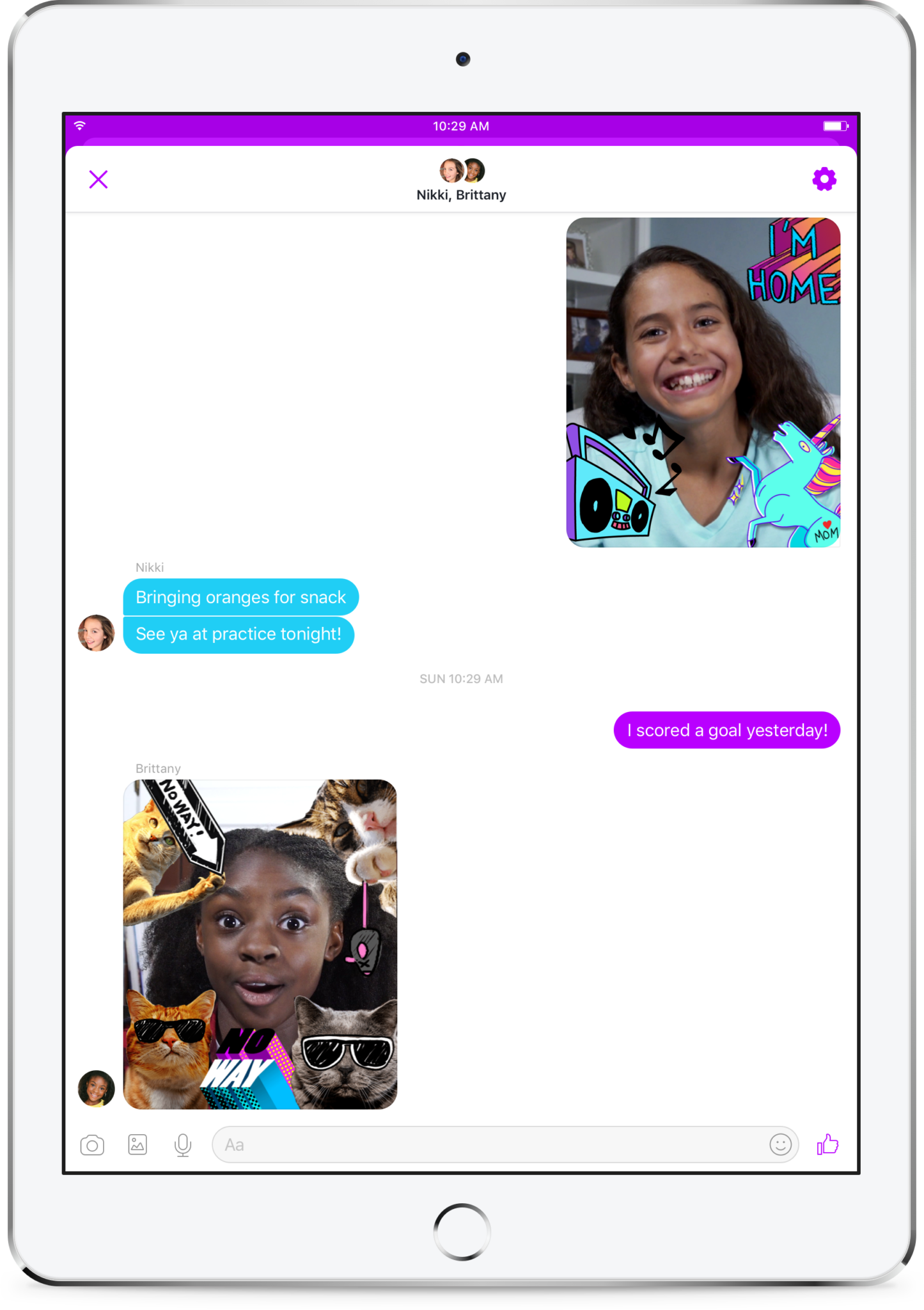
    Kids love social media. They like sending messages to friends and family. They absolutely love using filters and masks to share silly images of themselves. The problem is that social media wasn’t created for kids. It is for grown ups. That makes the social media world dangerous for our -13 kids. Enter Facebook, who is now trying to make social media and messaging safer for our children. Messenger Kids was released in the U.S. today on ios and the new app brings some favorite Facebook messenger features to our youngest family members.

    You set up your child’s account for them and they don’t need a Facebook profile to use Messenger Kids. Once you’ve downloaded the app and logged in with your own Facebook info, it will let you add your kids to the app and then ask them to take a photo and enter some information. Then, as simple as that they’re able to chat with you. To add contacts you search or browse your friend list and give your child permission to contact them by clicking “Add.” It can all be done from your own Facebook settings without access to your child’s device. They can also ask permission to add someone to their messenger app.

    As far as privacy and settings, Facebook has to be pretty specific with their rules. For example, Messenger Kids doesn’t collect ad data, their profile won’t show up in search, there is no advertising within the app, and there is no automatic account upgrade once your kids reach Facebook’s approved age. This is good news and proves that Facebook put some thought and research into what would make the Messenger Kids app fun and safe for kids. Messages don’t disappear and can’t be deleted or hidden. If an inappropriate image is sent, the child can report and the parents will be alerted that their kid has reported something that made them uncomfortable. One of the very few cons of the app is that parents can’t see videos or messages that their kids have sent and received except for taking the device and looking for themselves.  This is also, likely, due to privacy concerns and legal issues but it sure would be nice to at least be able to see messages that have been reported by our kids.

    What Parents to Should Know

    It isn’t very often I can fully recommend an app to parents but so far, I’m feeling like Messenger Kids meets my standards. The GIF options are curated by editors, not an algorithm and the filters are carefully selected and designed just for kids. Control is in the hands of the parent and that is exactly what I’m always wanting to see when it comes to apps designed for kids. The concern about time management does remain, however, so it is important to make sure your children are spending enough time doing other things. Messaging with family and friends can be fun but it is still screen time and it has been proven that kids need more than just screen time as entertainment. Use time management apps or just your own enforcement to be sure that your kids are only using Messenger Kids as long as you’ve decided is healthy.

    It’s great to see an app that brings features that kids love into a safer environment for them. I downloaded this app and have set up an account for my 10-year-old son. He has already enjoyed sending messages, using the camera filters, and even playing an AR game that is included. Why don’t you check the app out too and send me a message or email me and let me know what you think?


  • PODCAST: Kindle Fire/Amazon FreeTime App Review

    PODCAST: Kindle Fire/Amazon FreeTime App Review

    FAMILYTECHWEEKLY: Is the kindle fire the answer to all of your parental control questions? We don’t think so…here’s why.

    Sponsor this podcast! http://patreon.com/becausefamily

    Social Media Links

    Facebook: http://facebook.com/becausefamily
    Instagram: http://instagram.com/becausefamily
    Twitter: http://twitter.com/becausefamily

    Newsletter Signup

    Ministry Updates:: http://eepurl.com/R7Btr
    Weekly Blog Posts:: http://eepurl.com/cvnhXD

    Websites

    Ministry Site:: http://becausefamily.org
    Tech Blog:: https://safe.becausefamily.org
    Michael’s Speaking Info:: http://kmichaelprince.org

    Donate and Affiliate Links

    http://BecauseFamily.org/partnership

    Music by Kevin MacLeod at http://Incompetech.com

  • Musical.ly Updates Adds “Watch Next” Recommendations

    Musical.ly Updates Adds “Watch Next” Recommendations

    Musical.ly announced earlier this summer that they are going to be featuring original shows from networks like NBC, Seventeen Magazine, and Viacom. We’ve written before about how we don’t like their lack of age verification even though the CEO seems to think it’s no big deal. The lip-syncing video app’s newest update will put more previously unseen and original content in front of your kids. The updates include a “Watch Next” feature that will use what’s called “computer vision” to see what they are watching and make a decision about what other videos (original content or user generated) to recommend they view next.

    The No. 1 goal of the new app design is to make “a wide range of content more accessible,” Hofmann said. – Variety.com

    This update also includes a new look and feel to the app and some new ways to personalize your profile page. The most interesting addition, from a parental control standpoint, is the idea that an algorithm is going to be recommending more videos for your kids to watch.

    What Parents Should Know

    This feature isn’t entirely new to streaming apps. You’ve seen Netflix, Amazon, Hulu, and YouTube feature videos or shows that they think you might enjoy. Their recommendations are based on what you’ve been watching, just like those in the Musical.ly app. The concern, here, is some of what may be available on Musical.ly and the fact that most parents don’t keep an eye on what their kids do on the app. 

    I still don’t recommend parents allow this app on their kids’ and young teenager’s phones because of the lack of age verification. It’s still on our uninstall list and will remain there until they take the risk of predators contacting kids on this app more seriously.

  • PODCAST: Parental Controls Showdown – Android v iPhone

    PODCAST: Parental Controls Showdown – Android v iPhone

    FAMILYTECHWEEKLY: The parental control showdown! Which OS has better built in parental controls? iOS or Android?

    Buy a book for an underprivileged family: https://www.facebook.com/donate/22627…

    Social Media Links

    Facebook: http://facebook.com/4pointfamilies
    Instagram: http://instagram.com/becausefamily
    Twitter: http://twitter.com/becausefamily

    Newsletter Signup

    Ministry Updates:: http://eepurl.com/R7Btr
    Weekly Blog Posts:: http://eepurl.com/cvnhXD

    Websites

    Ministry Site:: http://becausefamily.org
    Tech Blog:: https://safe.becausefamily.org
    Michael’s Speaking Info:: http://kmichaelprince.org

    Donate and Affiliate Links

    http://patreon.com/becausefamily
    http://BecauseFamily.org/partnership

    Music by Kevin MacLeod at http://Incompetech.com