Tag: operating system

  • The ONE Thing You Can Do to Protect Your Family Online

    The ONE Thing You Can Do to Protect Your Family Online


    I’m often asked what my “diagnosis” is for a family’s internet safety. I usually have them fill out a one page form and it tells me what I need to know to give them the basic steps I would take to help them protect their family. Sometimes, though, parents want to make the most minimal changes possible. Maybe it’s a budget/financial thing, maybe it’s just time, or it’s a lack of true motivation. I don’t know. What I do know is that there are two major tools that no family should be without when it comes to being protected online.

    The first tool is a filter. 

    A filter blocks content that you don’t want accessible on your device. These filters are usually specific to a browser and so you should keep track of any new browsers that may have been installed on a device you are trying to protect. I recommend that you use  filter that “reads web content in real time.” This means that instead of just looking at the address or ip of a site, they are actually using the content to decide if the page should be blocked or not. This is critical because of a workaround called proxies, that can bypass filters that only look at the web address or ip.

    When choosing a filter you get what you pay for. The more controls and user friendly the UI (user interface) the more it’s going to cost you. You usually pay for the filters annually or monthly. There are also filters that come built into hardware that you may use. Some routers are now including basic filters in their “back-end.” Or something like circle will allow you to set up controls on any device using your wifi.

    “Giving your kids a smartphone without a filter is like putting them in an adult book store and saying, ‘Be good!’ It’s a bad idea.” -Joe White

    The second tool is accountability software. 

    Imagine a high security building. They have the laser grids on the doors and windows and an alarm system that will go off if someone tries to break in. Security guards patrol outside to keep an eye out for any possible intruders. With all of that work to keep anything unwanted from getting in you’d think they’d be satisfied, right? No, they’re not. You will always see security cameras in high security buildings. This is because things can slip through. This is why I always recommend accountability software.

    accountable2you
    Click to Sign Up for Our Favorite Accountability Software

    Accountability software will identify any unwanted online content and send a report to the person set to be notified. Some even send text messages immediately when something was accessed. This is the security camera inside your online safety net. It’s another layer of protection that will allow you to see when something you aren’t expecting slips through your safeguards. Conversations with your kids are more important than any software or hardware you can use and accountability software allows you to know exactly what conversations you need to have.

    Not either-or, both-and. 

    The answer to “what is the ONE thing I should do to protect my family online” is to do TWO things. Install accountability software and use the filters built into your operating system. If you have had some problems with catching someone viewing things they shouldn’t you may be concerned they would go looking for it again. In this case I recommend purchasing and downloading a more feature filled filter software.

    These steps are really just the beginning. Obviously staying informed on what is happening in your kids’ digital world is critically important which is why an annual membership to this site would be a major help. Click to go register. 
  • Google Play AI and Music Customization Could Cause Privacy Concerns

    Google Play AI and Music Customization Could Cause Privacy Concerns

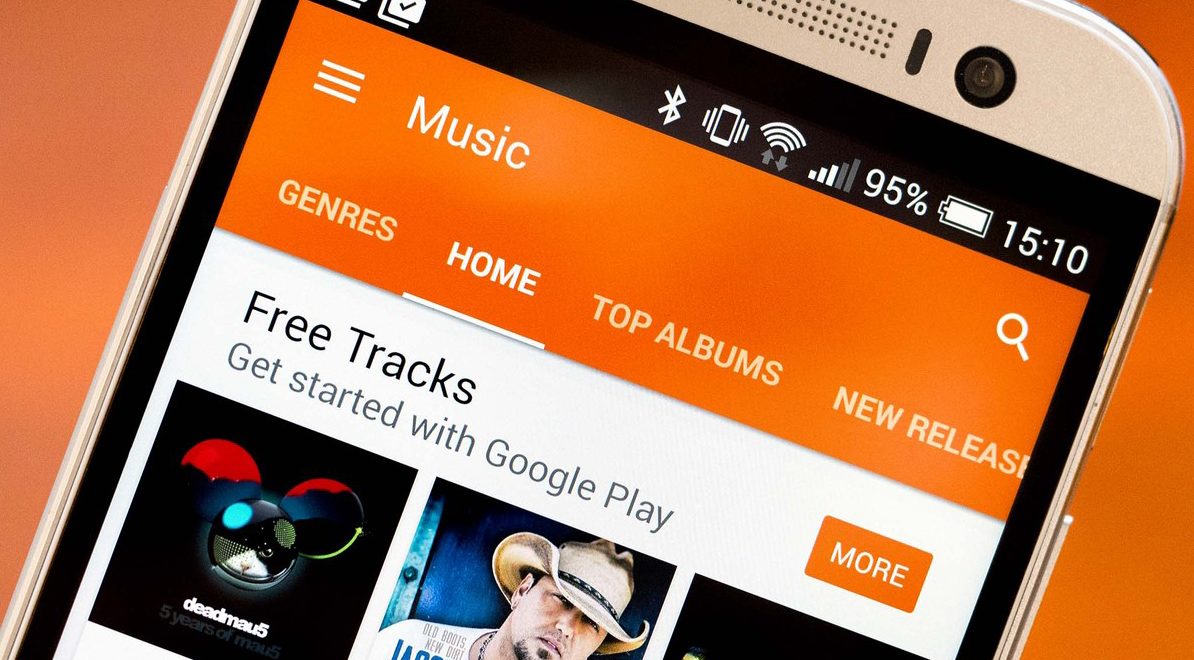
    Music streaming programs like Spotify and iTunes Music have been using your activity to recommend music for a long time. It’s cool to look at your phone to open a playlist and see some relevant artists you’ve never heard before. I’ve discovered some of my new favorite bands that way. Well, Google Play Music is going to be using some new tools to recommend this music and I don’t know how I feel about our kids and teens using them.
    Google Play AI

    The first major new feature is an AI system that is assisting your search in the Google Play store. When you type in a certain search term, your previous searches and the “language” you use to look for new apps will be taken into account while accessing your search results. Pretty complicated, I know, but it’s pretty neat. Basically, if you search for a photos app and you have looked for social sharing apps like Snapchat in the past, it’s going to include apps like that in your results. It will assume your use of the photo app will include social sharing based on your past searches. It may not be long before you have a totally personalized app store based on only your own interests. That’ll be interesting.

    Google Play Music Personalization

    You know that feeling when you walk into work and you just wish you had the right playlist to accompany you? Remember when you got in your car and wanted music but not the stuff you usually listen to, something new, yet perfect (according to someone) for driving? Ya. Me neither but apparently Google Play Music is going to start using location data and previous activity to recommend new music for you in their app.

    Yes, the app could become more customized and even more useful but won’t these changes amplify just how much of your information and activity is being tracked by Google? The app will know what you’re doing, where, and when, and all in the name of giving you some relevant music suggestions. I don’t know about you, but that seems a bit much.

    What Parents Should Know

    settingsI’m all for using a AI to help me have a more intuitive user experience. I even enjoy being recommended new albums to check out. I don’t think, though, that I need to be tracked 24/7 in order to provide me with new, relevant music options. I think we are tracked enough and there has to be a time when we say, that’s enough. Especially for our kids.
    Google Play will allow you to turn off the location history tracking, which I recommend doing on your kids’ phones and tablets. There is a link in the settings menu in your Google Play Music app. You’ll be seeing this update to GP Music this week, so keep your eyes open and go turn off that location history.

  • Amazon is Paying the Piper, or at Least His Parents

    Amazon is Paying the Piper, or at Least His Parents


    We have to protect our children from inappropriate content online but we also have to protect ourselves. Thankfully most developers give us tools to keep us from unexpected content and unwanted charges. We learned today what happens if a developer neglects those protections. They pay.

    Amazon is in the news today for a case that began in 2011. Thousand of parents were shocked to find that their kids had racked up in-app purchases that they hadn’t known about. Amazon made $86 million dollars on in-app purchases but it’s estimated that 42 percent of that was from unapproved purchases made by kids in the app store. The Federal Trade Commission said that Amazon’s system allowed for unlimited charges on apps and the courts sided with them in April of 2016, saying their methods of informing parents of purchases was “not sufficient.”

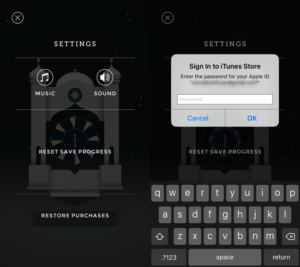
    enter-passwordThe software store on Kindle simply didn’t have a password protection setting for their in-app purchases. This is what got them in to trouble. Children could log in to make purchases on these apps and there was nothing built in to stop them. Shortly after complaints started coming in, Amazon updated software to include a password and had already refunded money but the FTC said that wasn’t enough.


    The courts decided today that Amazon had to pay back the money to parents directly. In order to receive re-payments parents must submit individual claims. They did say that Amazon must notify parents affected of the availability of the refunds.

    My Advice

    I always recommend setting your in-app purchase password and keeping that password a secret. You can’t ever tell when some freemium game is going to convince your child that they need that cool hat for their character or that if they buy that ten thousand pack of rubies they can build their village faster. We have to use our common sense because sometimes our children don’t.

  • Mobile Device Vocabulary Lesson 5: Gaming (2)

    Mobile Device Vocabulary Lesson 5: Gaming (2)


    We’ve made it to our final vocabulary post. We are visiting gaming again. We discussed several gaming terms in lesson one but I thought we should cover a few more in this final vocabulary lesson. These terms have to do with gaming and monetization (a word you learned in lesson 1.) Learning about how money works in the mobile gaming world can really help you understand how game companies market to your kids. If you aren’t subscribed to the site, be sure to register so that you can access all of the great content in this series and so much more.  (more…)

  • Mobile Device Vocabulary Lesson 4: Privacy and Security

    Mobile Device Vocabulary Lesson 4: Privacy and Security


    Conversations about internet privacy and security have been in the news a lot lately. Questions about who has the right to track you on your smartphone and who doesn’t. Terms and agreements that don’t really help you understand how companies use your information once they’ve gained if from your device usage. Below are three common terms that will help you walk through the minefield that is internet security and privacy. Learn what these terms mean so that you can make the right choices for your child’s online safety as well.  (more…)

  • Mobile Device Vocabulary Lesson 3: Messaging

    Mobile Device Vocabulary Lesson 3: Messaging


    Our kids and teenagers are communicating more differently than ever before. The note being passed from desk to desk has been replaced with words typed on a screen. Long phone conversations with friends every evening have given way to short, emoji laced text messages with pictures, videos, animated images, and links to other online content. Communication has evolved, or at least changed and it’s more common than you may have ever imagined. Just look at these statistics from April of 2015.

    73% of teenagers have a smartphone and 91% of those teens text. Teenagers send and recieve and average of 30 text per day. (PEW Research Center)

    More than nine out of ten teens who own a smartphone give and receive an average of 30 text messages every single day. That means, your child texts. The following abbreviations/phrases will give you greater insight to what messenger apps are capable of.  (more…)

  • Mobile Device Vocabulary Lesson 2: Gaming (1)

    Mobile Device Vocabulary Lesson 2: Gaming (1)


    Smartphones and tablets have brought a whole new set of tools to game developers. It’s critical that you, as a parent, understand some of the language used in the descriptions of these games. Since you know your kids you’re the only one that can decide if a certain game is dangerous for your child or not. For instance, our oldest is pretty analytical and has an addictive personality. Because of these traits we are very careful how much time he has in front of a screen, especially in un-controlled, purely recreational activity. We know that he can get obsessive very quickly so we have some pretty strict boundaries on his screen time. Hopefully the following terms (the first three of six gaming terms) will help you better understand some game descriptions so you can pick the right ones for your kids.  (more…)

  • Mobile Device Vocabulary Lesson 1

    Mobile Device Vocabulary Lesson 1


    Lesson 1 – Why you should know this basic Mobile Device Vocabulary

    To handle a language skillfully is to practice a kind of evocative sorcery.  – Charles Baudelaire (Poet)

    Working with digital devices requires the knowledge of a certain language. If you understand what certain words mean you are able to know what is happening in a certain device with just a glance. As parents, it is imperative that we can understand the activities our children are engaging in on their smartphones, tablets, and computers. This is why the thirteen words in this tutorial, of sorts, will be so powerful in your hands as a parent. (more…)

  • Your Family Device Security Checklist

    Your Family Device Security Checklist


    There are many steps to take in order to start protecting your family online. Below is the checklist from our book What’s in Your Pocket? (more…)

  • How to Find Your Operating System

    How to Find Your Operating System

    Excerpt from our book, What’s in Your Pocket?

    Finding your operating system is the first step to protecting your children online. Follow the process outlined for your device below to learn how to lookup the controls tutorials that meet your needs.  (more…)