Tag: operating system

  • Family Link’s New Features are Great but Still Not Good Enough

    Family Link’s New Features are Great but Still Not Good Enough

    Android has updated their Family Link parental controls feature. The above video will take you though what they’ve done and give you some questions to ask yourself about using the service.

    Make sure your device is compatible.

    The site is very clear that Family Link is only compatible with newer android devices. Go into the settings on your kid’s device and tap the ABOUT button in the menu to see if your software version is 7.0 or newer. If it isn’t your child may not be able to install Family Link which will mean you can’t use the software to set limits and restrictions.

    Double check their privacy policies.

    COPPA regulates the collection of children’s data without parent permission. You have to create an account for your child to use Family Link and to do that you must give permission for Google to collect some of their data. The video explores a bit more of what information they can collect and what they do with that data.

    Be aware that your kids get full control at 13.

    If you are one that wants to be able to see what your older child is doing on their device you’ll have to use the child’s phone to adjust parental control settings with Family Link as control is shifted to the child at age 13.

    Do your homework!

    As I mention in the video above and the podcast episode below, you need to familiarize yourself with the benefits and limitations of Google’s Family Link software. Visit families.google.com to see their information about it and check out our other articles and videos about Family Link as well. You can never be too informed.


  • PODCAST: 2017 in Review and What’s to Come in 2018

    PODCAST: 2017 in Review and What’s to Come in 2018

    Exciting new things coming in 2018 for BecauseFamily. This episode rounds out the rest of 2017 and gives you a heads up as to what to look out for in the coming year.

    Social Media Links

    Facebook: http://facebook.com/4pointfamilies
    Instagram: http://instagram.com/becausefamily
    Twitter: http://twitter.com/becausefamily

    Newsletter Signup

    Ministry Updates:: http://eepurl.com/R7Btr
    Weekly Blog Posts:: http://eepurl.com/cvnhXD

    Websites

    Ministry Site:: http://becausefamily.org
    Tech Blog:: https://safe.becausefamily.org
    Michael’s Speaking Info:: http://kmichaelprince.org

    Donate and Affiliate Links

    http://BecauseFamily.org/partnership

  • New Operating Systems Coming for iPhone and Android

    New Operating Systems Coming for iPhone and Android

    The last few weeks have been loaded with updates from the two major tech brands in the industry. Google’s I/O event was May 17-19th and they had some major announcements including virtual reality, augmented reality, and a brand new operating system for Android, Android O. Apple’s Worldwide Developer’s Conference (WWDC) was this week, June 5-9th, and they’ve made similar announcements including a new version of their smartphone operating system that they’ve branded iOS 11. These two new systems will run the majority of the newer phones and tablets being released so it’s important to understand what each is offering. Here’s a rundown:

    Android O

    Android’s newest system should be made public this Fall. The most significant features are design changes in the Settings Menu and User Interface (UI.) Many of the smaller changes are things users won’t notice such as changes in how the OS will handle security and background operations, as well as channels or categories for notifications. Also, picture-in-picture support, notification badges that will appear on app icons, and better bluetooth support will definitely be features that makes Android O a step up for it’s users.

    iOS 11

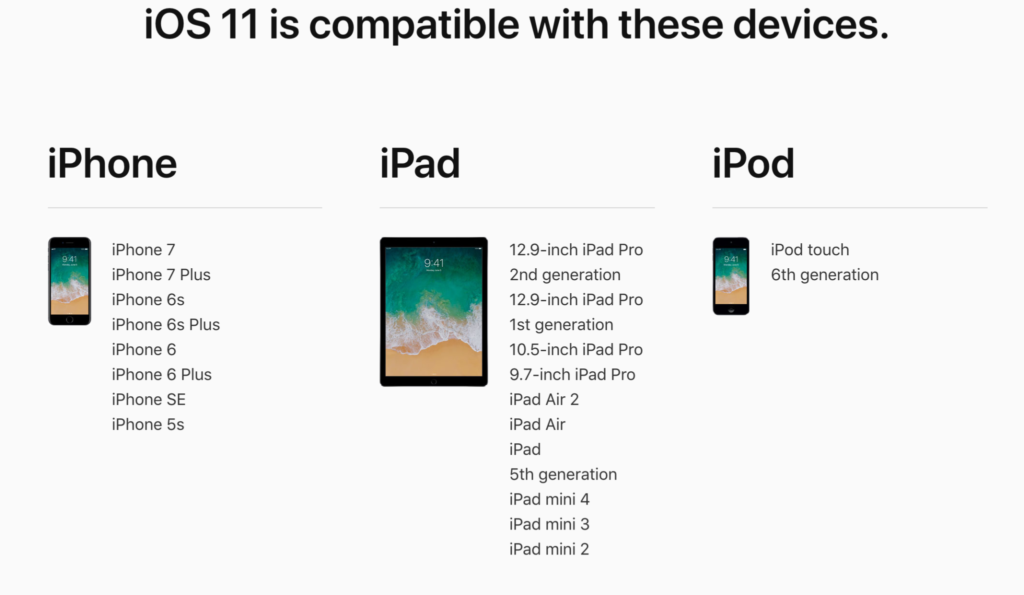
    A new dock, multitasking with drag and drop, a files app, and better Apple Pencil support make iOS 11 a major upgrade for iPad. iPhone users will notice more apps in messenger, an app store that looks and works completely differently, and a new and improved Siri, including a new voice. The control center, the lock-screen, notifications screen, maps, Apple Music, and AirPlay are all getting improvements as well. iOS 11 is also slated to release this fall.


    What Parents Should Know

    There haven’t been any announcements on Parental Control improvements for either of these operating systems. When the test version of iOS 11 is released I’ll be giving it a full look-over and writing a review for you. One thing that parents will enjoy from iOS 11 is the ability to turn on an automatic Do Not Disturb while driving. The phone will sense your movement and speed and automatically silence any notifications until you’ve stopped. This will be a good way to keep your older kids safe while they are on the road. As for Android, they recently put out a new Parental Control option for their OS and it’s proving to be a pretty good setup. It’s only available on newer devices, however, and we still don’t know what changes have been made for when Android O is released.

    I always recommend keeping on top of updates when they are made available. Both of these new Operating Systems should be available this fall and you should be sure, if your devices are compatible, that you’re upgrading soon after release.  This isn’t just important to get any of the new features but also because security and privacy updates come with these new systems. The apps you use, including the ones you use for internet safety and monitoring will update to keep up with the latest software and if your devices are behind you’ll start to see holes in your security. Keep your eye on the update section of your settings menu and when it shows that a new version is available you should install immediately. You can also keep checking in to this site as I will keep you informed on the latest releases as well as how they can affect your family.

  • PODCAST: Date Night Monkey Business

    PODCAST: Date Night Monkey Business

    Amazon is changing the parental controls game, Instagram has 200 mil users, and MONKEY is a hotbed for predators.

    FAMILY TECH WEEKLY EPISODE 3

    Social Media Links

    Facebook: http://facebook.com/4pointfamilies

    Instagram: http://instagram.com/becausefamily

    Twitter: http://twitter.com/becausefamily

    Newsletter Signup

    Ministry Updates:: http://eepurl.com/R7Btr

    Weekly Blog Posts:: http://eepurl.com/cvnhXD

    Websites

    Ministry Site:: http://becausefamily.org

    Tech Blog:: https://safe.becausefamily.org

    Michael’s Speaking Info:: http://kmichaelprince.org

    Donate and Affiliate Links

    http://BecauseFamily.org/partnership

    Music by incompetech.com

  • Do You Really Own Your Phone?

    Do You Really Own Your Phone?

    The ordeal with the exploding Galaxy Note 7 has brought about an interesting topic as of late. In case you’re a bit behind, I’ll remind you that early in 2016 some Samsung Galaxy Note 7s began to explode. The phone was recalled and many people began to return it for a replacement. Many, however, did not. In order to increase the number of returns Samsung started to roll out updates to the operating system that would eventually render the phone ineffective. The idea is that if phones wouldn’t charge all the way, or eventually at all, then users would have no choice but to turn the phone in and get something that wasn’t just screaming POTENTIAL LAWSUIT for Samsung. This is what started the conversation about who owns the phone we paid for and use every single day.

    The Phone is Yours, Sort Of…

    We pay good money for our smartphones. iPhones can cost up to eight hundred dollars when first released and the cost of a good Android phone is comparable to that. Since we pay so much it stands to reason that we should have complete control over what happens to and in our phone. The truth, though, is that we don’t. In fact, we sign away that right when we purchase, or now lease, our smart device. The terms and agreements page that we sign without reading spells out the fact that the physical device we just bought belongs to us but the software that makes it more than just plastic, glass, and metal, still belongs to the company that developed it.

    This is why Samsung can “brick” a phone with software updates in order to get people to bring them back. They can’t require you to physically bring your phone back because they want it back but they can make it so useless that you can’t stand to use the thing anymore. If it has any use anymore at all. Technically you are using software that belongs to someone else because they allow you to. That doesn’t stop with operating systems, it goes for the apps you download too.

    Here Come the App Police

    Twitter has been flexing their “terms and agreements muscles” recently as they try to crack down on bullying and abuse in their popular social media site and app. Some of their most recent changes include adding the ability to explain why you’ve blocked a user or hidden a post on your feed. With an even larger step, Twitter is using algorithm and moderators to recognise users of previously banned accounts and keep them from setting up a new account to continue their abuse. These steps and some more they’re not being as open about may seem controversial to some but they are definitely allowed under the terms you agreed to when you signed up to use their service.

    What Parents Should Know

    There are a couple of major ways that the ownership of our digital devices is an important topic for parents to understand. First of all you must know that the use of any software, be it an operating system, an app, or computer game, is considered a privilege given to you by the developer of that software. Even if you paid for the right to use it. Your kids need to understand that behavior contrary to what is acceptable in those apps or software can cause them to lose the ability to play or use the software anymore. Secondly, it’s important to update your device when an update becomes available. While it may seem like recent updates slow down your phone or cause other apps or software not to work properly, the developer created that update for important reasons. Security is a major reason that updates come as frequently as they do. Hackers or identity thieves are always working to find ways to sneak through security settings set up in your phone or computer. Updates by the developer allow them to keep up with the new ways those hooligans have discovered to breach your digital defenses.

    Be sure your kids and teens understand that the digital lives we live are a privilege. There are right ways to use our smartphone and wrong ways. When their account is banned in an app it happened for a reason. This means you should be having a conversation with them about what led to that action being taken by the developers of the app. Was it because of other users “flagging” him for his posts? Was there something she posted that she admits crossed the line and caused her account to be shut down. This DOES happen and should be taken very seriously. There are some online behaviors that are as illegal as anything you can do offline. One major example is the distribution of child pornography. This is a felony and punishable by years in prison and the remainder of your life labeled as a sex offender. Sexting, or sending a nude picture of yourself or someone else, if you are under eighteen years old is considered distribution of child pornography. The activities we are involved in online have very real consequences. We may own the device we use but we have agreed to use them in a certain way, and if we fail to meet those standards the privilege can, and will, be revoked.


     

  • The Only Safe Way to Give Your Child an iPad and Walk Away

    The Only Safe Way to Give Your Child an iPad and Walk Away

    Small Kids Need Internet Safety Too

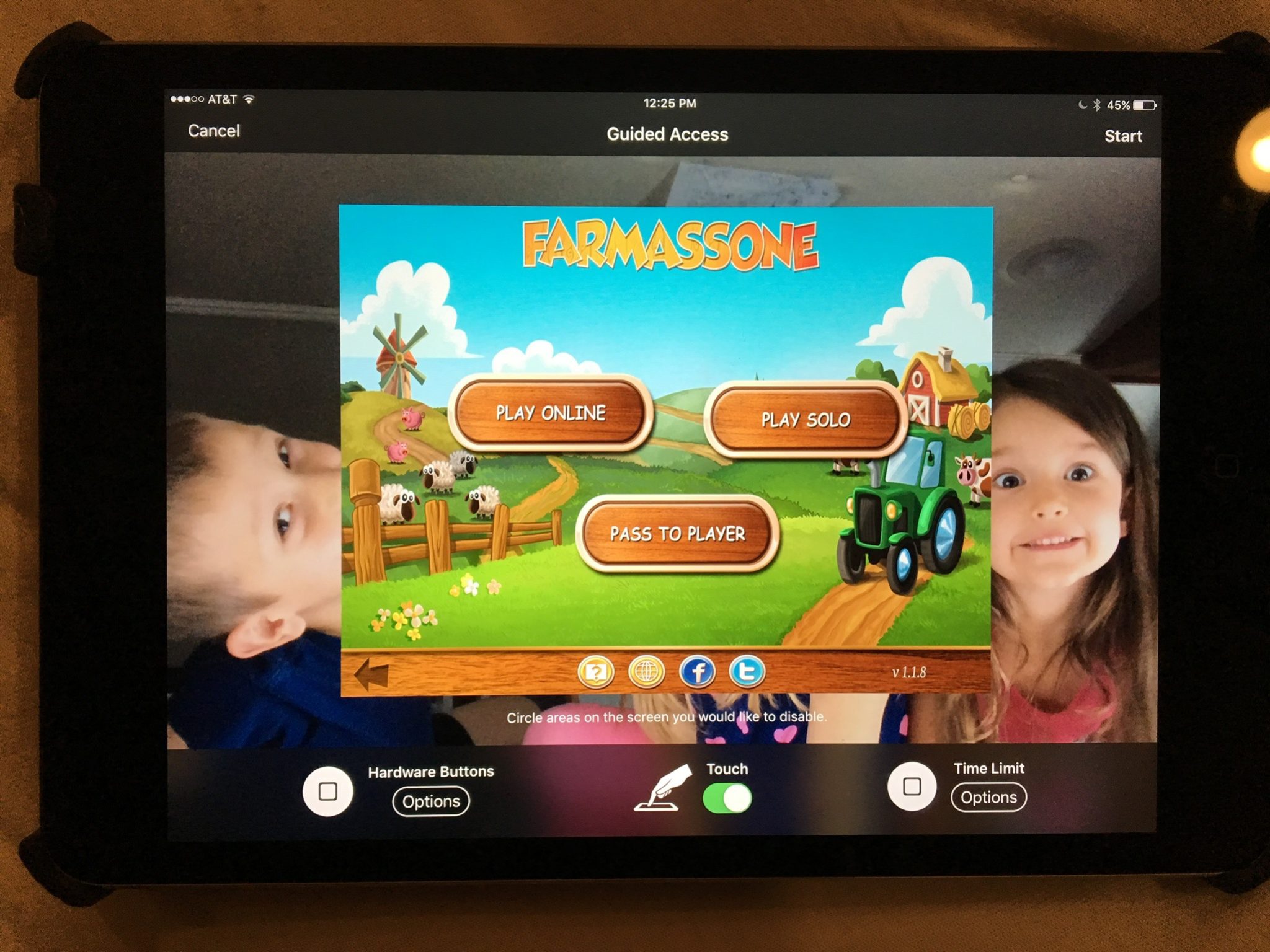
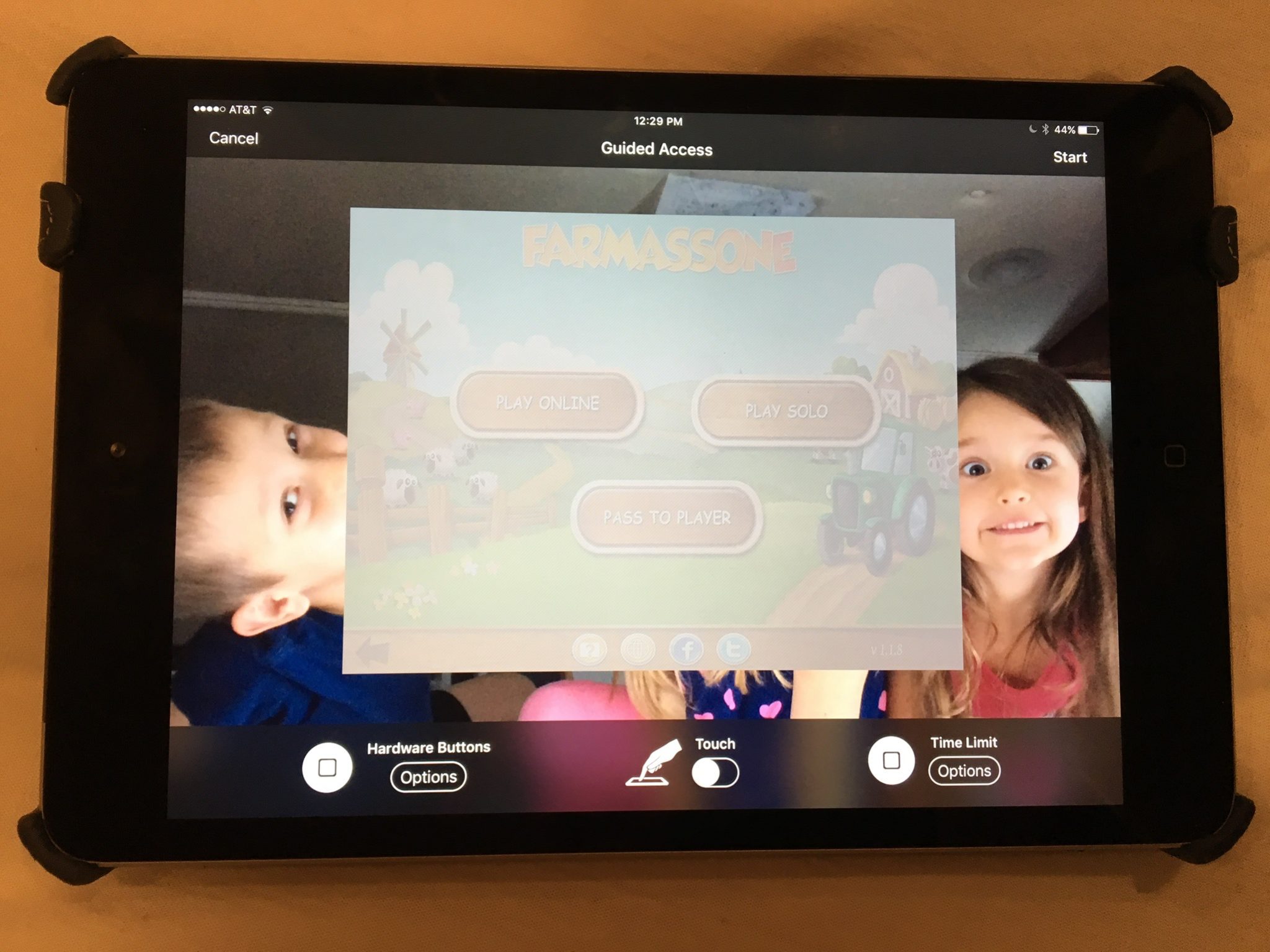
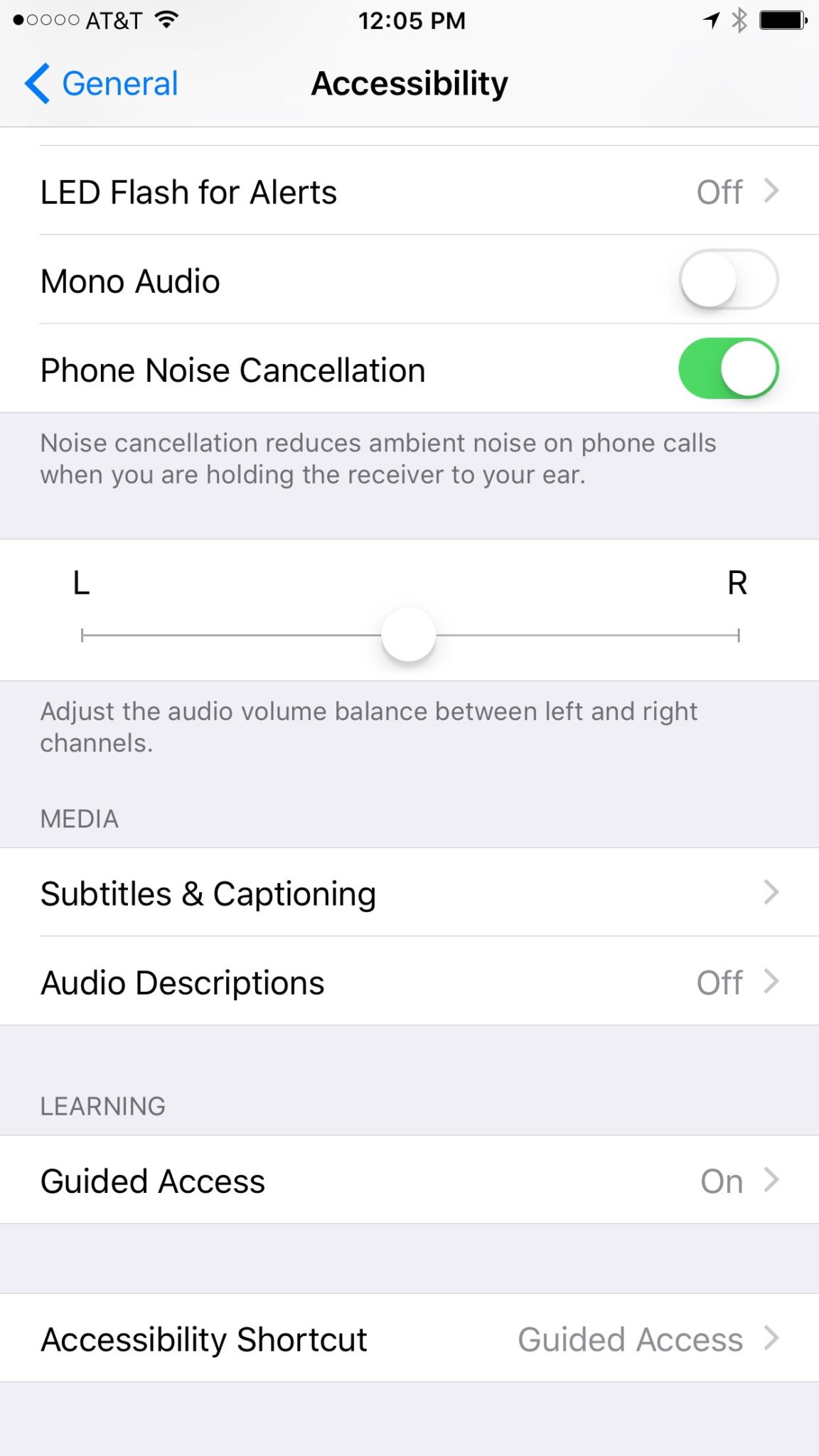
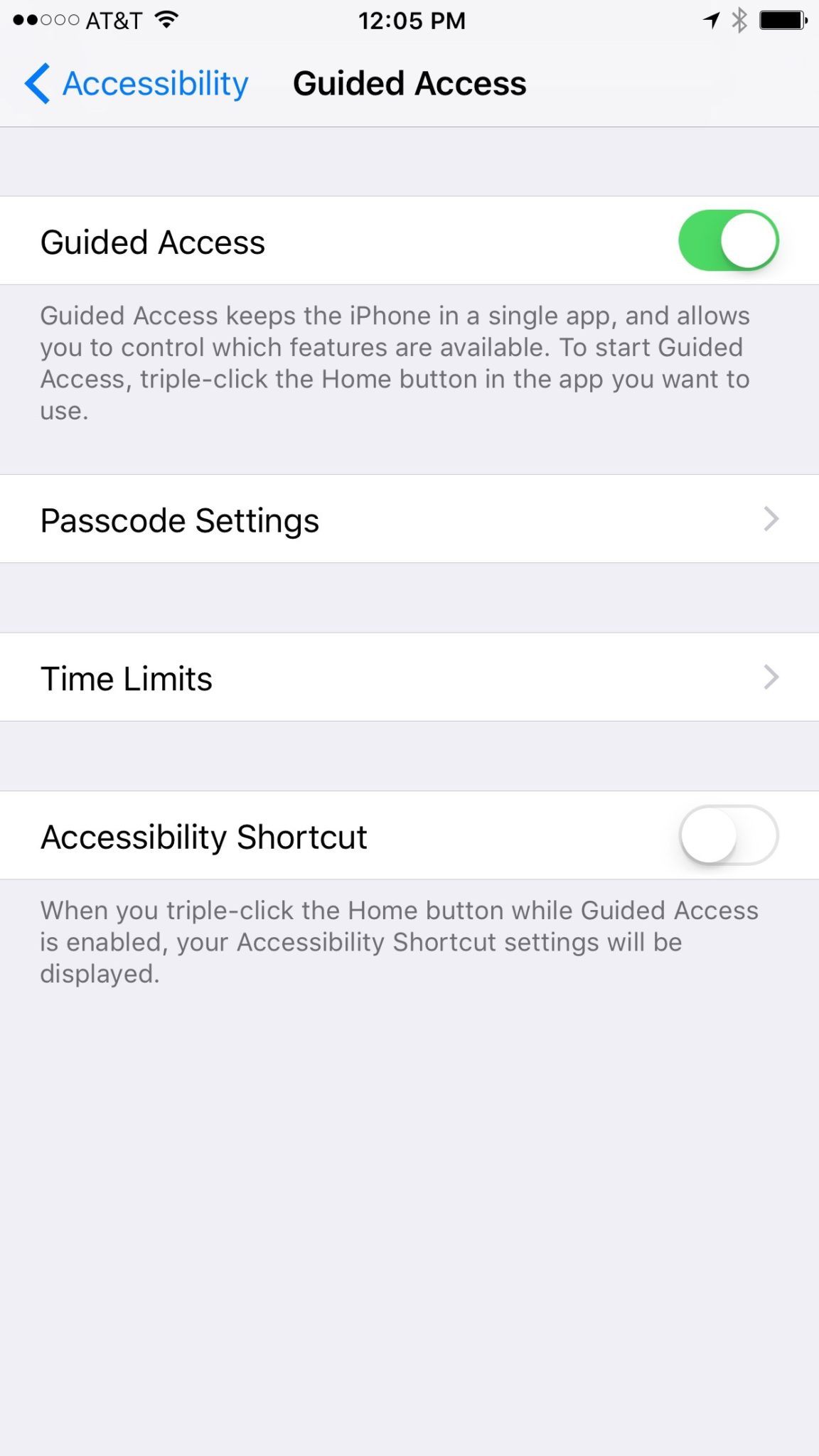
    Those of us with smaller children are often less concerned with them looking for something inappropriate online but we want to protect them from seeing something unintentionally. Apple’s iOS devices have a feature built in called Guided Access just for that purpose. This setting will lock your iPhone or iPad to one app disabling the home, volume, and lock buttons. This is a great feature if you’re wanting to allow your kids to use an app but don’t want them to look around on other parts of your phone.

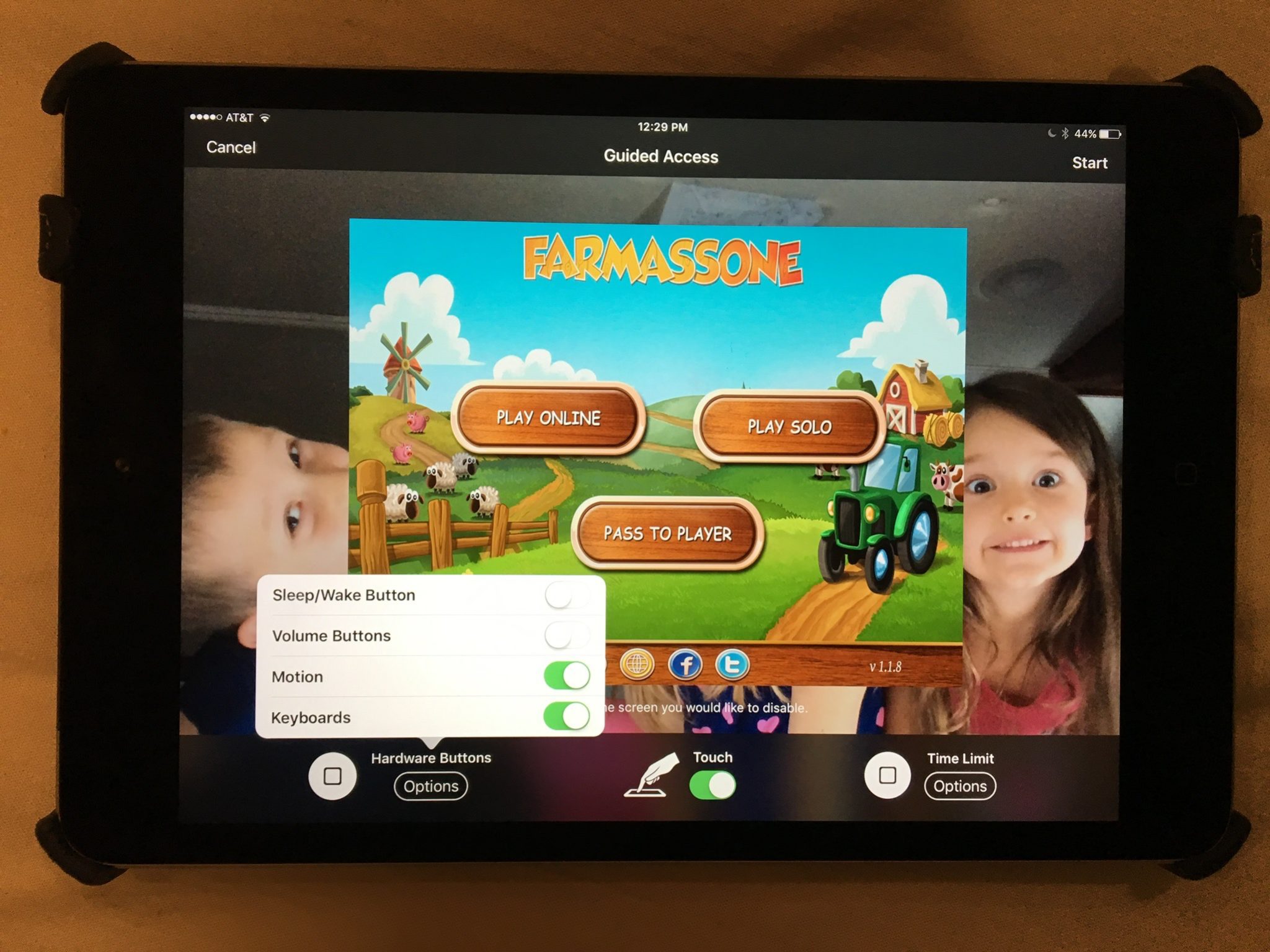
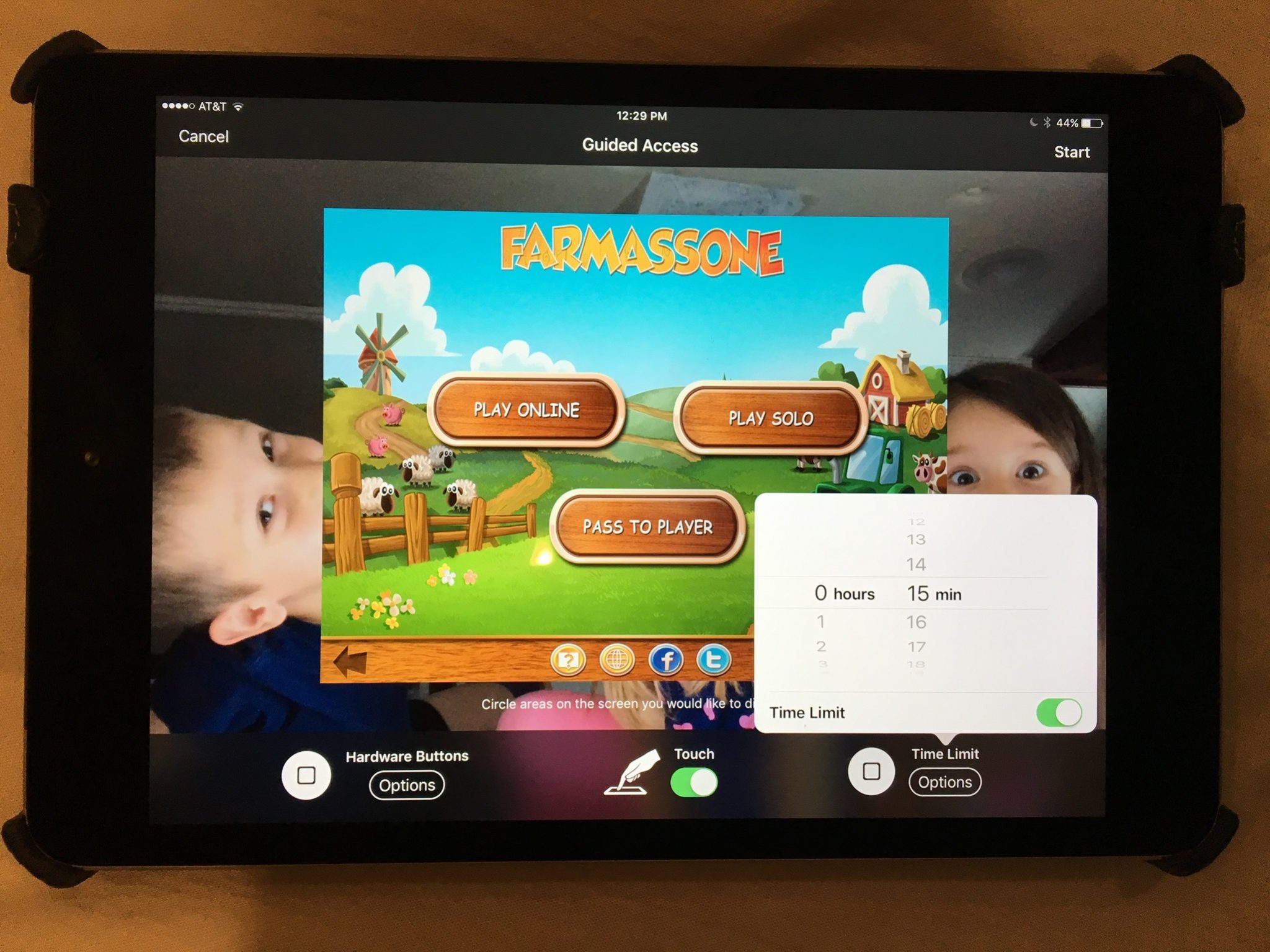
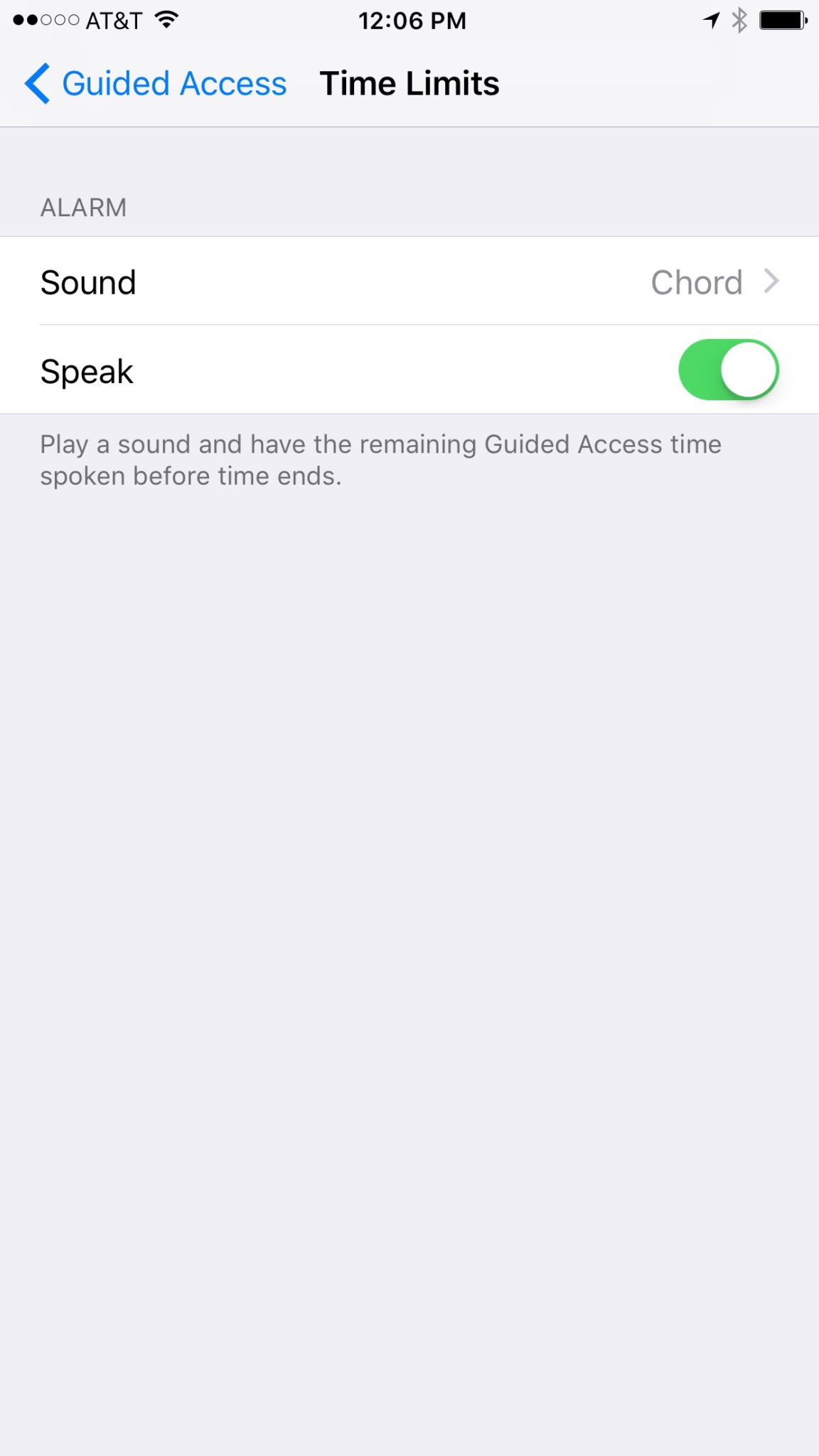
    You may have known about Guided Access for a while but if you haven’t looked at the settings recently you may be surprised at some of the new options that are available. You can turn off the sleep button, turn on the volume buttons, lock the motion (whether the screen rotates when you turn it,) turn on and off the keyboard, touch screen, and time limits. All of these settings are really helpful to customize the guided access for each app you allow your kids too use based on their age and ability to use the iPhone/iPad.

    (*Settings look different on iPhone but they work the same.)

    For example, my two year old likes to mess with the screen while he’s watching something. (He even touches our TV screen if he’s allowed to sit close enough.) This would cause the show to pause or skip or back out of the episode entirely. If you turn off the touchscreen it doesn’t matter what he does, it won’t change the show. Now, of course we are trying to teach him to leave the screen alone but this is helpful while he’s still a defiant little two year old “cutie”. For our older kids we will lock into their school apps so they can’t back out and play Lego Star Wars or something. We also use the time limit extensively, they don’t have their own devices so this helps us make them take turns.

    What Parents Should Know

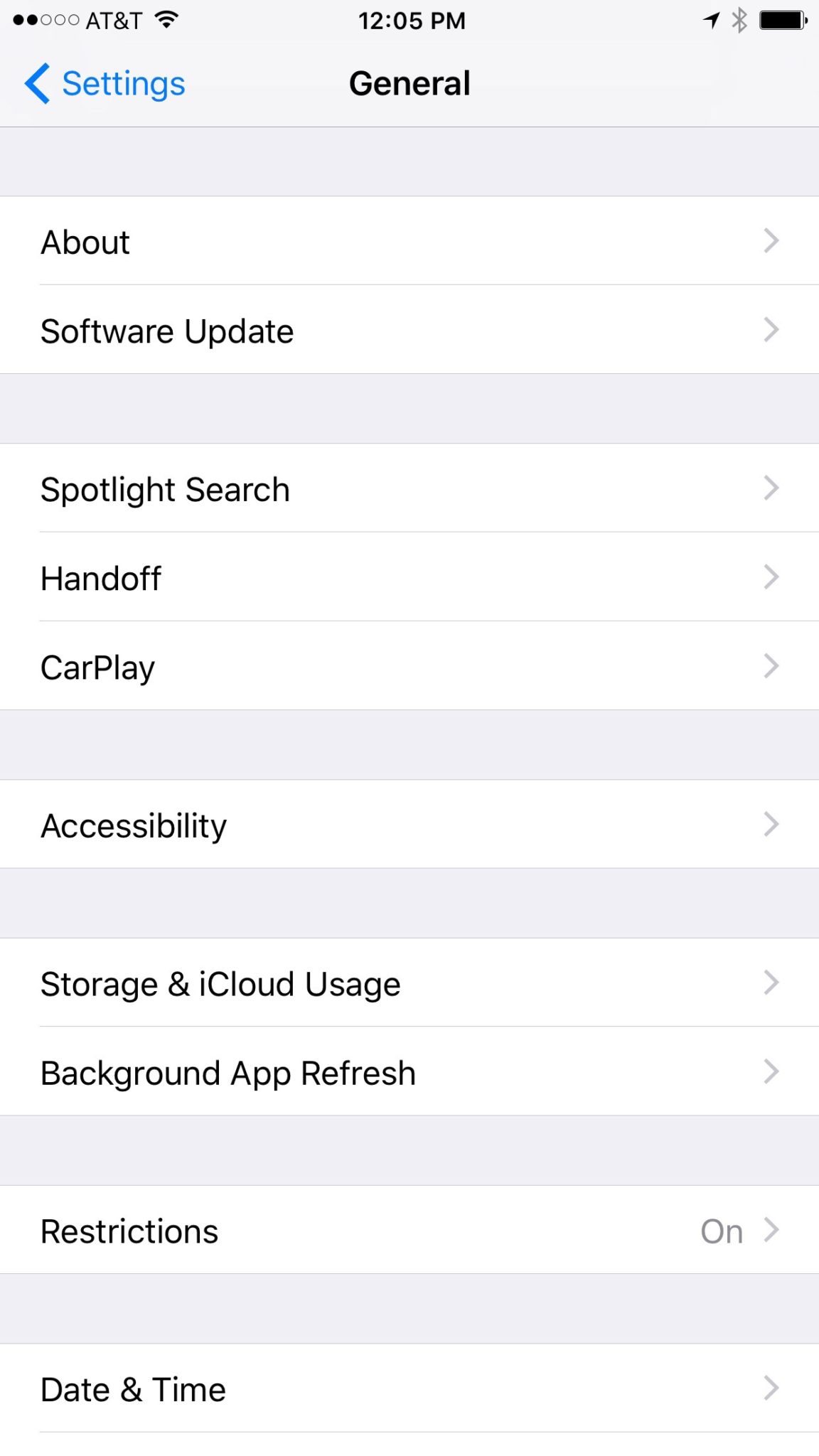
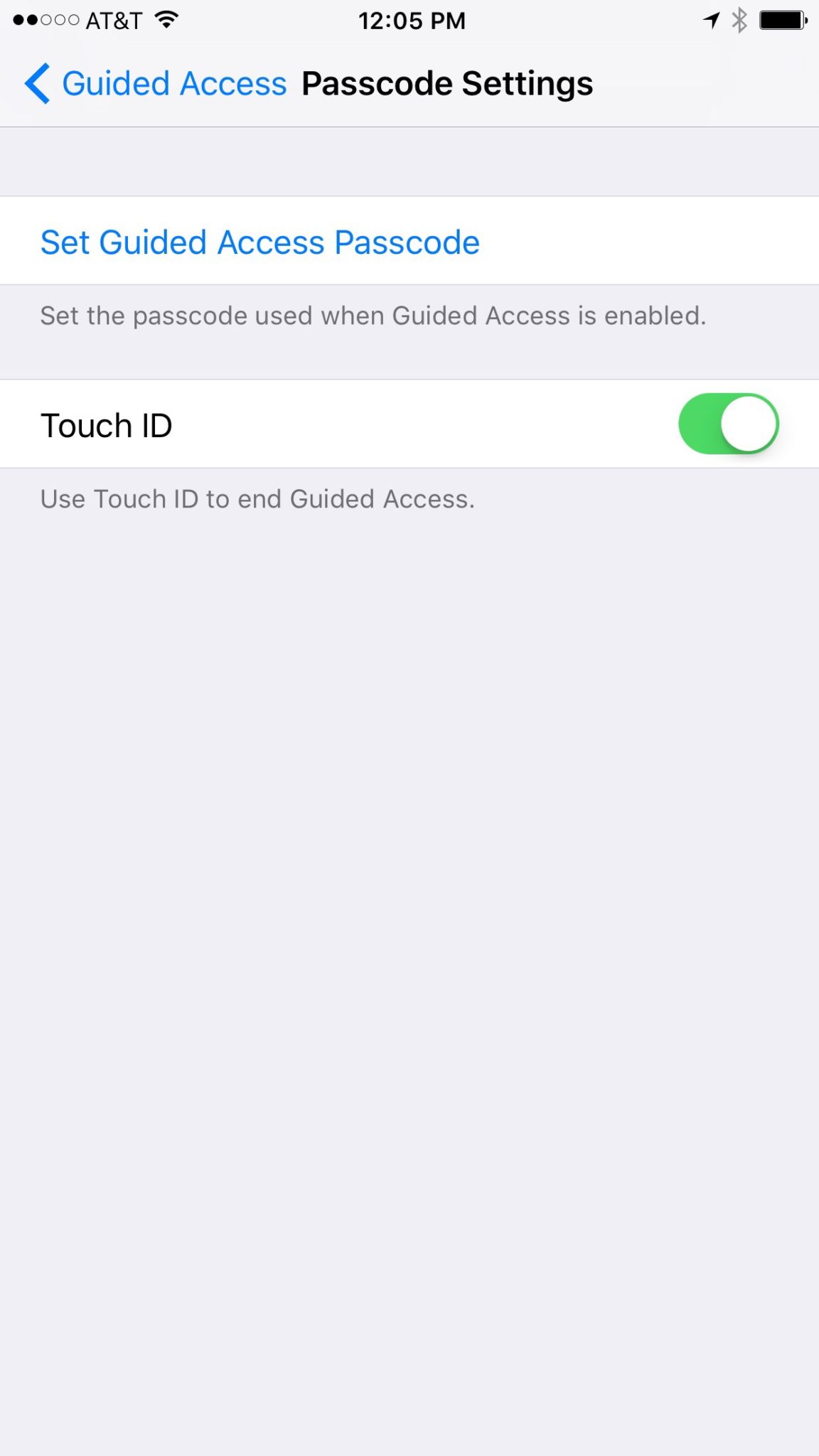
    You should know how to set up Guided Access. (See the slideshow below) Use it for, especially, your younger kids. Keep them away from apps that will link to the internet. Also, you can draw on areas on the screen to keep them from tapping there, this will keep them from tapping ads or the parental control settings button. We are learning that our kids benefit less and less from using screens but if we are going to give them the privilege it’s important to do it safely. You may give them your iPad or iPhone with an app that is safe for them but if they can back out of it and open something else you’re not doing them any favors. Guided Access gives you some peace of mind, knowing that you can protect them while they are on that device and you don’t have to be looking over their shoulder the whole time. Use the slideshow below to help you set up Guided Access and if you’d prefer a video, check it out here.

  • Your Device May Not Have Parental Controls 

    Your Device May Not Have Parental Controls 

    Setup is Key

    In every Digital Boundaries Workshop I do I encourage parents to set up the built in parental controls on their devices. I’ve now been in several homes to do these setups for them and I’ve noticed a troubling trend. Many of the devices kids are using don’t have any parental controls built into them. That’s right, you should check out your phone and check the operating system because on many of them there is no way to setup filters or monitors of any kind.

    Android before Jellybean

    Android phones have no family safety settings before version 4.2. If your Android phone or tablet is running something older than 4.2 (Jellybean) then you have to install a third party software like Parental Control or NetNanny.

    Windows Before 8

    Many Windows users delay the upgrades of their PC for one reason or another. If your PC is running something older than Windows 8 you won’t have a built in parental control option and you’ll need to run separate software. My recommendation is K9 or NetNanny. K9 is free and a pretty good filter with some customization options but it’s not the absolute strongest filter and doesn’t have a lot of support. Also, the “backend” controls on it can be a little out of date and tough to understand. NetNanny is a “whole page scanning” filter that protects you from a proxy and has some easy to understand controls. You can use THIS LINK to sign up for NetNanny and help BecauseFamily out with a little kick back.

    iPhones and iPads Should be Good

    Apple introduced parental controls on the mobile device when they launched iOS3. Almost every iPhone or iPad will have parental controls built in but if they don’t NetNanny is a good option for those too.

    Update Your Software or Upgrade Your Device. 

    Your best option is to keep your technology updated. If you’re running a PC and it meets the requirements you should upgrade to the latest operating system. The parental controls alone are worth the time it takes to learn some of the nuance of the new user interface. If your devices are too old to upgrade and you don’t know how or want to install new software you need to sell that device on eBay (probably for parts) and upgrade to something new. 

    Parental Controls is Step One

    Using parental control software to protect your children is step one of internet safety. I highly recommend finding out what’s available for your operating system and setting that up. If you need to install something else then don’t be afraid to invest in a software that will protect your kids at the level you need. Obviously you’re going to have different needs if your kids are young and you want to keep them from finding something on accident than if you have a child who has been sneaking around online. Know what it is you need, know what your technology offers, and then act by setting something up or installing something new.


  • DirecTV NOW is Not Family Friendly Yet

    DirecTV NOW is Not Family Friendly Yet


    It’s the future! I have been saying for years that paying for cable tv service is ridiculous. What if I could just stream the channels I want and not have to buy a whole package of useless Home Improvement and Movie Channels? Well, they aren’t exactly there yet but DirecTV is getting closer with DirecTV NOW.  AT&T announced yesterday that they’re offering a television streaming service called DirecTV NOW; it’s available for purchase in bundles starting today, November 30th.

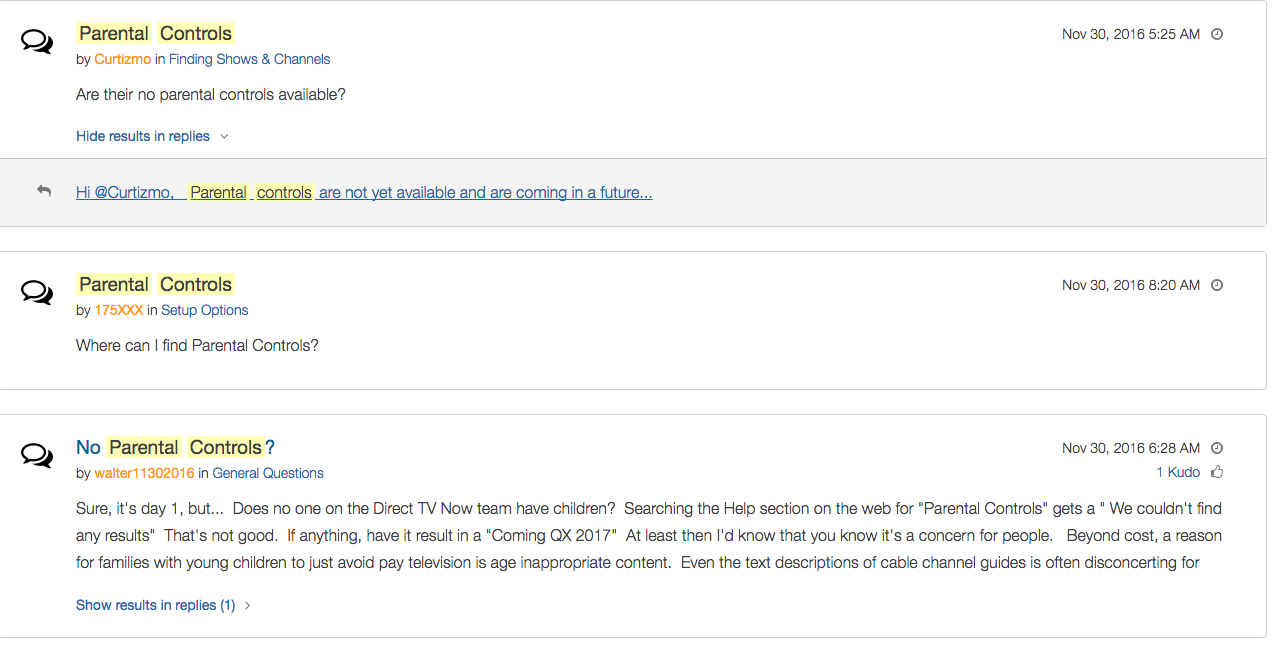
    Yes! It’s exciting to see that our TV options are expanding and even keeping up with the times a bit more. With ChromeCast, Apple TV, RoKu, and mobile access available we are finally being offered a version the tv service we wanted. Unfortunately, however, after some time with my free trial I have noticed that there is absolutely no parental control options built in for DirecTV NOW. I looked at the menus and in my account settings (there’s no option to create separate profiles, i.e. a kid profile, either.) I also tried to find a “block” option per channel to no avail. Then, a search for “parental controls” on the support and FAQ page led to no results and that was pretty much my final clue. There is currently no way to protect your kids from unwanted content on DirecTV NOW.

    That’s a deal breaker for me, especially with so much of what has become acceptable on cable television lately. Sexual activity, language, and increasing violence are mainstays in both broadcast and cable television shows. Even the commercials seem to highlight all of the features we would like to protect our young children from. I guess “keeping up with the times” comes with its costs as well.

    What’s a Parent to Do?

    screenshot-2016-11-30-12-15-35I would say wait. Just wait for a while and I’m betting we will see parental controls rolled out on DirecTV NOW before too long. In fact, a quick search on the AT&T Community Forums showed several concerned parents had already begun asking about this feature and it’s in development.

    DirecTV NOW looks to be a great way to save some money while still getting the entertainment content we want. Thankfully parental controls and content restrictions are becoming commonplace these days and this will be no exception. It is literally “day one” for this service so we’ll give them some time and the benefit of the doubt. You can join the future too if you’d like, I would just recommend keeping your kids off of it until you can set up some restrictions. 

  • VIDEO: FACEBOOK LIVE Q&A

    VIDEO: FACEBOOK LIVE Q&A


    Circle, Accountable2You, YouTube Kids, Young Kids and Internet Safety. All this and more in this Facebook Live video. This #givingtuesday live video was a great way to meet parent’s needs right where they are. Be sure to visit BecauseFamily.org/partnership to learn more about donating.


  • Firefox “Focus” Private Browsing Poses a New Risk for Your Kids

    Firefox “Focus” Private Browsing Poses a New Risk for Your Kids


    Private browsing has been around for a long while now.

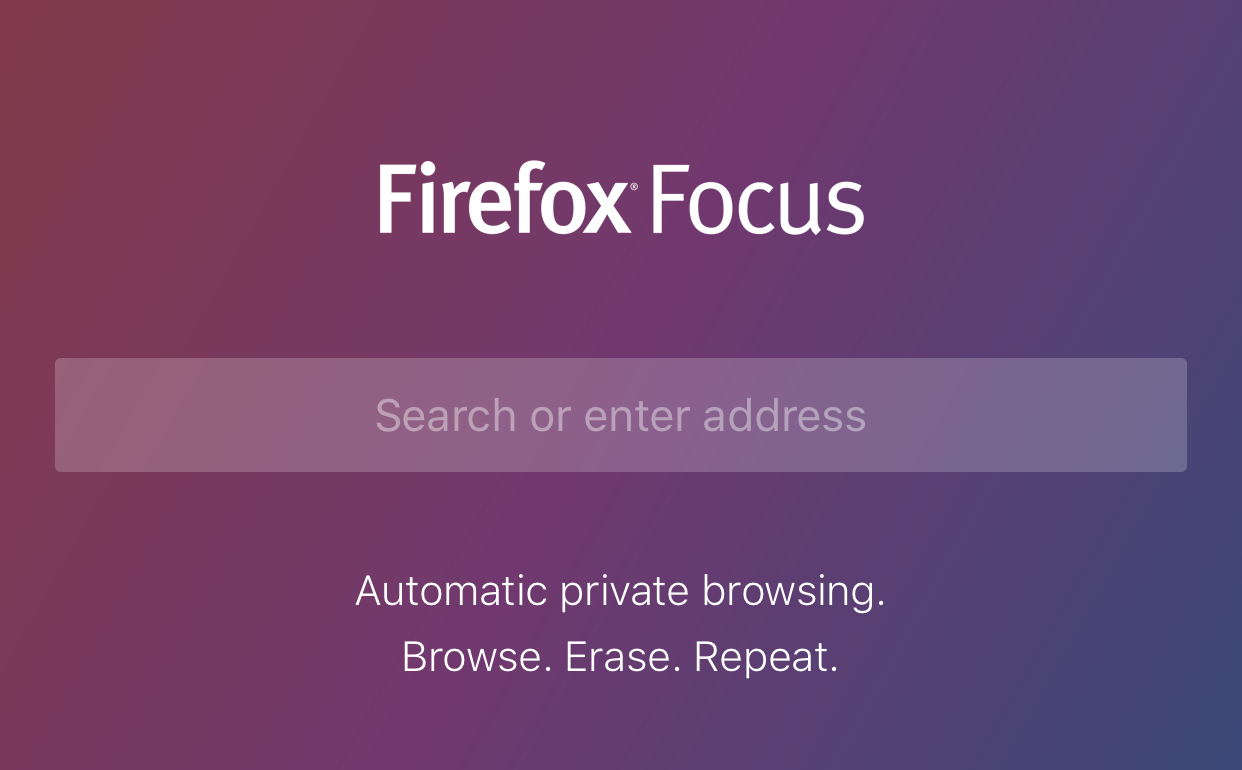
    Whether incognito mode, private mode, or InPrivate, there has long been a way to visit whatever sites you’d like without worrying about being tracked or accumulating a history of sites visited. Mozilla has released a new browser called “Focus” that is designed to allow users to browse privately. The idea is to keep advertisers from storing information on your computer or phone and using it to target their ads while you surf the internet. This can be a good thing, but it’s important to understand some risks involved with private browsing.

    Focus is designed to block ad trackers, analytics, social trackers, and can seek out and block other trackers as well. It can also integrate into Safari on ios (the ios standard browser) and Firefox on your computer. After downloading the app you just open it and begin browsing, searching (on Yahoo,) or surfing as needed. There are no extra tabs or any bells and whistles at all but when you are done you just close the window with the “Erase” button and start again at the first screen. All the data is gone at that point. Like you were never there.

    What Parents Should Know

    focussettingsWhile I am all for the battle for internet privacy and freedom from being tracked by marketers, private browsing presents a major problem when trying to protect our kids from inappropriate online content. Keep in mind that a popular name for private browsing is “Porn Mode.” The ability to view sites without anything being stored on your computer, including a history of your surfing habits, is, of course, a way for our kids to view adult content without us knowing.

    Part of setting protections for your kids on their smartphone or tablet is turning off the ability to install a different browser. If you have installed an accountability or filtered browser then a new way to surf the web will completely undermine your attempts to protect them. While on the computer, filters like NetNanny will continue to block sites and accountability software such as Accountable2You will continue to report (though, with less detail) inappropriate activity. Even in private mode. While on mobile devices, however, especially ios devices, the accountability and filter app should be the only browser available to our kids.

    Learn more about privacy and security from our Mobile Device Vocabulary Series.