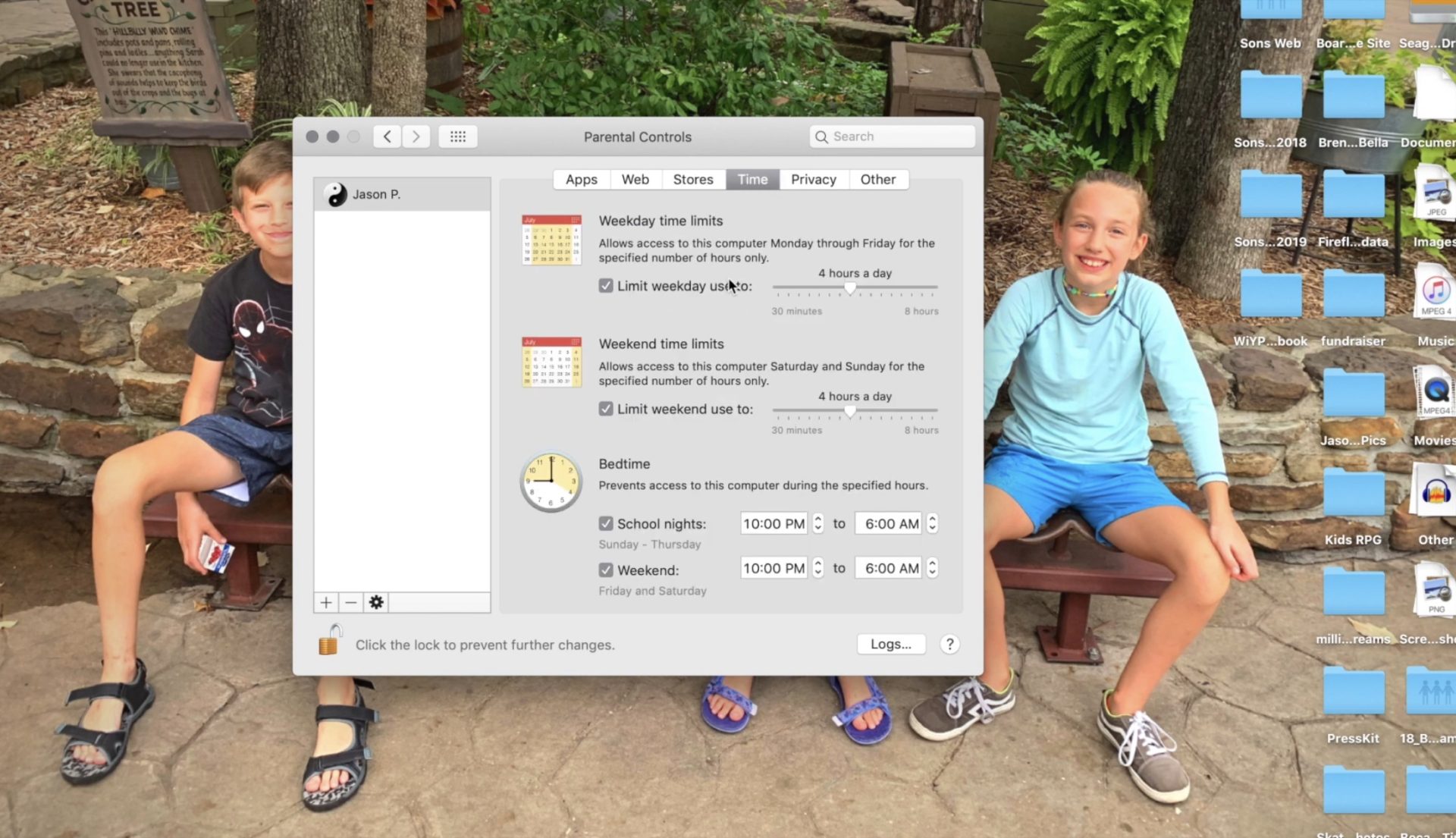
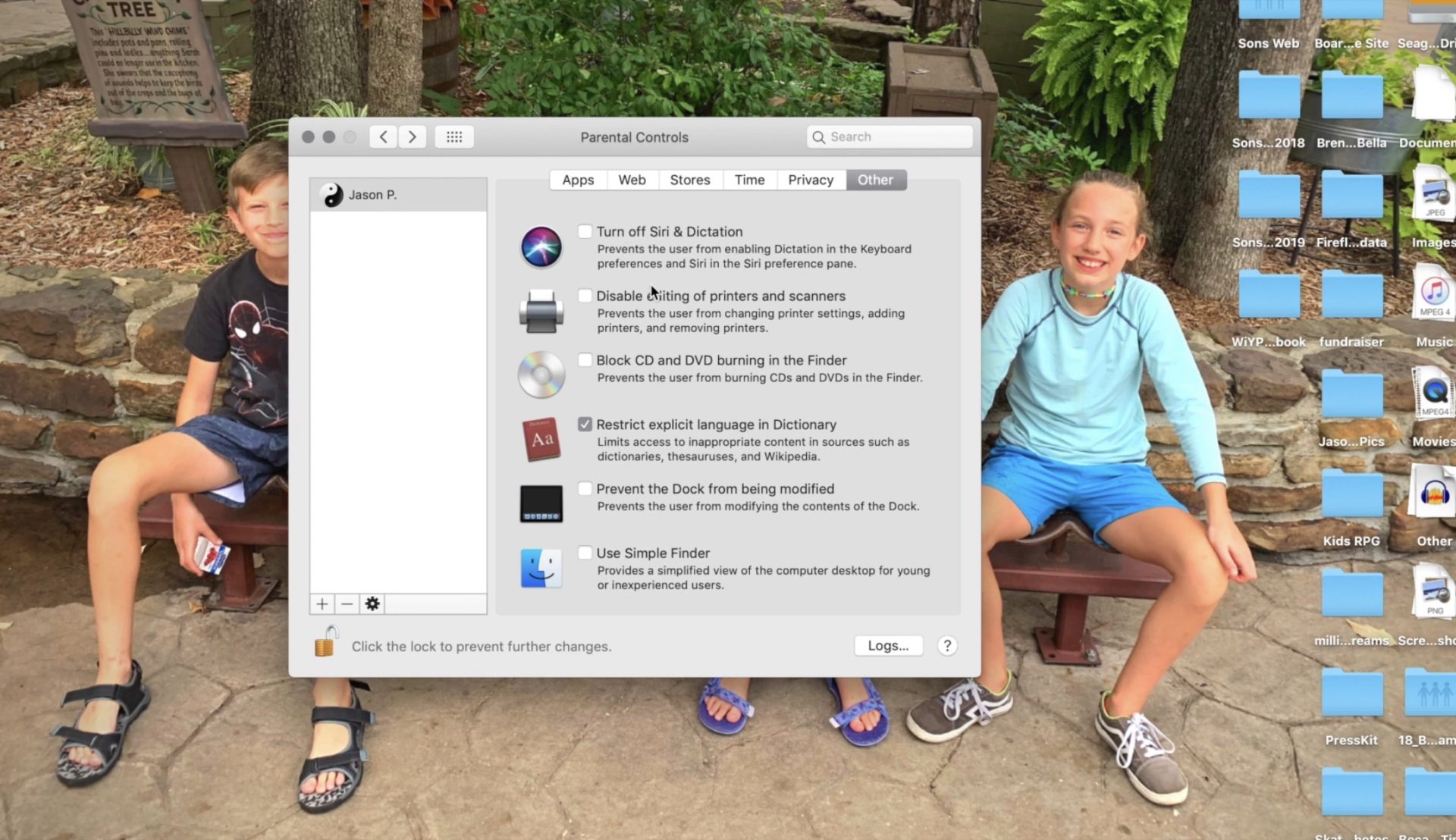
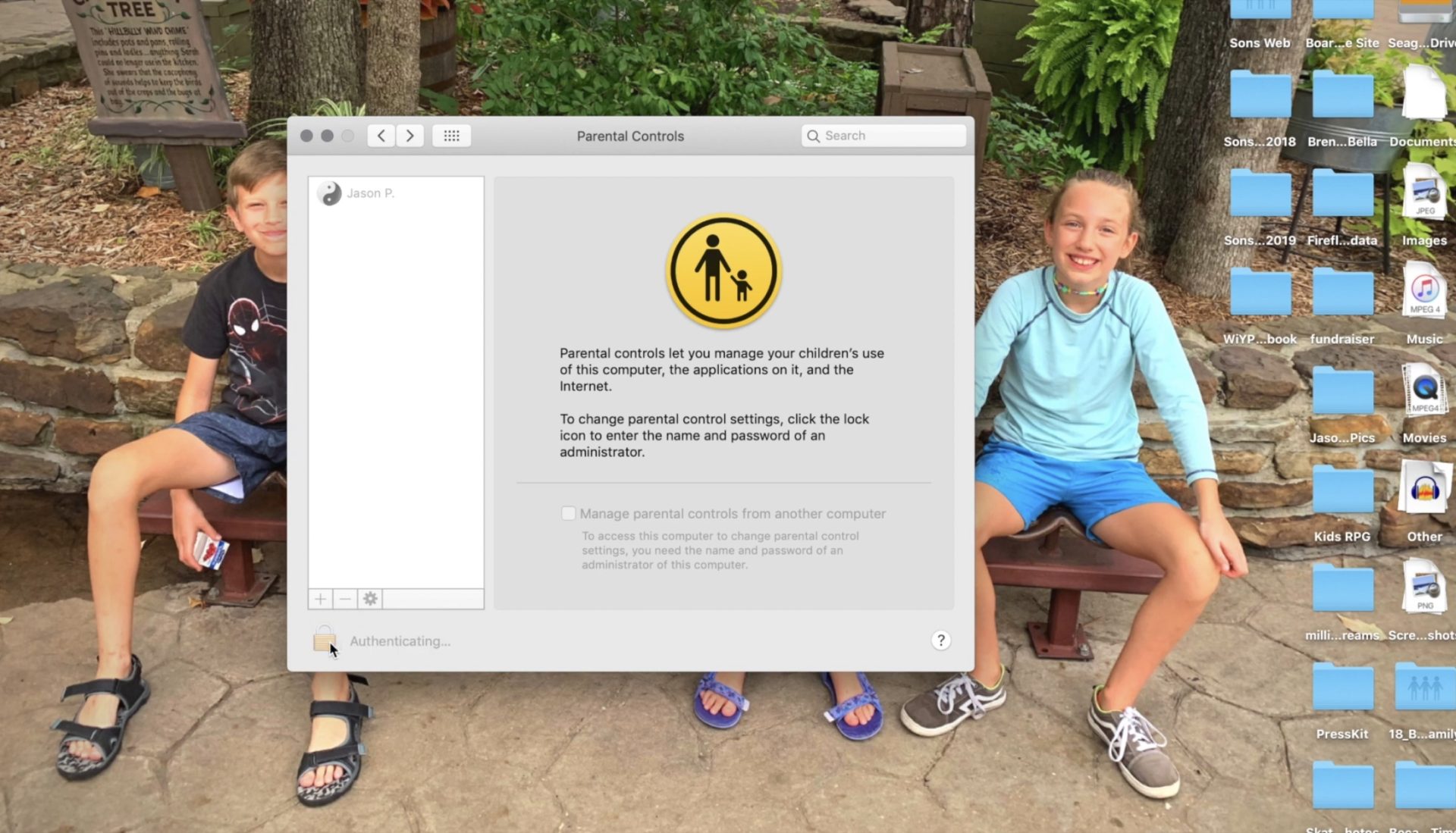
The tutorial video above will walk you through the steps necessary to set up parental controls on your Macbook Pro, Macbook Air, or iMac. These settings work with OSX High Sierra or OSX Mojave. Below is a brief summary of the steps necessary to set up these parental controls.
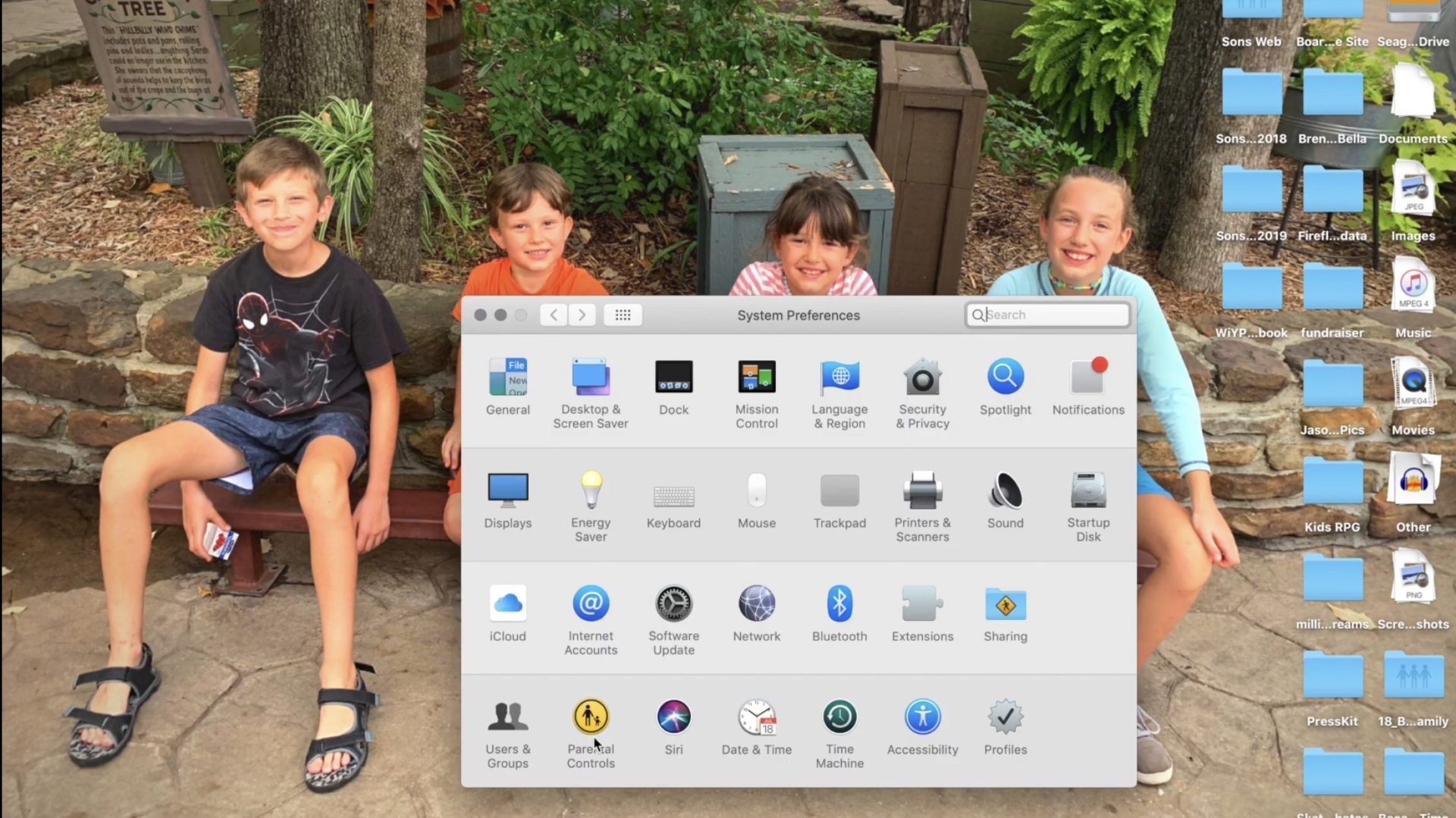
Open Preferences by clicking the apple logo in the upper left corner of your Macbook desktop and then clicking Preferences.
Click on Parental Controls on the bottom row of icons in the Preferences menu.
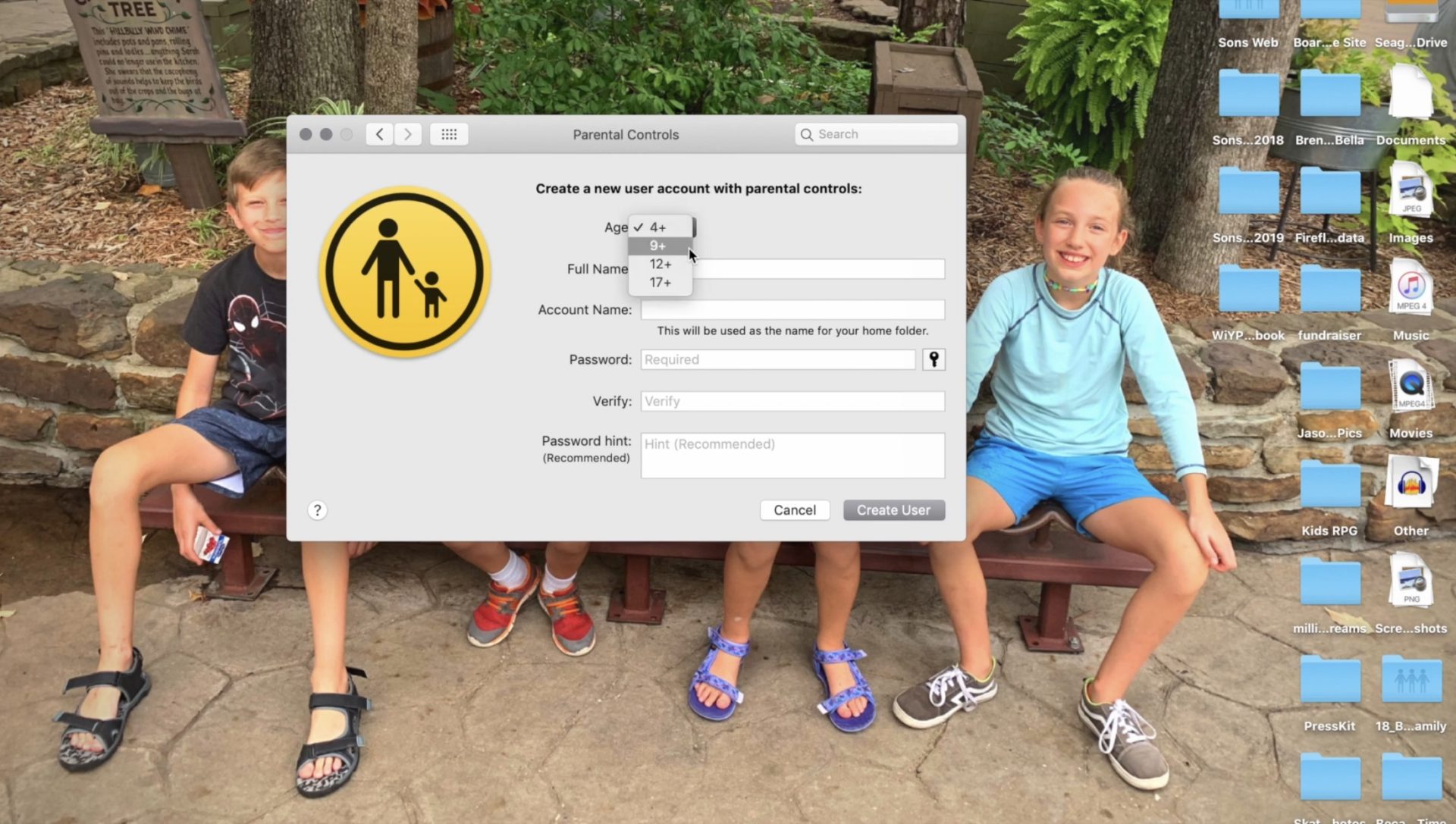
Follow the steps for creating a new account with the information of the person you are trying to set filters and restrictions for.
Set Restrictions for apps and web content.
Set desired time restrictions and bedtime hours.
Adjust settings for other content such as Siri and the OSX dictionary.
Clicking the lock with set the changes and password protect the settings you adjusted.
Setting these restrictions will help you have peace of mind while your child or teen uses their OSX device. If you would like further confidence that they are only seeing things that they should be seeing, look into an accountability software like Accountable2You. Also, if you come across any problems or have any questions please comment below or send us a message on Facebook.
WWDC was held last week at Apple’s Headquarters in Cupertino, California. Every year, the tech giant hosts a conference for developers and media from all over the world. The company’s Project Managers and Chief Officers all take their turns on stage to discuss what they’ve been working on over the past year in order to increase the hype around Apple’s products and software. Much of what is announced at WWDC targets developers and “tech-heads” who can’t wait to find out how to make apps for Apple products or what the next big thing is going to be. Some of Apple’s new feature’s however could bring some peace of mind to parents. Here is a break down:
Apple TV+
Apple’s streaming video device has been great for viewing other services but Apple’s streaming service itself has been lackluster. One thing that has been missing for a while is the ability to make separate accounts or profiles for viewers, including children. Apple announced at WWDC that this is changing. They are making it possible to create profiles for every member of your family. Your viewing history and suggestions will be sorted according to your accounts and best of all, your recommendations won’t be overloaded with shows that your children love to watch.
Apple Music/iTunes
iTunes is officially no more as Apple will be separating iTunes offerings into multiple apps. Books, Podcasts, and Music will all be separate now on the MacOS. When you plug in your iPhone to sync with your Mac, nothing will happen. Your phone will sync in the background. It has become pretty apparent that most folks don’t need software to manage their music collection. Streaming music has taken over and iTunes wasn’t very good at that job. Apple Music is taking over the music service and Podcasts is mainly accessed through the mobile app, not on desktop.
iTunes has been around since 2001 and while there are those who have become used to the software, most have been aggravated by frequent updates and overuse of computer resources. Apple is likely accurate in thinking the software won’t be missed by very many people.
Apple Arcade
Apple is also working their way into the video game streaming world with Apple Arcade, due to release this fall. Apple Arcade will consist of a series of exclusive games made just for their system and will be playable through your phone, tablet, Mac Computer, or Apple T+. They have a controller that you can use with AppleTV but are adding support for Playstation 4 and Xbox One controllers as well. The 100 or so available games are a bit weak looking but they are sure to find some developers who are willing to put out some quality content for Apple before too long. They’re going to have to in order to compete with Google’s Sadia and the new service coming soon from Sony and Microsoft.
iOS 13
Probably the most relevant of updates from WWDC has to do the Apple’s latest smartphone operating system, iOS13. The software boasts a new dark mode, faster app launches and downloads, faster Face ID unlock, and a new (to Apple at least) “swipe” style typing system.
Dark Mode is cool and faster downloads and unlocking features are great but the iOS update doesn’t really have anything going on that is relevant to parents besides their focus on data security. More on that below.
Photos and Video
Photos in iOS13 is getting an overhaul as well. With the ability to pinch to zoom in your galleries and a new sorting method that groups photos together based on the date they were taken. Photos will also include a new smart gallery that will remove images like screen shots from your view, only showing the photos you’ve taken with your camera.
Privacy is a Key Theme
Every update at this year’s WWDC had privacy as a key theme. Directors and Developers mentioned over and over again what Apple does and doesn’t do with your data. Apple Maps uses encrypted data to help you find your way, the photos app does its date and location tracking locally, and they even mentioned a new “Sign in with Apple” that allows you to sign in with your Face ID and create accounts with individual dummy email addresses.
Data security and privacy has been in the news a lot lately and Apple has been very vocal about their desire to keep their user’s information secure. Whether it is a direct attack against other tech companies who have made most of their money by collecting and selling data or just an honest desire to maintain their user’s trust, the result should be a bit more confidence that your information is safe if you are using their products. I always advise, however, that you continue to make efforts to protect your own privacy. Be careful what you share online. Turn off location access to apps that don’t require that information to work properly and most importantly, teach this approach to privacy to your children.
You can listen to this article as a podcast on Family Tech Update.
You can subscribe on Stitcher, Spotify, or Apple Podcasts using the links below the player.
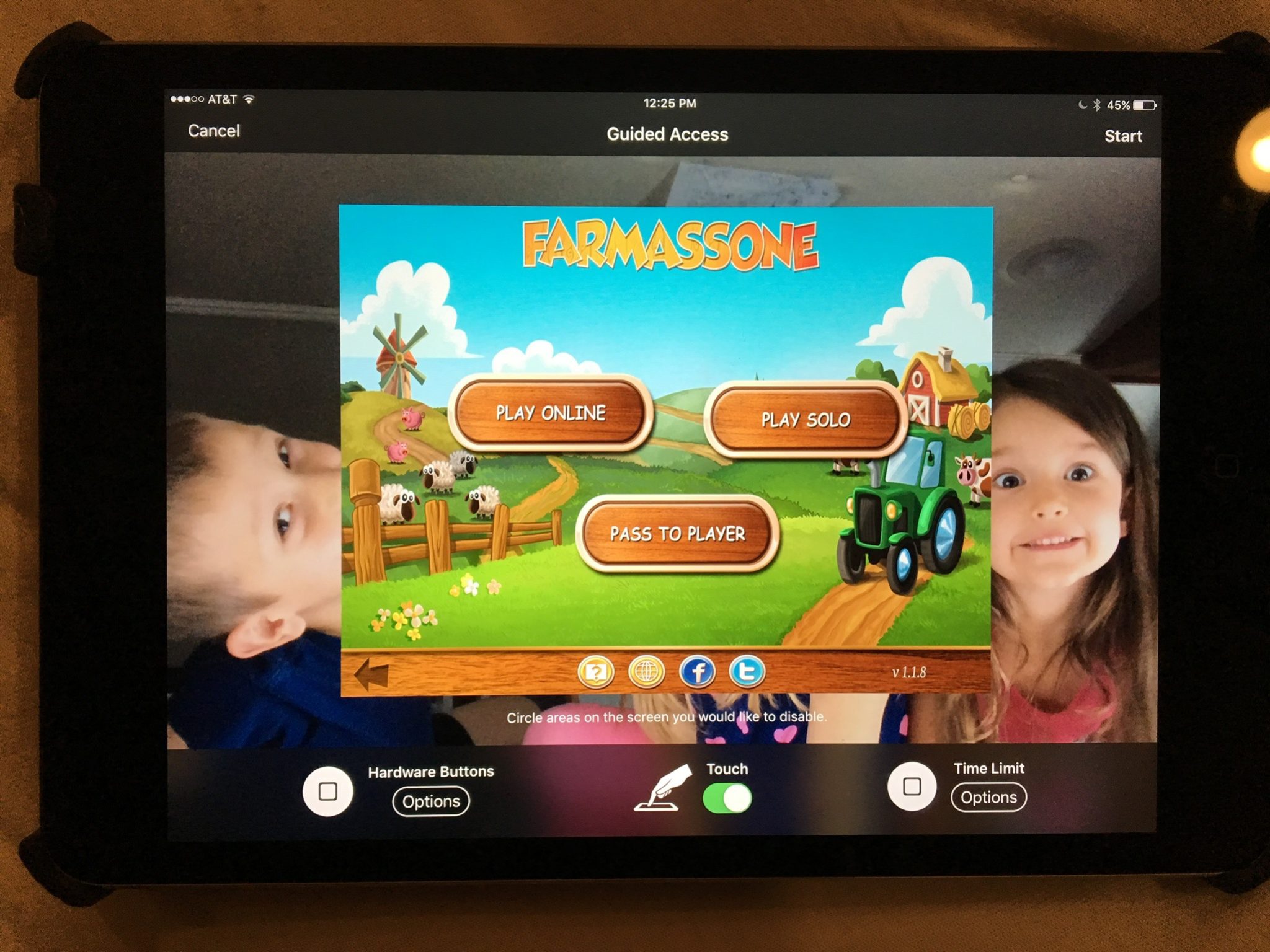
Those of us with smaller children are often less concerned with them looking for something inappropriate online but we want to protect them from seeing something unintentionally. Apple’s iOS devices have a feature built in called Guided Access just for that purpose. This setting will lock your iPhone or iPad to one app disabling the home, volume, and lock buttons. This is a great feature if you’re wanting to allow your kids to use an app but don’t want them to look around on other parts of your phone.
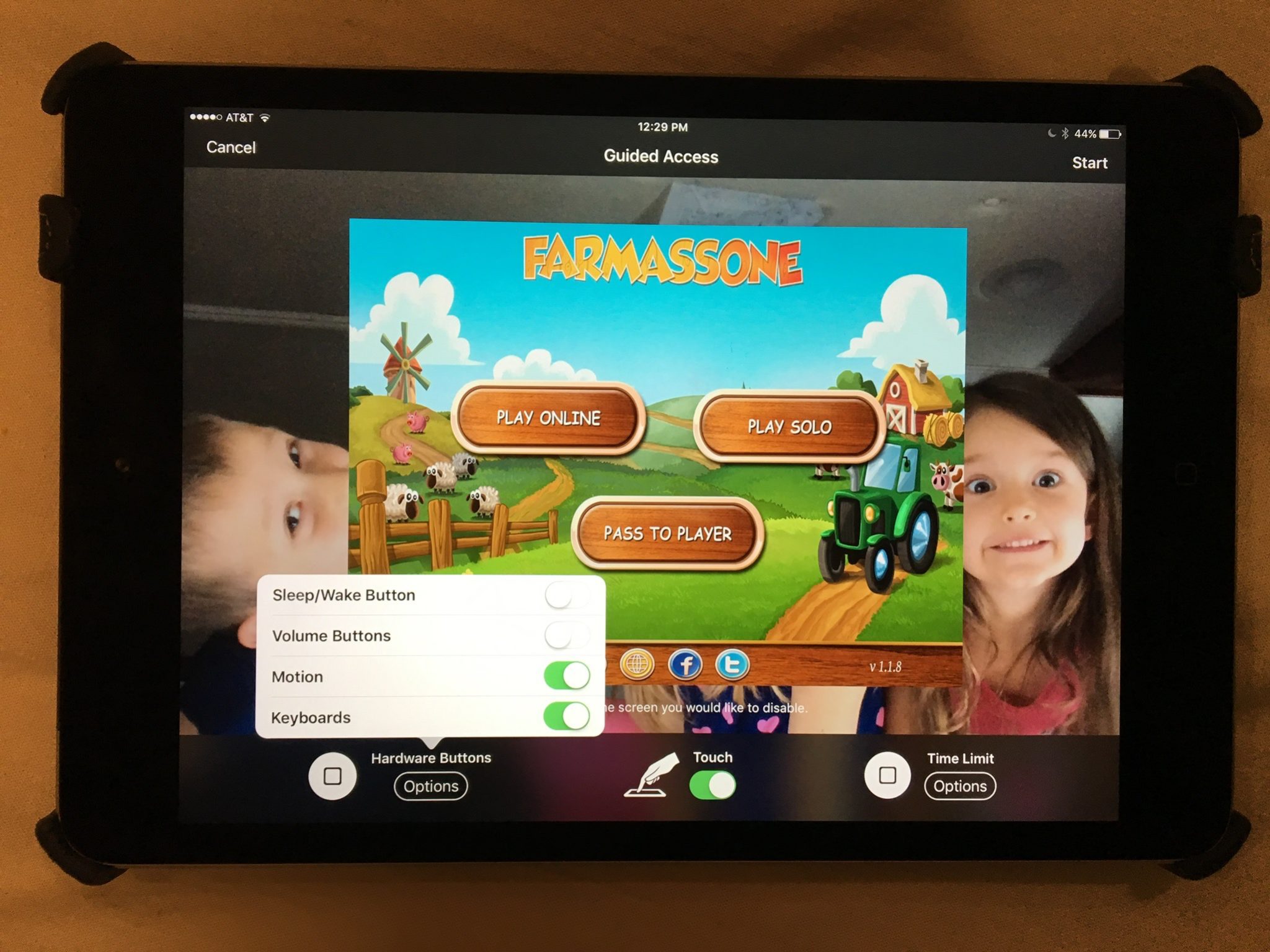
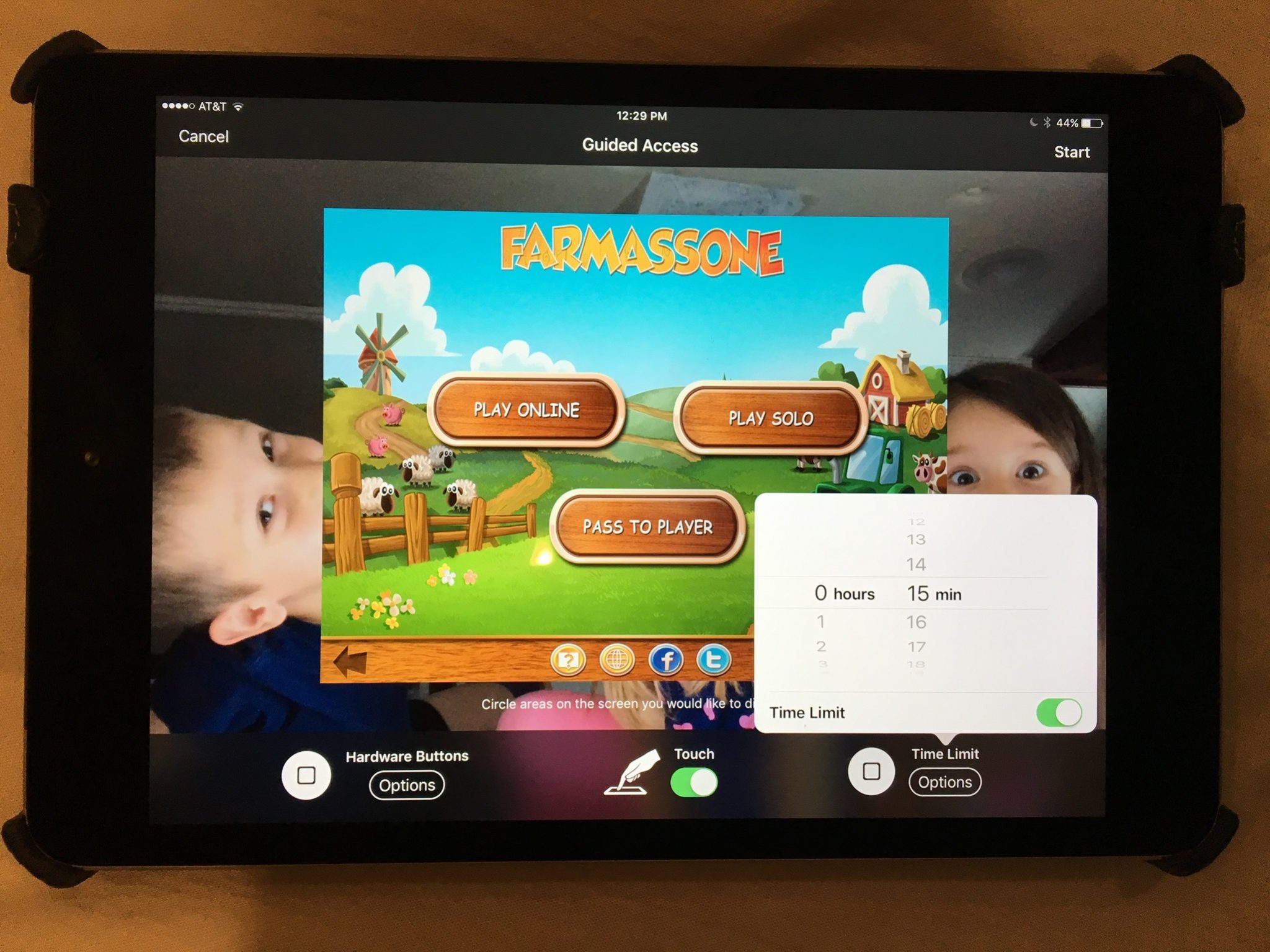
You may have known about Guided Access for a while but if you haven’t looked at the settings recently you may be surprised at some of the new options that are available. You can turn off the sleep button, turn on the volume buttons, lock the motion (whether the screen rotates when you turn it,) turn on and off the keyboard, touch screen, and time limits. All of these settings are really helpful to customize the guided access for each app you allow your kids too use based on their age and ability to use the iPhone/iPad.
Triple click your home button to launch Guided Access.
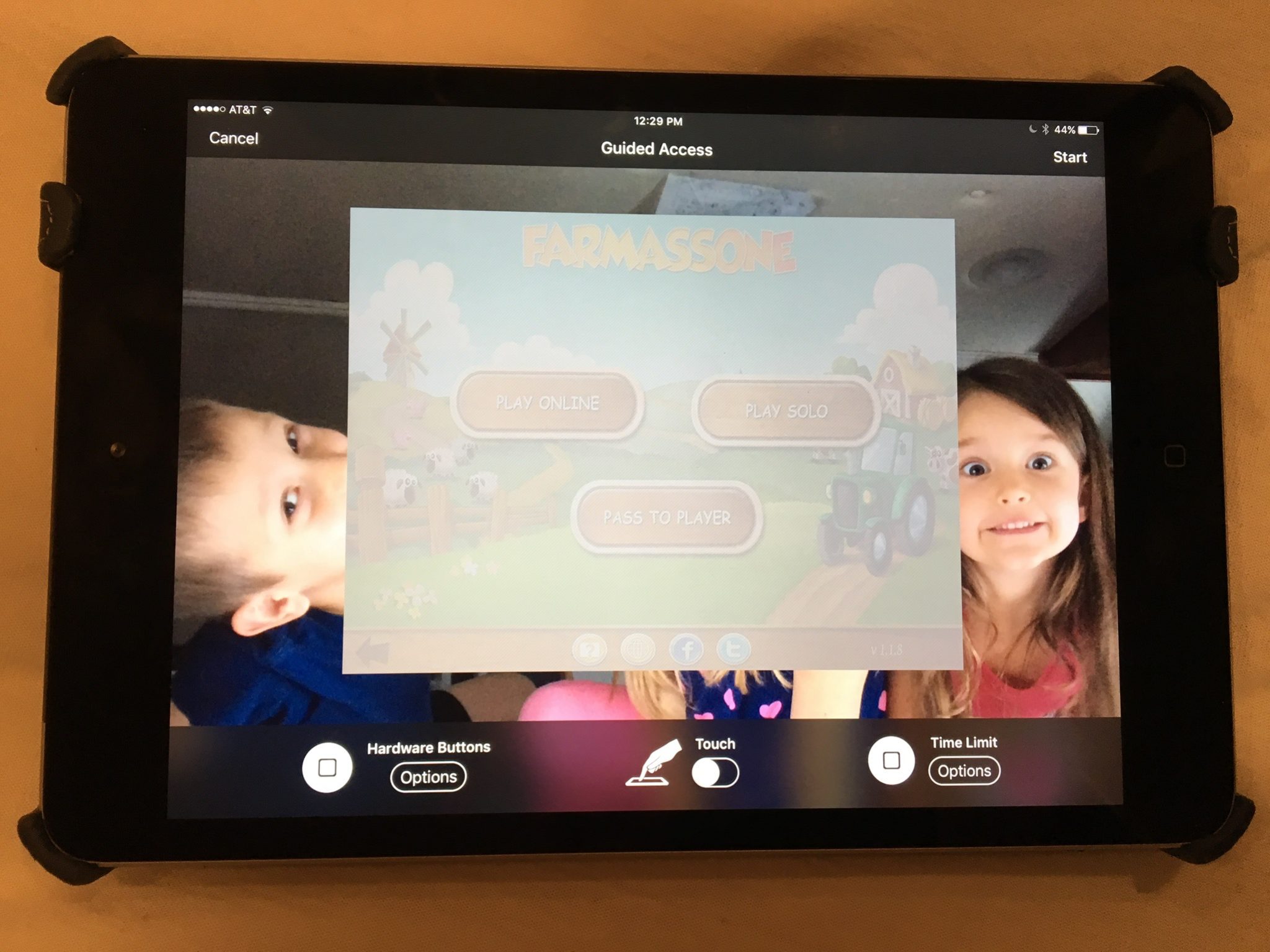
You can turn off touch screen with the center toggle.
You can toggle on/off the screen sleep settings, volume controls, motion rotation, and the keyboard.
You can even set time limits.
(*Settings look different on iPhone but they work the same.)
For example, my two year old likes to mess with the screen while he’s watching something. (He even touches our TV screen if he’s allowed to sit close enough.) This would cause the show to pause or skip or back out of the episode entirely. If you turn off the touchscreen it doesn’t matter what he does, it won’t change the show. Now, of course we are trying to teach him to leave the screen alone but this is helpful while he’s still a defiant little two year old “cutie”. For our older kids we will lock into their school apps so they can’t back out and play Lego Star Wars or something. We also use the time limit extensively, they don’t have their own devices so this helps us make them take turns.
What Parents Should Know
You should know how to set up Guided Access. (See the slideshow below) Use it for, especially, your younger kids. Keep them away from apps that will link to the internet. Also, you can draw on areas on the screen to keep them from tapping there, this will keep them from tapping ads or the parental control settings button. We are learning that our kids benefit less and less from using screens but if we are going to give them the privilege it’s important to do it safely. You may give them your iPad or iPhone with an app that is safe for them but if they can back out of it and open something else you’re not doing them any favors. Guided Access gives you some peace of mind, knowing that you can protect them while they are on that device and you don’t have to be looking over their shoulder the whole time. Use the slideshow below to help you set up Guided Access and if you’d prefer a video, check it out here.
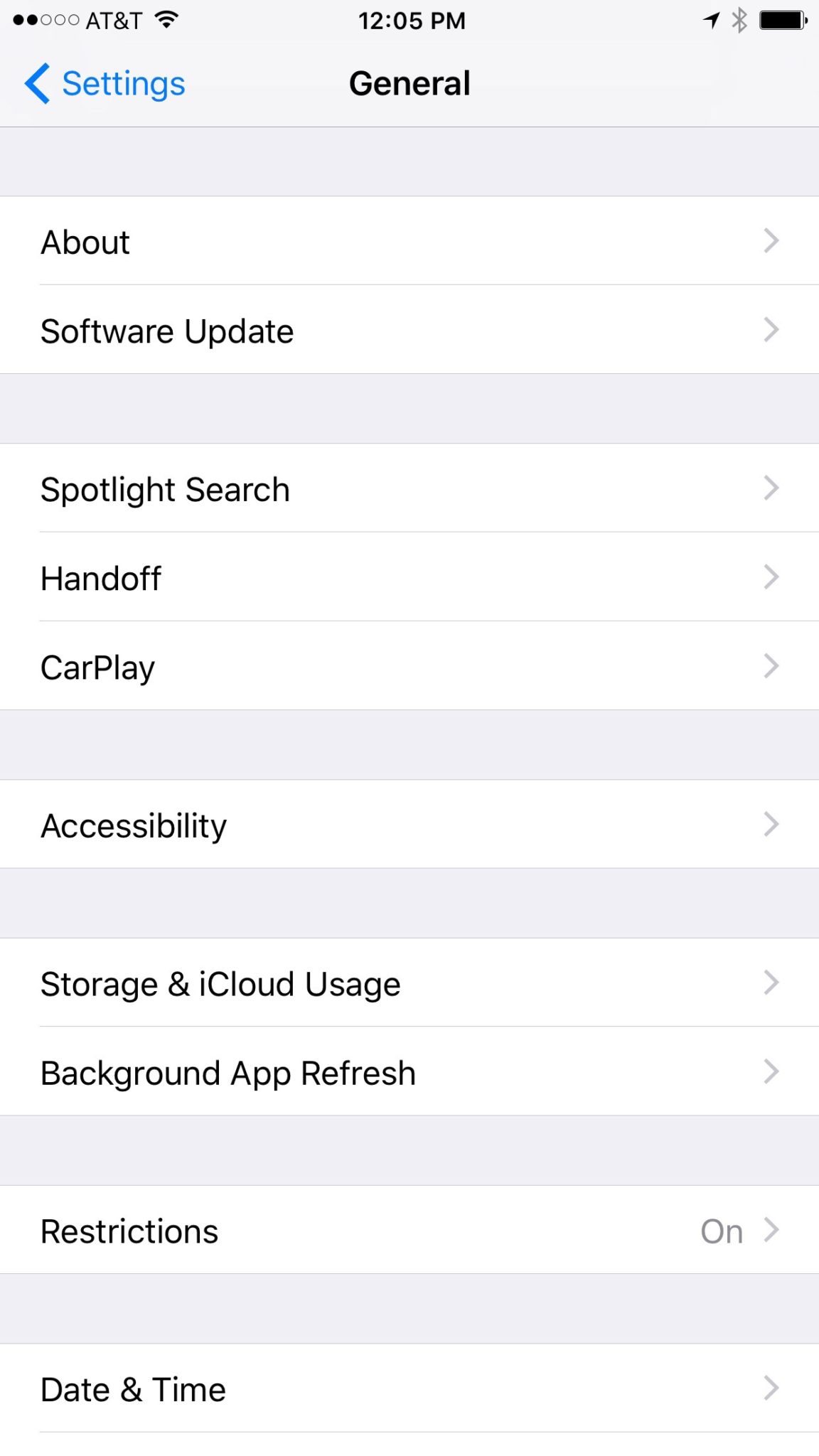
Select ACCESSIBILITY in your General settings.
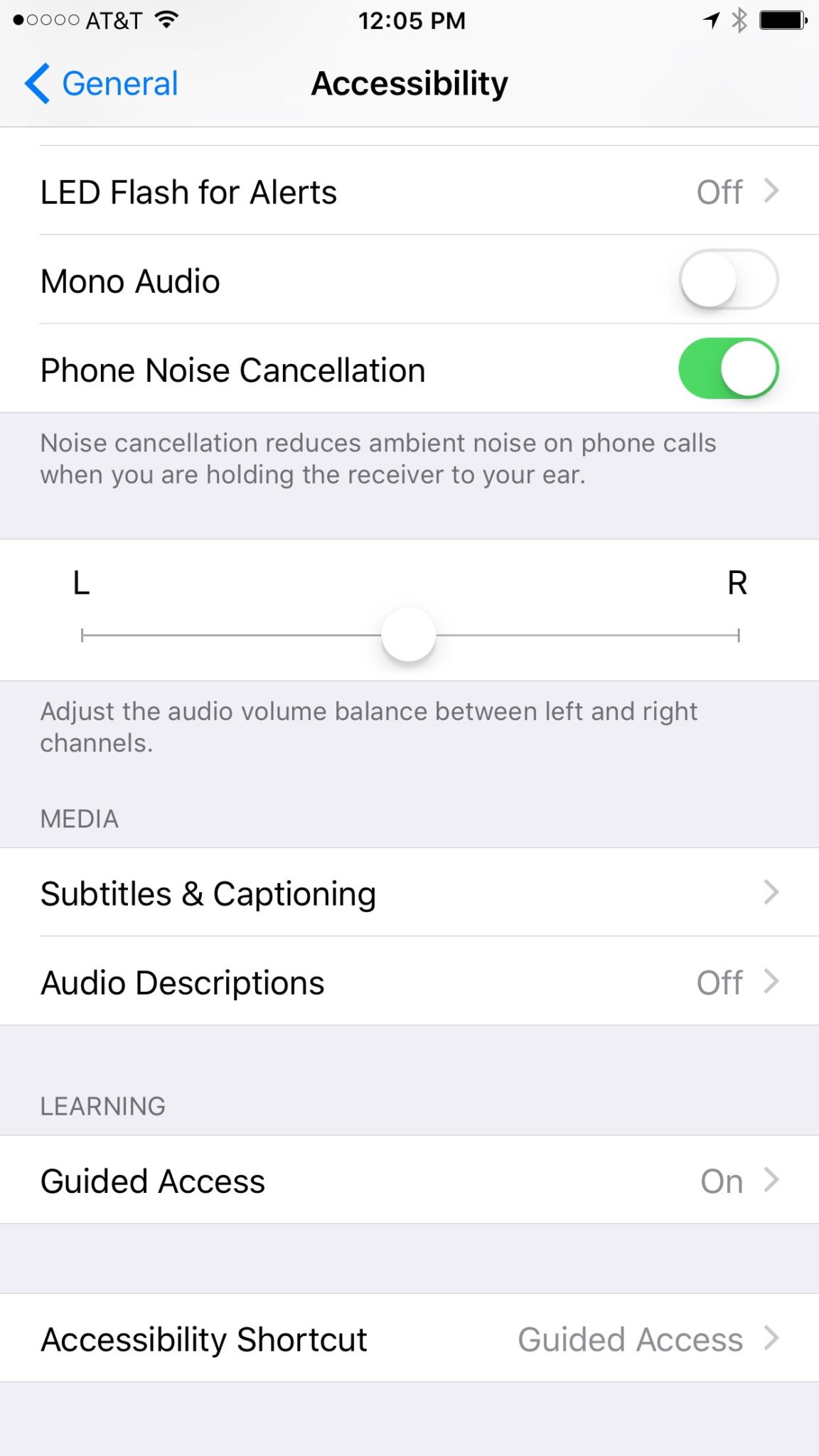
Swipe down to and tap GUIDED ACCESS.
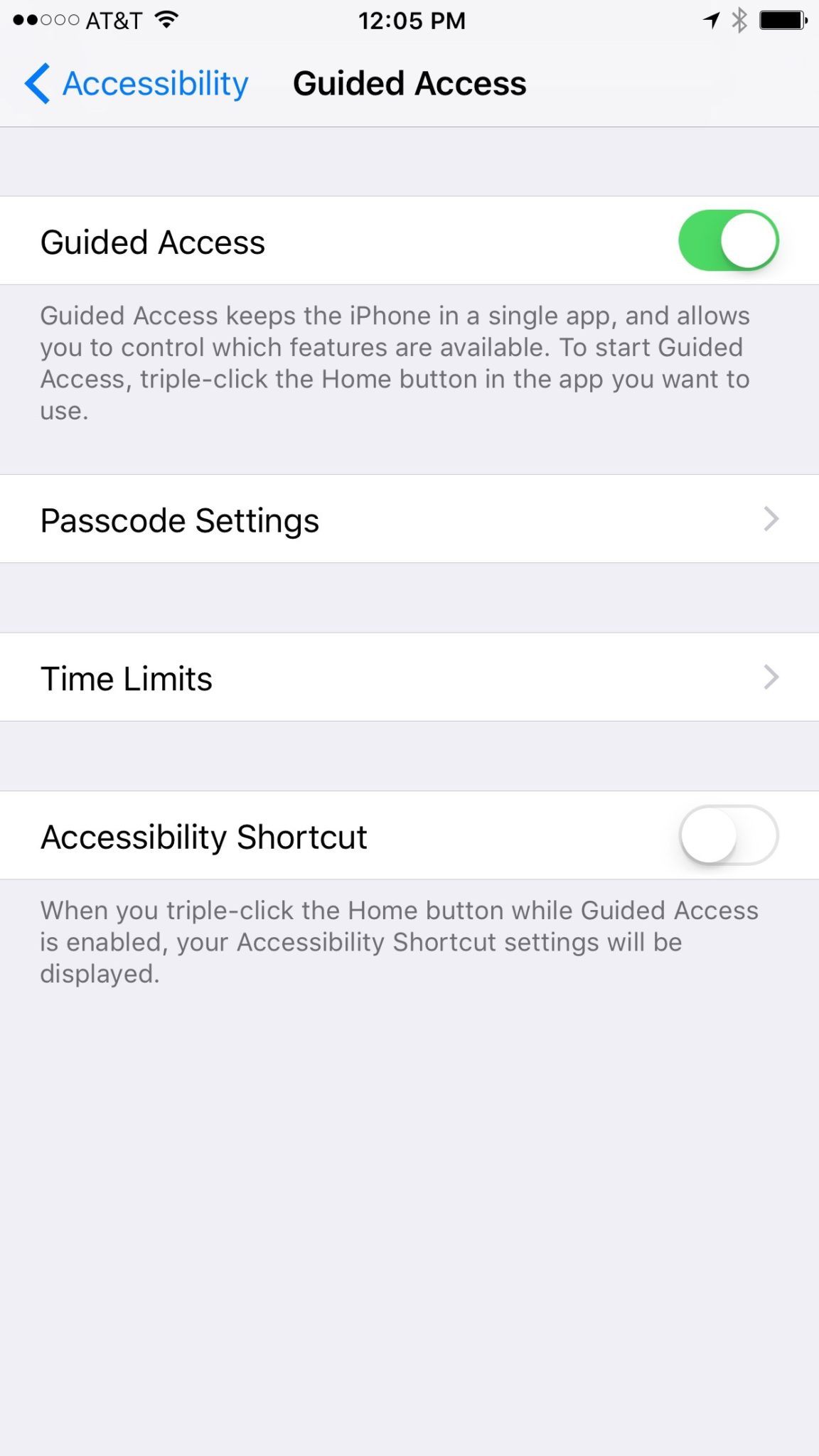
Now toggle GUIDED ACCESS ON and set your desired settings.
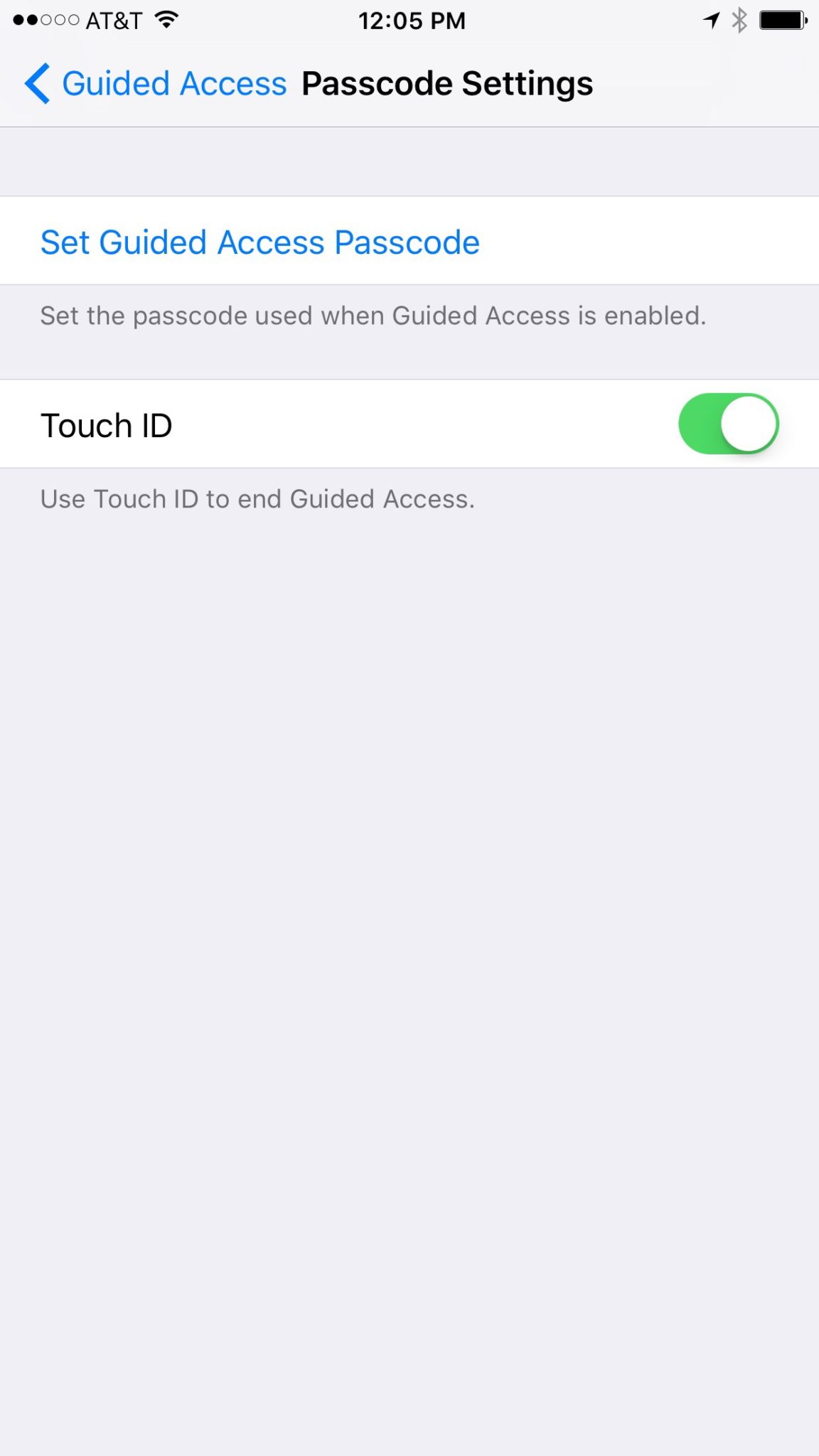
PASSCODE options. You can even use your touch id.
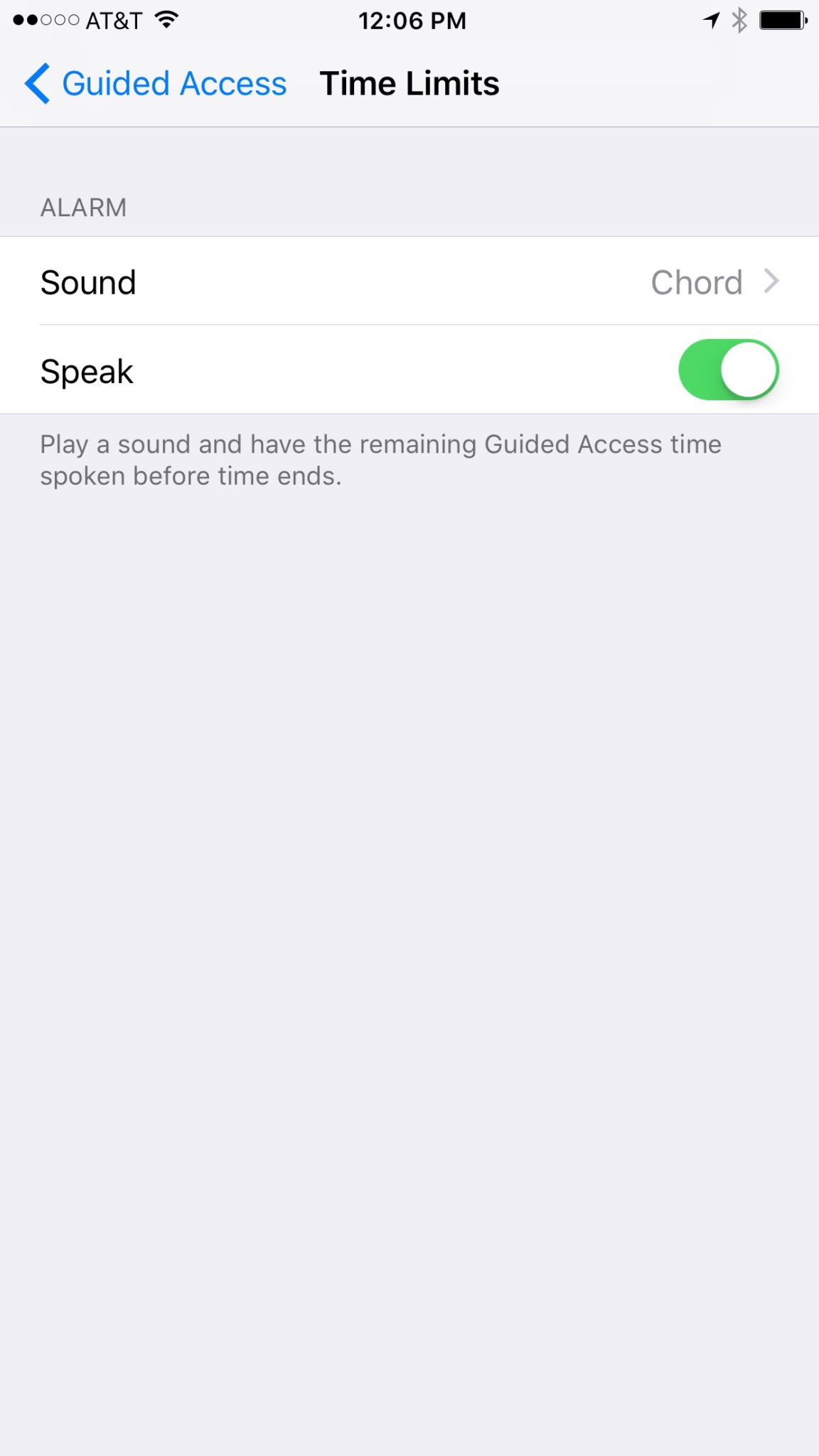
TIME LIMIT settings. Tell it to play a sound countdown when time is almost up.
It’s the future! I have been saying for years that paying for cable tv service is ridiculous. What if I could just stream the channels I want and not have to buy a whole package of useless Home Improvement and Movie Channels? Well, they aren’t exactly there yet but DirecTV is getting closer with DirecTV NOW. AT&T announced yesterday that they’re offering a television streaming service called DirecTV NOW; it’s available for purchase in bundles starting today, November 30th.
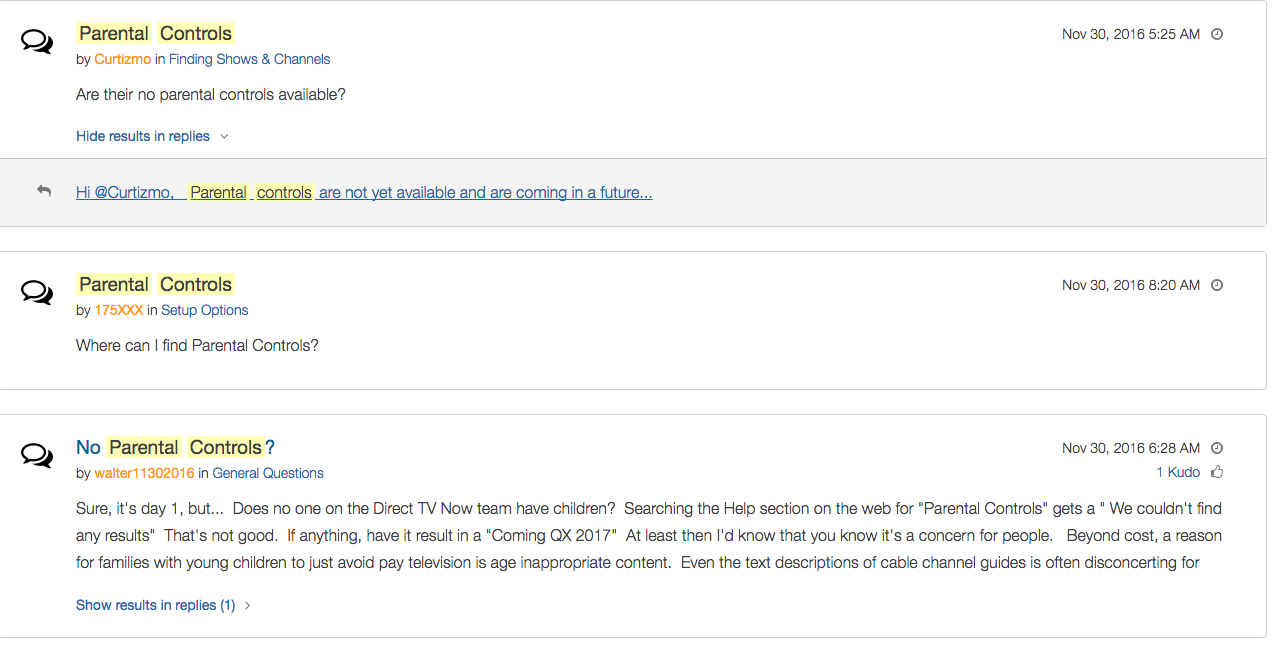
Yes! It’s exciting to see that our TV options are expanding and even keeping up with the times a bit more. With ChromeCast, Apple TV, RoKu, and mobile access available we are finally being offered a version the tv service we wanted. Unfortunately, however, after some time with my free trial I have noticed that there is absolutely no parental control options built in for DirecTV NOW. I looked at the menus and in my account settings (there’s no option to create separate profiles, i.e. a kid profile, either.) I also tried to find a “block” option per channel to no avail. Then, a search for “parental controls” on the support and FAQ page led to no results and that was pretty much my final clue. There is currently no way to protect your kids from unwanted content on DirecTV NOW.
That’s a deal breaker for me, especially with so much of what has become acceptable on cable television lately. Sexual activity, language, and increasing violence are mainstays in both broadcast and cable television shows. Even the commercials seem to highlight all of the features we would like to protect our young children from. I guess “keeping up with the times” comes with its costs as well.
What’s a Parent to Do?
I would say wait. Just wait for a while and I’m betting we will see parental controls rolled out on DirecTV NOW before too long. In fact, a quick search on the AT&T Community Forums showed several concerned parents had already begun asking about this feature and it’s in development.
DirecTV NOW looks to be a great way to save some money while still getting the entertainment content we want. Thankfully parental controls and content restrictions are becoming commonplace these days and this will be no exception. It is literally “day one” for this service so we’ll give them some time and the benefit of the doubt. You can join the future too if you’d like, I would just recommend keeping your kids off of it until you can set up some restrictions.
If you have an accountability software and/or a filter installed on your kids’ iPhone, iPad, or iPod you’re wasting your time unless Safari is also disabled. You will want to disable the ability to download new apps as well. In this video tutorial I explain why you’ll want to take these critical steps and walk you through the steps themselves. (more…)
Private browsing has been around for a long while now.
Whether incognito mode, private mode, or InPrivate, there has long been a way to visit whatever sites you’d like without worrying about being tracked or accumulating a history of sites visited. Mozilla has released a new browser called “Focus” that is designed to allow users to browse privately. The idea is to keep advertisers from storing information on your computer or phone and using it to target their ads while you surf the internet. This can be a good thing, but it’s important to understand some risks involved with private browsing.
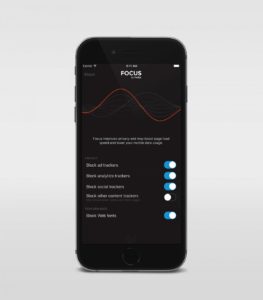
Focus is designed to block ad trackers, analytics, social trackers, and can seek out and block other trackers as well. It can also integrate into Safari on ios (the ios standard browser) and Firefox on your computer. After downloading the app you just open it and begin browsing, searching (on Yahoo,) or surfing as needed. There are no extra tabs or any bells and whistles at all but when you are done you just close the window with the “Erase” button and start again at the first screen. All the data is gone at that point. Like you were never there.
What Parents Should Know
While I am all for the battle for internet privacy and freedom from being tracked by marketers, private browsing presents a major problem when trying to protect our kids from inappropriate online content. Keep in mind that a popular name for private browsing is “Porn Mode.” The ability to view sites without anything being stored on your computer, including a history of your surfing habits, is, of course, a way for our kids to view adult content without us knowing.
Part of setting protections for your kids on their smartphone or tablet is turning off the ability to install a different browser. If you have installed an accountability or filtered browser then a new way to surf the web will completely undermine your attempts to protect them. While on the computer, filters like NetNanny will continue to block sites and accountability software such as Accountable2You will continue to report (though, with less detail) inappropriate activity. Even in private mode. While on mobile devices, however, especially ios devices, the accountability and filter app should be the only browser available to our kids.
We recently wrote about WhatsApp and explained a few things parents should know about the messaging app. Now, a new updated requires we update our information as well. This new update brings video calls to the app that is owned by Facebook. Video Chat is Awesome!
WhatsApp is largely considered safe because of its authentication and encryption settings but with the addition of video calls the app enters a completely new realm. Video calling is very convenient and a great way to stay connected to family and friends that you aren’t always near. Apps like Skype and Facetime have been mainstays in allowing you to use WiFi to talk to someone while looking at their face. Something that is priceless for someone as easily distracted from a phone call as I am. The concern with this new feature, though, is how it could be used by those who have ill intentions.
What Parents Should Know
I’ll say it like I do in so many articles, you have to be monitoring what your children do in any messenger app. With new features like GIFs and video calling being added all the time we are just seeing more and more opportunities for our kids to get into trouble. Will all kids use these features for evil? Of course not, but it’s too likely that someone they know (or worse, they don’t know) will be using it to cause harm.
I don’t necessarily recommend not allowing your teenager to use WhatsApp. I do, however, recommend using something (even if it’s just your own eyes) to monitor what conversations your kids are having. If you aren’t comfortable with video chatting being available to your teen then you need to disable it or ask them to use a different app for messaging.
We did a whole write-up on some key terms related to messaging. These terms and the rest of the terms in our Mobile Device Vocabulary series are too important to miss. I recommend you subscribe to thissite so you can check it out. Only $60 per year will get you full access to this site. Sign up now.
We’ve made it to our final vocabulary post. We are visiting gaming again. We discussed several gaming terms in lesson one but I thought we should cover a few more in this final vocabulary lesson. These terms have to do with gaming and monetization (a word you learned in lesson 1.) Learning about how money works in the mobile gaming world can really help you understand how game companies market to your kids. If you aren’t subscribed to the site, be sure to register so that you can access all of the great content in this series and so much more. (more…)
Conversations about internet privacy and security have been in the news a lot lately. Questions about who has the right to track you on your smartphone and who doesn’t. Terms and agreements that don’t really help you understand how companies use your information once they’ve gained if from your device usage. Below are three common terms that will help you walk through the minefield that is internet security and privacy. Learn what these terms mean so that you can make the right choices for your child’s online safety as well. (more…)
Joe and Beth have had a Living Room Workshop and bought What’s in Your Pocket? They are doing everything they can to protect their kids online. They have accountability software, filters, and they even sit down with their kids every now and then and talk about internet safety. It’s great…for a few months. Then, suddenly, during one of their family meetings Billy tells them he saw something he shouldn’t have. It bothered him pretty badly and the whole family is having to re-establish their plan. (more…)












 While I am all for the battle for internet privacy and freedom from being tracked by marketers, private browsing presents a major problem when trying to protect our kids from inappropriate online content. Keep in mind that a popular name for private browsing is “Porn Mode.” The ability to view sites without anything being stored on your computer, including a history of your surfing habits, is, of course, a way for our kids to view adult content without us knowing.