*unGlue is FamilyTechBlog.com’s latest affiliate
UPDATE: You can use the promo code “SAFE10Off” to save 10% when you subscribe to unGlue!
The most common concern among parents when it comes to tech use is that their kids spend too much time on their screens. There are plenty of options out there to help you monitor and limit the amount of time spent using tech, but unGlue is one of the first ones that allows you to put the control in your kids’ hands. The advice of the FamilyTechBlog has always been to help your kids know that you are on their team when it comes to internet safety and digital health. What better way to partner up than to give them choices as to how they spend their internet time? UnGlue lets you do just that.
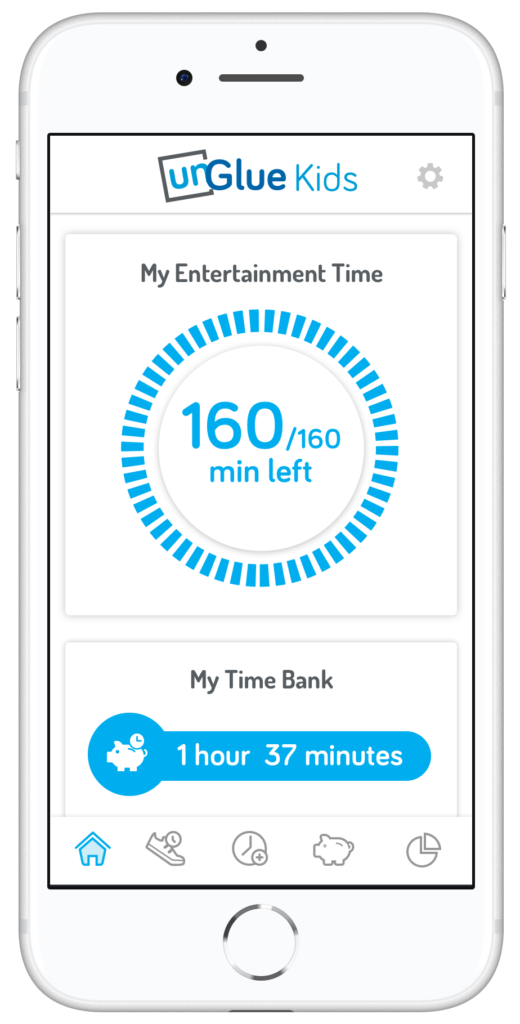
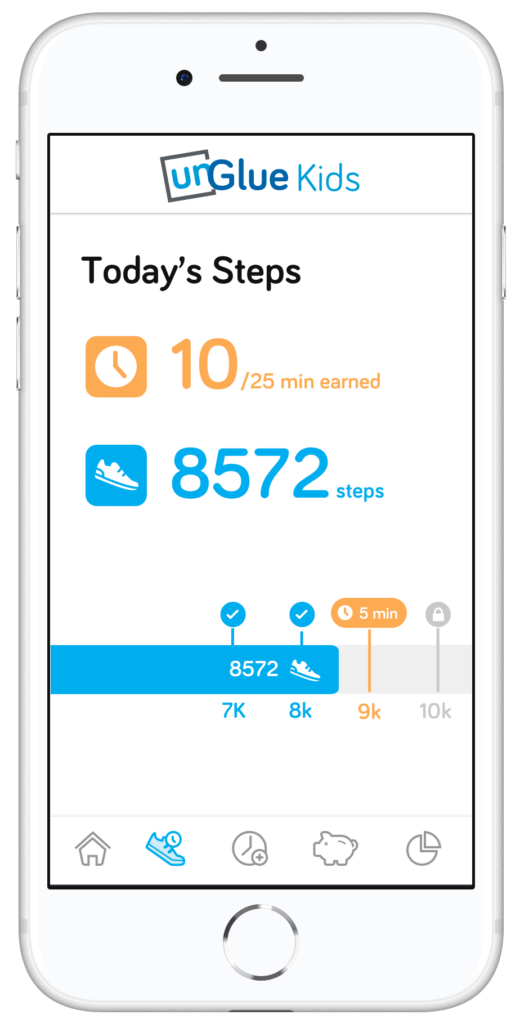
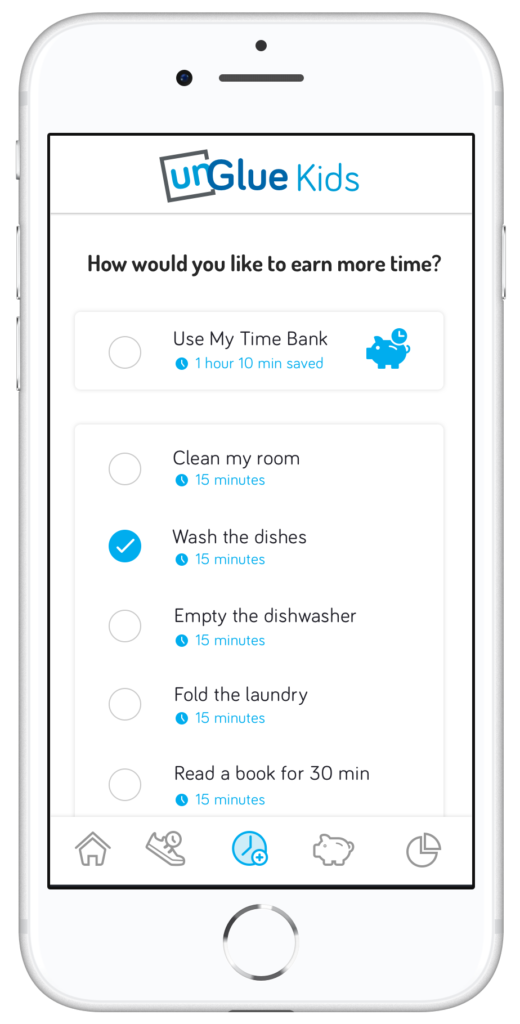
unGlue’s features include an adult content filter, monitoring online time, trading steps or chores for more time, entertainment time rollover, and screen time scheduling. The best part is that most of this activity can be done in the kid’s version of the app. The parents set the limits but then the kids get to decide how they use their time and even how they can earn even more time. Rollover allows them to save up some of today’s time to use tomorrow if they’d like.
How it Works
At home, unGlue works through your wifi. You install software on your main home computer (only works while turned on) and it mirrors your router traffic to see the web activities on the devices you have set up. While on the go, unGlue uses a VPN to keep track of what is being done online. These methods mean your time is managed everywhere you go. You can even set up guest access in your home. If you don’t have a home computer to set up unGlue on, they have a device called the unGlue Puck that will only cost you $30.
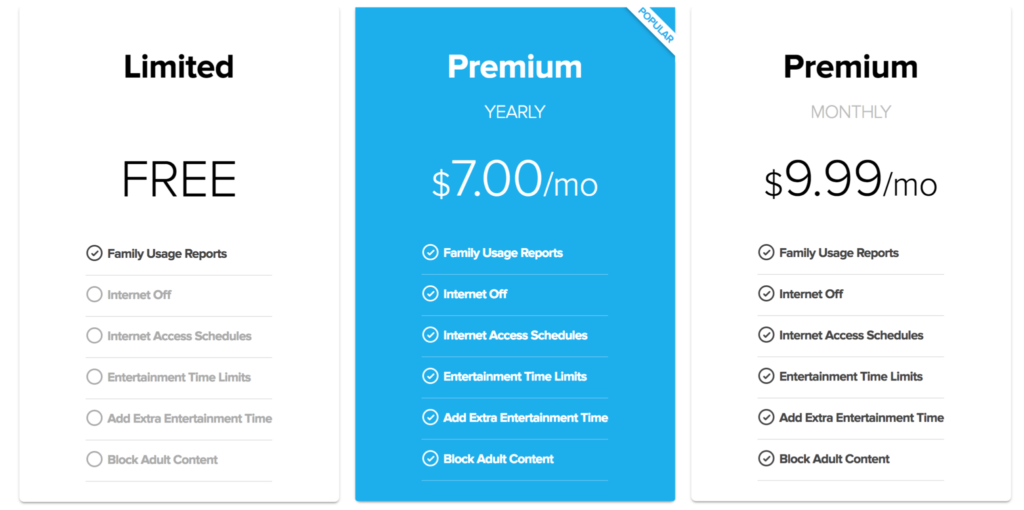
Speaking of cost, you can download the unGlue app for free and start monitoring online time right away. If you want to set up and use the other features you can subscribe for $9.99 per month or $84 per year. Both subscription options include full-featured access to unGlue.
What Parents Should Know
Managing screen time can be a challenge for people of all ages. The best way to ensure your kids have a good attitude about the time they spend online is to start teaching them young and to lead by example. Track your own screen time and set some limits for yourself. This will help your kids see that you are as committed to a healthy digital attitude as you are asking them to be. Using unGlue is simple and is an especially good option for those of us with older kids. Other options just monitor our kids and give us the option to turn the internet on and off at will and on a schedule. That’s a good way to manage screen time for your younger kids but studies show that our older kids need guidance and boundaries but not overbearing rules and regulations.
Our hope is that the resources we partner with for parents can each bring a unique approach to your digital boundaries strategy. In my opinion, unGlue is the choice for parents of older kids who are ready to start managing their own time online. The option to earn more time through activity and chores adds another element that teaches your kids lessons they’ll have to continue to learn as they grow older. Download unGlue now and start monitoring. I think you’ll find it useful enough that you decide to subscribe in no time.