Tag: kids

  • iPhone X Face ID Won’t Keep Your Kids Out of Your Phone

    iPhone X Face ID Won’t Keep Your Kids Out of Your Phone

    One of the best ways to keep your phone safe is to make sure it’s locked so your kids can’t get into it without you knowing. This allows us, as parents, to have apps or games we wouldn’t let them use without worrying that they’re going to get into them. Maybe you keep your kids off your phone because your filters aren’t as strict, maybe you don’t want them reading all of your messages, maybe you just don’t want them resetting your Mario Run scores. Whatever your reasons for locking down your phone, the new iPhone X’s facial ID feature isn’t your best option. Here’s why.


    The statistical probability is different for twins and siblings that look like you and among children under the age of 13, because their distinct facial features may not have fully developed. If you’re concerned about this, we recommend using a passcode to authenticate. – support.apple.com

    What Parents Should Know

    Apparently, young undeveloped faces can trick the facial recognition software on the iPhone X and let a child get access to your phone. If your phone isn’t locked down then your kids will have access to those in-app purchases, unfiltered searches, and accessing unapproved entertainment or social media you’ve blocked on their devices. Apple recommends you use a passcode if you have small children. This recommendation seems to hint that they’ve just accepted that this will be a limitation of their Face ID feature. My tip is to take Apple’s advice. Use a passcode if you have an iPhone X. If you want an iPhone X mostly because of Face ID then you may reconsider.


  • More Violence on Youtube Kids; Here’s Youtube’s Answer

    More Violence on Youtube Kids; Here’s Youtube’s Answer

    Another week, another story about Youtube kids not removing junk before some kids have seen it. The most recent claim is that videos featuring Paw Patrol characters showed them dying and mourning each other at their graveside. This is obviously a startling discovery for any parent to come across on Youtube but especially when it shows up on an app that has been marketed as being safe for kids.  The good news is that updates on YouTube’s review policies may help keep some of that content off the app.

    The policy is using Youtube’s existing “restricted-content” feature to protect our kid’s eyes from videos of their favorite characters doing bad things. Restricted content is automatically not allowed on Youtube kids. This means that if a video has been approved to be on Youtube but not for viewers under 18, then it won’t automatically show up on YouTube kids just because it was uploaded to the main site.

    Some videos don’t violate our policies, but may not be appropriate for all audiences. In these cases our review team may place an age restriction when we’re notified of the content. Age-restricted videos are not visible to users who are logged out, are under 18 years of age, or have Restricted Mode enabled. – Youtube Help

    I am always cautious of trusting apps that use a “restriction” mode because their restrictions are always based on user reports. If enough people see something and flag it as inappropriate then the content is removed. The problem is that people have to see the video, image, or post in the first place. Youtube thought of that too, though, and have a pretty simple solution for YouTube kids. Videos won’t show up on Youtube Kids until a few days after they’ve been uploaded to Youtube’s main site. This, hopefully, will help weed out many of the videos that look like they’re intended for children but truly aren’t.

    What Parents Should Know

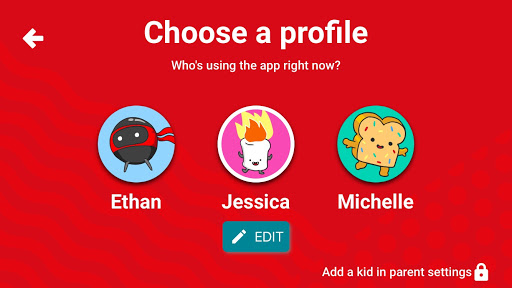
    It’s important to understand how the video streaming services we use filter their content. Youtube Kids recently added profiles and age-based video recommendations to help parents use the app more effectively. Limiting the ability for restricted videos to make money and keeping them off of a logged out, underage, or restricted user’s feed is another major step in the right direction. The best feature, in my opinion, is giving newly uploaded videos a couple of days to be reported before they are put on Youtube Kids.

    My advice remains the same when it comes to viewing videos online. Parents should always know what your kids are watching. Keep an eye on what they are doing on their tablet or another screen. Have them use their device nearby where you are or in a common area so that you can hear what they’re watching and even go in and put your own eyes on it every now and then. It isn’t always the most convenient thing to keep checking in on what your kids are watching but it isn’t smart to trust algorithms and the reporting of strangers for our kids’ safety and mental health. Put in the effort. You’ll be glad you did.

  • Snapchat Outage Reveals Some Serious Priority Concerns

    Snapchat Outage Reveals Some Serious Priority Concerns

    A Snapchat outage on Monday left millions unable to send disappearing filtered messages to their friends. This was a bad enough problem for users of Snapchat but the problem intensified when service resumed and they realized their “Streaks” had ended. Snapchat has used a system they call “Snap Streaks” to encourage users to send messages to each other more consistently. Every day you send a message adds a number to your streak. When the app was down for nearly an entire day, some people were unable to send messages within the 24hr deadline. This caused their streaks to end.

    People took to Twitter to address their concerns with Snapchat. They complained that their streaks of 25, 100, and some even 500 days had been lost and they were not happy about it. Snap Inc’s support division stated that they were working on restoring streaks that were lost during the outage and asked folks to be patient and report if they had lost their records.

    What Parents Should Know

    The focus on streaks is simply another symptom of a culture that is telling our kids that the highest form of acceptance is being accepted socially by your peers. My full thoughts on this topic are on a video on our Facebook page but I’ll summarize here. Many of our kids are very very serious about their social media accounts. They are highly concerned with the number of followers they have and how many likes their pictures and videos get. Some of them have separate accounts, on one of which they post the version of themselves they want everyone to see, and the other is used for their silly, nerdy, or even sexy side. This social media self-image focus can be cause for serious concerns. It’s important for us as parents to help our kids understand who they are, what they should be focusing on, and what healthy use of social media looks like. Their friends are “all doing it.” But you may have to be the first parent to decide to put your guard up.


    (External Link) You can watch my video here:

  • The Best Way to Keep Your Kids Safe On Youtube

    The Best Way to Keep Your Kids Safe On Youtube

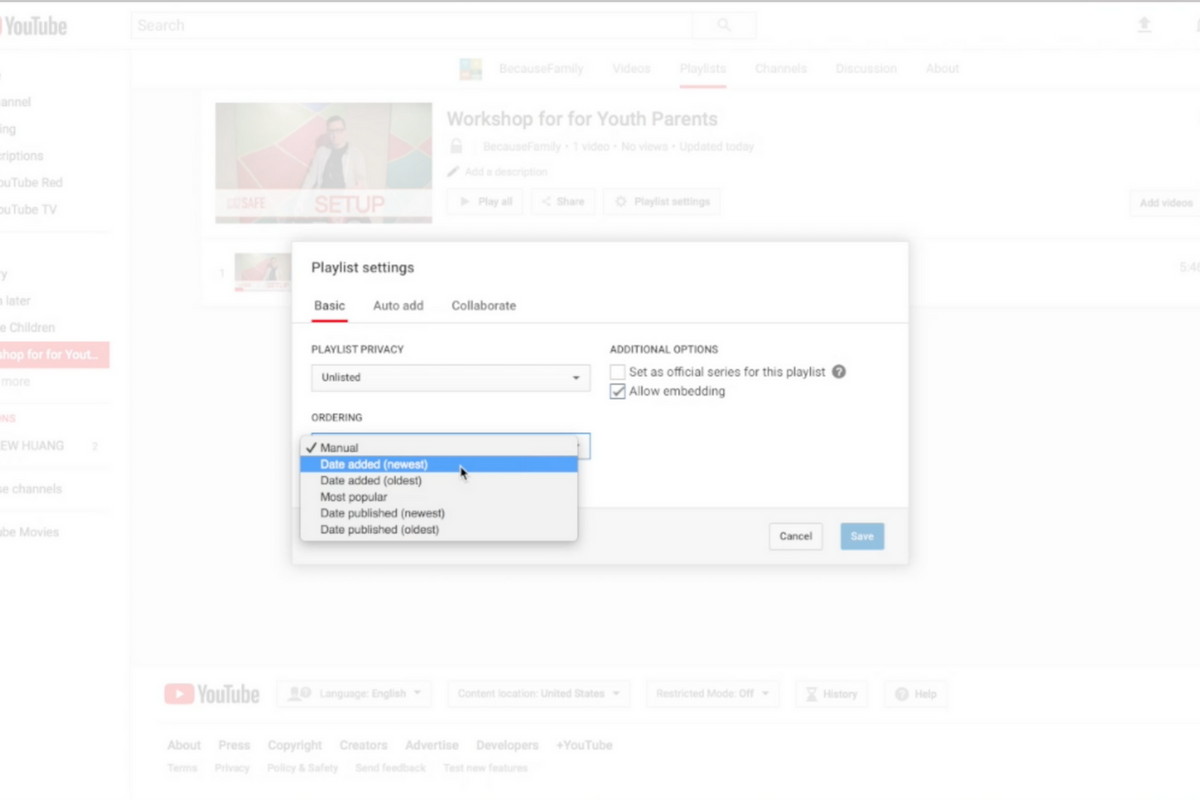
    Parents are always asking me for advice on keeping their kids safe on YouTube. Especially parents of older kids who may feel like YouTube Kids is a bit too young for their liking. I recommend building approved playlists. Find videos on YouTube that you are ok with them watching and put them in a playlist. This will allow them the freedom to watch videos without you pulling up each one while still keeping them safe from happening upon something inappropriate. You can also add playlists to your library that have been created by another channel. Then, you just have to discuss with your kids that they should only watch videos from the playlists you’ve put in the library. This keeps things safe. Watch the video below to learn how to build these playlists and hear more about why it’s a good idea.


    This is also a great idea for teachers and ministers who may want to show videos but don’t want something showing up unintentionally. If you’re playing videos from your playlist, you won’t accidentally show some video you haven’t pre-screened. YouTube can be an awesome tool but there is a lot of content on there that may not be classroom friendly. Use this tutorial to help you set up playlists and keep that stuff off your screen.

    UPDATE: Here’s a video tutorial to help you set up a playlist on the mobile app.

  • Update the YouTube Kids App, You’ll Be Glad You Did

    Update the YouTube Kids App, You’ll Be Glad You Did

    We are big fans of YouTube Kids. While it isn’t foolproof, it is the best option available right now to let your kids enjoy their favorite videos on YouTube.The newest version makes it even more useful for parents. This update allows you to add profiles with a birthdate and a new avatar to ensure your kids are getting content appropriate for their age and interests. This will be super helpful for parents like us, who have multiple kids using one device. My recommendation is that you update your YouTube Kids apps as soon as possible and if you haven’t used it yet, what are you waiting for? Go download it.

    Stay tuned for a video review of the YouTube Kids update soon.


  • Digital Tools for Halloween Safety

    Digital Tools for Halloween Safety

    Halloween is a bit of a crazy holiday. We take our kids out to do all of the things we almost never let them do at any other time. “Let’s go walk around in the cold, talk to strangers, take candy from them, and then eat most of it in one night.” It may sound a bit crazy to let our kids do all that, but we do it. I’m recommending, though, that you don’t throw all of your safety concerns out the window. Use these three “tech guy” tips to help your family be safe during this Halloween.

    Get GPS Tracking

    First of all, it’s important to know where you are and where your kids have run off to. In the hustle and craziness of Halloween trick or treating it’s easy for our kids to get lost in the fun of it all and get out of sight. Also, your older kids want to head out with friends and enjoy a Halloween party or maybe just go trick or treating but you could be concerned about where they’ll end up going. Technology has you covered. Start tracking their location with the GPS chip that’s already included on their mobile device.

    Accountable2You has a great GPS tracking option that you can set up easily within their mobile browser app. It will send location reports and allow you to check in at any time from the dashboard on their site. This feature is available for Android AND iOS.

    On your iOS devices, you can use the built-in messaging app to share location as well. You just have to use their phone to set up permissions for that device to share their location with you. When you go to your messaging app you’ll be able to click on the (i) on the upper right-hand corner and it will take you to their information. There will be a map with their current location on it right up top. 

    Have a Good Flashing Light

    Walking around in the dark can be scary at Halloween. Not just because of ghosts and ghouls but cars driving and not paying attention. My advice is to shed some light on the situation. Don’t bother heading to buy some kind of flashing light when a simple app can give you the same effect from the LED in your smartphone. Here is one we found forAndroid and one for iOS.

    LED Flashlight Selene & Flash (Android)

    Full disclosure, I’m not able to test this app since I don’t have an Android device. It is, however the highest rated strobe app in the Google Play store. This app features adjustable strobe speed. It has simple controls and, according to reviews, just works. GET IT HERE

    “Light” LED Flashlight and Strobe (iOS)

    I did try this app out and it works well enough to use on Halloween. If you depended on your phone to multitask while you’re using your strobe light, this isn’t the app for you. When you close the app, the light stops. I didn’t find an app that didn’t shut off when closed, though, so this one made my list. I mostly decided to recommend it because the controls are simple, intuitive, and very responsive. You can set the brightness of the light and adjust the speed of the strobe with simple buttons on the right and left of the on-off switch. There are also settings to make the light flash to music and translate type to morse code. This is, overall, a pretty neat app. CHECK IT OUT

    Light your nighttime neighborhood trick or treating with some kind of strobe light. This will keep you and your kids visible and safe.

    Go “Old School” with a Walkie-Talkie

    No, don’t buy some cheap thing that won’t let you communicate unless you’re still in earshot anyway. Get an app. Really, I have one recommendation for this one, it’s Heytell. This app works cross-platform which means you can use your Android phone to send a quick voice message to someone with an iPhone, no problem. A walkie-talkie app is perfect for Halloween because it uses your data connection, so you’re never out of range. It lets you ask for that quick location update or schedule that meeting time with your kids by sending them a notification when you’ve sent a message. The message is then saved until they open the app to listen to it. Just like a voicemail, just without the annoyance of a phone call.

    Install HeyTell or the walkie-talkie app of your choice onto your and your kids’ phones and be amazed at how connected you can be while they’re out having fun, getting candy, and talking to strangers. Just make sure they’re visible in the darkness with some sort of flashing lights, and of course, have that GPS connected so you can get an update on their location with a simple glance at your phone.

    Have a safe and fun Halloween! 

  • PODCAST: The Myth of Online Anonymity

    PODCAST: The Myth of Online Anonymity

    PODCAST: Michael talks about how to use blacklists and whitelists on your web filters, the polling app craze, and how the myth of anonymity is hurting our kids.

    Social Media Links

    Facebook: http://facebook.com/becausefamily

    Instagram: http://instagram.com/becausefamily

    Twitter: http://twitter.com/becausefamily

    Newsletter Sign-up

    Ministry Updates:: http://eepurl.com/R7Btr

    Weekly Blog Posts:: http://eepurl.com/cvnhXD

    Websites

    Ministry Site:: http://becausefamily.org

    Tech Blog:: https://safe.becausefamily.org

    Michael’s Speaking Info:: http://kmichaelprince.org

    Donate and Affiliate Links

    Accountable2You.com Affiliate Link: https://www.accountable2you.com/?code=19877592

    http://BecauseFamily.org/partnership

  • VIDEO: Three iOS 11 Features Parents Need to Know

    VIDEO: Three iOS 11 Features Parents Need to Know

    More than half of all iPhone users are now using iOS 11 and there are some major changes. The biggest change is the control center. This has become a lot more useful with the iOS 11 update and there are some features that parents should know so that they can use them to further protect their kids.

    Screen Recording

    Screen recording hasn’t been built into iPhone until this update. It’s a way to capture what’s happening on your screen and then save it as a video in your photos. This feature is cool and very useful for projects like making this video but there is a bit of a concern with kids sending messages and them being recorded without their knowledge. Keep your eye on this one.

    Quick Guided Access Button

    Guided access is an awesome way to keep you younger kids safe. The quick access button allows you to get to you GA settings quickly and use the feature to keep your kids safe. Do Not Disturb While Driving

    Do Not Disturb While Driving

    This is one that’s been needed for a while. The Do Not Disturb While Driving feature lets you just tap a simple button in your control center and not be distracted by texts until you turn it off. Pretty good idea, even if it has been a long time coming.

    There are more details and some screen capture of these features in use in the video below:


  • Amazon for Teens will Teach Your Kids to Shop with Them

    Amazon for Teens will Teach Your Kids to Shop with Them

    Amazon has launched a new service that will allow you to set up a dedicated login for your teenager so that they can shop on the Amazon app. The goal is, first of all, to give parents a way to allow their kids more freedom to shop for things they’d like online while providing some realistic boundaries. It’s most likely, also, a great way to get your kid used to just buying whatever they need on the Amazon app.

    Amazon for Teens will allow your children to shop on the Amazon app and make purchases for themselves. You have the option to allow them to shop for whatever they’d like with a budget that you set or ask permission for every item they select to buy. If you choose the budget option you will have access to their purchase history and be able to cancel a purchase or request a return. So far there is no way to have teens use their own money within your family account. Currently, all shopping is done with a shared credit/bank card.

    The service is available to set up for your kids’ ages 13-17. They’ll be able to select whatever items they’d like to purchase and attach a note for you. You will be notified when they’ve made a purchase and you have 30 minutes to cancel the order if you don’t approve. Of course, if you’ve set it up to ask permission you’ll be able to approve or deny the order before it’s completed. Also, the default privacy settings will hide parent’s purchase history and credit card information.

    What Parents Should Know

    Amazon.com/teen is a way for Amazon to introduce your teen to their shopping app. For some, this may seem like a great way to teach your kids about finances and shopping. For others, there’s an obvious stench of commercialism and consumerism. If you’re so inclined, Amazon Prime for Teens seems to have a pretty good handle on what parents need to feel confident that their teens can shop on their own. In fact, they claim they used focus groups of parents in order to help them create the service.

    I say that if you’re going to use this service, be sure to keep the default settings to not allow your credit card and purchase info to be shared. I also think it will be even better when you’re able to set an Amazon Prime exclusive allowance for them to use with this service. Boundaries are the key to allowing your teenager to have independence while keeping them safe from their inability to make quality and safe decisions. Amazon for Teens could provide the exact boundaries you’re looking for to keep from having to order those new boots for the coming fall weather while making sure she orders the ones that are on sale.

  • Snapchat Brings the “Real World” to Your Story with Context Cards

    Snapchat Brings the “Real World” to Your Story with Context Cards

    Snapchat is hoping to make your Snaps and public story even more beneficial to advertisers. This is becoming more and more possible as they continue to update. The recent addition of “Context Cards” may be the feature that sets Snapchat apart as a social media advertising. Context Cards is an informational feed that highlights content from Snapchat’s partners. This content will include information like phone numbers, menus, maps, and ratings.

    Context Cards display information about the Snap you’re viewing – powered by amazing content from our partners like TripAdvisor, Foursquare, Michelin, and goop. – SnapInc.com

    Here’s how it will work. You will see a Snap shared to a public story and it will say “More” at the bottom. When you swipe up you’ll see the timeline style list of different information cards. Continue swiping up to see more or tap on the information to learn more or perform an action. You can hail an Uber or Lyft ride, make a call, view a menu, or see reviews or a website. The goal is to take you to the information you need without leaving Snapchat, as well as to encourage advertisers to build more ads for Snapchat Stories.

    What Parents Should Know

    These new features in Snapchat are meant to encourage more real-world engagement. You probably noticed the video featured college kids going all over town joining their friends at their current party location. They use Context Cards to know exactly where their friends are and what they’re doing there and even how to get there themselves. The problem for parents is that your kids aren’t members of the age group that is featured in this video. Decisions made to strengthen a company’s advertising abilities can often introduce more safety or privacy concerns for our younger users.

    I recommend encouraging your kids’ to have location information turned off for Snapchat. The especially should turn their SnapMap to ghost mode. Young users should always set location and sharing settings to as private as possible. Leaning towards privacy is going to render Context Cards basically useless on Snapchat. This may annoy your kids. (It may not because it may just look like annoying advertising.) If it does annoy your kids I recommend you stand your ground and still encourage them to keep their online presence as private as possible.