Tag: iphone

  • Turn Your Drawings into Playable Games with Doodlematic

    Turn Your Drawings into Playable Games with Doodlematic


    Doodlematic lets you take a picture you’ve drawn on paper and turn it into a playable mobile game. 

    I met Martin Horstman, the dad who developed Doodlematic at CES2020. He talked me through how you can take any kind of art, as long as it uses the colors the APP recognizes, to create a real playable mobile game. They sent us their box set and we were able to play with it. My son had a blast drawing out games, especially platformer games that you had to jump from platform to platform an achieve goals. 

    To use Doodlematic, you simply draw the game on paper, take a photo of it, the APP processes  it, and then you play. You can then share it in the Doodlematic app and other people can jump in and play your games if you’ve allowed them to be public. 

    How it Works

    There are two types of games you can create on doodle matic. You can make the platformer, like I mentioned already, or you can make an Angry Birds style launch game where you shoot your “avatar” over to knock over targets. It’s all based on a series of different colors that create different types of objects in the game. Anything black is your platform or your ground. Red is obstacles, things that get in your way and end the game when your avatar touches them. Blue items are your goals and anything green is your character or avatar. 

    Your avatar jumps from platform to platform trying to grab the blue goals while avoiding all of the red obstacles. The app uses the colors to develop the Games behavior. This allows kids to basically make the game whatever they want it to be. The best part is there’s a lot of trial and error. I don’t know how many times my son drew something, took a photo of it, and then realized game just didn’t work properly. Not because the app was messed up but because his drawing didn’t allow the Doodlematic to do what it needed to do to make the game playable. Back to the drawing board, literally. Just a few fixes here and there and the games was doing what he wanted it to. 

    What You Get

    Doodlematic comes in a box with notebooks to guide you through the game creation process. It takes you through a step by step tutorial showing you what to draw and how to use that to create the behavior you want in game. 

    Doodlematic is probably usable for any kid over three years old. Once they can draw a little bit and grab a pen or pencil, they can create a game in the app. There are some advanced controls you can set up that make things move back and forth constantly or make the obstacles do things.  You can learn how to do that as you gain more experience in Doodlematic. However, all you have to do to get started is draw with the proper colors and play your games. 

    Apps like Doodlematic are great for kids because they teach them that trial and error process that’s necessary in developing any kind of technology. If you’re learning to code or if you’ve done any website building or graphic design you know that there’s a lot of times you start to create something that just cannot work. Then you have to go back to the drawing board. Doodleatic gives you a similar experience but it’s also still fun. It doesn’t take away any of the excitement because you know what you did wrong and can fix it.Then, suddenly, your game is working. That sense of reward and excitement is real and kids love it. 

    I have four kids. All of them have loved Doodlematic. My boys loved it. My Girls Loved it. My twelve year old loved it and my five year old loved it too.? I recommend checking it out at the website below and getting your family into Doodlematic and make yourself some games. You’ll love it.

    ThinkDigital.com


  • How “Kids Games” Give Predators Unmonitored Access to Children

    How “Kids Games” Give Predators Unmonitored Access to Children

    I was contacted this week by a parent who was shocked to find that adults had been chatting with her young son in Disney Heroes, Battle Mode, an app rated 9+ in the Apple App store. She sent me screen shots in which players were asking her son if he was a boy or girl. They asked how old he was and where he was from. One of them even confessed, “I am not a kid. LOL.”  Obviously, when his mother found these messages she was extremely concerned, she removed access to that game and set some limits for their whole family for a while. Then, just a few hours later I received a link from a concerned parent about an app in which people are posing as employees of the game company and asking children to send pictures “without a shirt on” to prove their age. She asked if this was true and my response was that yes, these things are happening every single day. Here’s why these predators can gain such easy access to our kids.

    Disney Heroes Battle Mode

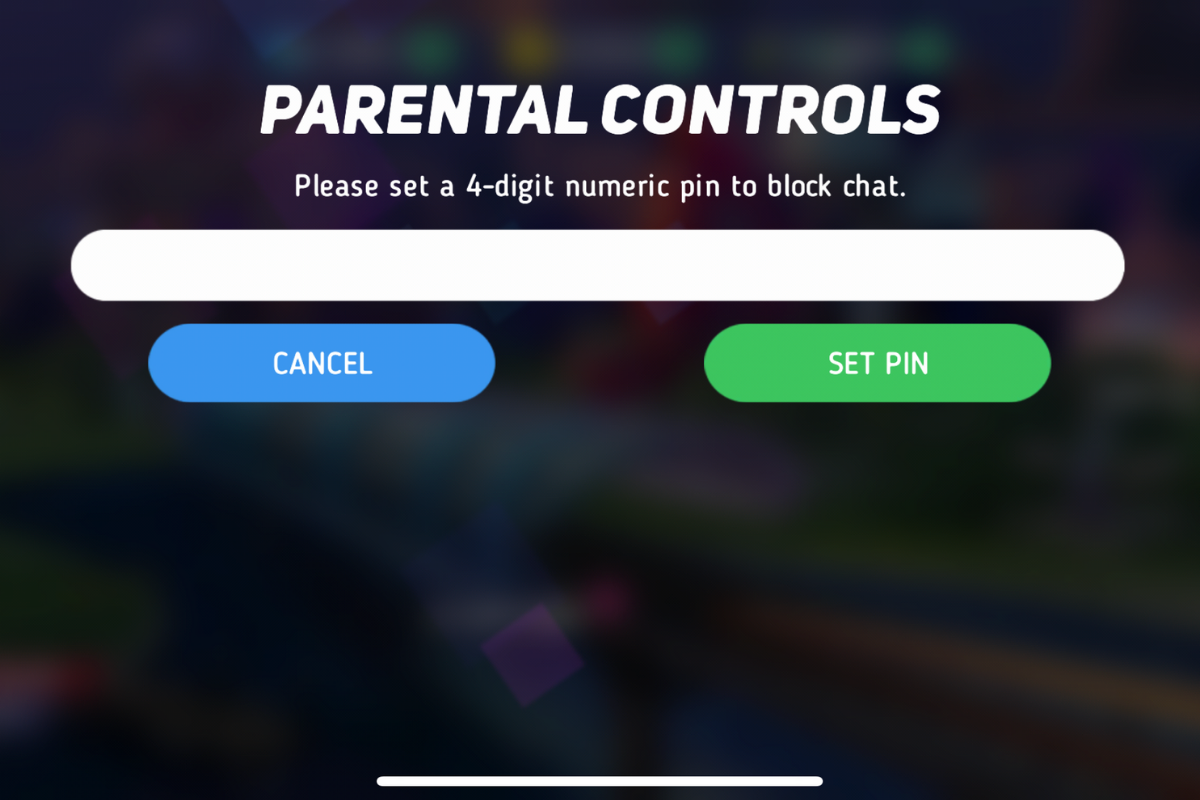
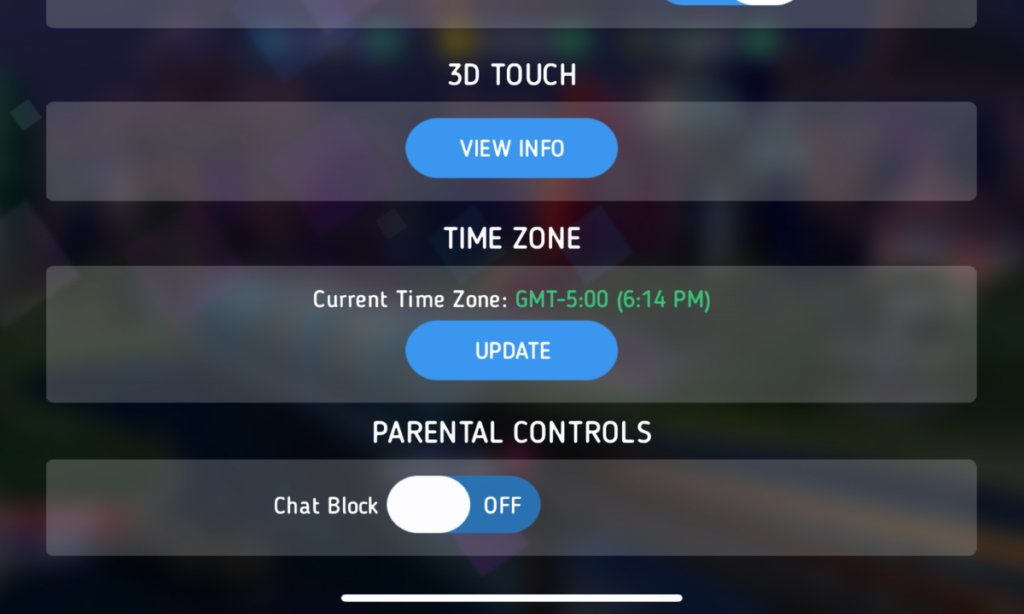
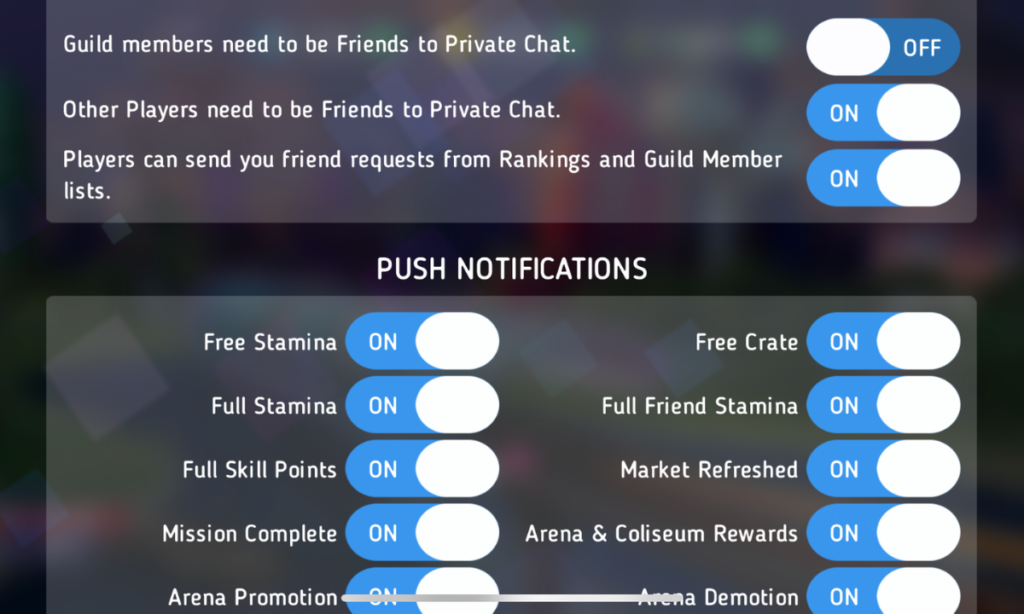
    After hearing about the trouble with Disney Heroes Battle Mode I downloaded the app to see what it was all about. After a short cenimatic and then playing through the tutorial you get a notification that the app has purchases built-in and that you shouldn’t be under 13 (app is rated 9+ in the app store. if you want to play. I simply tapped continue and moved right past the warning. No age verification, no password, no face id, nothing. Once in the app I started looking through the settings. I did find controls for the chat feature, including a password protected on/off toggle for chat access. This was good to see, especially since the issue I was researching had to do with chatting.

    The problem is that apps like Disney Heroes give parents a false sense of security. The app is made by Disney, the company’s name on anything makes many parents think that the product is made with their kids’ health in mind. This could not be further from the truth. Disney is out for exactly what every other major corporation is out for, their financial bottom line. We have to remember that data is big money and apps that are made for kids collect just as much data as any other app. Data that is personalized to a user is worth more money which means app developers need users to make an account to sort and identify their data more easily. The easiest way to convince app users to create an account is by making it the only way they can chat with friends in the game.

    What Parents Should Know

    I recommend taking a look at the game your kids play on their pones or tablets. Just because the game features cartoon characters doesn’t mean there aren’t adults playing the game. If the game has a social feature like chat or friend-mode you can be sure that your kids will be contacted by strangers. Look in the settings, preferences, or options of the games to see if there is a way to turn off chat mode. If they don’t allow you to disable social features, I would uninstall the game and encourage your child to find a different game to play.

    We must remember that the companies that make these games offer them for free because their money comes from in-app purchases and advertising. In order to make money they have to keep people playing the games as long as possible. Research shows that there is no better way to keep someone in your app than social engagement. People will be sure to keep coming back if they have friends in the game to play with or against. This means that they will continue to put these social features in their games and while app stores may rate these games as safe for younger children, my rule is that if it has a social element it should be for kids older than 13. Even then you should ensure that you child understands what they should do if they are approached online by a stranger and encourage them to tell you if someone makes them uncomfortable in any social engagement online. We can do our best to protect them from this software but nothing is more affective in preventing these dangerous encounters than teaching them how to recognize them and end the conversations immediately.


  • Snapchat’s Social Gaming = More Time on Social Media

    Snapchat’s Social Gaming = More Time on Social Media


    It has barely been a year since Snapchat joined Facebook in a movement to help people better manage the amount of time they spend in the social networking apps they develop. Snapchat added the ability to silence notifications from certain conversation and redesigned their app to be more about time with your friends and less about time in the app. Yesterday, however, CED Evan Spiegel announced their new focus on Social Gaming and several new original video series citing a new way to keep young people in their app even longer. 

    The games featured you and your friends’ Bitmojis. In them you play silly games that include pool toy fights, field goal kicking, and keeping your Bitmoji atop a spinning record as your friend DJs for you. In the announcement Spiegel says “On Snapchat, you’re free to be you, with your real friends. As we use the internet more and more in our daily lives, we need a way to make it a bit more human.” Apparently the idea is that as social beings, we need to hang out and since we are all spending so much time on our smartphones, Snapchat wants to be the place your kids hang out in.

    Facebook and Snapchat Join the “Time Well Spent” Movement


    What Parents Should Know

    I have said it several times before, we can’t blame tech companies for wanting people to spend time on their software, that’s how they make their money. Quotes from this announcement boast of a place that people can be themselves, obviously what they truly are creating is a place where we can spend more time, see more ads, and make Snapchat and its shareholders more money. No matter what social media companies say about time well spent, privacy, or security they are protecting their bottom line. They have shareholders that they must impress with the numbers so that’s what shapes their decisions. Knowing this helps us remember that the responsibility for healthy tech use falls to users, and our kids’ tech health is the responsibility of parents.

    Talk to your kids about the amount of time they spend on social media. Don’t allow them on social media that is rated higher than their age. Teach them not to expose sensitive information like their phone number or the name of their school on these apps. Finally, use some sort of filter or time management software to help you enforce your standards. Parents are the first line of defense against the dangers of unlimited and unmonitored internet use. We have to take on that responsibility because nobody else truly will.

    You can listen to this post as a podcast episode below.

  • iPhone, Netflix, and Instagram are Dominating Teen’s Time Online

    iPhone, Netflix, and Instagram are Dominating Teen’s Time Online

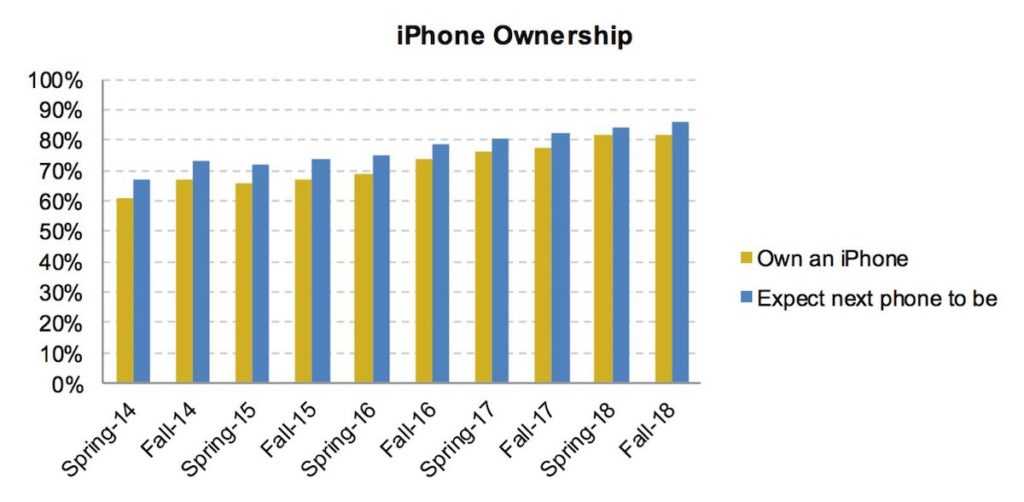
    A new survey by research firm Piper Jaffaray called “Taking Stock with Teens” has highlighted some of the most noticeable trends in teenagers’ purchasing habits and tastes. The survey polled more than 8,000 teenagers about how they spend their money and what influences their purchase decisions. The average age of teens surveyed is 16 and the survey is done every spring and fall. The Fall 2018 survey revealed a dominating presence by iPhone, Netflix, and Instagram.

    The survey concluded that 82% of teens owned an iPhone and 86% planned to buy an iPhone for their next smartphone. The iPhone has dominated the marketshare for a while now but it’s still growing in the Teen market. Only 10% of teens said they planned to buy an Android phone. Nearly half of those surveyed said that the brand of a product had a major influence on their decision to purchase.

    Instagram is now the social media leader among teenagers passing up Snapchat and Netflix provides the most streaming video to our adolescent kids at 38% of the share vs 33% for YouTube. Other interesting info from the survey is that food is the highest budget priority for teens, they prefer to shop online, and the majority of video game purchases are now made through online download.

    What Parents Should Know

    This info is meant to help marketers plan their products and advertising campaigns but it can go a long way to help moms and dads and other guardians of kids better understand how our teenagers tick. The emphasis on the iPhone speaks to the exclusive nature of the brand, the appeal of feeling like you belong to a niche group causes kids to move towards a brand that is considered to be more premier than the rest. Instagram has passed snapchat by adding much of the features that kids loved about Snapchat without changing the core timeline of the app. Snapchat has admitted to making a mistake by altering what made their app popular with the younger crowd. After going public, Snap made decisions to buffer their ability to become a marketing destination for companies. This undermined their core fanbase of kids and teens who are more likely to skip an ad or unfollow an account that seems to be too “pitchy.”

    Netflix is now a more popular video streaming service among teens than YouTube, though not by much. The focus on original content and many of our kids’ favorite stars creating shows and movies for Netflix is driving them to use the streaming service. There has also been a surge in younger people enjoying television shows from the past twenty years or so because of Netflix’s ability to keep those shows streaming on their service. While YouTube is pushing their own TV solution, Netflix is just continuing to build upon the genres they created and it seems to be drawing in folks from most demographics.

    I want to conclude by mentioning again that kids are buying their video games through online downloads. This means that the restrictions on games have to be set digitally or your kids can buy whatever games they’d like. If you have set up their Xbox Live or Playstation accounts to make purchases then they can buy whatever games they’d like without any restriction. You have to set that up yourself. There is no longer a cashier at the store who will ask to see your kids id when they try to buy a game that is rated M for mature. It is up to you to get those settings set up.

    This data is super helpful for us, as parents, to understand our kids’ preferences and influences. Information like this can help us make quality decisions and chose the right battles when trying to protect our kids from adult content, online predators, cyberbullying, and other dangers of using the internet with no filters or boundaries. Subscribe to our newsletter, our YouTube account, our Twitter and Facebook, and to our podcast to stay in the know as to what’s happening in the digital and connected culture your kids are growing up in.

  • Three Tech Rules in My House

    Three Tech Rules in My House

    I get asked a lot about how I handle my kids’ technology in my house. It is easy to answer this question because I am pretty active in my kids’ tech lives and also because my kids are pretty young. Below are three of our most important rules for keeping our own four kids safe online.

    Rule #1 | It isn’t YOUR device.

    My kids don’t have their own tech devices. We have a shared iPad 2 and iPad Mini and a couple of old iPhone 4s that our kids use. They often try to claim one of the devices or another as their own but we quickly remind them that they don’t own any of them. We tested it with our ten year old for a few weeks and it caused too many problems. Him thinking he could do whatever he wanted because it was just his device led to a lot of frustration when we tried to enforce our boundaries. The solution was simple. All of these devices are shared, you can’t tell your sister not to use it and you can’t take it to bed with you at night. Done.

    Rule #2 | No tech in bed with you.

    This one is a bit tricky since my kids use their devices to listen to noises or music as they go to sleep. The rule, however, is no browsing once it’s lights out. We often just set it for them and forget it so the device stays across the room. There are studies to show that viewing the glowing screen at night can hinder your ability to rest. Lack of rest can cause serious health concerns in our children. Once I explained all of this to my kids, they have done pretty well to respect the “No tech in bed” rule. They want to be healthy just as badly as we want them to be.

    Why I Told My 10 Year Old EVERYTHING About Pornography

    Rule #3 | You gotta ask first.

    My children aren’t allowed to just grab a device and do as they wish. They don’t have passcodes (because built-in restrictions and a wifi content filter are set up) but if they are caught hiding in another room doing something on a device they lose the privilege for at least a week. We make them ask and when they are playing or watching something we nearly always require that it is in a common area. That part of the rule is flexible when they are doing schoolwork on an app and don’t want to be disturbed or but most of the time they have to be somewhere where everyone’s eyes can see their screen. They always, have to ask though. Mom and Dad must know you are using that device. If we find out they were hiding (and we have our ways) there is a major cost.

    We have more rules but these are the simplest and most easily implemented of our plan. They require no software installation or tech knowledge. It’s really just parenting, plain and simple. Your kids need you to set some boundaries. Maybe you can start with these three rules. Do you have some different rules or different ways to implement these same rules? Tell me about them in the comments below.

  • The “Grown Up Fortnite,” PUBG, is Now FREE on iOS and Android

    The “Grown Up Fortnite,” PUBG, is Now FREE on iOS and Android

    If your kid doesn’t play Fortnite, they’ve asked if they can. It’s a battle royale game that combines the third person shooter genre with crafting and resource gathering. You parachute onto an island and battle against 99 other players to the last man. Along the way, you collect resources, weapons, and armor. You use your resources to craft walls, towers, and such to help you fight against other players. Fortnite is made with cartoon style graphics and no blood or gore. You do, however, play against or with players online from all over the world.

    Player Unknown’s Battleground started the battle royale genre hype. It follows the same model as Fortnite, minus the crafting and resource collection. The biggest difference, however, is the realism. While it still plays like a game, it is a third person shooter with plenty of violence and blood. You don’t build and craft, you just run around avoiding enemies until you have to battle it out. Then, the choice is to kill or be killed. The game wasn’t made for young kids. It is now available for free in mobile app stores so more kids can have access to it.

    CHECK OUT: Podcast – Boys and Video Game Addictions

    What Parents Should Know

    My advice is to use something like Family Share or Android FamilyLink (if available) to keep an eye on what apps your kids are downloading. I’m not one to say that kids playing violent video games will immediately lead to them committing violence themselves, but I do know that there are psychological effects on young boys who experience the intensity of simulated battle while their brains are developing. I recommend not allowing your kids to download this app. Fortnite is questionable, but to me, PUBG is a definite no.

  • How to Turn Off Hidden Location Access in iOS

    How to Turn Off Hidden Location Access in iOS

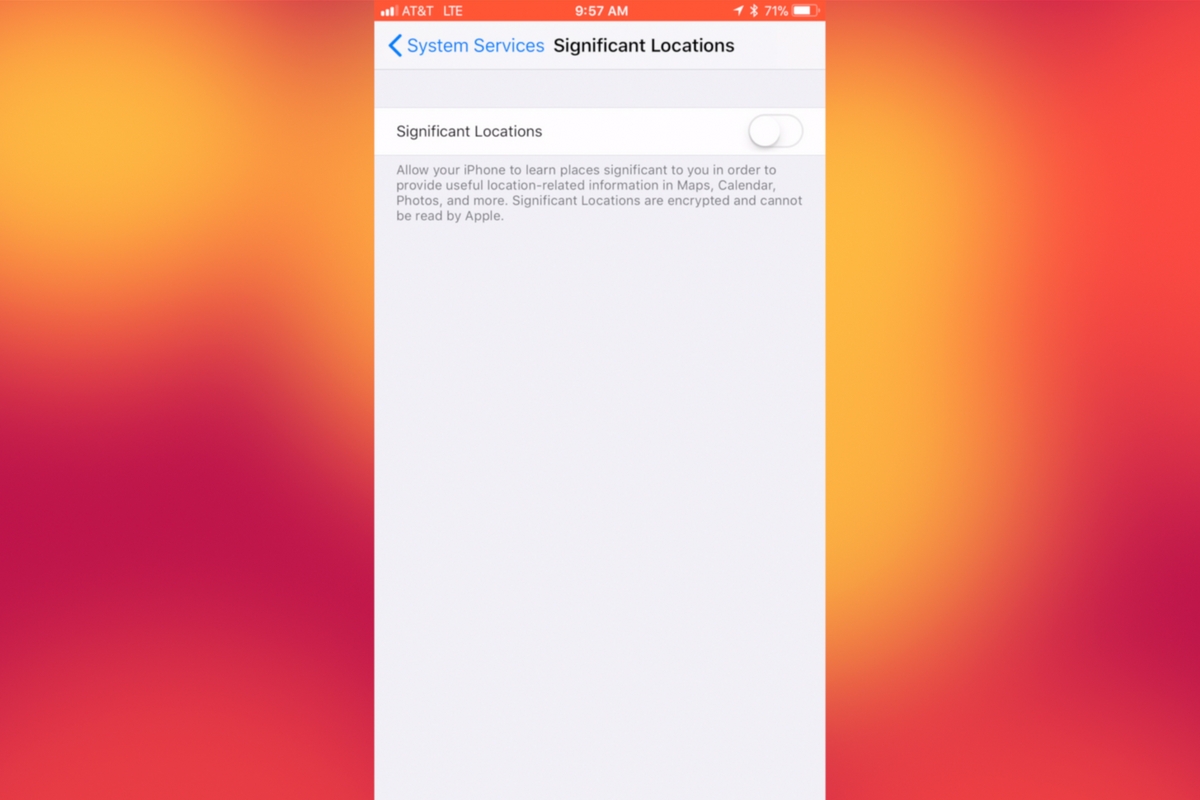
    I recently noticed that some of my photos and videos were still being tagged with a location. One of the most common pieces of advice I give to parents is to turn location access off to their cameras. I was a bit annoyed because I never saw location information in my Photos app before, but now I was. Well, I did a bit of digging and found the culprit. It’s about five taps deep into your privacy settings and, therefore, easy to miss. Below is a short video tutorial to help you be sure location info on your phone stays as private as possible.

    Why Turn This Off

    Your location information is easy to track and very easy to gather from the data in the videos and pictures that you upload to social media. There have been instances of kids being harassed by predators who learned where they were through images their parents had shared online. Common sense tells us never to post pictures or videos that show an address number, school name, or sign of a place you frequently go with your family. The problem is that some of the apps on our phones tag our locations by default. I recommend you look at every app’s location request and ask yourself, “Does this app HAVE TO know where I am to function properly?” If it does not, then turn off access to your location.

    Hopefully, this short video helps you make the changes you need to feel like your privacy is even more secure. I know I feel better.

  • Tools to Monitor Your Own Screen Time in 2018

    Tools to Monitor Your Own Screen Time in 2018

    Happy New Year!

    The first of the year has come and we are all trying to make ourselves a little better. Maybe you’re concerned about you and your family’s increased screen time. This is normal, we’re all thinking about what we can change in the new year and spending less time looking at a screen is on the top of many lists. These tools can go a long way to help you identify the amount of time you spend on your device, narrow down what you’re doing that sucks up so much of your time, and even set boundaries to alert you or block access when you’ve reached your desired limits.

    Accountable2You

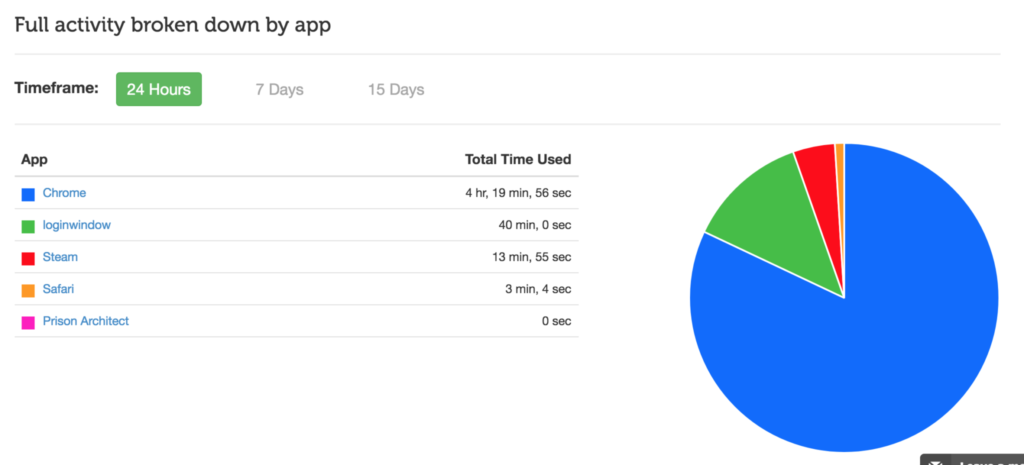
    No matter what device you use, Accountable2You can help you keep track of what you’ve been doing online. The online dashboard will give you an App Usage report, complete with a circle graph of how you spend your time online. Whether you use this to keep track of your kids’ devices or your own screen time, it’s an easy to read way to be aware of how you’re spending your days.

    Accountable2You is an accountability software at heart. It will notify you if there anything inappropriate has been accessed by those you’re keeping an eye on. It’s easy to set up, affordable (6.99 for 10 devices and 9.99 for 20,) and it works for every device. Even the Chromebook your kid got from school. It’s what I use and the best part is that if you sign up with our link, our non-profit will get a bit of help every month because of your payment.

    Android Family Link

    Android’s first stab at native parental controls focuses mainly on time management. That is, in fact, almost all it focuses on. Google FamilyLink is designed to allow parents to set time restrictions, time limits, and bedtimes as well as monitor the amount of time spent using the device. This will be accomplished by a complete disabling of the device once time limits or restricted times are reached. A tool like this could easily be used to limit or monitor yourself as well. If you, like me, spend most of your time in front of your computer for work, you may want to be able to set limits on how much time you spend on your phone or tablet for recreation purposes. FamilyLink should be a pretty good way, if you have an Android device, to cause your entire device to shut down when your limit is reached, or even just take a look every few days to see how much time you’ve spent on those devices.

    iPhone Battery Meter

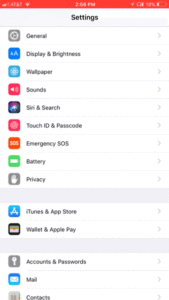
    For iOS users, Apple has built in a way to keep an eye on what you’re spending your time on while using your device. Your battery meter can be used to monitor your own screen time. It will even sort your time by app used and separate it into “on screen” and “background” time. To use this, simply go to your settings app and open the Battery section. When the usage area loads, tap on the clock icon on the upper right of that section. You can set your timeframe to be 24 hours or 7 days. This gives a pretty good snapshot of how you spend your time on your iOS device. Try it, you may be surprised.

    Moment App (iOS only)

    The Moment App uses your battery meter to build a nicely laid out report for you to keep track of the time you spend on your phone. Moment is only available for iOS (Android app is in development.) It automatically tracks your usage and allows you to see simple reports that separate your usage by the apps you spend time on. Moment lets you coach yourself on your screen time habits so that you can make changes if you want. You can set up time limits and Moment will notify you if you’ve gone over the time you’ve allowed.

    This app works pretty well. I used it for about a month and definitely made some changes to the amount of time I spend on my phone. Since it’s free you can even consider using Moment to install on other devices in your family and setting up limits for them. It will be up to them to put the phone or tablet down when they are notified but there’s something to be said for teaching your older kids to take the responsibility into their own hands. Moment is a free app but there are premium features (including extra family controls) that you can pay for.

    UnGlue

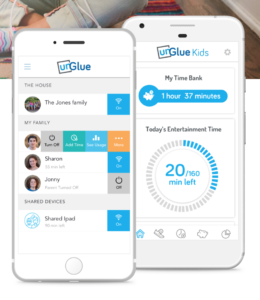
    UnGlue was created to give the power of screen times to the kids themselves. The website touts a plan to “give kids the power to learn healthier habits – within your boundaries.” UnGlue uses a scheduler to set up your kids’ screen time allowance. You can give them control of how they spend their time by giving the rewards for things like chores and exercise. Unglue works from just an app, no separate device to hook up. The basic UnGlue package gives you access to screen usage reports only. You can use this free feature to keep an eye on the time you spend online. Further features will cost up to $9 per month. UnGlue is fairly new and has been updated quite a bit recently. It will work on iOS or Android and even on your home devices. (With the full-featured service.) Go check out UnGlue and tell them FamilyTechBlog.com sent you.


    Circle

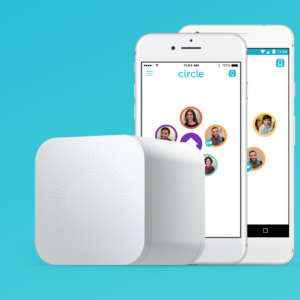
    I’ve spent a lot of time talking and writing about Circle. I recommend this parental control tool to everyone I speak to and I even use it myself. Circle lets you filter by age and category and limit screen time for your kids but it’s been cool for us to have a profile for ourselves. This profile lets us see, in one glance, how much time we’ve spent on every single one of our devices. When you’ve built your profile, you just add the devices you use to be monitored under your account, this results in a very useful and detailed report on how much time you’ve spent in front of your screens. It even monitors your smart tv, BlueRay, and gaming system usage. Circle is a $99 investment for in-home wifi protection, (with the option to pay $10 monthly for on the go monitoring) but in my experience, it’s an all-in-one parental control system. You can buy circle at Amazon or at Best Buy and Bed Bath and Beyond.

    Whatever you do, start.

    New Year’s Resolutions are notoriously easy to forget about but my advice is that you just get started. When you begin my tracking how much time you spend on your screens, you’ll find yourself truly motivated to make a change. It worked for me. Using Moment and my battery life meter led to my decision to not start using my phone until I’ve had breakfast with my family. We’ve even started doing some Social Media Free Saturday’s a couple of times per month. Whatever your goals are, you’ll never accomplish it if you never begin so grab hold of one of these tools and get started!


  • Soon, All Tech Will Know Your Face…Get Used to It!

    Soon, All Tech Will Know Your Face…Get Used to It!

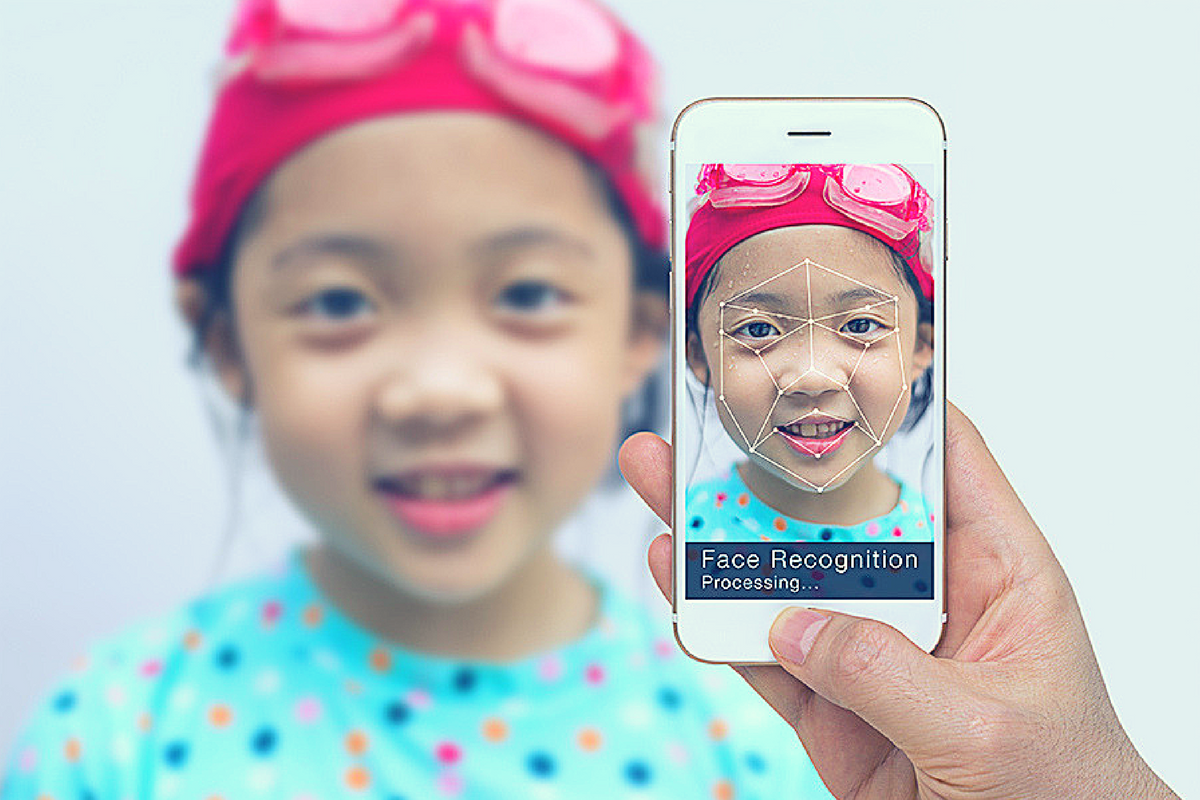
    Facial recognition is one of the hot-button topics of 2017. iPhone is featuring it now, several social media platforms have been using it for a while to help you tag your friends in photos. In fact, Facebook has just announced how they’re using facial recognition to help the blind learn more about photos on their timeline. Artificial intelligence in our social media timeline tells us what images and posts we want to see first, it identifies who is in our photos, it even decides what ads we will be most likely to click on. Social media isn’t the end of facial recognition AI, though. As I prepare to head to Las Vegas for the Consumer Electronics Show (thank you, by the way, your readership of this blog made that possible) I see more and more smart-home and gaming tech using facial recognition for their main functionality.

    Security

    The application of facial recognition in security tech should be pretty obvious. Amazon has a camera that you mount outside your door that will only allow approved delivery people into your home to drop off your packages. Smart security tech will use motion sensors and facial recognition to identify who enters a room and determine if they belong or not. If you aren’t approved, an alert goes to the homeowner and they can decide to alert the authorities or not based on seeing the picture that the security device took of you.

    Smart Home Tech

    Smart home technology isn’t early market anymore, it’s actually becoming more of a mainstay in the American household. People are calling out to Alexa, Google, and even Cortana more an more every day. The latest technology will be featuring the ability to recognize you and adjust the “settings” of your home accordingly. Think lights dimmed, music on to your playlists, coffee part started, and your tv turned on to your favorite channel. Most of the latest smart home tools are putting cameras on their devices and making facial recognition standard in their algorithms. That means that more and more “affordable” or “budget” devices will be scanning your face. When you pay less for similar tech, what you usually save money on is the privacy and security side of things. You have to be careful to understand the security settings and privacy policies of any “smart” device you purchase.

    What Parents Should Know

    Every single new tech development has the challenge of balancing convenience and progressiveness with security and privacy. Having your lights come on because a device saw your face walk into a room sounds like a really convenient thing. Being alerted by Facebook when someone uploads a picture of you is a great idea. It can help you keep photos you don’t like of yourself off of the internet or just help you make sure you are tagged in the photo you’re in. If all of these new technologies can ensure that your identity is secure then it’s a great way to use the latest developments to add convenience to your life. 

    My advice with the newest releases is always to wait a while. Let the lawsuits and hackers do what they will before you own one of the devices and your personal data is in jeopardy. Once it’s been out for a while then maybe integrate it into your life, but only if you know how to set it up and secure it properly.

  • iPhone X Face ID Won’t Keep Your Kids Out of Your Phone

    iPhone X Face ID Won’t Keep Your Kids Out of Your Phone

    One of the best ways to keep your phone safe is to make sure it’s locked so your kids can’t get into it without you knowing. This allows us, as parents, to have apps or games we wouldn’t let them use without worrying that they’re going to get into them. Maybe you keep your kids off your phone because your filters aren’t as strict, maybe you don’t want them reading all of your messages, maybe you just don’t want them resetting your Mario Run scores. Whatever your reasons for locking down your phone, the new iPhone X’s facial ID feature isn’t your best option. Here’s why.


    The statistical probability is different for twins and siblings that look like you and among children under the age of 13, because their distinct facial features may not have fully developed. If you’re concerned about this, we recommend using a passcode to authenticate. – support.apple.com

    What Parents Should Know

    Apparently, young undeveloped faces can trick the facial recognition software on the iPhone X and let a child get access to your phone. If your phone isn’t locked down then your kids will have access to those in-app purchases, unfiltered searches, and accessing unapproved entertainment or social media you’ve blocked on their devices. Apple recommends you use a passcode if you have small children. This recommendation seems to hint that they’ve just accepted that this will be a limitation of their Face ID feature. My tip is to take Apple’s advice. Use a passcode if you have an iPhone X. If you want an iPhone X mostly because of Face ID then you may reconsider.