Tag: ipad

  • Turn Your Drawings into Playable Games with Doodlematic

    Turn Your Drawings into Playable Games with Doodlematic


    Doodlematic lets you take a picture you’ve drawn on paper and turn it into a playable mobile game. 

    I met Martin Horstman, the dad who developed Doodlematic at CES2020. He talked me through how you can take any kind of art, as long as it uses the colors the APP recognizes, to create a real playable mobile game. They sent us their box set and we were able to play with it. My son had a blast drawing out games, especially platformer games that you had to jump from platform to platform an achieve goals. 

    To use Doodlematic, you simply draw the game on paper, take a photo of it, the APP processes  it, and then you play. You can then share it in the Doodlematic app and other people can jump in and play your games if you’ve allowed them to be public. 

    How it Works

    There are two types of games you can create on doodle matic. You can make the platformer, like I mentioned already, or you can make an Angry Birds style launch game where you shoot your “avatar” over to knock over targets. It’s all based on a series of different colors that create different types of objects in the game. Anything black is your platform or your ground. Red is obstacles, things that get in your way and end the game when your avatar touches them. Blue items are your goals and anything green is your character or avatar. 

    Your avatar jumps from platform to platform trying to grab the blue goals while avoiding all of the red obstacles. The app uses the colors to develop the Games behavior. This allows kids to basically make the game whatever they want it to be. The best part is there’s a lot of trial and error. I don’t know how many times my son drew something, took a photo of it, and then realized game just didn’t work properly. Not because the app was messed up but because his drawing didn’t allow the Doodlematic to do what it needed to do to make the game playable. Back to the drawing board, literally. Just a few fixes here and there and the games was doing what he wanted it to. 

    What You Get

    Doodlematic comes in a box with notebooks to guide you through the game creation process. It takes you through a step by step tutorial showing you what to draw and how to use that to create the behavior you want in game. 

    Doodlematic is probably usable for any kid over three years old. Once they can draw a little bit and grab a pen or pencil, they can create a game in the app. There are some advanced controls you can set up that make things move back and forth constantly or make the obstacles do things.  You can learn how to do that as you gain more experience in Doodlematic. However, all you have to do to get started is draw with the proper colors and play your games. 

    Apps like Doodlematic are great for kids because they teach them that trial and error process that’s necessary in developing any kind of technology. If you’re learning to code or if you’ve done any website building or graphic design you know that there’s a lot of times you start to create something that just cannot work. Then you have to go back to the drawing board. Doodleatic gives you a similar experience but it’s also still fun. It doesn’t take away any of the excitement because you know what you did wrong and can fix it.Then, suddenly, your game is working. That sense of reward and excitement is real and kids love it. 

    I have four kids. All of them have loved Doodlematic. My boys loved it. My Girls Loved it. My twelve year old loved it and my five year old loved it too.? I recommend checking it out at the website below and getting your family into Doodlematic and make yourself some games. You’ll love it.

    ThinkDigital.com


  • Three Tech Rules in My House

    Three Tech Rules in My House

    I get asked a lot about how I handle my kids’ technology in my house. It is easy to answer this question because I am pretty active in my kids’ tech lives and also because my kids are pretty young. Below are three of our most important rules for keeping our own four kids safe online.

    Rule #1 | It isn’t YOUR device.

    My kids don’t have their own tech devices. We have a shared iPad 2 and iPad Mini and a couple of old iPhone 4s that our kids use. They often try to claim one of the devices or another as their own but we quickly remind them that they don’t own any of them. We tested it with our ten year old for a few weeks and it caused too many problems. Him thinking he could do whatever he wanted because it was just his device led to a lot of frustration when we tried to enforce our boundaries. The solution was simple. All of these devices are shared, you can’t tell your sister not to use it and you can’t take it to bed with you at night. Done.

    Rule #2 | No tech in bed with you.

    This one is a bit tricky since my kids use their devices to listen to noises or music as they go to sleep. The rule, however, is no browsing once it’s lights out. We often just set it for them and forget it so the device stays across the room. There are studies to show that viewing the glowing screen at night can hinder your ability to rest. Lack of rest can cause serious health concerns in our children. Once I explained all of this to my kids, they have done pretty well to respect the “No tech in bed” rule. They want to be healthy just as badly as we want them to be.

    Why I Told My 10 Year Old EVERYTHING About Pornography

    Rule #3 | You gotta ask first.

    My children aren’t allowed to just grab a device and do as they wish. They don’t have passcodes (because built-in restrictions and a wifi content filter are set up) but if they are caught hiding in another room doing something on a device they lose the privilege for at least a week. We make them ask and when they are playing or watching something we nearly always require that it is in a common area. That part of the rule is flexible when they are doing schoolwork on an app and don’t want to be disturbed or but most of the time they have to be somewhere where everyone’s eyes can see their screen. They always, have to ask though. Mom and Dad must know you are using that device. If we find out they were hiding (and we have our ways) there is a major cost.

    We have more rules but these are the simplest and most easily implemented of our plan. They require no software installation or tech knowledge. It’s really just parenting, plain and simple. Your kids need you to set some boundaries. Maybe you can start with these three rules. Do you have some different rules or different ways to implement these same rules? Tell me about them in the comments below.

  • Tumblr App Installs “Adult Content On Switch”

    Tumblr App Installs “Adult Content On Switch”

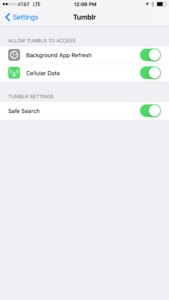
    Tumblr has lost some traction over recent years. It’s not so much a social media platform as a blog host and not really even that. It’s more used for GIF (animated images) posting than anything nowadays. Apple has always had a pretty strict standard on adult content in the apps in their app store. They require developers to have adult content disabled by default. This usually means that image searches on your browser should be without any blatant pornography unless your search is specifically for that. Tumblr has updated their iOS app with a workaround for this rule. There is now a switch that will allow users to turn adult content back on in Tumblr. It’s actually a “safesearch switch” and it’s set to on by default, thus following the rules set up by Apple. All it takes, however, is for someone to go to the settings page of the app and turn the safesearch option off. This will unleash the cacophony of adult content that is available on Tumblr (many say that pornographic images and gifs have become it’s main purpose) on the user.

    What Parents Should Know

    The Tumblr app is basically a browser in which anyone with an account can see any of the user generated blog content posted on the site. As mentioned above, the app has become inundated with adult content and is not safe for anyone you’d like to keep from those sort of images or videos. The safe search switch isn’t located in the restrictions settings on your iPhone. It is just in the settings for the app. This means safesearch changes can be made without a password. This app is an easy way for your child who has been looking at inappropriate images or videos to access more of that. Now that the safesearch can be turned off, you’ll want to add this app to the uninstall list.

    Our children can be greatly harmed by pornography. Studies are showing it’s addictive nature and the ability it has to alter a person’s sexuality and preferences, creating what they call an “arousal template.” This causes kids to be attracted only what they’ve seen online and can create serious problems for them in the future. They also say that kids who view pornography are six times more likely to force others into sexual behavior. Many in our culture view online adult content as only entertainment but it’s being proven that it’s detrimental to the mental health of our kids. If there is anything you can do to protect your children from adult online content, you must take steps to do so. Uninstalling Tumblr just became one of those steps.

  • Schools are Sending Home More Technology and it’s Worrying Parents

    Schools are Sending Home More Technology and it’s Worrying Parents

    When It’s Out of Your Hands

    More and more schools are giving students tablets or laptops to help them with their school work. Much of the newest curriculum is either fully digital or integrated with a digital resource of some kind. This means that there are more devices being placed in our children’s hands and parents aren’t even able to decide if they should have them. Schools are required to have protections set on their in-house networks but there are no guarantees that your children are protected at home. There have been multiple instances reported of children coming in contact with adult content on school computers. This story from last fall highlights the inability for the school to guarantee their tech is safe when not in their own building. The conversation always goes to the same place. The responsibility for safe internet use outside of the school or library falls with the parents. What does that mean for us as mom and dad?

    What Parents Should Know

    I recieve questions all of the time about how to protect kids on their school computers. I’ve been scheduling workshops for parents at private schools and helping school leadership learn how to protect their students. Internet safety in school and on school issued devices is a serious matter. Too many schools aren’t set up properly to filter adult content and monitor messaging or internet searches. This means it’s up to parents to be sure your kids are safe.

    I recommend a couple of things. First of all, if it’s all just too much for you then ask that your child be allowed to keep the tablet or computer at school. Many schools will let your child check the computer in before they leave and check it out again when they come to school the next day. This is a good option if you’re concerned about how safe your home network may or may not be. I, of course, recommend securing your home wifi network and devices as soon as possible, though.

    Secondly, you can talk to your school administration about better security measures. What kind of internet safety setup does the school have in place? Do they apply safety settings per device? Per classroom? Is the school network protected? If so, is only their network safe or do they have protections that will follow your kids home as well? If you can’t answer any of these questions then you don’t know enough about your school’s internet safety policies. You need to have some conversations.

    Third, I would recommend talking with your child as often as you can about how they use the internet at school and at home. These conversations will help them feel comfortable to come to you if something inappropriate turns up online. They should report anything suspicious or dangerous to school officials and you and it’s up to you to help them know that.

    A New Standard

    Schools will most likely not stop issuing technology to their students any time soon and it is only getting harder and harder to protect our kids from hostile content and overuse of screen time. Remember to keep track of how much time your kids are spending online and include school in those numbers. If they are doing three hours of school work on the computer and them watching videos for two hours at home they have spent five hours online that day. Is that the healthiest internet habit you can set for your family? You decide, and then implement your plan.

  • VIDEO TUTORIAL: iCloud FamilyShare Set-Up

    VIDEO TUTORIAL: iCloud FamilyShare Set-Up

    Apple has a great way to help families keep track of what their children are downloading on their ios devices. Your kids can even have their own profiles. It allows for families to share the apps they have downloaded without having to purchase multiple copies. It lets the administrator see what apps the other accounts have downloaded. Best of all, though, it lets you set requirements for young users to ask permission before an app can be downloaded. If you have specific requirements and standards for the apps you want your kids to use, this feature will help you keep those standards in tact.

    The video below is a simple walkthrough on my Macbook of how to set up your iCloud FamilyShare settings. I will add one new child account and even give some information about why you may want to use this feature.