Tag: internet

  • Do Not Let Your Kids Download Fortnite for Android

    Do Not Let Your Kids Download Fortnite for Android

    Another Update: August 24 2018 : Google found a security flaw in Epic’s download file for Fortnite.

    UPDATE August 10, 2018: The Google Play Store has added a notice to Fortnite search results that reads: “Fortnite Battle Royale by Epic Games is not available on Google Play.” This addition is an attempt to discourage the download of copycat games that could contain malware, spyware, or other malicious add-on software.

    It’s Not About the Game

    Fortnite is one of the biggest things ever in video games. You can read all about the game and my thoughts on the game here. Thus far, you have been able to play the free Battle Royale game on consoles, computer, and iPhones or iPads. That is changing soon as Epic Games is releasing their smash hit to Android. The problem isn’t that the game is being released, it is how it’s going to be distributed and downloaded. Epic has announced that they are going to bypass the Google Play Store and let you download the game directly from their site onto your Android phone.

    While this doesn’t sound like a big deal, you have to trust me, it is. It is a big deal because of security. Android’s (and Apple’s) app store are places to find apps for your phone that have been vetted for security and privacy before being listed for download. When you “sideload” an app, you are bypassing all of these security or privacy features and putting your data at risk. 

    Sideloading is installing an app onto your Android phone from somewhere other than the Google Play Store.

    Making the game available in through this method will remove the 30% profit share that Google takes from apps downloaded from their app store and gives Epic Games complete control of their software (updates, in-game store, etc.) This is probably a good move for Epic Games’ bottom line but can prove to be a nightmare for some Android users.

    There are more security prompts and features for those who use the latest version of Android’s operating system but estimates say that over 85% of Android users haven’t received the update yet. Especially our kids since most of them are using devices we’ve handed down to them. This means that it is way too easy to end up downloading a fake version of Fortnite and installing spyware or malware along with it. If you’re a grown adult, you can make decisions based on the security and privacy of your smartphone experience but kids should be taught to only ever download games and apps from their devices App Store.

    Screwing Up Your Parental Control Settings

    Android FamilyLink and most third-party parental control apps help you control app downloads using the Google Play Store. If the app they want can be downloaded outside of the app store then you can’t monitor their activity or download permission. If you’re monitoring their activity you’ll want to look for “APK” files. Those are the packages that sideloaded apps come in. If you’re looking at the activity on your kid’s phone and you see thisisafile.APK, you’ll know they are installing apps outside the app store.

    Epic Games’ decision to bypass the Play Store, while maybe a shrewd business move, is definitely going to cause problems for parents who are trying to keep an eye on what their kids are doing on their devices. My advice is that you don’t allow your kids to sideload apps at all. Whether it be Fortnite or anything else, letting your children bypass their device’s built-in security and privacy protections is simply a bad idea. 

    What Parents Should Know

    The security and privacy settings that are built into your smartphones and tablets are there for a reason. It’s very important that you update your devices as soon as there is a new version available. That said, it does you no good to keep your phone updated if you are installing random software from all over the internet. In essence, that’s what sideloading apps is. You’re downloading files that could really come from anywhere and installing them into your device. This can lead to apps tracking your location, listening to your microphone, and even turning on and recording with your camera. The last thing you want is for your son or daughter to install some game and end up with images or video of themselves posted all over the internet by some hacker. 

    Yes, that example is extreme but it has happened before and there are apps out there that contain such harmful code. Even if the problem isn’t that bad, at the very least you’re opening your phone up for viruses that can shut it down permanently. I understand Epic Games trying to make more money by allowing downloads from their website but in this day and age where our data is being collected left and right, wouldn’t you prefer to go through the company that created your device’s software instead of just installing from wherever, willy nilly? 

    Fortnite isn’t that bad of a game, it’s rated T for teen because of the cartoon like violence and online experience. It has potential to be addictive for some kids and should be monitored for that reason. Again, I’m not saying every parent should avoid letting their kids play it, I’m saying you shouldn’t let them install it on Android from anywhere except the Google Play store. 

  • Three Tech Rules in My House

    Three Tech Rules in My House

    I get asked a lot about how I handle my kids’ technology in my house. It is easy to answer this question because I am pretty active in my kids’ tech lives and also because my kids are pretty young. Below are three of our most important rules for keeping our own four kids safe online.

    Rule #1 | It isn’t YOUR device.

    My kids don’t have their own tech devices. We have a shared iPad 2 and iPad Mini and a couple of old iPhone 4s that our kids use. They often try to claim one of the devices or another as their own but we quickly remind them that they don’t own any of them. We tested it with our ten year old for a few weeks and it caused too many problems. Him thinking he could do whatever he wanted because it was just his device led to a lot of frustration when we tried to enforce our boundaries. The solution was simple. All of these devices are shared, you can’t tell your sister not to use it and you can’t take it to bed with you at night. Done.

    Rule #2 | No tech in bed with you.

    This one is a bit tricky since my kids use their devices to listen to noises or music as they go to sleep. The rule, however, is no browsing once it’s lights out. We often just set it for them and forget it so the device stays across the room. There are studies to show that viewing the glowing screen at night can hinder your ability to rest. Lack of rest can cause serious health concerns in our children. Once I explained all of this to my kids, they have done pretty well to respect the “No tech in bed” rule. They want to be healthy just as badly as we want them to be.

    Why I Told My 10 Year Old EVERYTHING About Pornography

    Rule #3 | You gotta ask first.

    My children aren’t allowed to just grab a device and do as they wish. They don’t have passcodes (because built-in restrictions and a wifi content filter are set up) but if they are caught hiding in another room doing something on a device they lose the privilege for at least a week. We make them ask and when they are playing or watching something we nearly always require that it is in a common area. That part of the rule is flexible when they are doing schoolwork on an app and don’t want to be disturbed or but most of the time they have to be somewhere where everyone’s eyes can see their screen. They always, have to ask though. Mom and Dad must know you are using that device. If we find out they were hiding (and we have our ways) there is a major cost.

    We have more rules but these are the simplest and most easily implemented of our plan. They require no software installation or tech knowledge. It’s really just parenting, plain and simple. Your kids need you to set some boundaries. Maybe you can start with these three rules. Do you have some different rules or different ways to implement these same rules? Tell me about them in the comments below.

  • Celebrate Screen Free Week

    Celebrate Screen Free Week

    April 30-May 6 is Screen-Free Week!

    You won’t be seeing many posts this week because we are celebrating Screen-Free Week. You can learn about our Screen-Free Week Event at BecauseFamily.org/events/screen-free-week. We are celebrating with a local roller skating night on May 6. ScreenFree.org has events listed. Go see if there are any in your area.

    From ScreenFree.org:

    “Screen-Free Week is an annual, international celebration when families, schools, and communities swap digital entertainment for the joys of life beyond the screen. Instead of watching TV, surfing the web, or playing with apps and video games, they read, play, think, create, get active, and spend more time with family and friends.

    Remember, Screen-Free Week is about taking a break from digital entertainment. You can celebrate, and still use devices for work or school. But if screens of any kind interfere with family time (including meals), you may want to rethink how and when you’re using them.”

    It is a great idea to take a break from your screens. Whether you do the whole week or just a couple of days during the week, I encourage you to take some time to get out and do something besides use screens with your family.

  • Facebook’s “Messenger Kids” App Launches on Android

    Facebook’s “Messenger Kids” App Launches on Android

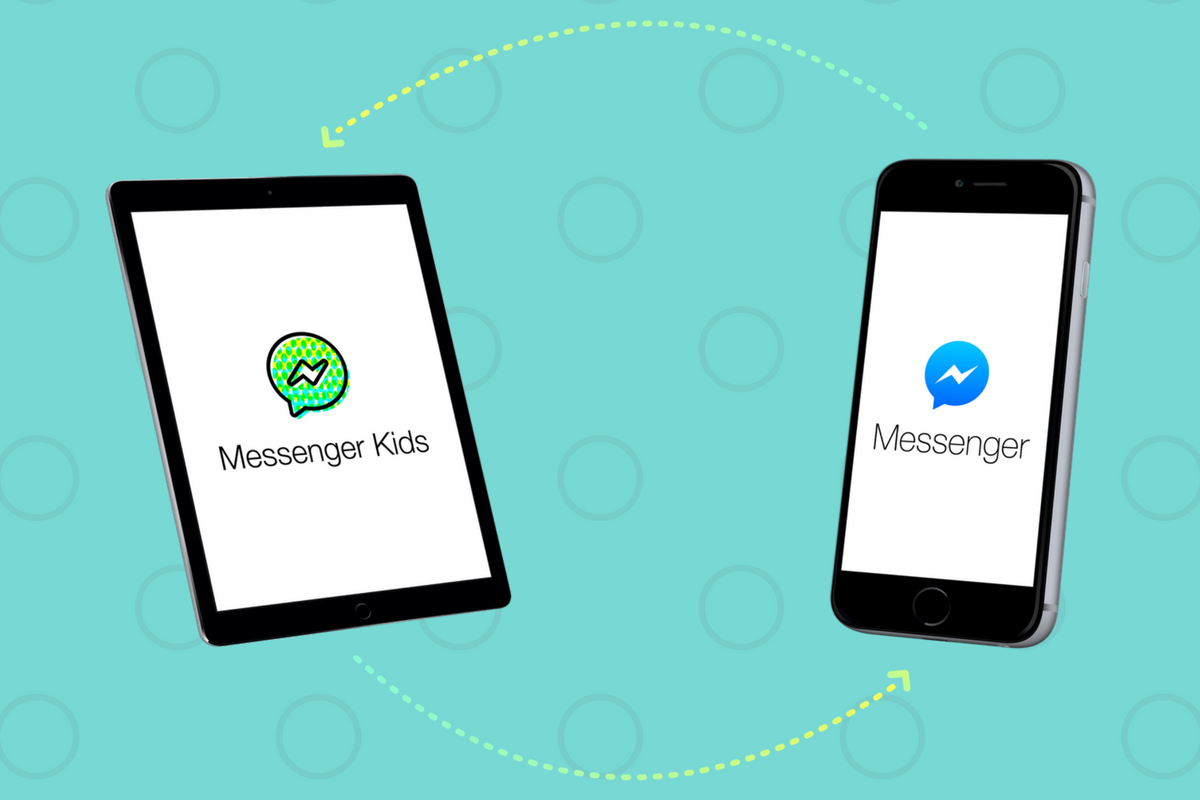
    Today, Facebook released the Android version of their Messenger Kids app. This means it’s available on iOS, Android, and Kindle now. That should pretty much cover most families. Facebook Messenger Kids puts the control in the parent’s hands, making it easy by building it into the Facebook App and Messenger App that you likely already use. You can decide who they are allowed to chat with and approve or deny friend requests.

    CHECK OUT: Facebook Messenger for Kids! for even more info about the app.

    My family uses Messenger Kids, albeit with some strict time limits (1hr per day) which we enforce through Circle (all devices) and unGlue (our older child.) It is a great way to help them get a feel for chatting through a messenger without strangers, bullies, or the constant notifications or FOM0 (Fear of Missing Out) that can accompany tech addiction. Facebook built in a lot of the controls and made the app kid-friendly by not allowing gifs that don’t originate in the Kids Messenger app and not allowing messages to be sent to unapproved friends.

    What Parents Should Know

    Since settings are controlled through your Facebook account, parents don’t have to have the same type of device as their child. You can set up your kids’ messenger app on his Android through your iPhone, for example. Keep in mind how addicting it can be to message your friends. Remember not to give them access to approve or disapprove of their friends on Messenger, this defeats the entire purpose. I know it can get tiresome to always have to sign off on everything they want to do online but Facebook makes it pretty easy with notifications on your own app.

    Use something to manage their time, like unGlue.  Talk to your kids about only messaging people they know in person and let them know what to do if someone asks them something they aren’t comfortable with. They should know that they can come to you when there is trouble. Messenger Kids is a good idea from Facebook and they did a lot of work to learn what parents would want out of a messaging app for their kids. Now the app is available on all devices so, if your kids have people they want to talk with, use this as a way to keep them in touch safely.

  • Google’s “Be Internet Awesome” Wants to Help Kids, Teachers, and Parents with Digital Citizenship

    Google’s “Be Internet Awesome” Wants to Help Kids, Teachers, and Parents with Digital Citizenship

    More than three-quarters of school-aged kids in the United States use the internet every week. Much of that online time, for seventy-nine percent of kids, is spent on a smartphone. Much of that time is also spent at school. Kids curriculum is increasingly web-based and school is even issuing computers to kids younger and younger. The internet has long been a place for kids and teenagers to find entertainment and now with the necessity for online activity for school work screen time and global communication among our young ones is on the rise. This has been a cause for concern among parents, teachers, and school administrators alike. Google wants to help parents, teachers, and kids understand what a healthy attitude towards internet activity looks like. While at CES I was able to hear representatives from Google explain Be Internet Awesome and how it was developed. I thought it would be a great resource for parents and teachers alike.

    INTERLAND

    “Kids can play their way to being Internet Awesome with Interland, an online adventure that puts the key lessons of digital safety into hands-on practice with four challenging games.” – beinternetawesome.withgoogle.com

    Interland is a gamified way of teaching kids internet safety and digital citizenship. You make your way through different levels that focus on different categories of your online life. You “report” cyberbullies and share kind words with online “friends.” The game is split into zones, Reality River is where you learn to recognize what’s real and what’s fake online, “Mindful Mountain” is where you learn how to think before you share online, “Tower of Treasure” will teach you how to secure your online activity with strong passwords and secure behavior, and finally “Kind Kingdom” is where you’re able to report those cyberbullies and speak kindly to friends you find online. 

    The games are fun and the characters are silly. The questions seem to be common sense but I know adults who, based on their social media behavior, probably wouldn’t score 10 out of 10. These games have good graphics and audio and they’re a simple and fun way to introduce your kids or students to proper online behavior.

    Curriculum

    The 5 part Be Internet Awesome curriculum is made for parents or educators to help kids go even deeper in their understanding of how to be secure, kind, and mindful when on the internet. By having kids analyze mock social media feeds and behavior they get a chance to think about what they learn about a person based on what they post online. Receiving fake phishing and spam messages allow kids to see what those messages look like and identify and report them easily. Recognizing bullies and how to report them is taught through group activities and clear, understandable definitions. Finally, the free 48 page PDF Curriculum, emphasizes the importance of finding an adult and talking about what they’ve experienced online.

    Pledge

    Finally, the pledge allows kids, teachers, and parents to summarize and agree to their stance on digital citizenship. This allows parents and teachers to get the whole family or class on the same page and hold each other accountable. A pledge is a good way to reemphasize what has been learned and highlight the importance of their commitment to be the best version of themselves online that they can be.

    What Parents Should Know

    I recommend you use this game and curriculum in your home if you haven’t already. Help your kids understand the dangers and concerns with the amount of time they spend online and encourage them to use their time as wisely as possible. Google has created a helpful and free tool for you as a parent or teacher to use and download as often as you need to. I say take advantage of it. If your family, like ours, has some specific rules about how you use the internet, interject them into this curriculum, using Google’s offering as a foundation for your internet safety plan and contract. Our kids will be spending more and more time on the internet as they grow. It’s important that their parents first, model proper citizenship for them, and second, take advantage of whatever resources we can to teach them how to treat themselves, their information, and others with respect on the internet.

  • Social Media News: Youtube, Snapchat, and Instagram Update Information

    Social Media News: Youtube, Snapchat, and Instagram Update Information

    Here’s a rundown of the social media news for this week thus far.

    Snapchat is changing “everything.”

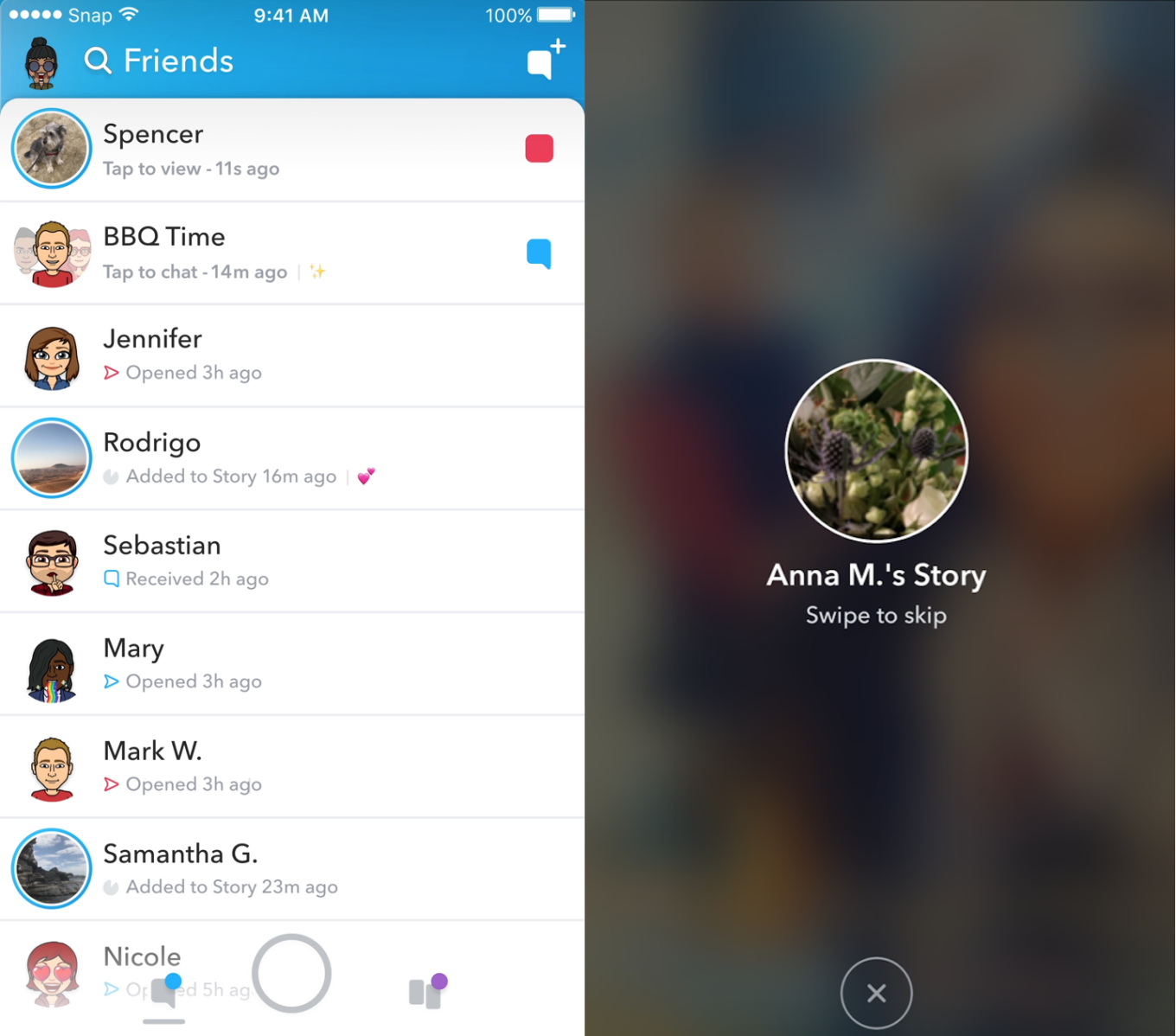
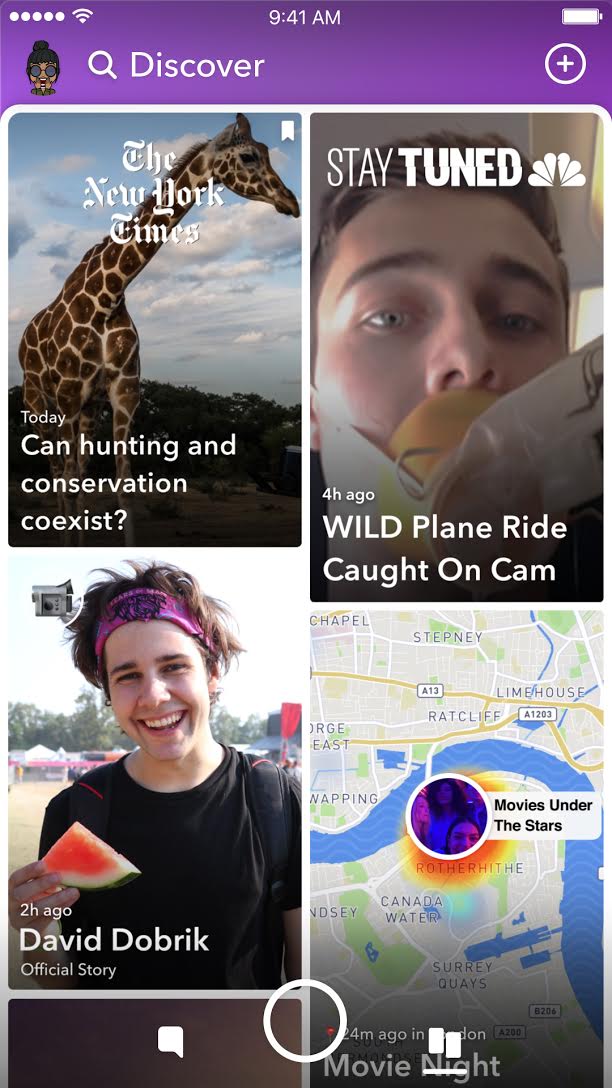
    In an attempt to increase both user numbers and ad revenue, Snapchat is making some major UI (User Interface [the buttons, controls, and setting options on an app or software that allow you to use the app or software.]) changes. In a video by CEO Evan Speigel, he claims that the new Snapchat will separate your social from the media. He says that “your friends aren’t content, they’re relationships” and should be kept separate from the paid advertising and influencer content on the Discover page.

    The app will still feature the “swipe right/swipe left” control style with the left being your friends and right being the Discover page. The Discover page seems to be going through a bit of an upgrade too with animated thumbnails (title images) and including more content from influencers along with the paid media articles. Snap Inc. is hoping this change will make the Snapchat app more appealing to more users and increase buy-in from those who have installed it but don’t use it much. Only time will tell.

    Instagram now lets you ask to join live stories.

    Instagram released the ability to join a friend’s live story just a few weeks ago. The feature has gained some popularity but they’re hoping that the latest addition will make the Live story an even more integral part of the Instagram experience. The latest update allows audience members to request to join a live video on their friend’s Instagram. It isn’t as much an added feature as it is a streamlining of one they released previously.

    Being able to ask to join a live story will increase the visibility of many Instagram accounts and could cause users to spend more time on Instagram. That, at least is what the company is counting on.

    Youtube is soon adding a “stories” type feature of their own.

    The Story feed was started by Snapchat, perfected by Instagram, and flopped on Facebook. Now Youtube wants in on the action. Reels is Youtube’s answer to the latest social trend. This addition lets content creators create quick 30 second vertical videos to keep their followers updated on what’s happening. It lets vloggers and video creators make more content with less commitment.



    The biggest difference from the other Story features is that Youtube’s Reel videos will not disappear and they can make multiple Reel videos. Youtube has been trying to make their app more social and it’s obvious that Reels are a huge step in that direction. They haven’t announced when Reels will be released but you can count on the S.A.F.E. Family Tech Blog to let you know when they do.

    What Parents Should Know

    It’s always important for parents to understand what their kids’ favorite apps are capable of. For many of our children, Social Media apps are the most commonly used. These recent updates should help you be informed about what your children can do with these apps. My advice is always to download these apps for yourself so you can play with all the features. Talk to your kids about what the apps are best used for and what behavior you believe to be healthy or not healthy on social media. Use examples and share about difficult social experiences you’ve had that would have been even worse if they had been online. Strengthen your child’s sense of self-awareness and confidence to ensure they represent themselves in a healthy way online. Most of all, keep an eye on what your kids are posting on their social media accounts and continue to stay informed so that you can be ahead of the social media curve.

  • Snapchat’s New Filters Can Recognize Items in your Photos

    Snapchat’s New Filters Can Recognize Items in your Photos


    Snapchat’s new camera filters can now identify items in your photo and recommend AR graphics, borders, or stickers for you to add. The action is automatic and will insert recommendations into the filter carousel. To my knowledge you cannot turn off this feature, it is now a stock part of the Snapchat camera. The camera can recognize pets, sports equipment or events, food, and even specific locations.

    These are powerful tools for Snapchat users, especially paired with their geofilters which is strictly based on your location data. Besides just making your recommended filters more relevant, these new filters will make it easier for advertisers to target their ads more specifically. Turning off your location information won’t be enough anymore, your camera can now give advertisers clues (automatically based on software and algorithms) as to where you spend your time. This is big news for advertisers and even bigger news for tech safety and security specialists. 

    What Parents Should Know

    My advice is to always turn off the location data on your kid and young teen’s phone. I recommend only sharing location information when you’ve left somewhere, never while you’re there. There are many reasons for that advice, including not alerting people that you aren’t home and not making it easier for predators to figure out where you spend your time. If your camera is using the things in your photos to tag your location then you have lost control over your location data. That, to me, is a problem. Snapchat has been on my uninstall list for a while and this news just strengthens my case against it. Snapchat’s goal is to service financially and they are now making decisions to make their product the best advertising tool available to brands all over the world. This means forsaking the privacy and security of their users and most of their users are your teens. Uninstall Snapchat now. There…I said it.

  • Digital Tools for Halloween Safety

    Digital Tools for Halloween Safety

    Halloween is a bit of a crazy holiday. We take our kids out to do all of the things we almost never let them do at any other time. “Let’s go walk around in the cold, talk to strangers, take candy from them, and then eat most of it in one night.” It may sound a bit crazy to let our kids do all that, but we do it. I’m recommending, though, that you don’t throw all of your safety concerns out the window. Use these three “tech guy” tips to help your family be safe during this Halloween.

    Get GPS Tracking

    First of all, it’s important to know where you are and where your kids have run off to. In the hustle and craziness of Halloween trick or treating it’s easy for our kids to get lost in the fun of it all and get out of sight. Also, your older kids want to head out with friends and enjoy a Halloween party or maybe just go trick or treating but you could be concerned about where they’ll end up going. Technology has you covered. Start tracking their location with the GPS chip that’s already included on their mobile device.

    Accountable2You has a great GPS tracking option that you can set up easily within their mobile browser app. It will send location reports and allow you to check in at any time from the dashboard on their site. This feature is available for Android AND iOS.

    On your iOS devices, you can use the built-in messaging app to share location as well. You just have to use their phone to set up permissions for that device to share their location with you. When you go to your messaging app you’ll be able to click on the (i) on the upper right-hand corner and it will take you to their information. There will be a map with their current location on it right up top. 

    Have a Good Flashing Light

    Walking around in the dark can be scary at Halloween. Not just because of ghosts and ghouls but cars driving and not paying attention. My advice is to shed some light on the situation. Don’t bother heading to buy some kind of flashing light when a simple app can give you the same effect from the LED in your smartphone. Here is one we found forAndroid and one for iOS.

    LED Flashlight Selene & Flash (Android)

    Full disclosure, I’m not able to test this app since I don’t have an Android device. It is, however the highest rated strobe app in the Google Play store. This app features adjustable strobe speed. It has simple controls and, according to reviews, just works. GET IT HERE

    “Light” LED Flashlight and Strobe (iOS)

    I did try this app out and it works well enough to use on Halloween. If you depended on your phone to multitask while you’re using your strobe light, this isn’t the app for you. When you close the app, the light stops. I didn’t find an app that didn’t shut off when closed, though, so this one made my list. I mostly decided to recommend it because the controls are simple, intuitive, and very responsive. You can set the brightness of the light and adjust the speed of the strobe with simple buttons on the right and left of the on-off switch. There are also settings to make the light flash to music and translate type to morse code. This is, overall, a pretty neat app. CHECK IT OUT

    Light your nighttime neighborhood trick or treating with some kind of strobe light. This will keep you and your kids visible and safe.

    Go “Old School” with a Walkie-Talkie

    No, don’t buy some cheap thing that won’t let you communicate unless you’re still in earshot anyway. Get an app. Really, I have one recommendation for this one, it’s Heytell. This app works cross-platform which means you can use your Android phone to send a quick voice message to someone with an iPhone, no problem. A walkie-talkie app is perfect for Halloween because it uses your data connection, so you’re never out of range. It lets you ask for that quick location update or schedule that meeting time with your kids by sending them a notification when you’ve sent a message. The message is then saved until they open the app to listen to it. Just like a voicemail, just without the annoyance of a phone call.

    Install HeyTell or the walkie-talkie app of your choice onto your and your kids’ phones and be amazed at how connected you can be while they’re out having fun, getting candy, and talking to strangers. Just make sure they’re visible in the darkness with some sort of flashing lights, and of course, have that GPS connected so you can get an update on their location with a simple glance at your phone.

    Have a safe and fun Halloween! 

  • Bullying in 2017

    Bullying in 2017

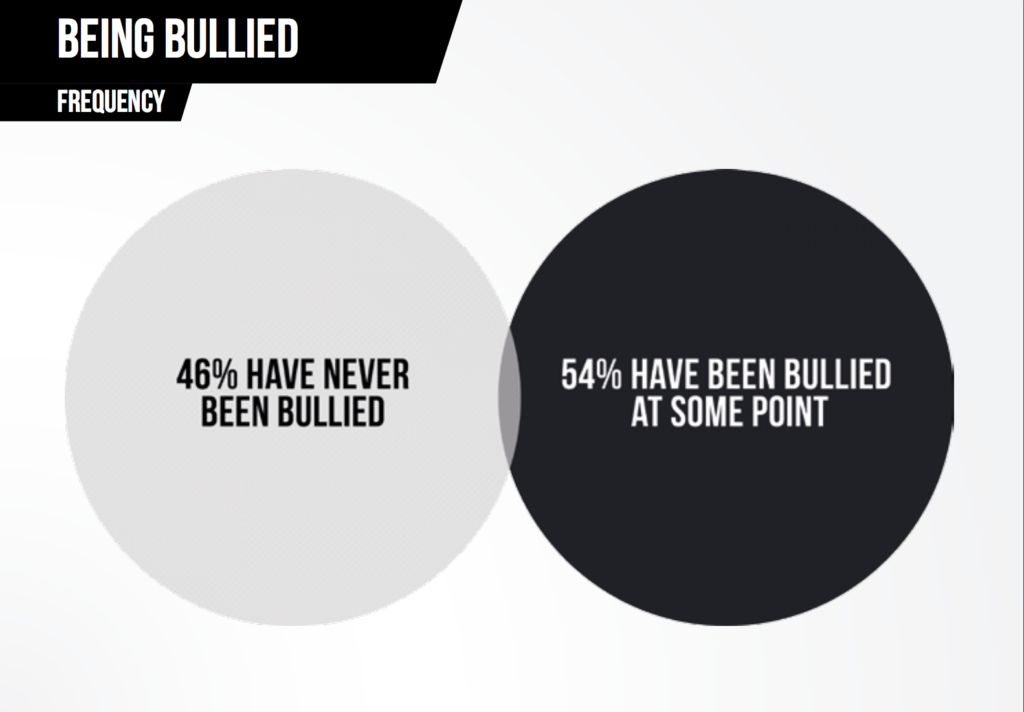
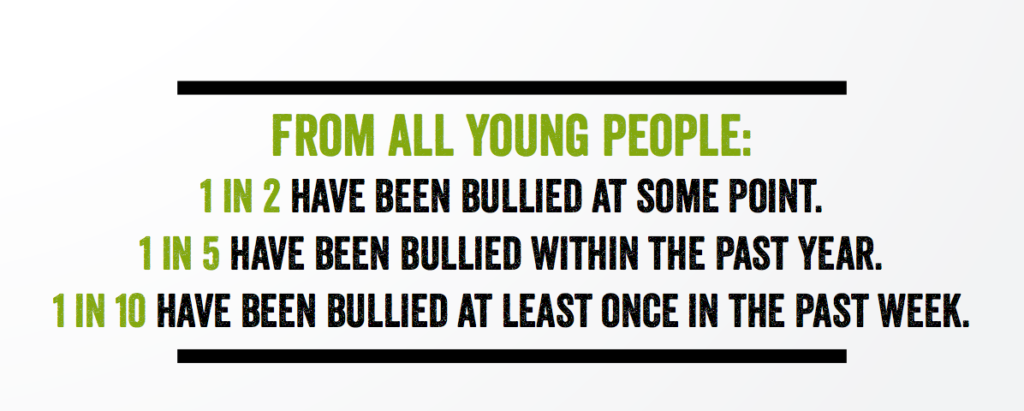
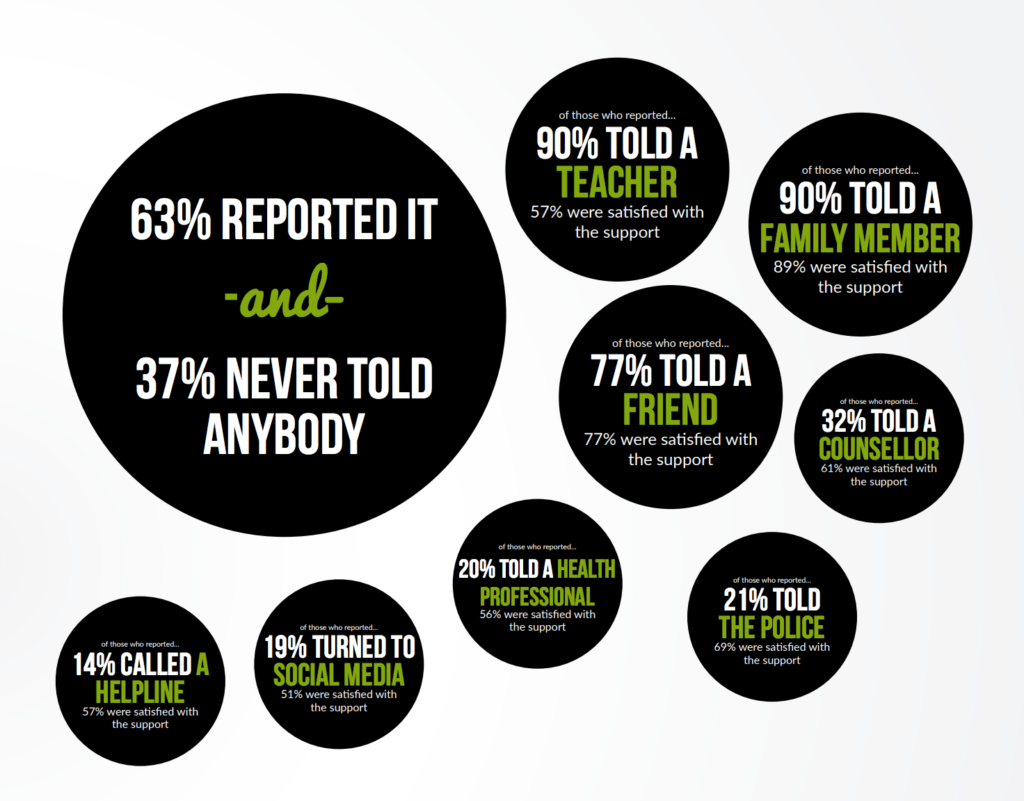
    Ditch the Label has released their annual bullying survey and the results aren’t surprising at all.  It seems that bullying is increasing and people feel more comfortable bullying online than offline. They surveyed over 10,000 people between the ages of 12 and 20. The people they surveyed all lived in the UK and could answer gender identity, race, religion, and other questions to help get information about the reasons behind bullying. You can see some screenshots of the results I found interesting below.


    Another interesting fact pulled from this study was that young people considered Instagram the most common social media site for bullying. Facebook came in a close second. The reasons for bullying varied greatly in the study with appearance and interests/hobbies being the most common and gender identity, sexuality, and religion all coming in near the bottom of the list. This is the largest study of its kind with some of the most extensive and well rounded results we’ve ever seen. This should be a great resource to parents, teachers, and school officials.

    What Parents Should Know

    I preach research and education for parents every single day. This is the kind of information parents need to be aware of. Notice that in the final screenshot about who kids went to when they were bullied, those who say they reported to a family member said they had the highest satisfaction in the support they received. Parents, aunts, uncles, grandparens, and everyone else with a family relationship to a young person need to be ready to have these conversations about bullying and how to handle it. It’s important to understand the issues facing your teens and to know how technology has escalated these issues.

    Go read up and learn all you can. You can see the entire report from Delete the Label on this PDF here.

  • New Operating Systems Coming for iPhone and Android

    New Operating Systems Coming for iPhone and Android

    The last few weeks have been loaded with updates from the two major tech brands in the industry. Google’s I/O event was May 17-19th and they had some major announcements including virtual reality, augmented reality, and a brand new operating system for Android, Android O. Apple’s Worldwide Developer’s Conference (WWDC) was this week, June 5-9th, and they’ve made similar announcements including a new version of their smartphone operating system that they’ve branded iOS 11. These two new systems will run the majority of the newer phones and tablets being released so it’s important to understand what each is offering. Here’s a rundown:

    Android O

    Android’s newest system should be made public this Fall. The most significant features are design changes in the Settings Menu and User Interface (UI.) Many of the smaller changes are things users won’t notice such as changes in how the OS will handle security and background operations, as well as channels or categories for notifications. Also, picture-in-picture support, notification badges that will appear on app icons, and better bluetooth support will definitely be features that makes Android O a step up for it’s users.

    iOS 11

    A new dock, multitasking with drag and drop, a files app, and better Apple Pencil support make iOS 11 a major upgrade for iPad. iPhone users will notice more apps in messenger, an app store that looks and works completely differently, and a new and improved Siri, including a new voice. The control center, the lock-screen, notifications screen, maps, Apple Music, and AirPlay are all getting improvements as well. iOS 11 is also slated to release this fall.


    What Parents Should Know

    There haven’t been any announcements on Parental Control improvements for either of these operating systems. When the test version of iOS 11 is released I’ll be giving it a full look-over and writing a review for you. One thing that parents will enjoy from iOS 11 is the ability to turn on an automatic Do Not Disturb while driving. The phone will sense your movement and speed and automatically silence any notifications until you’ve stopped. This will be a good way to keep your older kids safe while they are on the road. As for Android, they recently put out a new Parental Control option for their OS and it’s proving to be a pretty good setup. It’s only available on newer devices, however, and we still don’t know what changes have been made for when Android O is released.

    I always recommend keeping on top of updates when they are made available. Both of these new Operating Systems should be available this fall and you should be sure, if your devices are compatible, that you’re upgrading soon after release.  This isn’t just important to get any of the new features but also because security and privacy updates come with these new systems. The apps you use, including the ones you use for internet safety and monitoring will update to keep up with the latest software and if your devices are behind you’ll start to see holes in your security. Keep your eye on the update section of your settings menu and when it shows that a new version is available you should install immediately. You can also keep checking in to this site as I will keep you informed on the latest releases as well as how they can affect your family.