When It’s Out of Your Hands
More and more schools are giving students tablets or laptops to help them with their school work. Much of the newest curriculum is either fully digital or integrated with a digital resource of some kind. This means that there are more devices being placed in our children’s hands and parents aren’t even able to decide if they should have them. Schools are required to have protections set on their in-house networks but there are no guarantees that your children are protected at home. There have been multiple instances reported of children coming in contact with adult content on school computers. This story from last fall highlights the inability for the school to guarantee their tech is safe when not in their own building. The conversation always goes to the same place. The responsibility for safe internet use outside of the school or library falls with the parents. What does that mean for us as mom and dad?
What Parents Should Know
I recieve questions all of the time about how to protect kids on their school computers. I’ve been scheduling workshops for parents at private schools and helping school leadership learn how to protect their students. Internet safety in school and on school issued devices is a serious matter. Too many schools aren’t set up properly to filter adult content and monitor messaging or internet searches. This means it’s up to parents to be sure your kids are safe.
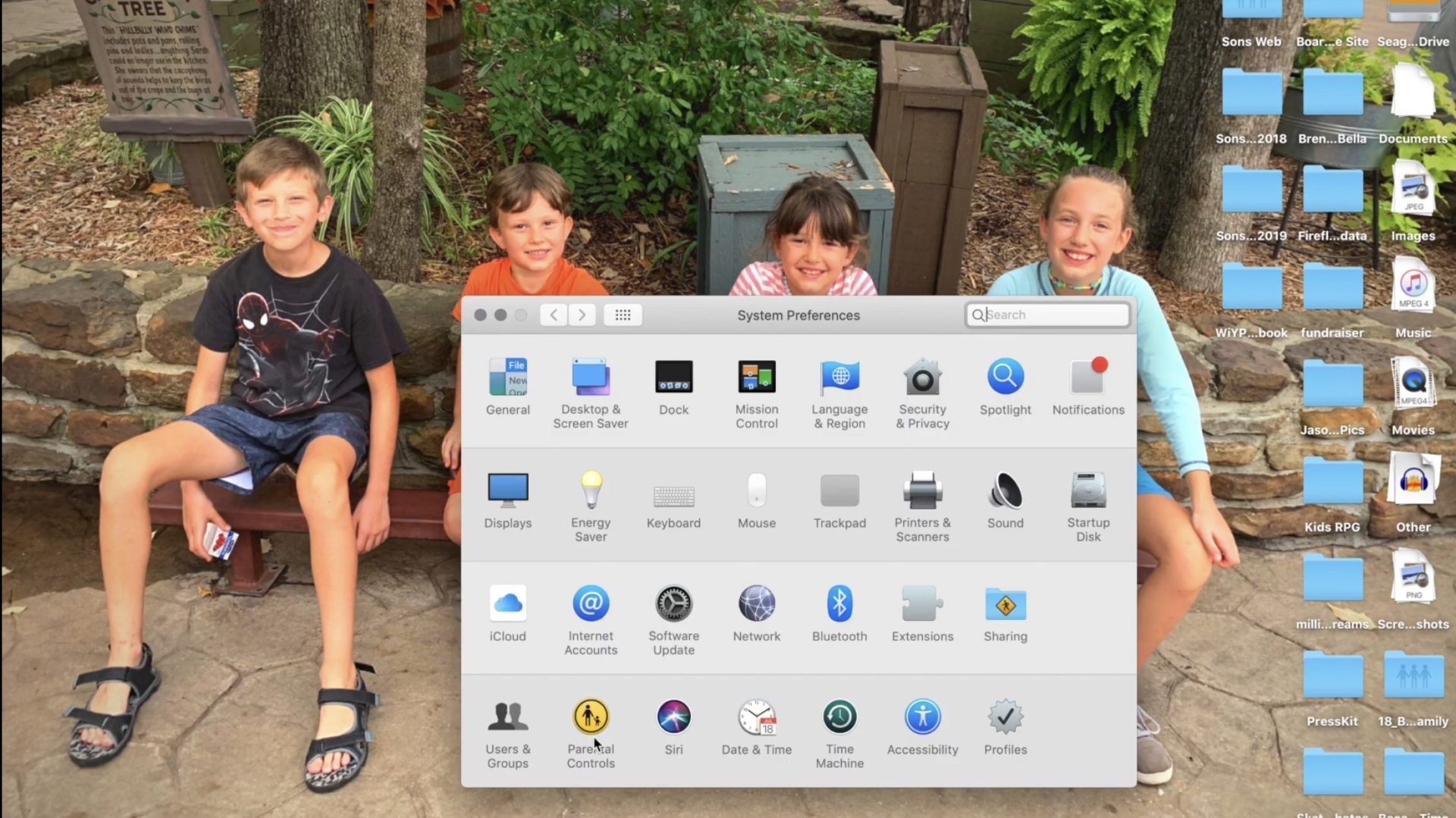
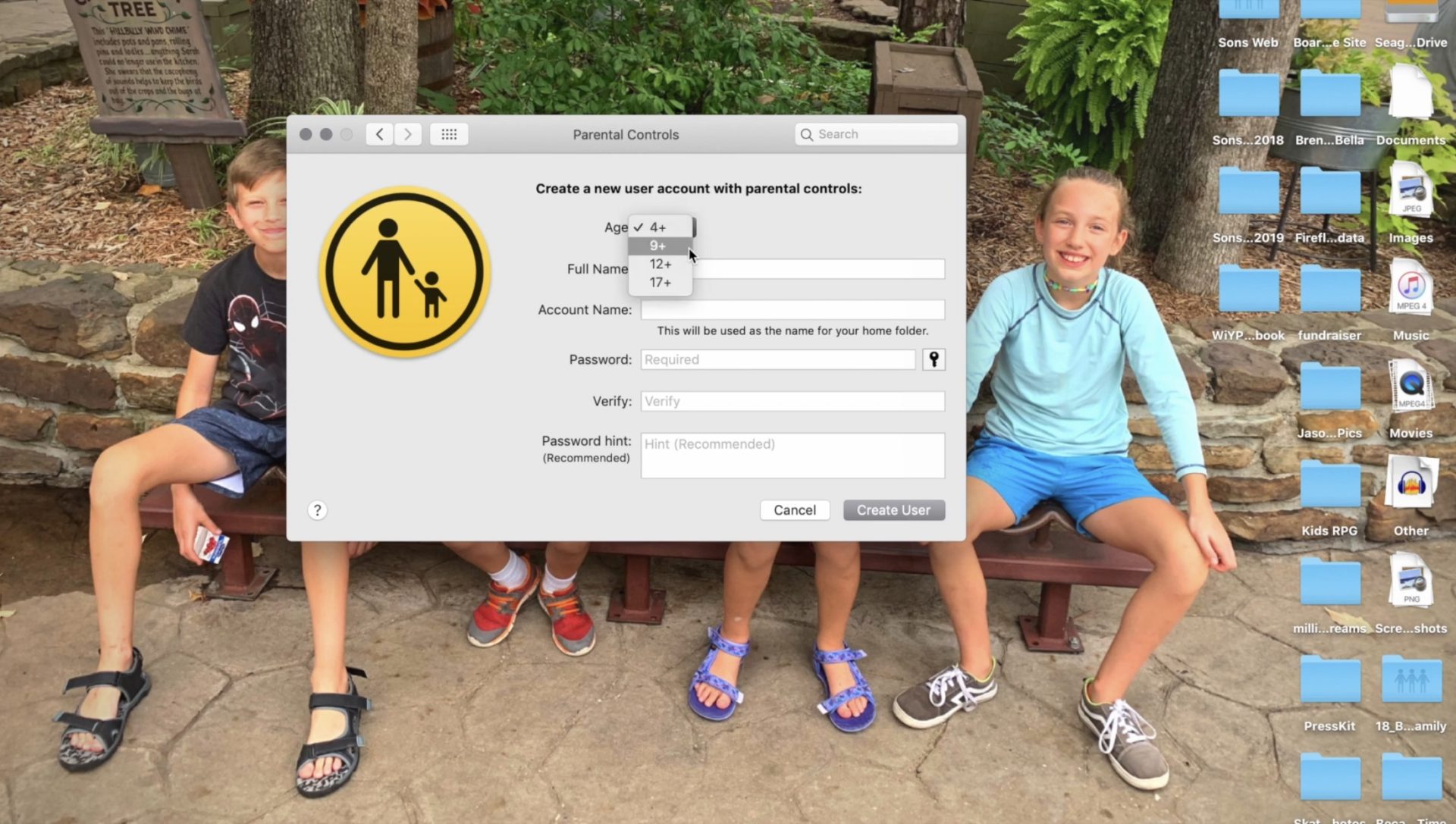
I recommend a couple of things. First of all, if it’s all just too much for you then ask that your child be allowed to keep the tablet or computer at school. Many schools will let your child check the computer in before they leave and check it out again when they come to school the next day. This is a good option if you’re concerned about how safe your home network may or may not be. I, of course, recommend securing your home wifi network and devices as soon as possible, though.
Secondly, you can talk to your school administration about better security measures. What kind of internet safety setup does the school have in place? Do they apply safety settings per device? Per classroom? Is the school network protected? If so, is only their network safe or do they have protections that will follow your kids home as well? If you can’t answer any of these questions then you don’t know enough about your school’s internet safety policies. You need to have some conversations.
Third, I would recommend talking with your child as often as you can about how they use the internet at school and at home. These conversations will help them feel comfortable to come to you if something inappropriate turns up online. They should report anything suspicious or dangerous to school officials and you and it’s up to you to help them know that.
A New Standard
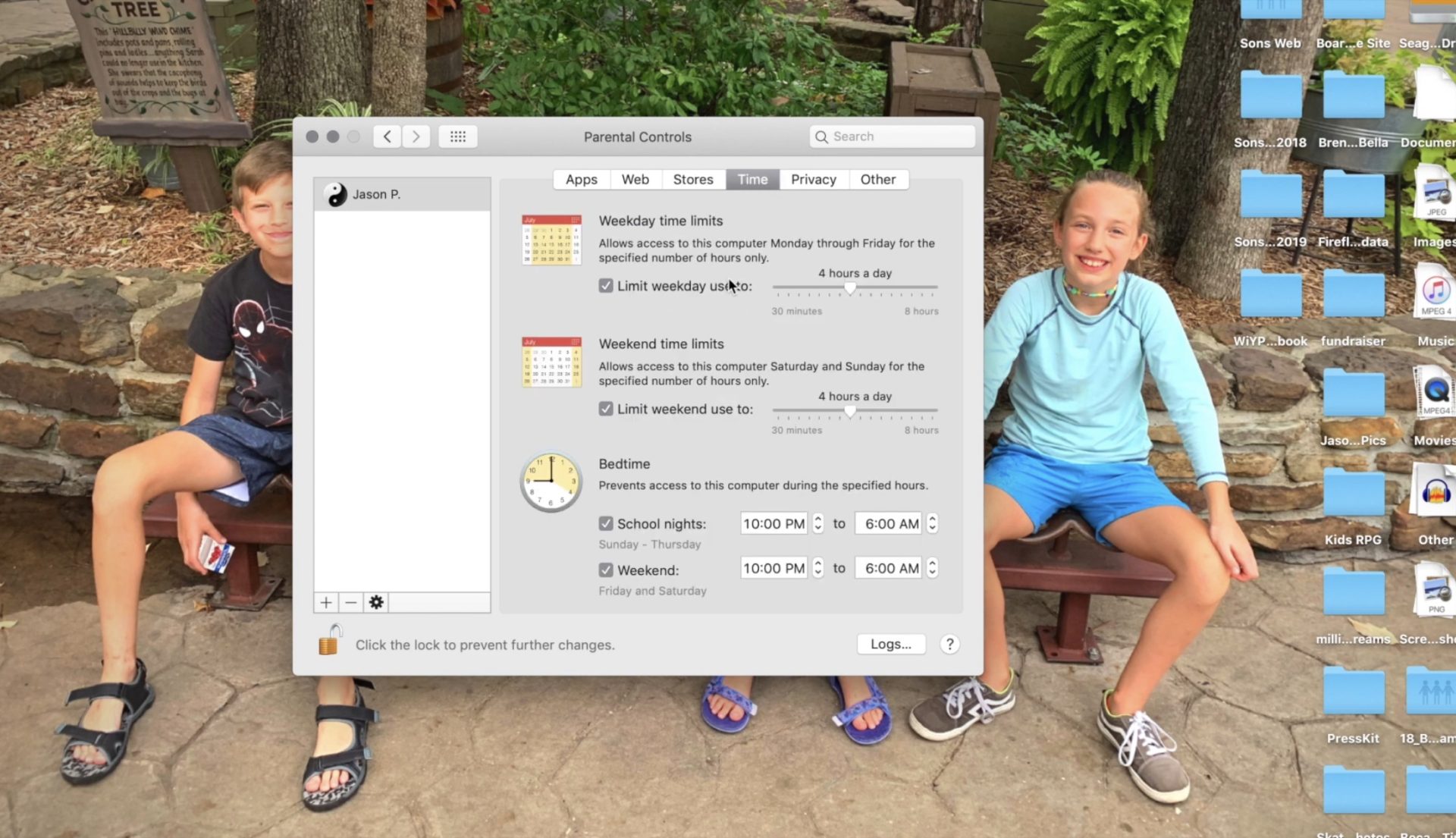
Schools will most likely not stop issuing technology to their students any time soon and it is only getting harder and harder to protect our kids from hostile content and overuse of screen time. Remember to keep track of how much time your kids are spending online and include school in those numbers. If they are doing three hours of school work on the computer and them watching videos for two hours at home they have spent five hours online that day. Is that the healthiest internet habit you can set for your family? You decide, and then implement your plan.