Tag: ideas

  • How COVID 19 is Changing Kid/Family Media

    How COVID 19 is Changing Kid/Family Media

    This is an audio article: Listen to the full article below.

    How COVID 19 is Changing Kid/Family Media

    Click here for the full Tech Crunch Interview

    • Popular kids apps now see 24hr screen time access
    • Less education on screens and more entertainment
    • More companies are adding kid and family content to their platforms
    • Kids are spending time with each other in “virtual environments.”
      • Kids miss their friends
      • This was already a trend, now it has been accelerated
    • Tech companies are seeing kids as innovative inspiration for their products
    • The tech industry will see a major boom after this COVID19 crisis.
    • Large public events are taking place in digital spaces (Roblox awards show had 600,000 kids in attendance.)

    What Parents Should Know

    This isn’t going away.

    This dependence on Technology was already becoming the new normal. It is now been accelerated due to lockdown. Don’t expect this to change.

    Become Familiar With Your Kids’ Technology

    You can’t be blind to the connected, digital world your kids live in. Focus on the difference between productive/educational time and educational time. It’s about quality of time spent more than the quantity.


  • Three Tech Rules in My House

    Three Tech Rules in My House

    I get asked a lot about how I handle my kids’ technology in my house. It is easy to answer this question because I am pretty active in my kids’ tech lives and also because my kids are pretty young. Below are three of our most important rules for keeping our own four kids safe online.

    Rule #1 | It isn’t YOUR device.

    My kids don’t have their own tech devices. We have a shared iPad 2 and iPad Mini and a couple of old iPhone 4s that our kids use. They often try to claim one of the devices or another as their own but we quickly remind them that they don’t own any of them. We tested it with our ten year old for a few weeks and it caused too many problems. Him thinking he could do whatever he wanted because it was just his device led to a lot of frustration when we tried to enforce our boundaries. The solution was simple. All of these devices are shared, you can’t tell your sister not to use it and you can’t take it to bed with you at night. Done.

    Rule #2 | No tech in bed with you.

    This one is a bit tricky since my kids use their devices to listen to noises or music as they go to sleep. The rule, however, is no browsing once it’s lights out. We often just set it for them and forget it so the device stays across the room. There are studies to show that viewing the glowing screen at night can hinder your ability to rest. Lack of rest can cause serious health concerns in our children. Once I explained all of this to my kids, they have done pretty well to respect the “No tech in bed” rule. They want to be healthy just as badly as we want them to be.

    Why I Told My 10 Year Old EVERYTHING About Pornography

    Rule #3 | You gotta ask first.

    My children aren’t allowed to just grab a device and do as they wish. They don’t have passcodes (because built-in restrictions and a wifi content filter are set up) but if they are caught hiding in another room doing something on a device they lose the privilege for at least a week. We make them ask and when they are playing or watching something we nearly always require that it is in a common area. That part of the rule is flexible when they are doing schoolwork on an app and don’t want to be disturbed or but most of the time they have to be somewhere where everyone’s eyes can see their screen. They always, have to ask though. Mom and Dad must know you are using that device. If we find out they were hiding (and we have our ways) there is a major cost.

    We have more rules but these are the simplest and most easily implemented of our plan. They require no software installation or tech knowledge. It’s really just parenting, plain and simple. Your kids need you to set some boundaries. Maybe you can start with these three rules. Do you have some different rules or different ways to implement these same rules? Tell me about them in the comments below.

  • Tools to Monitor Your Own Screen Time in 2018

    Tools to Monitor Your Own Screen Time in 2018

    Happy New Year!

    The first of the year has come and we are all trying to make ourselves a little better. Maybe you’re concerned about you and your family’s increased screen time. This is normal, we’re all thinking about what we can change in the new year and spending less time looking at a screen is on the top of many lists. These tools can go a long way to help you identify the amount of time you spend on your device, narrow down what you’re doing that sucks up so much of your time, and even set boundaries to alert you or block access when you’ve reached your desired limits.

    Accountable2You

    No matter what device you use, Accountable2You can help you keep track of what you’ve been doing online. The online dashboard will give you an App Usage report, complete with a circle graph of how you spend your time online. Whether you use this to keep track of your kids’ devices or your own screen time, it’s an easy to read way to be aware of how you’re spending your days.
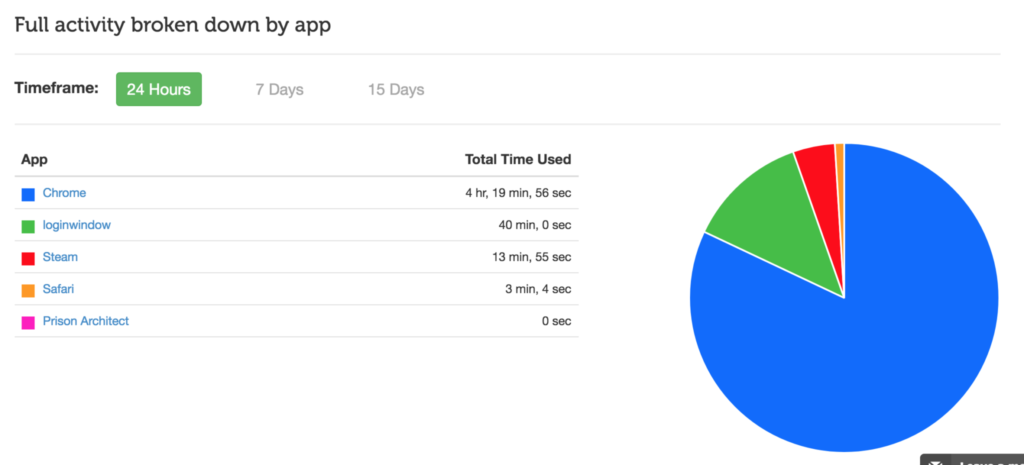
    Accountable2You is an accountability software at heart. It will notify you if there anything inappropriate has been accessed by those you’re keeping an eye on. It’s easy to set up, affordable (6.99 for 10 devices and 9.99 for 20,) and it works for every device. Even the Chromebook your kid got from school. It’s what I use and the best part is that if you sign up with our link, our non-profit will get a bit of help every month because of your payment.

    Android Family Link

    Android’s first stab at native parental controls focuses mainly on time management. That is, in fact, almost all it focuses on. Google FamilyLink is designed to allow parents to set time restrictions, time limits, and bedtimes as well as monitor the amount of time spent using the device. This will be accomplished by a complete disabling of the device once time limits or restricted times are reached. A tool like this could easily be used to limit or monitor yourself as well. If you, like me, spend most of your time in front of your computer for work, you may want to be able to set limits on how much time you spend on your phone or tablet for recreation purposes. FamilyLink should be a pretty good way, if you have an Android device, to cause your entire device to shut down when your limit is reached, or even just take a look every few days to see how much time you’ve spent on those devices.
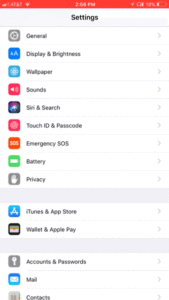
    iPhone Battery Meter

    For iOS users, Apple has built in a way to keep an eye on what you’re spending your time on while using your device. Your battery meter can be used to monitor your own screen time. It will even sort your time by app used and separate it into “on screen” and “background” time. To use this, simply go to your settings app and open the Battery section. When the usage area loads, tap on the clock icon on the upper right of that section. You can set your timeframe to be 24 hours or 7 days. This gives a pretty good snapshot of how you spend your time on your iOS device. Try it, you may be surprised.

    Moment App (iOS only)

    The Moment App uses your battery meter to build a nicely laid out report for you to keep track of the time you spend on your phone. Moment is only available for iOS (Android app is in development.) It automatically tracks your usage and allows you to see simple reports that separate your usage by the apps you spend time on. Moment lets you coach yourself on your screen time habits so that you can make changes if you want. You can set up time limits and Moment will notify you if you’ve gone over the time you’ve allowed.

    This app works pretty well. I used it for about a month and definitely made some changes to the amount of time I spend on my phone. Since it’s free you can even consider using Moment to install on other devices in your family and setting up limits for them. It will be up to them to put the phone or tablet down when they are notified but there’s something to be said for teaching your older kids to take the responsibility into their own hands. Moment is a free app but there are premium features (including extra family controls) that you can pay for.
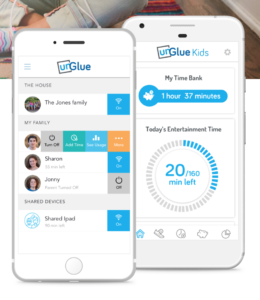
    UnGlue

    UnGlue was created to give the power of screen times to the kids themselves. The website touts a plan to “give kids the power to learn healthier habits – within your boundaries.” UnGlue uses a scheduler to set up your kids’ screen time allowance. You can give them control of how they spend their time by giving the rewards for things like chores and exercise. Unglue works from just an app, no separate device to hook up. The basic UnGlue package gives you access to screen usage reports only. You can use this free feature to keep an eye on the time you spend online. Further features will cost up to $9 per month. UnGlue is fairly new and has been updated quite a bit recently. It will work on iOS or Android and even on your home devices. (With the full-featured service.) Go check out UnGlue and tell them FamilyTechBlog.com sent you.
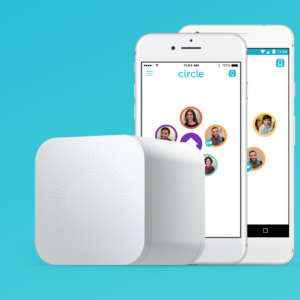
     

    Circle

    I’ve spent a lot of time talking and writing about Circle. I recommend this parental control tool to everyone I speak to and I even use it myself. Circle lets you filter by age and category and limit screen time for your kids but it’s been cool for us to have a profile for ourselves. This profile lets us see, in one glance, how much time we’ve spent on every single one of our devices. When you’ve built your profile, you just add the devices you use to be monitored under your account, this results in a very useful and detailed report on how much time you’ve spent in front of your screens. It even monitors your smart tv, BlueRay, and gaming system usage. Circle is a $99 investment for in-home wifi protection, (with the option to pay $10 monthly for on the go monitoring) but in my experience, it’s an all-in-one parental control system. You can buy circle at Amazon or at Best Buy and Bed Bath and Beyond.

    Whatever you do, start.

    New Year’s Resolutions are notoriously easy to forget about but my advice is that you just get started. When you begin my tracking how much time you spend on your screens, you’ll find yourself truly motivated to make a change. It worked for me. Using Moment and my battery life meter led to my decision to not start using my phone until I’ve had breakfast with my family. We’ve even started doing some Social Media Free Saturday’s a couple of times per month. Whatever your goals are, you’ll never accomplish it if you never begin so grab hold of one of these tools and get started!

     

  • YouTube Kids Coming to Your Smart TV

    YouTube Kids Coming to Your Smart TV

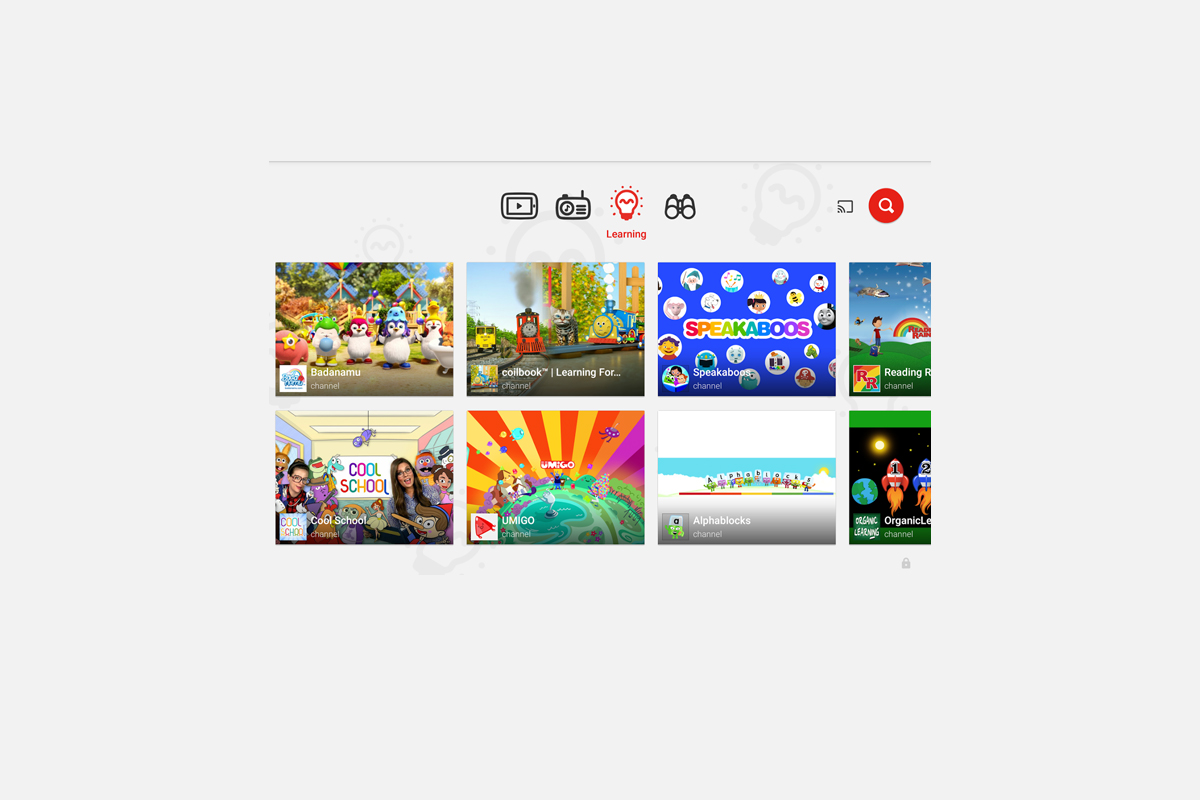
    The kids version of YouTube kids has been talked about a lot. Mostly because of breaches in their algorithm based filtering system. Cartoons are disguised as silly kid shows and take a turn towards the inappropriate. The way YouTube Kids governs their content has been under scrutiny for months with mere apologies as a response. Well, now this service may be coming to your Smart TV.

    Specifically, the app will come to the following TVs: all 2015-2017 LG webOS TVs (via the LG content store); all 2013-2017 Samsung Smart TVs and Blu-ray players (via the Samsung App Store); and, following a firmware update, 2016-2017 Sony TVs (with the exception of Android TV, which is coming soon). – Techcrunch

    YouTube Kids is an effort to allow children to gain access to the content that’s appropriate for them without coming in contact with more inappropriate videos. YouTube has even launched some original content, featuring some successful kid related YouTube entertainers. Millions have adopted this service and use it as a way to entertain their children. As mentioned above, there is always a concern when algorithms are used to filter adult content. I recommend parents eyes are on YouTube Kids often. In fact, I had a little rant about it the other day.

    Follow Us On Facebook

    What Parents Should Know

    As I said, Parents shouldn’t accept YouTube’s algorithm as a foolproof way to keep your kids from seeing something they don’t want them see. There are those out there who disguise their more adult oriented entertainment as kid shows for whatever reason. Moms and dads should be checking in on what their kids are watching. I think the move to smart tvs is a good thing because making the screen bigger allows parents to more easily see what is being viewed. If YouTube Kids is available on your tv, maybe you could let them watch their toy unboxing videos on there next time and peak in on what they’re watching every now and them.

  • Meet Sprinkles, Microsoft’s New Fun Camera App

    Meet Sprinkles, Microsoft’s New Fun Camera App

    Here’s what you need. You need a new camera app that will allow you to put text, stickers, and emojis on top of your photos. That’s what we all need, right? What? You already have six apps on your phone that do that? Well, nobody told Microsoft because they’ve just released their own. Ignoring the fact that they released it on April 1st (it’s still there so no, not entirely a joke) we should spend some time looking at what this app does and who the target audience is. 

    First of all it’s just a camera. This is not a photo sharing app with a built in social experience. When you take and edit your photo you can share it on any of the social media sites you have connected on your phone but there no native sharing system. The app uses a basic AI (artificial intelligence) to recommend what you could put on your picture. The choices are mostly text overlays and are based on what you took a photo of. You don’t have to post what it recommends, you can add your own text, stickers, or emojis by swiping the screen and hitting a few buttons.


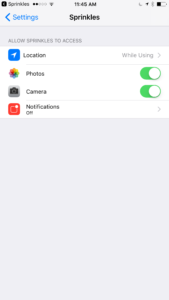
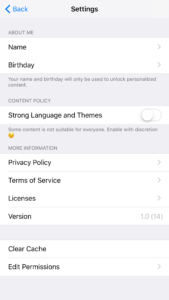
    What Parents Should Know

    This app is geared toward young users. The quotes or sayings are silly and there is a high volume of illustrated overlays and emojis to chose from. This app could be a good option for kids who want to take photos and put silly stuff over the top but shouldn’t share online. Just be sure to look at the settings by clicking the gear in the top left of the camera screen. The settings will give you the option to activate or deactivate more mature overlays. (Mostly language.) You can also set the permissions it has, such as location and notifications. You can enter your name and birthdate to allow the app to recommend certain overlays on your special day or with your name on them. Remember that photos taken on this app are scanned so that overlays can be recommended. Encourage your children that even if they aren’t posting online, they don’t want to take a photo of something they don’t want anyone else to see. It is a good idea to familiarize yourself with this app if you’re going to let your younger kids use it. Take it seriously, even though it was released on April Fool’s Day.

  • Use Twitter’s New Tools to Protect Your Kids from Trolls

    Use Twitter’s New Tools to Protect Your Kids from Trolls

    Surprisingly, more of our teenagers are using twitter than you may think. The common attitude among young people is it’s a good place to express yourself even if you’re not sure anyone is listening. Twitter is still a place for teens to go public with their thoughts and opinions. The potential problem with such expression is that there are always those out there wanting to counter your opinion. Often this takes on the form of trolling or bullying. Twitter has released some tools that can help their users filter out some of those trolls and parents need to learn how to use them.
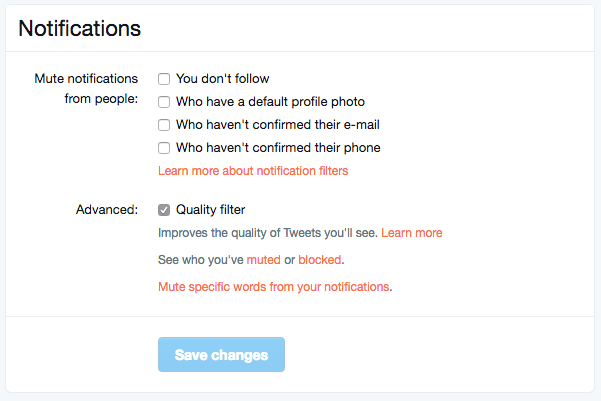
    Twitter was in the news last year because of a common theme of internet trolls bullying users, especially celebrities. This caused Twitter to begin working on some new ways to “clean up” what you see in your feed. In the last several days Android and Desktop Twitter users were given the power to block notifications of posts from certain types of accounts, including those who haven’t verified their email address and phone number. The common practice of these trolls is to create fake accounts just for the sole purpose of messing with someone. They don’t verify the account or even include a profile picture, displaying the default bird’s egg logo instead. The new tools developed by Twitter will allow these trolls to be filtered out by simply clicking a couple of checkboxes.


    What Parents Should Do

    Suicide is now the third leading cause of death among teens and a teen that is cyberbullies is ten times more likely to think about killing themselves. These statistics are a reality in this digital world and are a wake up call that parents need to take the opportunity to filter content in their kids social media feeds seriously. These notification filters can help remove some of the negative and hurtful people that just seem to want to make trouble on Twitter.


    Take note of the above picture. If you go to the notifications tab on twitter you’ll see a Settings link on the upper right. Click that link and you should see something similar to this image. It’s pretty straight forward but if you turn off notifications for anyone who hasn’t set up their profile picture, validated their email, or linked their phone number you’ll eliminate many of those troll accounts that cause so much trouble. Remember that Twitter and other social media sites contain “User Generated Content” and therefore, can’t be considered safe for anyone under 17. This means you should keep an eye on what your child or teen seeing on Twitter and have conversations with them about it. As them why they use Twitter. Find out if they’ve ever been teased or bullies on the app. If so, ask what they did about it and who they told. Kids who talk about being bullied are far less likely to take drastic measure as a result of it so open the lines of communication and be present when they need you. You should be that safe place they can come to with any problem. Bullying on social media is no exception.

    Follow all of our posts to keep in the loop on family relevant tech topics. Sign up for our weekly update newsletter. 


    Get Our Latest Posts in Your Inbox

    * indicates required