
Tag: help

  • BecauseFamily Offering a Family Tech Masterclass

    BecauseFamily Offering a Family Tech Masterclass

    Our kids and teens are spending more and more time online. Research continually tells us that the more time our kids spend playing video games, texting, and posting on social media the more dangerous their habits become. As parents, we have three options when it comes to protecting our kids. Option one is to throw up our hands and say that it’s all too much for us to understand, we can just let our kids do as they will and hope for the best. Second, we play the hermit, keeping our children away from anything with a screen until they are old enough to be held responsible for their own mistakes. I am proposing the third option. My suggestion is that we learn everything we can about the digital culture our kids are growing up in. We can and should know what each social media service is mostly used for and what games are recommended for kids’ our ages. We should be able to set up our accounts online and protect them with passwords that aren’t on the “Worst passwords of 2017” list. As parents, we won’t be fooled into thinking we can trust everyone else to protect our kids from danger, why would we assume that about digital society? This is why BecauseFamily has launched Raising Digital Natives.

     What is Raising Digital Natives?

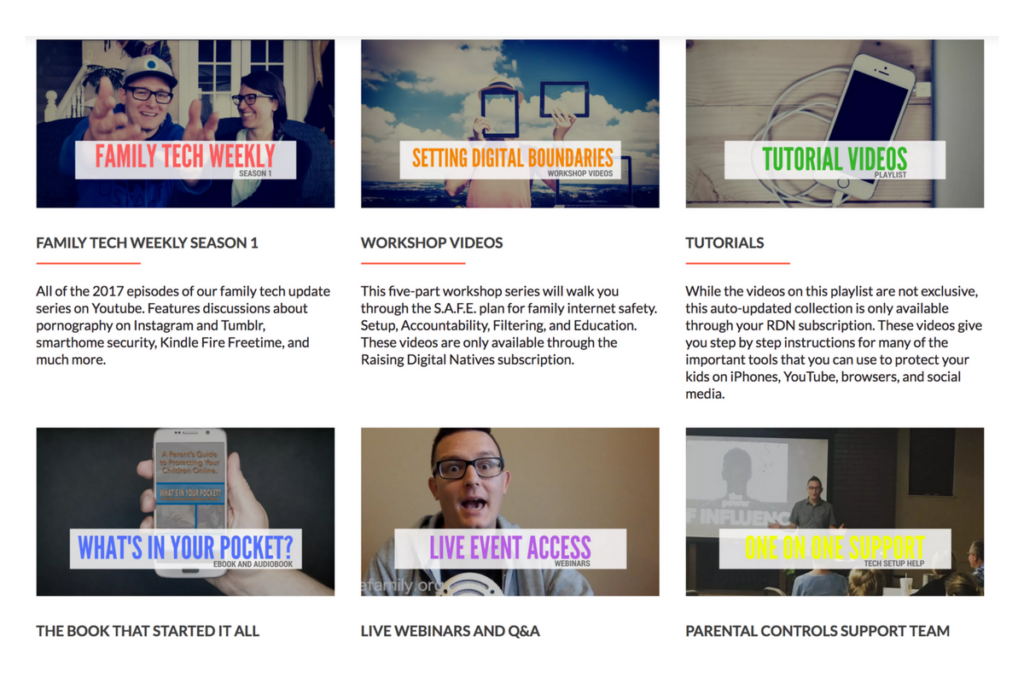
    Raising Digital Natives is a “masterclass” of family internet safety. The point is to give parents more than just inspiration and basic social media and tech news but to continually educate them on what they can do to protect their kids online. This exclusive content will include past seasons of our podcasts, tutorial videos, live workshop events, live Q&A sessions, and one on one parental control support opportunities. The tools included in Raising Digital Natives will give parents a major advantage to raising kids in this digital culture we’re living in. The live workshops will feature topics such as, “What is a digital native?” “Sexualization and the internet,”Legal ramifications of sexting,” and “Keeping them safe when they’re away.”  Workshops will be done online and archived in the member’s section of the website so geography and schedule won’t hinder parents’ ability to learn. Membership costs $4.99 per month and gives 12 months worth of access to anyone who users share their password with.
    What are you waiting for?

    Content is already available and live meetings begin at the end of January (2018.) Go to BecauseFamily.org/rdn to learn more and to sign up. BecauseFamily is the non-profit that is responsible for all the content of FamilyTechBlog.com.

  • The Best Way to Keep Your Kids Safe On Youtube

    The Best Way to Keep Your Kids Safe On Youtube

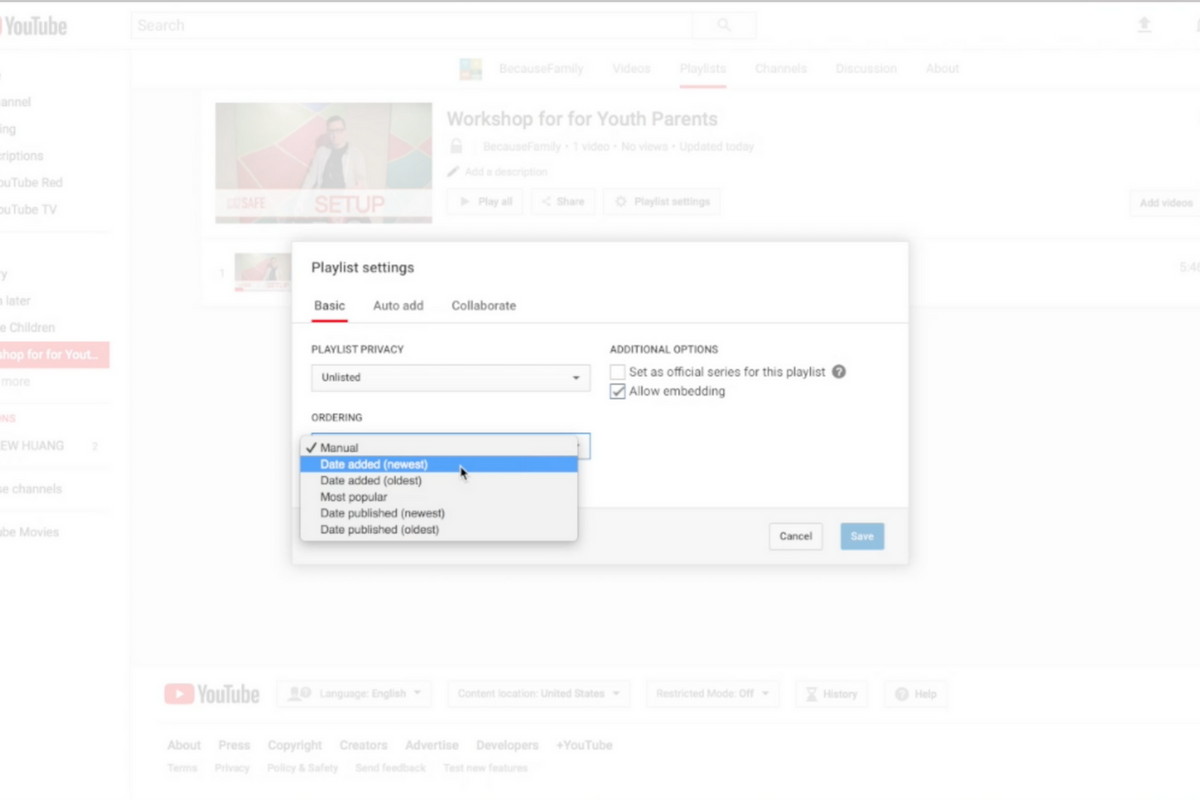
    Parents are always asking me for advice on keeping their kids safe on YouTube. Especially parents of older kids who may feel like YouTube Kids is a bit too young for their liking. I recommend building approved playlists. Find videos on YouTube that you are ok with them watching and put them in a playlist. This will allow them the freedom to watch videos without you pulling up each one while still keeping them safe from happening upon something inappropriate. You can also add playlists to your library that have been created by another channel. Then, you just have to discuss with your kids that they should only watch videos from the playlists you’ve put in the library. This keeps things safe. Watch the video below to learn how to build these playlists and hear more about why it’s a good idea.


    This is also a great idea for teachers and ministers who may want to show videos but don’t want something showing up unintentionally. If you’re playing videos from your playlist, you won’t accidentally show some video you haven’t pre-screened. YouTube can be an awesome tool but there is a lot of content on there that may not be classroom friendly. Use this tutorial to help you set up playlists and keep that stuff off your screen.

    UPDATE: Here’s a video tutorial to help you set up a playlist on the mobile app.

  • Video Chatting Apps You Should Uninstall NOW

    Video Chatting Apps You Should Uninstall NOW

    Chat Roulette was a challenge that became its own website. The idea was that people could log on to the site and be connected with someone from around the world at random. The website isn’t as popular as it once was but there are many apps that simulate that experience and some of those apps are gaining popularity. Here are some of the ones climbing the app store charts. The ranking listed is for the Social Media category in the iOS App Store as of the publishing date of this article. I’ve only listed the live video or random connection chatting apps in the top fifty.

    Melon #14

    Melon is making the news as the latest video chatting fad. It connects you with new people based on social media friends and offers private messaging, video chat, and a people search feature. It’s gaining popularity and being featured in articles that are blasting it for the frequency of cyberbullying and the high concentration of males looking for girls that will do whatever they ask on camera.


    Live.Me #16

    Live.Me touts the ability to chat with stars and celebrities and broadcast to anyone all over the world. You can find anyone from anywhere or just look to see who is broadcasting around you. There is also the ability to search by topic or interest. Live.Me uses “gifts” and “diamonds” to allow you to share things with other users and even advertises the ability to “date” virtually through the app.


    Monkey #25

    I’ve written about Monkey before. This app was created by a couple of teens who dropped out of high-school to launch a tech startup. It quickly gained a reputation for having too much nudity and not taking some of the responsibility for the content found in the app. This app has been on the FamilyTechBlog uninstall list for a while now.


    MeetMe #35

    Formerly called “MyYearbook,” MeetMe is a app that advertises itself as a way to “meet new people.” The app uses your location to find people near you and information that you’ve entered to connect you with people who share your interests. It’s popular in the app store as it’s been around for quite a while and has the largest fan base. MeetMe offers private chat and video chatting as well as live video broadcasting.


    Climbing the Charts:

    YouNow #52

    Live stream video chat is pretty much all YouNow is about. You can broadcast yourself, find broadcasters, and even join the broadcast as a video guest. The app store listing calls for you to build your fanbase and become a YouNow celebrity. There are some complaints on in the reviews about accounts that have been reported for inappropriate content not being removed because they are popular on YouNow.


    CAM #56

    CAM is popular because it allows you to select the gender you’d like to chat with. It automatically connects you with someone and even automatically texts an invite to everyone on your contacts list without your permission. This practice has caused it to dip in the standings but some continue to use the app because they like the ability to chat or flirt with people they are attracted to.


    What Parents Should Know

    I don’t usually recommend any of these type of app for your teens or kids. Not only is it dangerous to connect with random people who could be broadcasting whatever they’d like for you to see. It’s also a problem because of the potential for predators. Any connection with strangers is dangerous. Some of these apps use your location to connect you and it’s therefore possible to meet people online that you may meet up with later. My advice is to uninstall any of these apps if you see them on your kids phones or tablets. There is no reason to use one of these apps to connect with friends since you can use Instagram or Facebook Messenger to do that now. Uninstall on sight.

  • Diagnosing Your Tech Safety Needs with 3 Questions

    Diagnosing Your Tech Safety Needs with 3 Questions

    After I do a workshop and unpack the many threats and resources related to internet safety I am met with several different responses. One of the most common is the overwhelmed parent who wants to do something to help their kids be safe but doesn’t know where to start. These are the parents that I try to set up a consultation with to diagnose their internet safety needs. Here are the three questions I ask to help them make a plan and what their answers tell me.

    Question 1: How many devices are in your home?

    First of all I need to know how many phones, tablets, computers, game systems, smart TVs, and such you have floating around your house. I get all kinds of answers to this question and they all require a different approach. The main thing I need to know is who uses what devices and if everyone has their own. If everyone is using their own then something like Circle is a good idea because you can give each family member a profile and assign their devices to their account, thus, applying restrictions to each device depending on who uses it. If there are shared deices in the home it changes things. This requires you to use something like net-nanny or an accountability software like Accountable2You so that you can either have different accounts per device (on computers) or have an overall scan to catch and report any unsavory activity. This allows you to approach each situation and correct what’s allowing inappropriate content to get through. Try taking an inventory of all the electronic devices that are in your home. This will help you have a better understanding of your internet safety needs and what solutions will work best.

    Question 2: What are your devices mostly used for?

    You’ll need different options for devices that are used for research than for entertainment only. If your child likes to wander around on YouTube then you’ll want to set up the safe-search settings and install something that can keep some of the more mature content away from them. If they’re searching Google for school or other projects then you’ll have to be sure your internet filter and accountability software are strong. Smaller children can be protected by settings or apps that lock them out of other apps and browsers while your older kids can be trained by time limits, bed times, and wifi pausing features. The purpose of the device will go a long way to define the settings you’ll need to lock them down in the best, most helpful way.

    Question 3: Who are you protecting?

    The gender, age, and previous behavior of your kids are important for determining how you should protect your kids online. Older kids need to be protected from things they may seek out while younger kids usually happen upon inappropriate content on accident. Girls (often boys as well) should be monitored on social media, boys are especially prone to constant video gaming, and any child who’s been caught doing something unsavory in the past should have more strict boundaries set up for them. Knowing who you’re protecting is just as important as knowing what devices you have and what they’re used for.

    It’s Time to Evaluate!

    So now it’s up to you to start asking yourself these questions. Maybe sit down with your family and discuss the questions together. Talk with them about what healthy boundaries would look like in your home and task some of your older kids with seeking out some internet safety solutions. Work together to find the filters, accountability software, time management apps, and devices that are right for your family. Building this plan as a team will help you find keep the plan in place as you have all contributed to the strategy equally. As always, please send us an email or comment on this post if we can help you with your plan in any way.

  • Four Blue Whale Challenge FACTS

    Four Blue Whale Challenge FACTS

    There are a lot of misconceptions about the Blue Whale Challenge. Some are calling it the latest threat to our kids while others are saying it’s being blown out of proportion. The short video below unpacks some of the facts that I’ve discovered as I look deeper into this trending topic.


    The Facts:

    1. Kids ARE hurting themselves because of this the Blue Whale Challenge
    2. There have been zero (0) confirmed suicides resulting from the Blue Whale Challenge.
    3. Authorities are concerned we are going to turn this into something because of the popularity we’re giving it.
    4. There are steps you can take and you should take them now.

    What Parents Should Know

    There are always reasons to take a trend like this seriously. We, as parents should be vigilant to keep an eye on what our kids are doing online while not allowing the trendiness of a topic like the Blue Whale Challenge cause us to inflate it into even more of an issue. Be wise and take the steps you know to take to keep your kids safe online.

    My Advice:

    1. Know who they talk to online.
    2. Follow them on your social media accounts.
    3. Have their login information for EVERY social media account they have.
    4. Keep an eye out for the signs of depression or other struggles.
    5. Talk to your children openly about the dangers of buying into these trends and communicating with people you don’t know.
  • VIDEO TUTORIAL: iCloud FamilyShare Set-Up

    VIDEO TUTORIAL: iCloud FamilyShare Set-Up

    Apple has a great way to help families keep track of what their children are downloading on their ios devices. Your kids can even have their own profiles. It allows for families to share the apps they have downloaded without having to purchase multiple copies. It lets the administrator see what apps the other accounts have downloaded. Best of all, though, it lets you set requirements for young users to ask permission before an app can be downloaded. If you have specific requirements and standards for the apps you want your kids to use, this feature will help you keep those standards in tact.

    The video below is a simple walkthrough on my Macbook of how to set up your iCloud FamilyShare settings. I will add one new child account and even give some information about why you may want to use this feature.


  • Another Instagram Update Makes the App More Like Snapchat

    Another Instagram Update Makes the App More Like Snapchat


    If you have been heeding my advice you have done your best to keep your kids away from Snapchat. Instagram has launched yet another update and this one includes dissapearing pictures and videos in their direct messenger and the beginnings of their soon to be released live video feature. What this means is, if your kids have Instagram, they now basically have Snapchat. (more…)

  • Mobile Device Vocabulary Lesson 1

    Mobile Device Vocabulary Lesson 1


    Lesson 1 – Why you should know this basic Mobile Device Vocabulary

    To handle a language skillfully is to practice a kind of evocative sorcery.  – Charles Baudelaire (Poet)

    Working with digital devices requires the knowledge of a certain language. If you understand what certain words mean you are able to know what is happening in a certain device with just a glance. As parents, it is imperative that we can understand the activities our children are engaging in on their smartphones, tablets, and computers. This is why the thirteen words in this tutorial, of sorts, will be so powerful in your hands as a parent. (more…)