Android has updated their Family Link parental controls feature. The above video will take you though what they’ve done and give you some questions to ask yourself about using the service.
Make sure your device is compatible.
The site is very clear that Family Link is only compatible with newer android devices. Go into the settings on your kid’s device and tap the ABOUT button in the menu to see if your software version is 7.0 or newer. If it isn’t your child may not be able to install Family Link which will mean you can’t use the software to set limits and restrictions.
Double check their privacy policies.
COPPA regulates the collection of children’s data without parent permission. You have to create an account for your child to use Family Link and to do that you must give permission for Google to collect some of their data. The video explores a bit more of what information they can collect and what they do with that data.
Be aware that your kids get full control at 13.
If you are one that wants to be able to see what your older child is doing on their device you’ll have to use the child’s phone to adjust parental control settings with Family Link as control is shifted to the child at age 13.
Do your homework!
As I mention in the video above and the podcast episode below, you need to familiarize yourself with the benefits and limitations of Google’s Family Link software. Visit families.google.com to see their information about it and check out our other articles and videos about Family Link as well. You can never be too informed.
Android Tablets are a great option for parents who want to get their kids some form of screen device without breaking the bank. The addition of Android FamilyLink has made Android and even better choice for our kids’ introductory tech device. They are affordable, fairly easy to use, and most all apps our kids want to play or use are available through the Google Play store. There is, however an issue that faces parents when they are ready to set up these devices for their kids: compatibility.
Compatibility is the ability of a device to run the software you are trying to install on the device. Android FamilyLink requires operating system 7.0 or higher in order to work on your child’s device. That means that if your device runs an older version of Android, the app that connects your parental control settings to their device won’t even be available to install from the app store.
I ran into this problem today while helping a family set up controls on the brand new tech devices they had purchased for their two girls. I initially thought it odd that on one device I could login an account as a child and on the other I could only make a basic adult Google account. Then, halfway through setup I realized that one tablet would run FamilyLink while the other would not. Both of these devices had been purchased from the same place on the same day and were brand new, not refurbished or used, but the operating system was different in each tablet. One was running Android 4.4 while the other, the one that let me set up FamilyLink, was running Android Version 7.1.
I understand that newer software will not work on older devices but these are two devices being sold at the same time as brand new. There is nothing, without further investigation, that would cause a parent to expect they couldn’t do all the same things on both tablets. The truth, though, is that not all Android Tablets are equal. We won’t get into opinions on Apple vs Android but I will make this comparison: when Apple updates their operation system ( iOS) they ping all of the devices at once and encourage installation of the newest version of the software. Android, however, is a crap shoot. You have to go see if your device will be compatible with the newer software every time a new one comes out. The main reason for this is that different companies make phones that run Android while Apple makes the device, the operating system, the app store. Basically the whole shebang.
People have different tastes and whether it’s the way the software functions, the look and feel of the phone, or just not wanting to spend as much money, Android will always be a significant part of the smart device market. My advice isn’t to just always use Apple products. I will encourage parents, instead, to always look at the specifications of any device you want to buy and see what operating system it is compatible with. If you are buying an Android product and want to instal FamilyLink, the device must run 7.0 or higher for the FamilyLink Children and Teens app to show up as downloadable in the Google Play Store. Otherwise, you’ll be looking for some third party app or combination of third party apps to add parental control functionality to your devices.
Android Family Link was released last year to some success. The features are good enough and being able to change kid’s settings from your own phone is super helpful. There were some downsides, however. One of which was that it was geared mostly towards younger kids. That has changed today as google announces features for Teenagers in the FamilyLink app.
Approve your child’s downloads and purchases from Google Play and limit the visibility of content in the Google Play Store based on maturity ratings
Manage settings such as SafeSearch for Google Search
Review your child’s app permissions on Android, such as microphone, camera, location, and contacts access
Change the content filtering setting and turn search on or off in the YouTube Kids app
Reset your child’s Google Account password
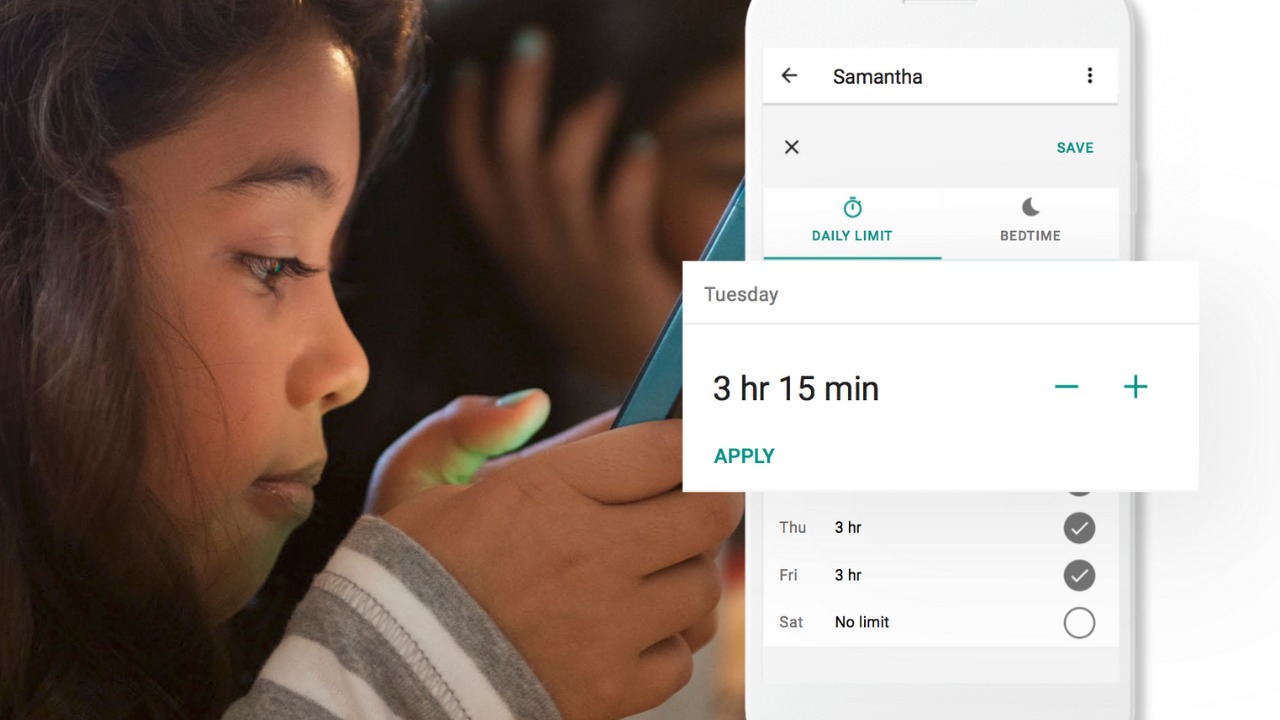
Set screen time limits on your child’s Android devices
See the location of your child’s signed-in and active Android devices
Manage the activity settings for your child’s Google Account
Allow a second family member to exercise most of the same controls you have over your child’s account.
The features for teens adds the ability for your teen to disable the FamilyLink supervision setting. You will be notified if they disable it but the option is still there.
Chromebooks
Schools all over the country are giving their students Chromebooks. The parental control options for Chromebook have been severely lacking for several months since Google disabled the Supervised User feature. The reason they ended support for Supervised User is to make room for FamilyLink and it’s finally here.
FamilyLink will soon give you all the same controls on Chromebook as you have on mobile devices. Right now you can only change account settings and content filters. Soon there will be screen time and app store management as well.
What Parents Should Know
FamilyLink is a good parental control solution and it’s only getting better. They’ve added some good features and options for your older kids is also a good step. Issues I’ve had with FamilyLink in the past are the weak filter (currently only as good as Google’s Safesearch) and issues with backwards compatibility. They still recommend your kid’s device run Android version 7 or higher while some devices running Android 5 or 6 may work with FamilyLink.
I like what FamilyLink has to offer by way of screen time management and app store controls. A major problem parents have with Android is the ability to download apps outside of the app store. They control what their kids see on the Google Play Store but children can download things from outside the app store sometimes. Many parents don’t know how this is done and how to stop it so it poses a major problem.
The ability for teenagers to disable FamilyLink is kind of moot since it notifies parents. That makes me wonder why it’s put there in the first place. Perhaps to give teens the illusion of control or freedom since that’s something the adolescent desires more than anything. If you use FamilyLink for your teenager be sure to let them know you’ll find out if they disable it. The filter is kind of weak and there is no way to monitor messaging or get alerts if negative content has been viewed. I recommend a good accountability software for this. Get something that will work for phones and Chromebook. It’s critical that you know what your kids and teenagers have seen online and what they are doing. This allows you to have conversations with them about their decisions and the dangers and risks involved.
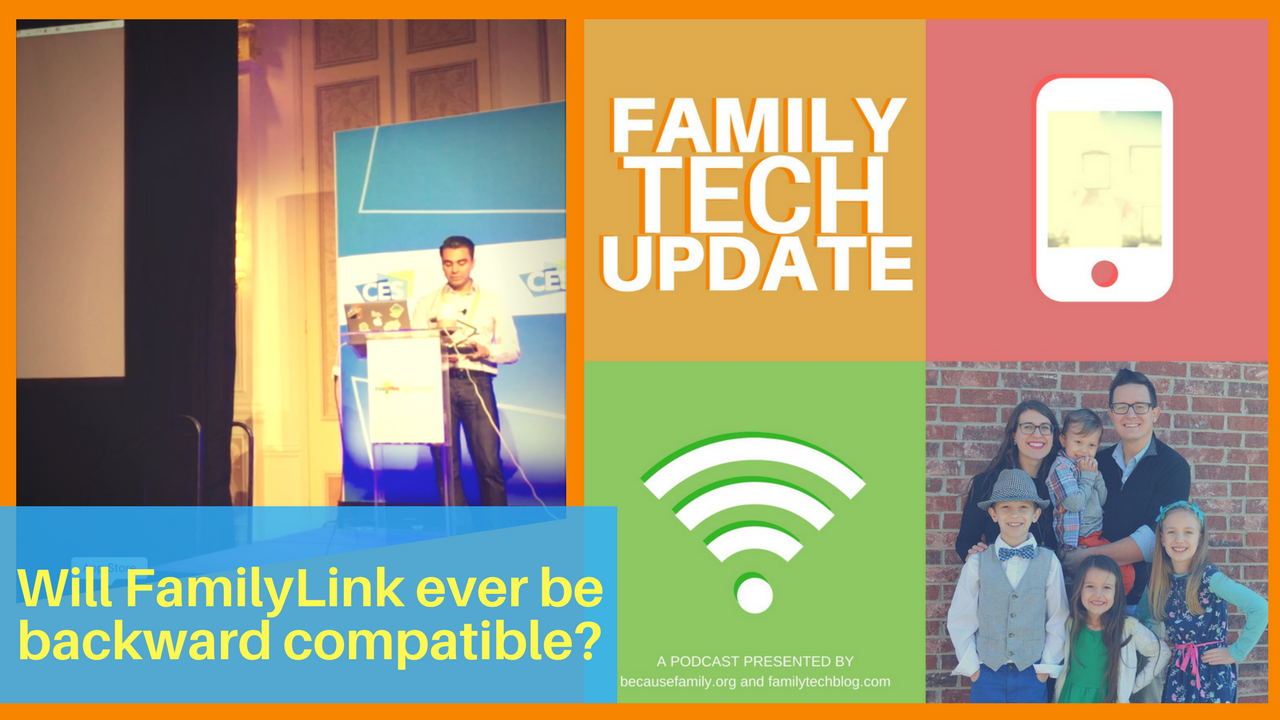
CES2018 info: Android FamilyLink is awesome but has one MAJOR FLAW. In this podcast for parents and families, we talk about Chromebook parental controls, Facebook, Instagram, and Raising Digital Natives.
I had the privilege to hear Saurabh Sharma – Sr. Product Manager with Google, speak on the abilities and development of Android’s parental control solution, FamilyLink. He covered many of the trends they were seeing in kids and families and how those stats encouraged their team to implement some full device control features on the monitoring system. As you can see in the video above, there are some pretty neat features in FamilyLink, including the ability to lock an entire device, not just the data connection. Also, time management and scheduling is a major part of the FamilyLink features. One of the coolest features spoken about at CES was the ability to use Google Home to control FamilyLink. Voice command was all the rage at CES2018 and Google’s parental control apps were no exception.
The app on kids’ devices allows them to see exactly what their parents are seeing. App usage stats, app blocking, bedtime and offtime, and setting the Google’s content filter, “SafeSearch.” While the SafeSearch filter isn’t the most extensive and customizable content management tool, it is a good start, especially for your younger children.
One Major Flaw
When FamilyLink was announced ten months ago my first question was, “Can our kids use this on the older phones we’ve handed down to them?” The answer is listed in the fine print on the Google FamilyLink homepage: “*Children can run Family Link on Android devices running Nougat (7.0) and higher, along with certain Marshmallow (6.1) devices listed in our FAQ.” This was immediately a problem for me since I know many families who use their older Android phones as the solution for their kids. It’s always been pretty easy to just hand down your phone to your kids when you get a new one. While there are many internet safety options available for Android, nothing works as well as an app developed by the same people who made your operating system.
After hearing Saurabh Sharma talk about FamilyLink, I followed him out of the room as he headed towards his next meeting and I asked him about the possibility of making FamilyLink backward compatible with older phones. He replied: Making FamilyLink backward compatible is a “difficult problem but one we are committed to trying to solve.” So there you have it. While it’s understandably not an easy thing to fix, we are assured that it is on the team’s radar and something they’re working towards.
Apple’s iOS has had native parental controls for a long time now. They’re pretty effective but haven’t been updated over the last several operating system upgrades. Hopefully, some time management and monitoring options can be added soon. Thankfully there are apps like Accountable2You and UnGlue to help with some of those needs.