Tag: development

  • Turn Your Drawings into Playable Games with Doodlematic

    Turn Your Drawings into Playable Games with Doodlematic


    Doodlematic lets you take a picture you’ve drawn on paper and turn it into a playable mobile game. 

    I met Martin Horstman, the dad who developed Doodlematic at CES2020. He talked me through how you can take any kind of art, as long as it uses the colors the APP recognizes, to create a real playable mobile game. They sent us their box set and we were able to play with it. My son had a blast drawing out games, especially platformer games that you had to jump from platform to platform an achieve goals. 

    To use Doodlematic, you simply draw the game on paper, take a photo of it, the APP processes  it, and then you play. You can then share it in the Doodlematic app and other people can jump in and play your games if you’ve allowed them to be public. 

    How it Works

    There are two types of games you can create on doodle matic. You can make the platformer, like I mentioned already, or you can make an Angry Birds style launch game where you shoot your “avatar” over to knock over targets. It’s all based on a series of different colors that create different types of objects in the game. Anything black is your platform or your ground. Red is obstacles, things that get in your way and end the game when your avatar touches them. Blue items are your goals and anything green is your character or avatar. 

    Your avatar jumps from platform to platform trying to grab the blue goals while avoiding all of the red obstacles. The app uses the colors to develop the Games behavior. This allows kids to basically make the game whatever they want it to be. The best part is there’s a lot of trial and error. I don’t know how many times my son drew something, took a photo of it, and then realized game just didn’t work properly. Not because the app was messed up but because his drawing didn’t allow the Doodlematic to do what it needed to do to make the game playable. Back to the drawing board, literally. Just a few fixes here and there and the games was doing what he wanted it to. 

    What You Get

    Doodlematic comes in a box with notebooks to guide you through the game creation process. It takes you through a step by step tutorial showing you what to draw and how to use that to create the behavior you want in game. 

    Doodlematic is probably usable for any kid over three years old. Once they can draw a little bit and grab a pen or pencil, they can create a game in the app. There are some advanced controls you can set up that make things move back and forth constantly or make the obstacles do things.  You can learn how to do that as you gain more experience in Doodlematic. However, all you have to do to get started is draw with the proper colors and play your games. 

    Apps like Doodlematic are great for kids because they teach them that trial and error process that’s necessary in developing any kind of technology. If you’re learning to code or if you’ve done any website building or graphic design you know that there’s a lot of times you start to create something that just cannot work. Then you have to go back to the drawing board. Doodleatic gives you a similar experience but it’s also still fun. It doesn’t take away any of the excitement because you know what you did wrong and can fix it.Then, suddenly, your game is working. That sense of reward and excitement is real and kids love it. 

    I have four kids. All of them have loved Doodlematic. My boys loved it. My Girls Loved it. My twelve year old loved it and my five year old loved it too.? I recommend checking it out at the website below and getting your family into Doodlematic and make yourself some games. You’ll love it.

    ThinkDigital.com


  • unGlue is a Great Way to Teach Your Older Kids Screen Time Management

    unGlue is a Great Way to Teach Your Older Kids Screen Time Management

    *unGlue is FamilyTechBlog.com’s latest affiliate

    UPDATE: You can use the promo code “SAFE10Off” to save 10% when you subscribe to unGlue!

    The most common concern among parents when it comes to tech use is that their kids spend too much time on their screens. There are plenty of options out there to help you monitor and limit the amount of time spent using tech, but unGlue is one of the first ones that allows you to put the control in your kids’ hands. The advice of the FamilyTechBlog has always been to help your kids know that you are on their team when it comes to internet safety and digital health. What better way to partner up than to give them choices as to how they spend their internet time? UnGlue lets you do just that.


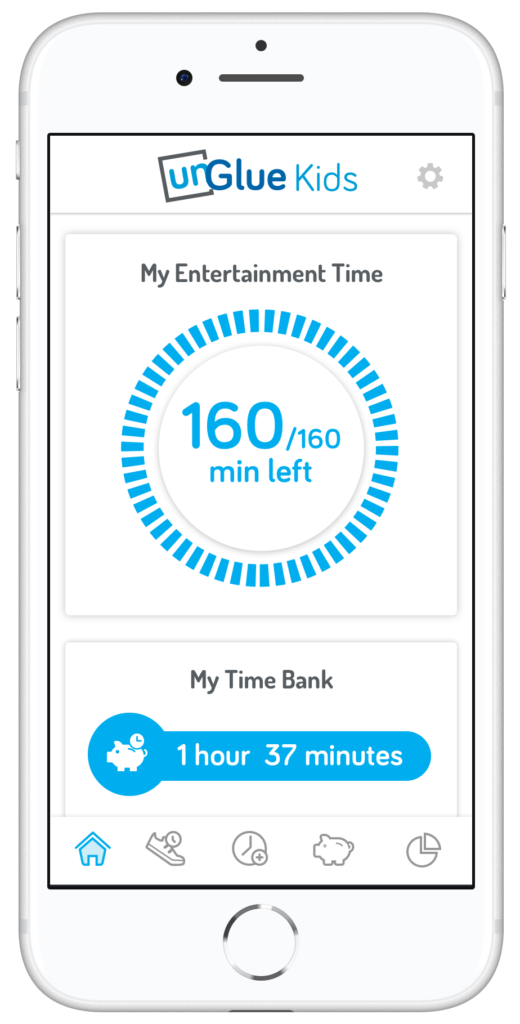
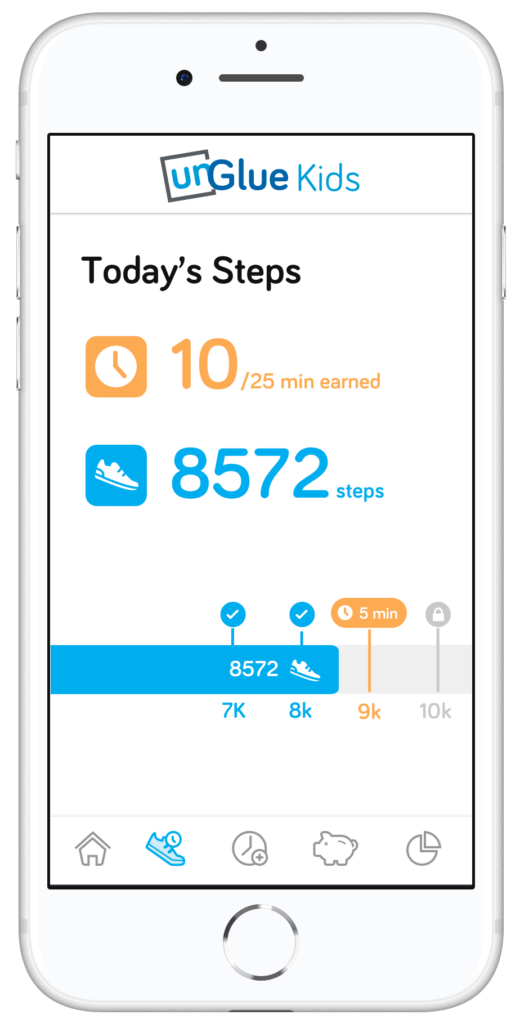
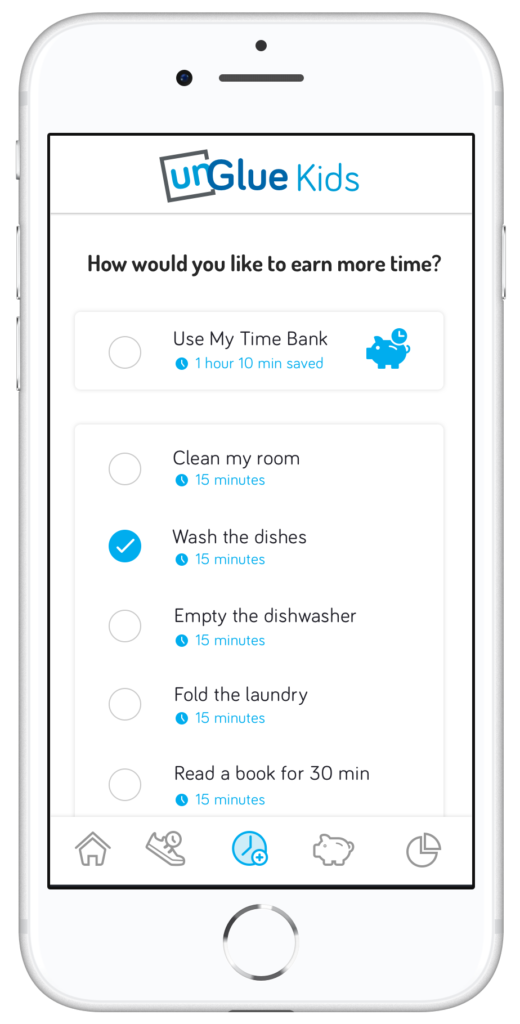
    unGlue’s features include an adult content filter, monitoring online time, trading steps or chores for more time, entertainment time rollover, and screen time scheduling. The best part is that most of this activity can be done in the kid’s version of the app. The parents set the limits but then the kids get to decide how they use their time and even how they can earn even more time. Rollover allows them to save up some of today’s time to use tomorrow if they’d like.

    How it Works

    At home, unGlue works through your wifi. You install software on your main home computer (only works while turned on) and it mirrors your router traffic to see the web activities on the devices you have set up. While on the go, unGlue uses a VPN to keep track of what is being done online. These methods mean your time is managed everywhere you go. You can even set up guest access in your home. If you don’t have a home computer to set up unGlue on, they have a device called the unGlue Puck that will only cost you $30.

    Speaking of cost, you can download the unGlue app for free and start monitoring online time right away. If you want to set up and use the other features you can subscribe for $9.99 per month or $84 per year. Both subscription options include full-featured access to unGlue.

    What Parents Should Know

    Managing screen time can be a challenge for people of all ages. The best way to ensure your kids have a good attitude about the time they spend online is to start teaching them young and to lead by example. Track your own screen time and set some limits for yourself. This will help your kids see that you are as committed to a healthy digital attitude as you are asking them to be. Using unGlue is simple and is an especially good option for those of us with older kids. Other options just monitor our kids and give us the option to turn the internet on and off at will and on a schedule. That’s a good way to manage screen time for your younger kids but studies show that our older kids need guidance and boundaries but not overbearing rules and regulations.

    Our hope is that the resources we partner with for parents can each bring a unique approach to your digital boundaries strategy. In my opinion, unGlue is the choice for parents of older kids who are ready to start managing their own time online. The option to earn more time through activity and chores adds another element that teaches your kids lessons they’ll have to continue to learn as they grow older. Download unGlue now and start monitoring. I think you’ll find it useful enough that you decide to subscribe in no time.