Tag: chromebook

  • These Apps Aren’t as Harmless as they Seem

    These Apps Aren’t as Harmless as they Seem

    Our kids use all kinds of different apps for many different reasons. Some for socializing, some for fun, and some for school and productivity. We don’t think twice about letting our kids use Google Documents or even the Bible app. Yet many of these apps aren’t as harmless as they seem. I receive messages from parents a lot asking if I have seen the latest awful thing people have done online. The answer is usually yes, and I am not surprised. For the last five years I’ve been learning about the digital/connected world our kids are growing up in and how it impacts our children and our families.

    Something I’ve learned is that if there is a system or an app that can be exploited to do harm, those who wish to cause harm will use it to do so. You see it yourself in your Facebook comments as some friends think it is the perfect forum for their disruptive thoughts. Worse still is the story from Bark’s project that put a 37 year old mom on instagram posing as a 13 year old girl. The response was shocking with inappropriate pictures and requests filling her direct messages just minutes after posting her first picture. The social function in the YouVersion Bible App being used to groom potential predatory victims. Google docs being used by young people for bullying, secret messaging, and sexting.

    It is shocking but I’m not surprised.

    What is our response to this tendency for people to use something meant for good and using it for the worst intentions. We can’t hide our head in the sand and keep our kids from using technology at all. This just isn’t realistic. We won’t be writing paper letters and saying no to laptops for school projects. The only reasonable response is to take responsibility for our children’s safety ourselves. We can no longer trust the apps that they use blindly, imagining that no harm can come to them simply because the app wasn’t meant for harm.

    We have to help our kids remember that the same stranger danger that is true when you’re six and at the playground is just as real when you’re fifteen and connected in direct messages by people you don’t know. I am not surprised by the nonsense that is happening on these apps. I just know that we, parents, are the only answer. People always find a way to ruin things that were meant for productivity or good. My advice is to talk to your kids. Help them know that. Tell them that if they are contacted by a stranger, even in an app like the Bible App they take caution. Remind them that they should say something if they see bullying online, even in a class Google Document.

    Our children are surrounded by voices telling them all kinds of truths. If you aren’t creating a safe place for them to come and be open with you about their concerns then you’re making it hard for them to live in this connected world. Do your best to be who they need you to be. I’m here to help.

  • Great News if Your Teen Has an Android or a Chromebook!

    Great News if Your Teen Has an Android or a Chromebook!

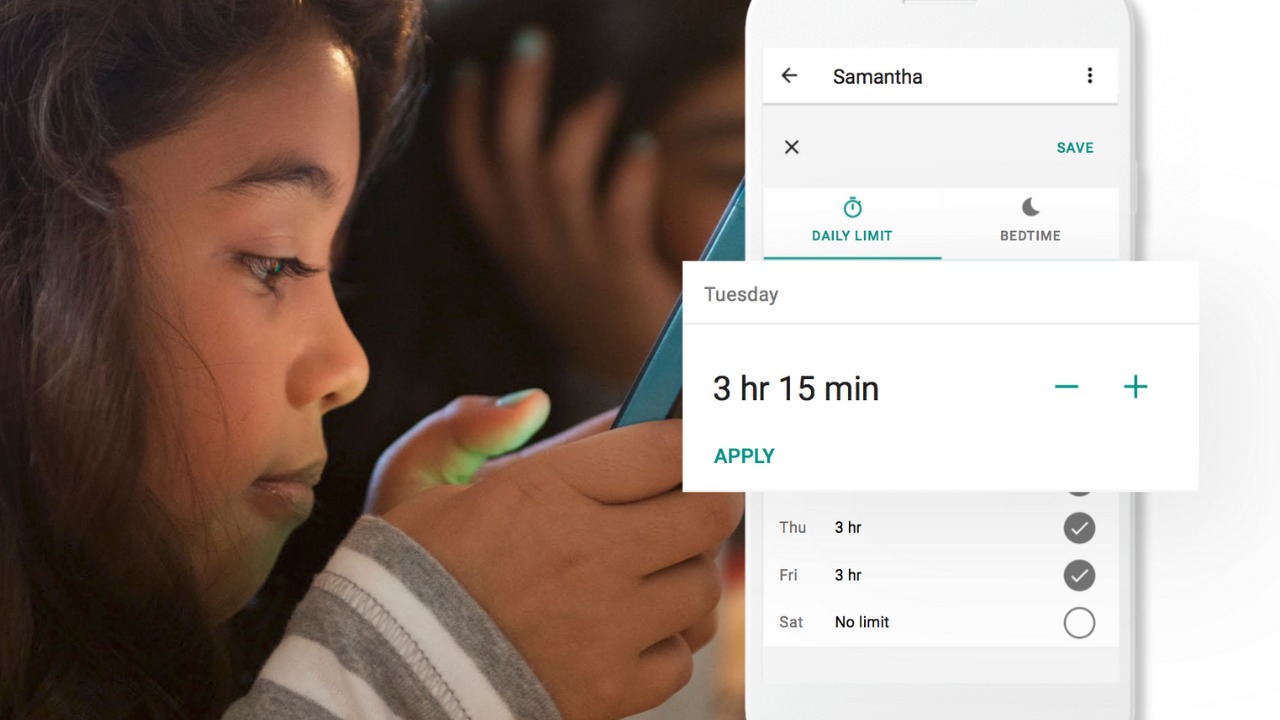
    Android Family Link was released last year to some success. The features are good enough and being able to change kid’s settings from your own phone is super helpful. There were some downsides, however. One of which was that it was geared mostly towards younger kids. That has changed today as google announces features for Teenagers in the FamilyLink app. 

    Android FamilyLink allows you to

    • Approve your child’s downloads and purchases from Google Play and limit the visibility of content in the Google Play Store based on maturity ratings
    • Manage settings such as SafeSearch for Google Search
    • Review your child’s app permissions on Android, such as microphone, camera, location, and contacts access
    • Change the content filtering setting and turn search on or off in the YouTube Kids app
    • Reset your child’s Google Account password
    • Set screen time limits on your child’s Android devices
    • See the location of your child’s signed-in and active Android devices
    • Manage the activity settings for your child’s Google Account
    • Allow a second family member to exercise most of the same controls you have over your child’s account.

    The features for teens adds the ability for your teen to disable the FamilyLink supervision setting. You will be notified if they disable it but the option is still there. 

    Chromebooks

    Schools all over the country are giving their students Chromebooks. The parental control options for Chromebook have been severely lacking for several months since Google disabled the Supervised User feature. The reason they ended support for Supervised User is to make room for FamilyLink and it’s finally here. 

    FamilyLink will soon give you all the same controls on Chromebook as you have on mobile devices. Right now you can only change account settings and content filters. Soon there will be screen time and app store management as well. 

    What Parents Should Know

    FamilyLink is a good parental control solution and it’s only getting better. They’ve added some good features and options for your older kids is also a good step. Issues I’ve had with FamilyLink in the past are the weak filter (currently only as good as Google’s Safesearch) and issues with backwards compatibility. They still recommend your kid’s device run Android version 7 or higher while some devices running Android 5 or 6 may work with FamilyLink. 

    I like what FamilyLink has to offer by way of screen time management and app store controls. A major problem parents have with Android is the ability to download apps outside of the app store. They control what their kids see on the Google Play Store but children can download things from outside the app store sometimes. Many parents don’t know how this is done and how to stop it so it poses a major problem. 

    The ability for teenagers to disable FamilyLink is kind of moot since it notifies parents. That makes me wonder why it’s put there in the first place. Perhaps to give teens the illusion of control or freedom since that’s something the adolescent desires more than anything. If you use FamilyLink for your teenager be sure to let them know you’ll find out if they disable it. The filter is kind of weak and there is no way to monitor messaging or get alerts if negative content has been viewed. I recommend a good accountability software for this. Get something that will work for phones and Chromebook. It’s critical that you know what your kids and teenagers have seen online and what they are doing. This allows you to have conversations with them about their decisions and the dangers and risks involved. 

  • TUTORIAL: How To Use Accountability Software

    TUTORIAL: How To Use Accountability Software

    One of the easiest ways to protect your kids online is to monitor their internet activity. Accountability software is the most effective way to do that. Accountability software does not block anything, it will report when something inappropriate has been viewed so you can talk to your child or significant other about what they spend their time doing online. 

    Our favorite Accountability Software is Accountable2You. I love it for a lot of reasons, probably the biggest reason is their support base. I have had a great experience when I have had to contact their support team to help me figure out setting up new devices. Some of the best features of Accountable2You are their GPS tracking (included,) their iOS VPN settings, and their time management tracking. 

    The video above will walk you through how to sign up and use Accountable2You. We are an affiliate of this software and you’ll get 30 days free if you use our promo code: BECAUSEFAMILY. 

  • Google Has Taken Away Chromebook’s Native Parental Control Solution

    Google Has Taken Away Chromebook’s Native Parental Control Solution

    What is “Supervised User?”

    I wrote all about your parental control choices for your kids’ Chromebooks a few months ago:

    “Supervised User is an account based system that’s built into the Chrome browser. It allows you to set filters, monitor sites visited, prevent installation of apps, turn on safesearch, and change settings. You do have to use blacklists or whitelists to block websites, there is not an automatic filter built in…”

    This wasn’t a foolproof solution but it was something that could give parents a head start on protecting their kids while they use the computers their schools have given them. Supervised User, however, has been discontinued so that they can focus their attention on another “parental control option to be released later this year.” Having received several calls from parents and principles this past year asking me to help them teach parents about the controls available, I know the need for Chromebooks to be safe while kids are online. Unfortunately, the simplest, most obvious solution is no longer available. At least for a while.

    From “Google Chrome Help”

    But There Are Solutions!

    Mobicip

    For a full-featured filter option, consider Mobicip. One of the only full-service filter and monitoring apps for Chromebook, Mobicip offers a plugin that you can download from the Chrome app store. Mobicip will give you customizable filters, time limit controls, and usage reports and its pretty easy to set up. You just download the extension from the Chrome app store and then log in. It takes you through the setup steps and lets you set your desired filter levels. Once it’s all set up you can make changes from anywhere using their web-based controls dashboard. Their SUPPORT page has good How-To resources to walk you through the process.

    If you want more controls than the Supervised User option gives you then Mobicip is a pretty good choice. It’s $39.99 per year for all of the features mentioned above for up to five devices. If you are going to need to protect more than twenty devices (I’ve met families with upwards of 30) then you’ll have to get a quote for their “Enterprise” option. Mobicip is a good option and will give you quite a bit of control.

    Accountable2You

     This accountability software doesn’t block content. This software will keep an eye on what’s being viewed and then red flag and report anything that it deems inappropriate. This allows you to more easily see when something questionable has been viewed. Otherwise, you’ll spend time sifting through link after unrecognizable link to find something that may be naughty. You can even set up Accountable2You to send you a text message when an inappropriate site was accessed. The software works across all of your devices including Chromebook and is $6.99 per month for six devices and $9.99 per month for twenty devices. They have easy setup instructions on their SUPPORT page and have excellent customer service. (NOTE: Accountable2You just released their lates iOS app that will cover every browser used on an iPhone or iPad. One of the first accountability solutions of it’s kind.)

    Use SOMETHING!

    I advise against waiting for Google to release a different option. Please set something up and do it soon. Kids are using their computers for much more than school work and there is more content showing up every day that would prey on your children’s innocence and even their safety. A Chromebook is basically a machine built only to run the internet. It has little to no other use. Pretending that it’s safe just because the school issued it is foolish. Use one of the affiliate links above and set up a solution. I wouldn’t recommend something I don’t or wouldn’t use myself.

  • Parental Control Options for Your Kids’ Chromebook

    Parental Control Options for Your Kids’ Chromebook

    The Chromebook is unique because it isn’t really a full fledge computer. They are designed to just run a browser so you can access the internet. This makes them affordable and easy to use. Because of this the Chromebook is often the chosen computer for schools. So your child may have been assigned a Chromebook when they were enrolled in school. While they must have content controls set while they are on school property there aren’t any regulations requiring schools to keep them protected while off campus. Here are some options for how you can protect your kids while they use their Chromebooks.

    Supervised User

    UPDATE: Google has discontinued Supervised User in favor of FamilyLink.

    This is an account based system that’s built into the Chrome browser. It allows you to set filters, monitor sites visited, prevent installation of apps, turn on safesearch, and change settings. You do have to use blacklists or whitelists to block websites, there is not an automatic filter built in. I recommend using THIS LIST of blacklist sites provided by a University in France. It’s a pretty extensive set of blacklists and will take some effort to set up but if you don’t want to just set the Chromebook to only access a few domains then copy pasting sites from these lists is your best option. You can access the supervised accounts by going to chrome.google.com/manage.

    Click THIS LINK to see Google’s set up instructions for a supervised user account.

    MobiCip

    One of the only full service filter and monitoring apps for Chromebook, Mobicip offers a plugin that you can download from the Chrome app store. Mobicip will give you customizable filters, time limit controls, and usage reports and its pretty easy to set up. You just download the extension from the Chrome app store and then login. It takes you through the setup steps and lets you set your desired filter levels. Once it’s all set up you can make changes from anywhere using their web based controls dashboard. Their SUPPORT page has good How-To resources to walk you through the process.

    If you want more controls than the Supervised User option gives you then Mobicip is a pretty good choice. It’s $39.99 per year for all of the features mentioned above for up to five devices. If you are going to need to protect more than twenty devices (I’ve met families with upwards of 30) then you’ll have to get a quote for their “Enterprise” option. Mobicip is a good option and will give you quite a bit of control.

    Accountable2You

    The final option is an accountability software. This, combined, with the Supervised User Account may be all you need.  Accountability software doesn’t block content. This software will keep an eye on what’s being viewed and then red flag and report anything that it deems inappropriate. This allows you to more easily see when something questionable has been viewed. Otherwise you’ll spend time sifting through link after unrecognizable link to find something that may be naughty. You can even set up Accountable2You to send you a text message when an inappropriate site was accessed. The software works across all of your devices including Chromebook and is $6.99 per month for six devices and $9.99 per month for twenty devices. They have easy setup instructions on their SUPPORT page and have excellent customer service.

    Whether your kids got Chromebooks from you to help with schoolwork or they were school issued, it’s critical that you have some sort of parental control solution set up. I recommend using one or more of these to set up a plan to help your kids be safer online. The statistics say that only one out of every three kids who saw something inappropriate online was looking for it. The fact that you have well behaved children doesn’t apply here. The internet isn’t well behaved and we have to make the effort to keep them safe.

    This article contains affiliate links…