Tag: app

  • We Bought Four Amazon Echo Dots!

    We Bought Four Amazon Echo Dots!

    Well, it is Prime Day and as usual, there are some deeply discounted items available on Amazon. My family usually looks but doesn’t buy on Prime Day, hoping to be able to predict the discounts we may see on Cyber Monday or Black Friday in a few weeks. We especially avoid any smart speaker or digital assistant hardware since we have always had (well informed) privacy issues and concerns. This year it has been different. We caved and bought Amazon Echo Dots for the whole family. Here’s why.

    They’ll Be Perfect for Our New Home

    Our forever family home is being built and we are planning a move-in just a few months from now. We are going to have more space for the six of us than we have ever had, especially in the kids’ rooms, the master suite, and the kitchen/dining great room. We’ll be a bit more spread out than we’ve ever been and the Echo has some great options for communicating throughout your home without having to scream up the stairs or down the hallway. The intercom feature was a deal sealer for both my wife and myself. The kids are pretty excited too.

    Digital Homeschool Help

    More of us are homeschooling than ever now and with four kids, all doing school work nearly every day, we need help sometimes. YouTube can be great to present some complicated concepts in helpful ways (7th-grade math, anyone) but my kids looking at screens and using a Google Search for spelling or calculator solutions isn’t the safest proposition. Alexa (the Virtual Assistant on Amazon Echo) will answer your spelling, language arts, science, and math questions with no risky search results or screen use at all. It is more important for my kids to know how to get information than it is that they know the info when they pass a grade. Alexa and other Virtual Assistants are the new waves of information access and they aren’t going away. They’re only getting smarter and faster.

    Less Screen Time

    My kids, like all kids, love to sit around and look at a phone or tablet. We are constantly having to get on to them about their obsessive behavior. We try to set better examples, we don’t always succeed, but giving them alternatives is very helpful. The Echo Dot is a smart speaker without a screen. At night, when the kids want to listen to a podcast or music for bedtime they can ask Alexa to play it for them instead of having their screens in their faces right up to when they fall asleep. Studies have shown this isn’t good for their sleep and can actually very detrimental to their development. With parental controls on the subscription services we use and on Alexa itself, we can ensure that our kids aren’t looking at their screens and are only listening to music and podcasts we’ve approved of.

    Safety and Security Upgrades

    All of this is great but digital safety and data security are always an issue. Especially with artificial intelligence that is designed to learn about you in order to be more useful to you. There is an obvious trade-off. You’re giving it information in exchange for convenience. I believe most of us consider that an acceptable exchange, considering Alexa and Google Home have been some of the fastest tech product to be integrated into people’s homes. The truth is that we have been making this exchange for a long time without really thinking about it. Every post on Facebook, Twitter, or Instagram, every search on Google, and every purchase or browsing session on Amazon has been used to build a database of advertising information about you. This can be scary to many but in all honesty, that ship has sailed and you raised the sails for it to do so.

    When you use these sites, you allow them access to your information. Alexa is no different and my family has considered the risks and decided it’s worth it. First of all, we already get targeted ads because we do so much of our shopping on Amazon and searching on Google. Secondly, the latest models of Amazon Echo Dot have added features like a hardware button to turn off the microphone that makes us feel like we can avoid being listened to when we don’t want to be listened to.

    Risk/Reward

    When you narrow it down it is a consideration of opportunity cost. You have an opportunity for convenience but it will cost some of your info. At a $19.99 price point, the Echo Dot is a great deal right now on Prime Day so we bought four of them. They’ll be here in a couple of days and I’ll set one up and let you know how it all goes. Stay tuned for my (late but in-depth) review of the Amazon Echo Dot as a tool for controlling kids’ screen time.

    If you shop the Amazon Prime Day today, consider using http://smile.amazon.com and signing up to support our non-profit, Four Point Families. You’ll have to search for Four Point Families and select it as the organization you’d like to partner with. Then Amazon will send .5% of your purchase our way to help us continue to protect families. Thanks.


  • Turn Your Drawings into Playable Games with Doodlematic

    Turn Your Drawings into Playable Games with Doodlematic


    Doodlematic lets you take a picture you’ve drawn on paper and turn it into a playable mobile game. 

    I met Martin Horstman, the dad who developed Doodlematic at CES2020. He talked me through how you can take any kind of art, as long as it uses the colors the APP recognizes, to create a real playable mobile game. They sent us their box set and we were able to play with it. My son had a blast drawing out games, especially platformer games that you had to jump from platform to platform an achieve goals. 

    To use Doodlematic, you simply draw the game on paper, take a photo of it, the APP processes  it, and then you play. You can then share it in the Doodlematic app and other people can jump in and play your games if you’ve allowed them to be public. 

    How it Works

    There are two types of games you can create on doodle matic. You can make the platformer, like I mentioned already, or you can make an Angry Birds style launch game where you shoot your “avatar” over to knock over targets. It’s all based on a series of different colors that create different types of objects in the game. Anything black is your platform or your ground. Red is obstacles, things that get in your way and end the game when your avatar touches them. Blue items are your goals and anything green is your character or avatar. 

    Your avatar jumps from platform to platform trying to grab the blue goals while avoiding all of the red obstacles. The app uses the colors to develop the Games behavior. This allows kids to basically make the game whatever they want it to be. The best part is there’s a lot of trial and error. I don’t know how many times my son drew something, took a photo of it, and then realized game just didn’t work properly. Not because the app was messed up but because his drawing didn’t allow the Doodlematic to do what it needed to do to make the game playable. Back to the drawing board, literally. Just a few fixes here and there and the games was doing what he wanted it to. 

    What You Get

    Doodlematic comes in a box with notebooks to guide you through the game creation process. It takes you through a step by step tutorial showing you what to draw and how to use that to create the behavior you want in game. 

    Doodlematic is probably usable for any kid over three years old. Once they can draw a little bit and grab a pen or pencil, they can create a game in the app. There are some advanced controls you can set up that make things move back and forth constantly or make the obstacles do things.  You can learn how to do that as you gain more experience in Doodlematic. However, all you have to do to get started is draw with the proper colors and play your games. 

    Apps like Doodlematic are great for kids because they teach them that trial and error process that’s necessary in developing any kind of technology. If you’re learning to code or if you’ve done any website building or graphic design you know that there’s a lot of times you start to create something that just cannot work. Then you have to go back to the drawing board. Doodleatic gives you a similar experience but it’s also still fun. It doesn’t take away any of the excitement because you know what you did wrong and can fix it.Then, suddenly, your game is working. That sense of reward and excitement is real and kids love it. 

    I have four kids. All of them have loved Doodlematic. My boys loved it. My Girls Loved it. My twelve year old loved it and my five year old loved it too.? I recommend checking it out at the website below and getting your family into Doodlematic and make yourself some games. You’ll love it.

    ThinkDigital.com


  • New Tech Products for Your Youngest Children

    New Tech Products for Your Youngest Children

    Every kids loves technology and screens. How often should we allow screen time for our younger children? Companies are making tech for children of every age and much of it was on display at CES2020. We should allow our kids to use tech while allowing them to remain kids. Here are some new tech products for your youngest children that I found at CES2020.

    Marbotic

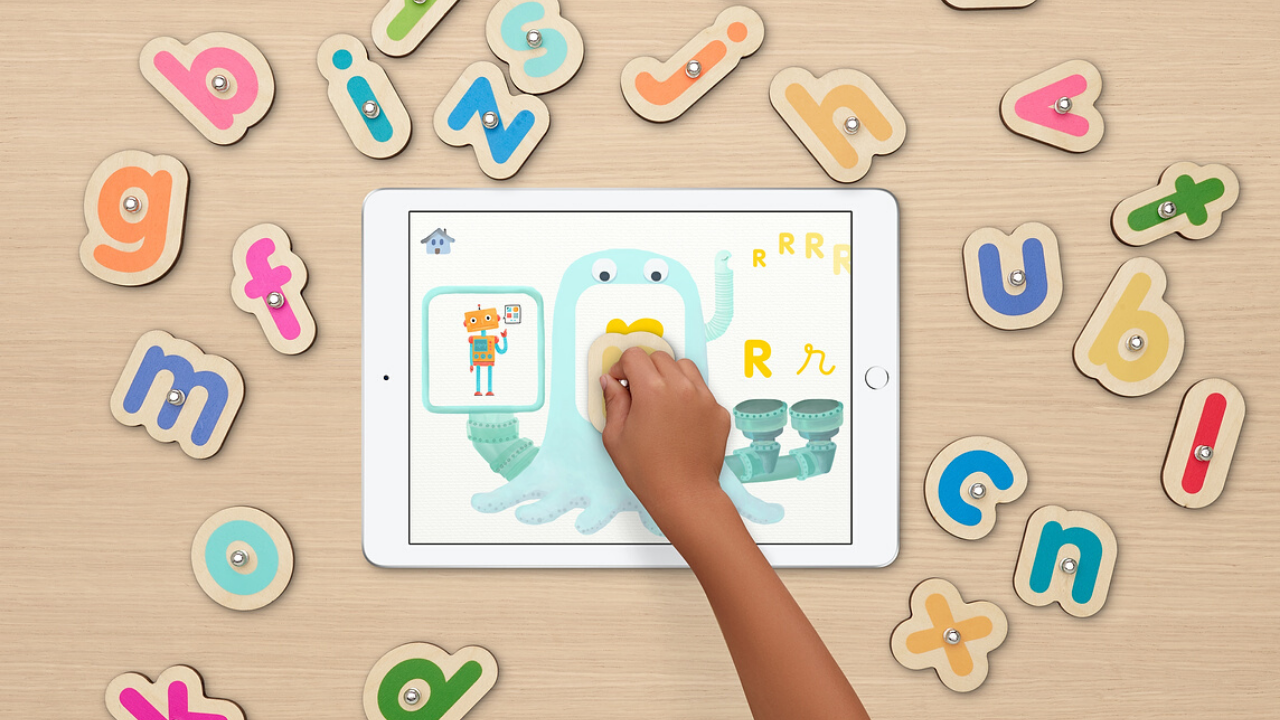
    Many new learning methods are founded on the fact that the manipulation of physical objects is a key factor in learning for young children. This has been discovered to be a downfall of screen-based learning for pre-school kids. Games like Marbotic give kids an opportunity to learn on their screens while using tangible letters and shapes to control what happens. This taps into the “full interactivity of the screen” to enrich their learning experience. 

    There are several different games available. They use a tangible item to touch the screen and answer questions, the app can tell if they are right are wrong and rewards them or help them. The app teaches shapes, letters, writing, and pronunciation by showing different pictures as a result of what you use to answer questions. They have even partnered with Sesame Street to put out a version of the app with those characters.

    Roybi

    Do our young ones need robots? Many companies are making robots for our kids, even our youngest children. Most of them seem to be pointless companions that are just “smart” stuffed animals. Roybi is different, though. This robot is a teacher.

    Roybi is a personal tutor that interacts with your child to teach them languages and STEM skills. The team at Roybi has harnessed evidence-based practices to help your child learn through play. Listed as one of TIME magazines best inventions of 2019, Robyi Lets kids ages 3-7 learn at their own pace and focus on what they are best at and most interested in. 

    Roybi doesn’t move around but does see and has educational conversations with your child. The robot uses these games to teach science, math and language skills.

    How Much Should My Kid Use Tech?

    Seeing all of these new tech products for our youngest children brings about the question. How much should my kid use technology? The issue is not as much the amount of time our kids use tech. Experts are more concerned with what they are doing during the time they are on these products. The answer is more education and less entertainment. These products give your kids opportunity to use the tech they love while learning skills they will continue to need. Studies have shown that learning only on a screen isn’t as helpful for our preschoolers as learning with things they can touch, feel, and manipulate. These products that combine the screen, voice, and tangible items set our children up to learn important subjects that they will require throughout their education.


  • How “Kids Games” Give Predators Unmonitored Access to Children

    How “Kids Games” Give Predators Unmonitored Access to Children

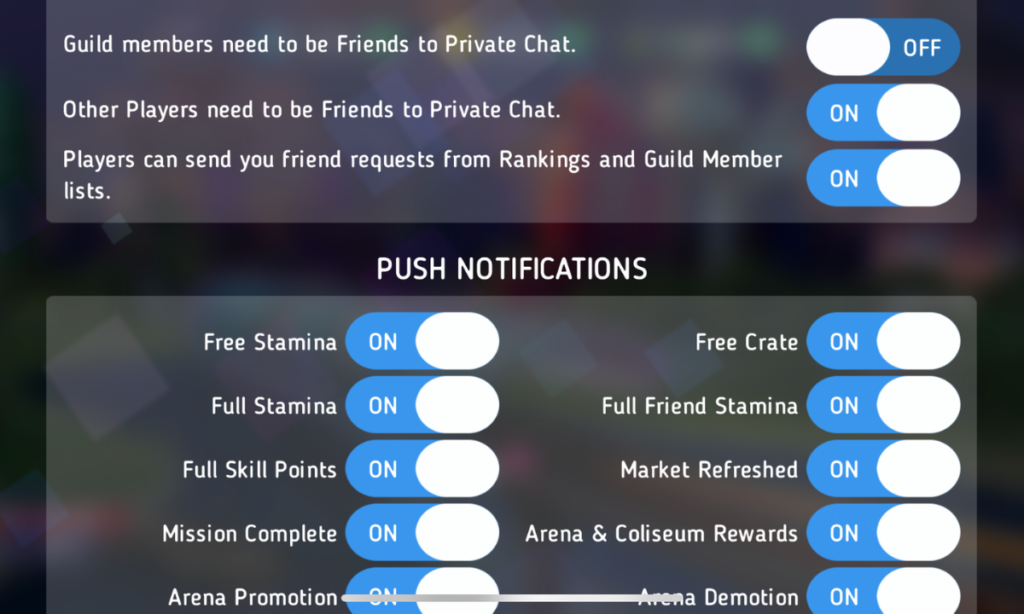
    I was contacted this week by a parent who was shocked to find that adults had been chatting with her young son in Disney Heroes, Battle Mode, an app rated 9+ in the Apple App store. She sent me screen shots in which players were asking her son if he was a boy or girl. They asked how old he was and where he was from. One of them even confessed, “I am not a kid. LOL.”  Obviously, when his mother found these messages she was extremely concerned, she removed access to that game and set some limits for their whole family for a while. Then, just a few hours later I received a link from a concerned parent about an app in which people are posing as employees of the game company and asking children to send pictures “without a shirt on” to prove their age. She asked if this was true and my response was that yes, these things are happening every single day. Here’s why these predators can gain such easy access to our kids.

    Disney Heroes Battle Mode

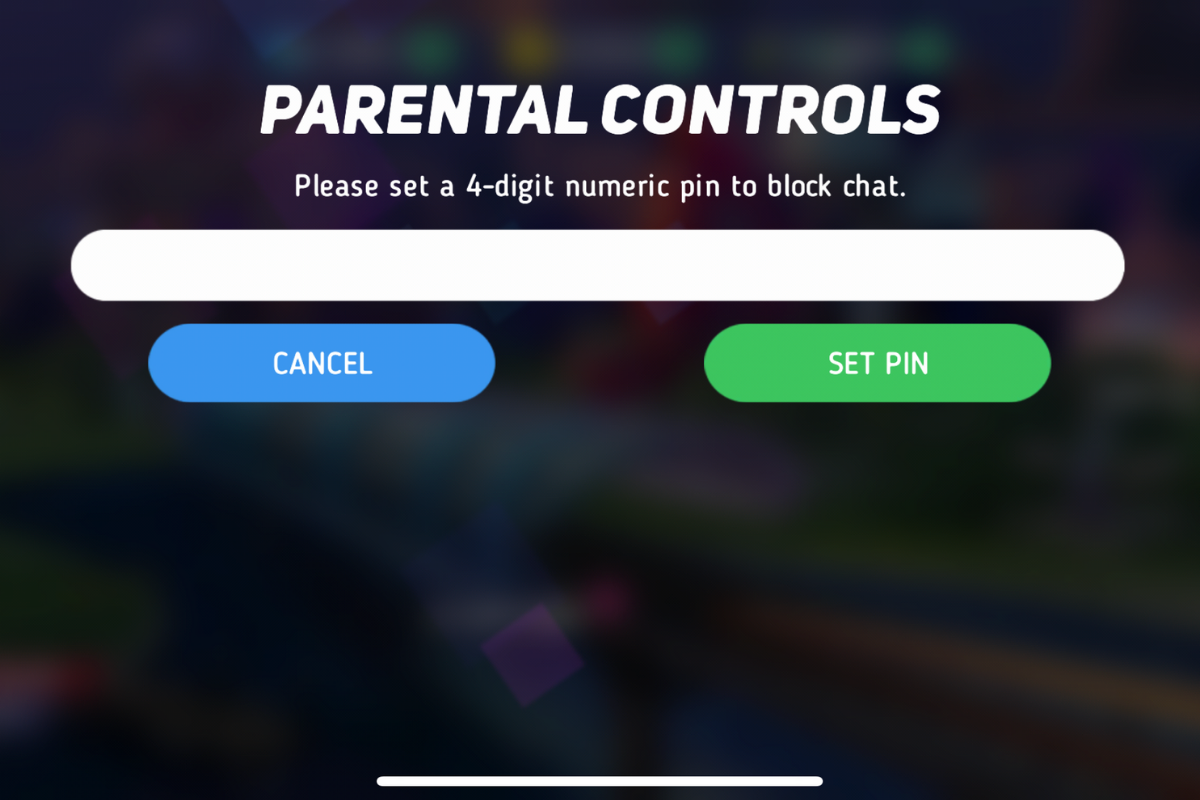
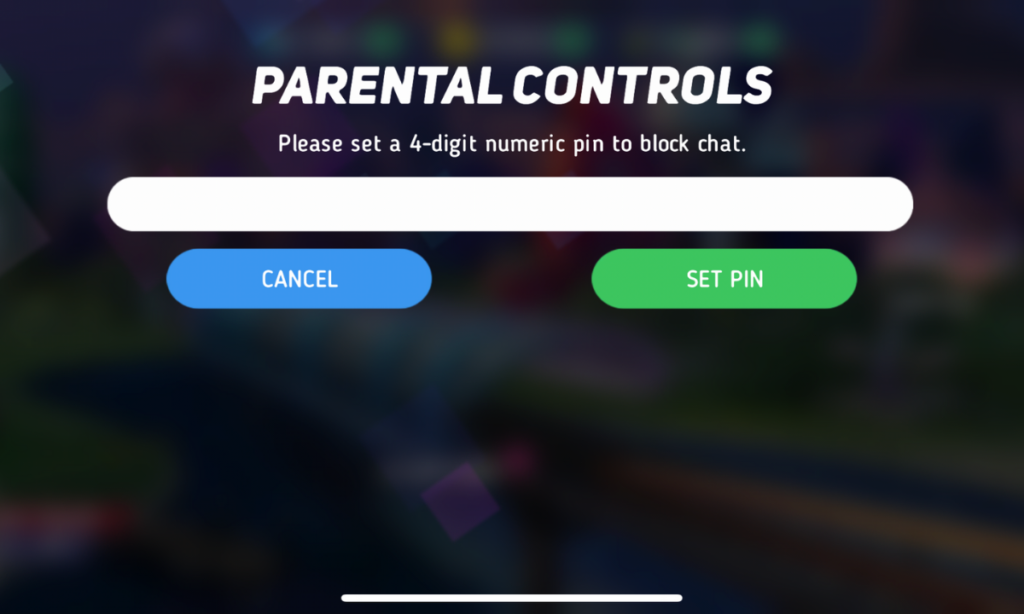
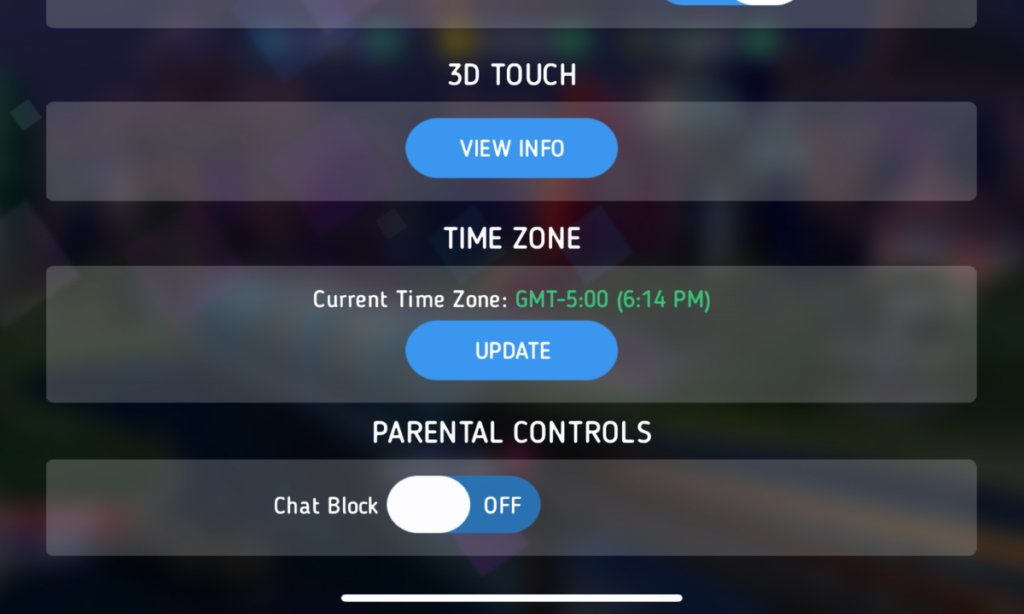
    After hearing about the trouble with Disney Heroes Battle Mode I downloaded the app to see what it was all about. After a short cenimatic and then playing through the tutorial you get a notification that the app has purchases built-in and that you shouldn’t be under 13 (app is rated 9+ in the app store. if you want to play. I simply tapped continue and moved right past the warning. No age verification, no password, no face id, nothing. Once in the app I started looking through the settings. I did find controls for the chat feature, including a password protected on/off toggle for chat access. This was good to see, especially since the issue I was researching had to do with chatting.

    The problem is that apps like Disney Heroes give parents a false sense of security. The app is made by Disney, the company’s name on anything makes many parents think that the product is made with their kids’ health in mind. This could not be further from the truth. Disney is out for exactly what every other major corporation is out for, their financial bottom line. We have to remember that data is big money and apps that are made for kids collect just as much data as any other app. Data that is personalized to a user is worth more money which means app developers need users to make an account to sort and identify their data more easily. The easiest way to convince app users to create an account is by making it the only way they can chat with friends in the game.

    What Parents Should Know

    I recommend taking a look at the game your kids play on their pones or tablets. Just because the game features cartoon characters doesn’t mean there aren’t adults playing the game. If the game has a social feature like chat or friend-mode you can be sure that your kids will be contacted by strangers. Look in the settings, preferences, or options of the games to see if there is a way to turn off chat mode. If they don’t allow you to disable social features, I would uninstall the game and encourage your child to find a different game to play.

    We must remember that the companies that make these games offer them for free because their money comes from in-app purchases and advertising. In order to make money they have to keep people playing the games as long as possible. Research shows that there is no better way to keep someone in your app than social engagement. People will be sure to keep coming back if they have friends in the game to play with or against. This means that they will continue to put these social features in their games and while app stores may rate these games as safe for younger children, my rule is that if it has a social element it should be for kids older than 13. Even then you should ensure that you child understands what they should do if they are approached online by a stranger and encourage them to tell you if someone makes them uncomfortable in any social engagement online. We can do our best to protect them from this software but nothing is more affective in preventing these dangerous encounters than teaching them how to recognize them and end the conversations immediately.


  • FB Messenger Kids “Error” Allowed Thousands of Kids to Talk to Unapproved Strangers

    FB Messenger Kids “Error” Allowed Thousands of Kids to Talk to Unapproved Strangers


    Facebook Messenger kids was created to give children a safe place to communicate through text, stickers, video, and gifs with friends that are pre-approved by their parents or guardians. This week, however, the kids’ messenger app has had to send notifications to thousands of parents about their children having access to strangers in the app. 

    What happened is that a technical error allowed kids to create a group message with friends who would then invite their own friends who, while approved for them, may not have been approved by the parents of the first child. Confusing? Ya, this is possibly why the flaw was even possible in the first place. Facebook says they have alerted parents whose children may have had this type of interaction and that they’ve disabled any chats that were created, using this flaw. The story isn’t over, though, as some are calling for the FTC to look in to the error since it may have resulted in a COPPA violation.

    Released Today: Facebook Messenger For Kids!

    What Parents Should Know

    The moral of this story centers around trust. It is important that, while we may trust our children, we can’t always trust who our kids are in contact with. We definitely shouldn’t blindly trust the companies who make the hardware and software that our children are using. When our kids use an app like Messenger Kids, the whole point of the app is that it gives parents control. When the control is hindered, even by a “technical error,” that is a severe violation. We can, however, take actions to protect our kids from dangerous effects that could come from these errors.

    I recommend having a copy of the messenger kids app on your phone logged in to your child’s account. My wife and I are each logged in to one of our kids’ messenger kids apps and can see when they get messages and what the messages are about. We are notified when they receive a message and can look to see who it is from and even read it. I have, a time or two, jumped into the app to tell a friend to stop messaging since my son was past his allowed time for social media that day. I received a “yes sir,” and there were no more messages until the next day. We also use BARK to monitor their messages and alert us of any dangerous or inappropriate content.

    Parents are gate keepers. Our job is to be sure our kids are growing up with guidance through every area of life. If they aren’t being taught how to manage social media and internet use safely then they will struggle to make healthy decisions when they are older. Messenger Kids is a good tool to help your kid learn the right way to use a messenger but it won’t work if you are uninvolved, pretending that the creators of the app only have your kid’s best interest in mind. The truth is that they want to provide you a service to make a profit. We cannot overlook that. It is our responsibility, and ours alone, to teach our kids how to be safe online. We should take it seriously. We should hold companies accountably when they have errors that put our kids at risk but ultimately we should be the ones making sure our children are protected on every app, site, and software they use.

  • Ten Screen Free Things to Do This Week!

    Ten Screen Free Things to Do This Week!

    Today marks the first day of Screen Free Week 2019. We have become so used to doing everything on our phones, TVs, tablets, and computers that it can be difficult to think of things to do when we unplug. It can especially be difficult for our kids who spend so much time on screens every day. Here are some ideas to help you start thinking of how you’ll spend your time this Screen Free Week. I’m sure that whichever activity you chose to do you’ll be blown away at how good it was for you to be screen free, even if only for a little while.

    1. Read Books

    No, I mean a physical book. With paper and glue and pages and everything. Many of us are spoiled to our audio books and ebooks. We carry around a library of hundreds of volumes and read whichever we want, whenever we want. This Screen Free Week, why not forget about the books in your digital library and take a look at some of the adventures you have on your actual bookshelf. You’ll be amazed at how cathartic it can be to just turn a real page instead of swiping to the next set of pixels that make up the story.

    2. Share a Screen Free Meal

    Having a meal with friends and family can be a great way to reconnect and charge up that need for social interaction. Food brings people together. Unfortunately, our phones can often get in the way of this beneficial time. Celebrate Screen Free Week by choosing to keep your phones away from the table during meals together. Look each other in the eye, have conversations, and share the time with your friends and family.

    3. Play Board Games

    You can pull out the old classics like Monopoly and Life or maybe sit down to a newer hit like Settlers of Cataan, Forbidden Island, or Dice Forge. Whatever board games you choose, you and your family and friends can enjoy screen free entertainment. Personally, I look forward to Dungeons and Dragons every week when I sit down with some guy friends, eat snacks, roll dice, and tell a story together. A story filled with imagination, humor, and adventure. Don’t underestimate the power of time around a table playing a game.

    4. Play Outside

    Trade in Screen Time for some Green Time! Get outside and get moving. Play a sport, run a race, skip, hop, jump, run, anything you can think of outside will be so good for you. Your body will thank you for the exercise and your brain will thank you for the release.

    5. Go for a Hike

    Screen Free Week is a wonderful time to get out and experience the beauty nature has to offer. You’re bound to have a hiking trail just a short drive from your home. Maybe it is just through a park in the city but it will be great to slow down, walk through nature, and stop and look at what the beauty all around you. Bend down and look at those leaves or that insect working away. Feed some ducks or squirrels. You’ll be amazed at how wonderful life is beyond the six inch space in front of your eyes that your phone often tends to occupy.

    6. Act Out Your Own Play

    We love to be entertained. Netflix, Youtube, Hulu, and Amazon Prime make their money off of our desire to escape reality by enjoying a movie or series. Take this week without screens to create your own entertainment. Play an improve game or charades to get your imagination moving. Get some friends together and act out some of your favorite scenes from the movies and shows that you love. How fun will it be to play the characters you love and laugh with your friends as you channel that inner child.

    7. Play a Musical Instrument

    How long has it been since you’ve picked up that guitar in the corner of your room? How long has that violin been sitting in its case, untouched? Without the distractions of y0ur screens this week you can take some time to play that instrument you’ve been neglecting. Maybe you aren’t a musician. Why not try something new? Borrow an instrument from a friend or just bang out a beat on your knees with some pencils. Make some music this Screen Free Week!

    8. Write in a Journal

    Social Media is often the place where we share our deepest feelings. Many of us look for validation by posting what we think about this thing or that. Since you’re avoiding screens more this week, start practicing a new train of thought. When you have an opinion you think would make a good Tweet or status update, write it down in a journal instead. Write down your deepest thoughts on all of the topics you usually post about publicly. You may find that journaling gives you the same cathartic feeling without the drama of other people’s comments and debate.

    9. Do an Art Project

    Our screens train us to consume consume consume. Why not take this break from consuming so much media as a chance to do some creating. I have a weekly goal to create more than I consume. I ask myself every day what I’ve created that I can be proud of. Often my creations are videos, blog posts, and podcasts but I can look back and say I created something instead of just consuming all day long. Give yourself a chance this week to be more creative. Make something awesome. Do some art. Maybe sidewalk chalk, or a craft project, perhaps you can knit or crochet. Do something creative that you can look back on at the end of the week and actually see the product of your time. It is so very rewarding.

    10. Plant a Garden

    Again, Screen Free Week is a great time to get outside. The spring weather is just waiting to be enjoyed. This early in the spring, it is also a great time to plant a garden. Go get some flowers and plants and set yourself up a nice patch of nature. Your kids will love helping and digging around in the dirt and your whole family will love seeing the plants come to life as the spring and summer progress.

    Beyond Screen Free Week

    There are lots of things you can do without your screen. If you are like me, Screen Free Week is a great reminder to adjust my priorities. Hopefully this Screen Free Week, you can remember the importance of time in which you intentionally unplug and spend time with those you love. Use tools like Screen Time to monitor that amount of time you spend using your devices. It is amazing what good just being aware of your screen time can do for you. Have a happy happy Screen Free Week.

    For 101 more Screen Free Week ideas visit ScreenFree.org!

    Listen to this post as a podcast below:

  • It’s Being Called the Ultimate Unsend Button, Does it Encourage False Anonymity?

    It’s Being Called the Ultimate Unsend Button, Does it Encourage False Anonymity?

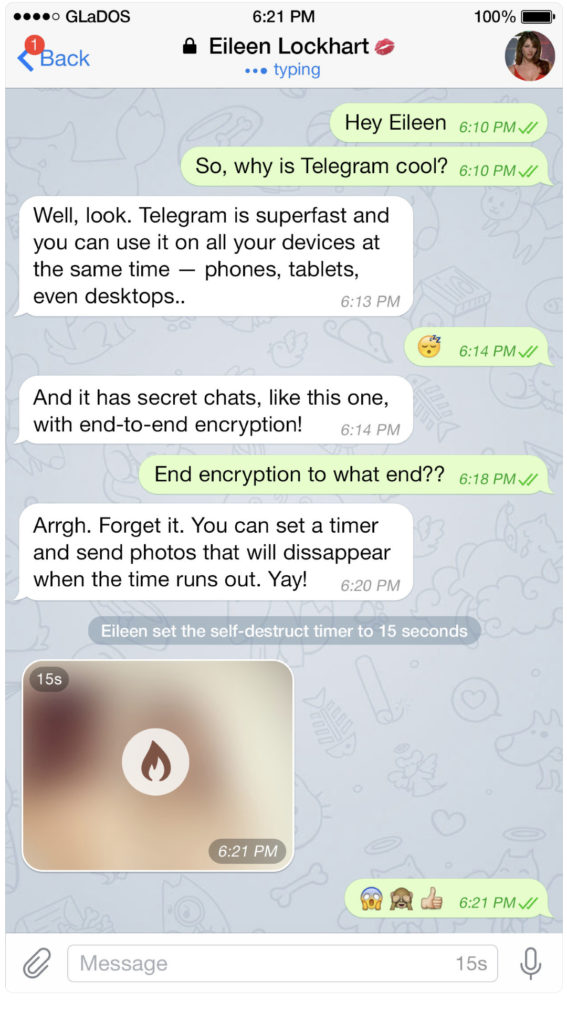
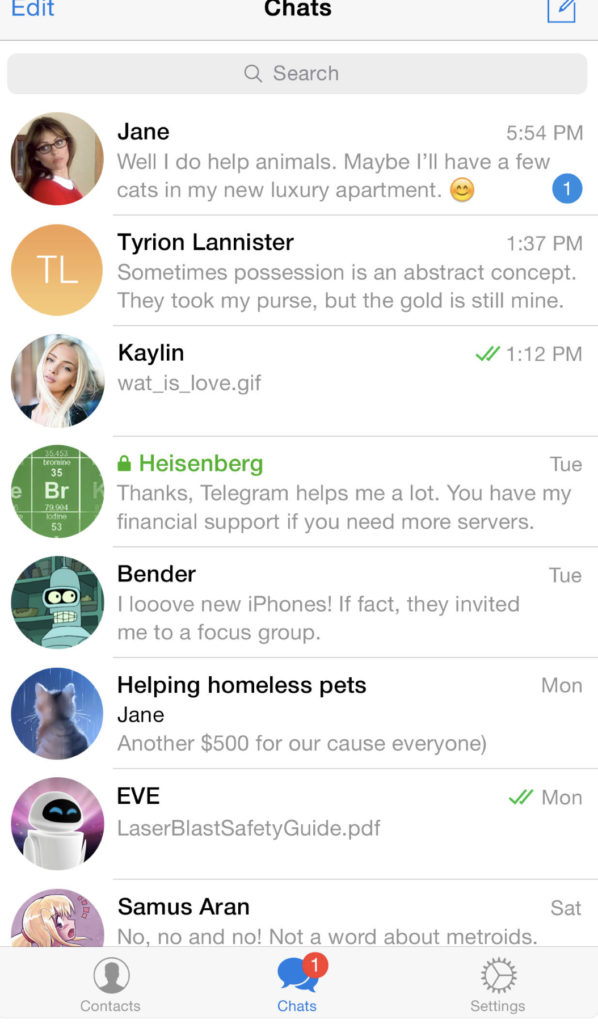
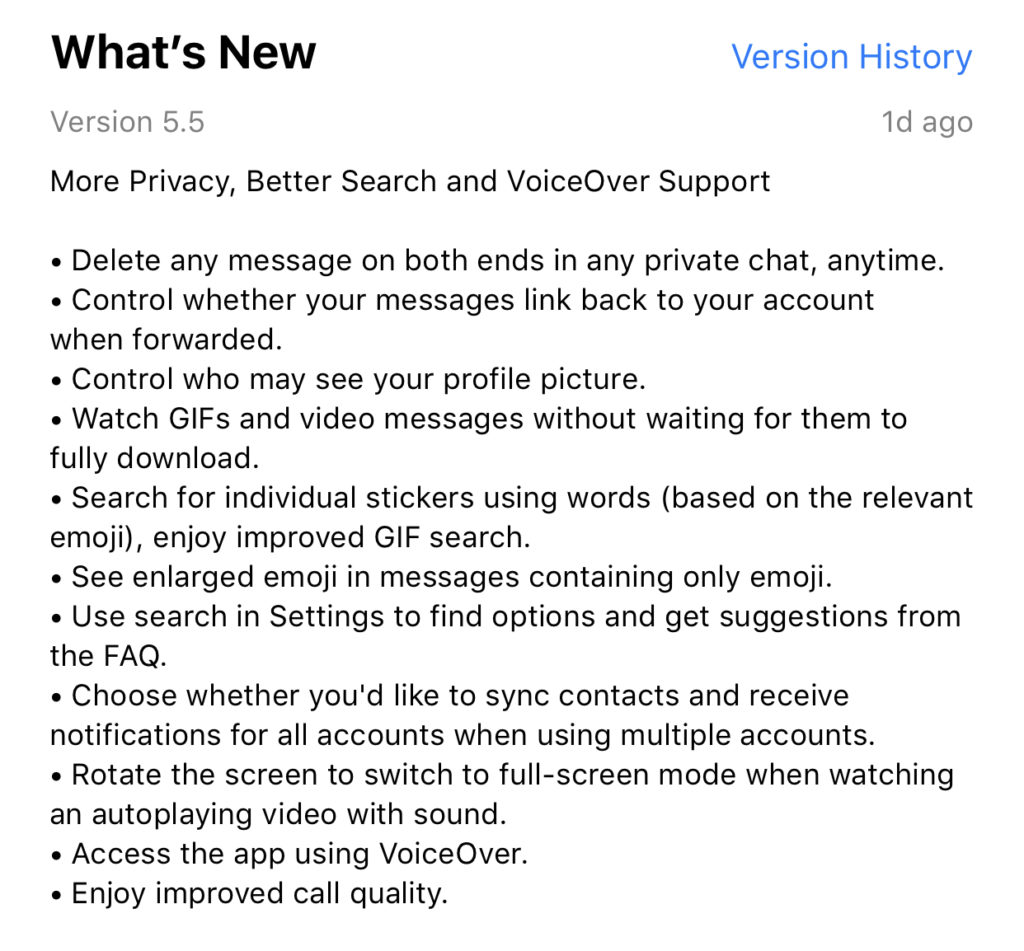
    Telegram is an end to end encrypted messenger that touts speed, privacy, and security. They have featured private messaging and self destructing messages for a while but their new feature takes privacy to a new level. You can now delete a message you’ve sent from your account and the account you sent it to no matter how long ago it was sent. Telegram is, again, standing up for privacy and users are buying in. Millions have flocked to Telegram after Facebook’s data leak news from the past several months. It looks like Telegram is doubling down on Privacy as their claim to fame. They’ve also added the ability remove your information from a message when the message is forwarded to other users. Some accessibility and ease of use features have also been aded.


    What Parents Should Know

    Security and privacy are often overlooked when we allow our kids to use internet connected devices. Privacy is becoming a major concern for experts and activists of family tech safety. Messengers that allow data to be collected and used for advertising shouldn’t be used by children and even teenagers due to the risks of such data being released or revealed without the messenger app developer’s consent. When an app features privacy as it’s distinquishing feature, you have to ask who the data is being kept private from. Obviously, we want data to be kept from third party companies who would use that data to advertise. Sometimes data is even kept private from the company that developed the messenger app that you are using. Telegram has a “secret messages” setting that must be set to keep your information encrypted from end to end. (End to end encryption means not only the company can see or collect what is being sent.)

    Anytime the ability to delete messages you’ve sent is added, I see red flags. While I think privacy is critical, there is also a risk of kids thinking they are safe from inappropriate or incriminating photos or messages being saved and used for nefarious purposes. It only takes a half a second to screen shot a message or image on your screen. Most phones allow you to record your screen to a video very easily. This means that you are non always anonymous online. If you are sending messages to someone, thinking you have complete privacy, you are trusting that the person you’re sending the messages to has your privacy in mind as well. Telegram is an easy way for predators, cyberbullies, and those interested in sexting, to send and receive messages that do their damage and then are removed as evidence.

    I have spoken to parents who have taken their kids to the police with complaints about people trying to groom them online but the police had no evidence because the messages had all been deleted. This is why a messenger makes the FamilyTechBlog uninstall list as soon as they add disappearing messages. It isn’t safe for your kids to chat with a feeling of anonymity or for them to chat with people who can send what they want and make the message go away after it’s been viewed. Telegram is rated 17+ and I fully agree with this rating. Private messengers that allow you to chat with anyone, anywhere shouldn’t be used by children and young teenagers. Especially when the messages can be removed at will.

  • Highlights from CES2019 Media Day One

    Highlights from CES2019 Media Day One


    Above are the highlights from my first day at CES. This day is a media-only event and features press conferences from major brands, a “trends to watch” presentation, and a pre-show floor event called “Unveiled.” In this video, we will hear some of the tech trends that are being discussed at CES this year and show you some of the kid/family tech that I’m excited to learn more about when the show floor opens. Keep tuning in to the blog, our YouTube channel, and our social media for more of the only tech blog covering CES exclusively to protect children and teenagers online.


  • A Warning For Parents Buying Android Tablets for their Kids this Christmas

    A Warning For Parents Buying Android Tablets for their Kids this Christmas


    Android Tablets are a great option for parents who want to get their kids some form of screen device without breaking the bank. The addition of Android FamilyLink has made Android and even better choice for our kids’ introductory tech device. They are affordable, fairly easy to use, and most all apps our kids want to play or use are available through the Google Play store. There is, however an issue that faces parents when they are ready to set up these devices for their kids: compatibility.

    Compatibility is the ability of a device to run the software you are trying to install on the device. Android FamilyLink requires operating system 7.0 or higher in order to work on your child’s device. That means that if your device runs an older version of Android, the app that connects your parental control settings to their device won’t even be available to install from the app store.

    I ran into this problem today while helping a family set up controls on the brand new tech devices they had purchased for their two girls. I initially thought it odd that on one device I could login an account as a child and on the other I could only make a basic adult Google account. Then, halfway through setup I realized that one tablet would run FamilyLink while the other would not. Both of these devices had been purchased from the same place on the same day and were brand new, not refurbished or used, but the operating system was different in each tablet. One was running Android 4.4 while the other, the one that let me set up FamilyLink, was running Android Version 7.1.

    I understand that newer software will not work on older devices but these are two devices being sold at the same time as brand new. There is nothing, without further investigation, that would cause a parent to expect they couldn’t do all the same things on both tablets. The truth, though, is that not all Android Tablets are equal. We won’t get into opinions on Apple vs Android but I will make this comparison: when Apple updates their operation system ( iOS) they ping all of the devices at once and encourage installation of the newest version of the software. Android, however, is a crap shoot. You have to go see if your device will be compatible with the newer software every time a new one comes out. The main reason for this is that different companies make phones that run Android while Apple makes the device, the operating system, the app store. Basically the whole shebang.

    People have different tastes and whether it’s the way the software functions, the look and feel of the phone, or just not wanting to spend as much money, Android will always be a significant part of the smart device market. My advice isn’t to just always use Apple products. I will encourage parents, instead, to always look at the specifications of any device you want to buy and see what operating system it is compatible with. If you are buying an Android product and want to instal FamilyLink, the device must run 7.0 or higher for the FamilyLink Children and Teens app to show up as downloadable in the Google Play Store. Otherwise, you’ll be looking for some third party app or combination of third party apps to add parental control functionality to your devices.

    Need help? Shoot me a message HERE.

  • Are You on Your Kids’ Instagram “Close Friends List?”

    Are You on Your Kids’ Instagram “Close Friends List?”

    Instagram is rolling out another update today and this one gives users the ability to build a “Close Friends List.” This category of friend creates a list of names that will see stories that you post and designate for that group only. This allows you to post more private or personal posts and trust that it will only be seen by a pre-approved group of friends. This feature should roll out today and will be available through the settings menu on your profile page in the Instagram app.

    You set up your list and then choose, in your stories posts, to designate that post only for your “Close Friends.” The update shows a green badge to notify those seeing it that it is from your Close Friends list. Those on your list will also see a green circle around your “Stories” icon.

    What Parents Should Know

    This update can be a really good thing. It is important to know who is seeing your posts and keeping your audience in mind. A way to separate those who you are ok with seeing certain things could be a way to eliminate the “finsta” or “Spam” instagram account. My advice, though, is to make sure your child has you on their Close Friends list. If they’ve been posting Close Friends posts and you aren’t seeing a green circle around their stories post, you aren’t on their list and you should have a conversation with them about why you don’t want them hiding posts from you.

    Remember that you should be a safe place for your kids to come if they have serious issues to discuss. They shouldn’t be afraid that you won’t understand their depression or that you won’t believe them if they are having problems with people at school or work. You should be THE place that they know they’ll be heard, believed, and understood. I truly believe that if you create that culture in your family your children will automatically think to add you to their Close Friends list because you actually belong there.