Tag: android

  • Google Has Proof they’re Finally Taking App Store Security Seriously

    Google Has Proof they’re Finally Taking App Store Security Seriously

    The Google Play app store has been known to be a bit of the wild wild west. There were copycat apps, apps with adult content, and apps with malware or spyware. Google now has some proof that they’ve been hard at work putting an end to all of the nonsense. In a recent report, Google said they removed more than 700,000 malicious apps last year. That’s 70% more than they removed in 2016. They say that most of the removed apps were copycats and many contained pornography or extreme violence, both of which are against the Play store policies. Most importantly of all, of the apps that were removed, 90% were rejected before they even made it to the store. This means they were never able to deceive users.

    This is very good news for Android users. It means that Google’s algorithms, AI, and “machine learning, techniques are working well and keeping apps that could put your security at risk from ever being installed on your phone. The openness of Google’s play store was always a major reason I wouldn’t own an Android phone. This update, as I said, is proof of how serious Google is taking security. There is still, however, a major risk associated with the use of an Android phone. It is a popular reason some folks prefer Android even though it is against their recommended usage policies. No matter how secure the Google Play store becomes, you aren’t protected if you are downloading apps and other files from other sites and apps. “Sideloading” apps is not recommended by Google and can put your security at risk.

    What Parents Should Know

    I spoke with a mom of a young teenager a few months ago about some strange stats on her monitoring software on his Android phone. It turns out, while she had turned off app downloads to keep him from installing adult apps or time wasters, he had been finding other ways to install apps on his phone. The Google Play Store removing unsecured and malicious apps can keep your kids safe from some of the dangers out there but if they are installing apps in other ways, you’ve lost all confidence that they’re protected. You should have some sort of monitoring software installed. Use something like unGlue, Accountable2You, or Circle to monitor what your kids are doing on their phones and keep an eye out for apps that don’t seem legit.

    A good way to know if they are sideloading apps is by looking for the term “APK Installer” in their recent activity. If you have the phone set to ask for permission or to disallow app installation and you see the “APK Installer” running, they may be sideloading. My advice is to keep an eye out for this and if you see it, ask them about what apps they are using. Maybe even have a look at what is installed on their phone. If you don’t recognize the app, do some research and uninstall it if you don’t approve. Most importantly, talk to your child about the importance of only downloading approved apps from the Google Play store. Let them know is as much about internet privacy and security as it is keeping them away from inappropriate content. Google is doing their part by monitoring and managing their app store, you can do yours as a parent by keeping an eye on what your kids are using on their Android device. 


  • Android FamilyLink is A Great Parental Control Solution, Albeit with One Major Flaw.

    Android FamilyLink is A Great Parental Control Solution, Albeit with One Major Flaw.

    I had the privilege to hear Saurabh Sharma – Sr. Product Manager with Google, speak on the abilities and development of Android’s parental control solution, FamilyLink. He covered many of the trends they were seeing in kids and families and how those stats encouraged their team to implement some full device control features on the monitoring system. As you can see in the video above, there are some pretty neat features in FamilyLink, including the ability to lock an entire device, not just the data connection. Also, time management and scheduling is a major part of the FamilyLink features. One of the coolest features spoken about at CES was the ability to use Google Home to control FamilyLink. Voice command was all the rage at CES2018 and Google’s parental control apps were no exception.

    The app on kids’ devices allows them to see exactly what their parents are seeing. App usage stats, app blocking, bedtime and offtime, and setting the Google’s content filter, “SafeSearch.” While the SafeSearch filter isn’t the most extensive and customizable content management tool, it is a good start, especially for your younger children.

    One Major Flaw

    When FamilyLink was announced ten months ago my first question was, “Can our kids use this on the older phones we’ve handed down to them?”  The answer is listed in the fine print on the Google FamilyLink homepage: “*Children can run Family Link on Android devices running Nougat (7.0) and higher, along with certain Marshmallow (6.1) devices listed in our FAQ.” This was immediately a problem for me since I know many families who use their older Android phones as the solution for their kids. It’s always been pretty easy to just hand down your phone to your kids when you get a new one. While there are many internet safety options available for Android, nothing works as well as an app developed by the same people who made your operating system.

    After hearing Saurabh Sharma talk about FamilyLink, I followed him out of the room as he headed towards his next meeting and I asked him about the possibility of making FamilyLink backward compatible with older phones. He replied: Making FamilyLink backward compatible is a “difficult problem but one we are committed to trying to solve.” So there you have it. While it’s understandably not an easy thing to fix, we are assured that it is on the team’s radar and something they’re working towards.

    Apple’s iOS has had native parental controls for a long time now. They’re pretty effective but haven’t been updated over the last several operating system upgrades. Hopefully, some time management and monitoring options can be added soon. Thankfully there are apps like Accountable2You and UnGlue to help with some of those needs. 


  • Tools to Monitor Your Own Screen Time in 2018

    Tools to Monitor Your Own Screen Time in 2018

    Happy New Year!

    The first of the year has come and we are all trying to make ourselves a little better. Maybe you’re concerned about you and your family’s increased screen time. This is normal, we’re all thinking about what we can change in the new year and spending less time looking at a screen is on the top of many lists. These tools can go a long way to help you identify the amount of time you spend on your device, narrow down what you’re doing that sucks up so much of your time, and even set boundaries to alert you or block access when you’ve reached your desired limits.

    Accountable2You

    No matter what device you use, Accountable2You can help you keep track of what you’ve been doing online. The online dashboard will give you an App Usage report, complete with a circle graph of how you spend your time online. Whether you use this to keep track of your kids’ devices or your own screen time, it’s an easy to read way to be aware of how you’re spending your days.
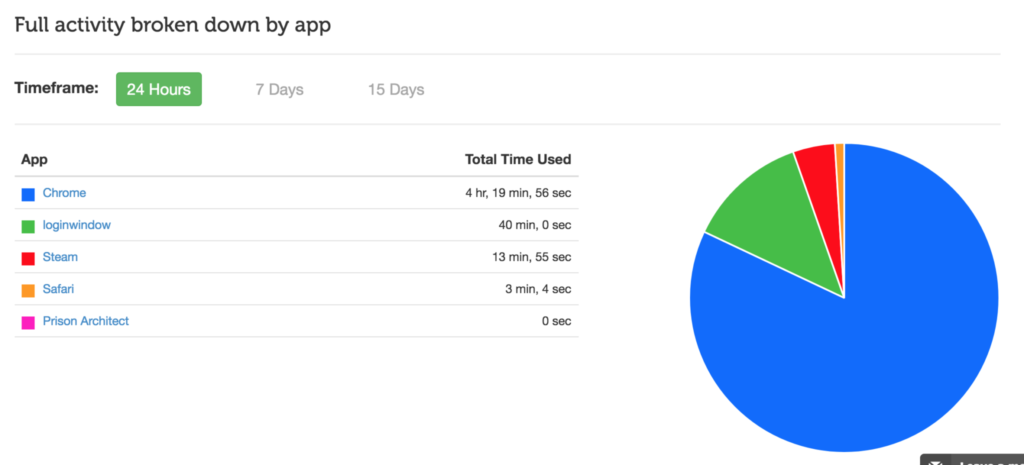
    Accountable2You is an accountability software at heart. It will notify you if there anything inappropriate has been accessed by those you’re keeping an eye on. It’s easy to set up, affordable (6.99 for 10 devices and 9.99 for 20,) and it works for every device. Even the Chromebook your kid got from school. It’s what I use and the best part is that if you sign up with our link, our non-profit will get a bit of help every month because of your payment.

    Android Family Link

    Android’s first stab at native parental controls focuses mainly on time management. That is, in fact, almost all it focuses on. Google FamilyLink is designed to allow parents to set time restrictions, time limits, and bedtimes as well as monitor the amount of time spent using the device. This will be accomplished by a complete disabling of the device once time limits or restricted times are reached. A tool like this could easily be used to limit or monitor yourself as well. If you, like me, spend most of your time in front of your computer for work, you may want to be able to set limits on how much time you spend on your phone or tablet for recreation purposes. FamilyLink should be a pretty good way, if you have an Android device, to cause your entire device to shut down when your limit is reached, or even just take a look every few days to see how much time you’ve spent on those devices.
    iPhone Battery Meter

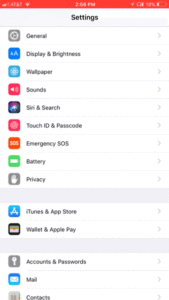
    For iOS users, Apple has built in a way to keep an eye on what you’re spending your time on while using your device. Your battery meter can be used to monitor your own screen time. It will even sort your time by app used and separate it into “on screen” and “background” time. To use this, simply go to your settings app and open the Battery section. When the usage area loads, tap on the clock icon on the upper right of that section. You can set your timeframe to be 24 hours or 7 days. This gives a pretty good snapshot of how you spend your time on your iOS device. Try it, you may be surprised.

    Moment App (iOS only)

    The Moment App uses your battery meter to build a nicely laid out report for you to keep track of the time you spend on your phone. Moment is only available for iOS (Android app is in development.) It automatically tracks your usage and allows you to see simple reports that separate your usage by the apps you spend time on. Moment lets you coach yourself on your screen time habits so that you can make changes if you want. You can set up time limits and Moment will notify you if you’ve gone over the time you’ve allowed.

    This app works pretty well. I used it for about a month and definitely made some changes to the amount of time I spend on my phone. Since it’s free you can even consider using Moment to install on other devices in your family and setting up limits for them. It will be up to them to put the phone or tablet down when they are notified but there’s something to be said for teaching your older kids to take the responsibility into their own hands. Moment is a free app but there are premium features (including extra family controls) that you can pay for.
    UnGlue

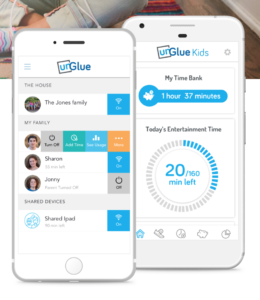
    UnGlue was created to give the power of screen times to the kids themselves. The website touts a plan to “give kids the power to learn healthier habits – within your boundaries.” UnGlue uses a scheduler to set up your kids’ screen time allowance. You can give them control of how they spend their time by giving the rewards for things like chores and exercise. Unglue works from just an app, no separate device to hook up. The basic UnGlue package gives you access to screen usage reports only. You can use this free feature to keep an eye on the time you spend online. Further features will cost up to $9 per month. UnGlue is fairly new and has been updated quite a bit recently. It will work on iOS or Android and even on your home devices. (With the full-featured service.) Go check out UnGlue and tell them FamilyTechBlog.com sent you.
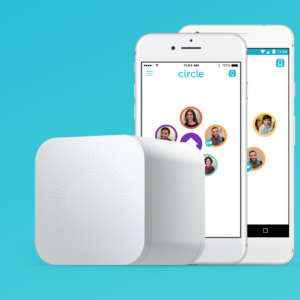
     

    Circle

    I’ve spent a lot of time talking and writing about Circle. I recommend this parental control tool to everyone I speak to and I even use it myself. Circle lets you filter by age and category and limit screen time for your kids but it’s been cool for us to have a profile for ourselves. This profile lets us see, in one glance, how much time we’ve spent on every single one of our devices. When you’ve built your profile, you just add the devices you use to be monitored under your account, this results in a very useful and detailed report on how much time you’ve spent in front of your screens. It even monitors your smart tv, BlueRay, and gaming system usage. Circle is a $99 investment for in-home wifi protection, (with the option to pay $10 monthly for on the go monitoring) but in my experience, it’s an all-in-one parental control system. You can buy circle at Amazon or at Best Buy and Bed Bath and Beyond.

    Whatever you do, start.

    New Year’s Resolutions are notoriously easy to forget about but my advice is that you just get started. When you begin my tracking how much time you spend on your screens, you’ll find yourself truly motivated to make a change. It worked for me. Using Moment and my battery life meter led to my decision to not start using my phone until I’ve had breakfast with my family. We’ve even started doing some Social Media Free Saturday’s a couple of times per month. Whatever your goals are, you’ll never accomplish it if you never begin so grab hold of one of these tools and get started!


     

  • This Week So Far: Social Media News

    This Week So Far: Social Media News

    Youtube want’s 10,000 people making sure their videos are safe.

    YouTube has been blasted recently for allowing inappropriate videos onto their kids app and allowing abusive comments on videos featuring children. They responded by shutting down some abusive channels and working harder to fix their algorithms that identify videos as safe for kids. Their latest change is going to increase the manpower involved in curating kid-safe content.

    YouTube claims that they are aiming at 10,000 new employees whose job it will be to strengthen their algorithms, enforce reviewing policies, watch and remove flagged videos, and respond to concerned users about content. This increase in manpower should be a step towards a safer YouTube but is it too late?

    Several companies have already pulled their advertising from YouTube stating that the platform needs to fix their content policies. YouTube responded fast once their bottom line was affected. This is good for parents since more people responding to problems should keep some of the worst video content off of YouTube.

    You can save your Instagram Stories posts.

    Instagram Stories is in the news again and this time they’re making it permanent. Until now your Story videos and photos lasted 24 hours and then disappeared. Instagram’s latest update now gives you the option to turn on archiving for Stories. Once turned on the archiving feature will save your Story videos and photos alongside the ones you’ve archived from your main Instagram posts.

    Archiving Stories can be a good tool for parents to use to keep their eyes on what their kids have been uploading to Instagram. Have your kid turn on this feature. If you are logged into their account on your phone you can turn the feature on yourself and see what they have shared even if you don’t check every day.

    What Parents Should Know

    With the release of the Facebook Messenger Kids app, YouTube trying to make videos safer, and Instagram making videos and photos more permanent, we are seeing some movement towards a safer social media experience. Still, the dangers exist and we have to be vigilant as parents to know was happening and what our kids are doing on social media. Hopefully, these updates keep you in the loop and help you make quality decisions for your family.

  • PODCAST: Parental Controls Showdown – Android v iPhone

    PODCAST: Parental Controls Showdown – Android v iPhone

    FAMILYTECHWEEKLY: The parental control showdown! Which OS has better built in parental controls? iOS or Android?

    Buy a book for an underprivileged family: https://www.facebook.com/donate/22627…

    Social Media Links

    Facebook: http://facebook.com/4pointfamilies
    Instagram: http://instagram.com/becausefamily
    Twitter: http://twitter.com/becausefamily

    Newsletter Signup

    Ministry Updates:: http://eepurl.com/R7Btr
    Weekly Blog Posts:: http://eepurl.com/cvnhXD

    Websites

    Ministry Site:: http://becausefamily.org
    Tech Blog:: https://safe.becausefamily.org
    Michael’s Speaking Info:: http://kmichaelprince.org

    Donate and Affiliate Links

    http://patreon.com/becausefamily
    http://BecauseFamily.org/partnership

    Music by Kevin MacLeod at http://Incompetech.com


  • Update Your iPhone Today or Get Hacked Tomorrow

    Update Your iPhone Today or Get Hacked Tomorrow

    Most of the posts on this blog are about how to keep your kids safe from pornography, cyberbullying, predators, and other threats like that. However, protecting your and your children’s devices from hackers is equally as important. That’s why you need to know about yesterday’s iPhone update. The latest version of iOS 10 will sure up a gap in security that would allow hackers to use the wifi chip in your device to gain access to your iPhone or iPad. This means that you don’t have to do anything to allow them access, just be close enough to their wifi network with your phone’s wifi connection turned on. That’s a crazy easy hack.

    Here’s what you should do. Install the latest update TODAY. You should have been asked yesterday (Wednesday July 20th) if you’d like to update, if you ignored it then it’s time to go into your settings, tap on general, and then software update. On the update page click install now and plug your phone in to power. This will get you all secure. If you have an Android phone you received an update a couple of weeks ago that should have fixed the issue. If you’ve been ignoring that update then stop doing that and install now. I’ve written in the recent past about the importance of updating your operating system and this news is just more evidence of how urgent some of these updates can be.

  • You Should Ditch Your Windows Phone, Microsoft Is!

    You Should Ditch Your Windows Phone, Microsoft Is!

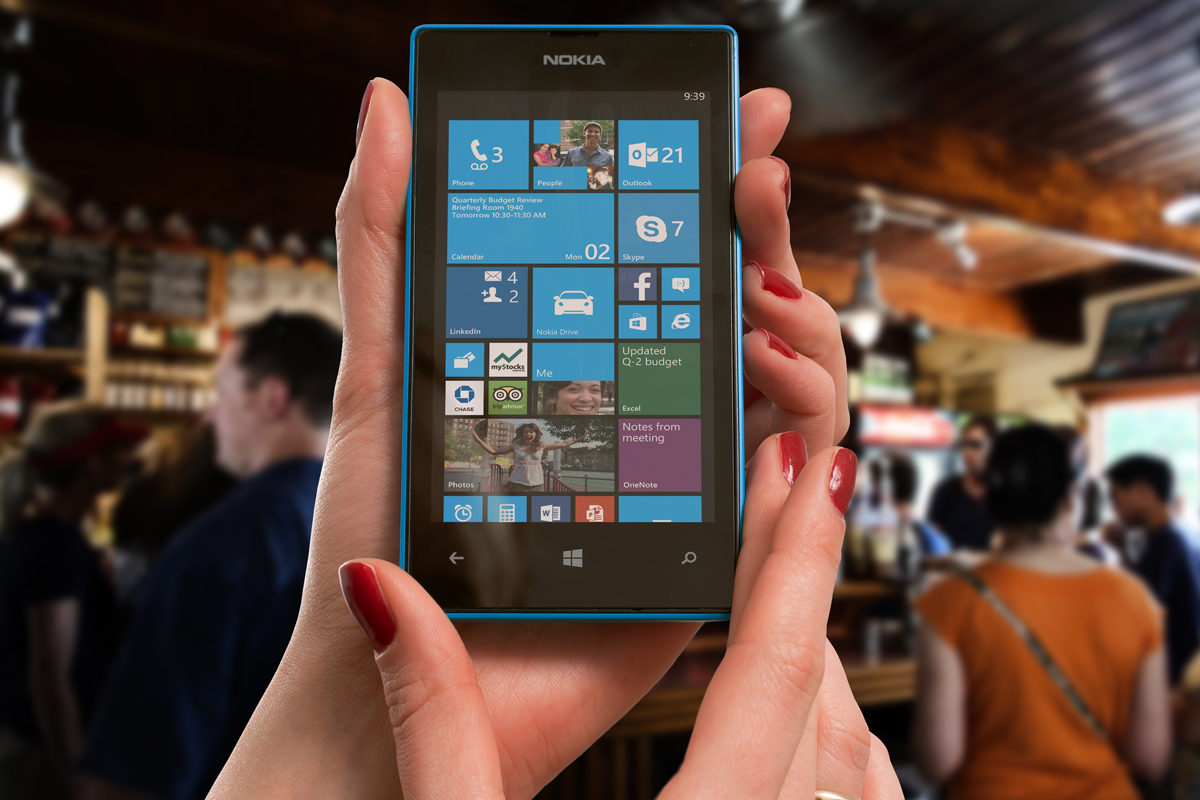
    Yesterday marks Window’s Phone’s “end of support” classification with Microsoft which means they will not be updating the phones anymore, not even for security.  While Windows 10 Mobile is still available there aren’t many phones that are compatible with this OS. What does this mean? It means that if you have a Windows phone, it’s time to switch to Android or iPhone. Security is one of the most important reasons to allow your operating system to update, if those updates aren’t available then all of the personal data you put on your phone is at risk. This is a real problem and not only for Windows phone users.

    There is a new operating system coming for Apple and Android towards the end of the year and you shouldn’t use a phone that will not be included in these major updates. Yes, the new features and designs of these operating systems are cool but they aren’t the only reasons you should tap ok when the update notification pops up. These updates protect your personal data from theft, hacking, phishing, and spamming. Updates to your OS are often responses to new security threats that developers have become aware of so while the notification every few months to instal version 1.2.4.3.2 can be obnoxious it’s too important to ignore.

    Here’s a list of some of the devices that WILL BE recieving the new Android OS called Android O:

    • Pixel
    • Pixel XL
    • Nexus 5X
    • Nexus 6P
    • Pixel C
    • Nexus Player
    • Galaxy S8 and S8+
    • HTC U11 (Maybe older devices but it’s still unclear.)
    • Z-Droid
    • Z Play
    • Moto Z
    • Z Play Droid
    • Z Force Droid ( Verizon exclusive in the USA)
    • Z2 (2017)
    • G4
    • G5 Plus
    • Moto G5
    • G4 Plus
    • G4 Play (Not Confirmed)
    • OnePlus3
    • OnePlus3T
    • OnePlus5 (Rumored)

    Rollout dates for Android O differ for every device and there are some devices who’s companies have yet to confirm an Android O rollout at all.

    As for your Apple Device, here’s the list of the phones and tablets that will receive the new iOS 11 update when it’s fully available:

    iPhone

    • iPhone 5s
    • iPhone SE
    • iPhone 6
    • iPhone 6 Plus
    • iPhone 6s
    • iPhone 6s Plus
    • iPhone 7
    • iPhone 7 Plus

    iPad

    • iPad mini 2
    • iPad mini 3
    • iPad mini 4
    • iPad (5th generation)
    • iPad Air
    • iPad Air 2
    • 9.7-inch iPad Pro
    • 12.5-inch iPad Pro
    • 12.9-inch iPad Pro (1st generation)
    • 12.9-inch iPad Pro (2nd generation)

    iPod touch

    • iPod touch (6th generation)

    If your device isn’t going to be updated this fall or early next year it may be time to consider upgrading. While some of the older phones will still get OS updates from time to time it won’t be long before they go the way os Windows Mobile and become more of a risk to use. Yes, I know it can be annoying to get used to a new phone and a new user interface and system but the safety and security is too important to ignore. Just take the leap or, if all else fails, faxing can be a pretty safe way to communicate. I kid because I care.

  • Can Your Kids Now Hide Photos from You Right in Instagram?

    Can Your Kids Now Hide Photos from You Right in Instagram?

    Kids hide images on their phones in several ways and for many reasons. Some just don’t want all of their embarrassing goofy pictures with their friends to be shared. Sometimes there’s a more sinister reason. Something involving sexting or cyberbullying. Kids can use different kinds of apps to lock away photos. There are some that look like calculators or phone utilities apps and still some that don’t hide what they do. Now, Instagram is allowing posts to be saved within the app without being made public. It’s called Archive.

    Instagram’s new archive feature allows users to remove posts from their feed without deleting them. It allows you to put the photos in an archive to be looked at in the future and even reposted. If you do repost it falls back in its original chronological order so it kind of just magically reappears where it was originally. A little arrow clock icon in the upper right corner of your profile page in the Instagram app will give you access to your archived posts. You can fill the archives by tapping on the “…” in the upper right of a post. Then just tap “Archive.”

    Why would you want to archive photos? Well, some may decide later that their post wasn’t something they’d want everyone to see. Maybe the pictures from the party you attended last month wouldn’t look good to that employer you just applied for a job with. No problem, just archive those things and you can still see them without them being public. Maybe you broke up with that guy or girl and don’t want everyone to see you together all over your Instagram page. Well, just archive them and they become a private photo stash for you to weep over on your own. Your kids will even use the feature to hide posts that didn’t get as many likes as they want.

    What Parents Should Know

    I recommend you understand the Archive feature on Instagram and learn how to find it on your kids’ profile. If you often take your kids’ phone and look at their social media behavior this is a way for them to share a photo for a brief time and then save it to an archive, knowing you’ll be looking at their feed later. If you don’t know how to access the Archived photos it’s possible you can miss some of what they’ve been posting. “Finstagram” or Spam accounts are popular with teens because it’s a way to have a more private collection of photos that they don’t share with many people. I recommend you find out if your kid has a spam account and follow it. I now, recommend you check to see what photos they’ve archived as well.

  • PODCAST: What’s the Deal With Let’s Play Videos?

    PODCAST: What’s the Deal With Let’s Play Videos?

    Apple and Android are each getting a new OS, teaching healthy tech habits, and the eSports debate.

    FAMILY TECH WEEKLY EPISODE 8

    Social Media Links

    Facebook: http://facebook.com/4pointfamilies

    Instagram: http://instagram.com/becausefamily

    Twitter: http://twitter.com/becausefamily

    Newsletter Signup

    Ministry Updates:: http://eepurl.com/R7Btr

    Weekly Blog Posts:: http://eepurl.com/cvnhXD

    Websites

    Ministry Site:: http://becausefamily.org

    Tech Blog:: https://safe.becausefamily.org

    Michael’s Speaking Info:: http://kmichaelprince.org

    Donate and Affiliate Links

    http://BecauseFamily.org/partnership