Tag: android

  • What Parents Need to Know About Stadia by Google

    What Parents Need to Know About Stadia by Google

    On March 19th, Google announced their latest product: Stadia. The promise of Stadia is to allow people to play AAA games (Assassin’s Creed, Fortnite, etc.) without having to buy a dedicated gaming console or PC. How does Google plan to deliver on this promise? With Chrome and YouTube.

    Google has stated that Stadia is “the future of gaming.” I agree. Young adults are used to subscribing to services and streaming their entertainment and Stadia is the next step. Kids already watch hours of gaming content on YouTube every day, why not add the ability to play those games too?

    What We Know Right Now

    We don’t know a lot about Stadia right now but what we do know is pretty impressive.

    • A high-speed Internet connection will be required.
    • Up to 4K HDR at 60fps.
    • Plasy using multiple devices: PCs, laptops, tablets, and smartphones will be supported.
    • No need to download games or wait for updates.
    • You’ll be able to use any USB controller connected to you computer.
    • There will be a dedicated wireless controller.
    • Stadia will be available this year.

    What We Don’t Know Right Now

    Despite all the excitement around this announcement, there are many things we don’t know.

    • The price of the service.
    • The price of the controller.
    • Games available at launch.
    • Supported mobile devices at launch.
    • Release date.
    • Minimum Internet connection speed.

    Podcast Episode:

    What Parents Need to Know

    Your kids are going to want this, especially if they watch gameplay videos on YouTube. Being able to instantly play a game that one of their favorite streamers is playing and try that special move is very appealing.

    If the price is right, this could be an affordable alternative to purchasing a gaming console. Being able to play hundreds of games for $50-$60 a month is more affordable than buying a $600 console and a game or two every month.

    The Stadia controller has a streaming button which means your kids could be online and streaming their game and voice instantly. In fact, they could even join in a game with another person. Parents should be aware of this feature and take measures to block it if they don’t want their kids to live-stream.

    Google has been improving their products with better parental controls every year. Parents should familiarize themselves with those parental controls and enable any restrictions they deem necessary. You may want to consider adding time limits, enabling ratings limits, and disabling some of the streaming and cooperative features. Of course, this
  • TUTORIAL: How to Keep Your Kids in a Single App on Your Android Device

    TUTORIAL: How to Keep Your Kids in a Single App on Your Android Device

    If you’ve ever given your smartphone to your kids to play a game you know that you always run the risk of them opening another app or getting access to something through an Internet browser that might be objectionable.

    Parents using iOS are able to use Guided Access to limit their kids to one app for a certain amount of time but what can parents with Android phones do?

    Screen Pinning is the solution. It’s been available since Lollipop (5.0) and is advertised as a security feature but it’s a good parental control too.

    Screen Pinning only allows one app to run and someone with your phone cannot switch to another app without you PIN or fingerprint.

    There aren’t any time limits built into Screen Pinning so we’ll cover that in another article about “Digital Wellbeing”. For now, here’s how to enable this helpful feature.

    Many smartphone manufacturers implement Android a little differently. If you’re having trouble with these instructions, check with your carrier or phone manufacturer.

    These instructions are for Android 9.0 and up. If you have an older version of Android the instructions are a little bit different. You can find instructions for older versions at Google’s Help Center.

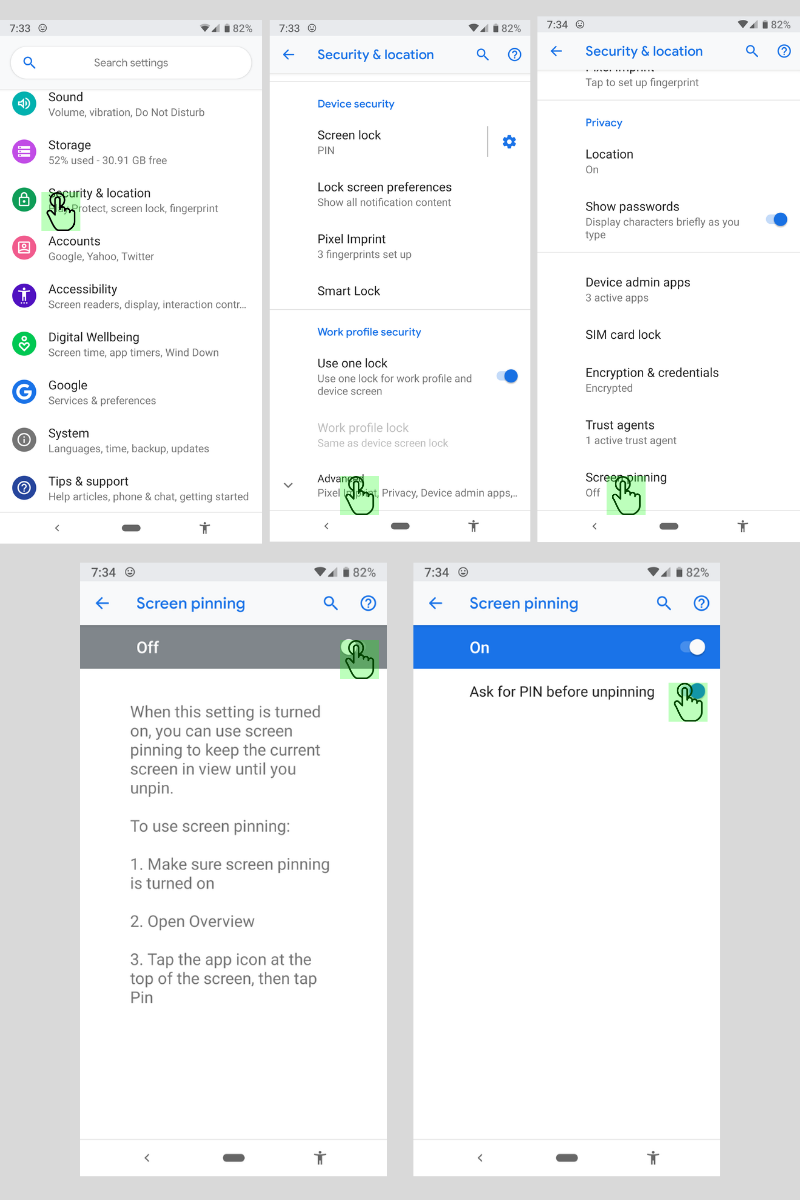
    How to Enable Screen Pinning

    1. Open your device’s settings.
    2. Tap Security & Location > Advanced > Screen Pinning.
    3. Turn on screen pinning (remember to require your PIN to disable).

    How to Pin an App to the Screen

    1. Open the app you want to pin.
    2. Swipe up to the middle of your screen.
    3. Tap the app icon.
    4. Tap the pin.

    The app is now pinned and cannot be switched without your PIN or fingerprint.

    How to Unpin an App From the Screen

    1. Touch and hold the back and home icons.
    2. After your device locks, enter your PIN or use your fingerprint to unlock.

    The app has now been unpinned and you can use other apps.

    That’s all there is to it. The next time you’re waiting in line at the DMV and your kid asks to play a game, you can give him your device without worrying that he’ll watch red band trailers on YouTube.

  • WhatsApp Update Brings Thumbprint and FaceID Lock To Private Messenger

    WhatsApp Update Brings Thumbprint and FaceID Lock To Private Messenger

    The private messenger, WhatsApp, has updated recently to allow users to lock the app from prying eyes by using their Touch or Face ID. Private messaging is becoming more important to users these days since the spotlight has been on Facebook and Google for their data mining and sales. WhatsApp has been a mainstay of private messaging for some time now and this new update takes privacy from an algorithmic/software level to a more obvious tangible place. You can now use your FaceID or TouchID, depending on the generation of your iPhone, to lock people out of the WhatsApp software entirely. This will keep people from opening the app and looking through your messages. Currently this feature is available for iOS only but it is rumored to roll out to Android soon.

    What Parents Should Know

    It’s important to know that there are options that allow you to keep an eye on your kids’ messaging without having to physically take their phone from them. However, if the physical approach is your style then this update from WhatsApp could become a problem for you. Messages being locked in this way needn’t deter you from checking up on your child’s messaging activity, though.  You can store your thumbprint in your child’s device so you can unlock it or just make them unlock the app for you when it comes time to inspect their messages.

    I recommend allowing your children to have a feeling of privacy by using some sort of software to monitor their messaging apps instead of taking the device from them every now and then. Not only does that plan give them a feeling of privacy, it is also a far better monitor then your weekly check up. If a message monitoring algorithm like Bark is active it will look at every single message your child sends or receives in real time, notifying you if any of those messages cross the line to dangerous or inappropriate content. Taking the phone from them to monitor it yourself allows messages to be removed before you get around to looking at it.

    I never advise spying on your children without their knowledge. They should know that you are keeping an eye on their messages and how the software works. They should also know what the consequences are if they send messages they shouldn’t be sending. Finally, you should have an open conversation to allow them to feel like they can come to you if they receive a message they are not comfortable with. No matter what you do to monitor your kids messaging, having a culture of transparency and openness in your home is critical.

  • Highlights from CES2019 Media Day One

    Highlights from CES2019 Media Day One


    Above are the highlights from my first day at CES. This day is a media-only event and features press conferences from major brands, a “trends to watch” presentation, and a pre-show floor event called “Unveiled.” In this video, we will hear some of the tech trends that are being discussed at CES this year and show you some of the kid/family tech that I’m excited to learn more about when the show floor opens. Keep tuning in to the blog, our YouTube channel, and our social media for more of the only tech blog covering CES exclusively to protect children and teenagers online.


  • A Warning For Parents Buying Android Tablets for their Kids this Christmas

    A Warning For Parents Buying Android Tablets for their Kids this Christmas


    Android Tablets are a great option for parents who want to get their kids some form of screen device without breaking the bank. The addition of Android FamilyLink has made Android and even better choice for our kids’ introductory tech device. They are affordable, fairly easy to use, and most all apps our kids want to play or use are available through the Google Play store. There is, however an issue that faces parents when they are ready to set up these devices for their kids: compatibility.

    Compatibility is the ability of a device to run the software you are trying to install on the device. Android FamilyLink requires operating system 7.0 or higher in order to work on your child’s device. That means that if your device runs an older version of Android, the app that connects your parental control settings to their device won’t even be available to install from the app store.

    I ran into this problem today while helping a family set up controls on the brand new tech devices they had purchased for their two girls. I initially thought it odd that on one device I could login an account as a child and on the other I could only make a basic adult Google account. Then, halfway through setup I realized that one tablet would run FamilyLink while the other would not. Both of these devices had been purchased from the same place on the same day and were brand new, not refurbished or used, but the operating system was different in each tablet. One was running Android 4.4 while the other, the one that let me set up FamilyLink, was running Android Version 7.1.

    I understand that newer software will not work on older devices but these are two devices being sold at the same time as brand new. There is nothing, without further investigation, that would cause a parent to expect they couldn’t do all the same things on both tablets. The truth, though, is that not all Android Tablets are equal. We won’t get into opinions on Apple vs Android but I will make this comparison: when Apple updates their operation system ( iOS) they ping all of the devices at once and encourage installation of the newest version of the software. Android, however, is a crap shoot. You have to go see if your device will be compatible with the newer software every time a new one comes out. The main reason for this is that different companies make phones that run Android while Apple makes the device, the operating system, the app store. Basically the whole shebang.

    People have different tastes and whether it’s the way the software functions, the look and feel of the phone, or just not wanting to spend as much money, Android will always be a significant part of the smart device market. My advice isn’t to just always use Apple products. I will encourage parents, instead, to always look at the specifications of any device you want to buy and see what operating system it is compatible with. If you are buying an Android product and want to instal FamilyLink, the device must run 7.0 or higher for the FamilyLink Children and Teens app to show up as downloadable in the Google Play Store. Otherwise, you’ll be looking for some third party app or combination of third party apps to add parental control functionality to your devices.

    Need help? Shoot me a message HERE.

  • Are You on Your Kids’ Instagram “Close Friends List?”

    Are You on Your Kids’ Instagram “Close Friends List?”

    Instagram is rolling out another update today and this one gives users the ability to build a “Close Friends List.” This category of friend creates a list of names that will see stories that you post and designate for that group only. This allows you to post more private or personal posts and trust that it will only be seen by a pre-approved group of friends. This feature should roll out today and will be available through the settings menu on your profile page in the Instagram app.

    You set up your list and then choose, in your stories posts, to designate that post only for your “Close Friends.” The update shows a green badge to notify those seeing it that it is from your Close Friends list. Those on your list will also see a green circle around your “Stories” icon.

    What Parents Should Know

    This update can be a really good thing. It is important to know who is seeing your posts and keeping your audience in mind. A way to separate those who you are ok with seeing certain things could be a way to eliminate the “finsta” or “Spam” instagram account. My advice, though, is to make sure your child has you on their Close Friends list. If they’ve been posting Close Friends posts and you aren’t seeing a green circle around their stories post, you aren’t on their list and you should have a conversation with them about why you don’t want them hiding posts from you.

    Remember that you should be a safe place for your kids to come if they have serious issues to discuss. They shouldn’t be afraid that you won’t understand their depression or that you won’t believe them if they are having problems with people at school or work. You should be THE place that they know they’ll be heard, believed, and understood. I truly believe that if you create that culture in your family your children will automatically think to add you to their Close Friends list because you actually belong there.

  • The Family Tech Blog Needs You

    The Family Tech Blog Needs You

    As you make your #givingtuesday plans please consider BecauseFamily. As a small startup non-profit I can guarantee that your donation goes to help us protect kids and teens by bridging the technology gap between them and their parents.

    No VP or CEO pockets to line with cash, no big fancy expensive parties or fundraisers to finance. Just a guy doing his best to spread the word about the importance of screen safety for our families. Please donate and share.

    Visit becausefamily.org/partnership to learn more.

  • Tumblr Removed from Apple App Store for Child Pornography

    Tumblr Removed from Apple App Store for Child Pornography

    Photo blogging app Tumblr has been removed from the iOS App Store because of child pornography. Earlier this month the iTunes App Store removed Tumblr from their market unexpectedly. The reason wasn’t announced at the time but it has recently become clear that scans showed child pornography was making it through Tumblr’s content filters. A statement from Yahoo (owners of Tumblr) confirmed that child pornography was the reason for the app’s removal and said that they are working hard to fix the flaws in their scanning algorithm and get the app back on the app store.

    Tumblr has been criticized for their lack of concern for adult and inappropriate content on their app. Some even call it “porn gif central.” They added an on/off switch for adult content when Apple made it a requirement but didn’t password protect it. Tumblr has a reputation for doubling down on the fact that pornography is what makes their app so popular. The app is still available on Android’s Google Play Store.

    What Parents Should Know

    It didn’t take much research for me to add Tumblr to my uninstall list a couple of years ago. It is still there and this latest news only solidifies that fact that it belongs there. There is content on Tumblr that many feel they want to see. Geek stuff, memes, humor, art, and photography are all featured on the app prominently but a simple search or click on the wrong related image can lead you to hardcore adult images and animated images. Your children shouldn’t be allowed to use Tumblr and your teens should be advised against it.

  • LETS RESEARCH | Predatory Advertising in Preschooler Apps

    LETS RESEARCH | Predatory Advertising in Preschooler Apps

    The Study

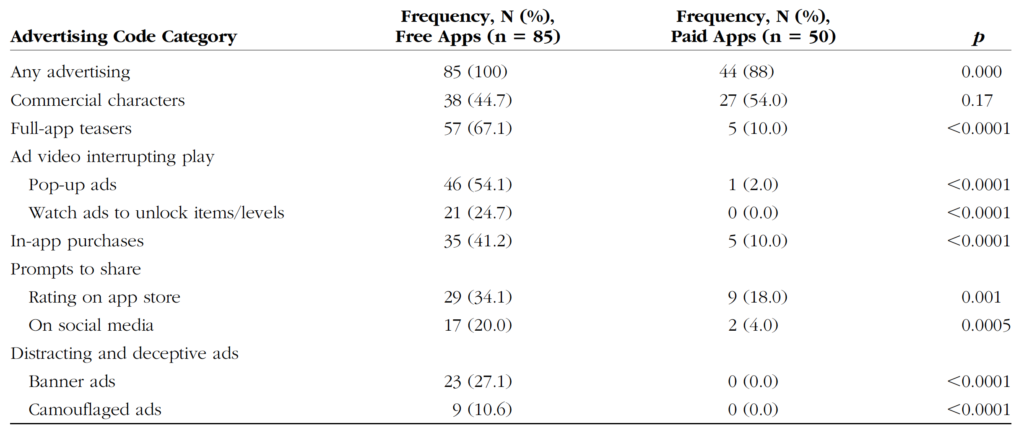
    This review by Wolters Kluwer Health looked at 39 apps that target kids ages 5 and under. They reviewed the different kinds of advertising and manipulation used in the apps to encourage engagement by the young users. Researchers used Android devices and tested the most popular apps in the age category at the time.

    Types of Advertising:

    Commercial Characters – These are apps that are designed around marketing certain characters that your kids may already love. i.e. Daniel Tiger, Mickey Mouse, Bob the Builder, or Hello Kitty.

    App Teasers – Encouragement for kids to unlock the “full version” of the app.

    Ad Videos Interrupting Play – Videos that feature other apps in the marketplace by interrupting your child’s use of the current app and showing videos of gameplay.

    In-App Purchases – Items, levels, or other content that your child can’t use in the app without purchasing them. These may be items that can be used in game, costumes or costume pieces or even in-game currency that can be used to purchase other things in the app.

    Prompts to Share – Encouragement to share the app on social media sites or even just to rate it on the app store.

    Deceptive or Distracting Ads – These ads often trick your child into thinking they are playing another level of the game. Sometimes they look like they are a part of the app your child is using and then open up an app store link when tapped.

    What Parents Should Know

    To get my full thoughts on this research watch the video above. Liking it and sharing with your friends would be super helpful as well. I will say here, though, that it is critical that we as parents understand how these apps are marketing to our children and help our kids understand the difference between something they are playing or learning from and an advertisement. This study also looked at the difference between ads in paid apps vs free apps and educational apps vs entertainment. None of the results are shocking but hopefully, they are a bit eye-opening for parents who allow their kids unsupervised time on screens.


  • iPhone, Netflix, and Instagram are Dominating Teen’s Time Online

    iPhone, Netflix, and Instagram are Dominating Teen’s Time Online

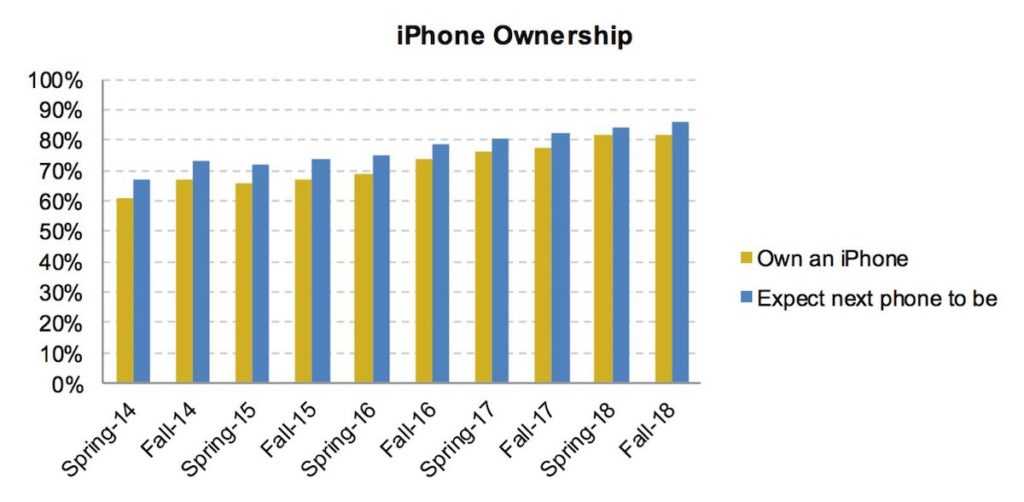
    A new survey by research firm Piper Jaffaray called “Taking Stock with Teens” has highlighted some of the most noticeable trends in teenagers’ purchasing habits and tastes. The survey polled more than 8,000 teenagers about how they spend their money and what influences their purchase decisions. The average age of teens surveyed is 16 and the survey is done every spring and fall. The Fall 2018 survey revealed a dominating presence by iPhone, Netflix, and Instagram.

    The survey concluded that 82% of teens owned an iPhone and 86% planned to buy an iPhone for their next smartphone. The iPhone has dominated the marketshare for a while now but it’s still growing in the Teen market. Only 10% of teens said they planned to buy an Android phone. Nearly half of those surveyed said that the brand of a product had a major influence on their decision to purchase.

    Instagram is now the social media leader among teenagers passing up Snapchat and Netflix provides the most streaming video to our adolescent kids at 38% of the share vs 33% for YouTube. Other interesting info from the survey is that food is the highest budget priority for teens, they prefer to shop online, and the majority of video game purchases are now made through online download.

    What Parents Should Know

    This info is meant to help marketers plan their products and advertising campaigns but it can go a long way to help moms and dads and other guardians of kids better understand how our teenagers tick. The emphasis on the iPhone speaks to the exclusive nature of the brand, the appeal of feeling like you belong to a niche group causes kids to move towards a brand that is considered to be more premier than the rest. Instagram has passed snapchat by adding much of the features that kids loved about Snapchat without changing the core timeline of the app. Snapchat has admitted to making a mistake by altering what made their app popular with the younger crowd. After going public, Snap made decisions to buffer their ability to become a marketing destination for companies. This undermined their core fanbase of kids and teens who are more likely to skip an ad or unfollow an account that seems to be too “pitchy.”

    Netflix is now a more popular video streaming service among teens than YouTube, though not by much. The focus on original content and many of our kids’ favorite stars creating shows and movies for Netflix is driving them to use the streaming service. There has also been a surge in younger people enjoying television shows from the past twenty years or so because of Netflix’s ability to keep those shows streaming on their service. While YouTube is pushing their own TV solution, Netflix is just continuing to build upon the genres they created and it seems to be drawing in folks from most demographics.

    I want to conclude by mentioning again that kids are buying their video games through online downloads. This means that the restrictions on games have to be set digitally or your kids can buy whatever games they’d like. If you have set up their Xbox Live or Playstation accounts to make purchases then they can buy whatever games they’d like without any restriction. You have to set that up yourself. There is no longer a cashier at the store who will ask to see your kids id when they try to buy a game that is rated M for mature. It is up to you to get those settings set up.

    This data is super helpful for us, as parents, to understand our kids’ preferences and influences. Information like this can help us make quality decisions and chose the right battles when trying to protect our kids from adult content, online predators, cyberbullying, and other dangers of using the internet with no filters or boundaries. Subscribe to our newsletter, our YouTube account, our Twitter and Facebook, and to our podcast to stay in the know as to what’s happening in the digital and connected culture your kids are growing up in.