Small Kids Need Internet Safety Too
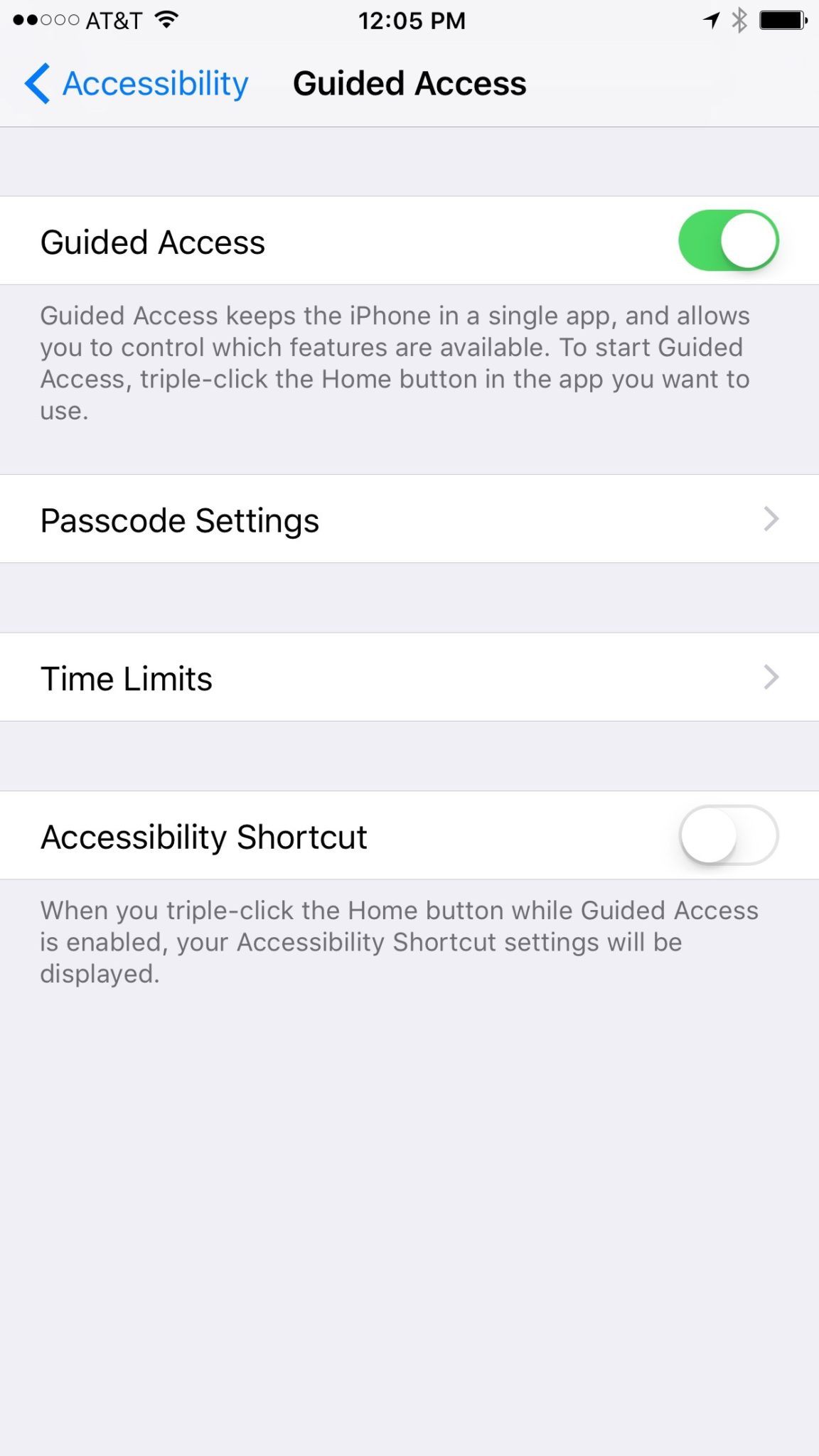
Those of us with smaller children are often less concerned with them looking for something inappropriate online but we want to protect them from seeing something unintentionally. Apple’s iOS devices have a feature built in called Guided Access just for that purpose. This setting will lock your iPhone or iPad to one app disabling the home, volume, and lock buttons. This is a great feature if you’re wanting to allow your kids to use an app but don’t want them to look around on other parts of your phone.
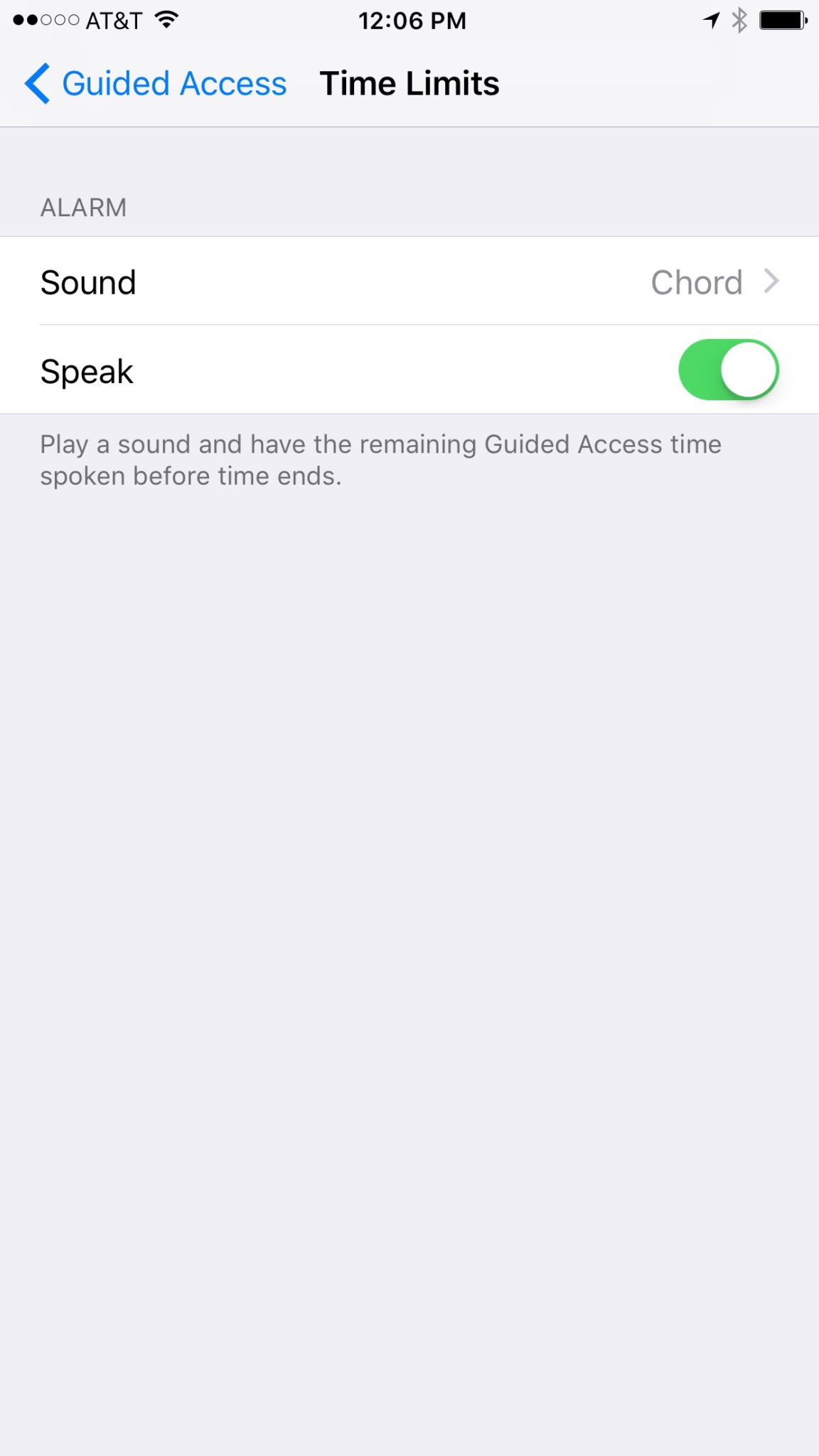
You may have known about Guided Access for a while but if you haven’t looked at the settings recently you may be surprised at some of the new options that are available. You can turn off the sleep button, turn on the volume buttons, lock the motion (whether the screen rotates when you turn it,) turn on and off the keyboard, touch screen, and time limits. All of these settings are really helpful to customize the guided access for each app you allow your kids too use based on their age and ability to use the iPhone/iPad.
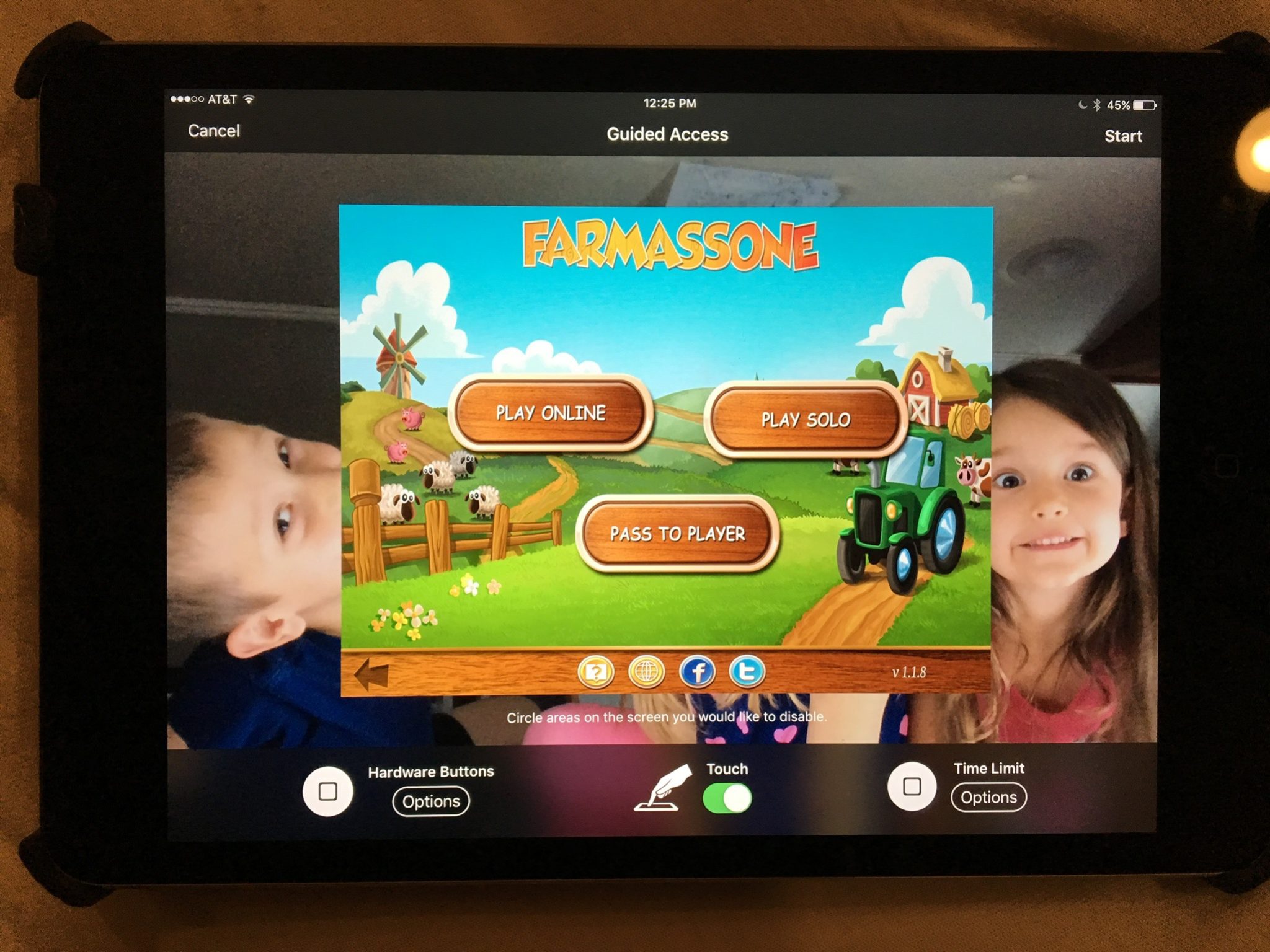
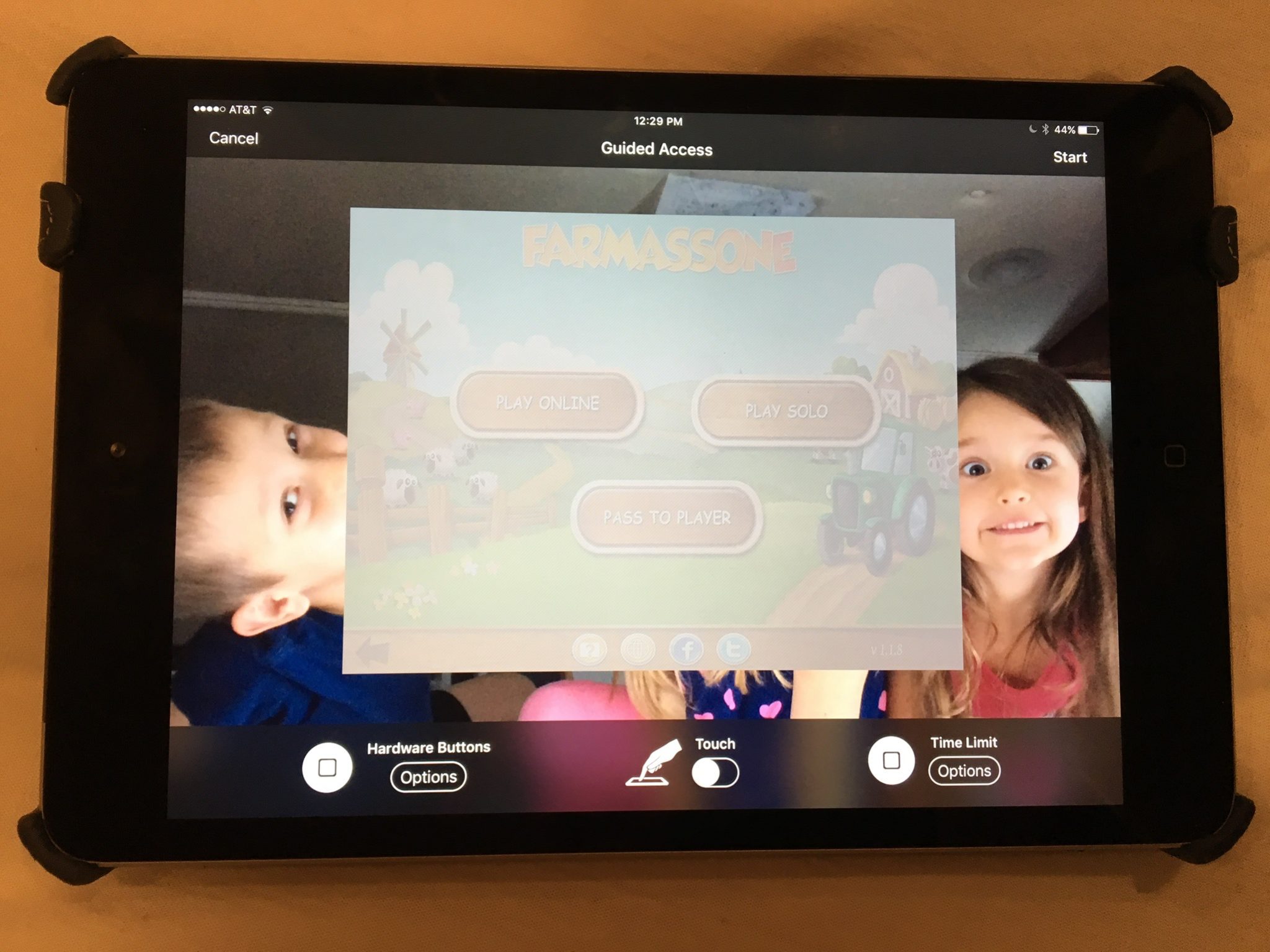
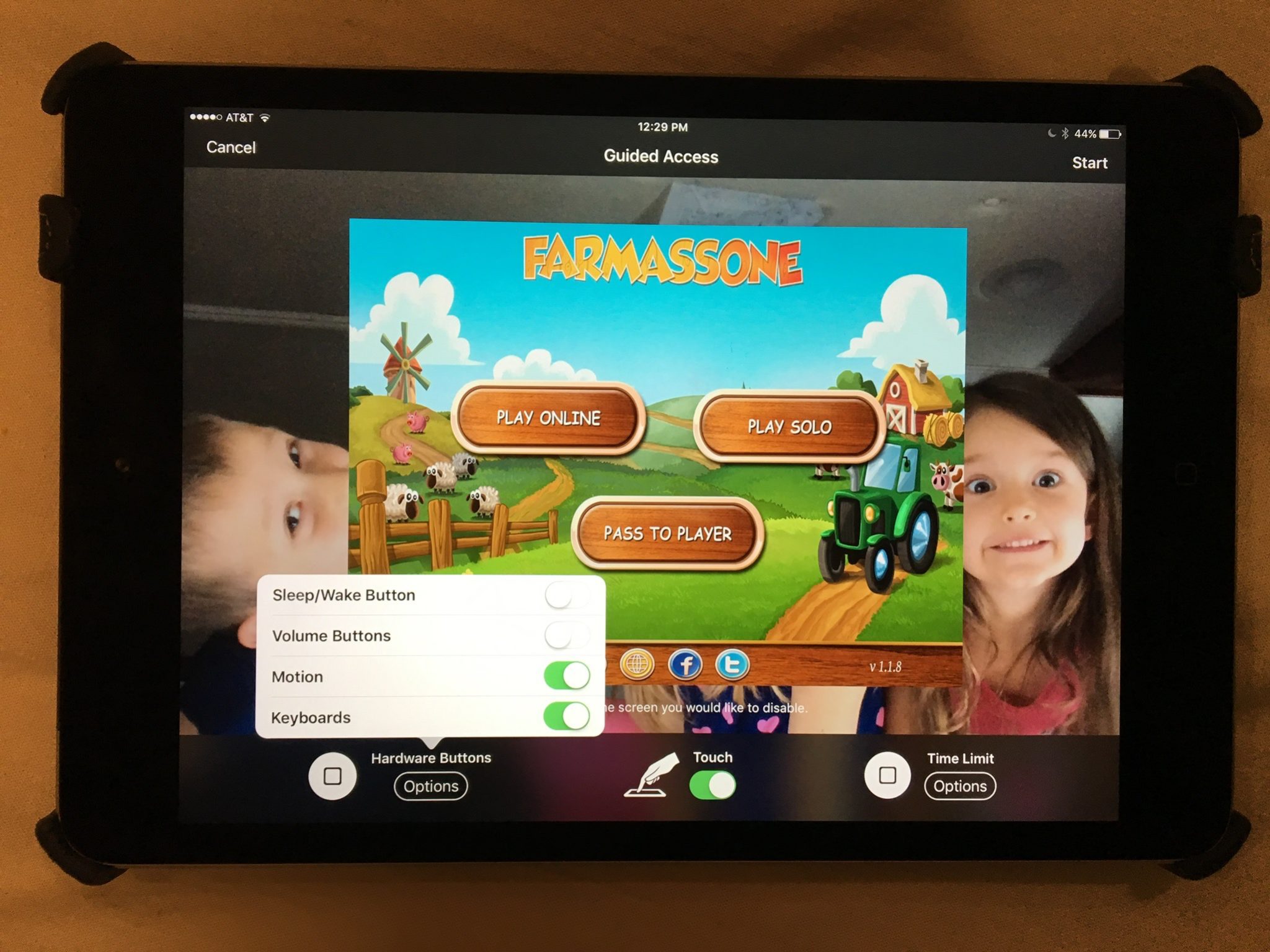
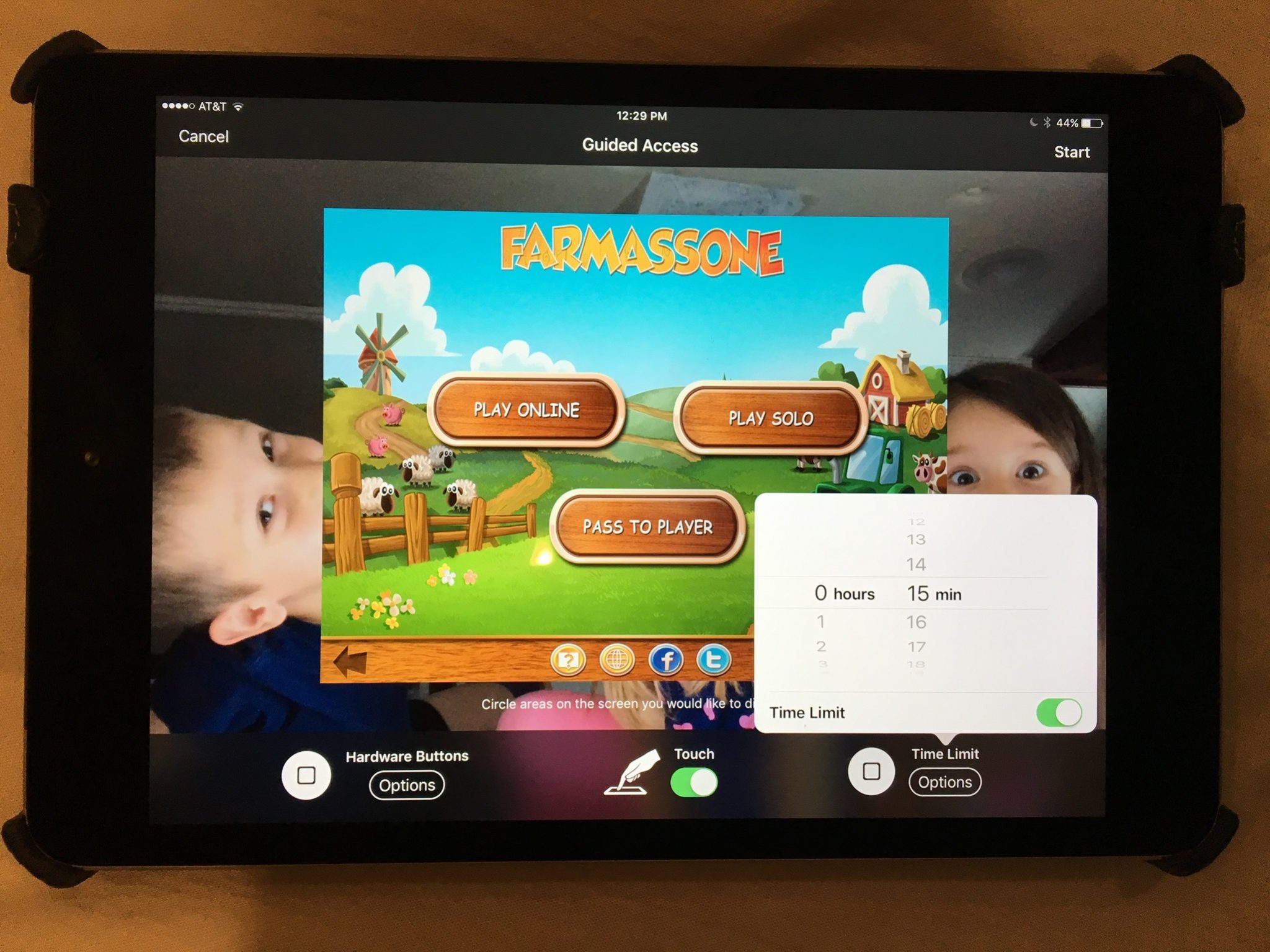
(*Settings look different on iPhone but they work the same.)
For example, my two year old likes to mess with the screen while he’s watching something. (He even touches our TV screen if he’s allowed to sit close enough.) This would cause the show to pause or skip or back out of the episode entirely. If you turn off the touchscreen it doesn’t matter what he does, it won’t change the show. Now, of course we are trying to teach him to leave the screen alone but this is helpful while he’s still a defiant little two year old “cutie”. For our older kids we will lock into their school apps so they can’t back out and play Lego Star Wars or something. We also use the time limit extensively, they don’t have their own devices so this helps us make them take turns.
What Parents Should Know
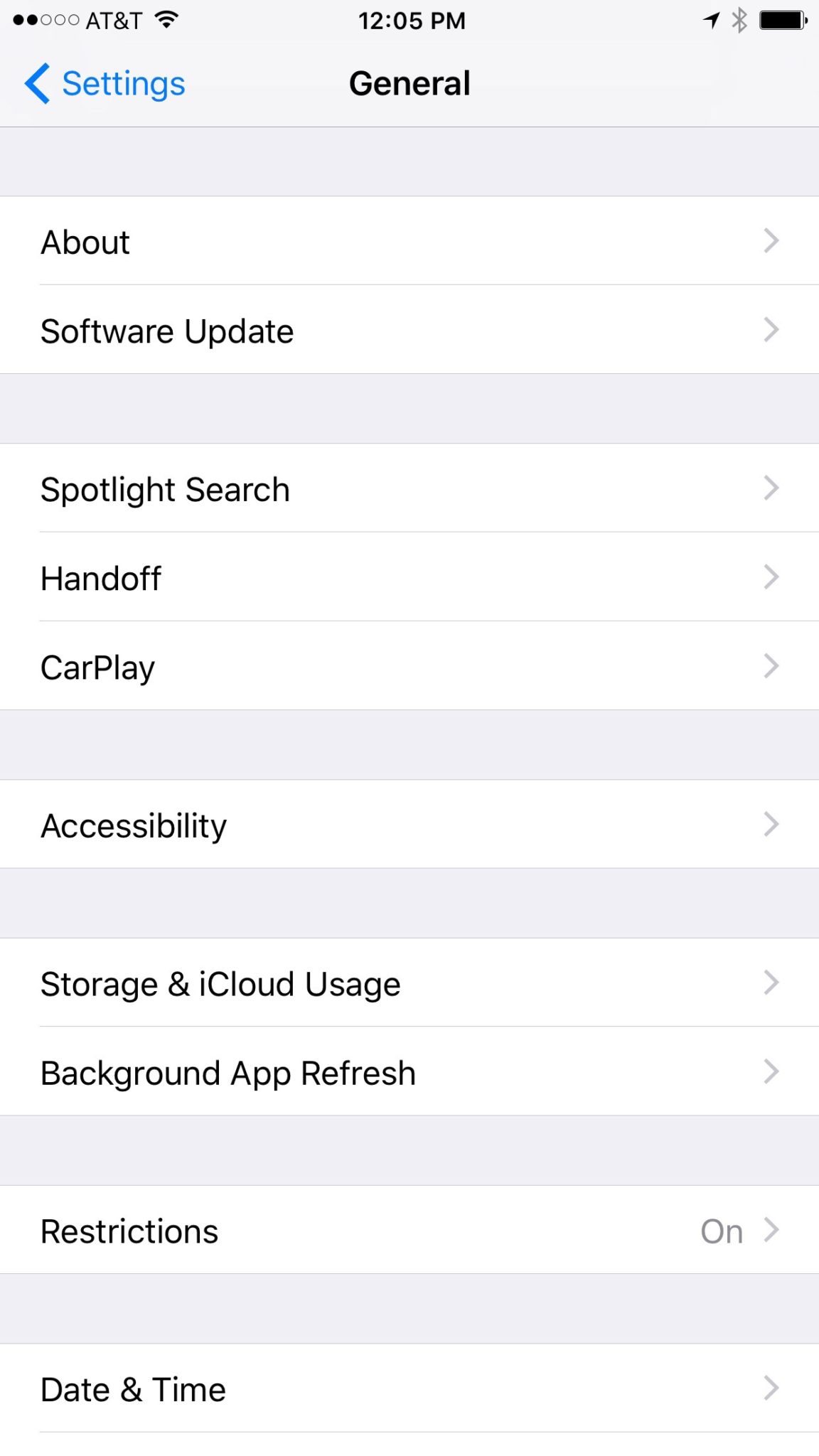
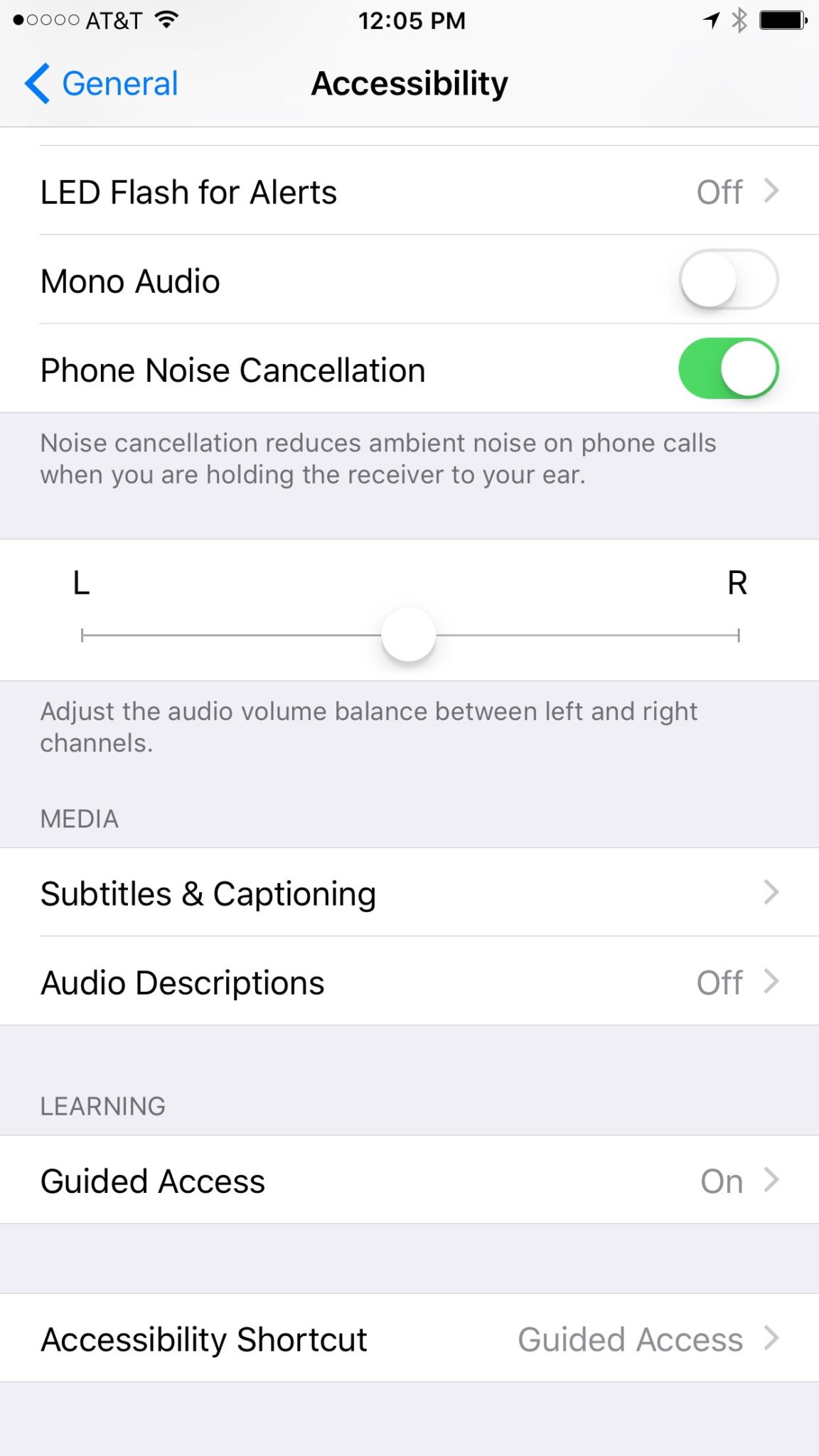
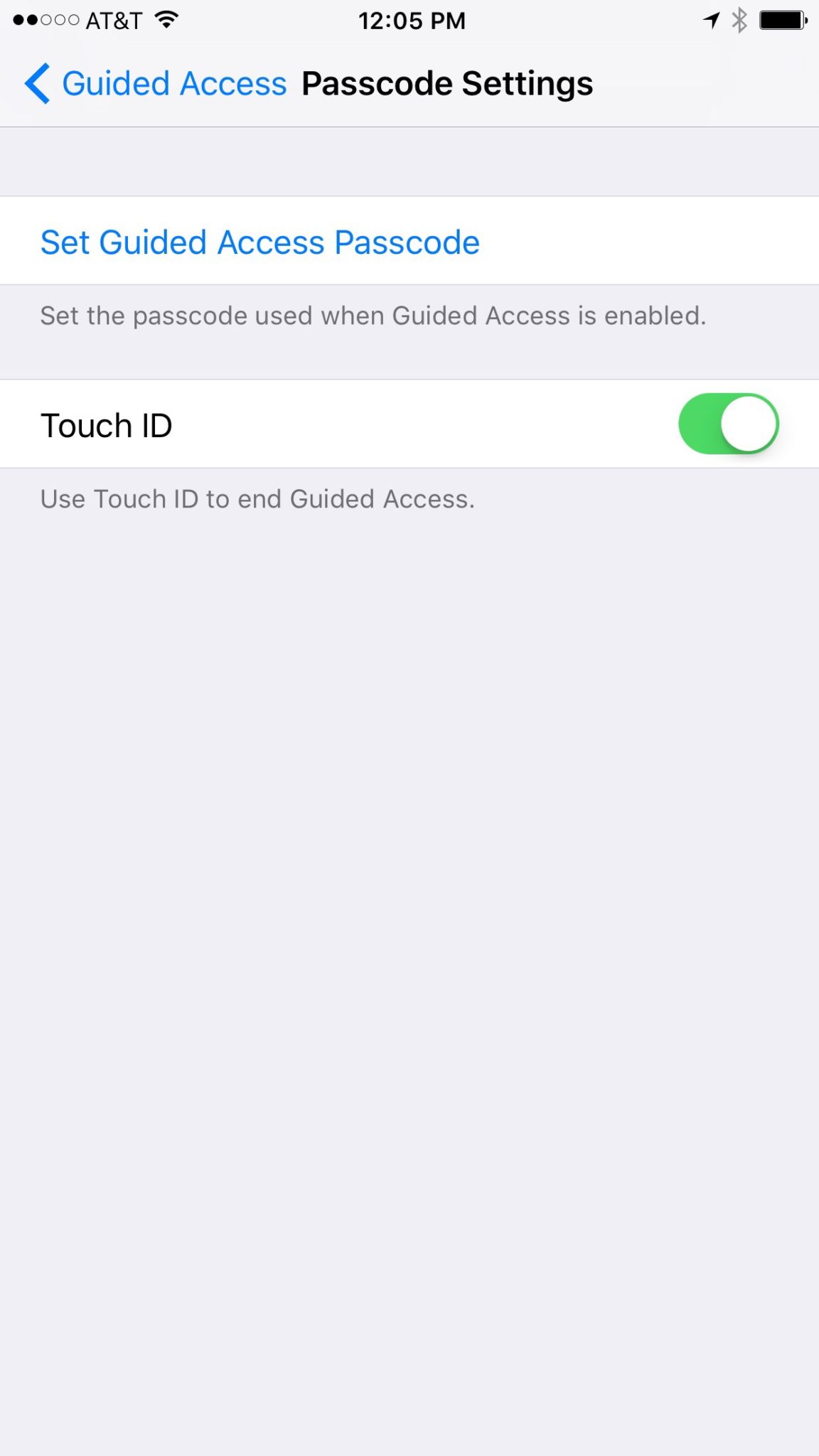
You should know how to set up Guided Access. (See the slideshow below) Use it for, especially, your younger kids. Keep them away from apps that will link to the internet. Also, you can draw on areas on the screen to keep them from tapping there, this will keep them from tapping ads or the parental control settings button. We are learning that our kids benefit less and less from using screens but if we are going to give them the privilege it’s important to do it safely. You may give them your iPad or iPhone with an app that is safe for them but if they can back out of it and open something else you’re not doing them any favors. Guided Access gives you some peace of mind, knowing that you can protect them while they are on that device and you don’t have to be looking over their shoulder the whole time. Use the slideshow below to help you set up Guided Access and if you’d prefer a video, check it out here.