Here is the next installment of our Lets Review video series. In this video I look at Life 360. They advertise themselves as “Your new family circle.” The app provides location tracking, driving behavior monitoring, arrival and departure notifications, and in app family messaging. All of these features are good and important. You may be surprised, however, at why I don’t recommend the app.
Features that are available in other apps, hard to find price lists, and a paywall for support are just the beginning of why I’m not jumping for joy about the Life360 app. Check out the video for a lot more of my thoughts.
The game that you could say “started it all” when it comes to multiplayer first person shooter games is joining the Battle Royale fray. Call of Duty Blackout will be released next month with the newest installment of the franchise, Black Ops 4. Blackout will follow all of the typical Battle Royale tropes and include parachuting onto an island, finding weapons, and killing everyone there to be the last man standing, and thus, the victor!
The most significant difference between Blackout and Fortnite is going to be realism. The Call of Duty games are known for their realism and more intense warfare simulation. Where Fortnite is silly and feels a bit like a cartoon, Call of Duty is made to feel more like combat. The blood spray when a character is shot, the flailing of bodies when killed, and the sounds of vehicles, explosions, and weapons are likened to more realistic battle simulation than an entertaining game.
What Parents Should Know
I won’t tell you what to do as a parent. I will, however, caution you to be suspicious when your child asks you for Call of Duty because it’s “Basically like Fortnite.” It is not like Fortnite, it is very different and it is rated M for Mature. Mature games are intended for those over the age of 17 and usually obtain that rating for violence and language or nudity and sexual content. In the case of Call of Duty games it is nearly always because of the blood, gore, violence, and language.
Most kids won’t be able to get past the $60 price tag (Fortnite is free to play with premium in app purchases) and the fact that it has to be purchased through a console or PC. Not being on mobile devices and tablets will also deter many children from getting ahold of Call of Duty Black Ops 4. My overall advice is simple: if you wouldn’t buy a Call of Duty Black Ops game for your child under the age of 17 before Blackout was released, I don’t recommend you buy it for them afterward either.
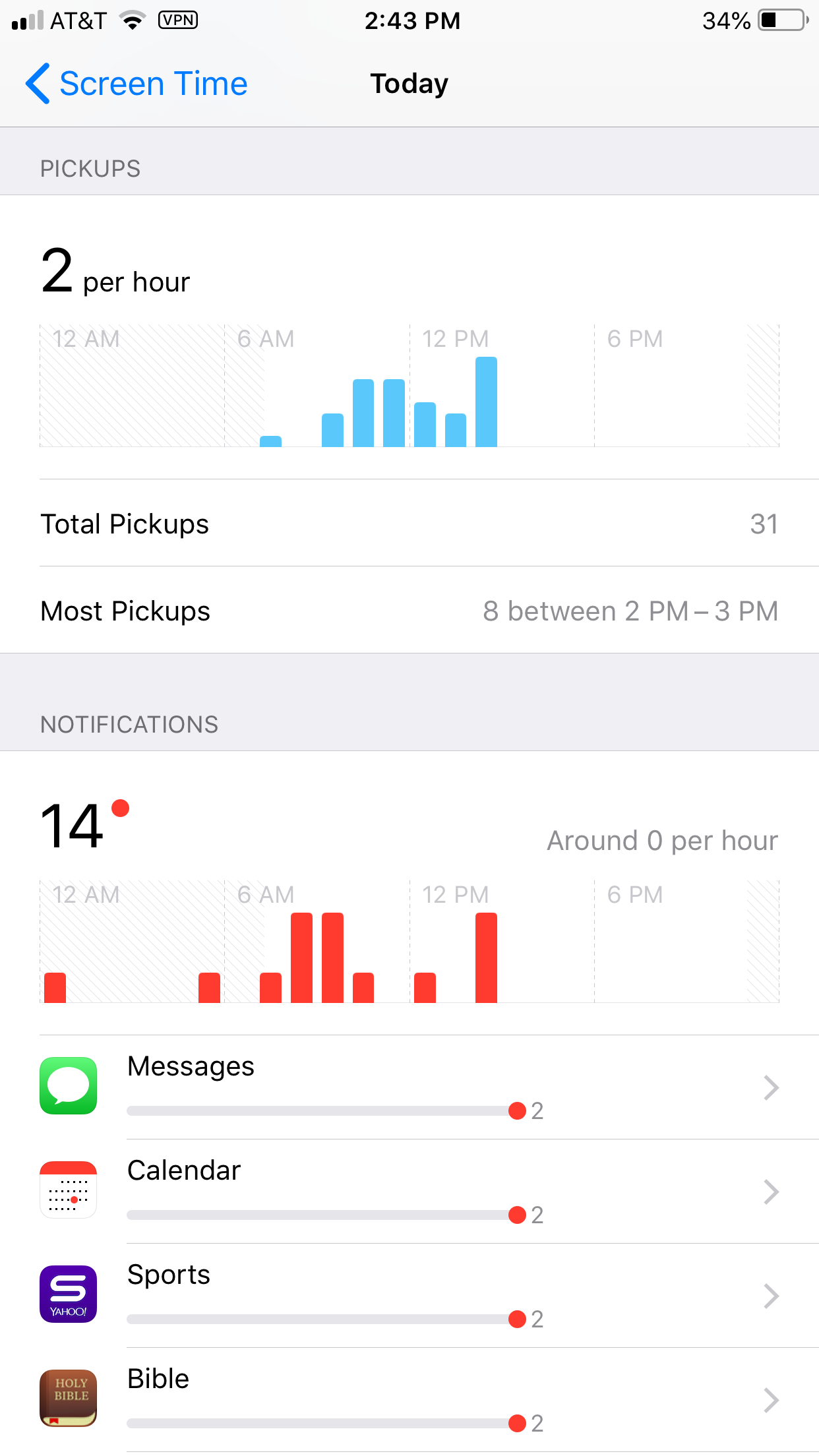
Apple’s latest operating system is out and features something parents have needed to see for a while. Screen Time is a way to monitor the amount of time spent on your device and set limits for yourself as well. You can set limits for certain apps, schedule time off, and even check to see how often you get notifications and from what apps.
Scheduling “Downtime” is as simple as an on and off switch but is customizable as well with the ability to set apps to “always allow” change privacy and restrictions. Yes, restrictions have been moved from their own category in the General settings to a sub category within Screen Time. Don’t worry, though. All of your screen time settings can be password protected. App usage and data can be seen without a password but settings can’t be changed unless you enter your four digit code.
There is much more about how Screen Time works in the video above.
What Parents Should Know
This is one of the biggest steps toward the total parental control package built in to a phone. If the filter was a bit stronger (it can be improved through usage) it would almost have it all. I still recommend an accountability software and something to monitor messaging.
This addition by Apple is a step towards taking responsibility for the risks and addictive nature of their products. Speaking, myself, as one who feels like I’m missing a body part when I don’t have my phone, it is really good to have a reminder of how much time we actually spend looking at our screens. Set up screen time for your kids and teach them how to be mindful of the time they spend on their devices. Set it up for yourself too and hold yourself responsible for the amount of time you spend on your devices. Lead by example and put the phone down every now and then.
Android Family Link was released last year to some success. The features are good enough and being able to change kid’s settings from your own phone is super helpful. There were some downsides, however. One of which was that it was geared mostly towards younger kids. That has changed today as google announces features for Teenagers in the FamilyLink app.
Approve your child’s downloads and purchases from Google Play and limit the visibility of content in the Google Play Store based on maturity ratings
Manage settings such as SafeSearch for Google Search
Review your child’s app permissions on Android, such as microphone, camera, location, and contacts access
Change the content filtering setting and turn search on or off in the YouTube Kids app
Reset your child’s Google Account password
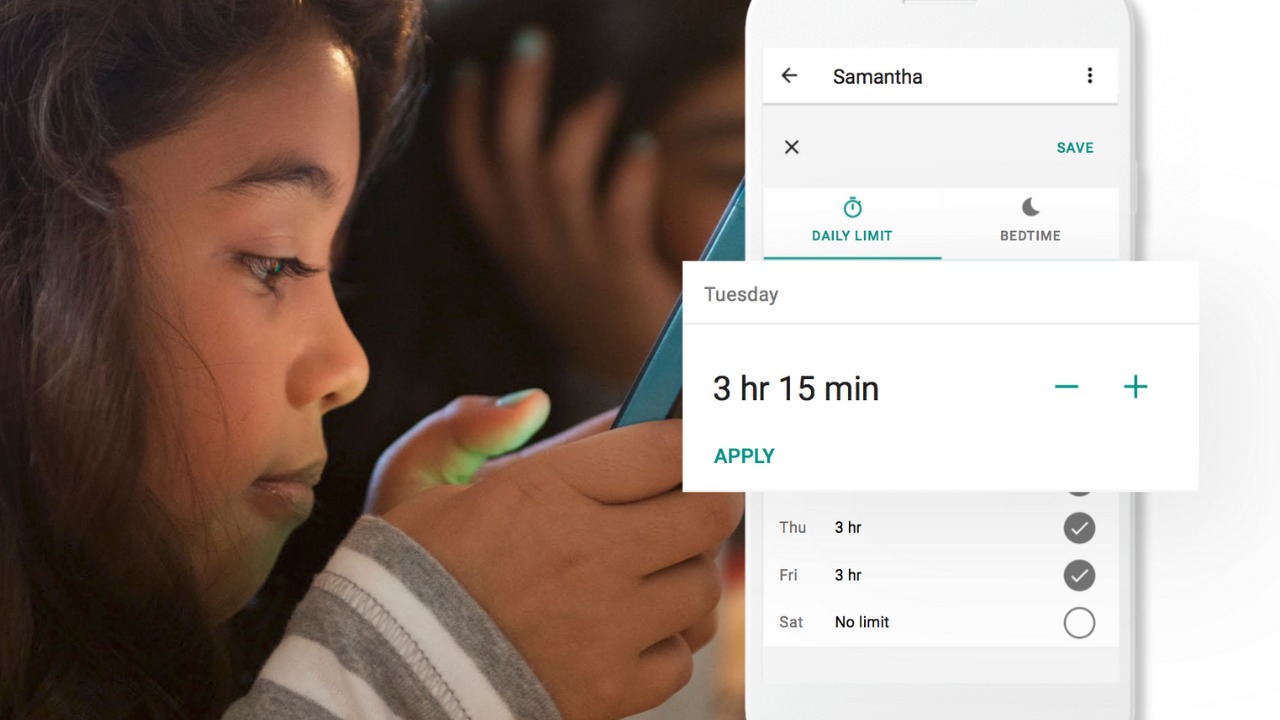
Set screen time limits on your child’s Android devices
See the location of your child’s signed-in and active Android devices
Manage the activity settings for your child’s Google Account
Allow a second family member to exercise most of the same controls you have over your child’s account.
The features for teens adds the ability for your teen to disable the FamilyLink supervision setting. You will be notified if they disable it but the option is still there.
Chromebooks
Schools all over the country are giving their students Chromebooks. The parental control options for Chromebook have been severely lacking for several months since Google disabled the Supervised User feature. The reason they ended support for Supervised User is to make room for FamilyLink and it’s finally here.
FamilyLink will soon give you all the same controls on Chromebook as you have on mobile devices. Right now you can only change account settings and content filters. Soon there will be screen time and app store management as well.
What Parents Should Know
FamilyLink is a good parental control solution and it’s only getting better. They’ve added some good features and options for your older kids is also a good step. Issues I’ve had with FamilyLink in the past are the weak filter (currently only as good as Google’s Safesearch) and issues with backwards compatibility. They still recommend your kid’s device run Android version 7 or higher while some devices running Android 5 or 6 may work with FamilyLink.
I like what FamilyLink has to offer by way of screen time management and app store controls. A major problem parents have with Android is the ability to download apps outside of the app store. They control what their kids see on the Google Play Store but children can download things from outside the app store sometimes. Many parents don’t know how this is done and how to stop it so it poses a major problem.
The ability for teenagers to disable FamilyLink is kind of moot since it notifies parents. That makes me wonder why it’s put there in the first place. Perhaps to give teens the illusion of control or freedom since that’s something the adolescent desires more than anything. If you use FamilyLink for your teenager be sure to let them know you’ll find out if they disable it. The filter is kind of weak and there is no way to monitor messaging or get alerts if negative content has been viewed. I recommend a good accountability software for this. Get something that will work for phones and Chromebook. It’s critical that you know what your kids and teenagers have seen online and what they are doing. This allows you to have conversations with them about their decisions and the dangers and risks involved.
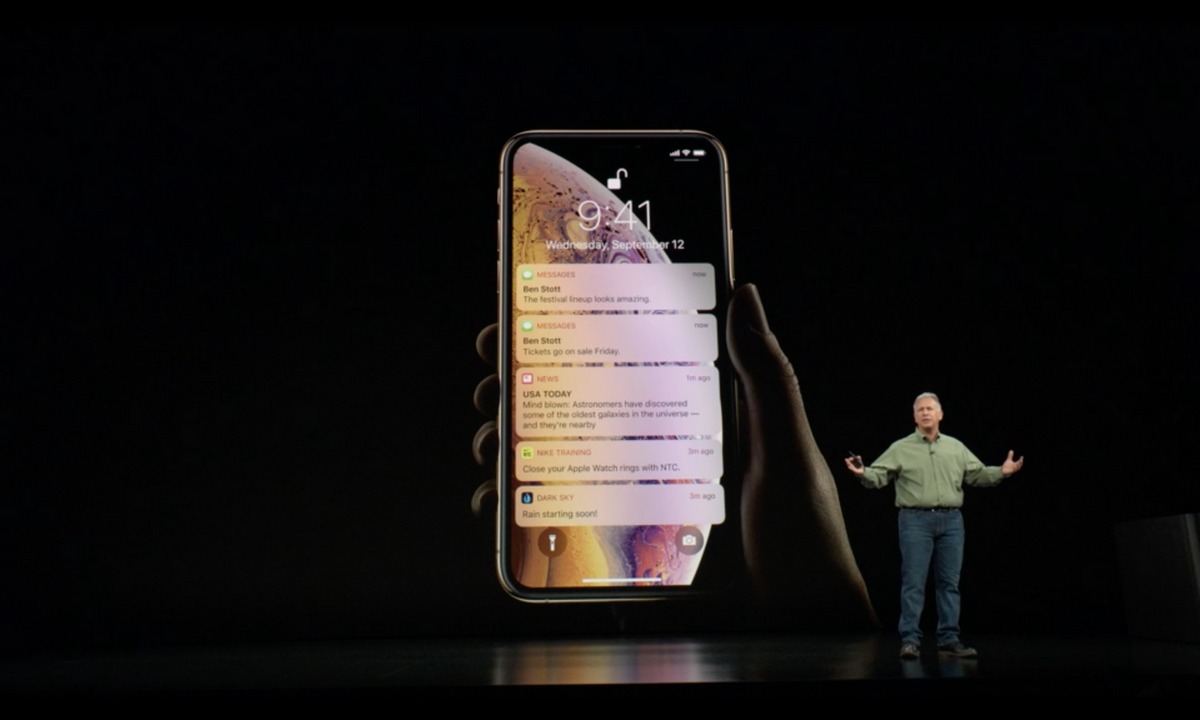
The Apple Special Event aired today on their website and featured a slew of announcements about their upcoming line of products. They only spent a brief time at the end talking about their operating system updates but the focus was on hardware…namely their three new iPhone offerings.
Apple Watch
The latest apple watch is newly designed and will feature some pretty good improvements to health management. The things that stood out to me the most were the ability to sense a fall and make it easier for you to contact emergency services. It even messages your emergency contacts immediately if it senses you’ve fallen and then you don’t move for sixty seconds. The latest heart rate sensor and ECG abilities are top of the line and an industry first. The ability to give yourself an echocardiogram is even backed by the American Heart Association and the FDA. New Apple Watches can be preordered now and will be shipped next week.
XS, XS Max, and XR.
The majority of time was spent discussing the new iPhones that are being released this month and next. Beginning with XS (available next week at $999) and XS Max. The largest improvement in these phones is “under the hood” with a larger a processor, a neural engine, and new tech that give the graphics, processing, and camera more power than ever before.
The event highlighted the ability of this new technology to allow the iPhone XS Max (available next week at $1099) to be used for serious gaming. They featured a short talk from Bethesda games and discussed a new Elder Scrolls title that is coming out soon. The demo highlighted the new iPhones ability to process better lighting and graphics while offering smooth gameplay. It was really quite impressive for those of us more inclined to enjoy gaming as a form of entertainment. The stereo speaker system was another feature that seemed to bring major improvements. They also featured augmented reality gaming with a multiplayer AR version of Galaga.
The XR is a sort of XS lite with a simpler screen, a single lens camera, (still with many of the same feature’s, though) and a smaller price tag ($749). Speaking of the camera, that’s where there was a lot of improvement for the new iPhones. Selfies can look incredibly good with portrait mode and studio mode and they’ve even added a feature to change the depth of field (blur of the background) after you’ve taken the picture. They dove in quite a bit to explain how they accomplish this new wave of photography but I won’t bore you here with the nerdy details.
What Parents Should Know
These new phones will obviously be in high demand (can I do a fundraiser to get the new XS Max?) and we’ll see how well they perform once they’re out in the marketplace. I prefer Apple’s smartphone offerings because of their attitude towards privacy and data as well as the mostly internal approach to design and manufacturing. I think iOS is well advanced, and most of all the parental control options built into Apple products (including new screen time) puts all iPhones on my recommendations list for your kiddos.
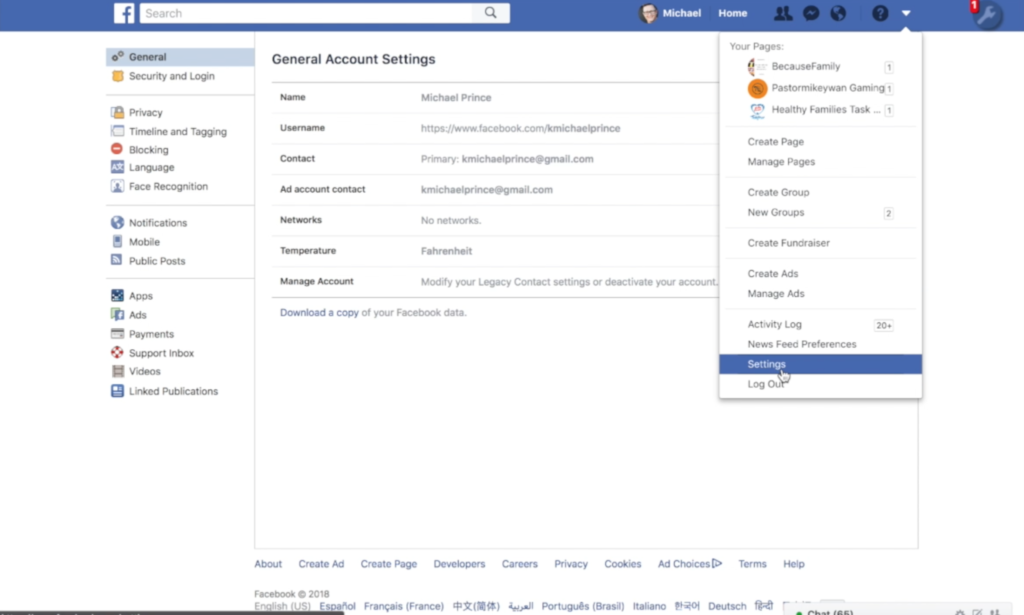
There could be a number of reasons you’d want to download all of your Facebook data. Maybe you’re making a fresh start but don’t want to lose photos and videos, maybe something’s going on and you need message data downloaded, or maybe you just want to back up all your data for when the giant electromagnetic pulse goes off someday and the internet comes crashing down. Whatever reason you’re interested, here are the simple steps you can take to download all of your Facebook info at once. The tutorial video is at the bottom of this post.
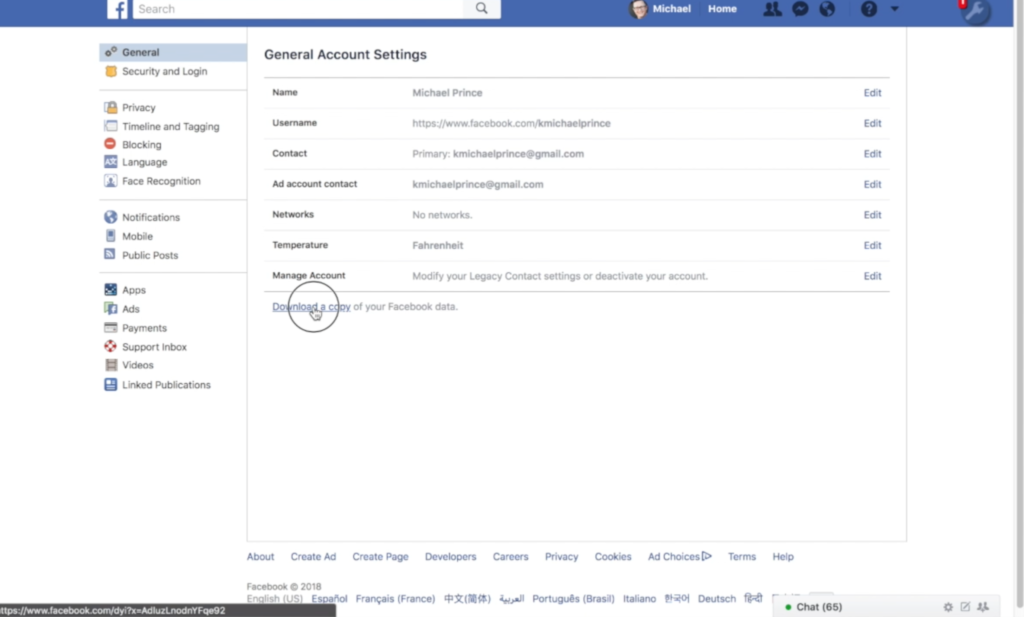
1. Go to your settings page.
2. Click on Download a copy Facebook Data
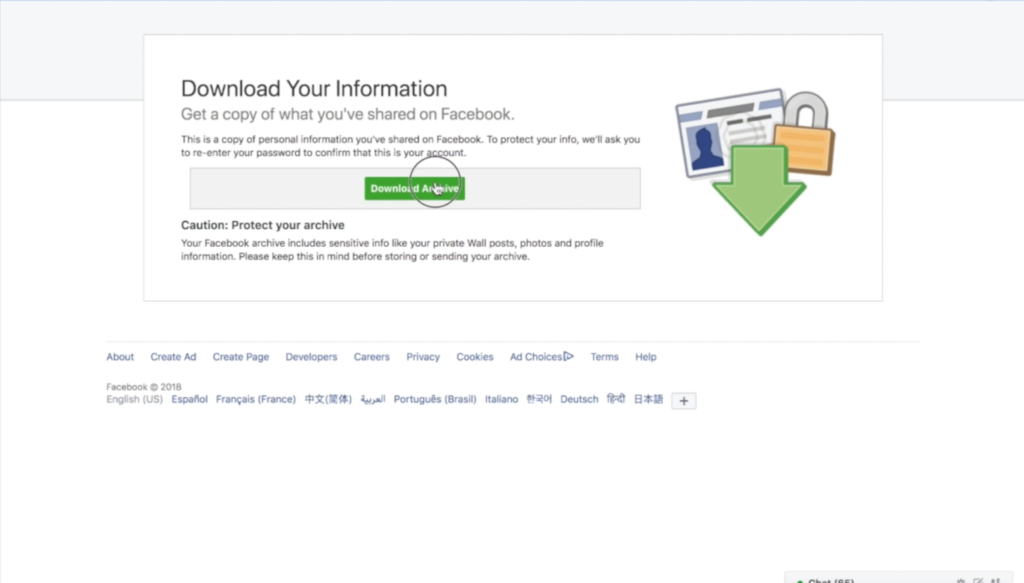
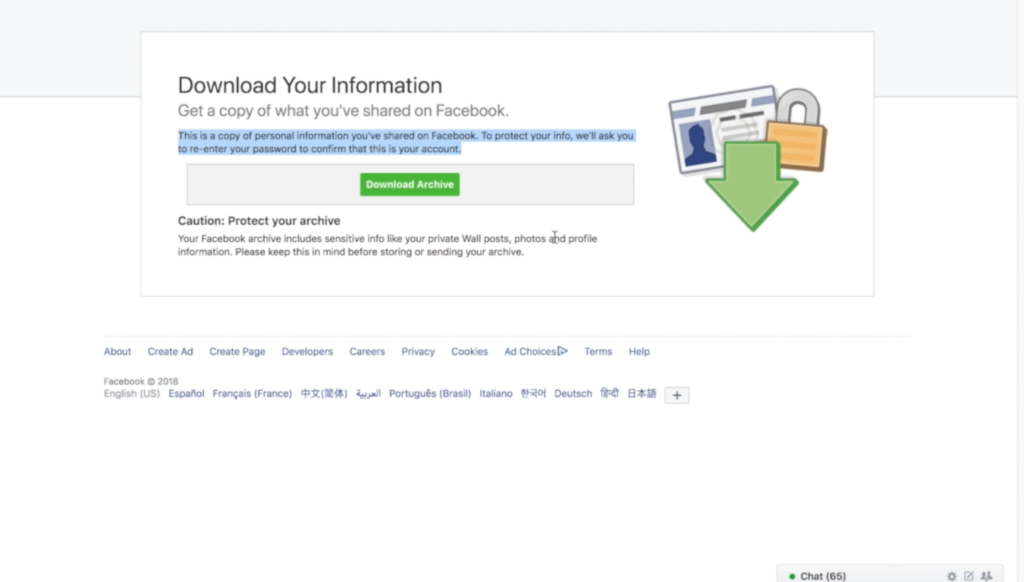
3. Click download archive.
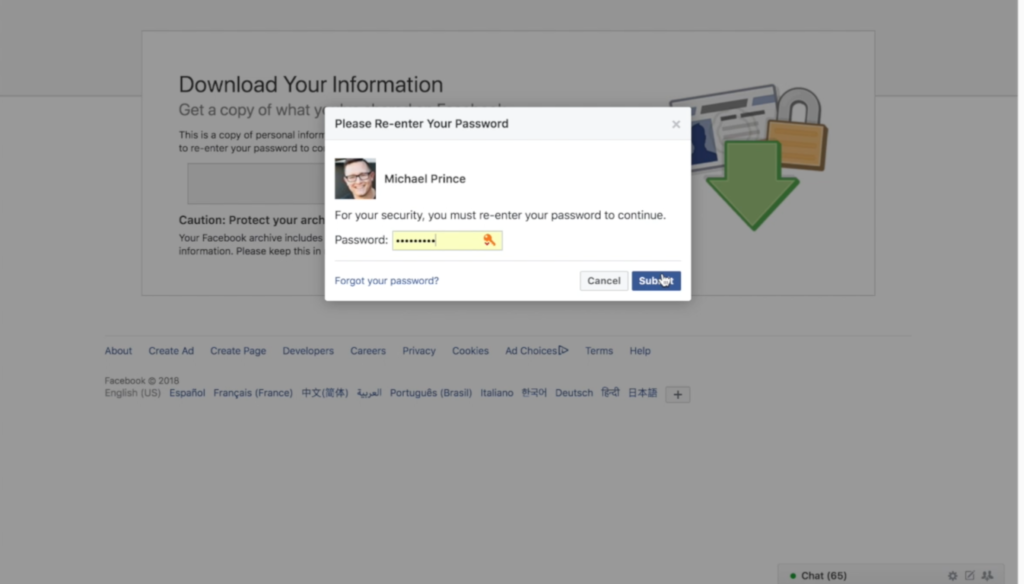
4. Enter your password and click Submit
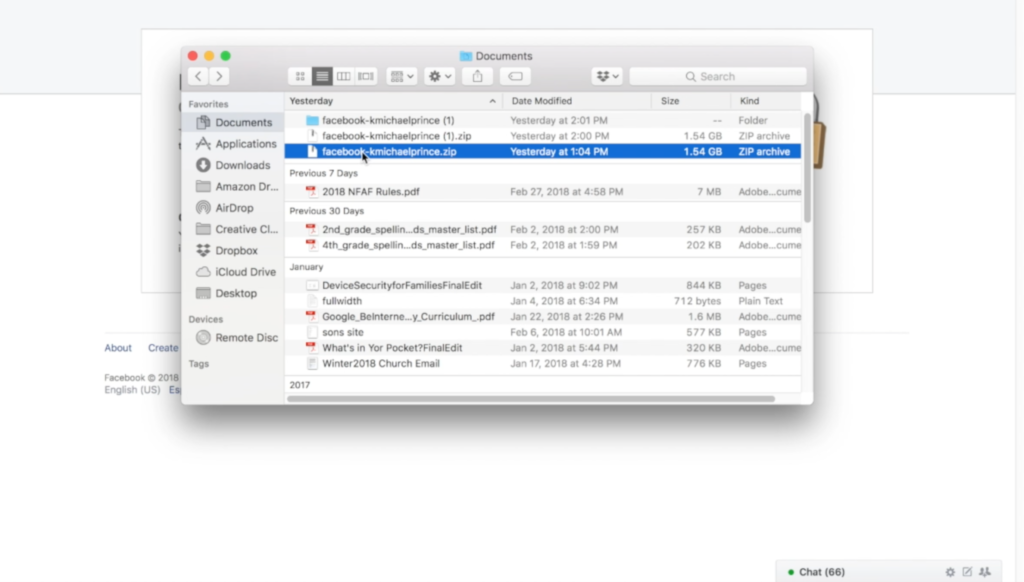
5. Your data downloads as a zip file.
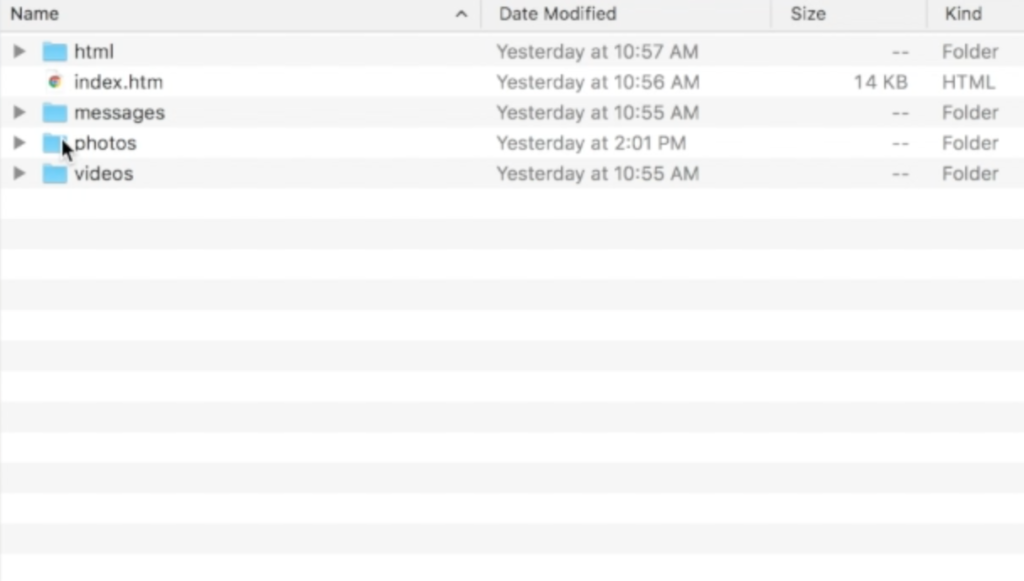
6. Once unzipped, you’ll see your files separated into folders.
7. Keep somewhere safe and share with caution as some of the data is personal.
There are the instructions. Here’s a video tutorial:
Family Tech Update: These apps can be seriously dangerous for your kids. Adult content, privacy issues, stranger danger, all kinds of issues here, and some of them are only rated 12+!
I had the privilege to hear Saurabh Sharma – Sr. Product Manager with Google, speak on the abilities and development of Android’s parental control solution, FamilyLink. He covered many of the trends they were seeing in kids and families and how those stats encouraged their team to implement some full device control features on the monitoring system. As you can see in the video above, there are some pretty neat features in FamilyLink, including the ability to lock an entire device, not just the data connection. Also, time management and scheduling is a major part of the FamilyLink features. One of the coolest features spoken about at CES was the ability to use Google Home to control FamilyLink. Voice command was all the rage at CES2018 and Google’s parental control apps were no exception.
The app on kids’ devices allows them to see exactly what their parents are seeing. App usage stats, app blocking, bedtime and offtime, and setting the Google’s content filter, “SafeSearch.” While the SafeSearch filter isn’t the most extensive and customizable content management tool, it is a good start, especially for your younger children.
One Major Flaw
When FamilyLink was announced ten months ago my first question was, “Can our kids use this on the older phones we’ve handed down to them?” The answer is listed in the fine print on the Google FamilyLink homepage: “*Children can run Family Link on Android devices running Nougat (7.0) and higher, along with certain Marshmallow (6.1) devices listed in our FAQ.” This was immediately a problem for me since I know many families who use their older Android phones as the solution for their kids. It’s always been pretty easy to just hand down your phone to your kids when you get a new one. While there are many internet safety options available for Android, nothing works as well as an app developed by the same people who made your operating system.
After hearing Saurabh Sharma talk about FamilyLink, I followed him out of the room as he headed towards his next meeting and I asked him about the possibility of making FamilyLink backward compatible with older phones. He replied: Making FamilyLink backward compatible is a “difficult problem but one we are committed to trying to solve.” So there you have it. While it’s understandably not an easy thing to fix, we are assured that it is on the team’s radar and something they’re working towards.
Apple’s iOS has had native parental controls for a long time now. They’re pretty effective but haven’t been updated over the last several operating system upgrades. Hopefully, some time management and monitoring options can be added soon. Thankfully there are apps like Accountable2You and UnGlue to help with some of those needs.
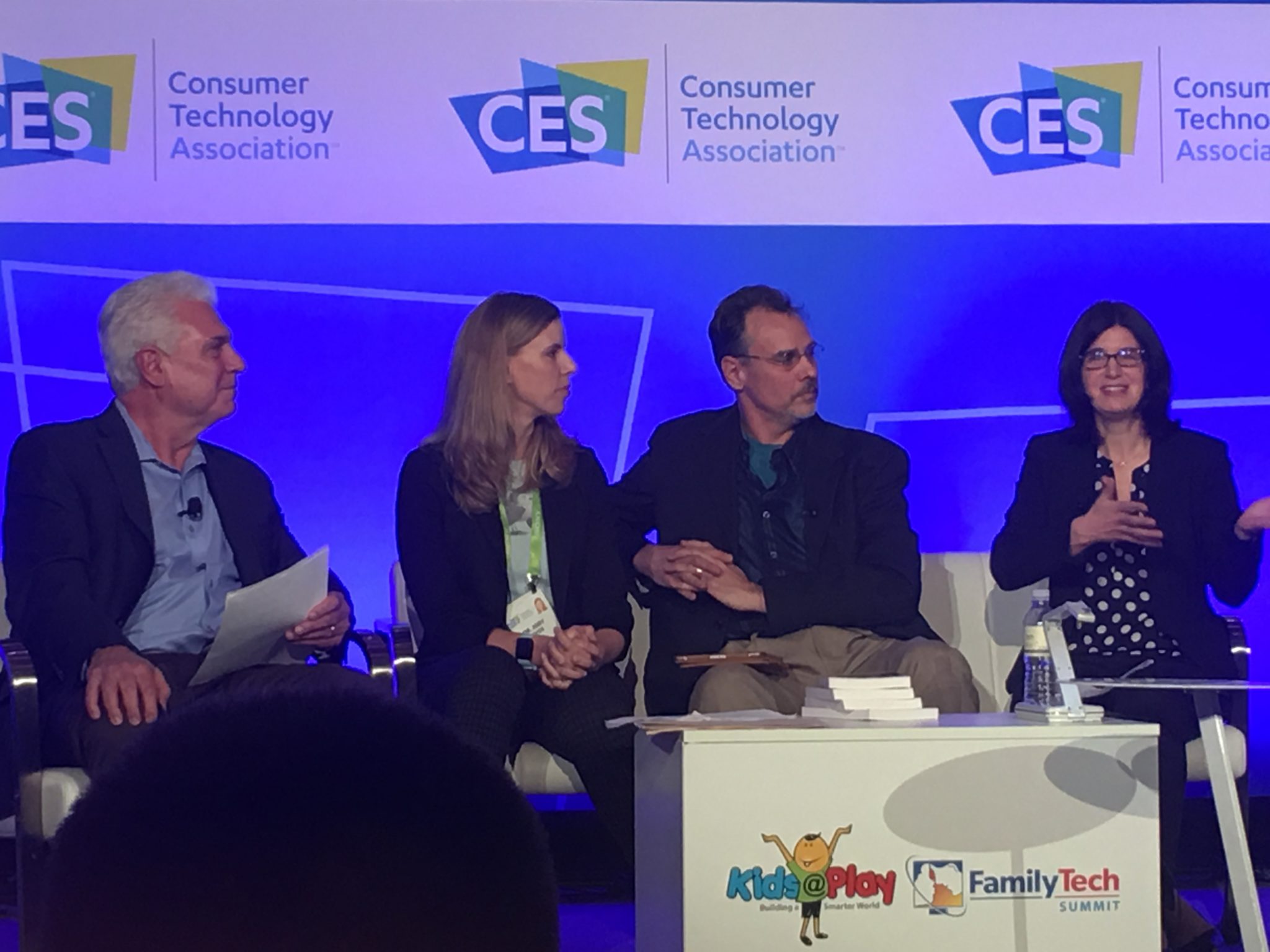
There was a lot of conversation about playing at the CES2018 Kids@Play Family Tech Summit. Joining Living in Digital Times‘ founders and producers were inventors, developers, and psychologists. They were all there to discuss the importance of technology in the world we live in and the responsibility of tech developers to know how to create products that are helpful and not harmful. There were conversations about the amount of screen time that is acceptable for kids. There were many new tech gadgets that seek to teach kids about technology without requiring screen usage to do the educating. One of the main focuses of the day’s events, however, was playing. How much time should kids play and what can we learn from how they play? The day started with a panel consisting of a couple a renowned child/family psychologist, a psychologist responsible for Child Development and Learning at Mattel, the president of The Toy Association, and the Vice President of PBS Kids Digital.
Play IS the “Secret Sauce.”
Fred Rodgers said, “Play is the work of childhood.” Educators and toy manufacturers are taking this idea seriously. You will have noticed how more and more toys have some kind of educational element to them. This is no accident. The toy industry is taking note of the importance in play for a child’s development and education. The problem, as discussed in this panel at CES, is that many parents lack the ability to truly play and therefore, forget the benefit it has for their kids.
“Play is how kids explore the world.” Sarah Dewitt – VP, PBS Kids Digital
“Some parents see play as a luxury…we’re doing a lot of work to show parents the benefits of play.” – Dr. Jody Sherman Levos – Dir. Child Development and Learning at Mattel
They say that the key is balance. In fact, I heard that word hundreds of time throughout the discussions that day. We have to work to maintain a proper balance. We should balance how busy kids are doing homework with a healthy amount of play. We also need to keep a proper attitude about how busy we, as parents, are and keep from being so busy we can’t spend time playing and exploring with our children. Parents are letting tech do more than it should do and play roles in their lives it was never meant to play. Erik Fisher, child/family psychologist said: “Tech isn’t the trouble. It’s time with your kids.” he also stated that “our kids are, in some ways, becoming guinea pigs.”
We have used tech to teach our kids to read, entertain them, or even just keep our kids busy. The general consensus is that kids under two shouldn’t have much screen time at all and then they should be slowly introduced to toys and apps that are used mainly for educational purposes. Most importantly is that parents spend time playing with tech alongside their kids. Not only does this increase a parent’s awareness of the benefit (or lack thereof) of the device their kid is using, it also gives kids a sense of security that they can talk to you about the tech they love. This, of course, is always recommended by experts and by those of us at BecauseFamily. Imagine how easy it will be for your 13 years old to talk to you about their time on social media that day if they’ve been discussing their tech usage habits with you since they were four years old.
The Takeaway
Remember that kids don’t have to be inundated with technology to become the next tech giants. In fact, many west coast tech executives send their children to tech-free schools. While technology can add a layer to our kids’ play and education, it’s important that we talk to our kids about their play. Encourage them to be creative and color outside the lines. Remember what it was like to be a kid and allow them to mess up and do it wrong without negative consequences. Most of all, don’t let tech usage, even for educational purposes, outweigh the other areas of play that are so important for your kids.
App Review: Ride the elephant around the Ark collecting peanuts. Just try not to get caught by your sons. They’ll put the elephant back in its cage and ruin your fun. This game features fun gameplay, easy controls, awesome animation, and a great scripture memory element. Check out Noah’s Elephant in the Room here.