One of the easiest ways to keep track of your kids activities on Social Media is to follow their accounts yourself. Some social media sites make it even easier to monitor by allowing you to turn on notifications. The major social media apps allow it but the way you set each up is very different. The video below is a walkthrough of how to set up post notifications on Instagram, YouTube, Facebook, and Snapchat. Remember that following your kids is good and being notified when they post is even better. Communication is, however, more important than any of it. Be sure to let your kids know you follow them and that you’re getting these notifications. Hopefully the video below will help you out.
Give us a hand…
We are currently raising funds to keep these videos and articles free for you to learn and apply. Please consider checking out our fundraiser by clicking the link below. Thank You.
Facebook is quickly working towards becoming a serious contender as a destination for video. SmartTV apps with better video controls and a more video friendly UI (user interface) are just a couple of things they’re doing to be more video friendly. There’s another major change coming that will drive you nuts, I’m going to do you a favor and help you avoid it.
Facebook has announced that they’ll soon be rolling out video autoplay with audio on your timeline in the Facebook app. This means you’ll be bombarded with the first few seconds of sound from every video your lovely Facebook friends have posted. If you have already disabled autoplay for some reason (like to save data or battery) then you’re good to go. If not I’m here to help. The video below will walk you through a few simple steps to help you disable video autoplay on the Facebook app altogether. You’re welcome!
Those of us with smaller children are often less concerned with them looking for something inappropriate online but we want to protect them from seeing something unintentionally. Apple’s iOS devices have a feature built in called Guided Access just for that purpose. This setting will lock your iPhone or iPad to one app disabling the home, volume, and lock buttons. This is a great feature if you’re wanting to allow your kids to use an app but don’t want them to look around on other parts of your phone. This video will help you get Guided Access all set up.
Those of us with smaller children are often less concerned with them looking for something inappropriate online but we want to protect them from seeing something unintentionally. Apple’s iOS devices have a feature built in called Guided Access just for that purpose. This setting will lock your iPhone or iPad to one app disabling the home, volume, and lock buttons. This is a great feature if you’re wanting to allow your kids to use an app but don’t want them to look around on other parts of your phone.
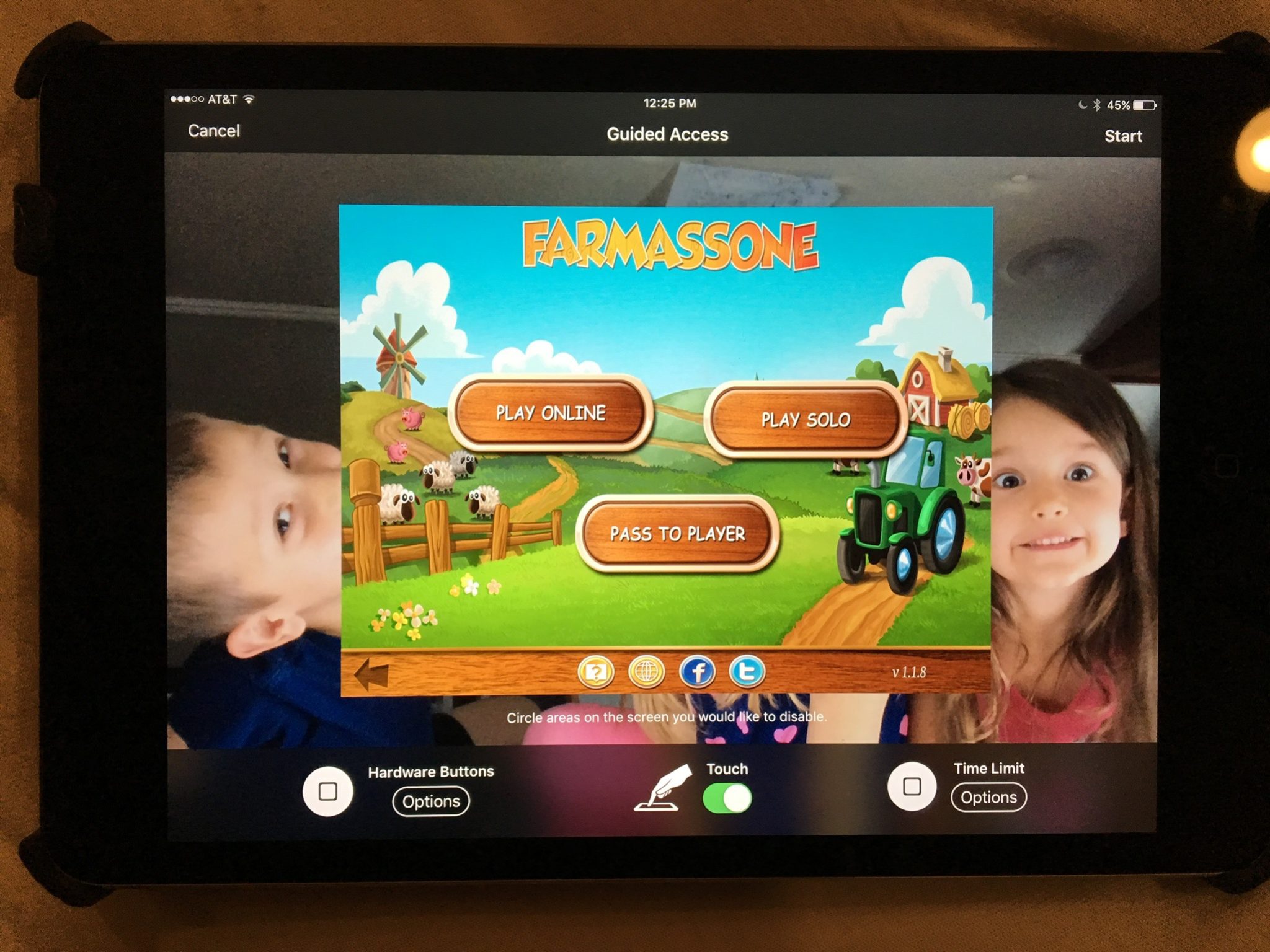
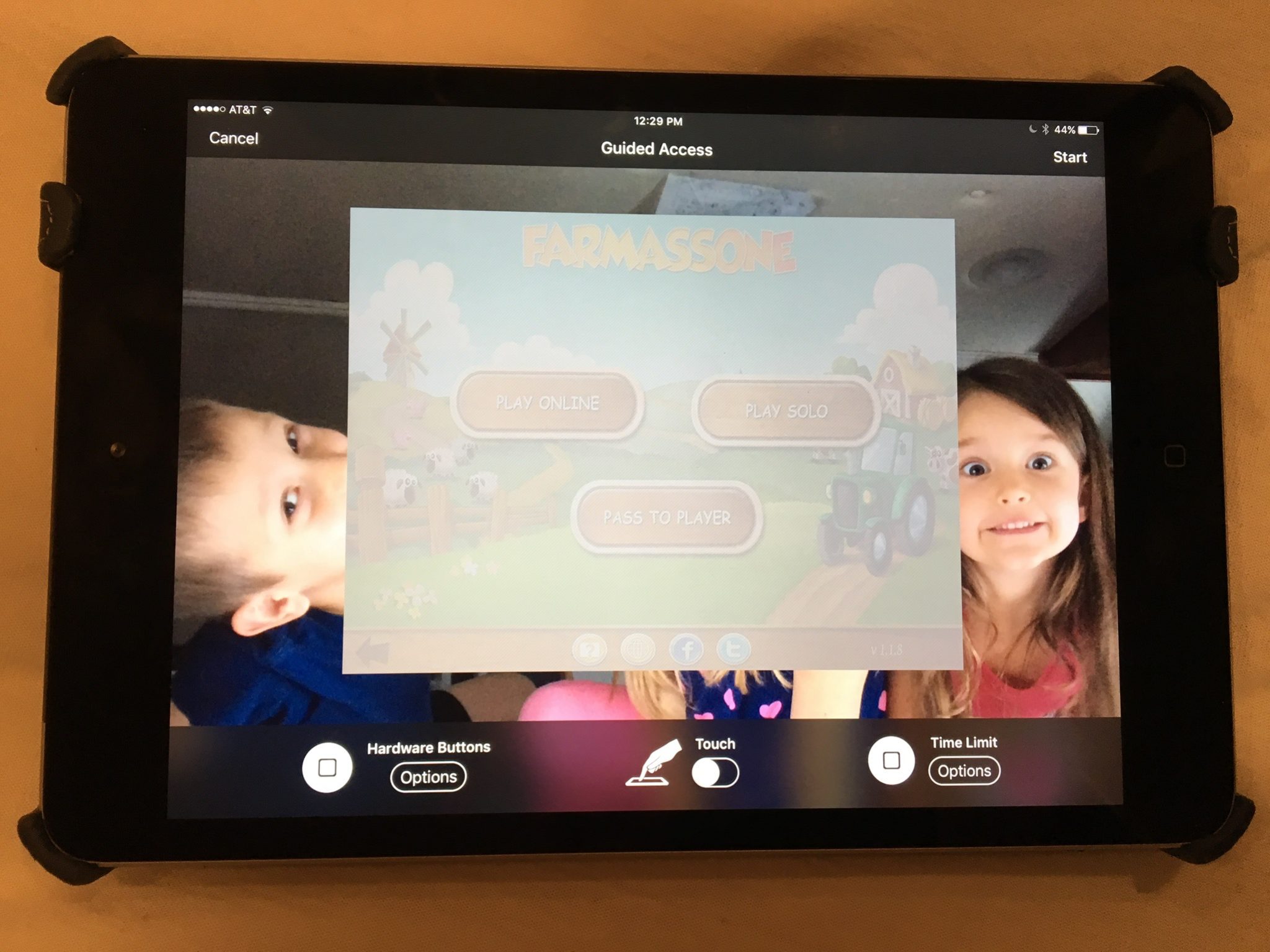
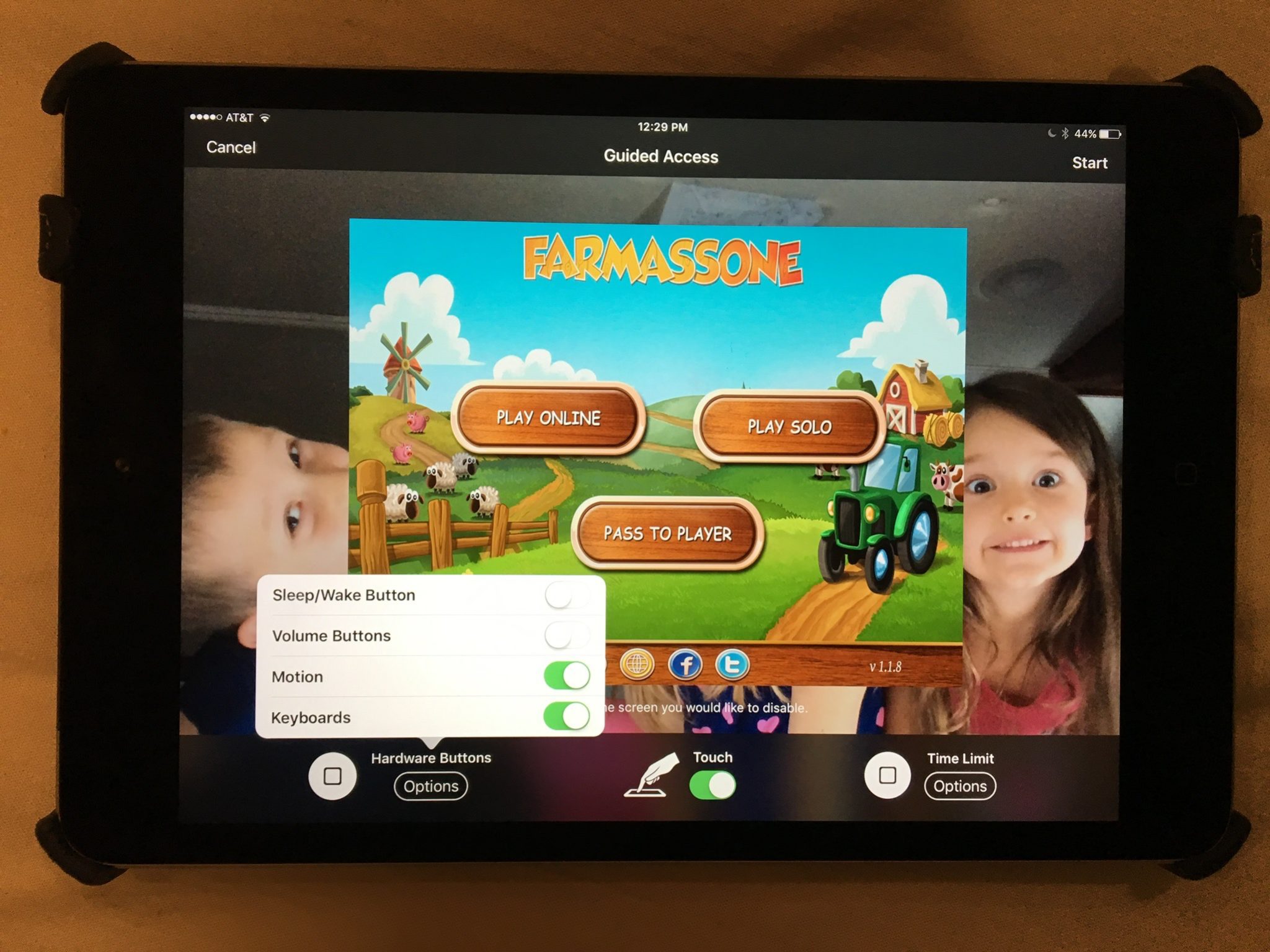
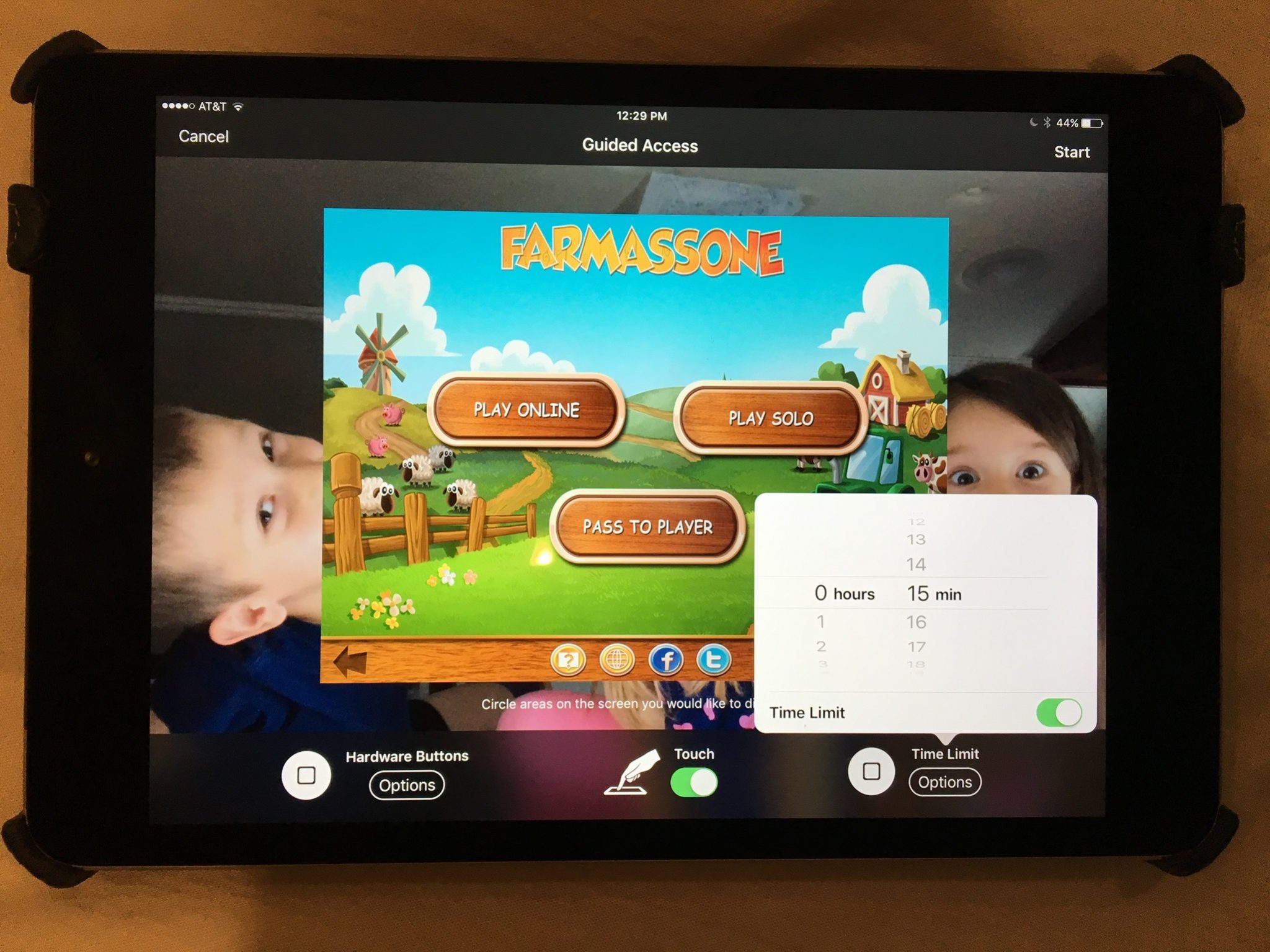
You may have known about Guided Access for a while but if you haven’t looked at the settings recently you may be surprised at some of the new options that are available. You can turn off the sleep button, turn on the volume buttons, lock the motion (whether the screen rotates when you turn it,) turn on and off the keyboard, touch screen, and time limits. All of these settings are really helpful to customize the guided access for each app you allow your kids too use based on their age and ability to use the iPhone/iPad.
Triple click your home button to launch Guided Access.
You can turn off touch screen with the center toggle.
You can toggle on/off the screen sleep settings, volume controls, motion rotation, and the keyboard.
You can even set time limits.
(*Settings look different on iPhone but they work the same.)
For example, my two year old likes to mess with the screen while he’s watching something. (He even touches our TV screen if he’s allowed to sit close enough.) This would cause the show to pause or skip or back out of the episode entirely. If you turn off the touchscreen it doesn’t matter what he does, it won’t change the show. Now, of course we are trying to teach him to leave the screen alone but this is helpful while he’s still a defiant little two year old “cutie”. For our older kids we will lock into their school apps so they can’t back out and play Lego Star Wars or something. We also use the time limit extensively, they don’t have their own devices so this helps us make them take turns.
What Parents Should Know
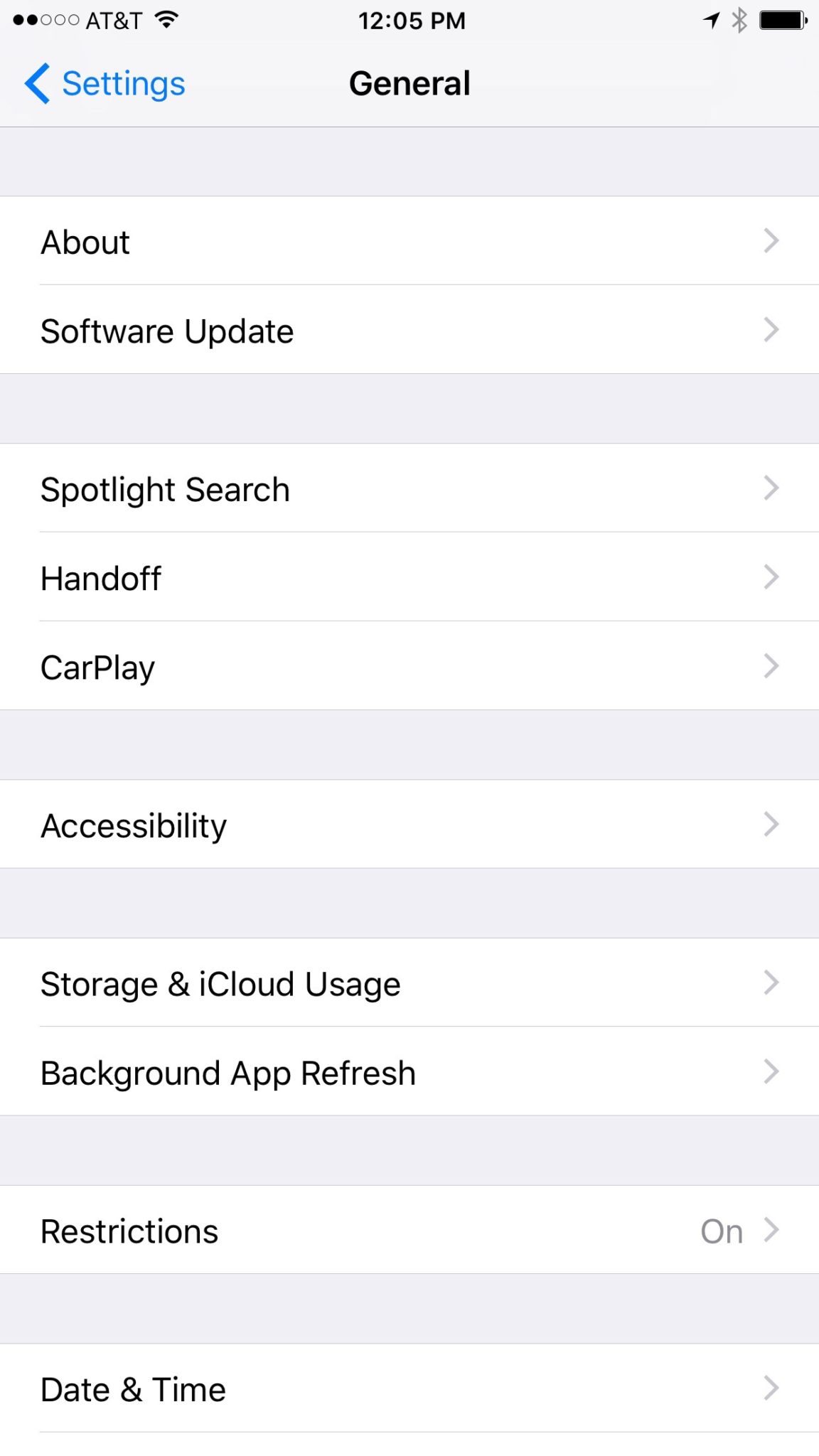
You should know how to set up Guided Access. (See the slideshow below) Use it for, especially, your younger kids. Keep them away from apps that will link to the internet. Also, you can draw on areas on the screen to keep them from tapping there, this will keep them from tapping ads or the parental control settings button. We are learning that our kids benefit less and less from using screens but if we are going to give them the privilege it’s important to do it safely. You may give them your iPad or iPhone with an app that is safe for them but if they can back out of it and open something else you’re not doing them any favors. Guided Access gives you some peace of mind, knowing that you can protect them while they are on that device and you don’t have to be looking over their shoulder the whole time. Use the slideshow below to help you set up Guided Access and if you’d prefer a video, check it out here.
Select ACCESSIBILITY in your General settings.
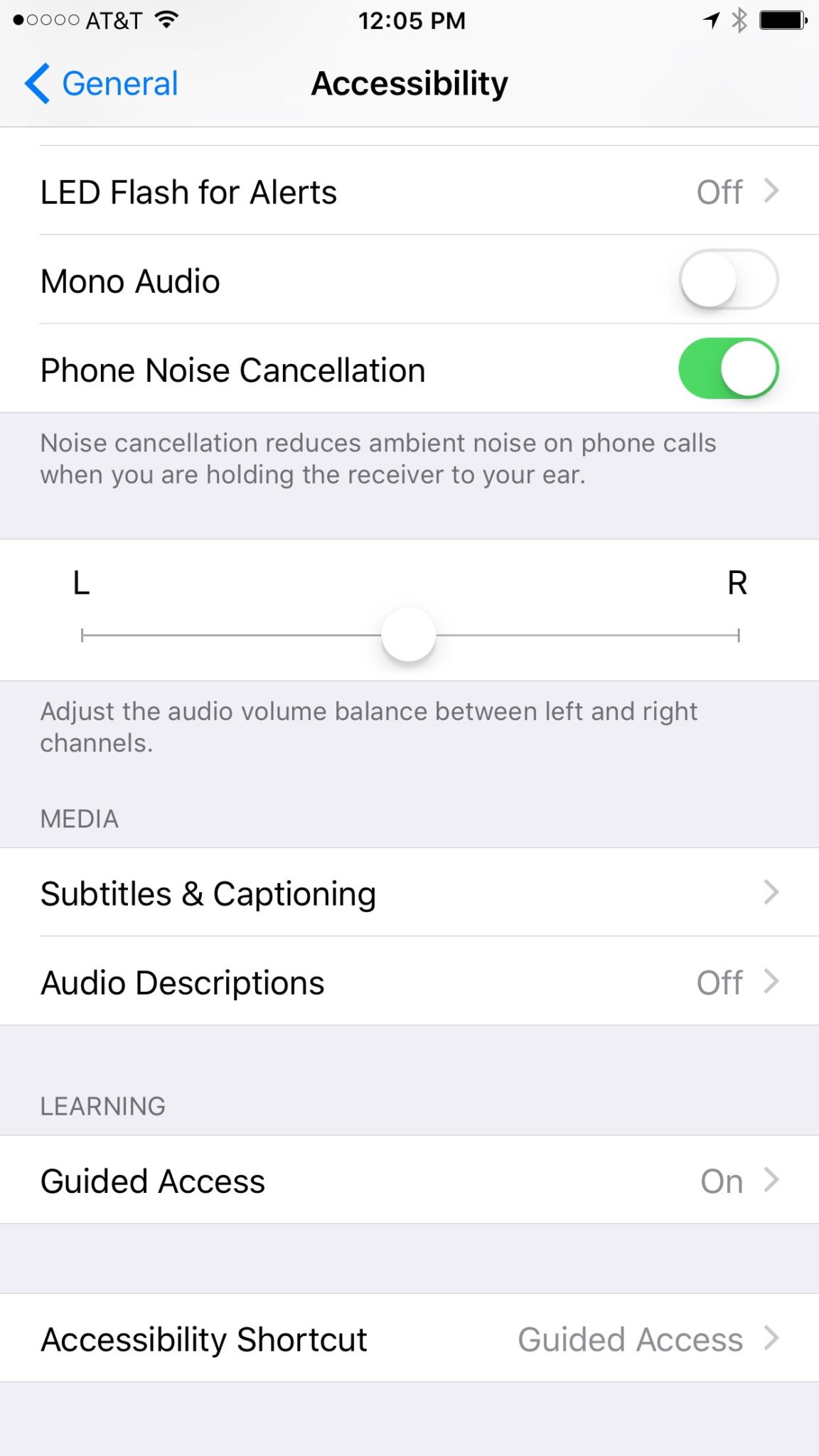
Swipe down to and tap GUIDED ACCESS.
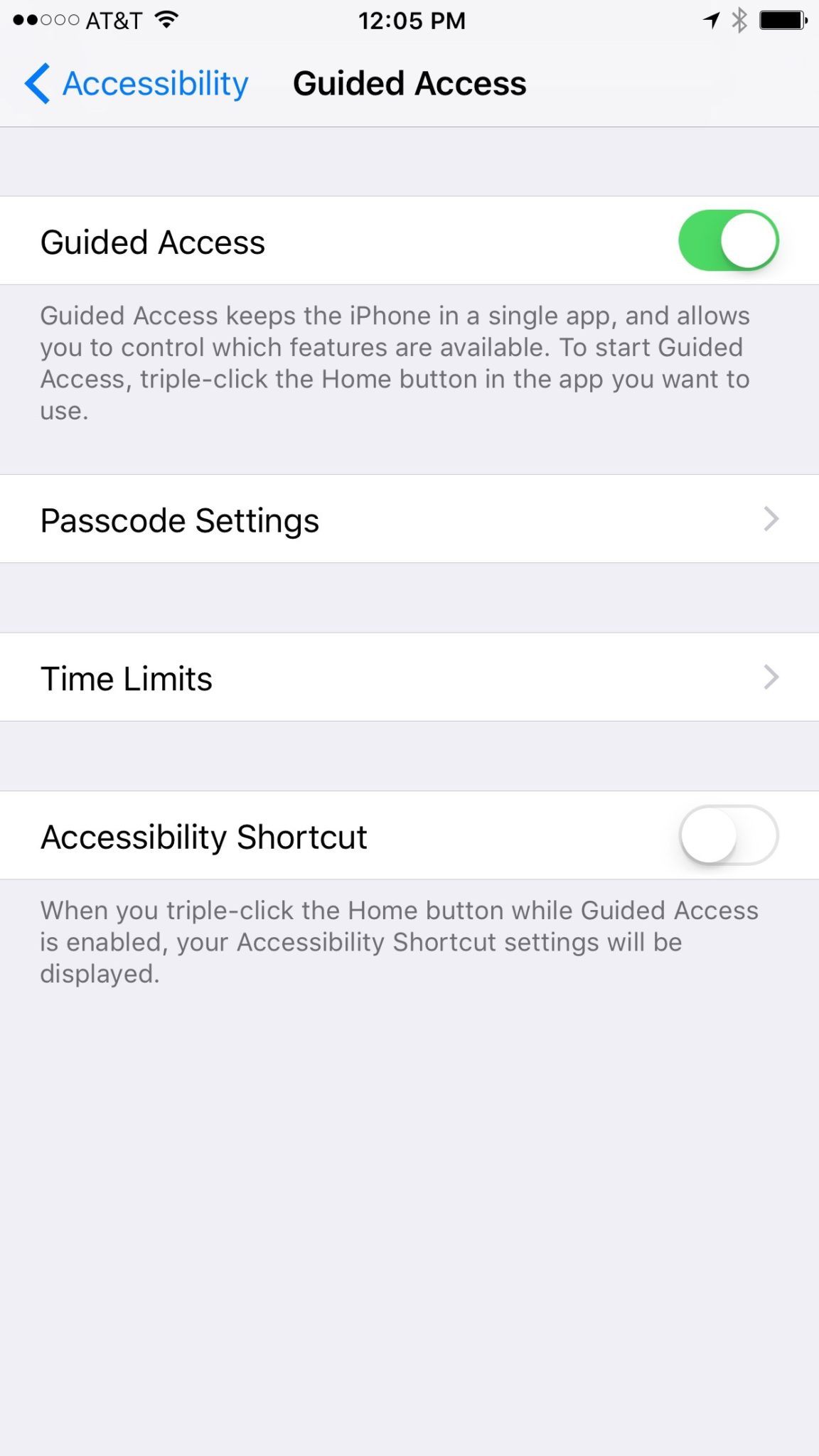
Now toggle GUIDED ACCESS ON and set your desired settings.
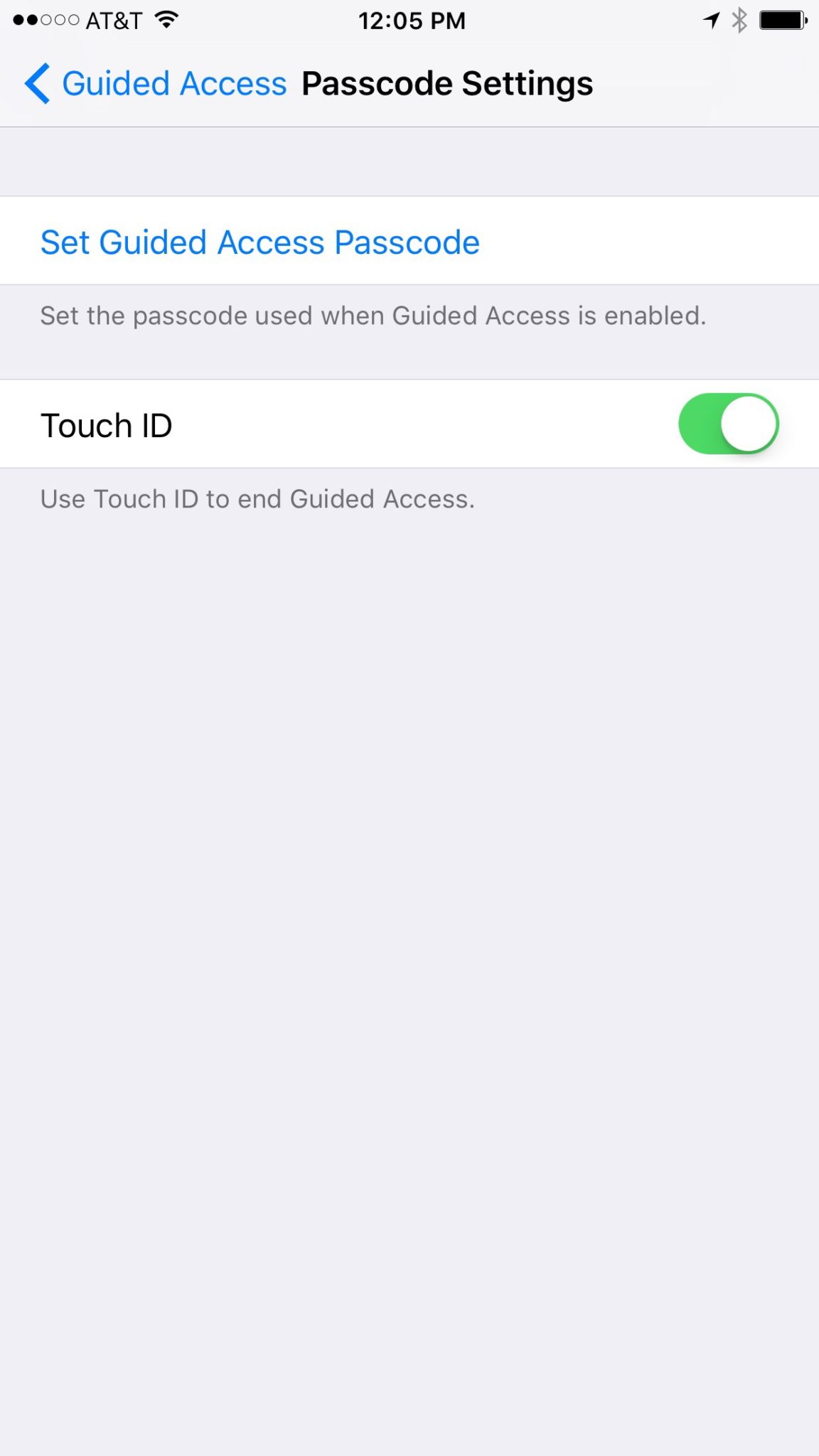
PASSCODE options. You can even use your touch id.
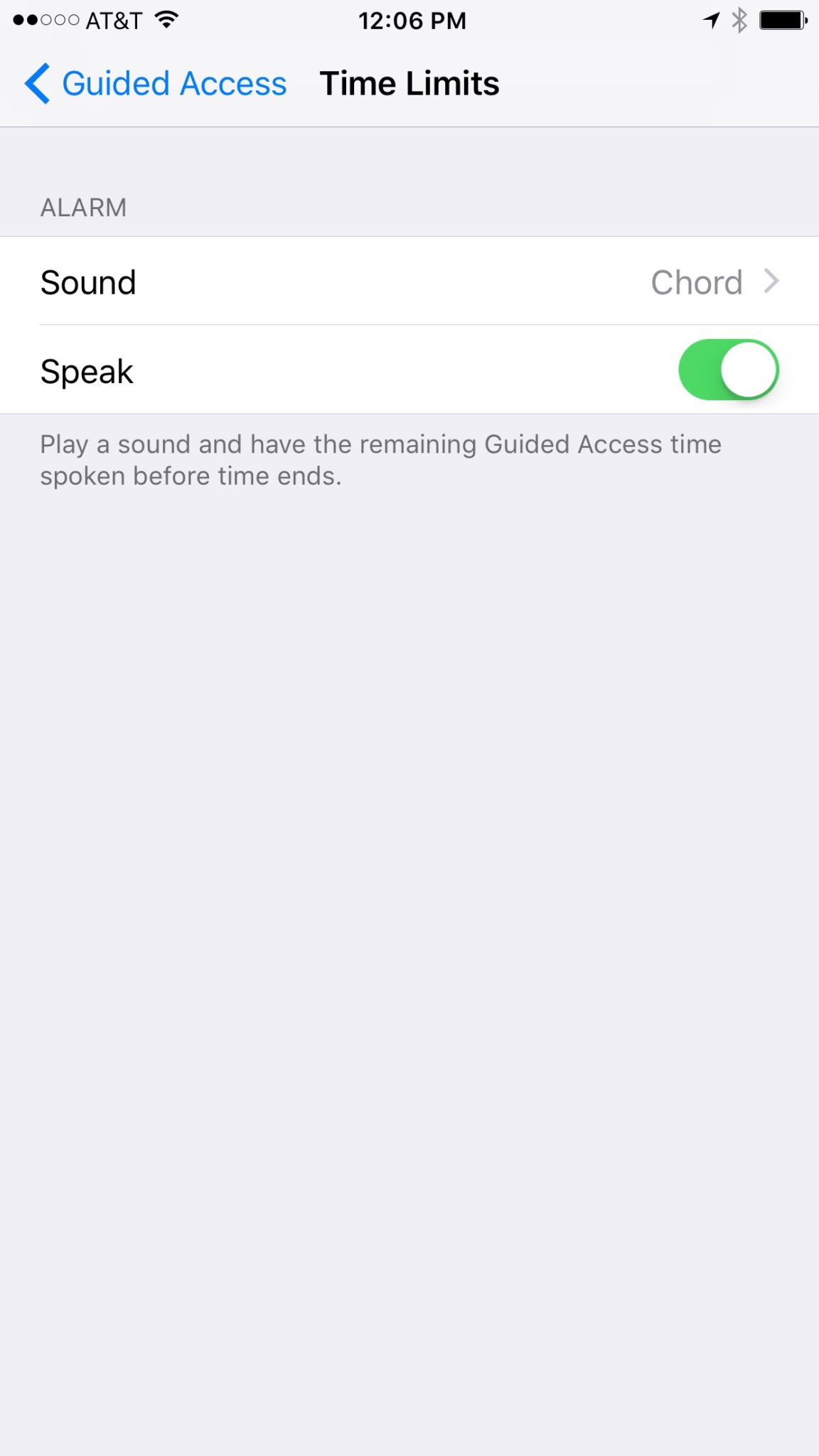
TIME LIMIT settings. Tell it to play a sound countdown when time is almost up.
Apple has a great way to help families keep track of what their children are downloading on their ios devices. Your kids can even have their own profiles. It allows for families to share the apps they have downloaded without having to purchase multiple copies. It lets the administrator see what apps the other accounts have downloaded. Best of all, though, it lets you set requirements for young users to ask permission before an app can be downloaded. If you have specific requirements and standards for the apps you want your kids to use, this feature will help you keep those standards in tact.
The video below is a simple walkthrough on my Macbook of how to set up your iCloud FamilyShare settings. I will add one new child account and even give some information about why you may want to use this feature.
Circle, Accountable2You, YouTube Kids, Young Kids and Internet Safety. All this and more in this Facebook Live video. This #givingtuesday live video was a great way to meet parent’s needs right where they are. Be sure to visit BecauseFamily.org/partnership to learn more about donating.
If you have an accountability software and/or a filter installed on your kids’ iPhone, iPad, or iPod you’re wasting your time unless Safari is also disabled. You will want to disable the ability to download new apps as well. In this video tutorial I explain why you’ll want to take these critical steps and walk you through the steps themselves. (more…)
Step one of the BECAUSEFAMILY S.A.F.E. plan is Set Up. Setting up the parental controls on your kids devices is the beginning of this important process. If you need to set up an iphone or ipad this video will walk you through the initial setup of the restrictions. This is a video tutorial available for subscribers. Subscribe below… (more…)
We’ve made it to our final vocabulary post. We are visiting gaming again. We discussed several gaming terms in lesson one but I thought we should cover a few more in this final vocabulary lesson. These terms have to do with gaming and monetization (a word you learned in lesson 1.) Learning about how money works in the mobile gaming world can really help you understand how game companies market to your kids. If you aren’t subscribed to the site, be sure to register so that you can access all of the great content in this series and so much more. (more…)
Conversations about internet privacy and security have been in the news a lot lately. Questions about who has the right to track you on your smartphone and who doesn’t. Terms and agreements that don’t really help you understand how companies use your information once they’ve gained if from your device usage. Below are three common terms that will help you walk through the minefield that is internet security and privacy. Learn what these terms mean so that you can make the right choices for your child’s online safety as well. (more…)