Category: Affiliates

  • Get Parental Control Tools for Cheap on Amazon’s Prime Day

    Get Parental Control Tools for Cheap on Amazon’s Prime Day


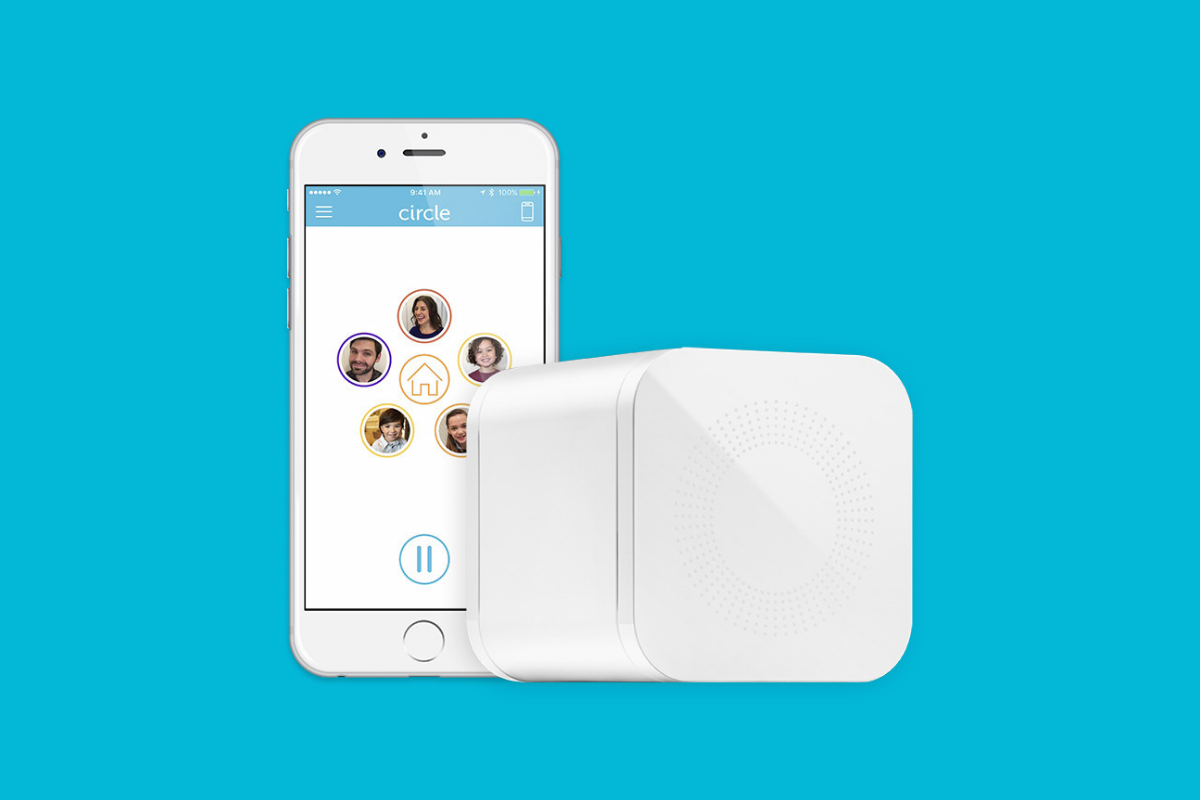
    Meet Circle, Our Favorite Home WiFi Parental Control Solution

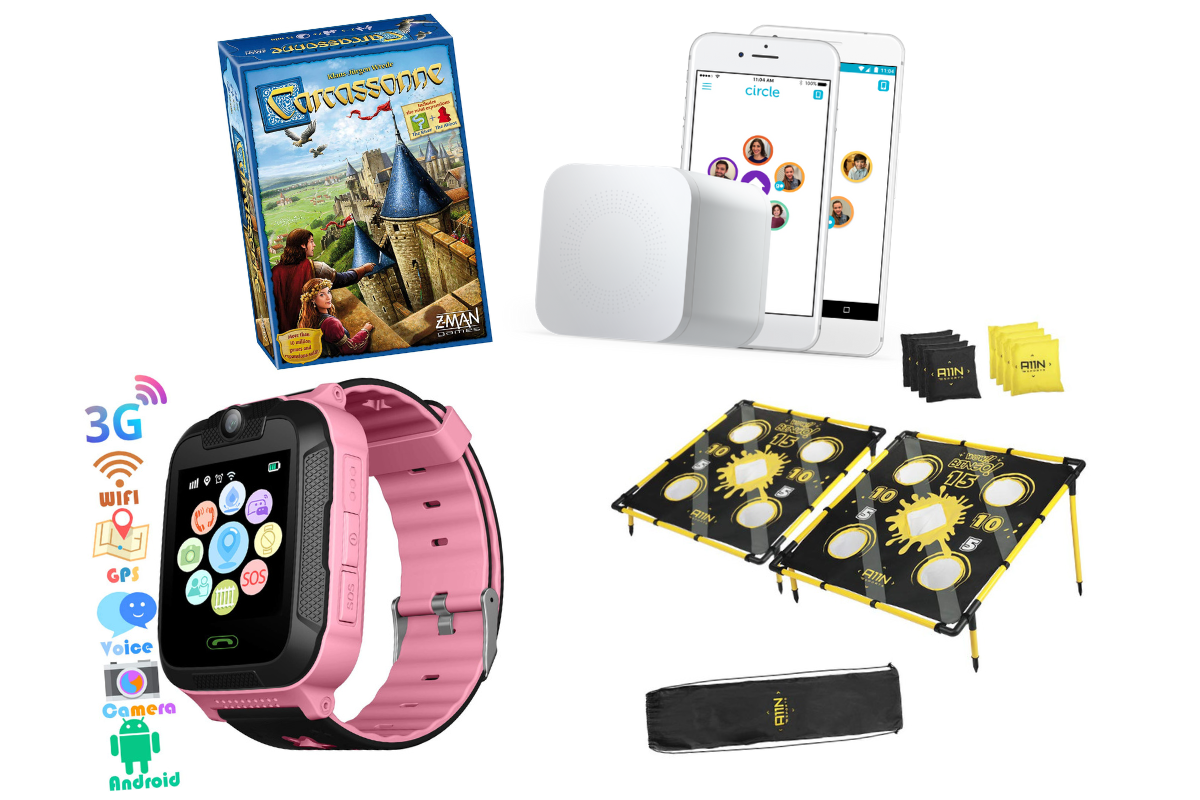
    We love Circle. It monitors our kids online activity and protects them from happening upon websites they should be avoiding. I recommend Circle everywhere I go and to everyone I talk to. They have released a NEW VERSION of Circle that includes a year of premium features when you buy the device. If you are ok with having the older version (which is still supported, at least for now) you can get it for a third of the original price on Amazon right now.
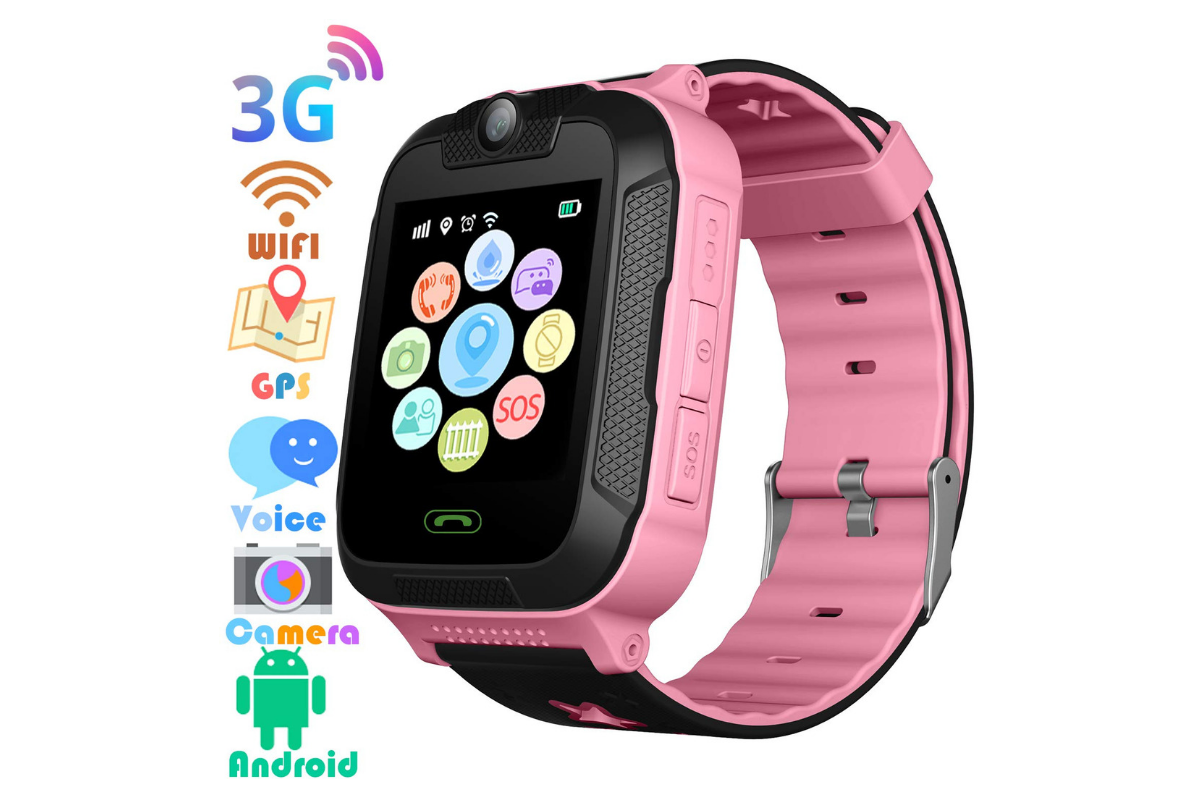
    A Kid Friendly Watch with Messaging

    You may not want your child to have their own phone but need them to be able to contact you when necessary. This watch uses the Android operating system and allows GPS tracking, WiFi, Calls and Messaging. It also has a camera. The watch is kid sized, made for children ages 4-12. If you want the phone call option you will need to get a sim card from your cell service provider (Verizon and Sprint not supported.)

    Have Some Screen Free Fun!

    Parental Control doesn’t always mean keeping them safe while on technology. Sometimes it means keeping them off of tech completely. Board games are a great way to achieve the goal of entertaining your kids without screen time.

    Whatever age your kids are, there are some awesome off screen games available on Amazon’s Prime Day today. Whether you want to build a Unicorn Army, expand civilization through villages and farms, or collect jewels to earn more points than your opponents, these games are a ton of fun! Check out the deals on these tabletop games and sit down with your family, with no screens, and have a good time. Board games encourage eye contact, communication, healthy competition, and creative/critical thinking. They are good for learning as well as fun.

     

    Enjoy Each-other Outdoors

    Sometimes you just have to get outside. These activities will give you a chance to leave the technology indoors and head out for some “green time.”  Use your aim and dexterity to score as many points as possible in the classic Ladder Toss game which is on sale at a special Prime Day price for then next couple of days. If you’d rather toss Horse Shoes, this kid safe version of the outdoor favorite is also priced for Prime Day. If you want a new twist on an old classic, check out this Cornhole/Golf Chipping Target combo. It’s only $40 today.

    Thanks for partnering with BecauseFamily (Four Point Families 501c3)

    BecauseFamily exists to protect children and teenagers by bridging the technology gap between them and their parents. As we work to provide resources to parents and kids alike, you partnership helps us continue our mission to keep kids safe. Your options for supporting BecauseFamily are available at BecauseFamily.org/partnership and include direct donation through PayPal, ongoing support of our media content through Patreon, using our affiliate links, and signing up to support us on smile.amazon.com. The links above all direct you to the smile.amazon.com page for those products. You may be asked to sign up for who to support, search Four Point Families to elect us as the benefactor of your Amazon Smile donations. We are eternally grateful for your support!

  • Monitor Song Lyrics with Bark!

    Monitor Song Lyrics with Bark!

    Listen to any of the current top ten songs and you’ll find all sorts of content that may not be considered appropriate for children. Profanity, sexual content, violence, and suicidal ideation abound in today’s popular music. How can we, as parents, keep an eye on what our children are listening to without having to go through and read lyrics for every song on every playlist? Bark is offering a pretty good solution with their latest update. The AI-based message monitoring system now monitors lyrics on Spotify.

    Connecting your accounts to Bark is pretty simple with the Android app but demands a bit more tech expertise to connect to iOS (due to Apple’s strict anti-monitoring policies.) You have to download Bark’s software to your computer and then set your child’s iPad or iPhone to back up to that same computer in order for Bark to monitor the device. Spotify, however, connects on the account level which means set up is a simple as logging in to Spotify and giving Bark permission to access data in the app. That does mean that shared accounts will be monitored as one so your listening habits will be monitored as well and then reported to you as if your kids listened. We raised our Spotify subscription to the 14.99 price in order to set up separate accounts for our kids. This means they can be monitored separately giving us more accurate reports.

    Reports from Bark are notifications about specific songs with the lyrics listed along with recommendations for discussing the songs with your children. We saw immediately that some of the songs our son was listening to had some lyrics that were a bit more violent than we would approve of. We were able to discuss this with him and he removed them from one of his playlists immediately. The songs were in no way “explicit” since we have turned off access to explicit content on his Spotify app but the Bark system allows you to set the sensitivity so that it will report songs that even hint at innuendo, violence, or other adult content. Our approach is to always err on the side of caution so we have sensitivity turned all the way up.

    Bark’s message monitoring has also resulted in quality conversations with our children, even within just a few days of activating the software. We were notified that our daughter had been “bullied.” It turned out she was just telling her brother to stop texting her over and over again. The AI noticed that she was asking him to stop and he was continuing to message her and it flagged it. That is EXACTLY the kind of thing we want to be notified of. Her brother was just being annoying but if that was some older boy asking for pictures or a friend telling her something inappropriate or mean, we want to be notified. For us, a false alarm is evidence that the software is working and we are happy to weed through false reports so that we’ll be sure to get the one that could save us and our children from a lot of trouble.

    Song lyrics, videos, messages, and social media posts are helping shape our kids’ worldviews. We should be on guard against the kinds of content that don’t meet our family’s standards. Bark allows you to do that without your kids’ privacy being interfered with. You don’t see all their messages, just the ones that Bark flags as potential dangers. This means they can have their phone or tablet, message their friends, watch their shows, and listen to their music without you always asking what they’re doing. You won’t have to ask because you’ll be alerted if they do something you don’t approve of. Just remember that we never recommend spying on our kids without their knowledge. Talk with them about Bark and any other software you use to report content. Let them know why you are using the software and talk with them about any reports you receive. This is how we help them build a healthy attitude towards tech.

    You can get Bark by clicking THIS LINK, using the promo code: BF56WBD, or clicking the banner near the top of this article. We are an affiliate of Bark and will receive a small donation when you pay Bark for your subscription. Thank you for protecting your kids and for supporting this blog and our ministry.

  • Family Tech Blog’s Top Five Posts of 2018

    Family Tech Blog’s Top Five Posts of 2018

    Thank You for Everything!

    I can’t believe the year is over. During 2018 the Family Tech Blog has more than doubled in monthly reach and many articles have been read thousands of times each. I am so grateful for all of you who read and share our content and especially to those who have chosen to support BecauseFamily financially so that this blog can exist. Looking back on this past year it is crazy to think of what all has happened in the tech and family tech safety world. I wanted to write one last post for 2018 that highlights some of the most read articles from this past year. Here are the most read posts from a busy and fascinating 2018.

    Number Five

    Three Ways to Identify a Dangerous YouTube Video Before Your Kids See It

    YouTube is a popular topic for parents and educators. The video streaming site provides some of the most helpful and easy to access free resources on the internet. Unfortunately, however, when anything is as easy to use and popular as YouTube, you will have content on there that isn’t appropriate. I think this article was so popular because in it, I lay out some steps parents can take to identify dangerous or misleading videos on YouTube just by looking for a few signs. I’ve had parents, youth workers, and teachers tell me this article helped them make better choices in what their child was able to watch. Remember that YouTube is the wild wild west. Nearly anything goes. Parental supervision is HIGHLY recommended.

    Number Four

    unGlue is a Great Way to Teach Your Older Kids Screen Time Management

    There comes a time as parents that we should transition from control to guidance. unGlue (a BecauseFamily affiliate) is a great software option for parents who want to add guidance to their internet safety plan without giving up all control at once. This article came out before Apple rolled out Screen Time so it was one of the first software options to provide the kind of limits parents were looking for. It you are trying to protect Android devices or even some older hand me down iPhones, unGlue is still a great option.

    Number Three

    Do Violent Video Games Create Killers?

    Tragedy at a gaming competition in Florida spurred this article that explored some of the opinions that float around about gaming and violence every time a young man commits a violent crime. This article unpacks actual research that has been done to try and answer the question: Do violent video games create killers?

    Number Two

    Tools to Monitor Your Own Screen Time in 2018

    As parents, it is critical that we live out the lessons we try to teach our kids. They retain more of what they see you do than what hear you teach. Monitoring your own screen time, even if just to increase your awareness, can be a very helpful practice in trying to set a healthy example for our kids and teens. This article was released right at the beginning of 2018 and continued to grow in popularity all year long. It is obvious that people realize they spend a lot of time on their phones, here’s hoping they used some of these resources to keep track and make some healthy choices.

    Number One

    Parent Guide: Call of Duty Black Ops 4

    Finally, we are back to gaming. Call of Duty Black Ops 4 released on the back of a ton of hype based around their Battle Royale mode titled “Blackout.” The game released to positive reviews but had a lot of kids asking their parents if they could play it. This Parent Guide is a great way for moms and dads to see if this game would be appropriate for their child.

    Final Thoughts and Trends

    There are the top five posts from 2018. Obviously video games and screen time was a major trend with YouTube maintaining  a presence as one of the most common apps used by parents. I was surprised that there were no articles about Fortnite on the list as that game has taken the world by storm. You can’t look anywhere without seeing the dances, costumes, and merchandise. Voice control is another major trend in 2018 that I am surprised didn’t get as many readers as some other topics. I imagine 2019 will be all about gaming, internet privacy, voice control, and of course…YouTube.

    Thank you for reading the Family Tech Blog this year. We appreciate your support and sharing. Keep checking in through the next year as we have even more awesome plans including adding more tutorial content, including Xbox and Android tutorials, and a lot of news from CES2019, starting next week. Thank you again, Happy New Year, and we will see you in 2019!

  • Get This Screen Time Management Subscription for 30% Off!

    Get This Screen Time Management Subscription for 30% Off!

    *FamilyTechBlog.com is an affiliate partner with unGlue

    We’ve shared unGlue with you before. It is a very good way to start helping your older kids learn to manage their screen time. Once it’s all set up you can let your kids decide how they manage the time you’ve given them on their devices. They can save it, earn more, or just use it all up. There’s a lot that unGlue can do and features are being added often. It’s affordable and useful. Best of all, you can use the monitoring tools for free and if you subscribe soon, you can save 30% during their spring sale. Learn more about unGlue below and click the links to check it out for yourself.

    How it Works

    [reposted] At home, unGlue works through your wifi. You install software on your main home computer (only works while turned on) and it mirrors your router traffic to see the web activities on the devices you have set up. While on the go, unGlue uses a VPN to keep track of what is being done online. These methods mean your time is managed everywhere you go. You can even set up guest access in your home. If you don’t have a home computer to set up unGlue on, they have a device called the unGlue Puck that will only cost you $30.

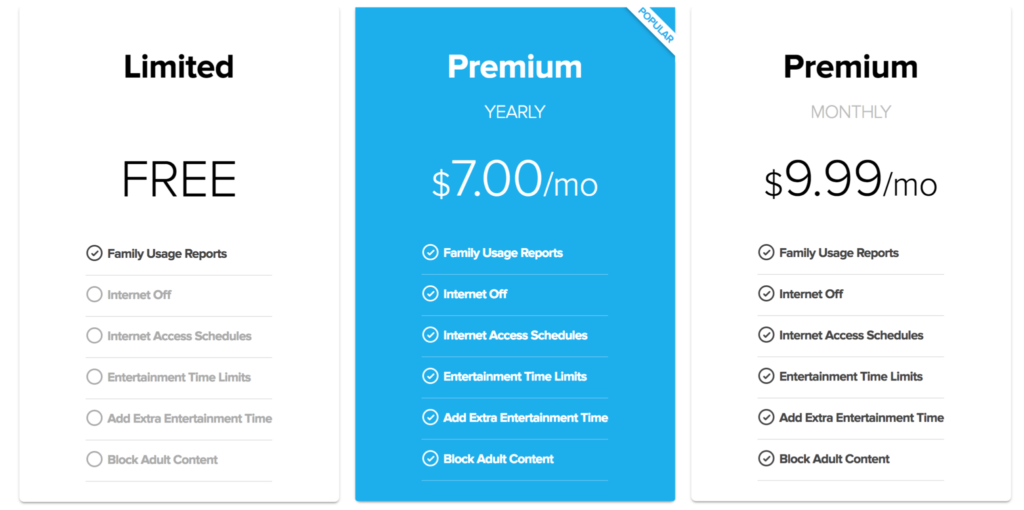
    Speaking of cost, you can download the unGlue app for free and start monitoring online time right away. If you want to set up and use the other features you can subscribe for $9.99 per month or $84 per year. Both subscription options include full-featured access to unGlue. For a limited time, you can subscribe for 30% off.


  • unGlue is a Great Way to Teach Your Older Kids Screen Time Management

    unGlue is a Great Way to Teach Your Older Kids Screen Time Management

    *unGlue is FamilyTechBlog.com’s latest affiliate

    UPDATE: You can use the promo code “SAFE10Off” to save 10% when you subscribe to unGlue!

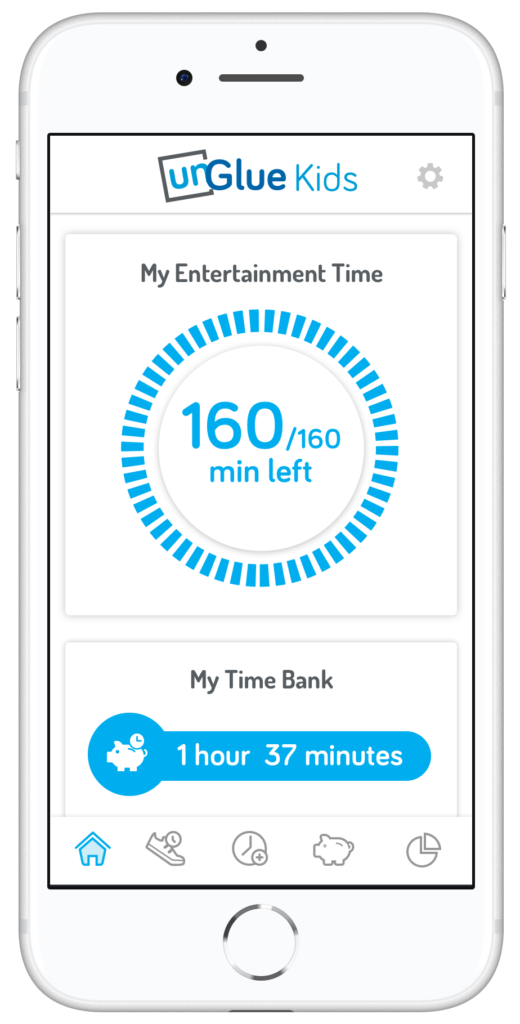
    The most common concern among parents when it comes to tech use is that their kids spend too much time on their screens. There are plenty of options out there to help you monitor and limit the amount of time spent using tech, but unGlue is one of the first ones that allows you to put the control in your kids’ hands. The advice of the FamilyTechBlog has always been to help your kids know that you are on their team when it comes to internet safety and digital health. What better way to partner up than to give them choices as to how they spend their internet time? UnGlue lets you do just that.


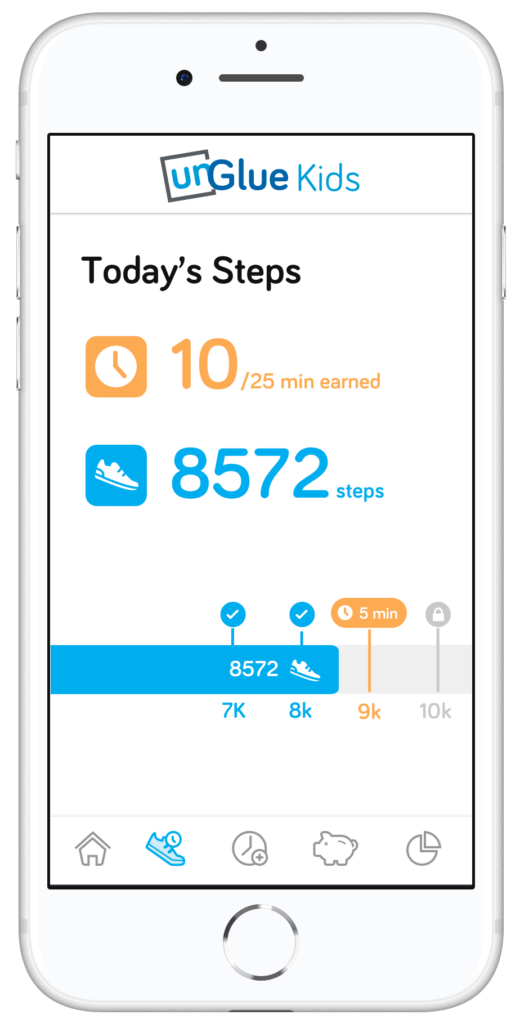
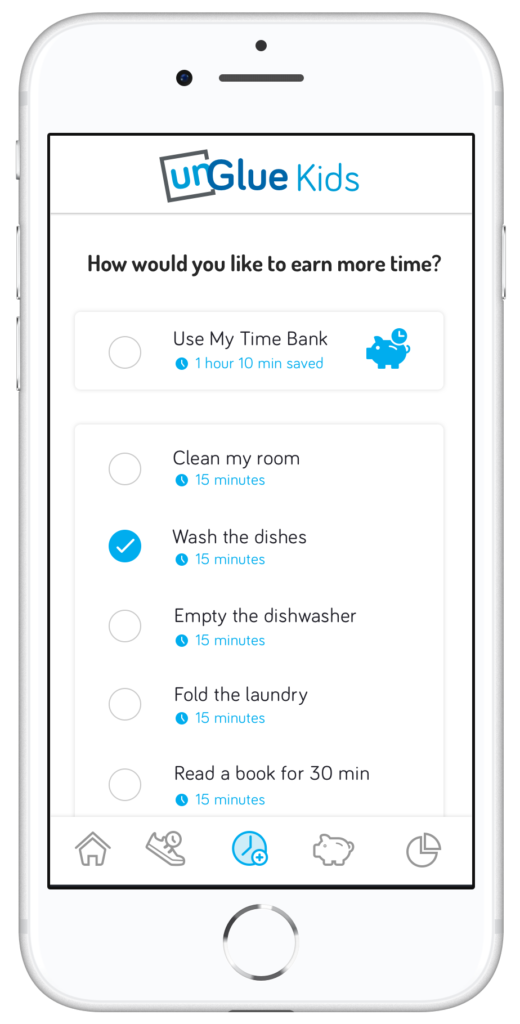
    unGlue’s features include an adult content filter, monitoring online time, trading steps or chores for more time, entertainment time rollover, and screen time scheduling. The best part is that most of this activity can be done in the kid’s version of the app. The parents set the limits but then the kids get to decide how they use their time and even how they can earn even more time. Rollover allows them to save up some of today’s time to use tomorrow if they’d like.

    How it Works

    At home, unGlue works through your wifi. You install software on your main home computer (only works while turned on) and it mirrors your router traffic to see the web activities on the devices you have set up. While on the go, unGlue uses a VPN to keep track of what is being done online. These methods mean your time is managed everywhere you go. You can even set up guest access in your home. If you don’t have a home computer to set up unGlue on, they have a device called the unGlue Puck that will only cost you $30.

    Speaking of cost, you can download the unGlue app for free and start monitoring online time right away. If you want to set up and use the other features you can subscribe for $9.99 per month or $84 per year. Both subscription options include full-featured access to unGlue.

    What Parents Should Know

    Managing screen time can be a challenge for people of all ages. The best way to ensure your kids have a good attitude about the time they spend online is to start teaching them young and to lead by example. Track your own screen time and set some limits for yourself. This will help your kids see that you are as committed to a healthy digital attitude as you are asking them to be. Using unGlue is simple and is an especially good option for those of us with older kids. Other options just monitor our kids and give us the option to turn the internet on and off at will and on a schedule. That’s a good way to manage screen time for your younger kids but studies show that our older kids need guidance and boundaries but not overbearing rules and regulations.

    Our hope is that the resources we partner with for parents can each bring a unique approach to your digital boundaries strategy. In my opinion, unGlue is the choice for parents of older kids who are ready to start managing their own time online. The option to earn more time through activity and chores adds another element that teaches your kids lessons they’ll have to continue to learn as they grow older. Download unGlue now and start monitoring. I think you’ll find it useful enough that you decide to subscribe in no time.

  • Google Has Taken Away Chromebook’s Native Parental Control Solution

    Google Has Taken Away Chromebook’s Native Parental Control Solution

    What is “Supervised User?”

    I wrote all about your parental control choices for your kids’ Chromebooks a few months ago:

    “Supervised User is an account based system that’s built into the Chrome browser. It allows you to set filters, monitor sites visited, prevent installation of apps, turn on safesearch, and change settings. You do have to use blacklists or whitelists to block websites, there is not an automatic filter built in…”

    This wasn’t a foolproof solution but it was something that could give parents a head start on protecting their kids while they use the computers their schools have given them. Supervised User, however, has been discontinued so that they can focus their attention on another “parental control option to be released later this year.” Having received several calls from parents and principles this past year asking me to help them teach parents about the controls available, I know the need for Chromebooks to be safe while kids are online. Unfortunately, the simplest, most obvious solution is no longer available. At least for a while.

    From “Google Chrome Help”

    But There Are Solutions!

    Mobicip

    For a full-featured filter option, consider Mobicip. One of the only full-service filter and monitoring apps for Chromebook, Mobicip offers a plugin that you can download from the Chrome app store. Mobicip will give you customizable filters, time limit controls, and usage reports and its pretty easy to set up. You just download the extension from the Chrome app store and then log in. It takes you through the setup steps and lets you set your desired filter levels. Once it’s all set up you can make changes from anywhere using their web-based controls dashboard. Their SUPPORT page has good How-To resources to walk you through the process.

    If you want more controls than the Supervised User option gives you then Mobicip is a pretty good choice. It’s $39.99 per year for all of the features mentioned above for up to five devices. If you are going to need to protect more than twenty devices (I’ve met families with upwards of 30) then you’ll have to get a quote for their “Enterprise” option. Mobicip is a good option and will give you quite a bit of control.

    Accountable2You

     This accountability software doesn’t block content. This software will keep an eye on what’s being viewed and then red flag and report anything that it deems inappropriate. This allows you to more easily see when something questionable has been viewed. Otherwise, you’ll spend time sifting through link after unrecognizable link to find something that may be naughty. You can even set up Accountable2You to send you a text message when an inappropriate site was accessed. The software works across all of your devices including Chromebook and is $6.99 per month for six devices and $9.99 per month for twenty devices. They have easy setup instructions on their SUPPORT page and have excellent customer service. (NOTE: Accountable2You just released their lates iOS app that will cover every browser used on an iPhone or iPad. One of the first accountability solutions of it’s kind.)

    Use SOMETHING!

    I advise against waiting for Google to release a different option. Please set something up and do it soon. Kids are using their computers for much more than school work and there is more content showing up every day that would prey on your children’s innocence and even their safety. A Chromebook is basically a machine built only to run the internet. It has little to no other use. Pretending that it’s safe just because the school issued it is foolish. Use one of the affiliate links above and set up a solution. I wouldn’t recommend something I don’t or wouldn’t use myself.

  • How YOU Can Keep the FamilyTechBlog Alive

    How YOU Can Keep the FamilyTechBlog Alive

    We are not at risk of shutting down. We do, however, have hopes of becoming more and more affective in reaching families with the latest internet safety and family tech news. We are writing several articles a week and producing podcasts, tutorial videos, and other resources for you to use as tools to keep your family safe online. Offline we also reach out to schools, police departments, churches, and other organizations with internet safety workshops. We often don’t charge for these workshops because the groups we are working with wouldn’t be able to have us in if we did. This means our greatest resource is you, our reader/viewer/listener.

    There are several ways to support this blog. The easiest and most helpful to you is to use one of our affiliates. Accountable2You is a great accountability software resource, NetNanny is a filter that we recommend, and MobiCip is another, affordable, filtering and reporting option. Another way to help us out while helping yourself is to buy our book, “What’s in Your Pocket? A parent’s guide to protecting your children online.” The book is only $10.50 from this site and we’ll ship it the day you order it. It’ll really help us out while giving you the confidence and knowledge you need to protect your kids online. Finally, you can partner with us directly through a couple of ways, fist of all is Patreon. Patreon.com/becausefamily is where you can sign up to support our blog and podcast and be listed as a partner in the credits of our video and audio resources. You can also donate a special gift using Square or Paypal. Sharing our articles is also a wonderful way to show your support. Help us spread the word.

    Our vision is to reach as many families as we can with informative and relevant information to keep them up to date on the digital world their kids are growing up in. This blog and the podcast is and always will be free to the reader and listener but it isn’t free to produce. Your gift and the use of our affiliate links keep us writing and recording so that you and the parents you know can have more tools that you can use to keep your families safe.

    Thanks for your partnership and for putting up with this plea for support…now to your regularly scheduled tech safety information.

  • Protect Your Whole Family for A Buck a Month with Net Nanny

    Protect Your Whole Family for A Buck a Month with Net Nanny

    I recommend two major tools for protecting your children online. Accountability software and an internet filter. You know about our connection with Accountable2You but now I’m excited to have partnered with one of the best internet filter options out there, Net Nanny. The best part is that for the next couple weeks, they’re offering their best deal at an even bigger discount, %35 off.

    What is Net Nanny?

    Net Nanny is an internet filter and time management software. With customizable filters, remote management, and filter reports it’s one of the best options on the market.


    You create your admin account and can set up everything from there. With different users you’re able to customize your filters depending on who you’re protecting. Social media monitoring will report cyberbullying, sexting, privacy concerns, and any unexpected contacts by potential predators.

    Internet filters are critical for protecting your children and teens from unwanted content online. There are, however, ways to get around many filters. Some of the most common ways are image searches, i.p. address lookups, and proxies. These things are all problems for some filters because of the way that filter works. Many filters use the name, address, or metadata (informational tags built into web pages) to know if the content on the site is inappropriate. If the site is one that is trying to engage young users, they can often hide their content with unrelated metadata. They can also put their sites behind something called a proxy. The proxy will disguise the address and i.p. of the site so a filter doesn’t know what kind of content is on it.

    Net Nanny can’t be fooled so easily. Their system’s specialty is the ability to read the content on the page in real time to determine whether or not the site contains adult images or language. This allows them to block web pages no matter how you get to them. If you have younger kids it may not seem as big of a deal to have such a foolproof system. Unfortunately it’s getting harder and harder to protect them from content that may try to get through. If, however, you have caught your teen or child looking at something inappropriate you will definitely want to equip your computers and devices with the best filter software available. I think Net Nanny is one of the best.

    If you click the link you can sign up for their “Family Protection Pass.” A year of access to Net Nanny for just $60. That’s 12 bucks a month to cover up to five devices. $.99 per month per device. If you have more to cover you can get their next level to protect 10 devices for $89.99. There is also an option for coverages for 15 computers, smartphones and tablets for $119.99. Whichever option you choose, the link below will include us as affiliates and contribute a portion of your payment to BecauseFamily. This will help us continue to do free workshops and educate parents on how to protect their families online.


  • VIDEO: FACEBOOK LIVE Q&A

    VIDEO: FACEBOOK LIVE Q&A


    Circle, Accountable2You, YouTube Kids, Young Kids and Internet Safety. All this and more in this Facebook Live video. This #givingtuesday live video was a great way to meet parent’s needs right where they are. Be sure to visit BecauseFamily.org/partnership to learn more about donating.


  • Accountability Software you CAN afford!

    Accountability Software you CAN afford!


    Accountability software has been around for a long time. I remember installing CovenantEyes in bible school and using x3watch on my first smartphone. It’s been a reality in my life for a long time. Your strategy for protecting your children or yourself online isn’t complete without accountability software. It’s a must have. I think Accountable2You is the best “bang” for your buck. Here’s why. (more…)