If you have an accountability software and/or a filter installed on your kids’ iPhone, iPad, or iPod you’re wasting your time unless Safari is also disabled. You will want to disable the ability to download new apps as well. In this video tutorial I explain why you’ll want to take these critical steps and walk you through the steps themselves. (more…)
Step one of the BECAUSEFAMILY S.A.F.E. plan is Set Up. Setting up the parental controls on your kids devices is the beginning of this important process. If you need to set up an iphone or ipad this video will walk you through the initial setup of the restrictions. This is a video tutorial available for subscribers. Subscribe below… (more…)
It happened a few times while I was a youth pastor, a student in my youth group said something online about their employer on social media and lost their jobs. Too often I heard complaints about workplaces and bosses. In reality these teenagers seemed to just be whining about everything being someone else’s fault. Well, when it comes to employers firing you from something you said online you may be surprised to learn that your first amendment right to free speech doesn’t apply to your employer.
Free speech, as mentioned in our Bill of Rights, exists to protect you from retaliation from the Government when you speak out in disagreement. It doesn’t apply to calling out your supervisor, Jeff, for being dumber than you and a bad boss. Apparently legitimate complaints about work conditions or problems at work mentioned on social media are protected, but negative “vaguebook” posts about employers or customers and pictures that shed the company (or it’s employees) in a bad light can legally be grounds for firing.
If You Wouldn’t…Don’t!
More and more employers look at a potential hire’s social media accounts when deciding if they’ll employ them. Your teen needs to know that what they post online, that song lyric that makes them sound depressed all the time, the nasty comments about the boss at their last job, or even the pics from that night “out” last weekend can come into play when they’re looking for a job. This also applies while they’re trying to keep their job.
Weshould help our kids understand that social media is a public place. Everyone can see what you post online and there are often consequences to being too public with your thoughts. If you wouldn’t stand in the middle of a crowded room and yell, “My boss is stupid and doesn’t care about his employees” you shouldn’t post it online either. This sounds like common sense but your teen may not be able to think that far ahead during this time in their adolescent brain development. I recommend a conversation about this with your child when they get a job. Use this chance to remind them that what is posted online stays online and that they can’t just say whatever they want. Anonymity is a myth and it’s our job as parents to help our kids understand that.
Private browsing has been around for a long while now.
Whether incognito mode, private mode, or InPrivate, there has long been a way to visit whatever sites you’d like without worrying about being tracked or accumulating a history of sites visited. Mozilla has released a new browser called “Focus” that is designed to allow users to browse privately. The idea is to keep advertisers from storing information on your computer or phone and using it to target their ads while you surf the internet. This can be a good thing, but it’s important to understand some risks involved with private browsing.
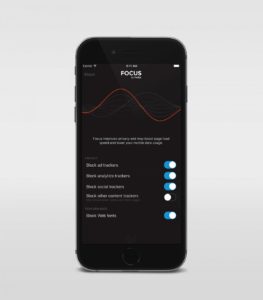
Focus is designed to block ad trackers, analytics, social trackers, and can seek out and block other trackers as well. It can also integrate into Safari on ios (the ios standard browser) and Firefox on your computer. After downloading the app you just open it and begin browsing, searching (on Yahoo,) or surfing as needed. There are no extra tabs or any bells and whistles at all but when you are done you just close the window with the “Erase” button and start again at the first screen. All the data is gone at that point. Like you were never there.
What Parents Should Know
While I am all for the battle for internet privacy and freedom from being tracked by marketers, private browsing presents a major problem when trying to protect our kids from inappropriate online content. Keep in mind that a popular name for private browsing is “Porn Mode.” The ability to view sites without anything being stored on your computer, including a history of your surfing habits, is, of course, a way for our kids to view adult content without us knowing.
Part of setting protections for your kids on their smartphone or tablet is turning off the ability to install a different browser. If you have installed an accountability or filtered browser then a new way to surf the web will completely undermine your attempts to protect them. While on the computer, filters like NetNanny will continue to block sites and accountability software such as Accountable2You will continue to report (though, with less detail) inappropriate activity. Even in private mode. While on mobile devices, however, especially ios devices, the accountability and filter app should be the only browser available to our kids.
“the coffeehouse, the bar, the mall — a public space for relaxing, socializing, sharing ideas, or goofing off.” –TechCrunch
Your kids are finding an online version of that public space and it’s in an app called Houseparty. Houseparty is a group live “hangout” or video chat app and it’s been increasingly popular in high schools since May. This app provides a way for teens to connect with friends away from the pressures of school, work, or even parents. It gives them that “third place” to unwind. It gives them an opportunity to be social, but is it really social?
“Despite the positive impact of emerging communication technologies on scientific research, our results provide striking evidence for the role of physical proximity as a predictor of the impact of collaborations.” – Harvard Medical School
Relationships are better built in person. More and more research is showing that time spent near your friends is more important even than time spent talking with them. While video chatting allows for group conversation, it doesn’t allow for the mannerism cues and continuous turn taking. (Bejing Normal University) To say that using a video chat to build relationships is good for our kids, or at least better than nothing, is not really accurate.
How It Works
The Houseparty app uses your contact list to automatically log you in with up to eight friends who are online when you open the app. You don’t set up or invite people to conversations, it just puts you in a room to hangout with whoever is on. So using your contacts list ensures that you’re hopefully only chatting with friends. You may, however, have the contacts of some folks you aren’t interested in chatting with. There is a “stranger danger” feature that will alert the user if someone joins the chat that isn’t on their contact list. This is a pretty good feature.
What Parents Should Do.
I think this app is trying to get a lot right. While there can always be concern with video chatting, simply because anything created with good intentions can easily be used to do something inappropriate. Similar to the AfterSchool app, I would say Houseparty is something that parents should be aware of and talk to their kids about but I wouldn’t advise uninstalling on sight, necessarily. Whether or not your are ok with your children building their relationships through online communication is up to you.
If you have been heeding my advice you have done your best to keep your kids away from Snapchat. Instagram has launched yet another update and this one includes dissapearing pictures and videos in their direct messenger and the beginnings of their soon to be released live video feature. What this means is, if your kids have Instagram, they now basically have Snapchat. (more…)
Social media is a fact of life. In fact, our kids are often more social on social media than they are in the “real world.” I hesitate to say the real world because for your kids, their life online is their real life as well. Use these tips to help you be as diligent as you can while protecting your kids on their social media accounts.
1. Do Use the Same Social Media Your Kids Use
Even if your only have this account to be able to see what your kids are doing it’s a good idea. I call this a “stalker account.” That sounds more harsh than it is. It’s just a good idea to be able to see what they are posting. This method is less intrusive than taking their devices and looking at their accounts. If your teen argues with you and says they don’t want you to follow them (or unfollows you themselves) you can always ban their use of that social media site and I recommend that you do.
Some apps come out and there is no way to know the intentions of the developer. AfterSchool is not one of those apps. The vision behind this app is to turn online activity into real world interaction. In a good way. AfterSchool is an app that lets students connect with other teens in their school. Here’s what their site says about what you can do on the AfterSchool app:
“After School’s innovative features channel students toward making new connections and friendships, and engaging in positive offline activities. …On After School, students can share openly and honestly, without fearing judgment or ridicule. They choose whether to reveal their name or remain private.” – afterschoolapp.com/about
While these apps allow you to stay private, a lot of students choose to make their identities known. Most of the “testimonials” from teens about why they like these apps speak to being able to hear what people really think about you. They talk about everyone being open and honest on the app. Honesty and openness is good but if you are saying “what you really think” about someone, that could cause problems in the teen world.
Yes, the creators of AfterSchool designed this app to ban bullying and hateful behavior but I still say that as a parent, we need to understand how this app works. What it does and what our kids are using it for. If they are wanting to meet up, what are they meeting to do? The app has built in features to block explicit content but there are ways around those filters. They also claim to have live moderators who keep cyberbullying and inappropriate posts to a minimum. While this is all great, there is no better moderator than mom and dad talking to their teens about what they’ve seen on the app.
Even the creators of AfterSchool understand this and so they’ve put together an extensive guide for parents. I’ve included a link to their PDF below. I recommend you go check out the site. They boast that teens in 80% of US High Schools use AfterSchool. That means your kids are most likely using it to. You should read this:
I’m often asked what my “diagnosis” is for a family’s internet safety. I usually have them fill out a one page form and it tells me what I need to know to give them the basic steps I would take to help them protect their family. Sometimes, though, parents want to make the most minimal changes possible. Maybe it’s a budget/financial thing, maybe it’s just time, or it’s a lack of true motivation. I don’t know. What I do know is that there are two major tools that no family should be without when it comes to being protected online.
The first tool is a filter.
A filter blocks content that you don’t want accessible on your device. These filters are usually specific to a browser and so you should keep track of any new browsers that may have been installed on a device you are trying to protect. I recommend that you use filter that “reads web content in real time.” This means that instead of just looking at the address or ip of a site, they are actually using the content to decide if the page should be blocked or not. This is critical because of a workaround called proxies, that can bypass filters that only look at the web address or ip.
When choosing a filter you get what you pay for. The more controls and user friendly the UI (user interface) the more it’s going to cost you. You usually pay for the filters annually or monthly. There are also filters that come built into hardware that you may use. Some routers are now including basic filters in their “back-end.” Or something like circle will allow you to set up controls on any device using your wifi.
“Giving your kids a smartphone without a filter is like putting them in an adult book store and saying, ‘Be good!’ It’s a bad idea.” -Joe White
The second tool is accountability software.
Imagine a high security building. They have the laser grids on the doors and windows and an alarm system that will go off if someone tries to break in. Security guards patrol outside to keep an eye out for any possible intruders. With all of that work to keep anything unwanted from getting in you’d think they’d be satisfied, right? No, they’re not. You will always see security cameras in high security buildings. This is because things can slip through. This is why I always recommend accountability software.
Click to Sign Up for Our Favorite Accountability Software
Accountability software will identify any unwanted online content and send a report to the person set to be notified. Some even send text messages immediately when something was accessed. This is the security camera inside your online safety net. It’s another layer of protection that will allow you to see when something you aren’t expecting slips through your safeguards. Conversations with your kids are more important than any software or hardware you can use and accountability software allows you to know exactly what conversations you need to have.
Not either-or, both-and.
The answer to “what is the ONE thing I should do to protect my family online” is to do TWO things. Install accountability software and use the filters built into your operating system. If you have had some problems with catching someone viewing things they shouldn’t you may be concerned they would go looking for it again. In this case I recommend purchasing and downloading a more feature filled filter software.
These steps are really just the beginning. Obviously staying informed on what is happening in your kids’ digital world is critically important which is why an annual membership to this site would be a major help. Click to go register.
Twitter is working to decrease the amount of “hate speech” that happens in their social media site. They have made it possible for victims and bystanders to report hate speech that fits the following description:
“specific conduct that targets people on the basis of race, ethnicity, national origin, sexual orientation, gender, gender identity, religious affiliation, age, disability, or disease”
Twitter didn’t stop there, though. They added something I’ve wanted social media to make available a long time ago. They now allow the filtering out or “Muting” of notifications that contain key words, phrases, and even emojis, that you consider offensive. While you may still see these posts in your timeline, you won’t be alerted to the post even if you are tagged in it.
These major adjustments are seemingly more and more necessary due to the commonality of bullying on social media. Twitter has been in the news many times this year for different celebrities shutting down their Twitter accounts after being victims of racial or sexist bullying.
Another neat thing about the new update is that hate speech reports are handled by human moderators, not algorithms. This means that each case will be handled by trained humans and not some bot that automatically shuts down an account after too many reports.
What Parents Should Know
This update is significant because it’s anti-hate speech and anti-cyberbullying. The way young people treat each-other online can be quite volatile. It seems that the apparent anonymity of social media gives kids a sense of invulnerability and they post whatever they think. Let’s be honest though, this isn’t just kids. These changes are happening because the problem has gotten bad enough that even some of our most loved celebrities are experiencing the backlash.
Lets hope more and more social media sites begin to add these features. This will help us protect our kids and give them another way to protect themselves.


 More and more employers look at a potential hire’s social media accounts when deciding if they’ll employ them. Your teen needs to know that what they post online, that song lyric that makes them sound depressed all the time, the nasty comments about the boss at their last job, or even the pics from that night “out” last weekend can come into play when they’re looking for a job. This also applies while they’re trying to keep their job.
 While I am all for the battle for internet privacy and freedom from being tracked by marketers, private browsing presents a major problem when trying to protect our kids from inappropriate online content. Keep in mind that a popular name for private browsing is “Porn Mode.” The ability to view sites without anything being stored on your computer, including a history of your surfing habits, is, of course, a way for our kids to view adult content without us knowing.
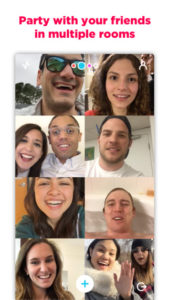 The Houseparty app uses your contact list to automatically log you in with up to eight friends who are online when you open the app. You don’t set up or invite people to conversations, it just puts you in a room to hangout with whoever is on. So using your contacts list ensures that you’re hopefully only chatting with friends. You may, however, have the contacts of some folks you aren’t interested in chatting with. There is a “stranger danger” feature that will alert the user if someone joins the chat that isn’t on their contact list. This is a pretty good feature.