Blog

  • Google Has Proof they’re Finally Taking App Store Security Seriously

    Google Has Proof they’re Finally Taking App Store Security Seriously

    The Google Play app store has been known to be a bit of the wild wild west. There were copycat apps, apps with adult content, and apps with malware or spyware. Google now has some proof that they’ve been hard at work putting an end to all of the nonsense. In a recent report, Google said they removed more than 700,000 malicious apps last year. That’s 70% more than they removed in 2016. They say that most of the removed apps were copycats and many contained pornography or extreme violence, both of which are against the Play store policies. Most importantly of all, of the apps that were removed, 90% were rejected before they even made it to the store. This means they were never able to deceive users.

    This is very good news for Android users. It means that Google’s algorithms, AI, and “machine learning, techniques are working well and keeping apps that could put your security at risk from ever being installed on your phone. The openness of Google’s play store was always a major reason I wouldn’t own an Android phone. This update, as I said, is proof of how serious Google is taking security. There is still, however, a major risk associated with the use of an Android phone. It is a popular reason some folks prefer Android even though it is against their recommended usage policies. No matter how secure the Google Play store becomes, you aren’t protected if you are downloading apps and other files from other sites and apps. “Sideloading” apps is not recommended by Google and can put your security at risk.

    What Parents Should Know

    I spoke with a mom of a young teenager a few months ago about some strange stats on her monitoring software on his Android phone. It turns out, while she had turned off app downloads to keep him from installing adult apps or time wasters, he had been finding other ways to install apps on his phone. The Google Play Store removing unsecured and malicious apps can keep your kids safe from some of the dangers out there but if they are installing apps in other ways, you’ve lost all confidence that they’re protected. You should have some sort of monitoring software installed. Use something like unGlue, Accountable2You, or Circle to monitor what your kids are doing on their phones and keep an eye out for apps that don’t seem legit.

    A good way to know if they are sideloading apps is by looking for the term “APK Installer” in their recent activity. If you have the phone set to ask for permission or to disallow app installation and you see the “APK Installer” running, they may be sideloading. My advice is to keep an eye out for this and if you see it, ask them about what apps they are using. Maybe even have a look at what is installed on their phone. If you don’t recognize the app, do some research and uninstall it if you don’t approve. Most importantly, talk to your child about the importance of only downloading approved apps from the Google Play store. Let them know is as much about internet privacy and security as it is keeping them away from inappropriate content. Google is doing their part by monitoring and managing their app store, you can do yours as a parent by keeping an eye on what your kids are using on their Android device. 

     

  • Bitmoji Selfies Could Lead to Facial Recognition on Snapchat

    Bitmoji Selfies Could Lead to Facial Recognition on Snapchat

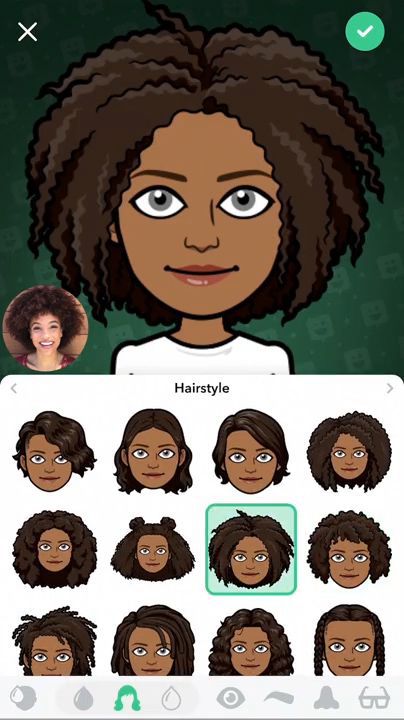
    Snapchat’s new “Bitmoji Deluxe” allows you to take a selfie and place it right next to your Avatar while you create or edit it. This lets you create your Bitmoji to look as much like you as possible. It starts with Snapchat asking if you’d like to take a selfie. Once you do, you will see an image of your actual self in the bottom corner the entire time you are editing your cartoon self. This isn’t a surprising new feature since Snapchat has teased that they may be using selfies to automatically create your Bitmoji in the near future. Facial recognition is becoming a mainstay in mobile technology so it’s only a matter of time before it works its way into social media.

    What Parents Should Know

    Snapchat is and will remain on my uninstall list. Bitmoji has never really been one of the reasons I don’t like Snapchat but I will admit I don’t “get it.” As parents, we have to keep an eye on our kids’ activity on Snapchat. One of the biggest concerns of educators, psychologists, and tech safety experts alike is the tendency for our young teens to filter their online identity. Even, sometimes, to the point of creating separate or even secret social media accounts for different followers or friends. Using a selfie to better create your Bitmoji avatar isn’t necessarily a sign of unhealthy behavior. I would, however, continue to pay attention to my teen’s conversations across all social media. Once facial recognition becomes a viable part of our social media cameras, that’s when I would consider not allowing my kids to use that service until they’ve reached an even higher level of maturity.

  • Botley the Screen Free Coding Ed Robot

    Botley the Screen Free Coding Ed Robot

    Coding education was one of the hottest topics at CES2018. The conversation was led by toy makers, psychologists, media producers, and educators alike. They all agree that if your children aren’t learning the basics of programming logic, they’re not laying the foundation that they need to function in the future they will be living in. The other major highlight of CES was the problem with too much screen time. Kids are spending too many hours every day looking at their screens and it isn’t good for their development. These two conversations pose a serious problem. How can our kids learn to program computers if they don’t use any screens? Well, there were some pretty creative answers to that question at CES and BOTLEY was probably my favorite one.

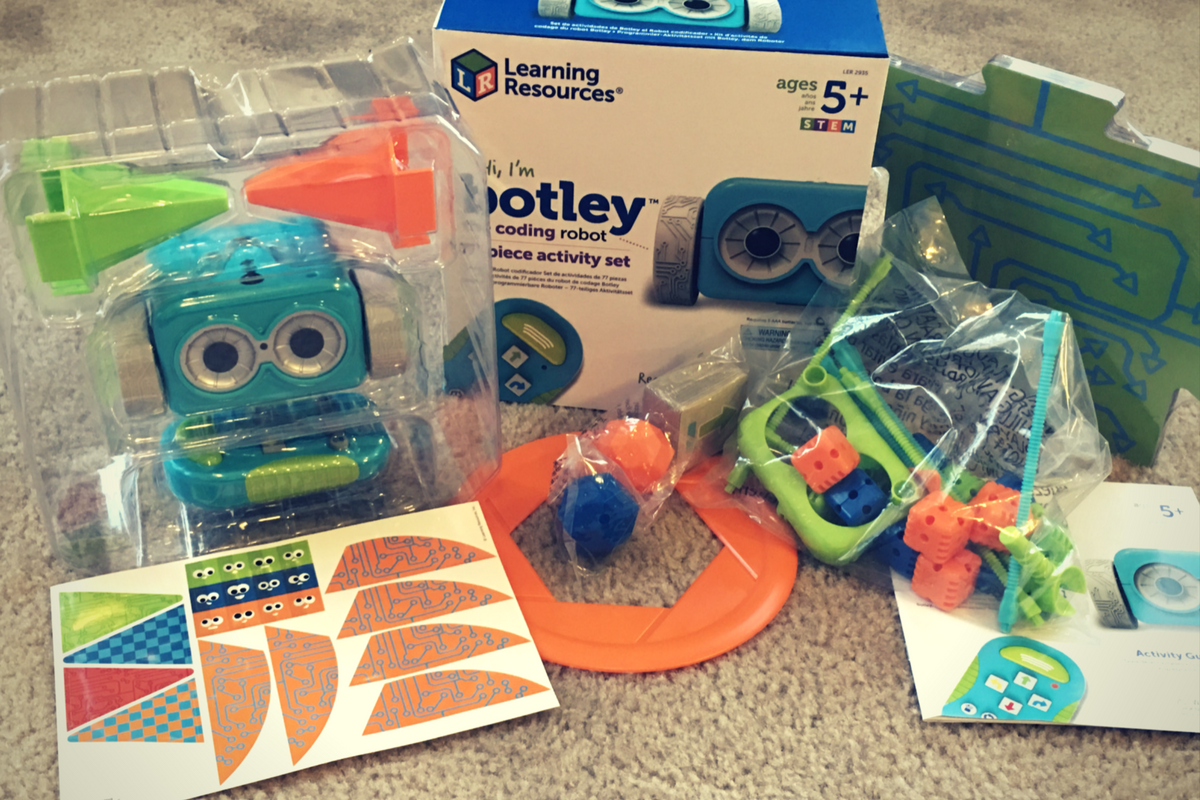
    Botley is a screen-free coding education robot. He can do up to 80 commands issued to him from a single remote control device. He has object recognition and awareness and can trace lines with the sensor on his “belly.” His basic 77 piece set comes with an instruction manual full of tips, tricks, and even a curriculum style guide to help parents set their kids up to learn from the beginnings of coding to more advanced sequences. Best of all, there is no app or software to program him. No screen needed at all.

    His kit contains toys for Botley to play with so that you can create games for him. Have Botley drive over a maze you create with the included puzzle tiles, have him bust through the wall you make from the blocks, or have him push a ball into the goal. All the games advance children through different techniques they can use to program Botley to complete different tasks. These techniques are the basis for the same programming tools used by professionals to create games, websites, and software.

    You can see more about my family’s experience with Botley in the video below. You can get Botley at learningresources.com and tell them FamilyTechBlog.com sent you.


  • unGlue is a Great Way to Teach Your Older Kids Screen Time Management

    unGlue is a Great Way to Teach Your Older Kids Screen Time Management

    *unGlue is FamilyTechBlog.com’s latest affiliate

    UPDATE: You can use the promo code “SAFE10Off” to save 10% when you subscribe to unGlue!

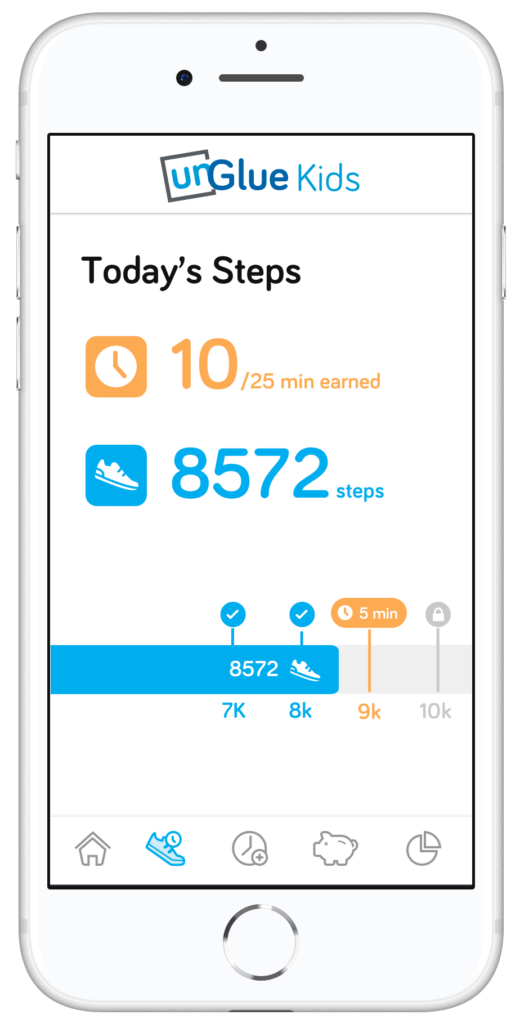
    The most common concern among parents when it comes to tech use is that their kids spend too much time on their screens. There are plenty of options out there to help you monitor and limit the amount of time spent using tech, but unGlue is one of the first ones that allows you to put the control in your kids’ hands. The advice of the FamilyTechBlog has always been to help your kids know that you are on their team when it comes to internet safety and digital health. What better way to partner up than to give them choices as to how they spend their internet time? UnGlue lets you do just that.


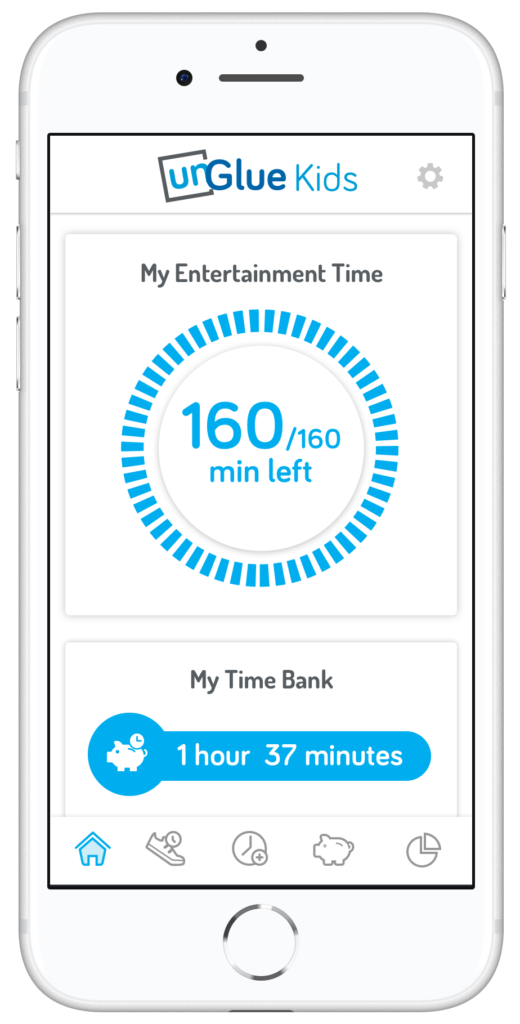
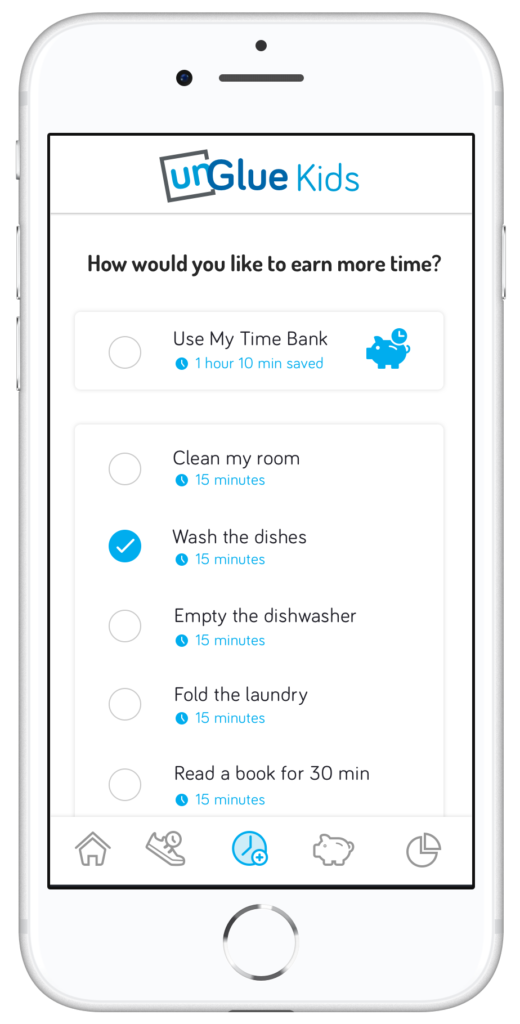
    unGlue’s features include an adult content filter, monitoring online time, trading steps or chores for more time, entertainment time rollover, and screen time scheduling. The best part is that most of this activity can be done in the kid’s version of the app. The parents set the limits but then the kids get to decide how they use their time and even how they can earn even more time. Rollover allows them to save up some of today’s time to use tomorrow if they’d like.

    How it Works

    At home, unGlue works through your wifi. You install software on your main home computer (only works while turned on) and it mirrors your router traffic to see the web activities on the devices you have set up. While on the go, unGlue uses a VPN to keep track of what is being done online. These methods mean your time is managed everywhere you go. You can even set up guest access in your home. If you don’t have a home computer to set up unGlue on, they have a device called the unGlue Puck that will only cost you $30.

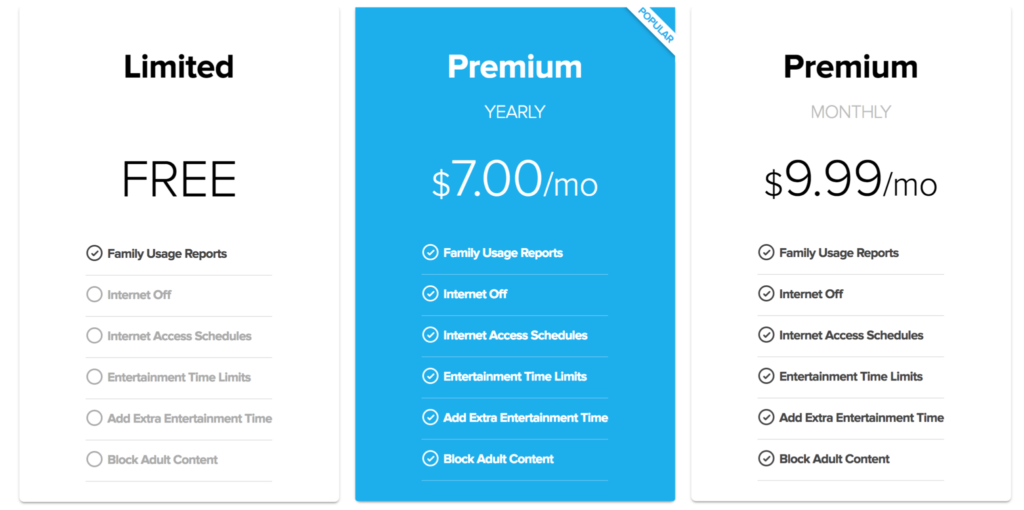
    Speaking of cost, you can download the unGlue app for free and start monitoring online time right away. If you want to set up and use the other features you can subscribe for $9.99 per month or $84 per year. Both subscription options include full-featured access to unGlue.

    What Parents Should Know

    Managing screen time can be a challenge for people of all ages. The best way to ensure your kids have a good attitude about the time they spend online is to start teaching them young and to lead by example. Track your own screen time and set some limits for yourself. This will help your kids see that you are as committed to a healthy digital attitude as you are asking them to be. Using unGlue is simple and is an especially good option for those of us with older kids. Other options just monitor our kids and give us the option to turn the internet on and off at will and on a schedule. That’s a good way to manage screen time for your younger kids but studies show that our older kids need guidance and boundaries but not overbearing rules and regulations.

    Our hope is that the resources we partner with for parents can each bring a unique approach to your digital boundaries strategy. In my opinion, unGlue is the choice for parents of older kids who are ready to start managing their own time online. The option to earn more time through activity and chores adds another element that teaches your kids lessons they’ll have to continue to learn as they grow older. Download unGlue now and start monitoring. I think you’ll find it useful enough that you decide to subscribe in no time.

  • Google’s “Be Internet Awesome” Wants to Help Kids, Teachers, and Parents with Digital Citizenship

    Google’s “Be Internet Awesome” Wants to Help Kids, Teachers, and Parents with Digital Citizenship

    More than three-quarters of school-aged kids in the United States use the internet every week. Much of that online time, for seventy-nine percent of kids, is spent on a smartphone. Much of that time is also spent at school. Kids curriculum is increasingly web-based and school is even issuing computers to kids younger and younger. The internet has long been a place for kids and teenagers to find entertainment and now with the necessity for online activity for school work screen time and global communication among our young ones is on the rise. This has been a cause for concern among parents, teachers, and school administrators alike. Google wants to help parents, teachers, and kids understand what a healthy attitude towards internet activity looks like. While at CES I was able to hear representatives from Google explain Be Internet Awesome and how it was developed. I thought it would be a great resource for parents and teachers alike.

    INTERLAND

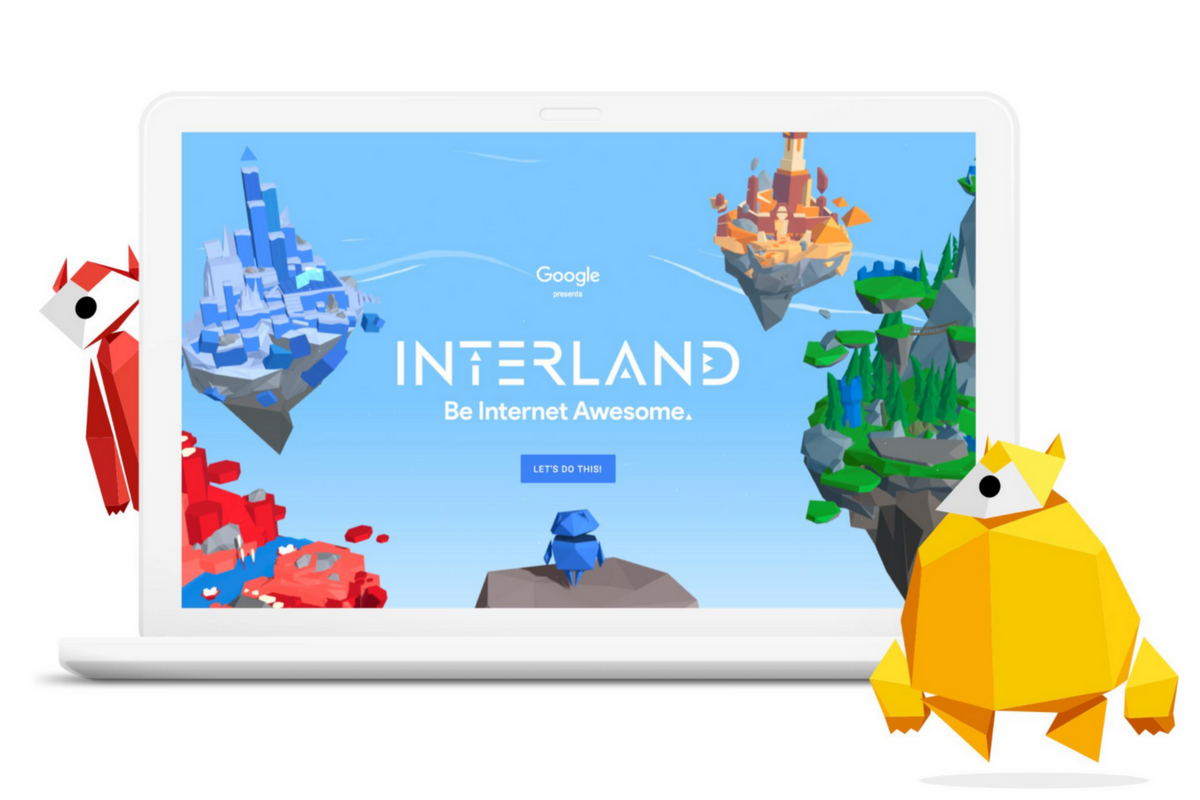
    “Kids can play their way to being Internet Awesome with Interland, an online adventure that puts the key lessons of digital safety into hands-on practice with four challenging games.” – beinternetawesome.withgoogle.com

    Interland is a gamified way of teaching kids internet safety and digital citizenship. You make your way through different levels that focus on different categories of your online life. You “report” cyberbullies and share kind words with online “friends.” The game is split into zones, Reality River is where you learn to recognize what’s real and what’s fake online, “Mindful Mountain” is where you learn how to think before you share online, “Tower of Treasure” will teach you how to secure your online activity with strong passwords and secure behavior, and finally “Kind Kingdom” is where you’re able to report those cyberbullies and speak kindly to friends you find online. 

    The games are fun and the characters are silly. The questions seem to be common sense but I know adults who, based on their social media behavior, probably wouldn’t score 10 out of 10. These games have good graphics and audio and they’re a simple and fun way to introduce your kids or students to proper online behavior.

    Curriculum

    The 5 part Be Internet Awesome curriculum is made for parents or educators to help kids go even deeper in their understanding of how to be secure, kind, and mindful when on the internet. By having kids analyze mock social media feeds and behavior they get a chance to think about what they learn about a person based on what they post online. Receiving fake phishing and spam messages allow kids to see what those messages look like and identify and report them easily. Recognizing bullies and how to report them is taught through group activities and clear, understandable definitions. Finally, the free 48 page PDF Curriculum, emphasizes the importance of finding an adult and talking about what they’ve experienced online.

    Pledge

    Finally, the pledge allows kids, teachers, and parents to summarize and agree to their stance on digital citizenship. This allows parents and teachers to get the whole family or class on the same page and hold each other accountable. A pledge is a good way to reemphasize what has been learned and highlight the importance of their commitment to be the best version of themselves online that they can be.

    What Parents Should Know

    I recommend you use this game and curriculum in your home if you haven’t already. Help your kids understand the dangers and concerns with the amount of time they spend online and encourage them to use their time as wisely as possible. Google has created a helpful and free tool for you as a parent or teacher to use and download as often as you need to. I say take advantage of it. If your family, like ours, has some specific rules about how you use the internet, interject them into this curriculum, using Google’s offering as a foundation for your internet safety plan and contract. Our kids will be spending more and more time on the internet as they grow. It’s important that their parents first, model proper citizenship for them, and second, take advantage of whatever resources we can to teach them how to treat themselves, their information, and others with respect on the internet.

  • Google Has Taken Away Chromebook’s Native Parental Control Solution

    Google Has Taken Away Chromebook’s Native Parental Control Solution

    What is “Supervised User?”

    I wrote all about your parental control choices for your kids’ Chromebooks a few months ago:

    “Supervised User is an account based system that’s built into the Chrome browser. It allows you to set filters, monitor sites visited, prevent installation of apps, turn on safesearch, and change settings. You do have to use blacklists or whitelists to block websites, there is not an automatic filter built in…”

    This wasn’t a foolproof solution but it was something that could give parents a head start on protecting their kids while they use the computers their schools have given them. Supervised User, however, has been discontinued so that they can focus their attention on another “parental control option to be released later this year.” Having received several calls from parents and principles this past year asking me to help them teach parents about the controls available, I know the need for Chromebooks to be safe while kids are online. Unfortunately, the simplest, most obvious solution is no longer available. At least for a while.

    From “Google Chrome Help”

    But There Are Solutions!

    Mobicip

    For a full-featured filter option, consider Mobicip. One of the only full-service filter and monitoring apps for Chromebook, Mobicip offers a plugin that you can download from the Chrome app store. Mobicip will give you customizable filters, time limit controls, and usage reports and its pretty easy to set up. You just download the extension from the Chrome app store and then log in. It takes you through the setup steps and lets you set your desired filter levels. Once it’s all set up you can make changes from anywhere using their web-based controls dashboard. Their SUPPORT page has good How-To resources to walk you through the process.

    If you want more controls than the Supervised User option gives you then Mobicip is a pretty good choice. It’s $39.99 per year for all of the features mentioned above for up to five devices. If you are going to need to protect more than twenty devices (I’ve met families with upwards of 30) then you’ll have to get a quote for their “Enterprise” option. Mobicip is a good option and will give you quite a bit of control.

    Accountable2You

     This accountability software doesn’t block content. This software will keep an eye on what’s being viewed and then red flag and report anything that it deems inappropriate. This allows you to more easily see when something questionable has been viewed. Otherwise, you’ll spend time sifting through link after unrecognizable link to find something that may be naughty. You can even set up Accountable2You to send you a text message when an inappropriate site was accessed. The software works across all of your devices including Chromebook and is $6.99 per month for six devices and $9.99 per month for twenty devices. They have easy setup instructions on their SUPPORT page and have excellent customer service. (NOTE: Accountable2You just released their lates iOS app that will cover every browser used on an iPhone or iPad. One of the first accountability solutions of it’s kind.)

    Use SOMETHING!

    I advise against waiting for Google to release a different option. Please set something up and do it soon. Kids are using their computers for much more than school work and there is more content showing up every day that would prey on your children’s innocence and even their safety. A Chromebook is basically a machine built only to run the internet. It has little to no other use. Pretending that it’s safe just because the school issued it is foolish. Use one of the affiliate links above and set up a solution. I wouldn’t recommend something I don’t or wouldn’t use myself.

  • Android FamilyLink is A Great Parental Control Solution, Albeit with One Major Flaw.

    Android FamilyLink is A Great Parental Control Solution, Albeit with One Major Flaw.

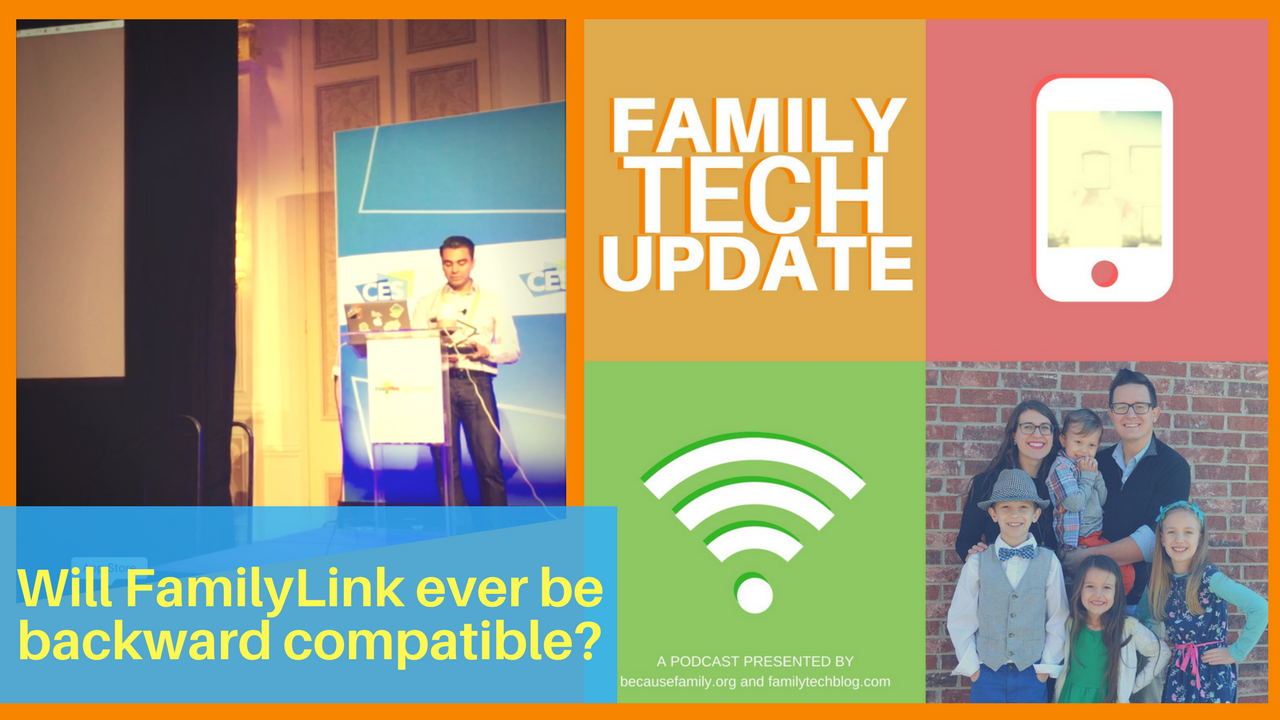
    I had the privilege to hear Saurabh Sharma – Sr. Product Manager with Google, speak on the abilities and development of Android’s parental control solution, FamilyLink. He covered many of the trends they were seeing in kids and families and how those stats encouraged their team to implement some full device control features on the monitoring system. As you can see in the video above, there are some pretty neat features in FamilyLink, including the ability to lock an entire device, not just the data connection. Also, time management and scheduling is a major part of the FamilyLink features. One of the coolest features spoken about at CES was the ability to use Google Home to control FamilyLink. Voice command was all the rage at CES2018 and Google’s parental control apps were no exception.

    The app on kids’ devices allows them to see exactly what their parents are seeing. App usage stats, app blocking, bedtime and offtime, and setting the Google’s content filter, “SafeSearch.” While the SafeSearch filter isn’t the most extensive and customizable content management tool, it is a good start, especially for your younger children.

    One Major Flaw

    When FamilyLink was announced ten months ago my first question was, “Can our kids use this on the older phones we’ve handed down to them?”  The answer is listed in the fine print on the Google FamilyLink homepage: “*Children can run Family Link on Android devices running Nougat (7.0) and higher, along with certain Marshmallow (6.1) devices listed in our FAQ.” This was immediately a problem for me since I know many families who use their older Android phones as the solution for their kids. It’s always been pretty easy to just hand down your phone to your kids when you get a new one. While there are many internet safety options available for Android, nothing works as well as an app developed by the same people who made your operating system.

    After hearing Saurabh Sharma talk about FamilyLink, I followed him out of the room as he headed towards his next meeting and I asked him about the possibility of making FamilyLink backward compatible with older phones. He replied: Making FamilyLink backward compatible is a “difficult problem but one we are committed to trying to solve.” So there you have it. While it’s understandably not an easy thing to fix, we are assured that it is on the team’s radar and something they’re working towards.

    Apple’s iOS has had native parental controls for a long time now. They’re pretty effective but haven’t been updated over the last several operating system upgrades. Hopefully, some time management and monitoring options can be added soon. Thankfully there are apps like Accountable2You and UnGlue to help with some of those needs. 


  • CES2018: Experts Say Parents Should Play WITH Their Kids More

    CES2018: Experts Say Parents Should Play WITH Their Kids More


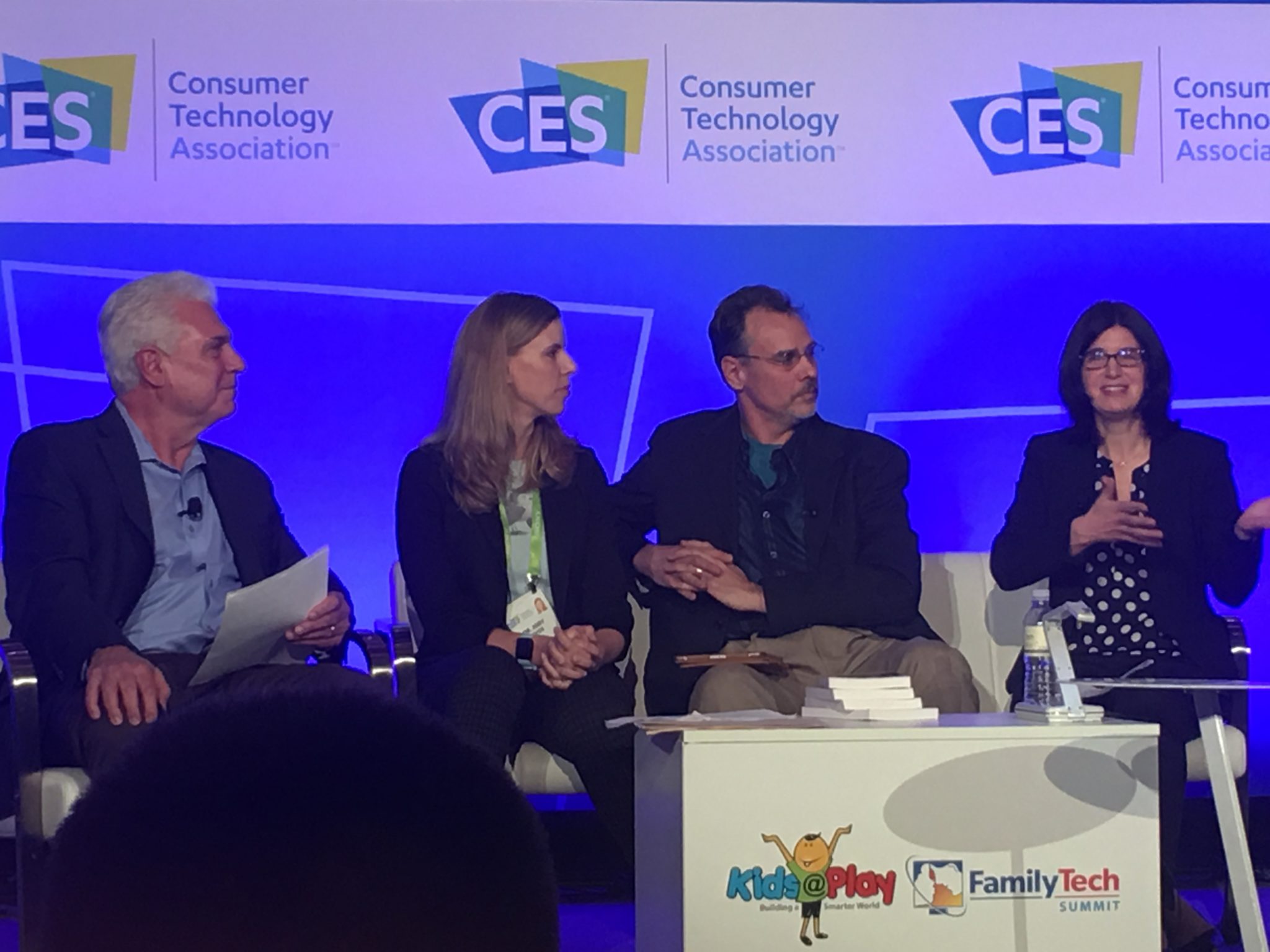
    There was a lot of conversation about playing at the CES2018 Kids@Play Family Tech Summit. Joining Living in Digital Times‘ founders and producers were inventors, developers, and psychologists. They were all there to discuss the importance of technology in the world we live in and the responsibility of tech developers to know how to create products that are helpful and not harmful. There were conversations about the amount of screen time that is acceptable for kids. There were many new tech gadgets that seek to teach kids about technology without requiring screen usage to do the educating. One of the main focuses of the day’s events, however, was playing. How much time should kids play and what can we learn from how they play? The day started with a panel consisting of a couple a renowned child/family psychologist, a psychologist responsible for Child Development and Learning at Mattel, the president of The Toy Association, and the Vice President of PBS Kids Digital.


    Play IS the “Secret Sauce.”

    Fred Rodgers said, “Play is the work of childhood.” Educators and toy manufacturers are taking this idea seriously. You will have noticed how more and more toys have some kind of educational element to them. This is no accident. The toy industry is taking note of the importance in play for a child’s development and education. The problem, as discussed in this panel at CES, is that many parents lack the ability to truly play and therefore, forget the benefit it has for their kids.

    “Play is how kids explore the world.” Sarah Dewitt – VP, PBS Kids Digital


    “Some parents see play as a luxury…we’re doing a lot of work to show parents the benefits of play.” – Dr. Jody Sherman Levos – Dir. Child Development and Learning at Mattel


    They say that the key is balance. In fact, I heard that word hundreds of time throughout the discussions that day. We have to work to maintain a proper balance. We should balance how busy kids are doing homework with a healthy amount of play. We also need to keep a proper attitude about how busy we, as parents, are and keep from being so busy we can’t spend time playing and exploring with our children. Parents are letting tech do more than it should do and play roles in their lives it was never meant to play. Erik Fisher, child/family psychologist said: “Tech isn’t the trouble. It’s time with your kids.” he also stated that “our kids are, in some ways, becoming guinea pigs.”

    We have used tech to teach our kids to read, entertain them, or even just keep our kids busy. The general consensus is that kids under two shouldn’t have much screen time at all and then they should be slowly introduced to toys and apps that are used mainly for educational purposes. Most importantly is that parents spend time playing with tech alongside their kids. Not only does this increase a parent’s awareness of the benefit (or lack thereof) of the device their kid is using, it also gives kids a sense of security that they can talk to you about the tech they love. This, of course, is always recommended by experts and by those of us at BecauseFamily. Imagine how easy it will be for your 13 years old to talk to you about their time on social media that day if they’ve been discussing their tech usage habits with you since they were four years old.

    The Takeaway

    Remember that kids don’t have to be inundated with technology to become the next tech giants. In fact, many west coast tech executives send their children to tech-free schools. While technology can add a layer to our kids’ play and education, it’s important that we talk to our kids about their play. Encourage them to be creative and color outside the lines. Remember what it was like to be a kid and allow them to mess up and do it wrong without negative consequences. Most of all, don’t let tech usage, even for educational purposes, outweigh the other areas of play that are so important for your kids.

  • CES2018: Media Day 2 Report

    CES2018: Media Day 2 Report

    This is the FamilyTechBlog report on Media Day 2 featuring highlights from the keynote address by Intel CEO Brian Krzanich that included an artificially intelligent band, autonomous cars, an autonomous helicopter, True View sports replays, Tony Romo, and the setting of a drone Guinness World Record!

    You can find more information about the market research report for your older teens HERE.

    Stay tuned to the blog for even more from CES 2018!